End Device Management (Withdraw)
Send a command to end device management in BizMobile Go!.
When the device runs the command, the management status changes to "Withdrawn" and the device is no longer managed.
If you are disposing of a device you own, or returning a device at the end of a lease or rental period, you can also use the "Wipe (Factory Reset)" command, which erases the data on the device.
When the wipe command is executed, the management status also changes to "Withdrawn", the same as after withdrawal.
1. Withdraw a device
-
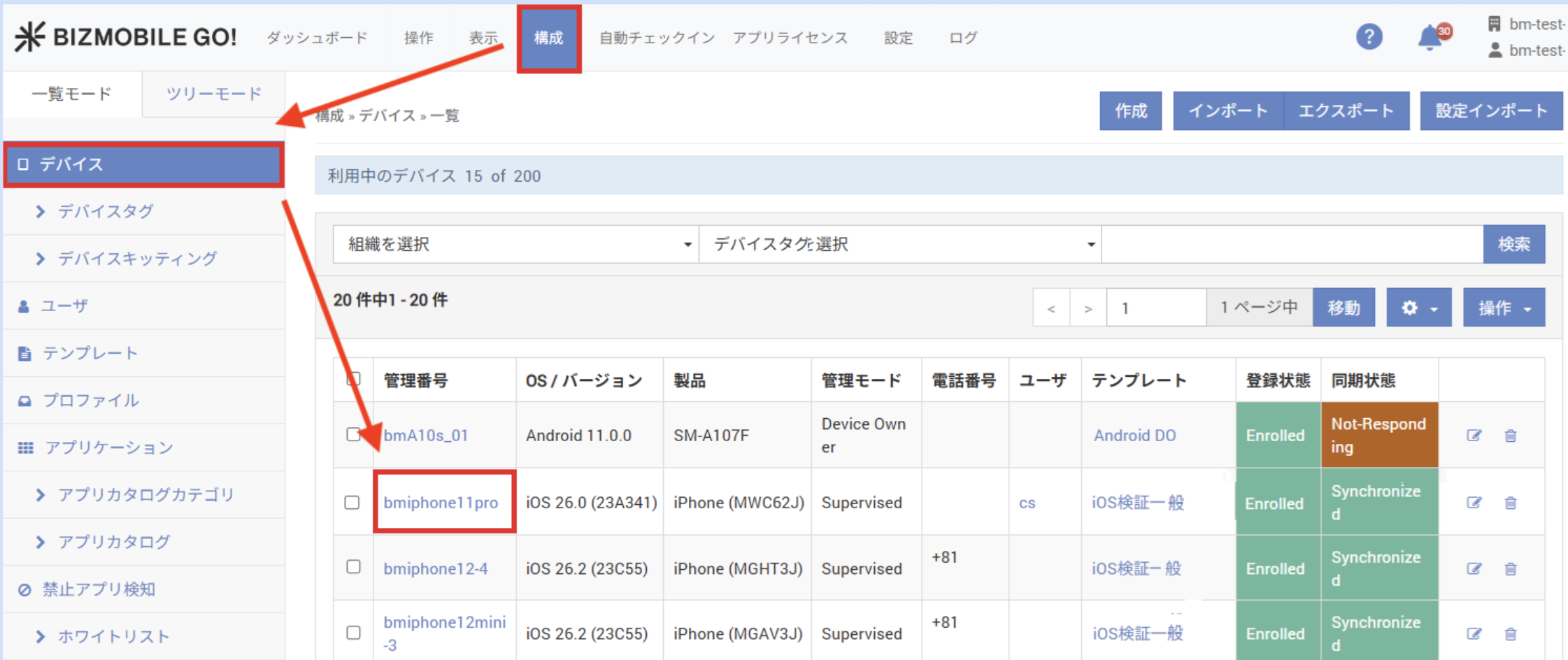
Under CONFIG → Device, click the identifier of the device you want to withdraw.
-
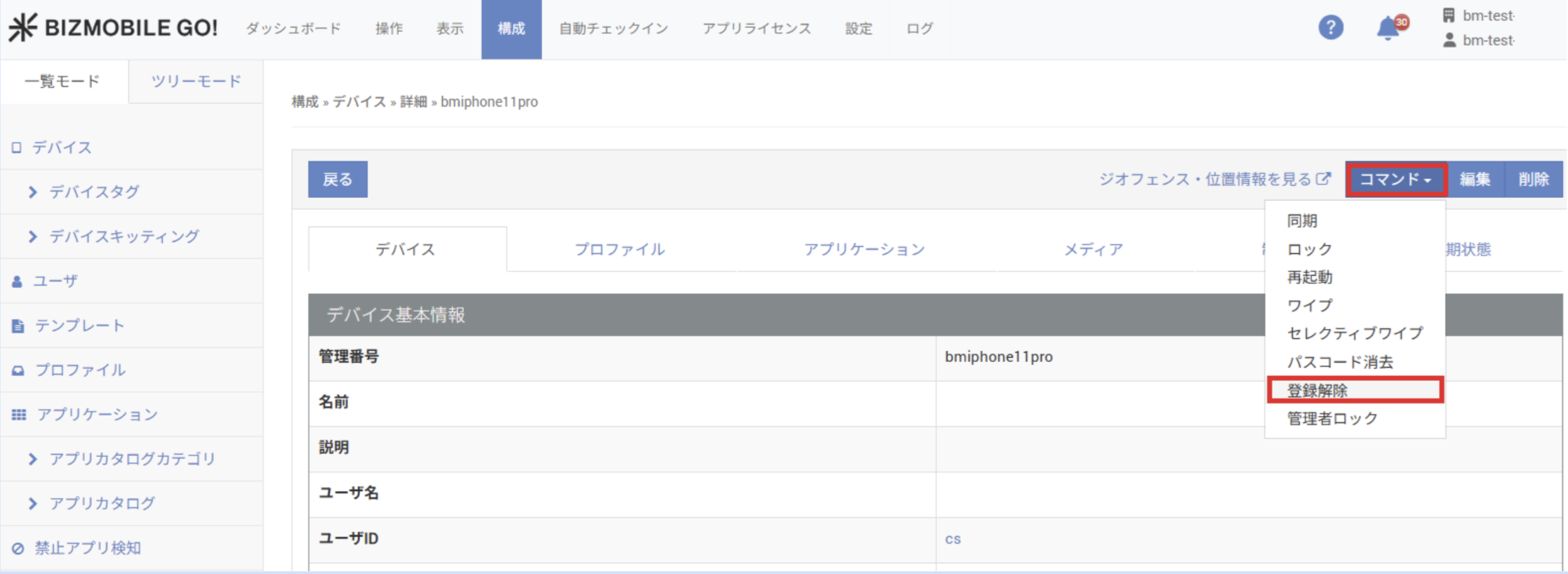
Click "Command" and select "Withdraw".
-
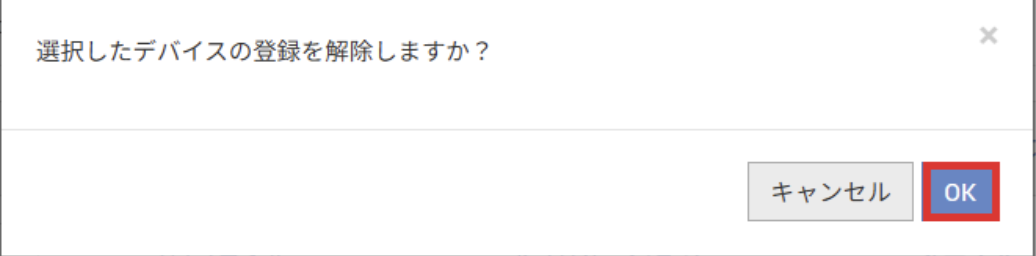
A confirmation pop-up appears. Click "OK".
-
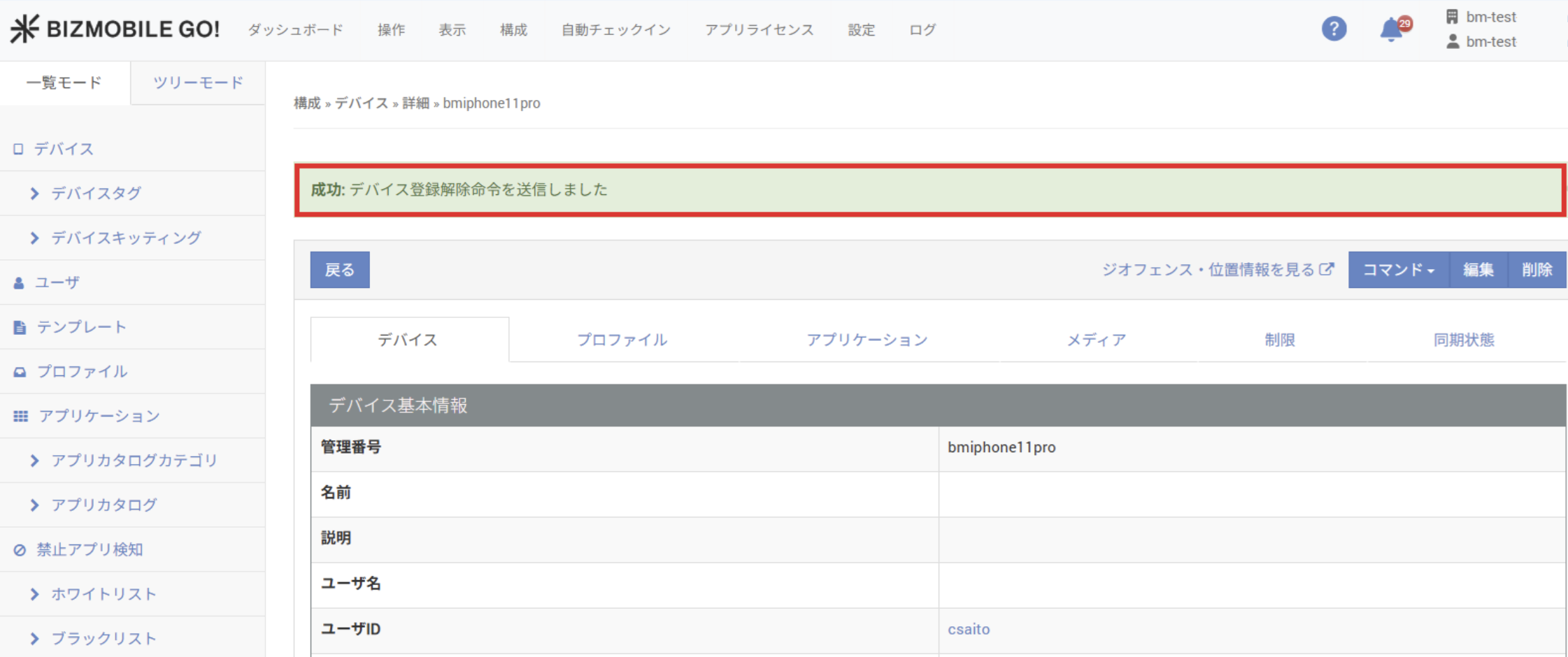
When the command is scheduled (issued), a message appears at the top of the screen.
-
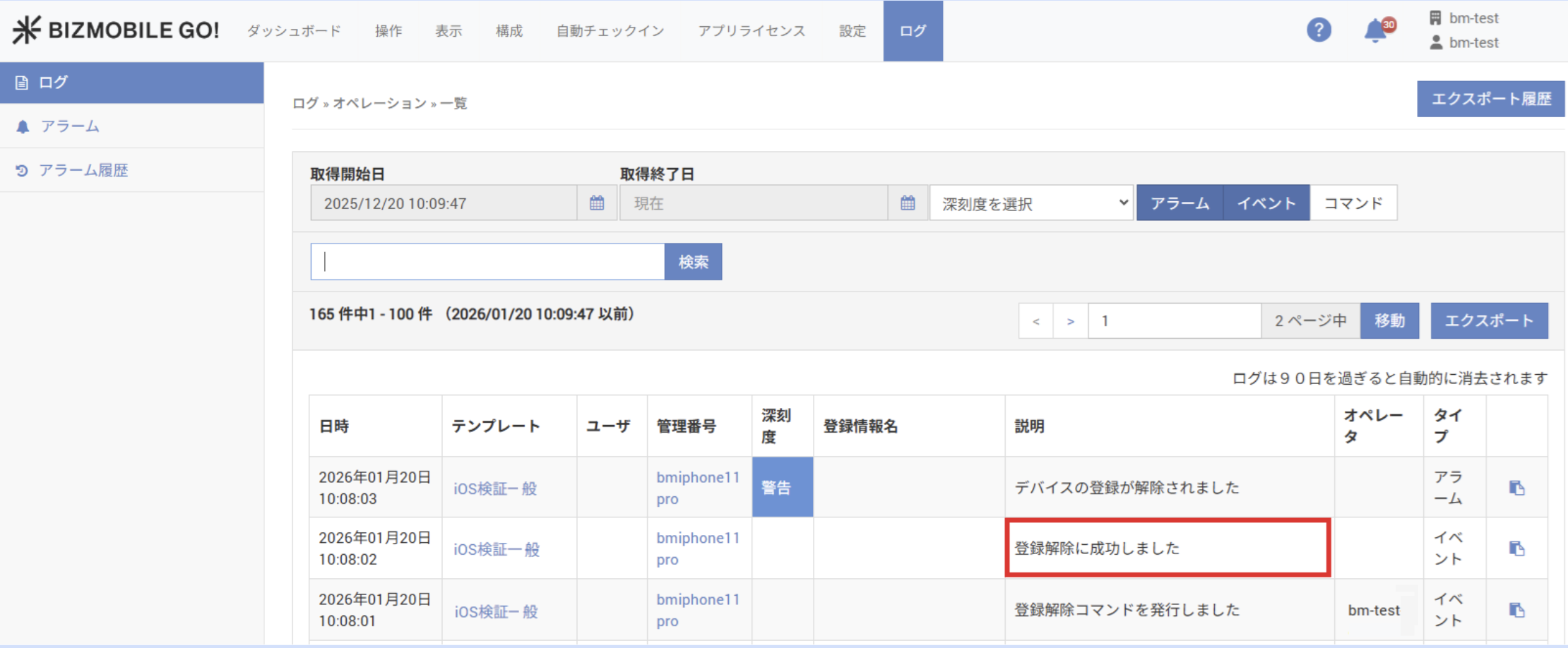
You can check the command execution status in the log. Withdrawal is complete when the device responds to the command from the server.
You can also withdraw a device from "Withdraw" on the CONTROL screen.
- All commands are executed while the managed device is connected to the internet.
- If you send a command to a managed device that is offline, the command is held as a pending command and is executed automatically the next time the device connects to the internet.
- If you delete the device information, the pending commands are also deleted, so they will not be executed.
2. Actions after withdrawal
2-1. To manage an withdrawn device with MDM again
This applies, for example, when you withdraw a device temporarily to resolve a device problem or because the device is being reassigned to another user.
◆ Cases where the device management data can be reused after withdrawal
In the following management modes, you can reuse the device management data of a device that became "Withdrawn" through withdrawal. If you keep the device management data and simply activate the device again, the device automatically returns to MDM management.
- Apple devices managed as ADE devices
- Android devices managed as zero-touch devices
◆ Cases where you must delete and re-create the device management data
In all other management modes, you must delete the device management data and then re-create it.
2-2. To stop managing an withdrawn device with MDM
This applies, for example, when you dispose of a device or no longer need to manage it with MDM.
◆ All OSs
- Delete the device management data.
◆ By OS
- Apple devices
- If the device is managed as an ADE device, either before or after this procedure, log in to Apple Business (formerly Apple Business Manager) separately and release the device from ADE.
- Android devices
- If the device is managed as a zero-touch device, either before or after this procedure, log in to the zero-touch portal separately and release the device from zero-touch.
- For devices managed with a work profile, delete the "BizGo MDM" app from the home screen.
- Windows devices
- Delete the provisioning package displayed in the following location on the PC.
- [Settings] > [Accounts] > [Access work or school] > [Add or remove a provisioning package]