Change the Device User
This page describes the procedures required when the user of a device changes, for example because an employee leaves the company.
First, confirm that the account used on the device has been signed out. Next, review the conditions for "a.", "b.", and "c." below to identify the case that matches the expected (desired) outcome of the user change.
Check the conditions for the change
a. Keep the installed apps, profiles, and other settings as they are
Intended outcome:
- Hand the device over to the next user as quickly as possible
- Continue using the device without changing the app configuration or device settings
- Minimize the impact of the user change
Main conditions that apply:
- The previous user and the next user do almost the same work
- The apps and configuration profiles in use are common to both users
- No personal information or user-specific data is stored on the device
- User authentication is not required, or the user can be switched with a Managed Apple Account or similar
- The security policy allows data to be handed over
Suitable usage scenarios:
Best for cases where "people in the same role share the same device"
(Examples: call centers, reception devices, warehouse and store devices)
b. Temporarily delete the installed apps, profiles, and other settings
Intended outcome:
- Change the user, but continue to use the device under management
- Clearly separate the previous user's information and settings
- Redistribute only the necessary apps and settings
Main conditions that apply:
- The previous user and the next user use different apps and settings
- You want to reliably remove the apps and profiles associated with the previous user
- A device reset is not necessary, but you want to clean up the device once
- The management profile remains valid
- Users change fairly frequently
Suitable usage scenarios:
Best for cases where "the device is the same, but how it is used changes"
(Examples: department transfers, job changes, staff replacement)
c. Reset the device and erase everything
Intended outcome:
- Switch users completely and return the device to a newly distributed state
- Give top priority to security and compliance
- Reliably resolve problems or inconsistent states
Main conditions that apply:
- You do not want to leave any data of the previous user
- You want to completely reset the device's usage history and settings
- The OS, apps, or management state has a problem or inconsistency
- There is a clear end-of-use event, such as an employee leaving or the end of a contract
- The effort to set up the device again is acceptable
Suitable usage scenarios:
"Safe and reliable, but requires more effort": the cleanest method
(Examples: devices collected when an employee leaves, redistribution to another department or site, devices with problems)
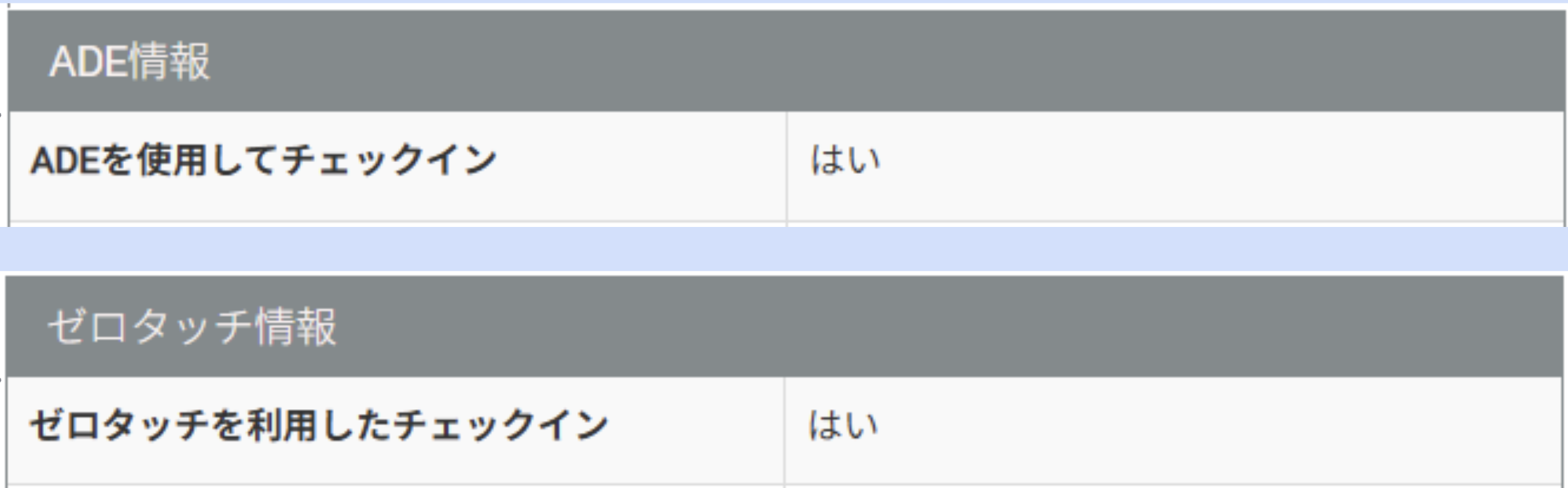
In this case, some of the subsequent steps differ depending on whether the "Auto Enrollment" feature using Apple ADE / Android Zero-touch is used, and on whether the device is a Windows PC, because this determines whether the management data can be reused. For iOS/iPadOS and Android devices, check on the detail screen whether "Auto Enrollment" is used.
- On the CONFIG → Device (list) screen → Device (detail) screen → ADE Enrollment or Zero-touch Information, if the device is managed using the "Auto Enrollment" feature, "Yes" is displayed.
- c-1. Apple ADE or Android Zero-touch is "Yes" for the device to be reset
- c-2. Apple ADE or Android Zero-touch is "No" for the device to be reset
After you have checked the conditions and the management type, proceed to "Procedure."
Procedure
The management information that may need to be changed for a user change is as follows.
- Device: Required
- User: Required when using "Organization" or Android "EMM" (linked to Organization and EMM)
- Tag information: Optional additional information (linked to device tags)
- Template: Required
Note: "Organization information" is linked to the user, so it is not a target of this change procedure. (Linked to Organization)
◆ Check and prepare user information (common to a, b, and c)
You can manage the user of a device using only the optional registration information in the device management data, but there is also a feature for managing users with user information.
Check the user information management status on the "User" screen. If user information is in use and you need to register the new user, add a new user.
- On the CONFIG → User screen, check whether user information is in use.
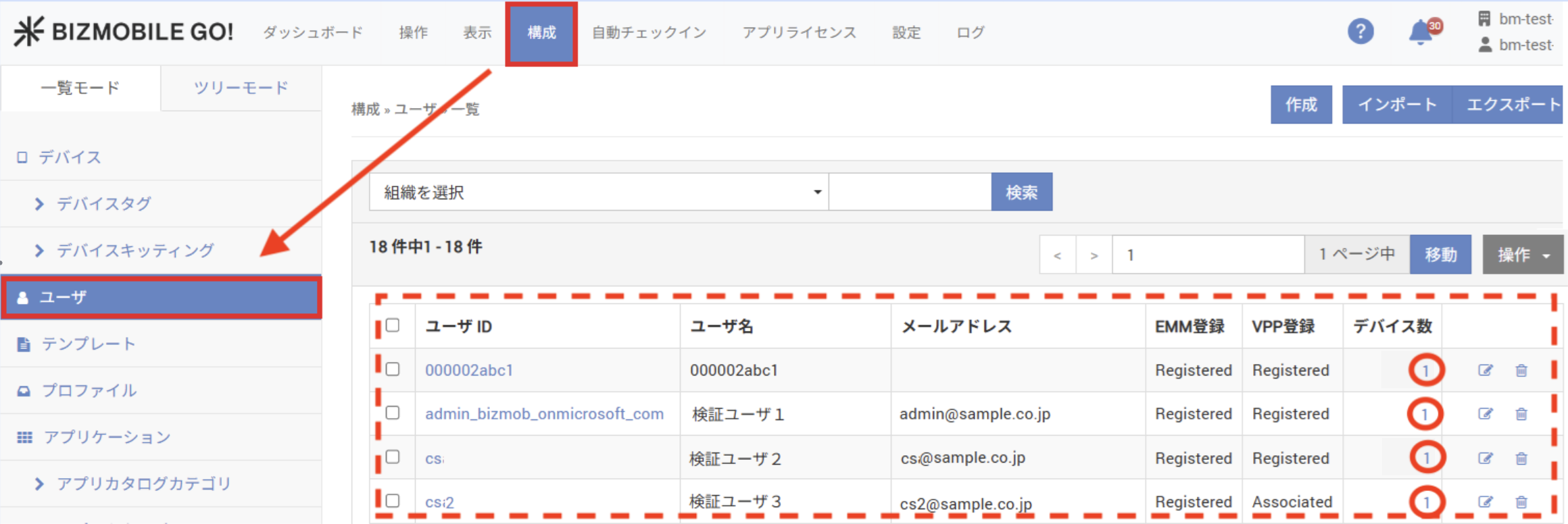
If a user is linked to a device, the value in the "Number of Devices" column is 1 or greater.
- If you need to register the new user, add the user on the Create User screen.
◆ c-2. Apple ADE or Android Zero-touch is "No" for the device to be reset, or the device is a Windows PC
In this case, everything is erased by resetting the device. Because the "Auto Enrollment" feature is not used, the device's management data cannot be reused and you must create new data.
Perform the change in the following order. The new user is registered with the newly created management data (device management data).
- Wipe the device.
- Create new management data (device management data) and enroll the device again.
When the device has been enrolled again with the new management data, the user change is complete.
Delete the old data that is no longer needed to complete the work for this case.
No further steps are required.
◆ Change the device management data (common to a, b, and c)
In this case, the device management data can be reused, so you change only the information linked to the user.
-
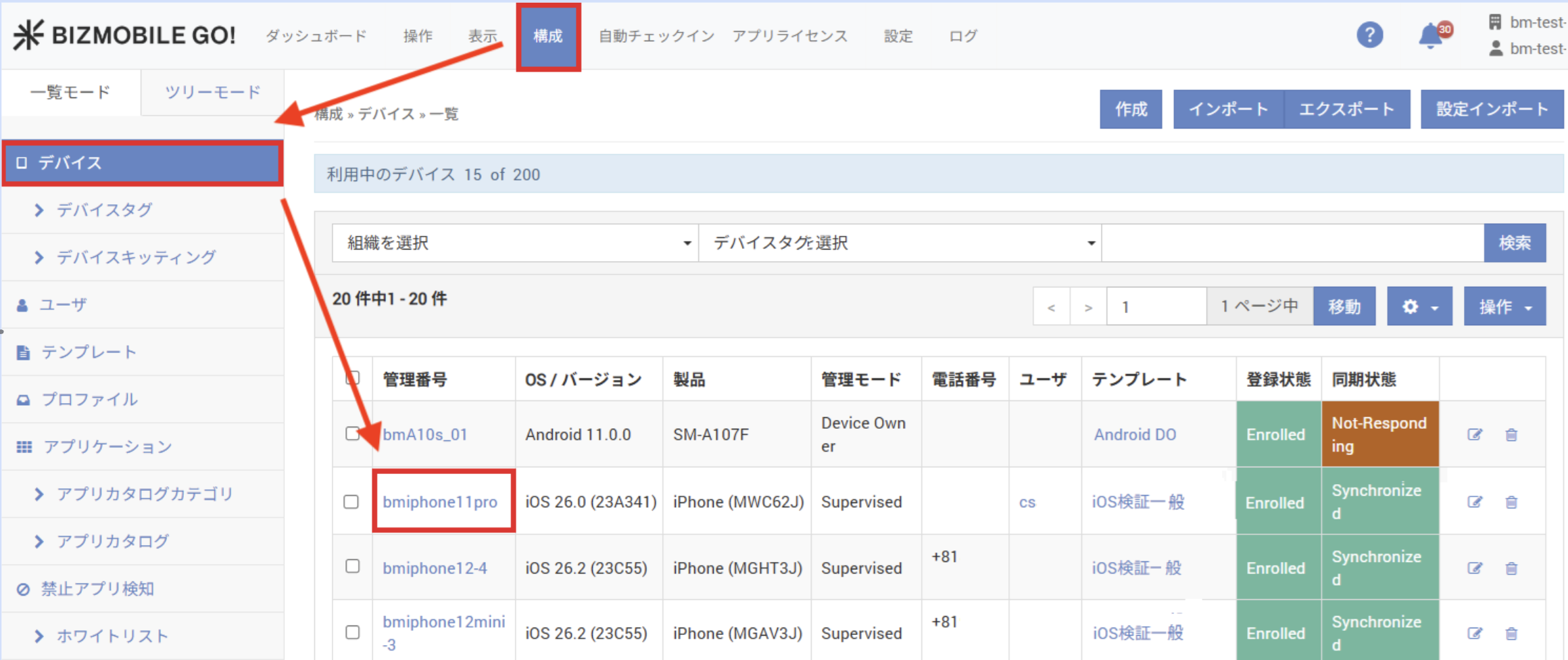
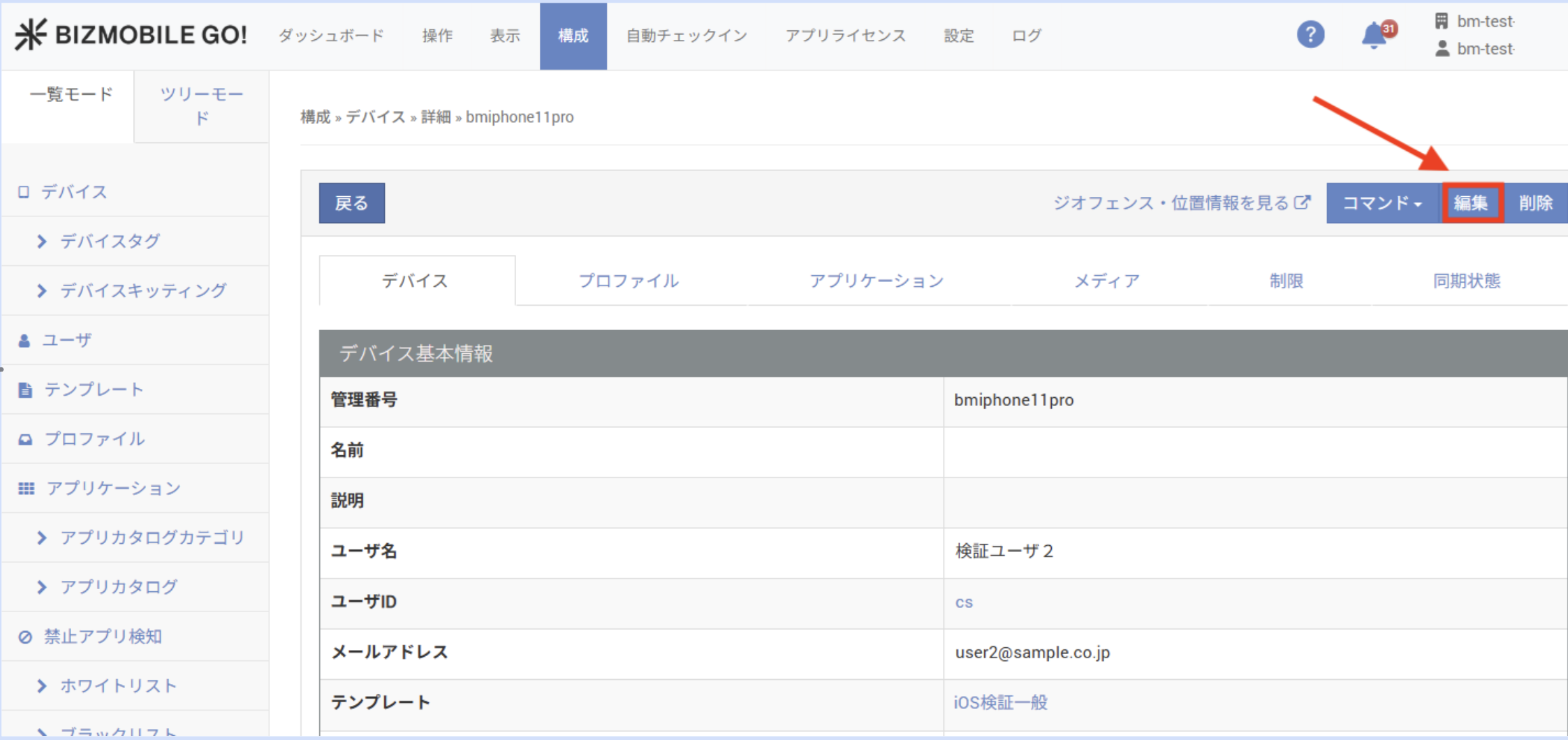
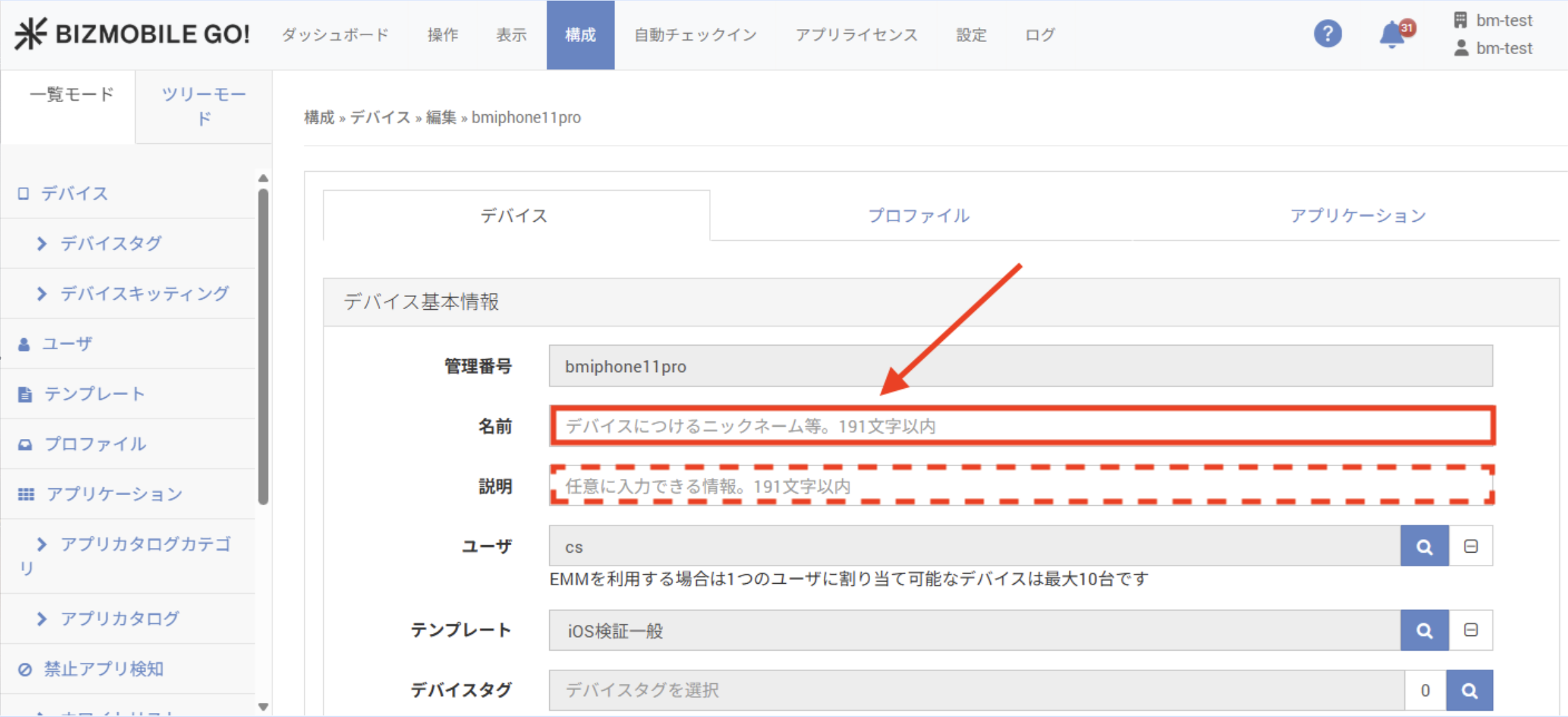
CONFIG → Device (list) screen → Device (detail) → Device (edit)
- Change "Name" and "Description" as needed.
-
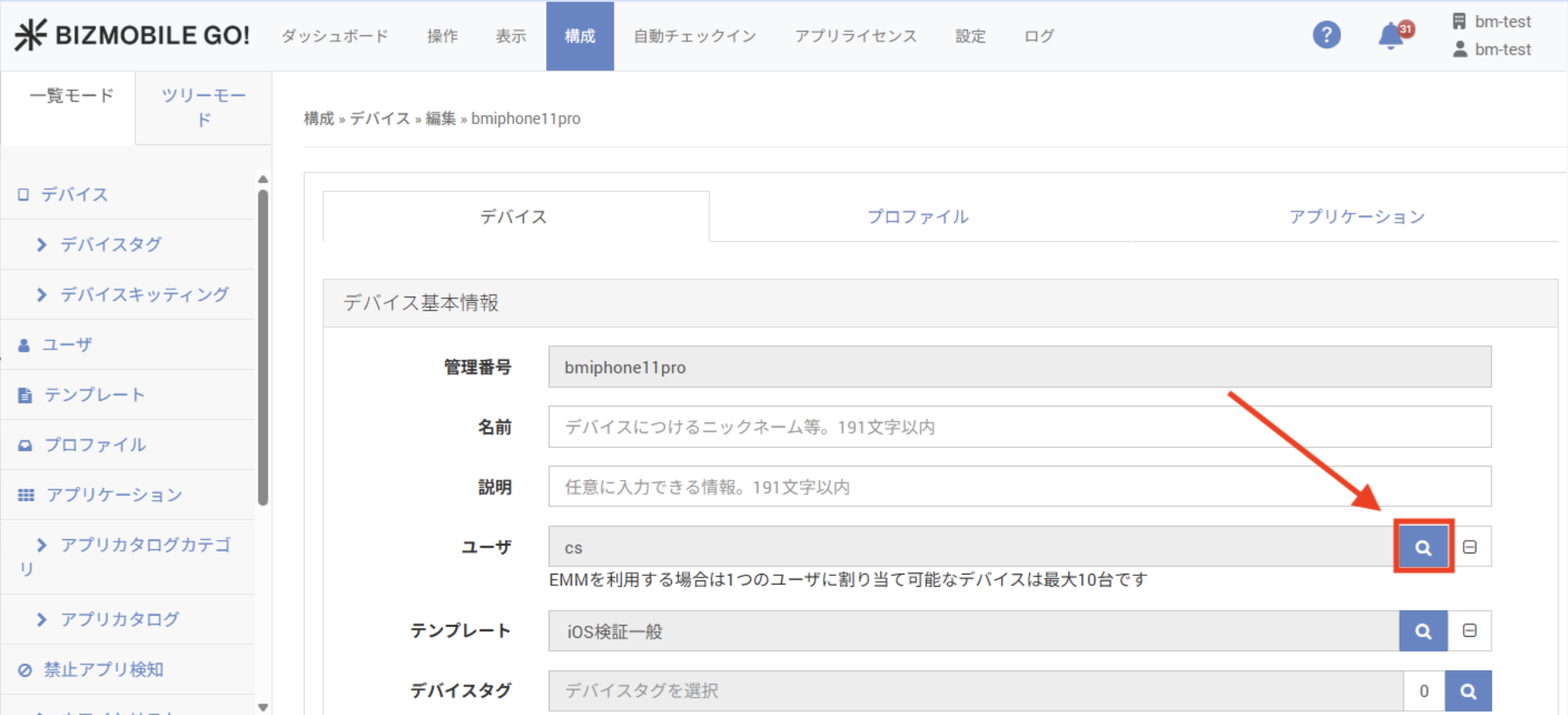
If a "User" is specified, change the assignment.
-
If "Device Tag" is specified, change the assignment as needed.
After this, proceed to the final steps below for each of cases a, b, and c.
◆ a. Keep the installed apps, profiles, and other settings as they are
-
CONFIG → Device (list) screen → Device (detail) → Device (edit)
- Change the "Template" assignment as needed.
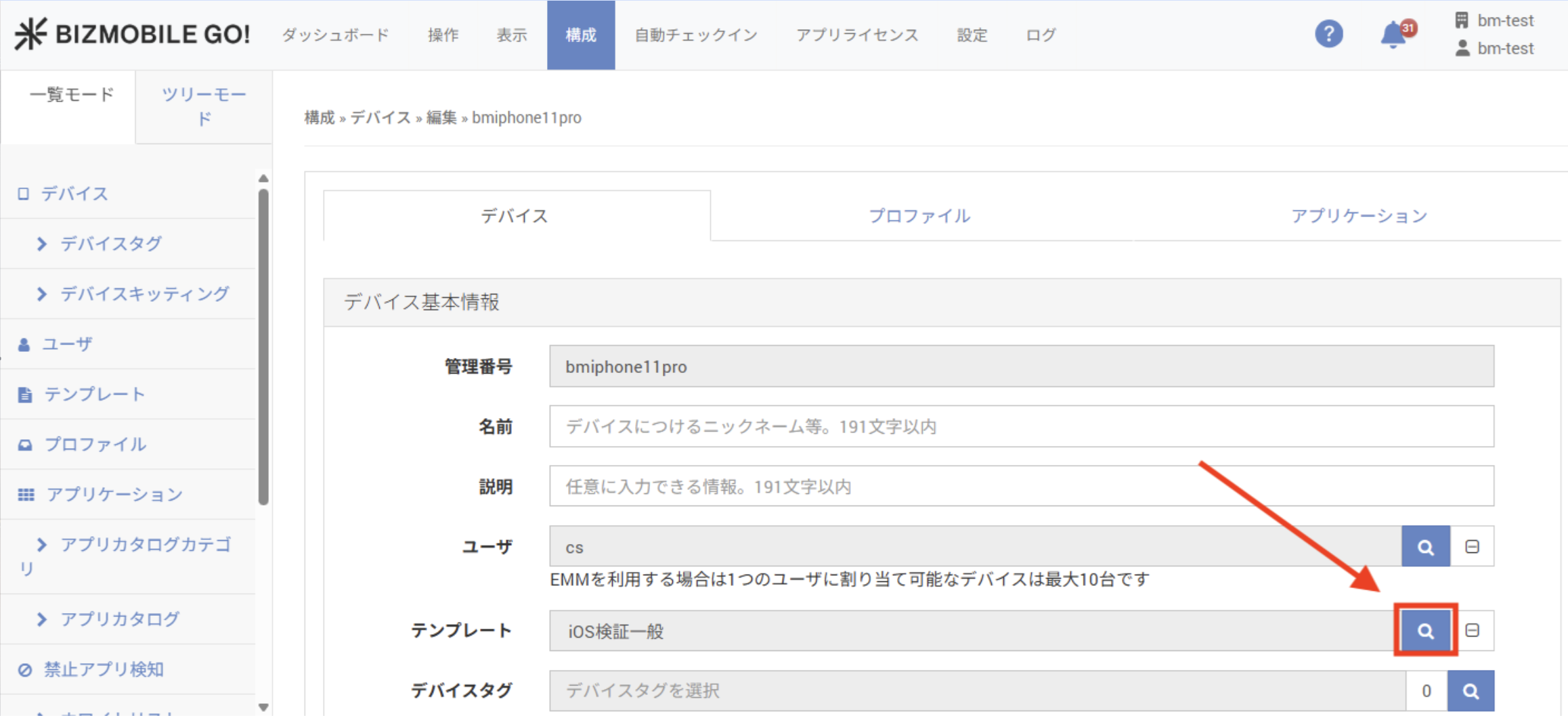
This completes the user change for this case.
No further steps are required.
◆ b. Temporarily delete the installed apps, profiles, and other settings
In this case, you use a selective wipe to delete all information configured by MDM. The device remains enrolled in MDM, so you can continue to manage it. Perform the change in the following order to delete the profiles, apps, and other information from the device and then reinstall them.
-
Run a selective wipe (until the status is "Synchronized").
-
Reassign the device to a template (until the status is "Synchronized").
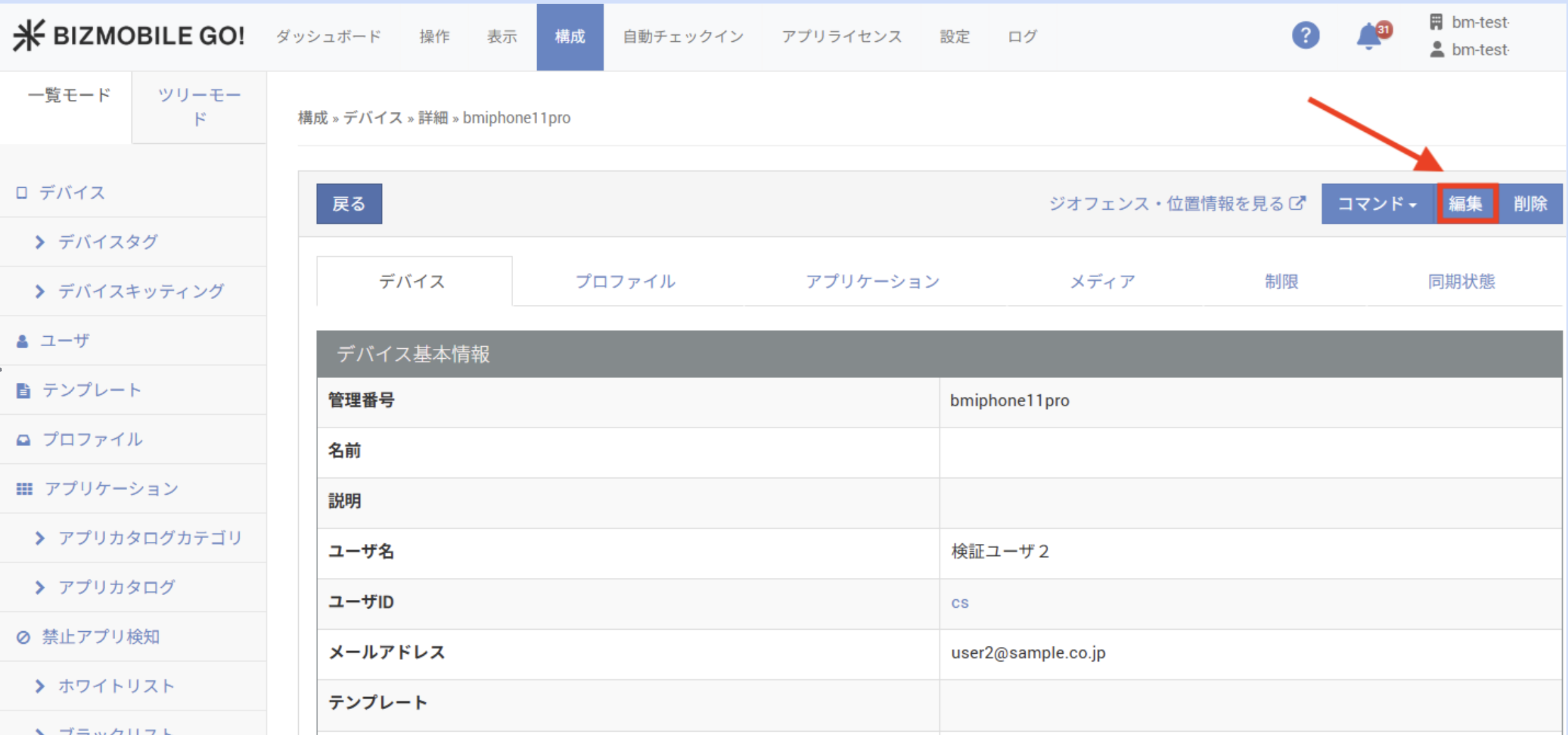
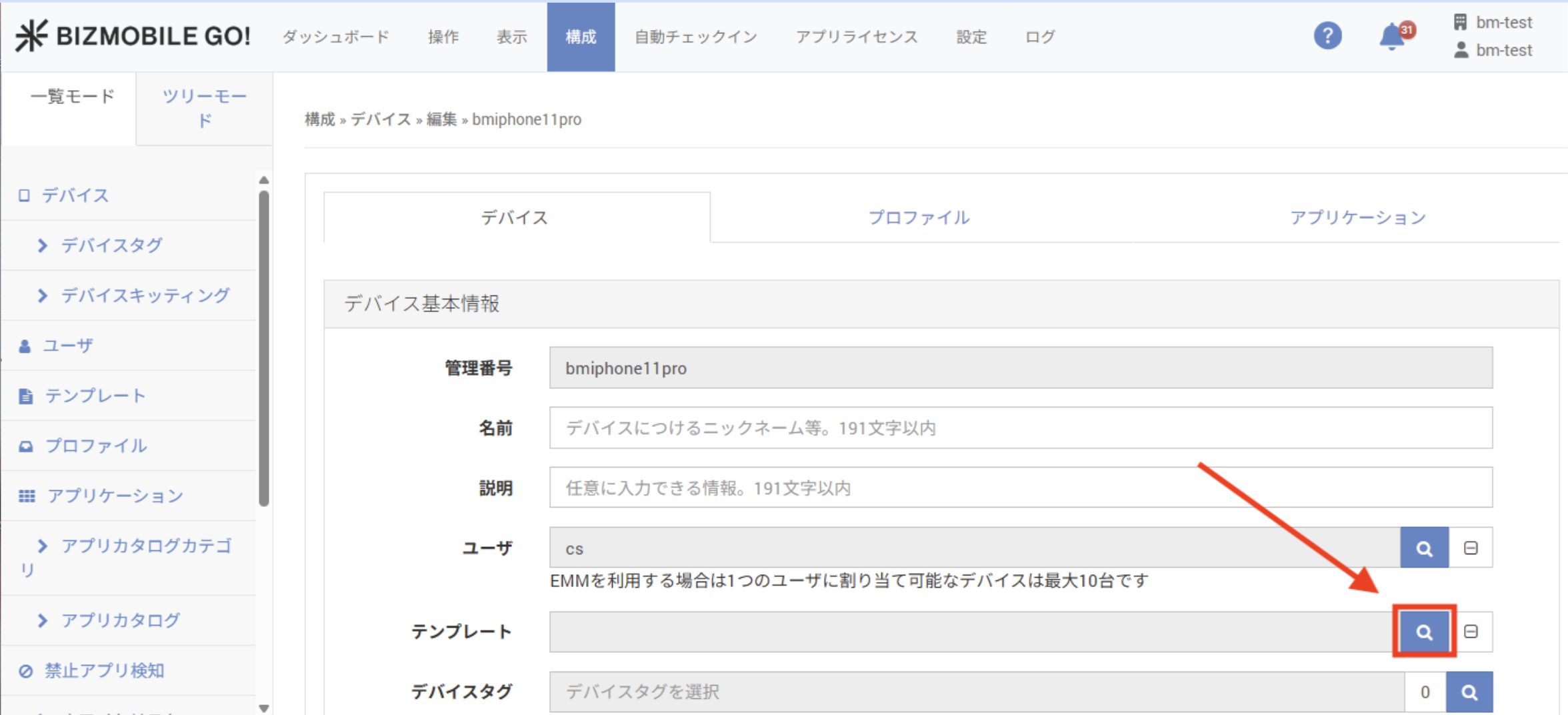
This completes the user change for this case.
No further steps are required.
◆ c-1. Apple ADE or Android Zero-touch is "Yes" for the device to be reset
In this case, everything is erased by resetting the device. Because the "Auto Enrollment" feature is used, the device's management data can be reused.
Perform the change in the following order.
- Run a wipe (the device is reset).
- Enroll the device again.
- For iOS/iPadOS devices
- For Shared iPad devices
- For Android devices
- For Mac PCs (see iOS/iPadOS)
- For Windows PCs with a common provisioning package
- For Windows PCs with an individual provisioning package
This completes the user change for this case.