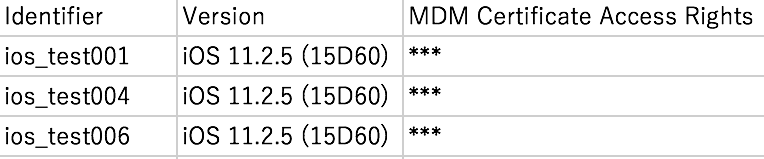
Update the MDM Profile
An MDM profile installed on a device at enrollment is displayed as Not Signed after a maximum of two years.
This is because the certificate that guarantees the reliability of the MDM profile is valid for two years from the date it is issued.
(The validity period shown on the device is two years from certificate issuance minus the days that elapsed before the device enrolled, so it is at most two years.)
Even after the certificate that signs the MDM profile expires and the profile is displayed as Not Signed, the MDM profile itself remains valid.
All device management by BizMobile Go! continues to work normally.
Even if the profile remains displayed as Not Signed, device management by BizMobile Go! is not affected.
The expiration date of the certificate that signs the MDM profile can be renewed only by replacing the MDM profile itself.
The MDM profile cannot be updated automatically from the server, and an operation on the device is always required.
To replace the certificate, follow the steps below in the admin console and on the device.
(Admin console) Distribute a web clip for updating the MDM profile
To update the MDM profile, you must open a specific URL on the managed device.
By using the web clip feature of profiles, you can distribute the URL to the device.
-
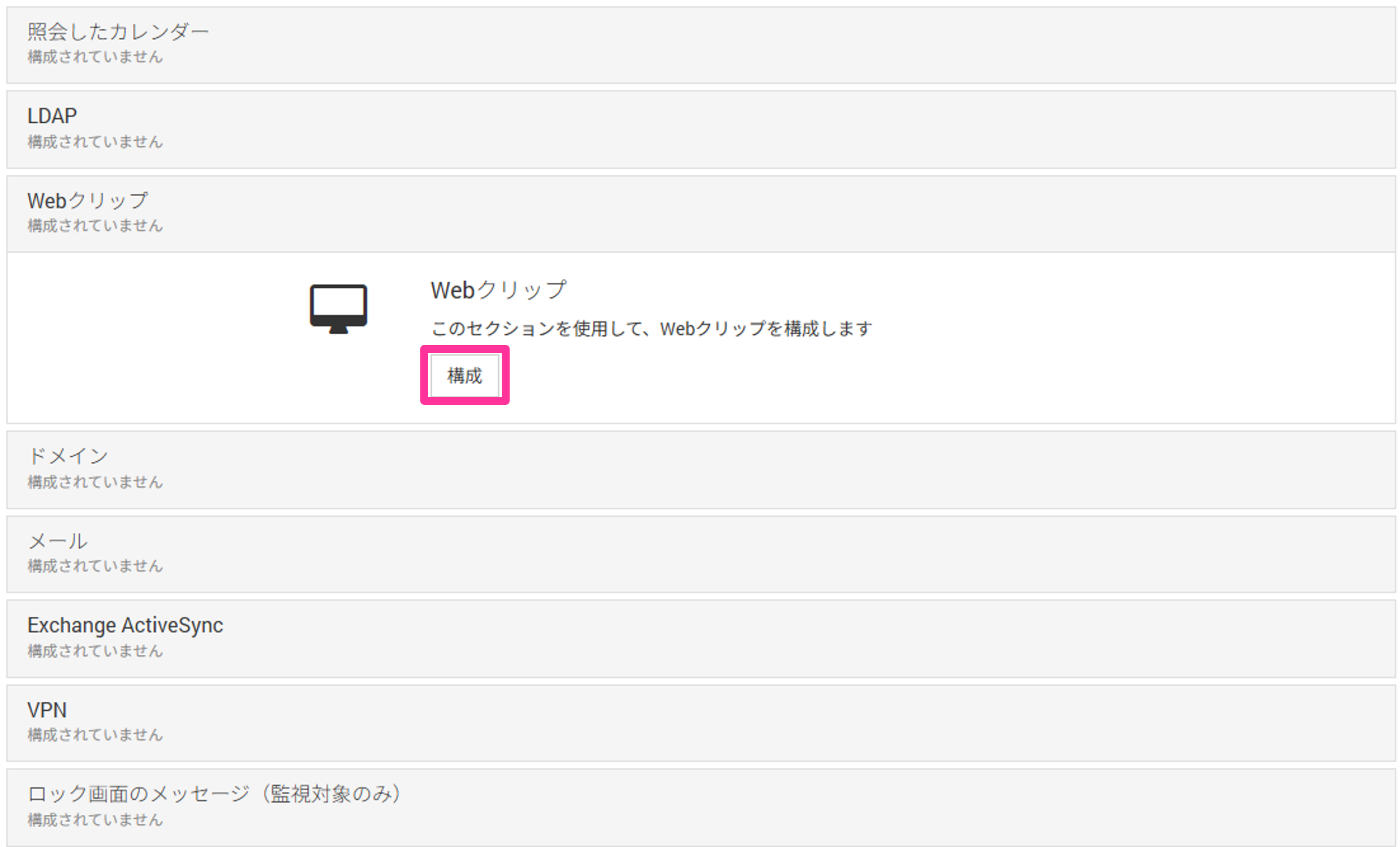
On the profile creation screen, click
Web Clip→ Configure.
For details on how to create an iOS profile, see Profiles for iOS.
-
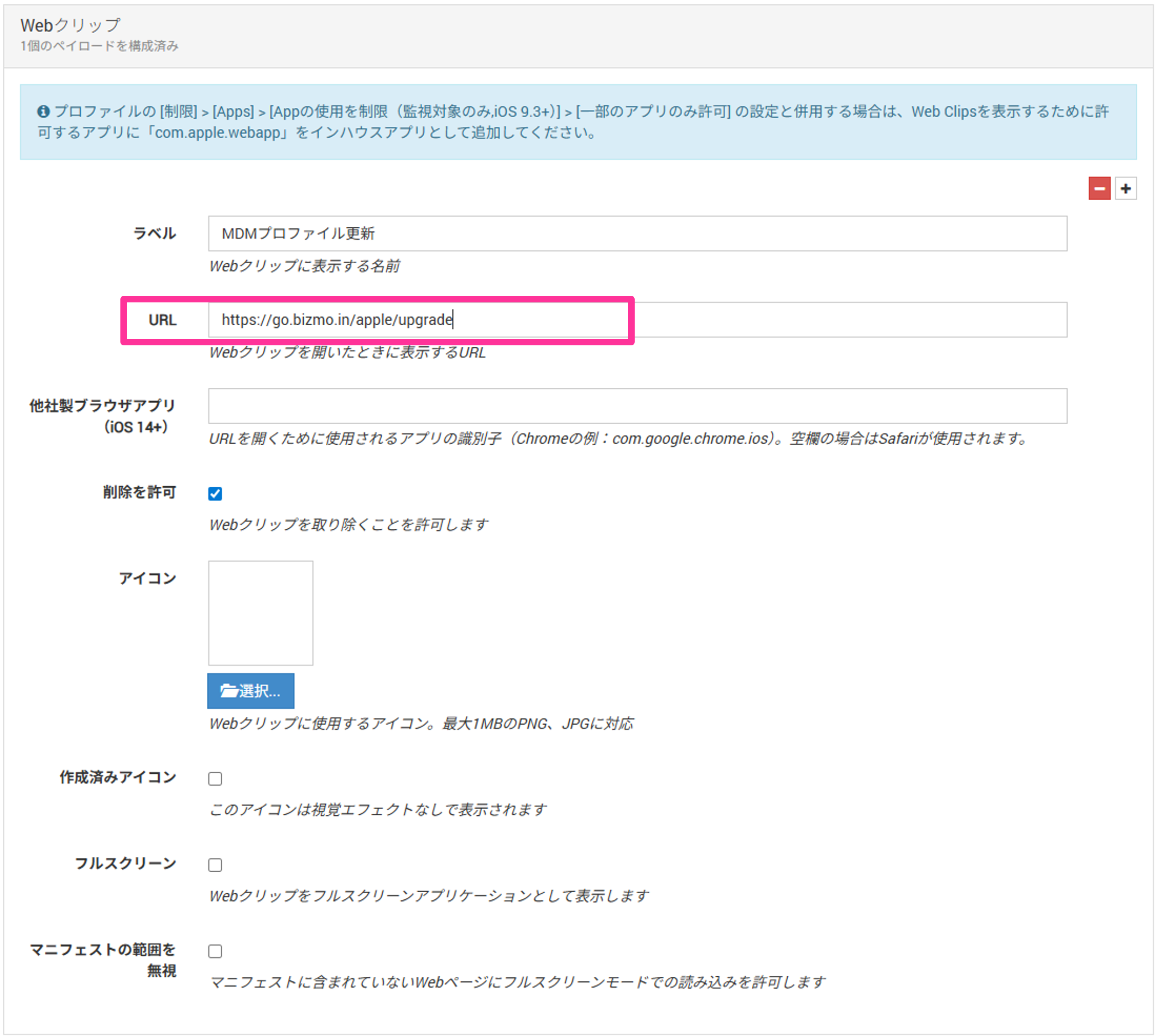
Enter
https://go.bizmo.in/apple/upgradein theURLfield. The other items are optional.Note: For managed devices migrated from the former BizMobile service, if the former service was operated by a partner as its own service under its own domain (not "go.bizmo.in"), the URL is different. In that case, contact your partner.
-
Save the profile and distribute it to the managed devices.
(Device) Update the MDM profile
Use the web clip distributed to the managed device from the admin console to update the MDM profile on the managed device.
-
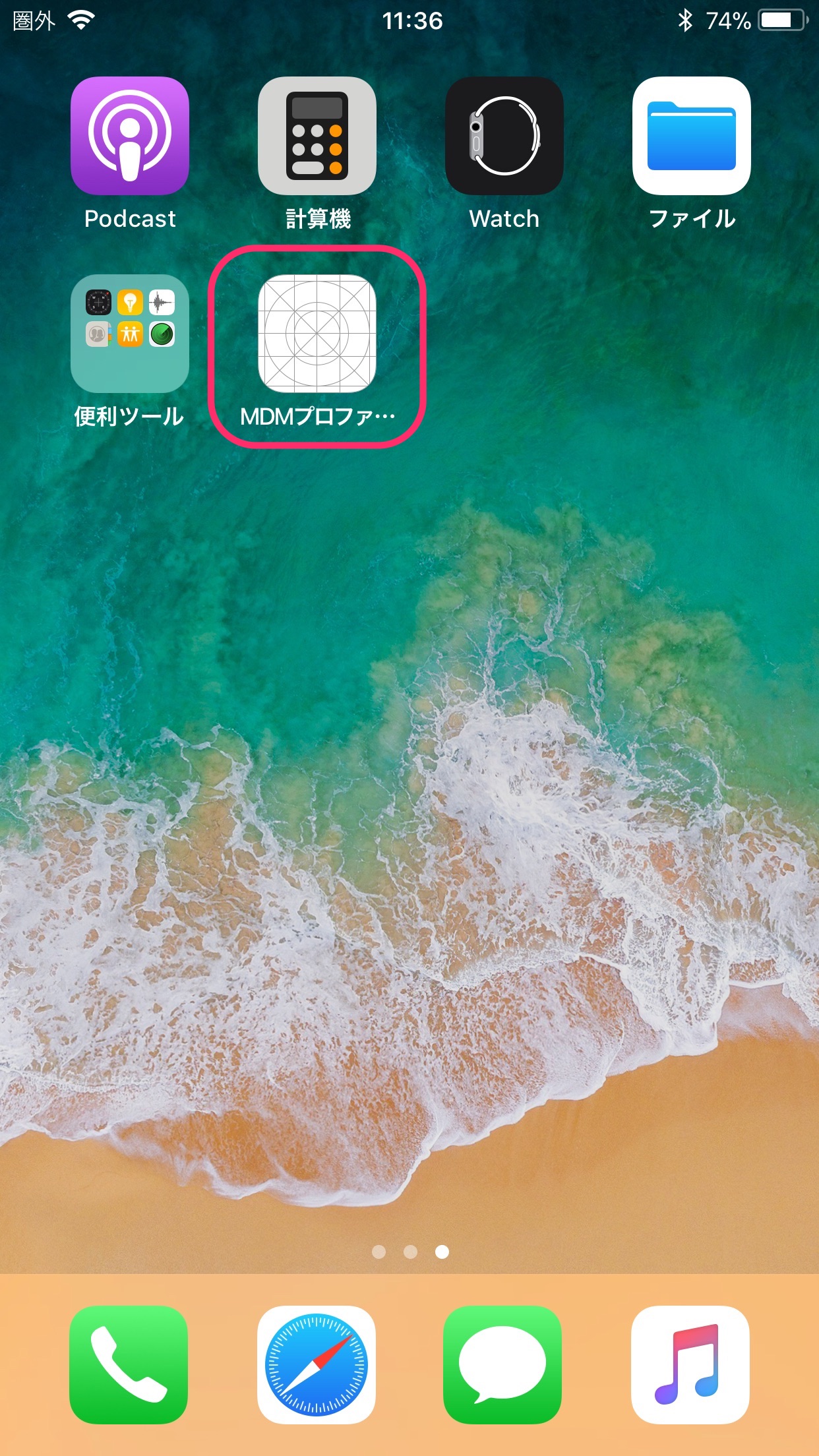
Tap the web clip icon.
-
Tap Continue.
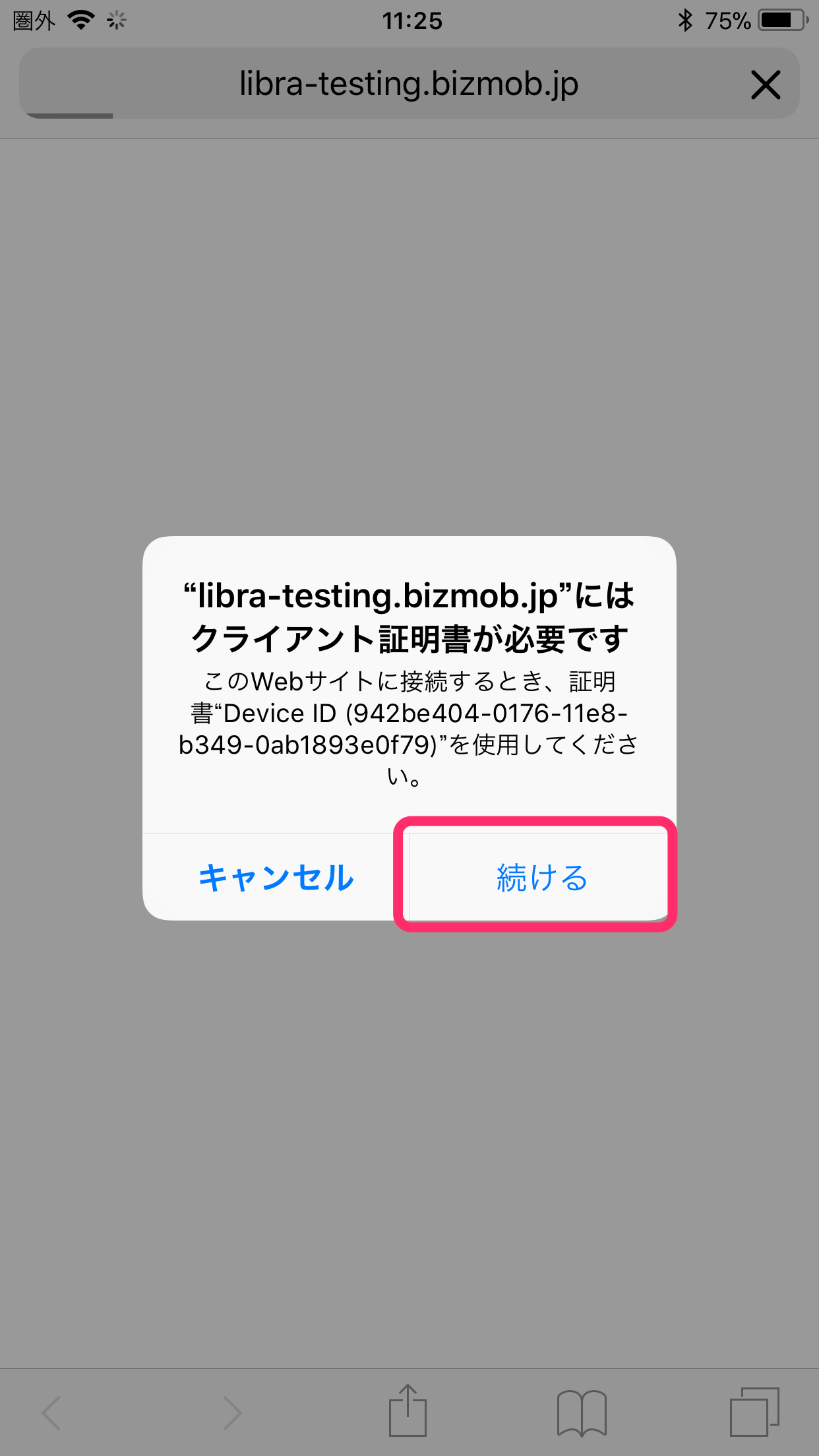
Note: If multiple certificates are displayed, select any one of them. If the screen in step 4 does not appear, close the screen, start again from step 1, and select a different certificate. -
Tap Allow.
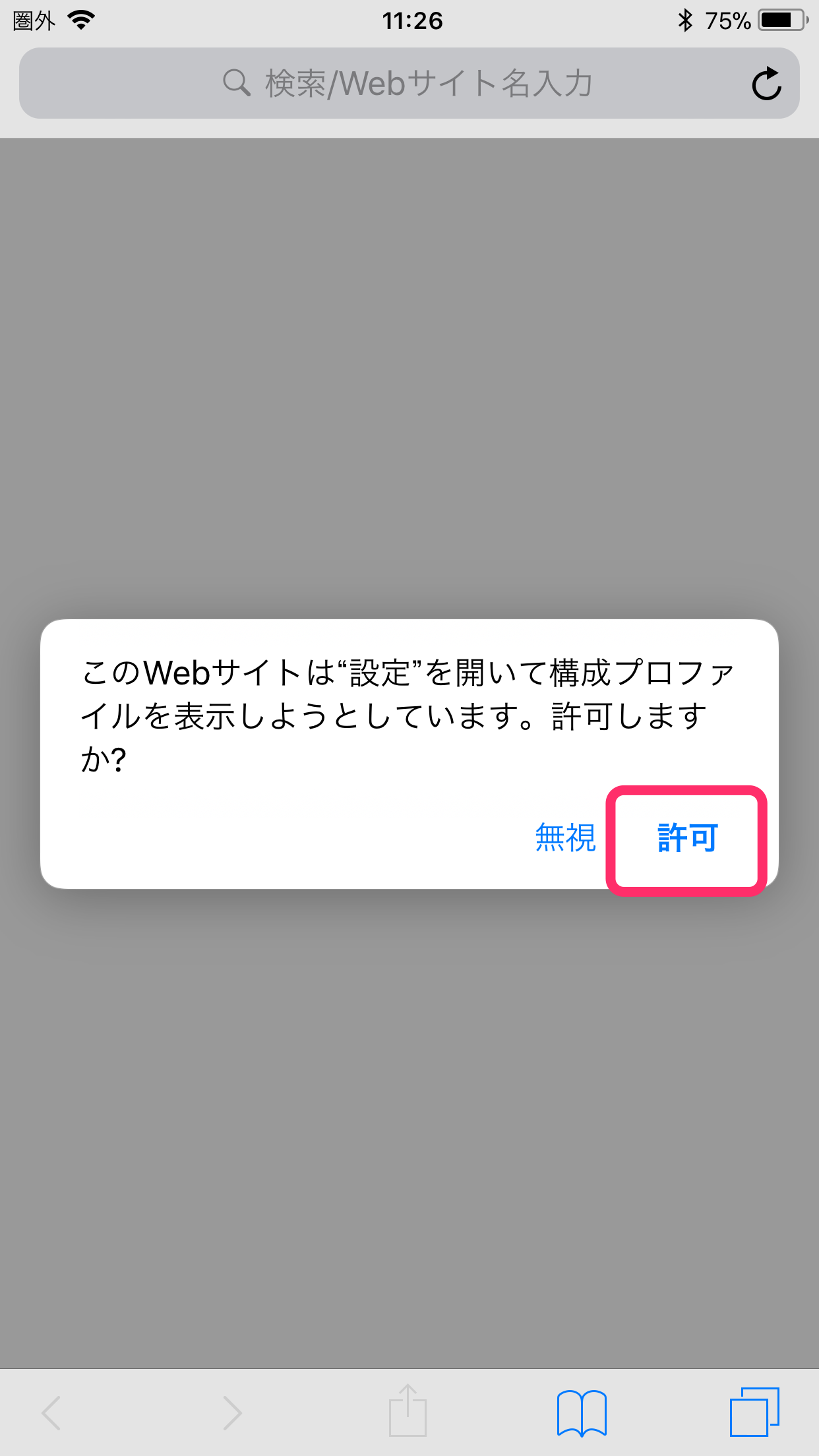
-
Tap Install.
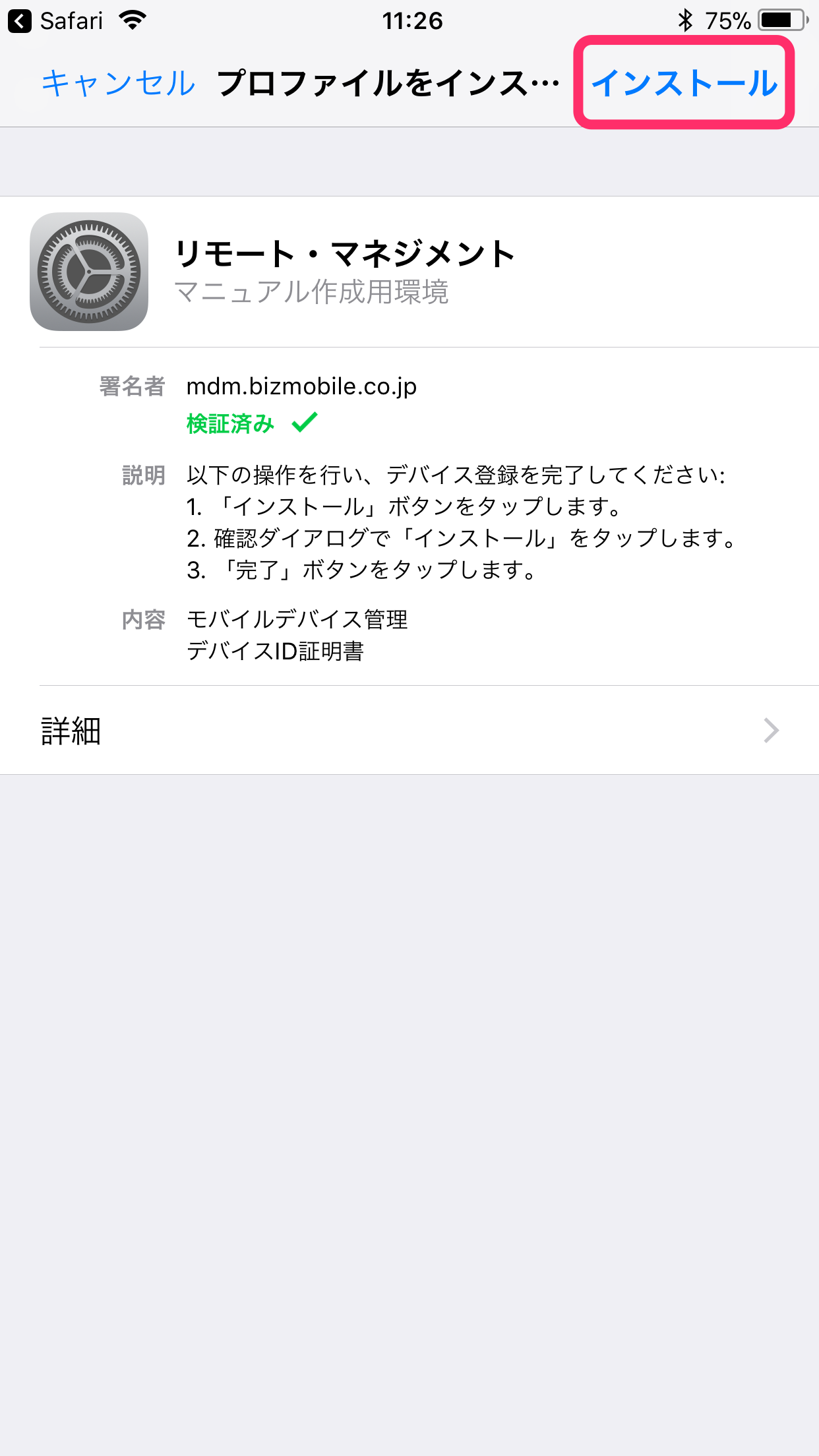
-
Tap Install.
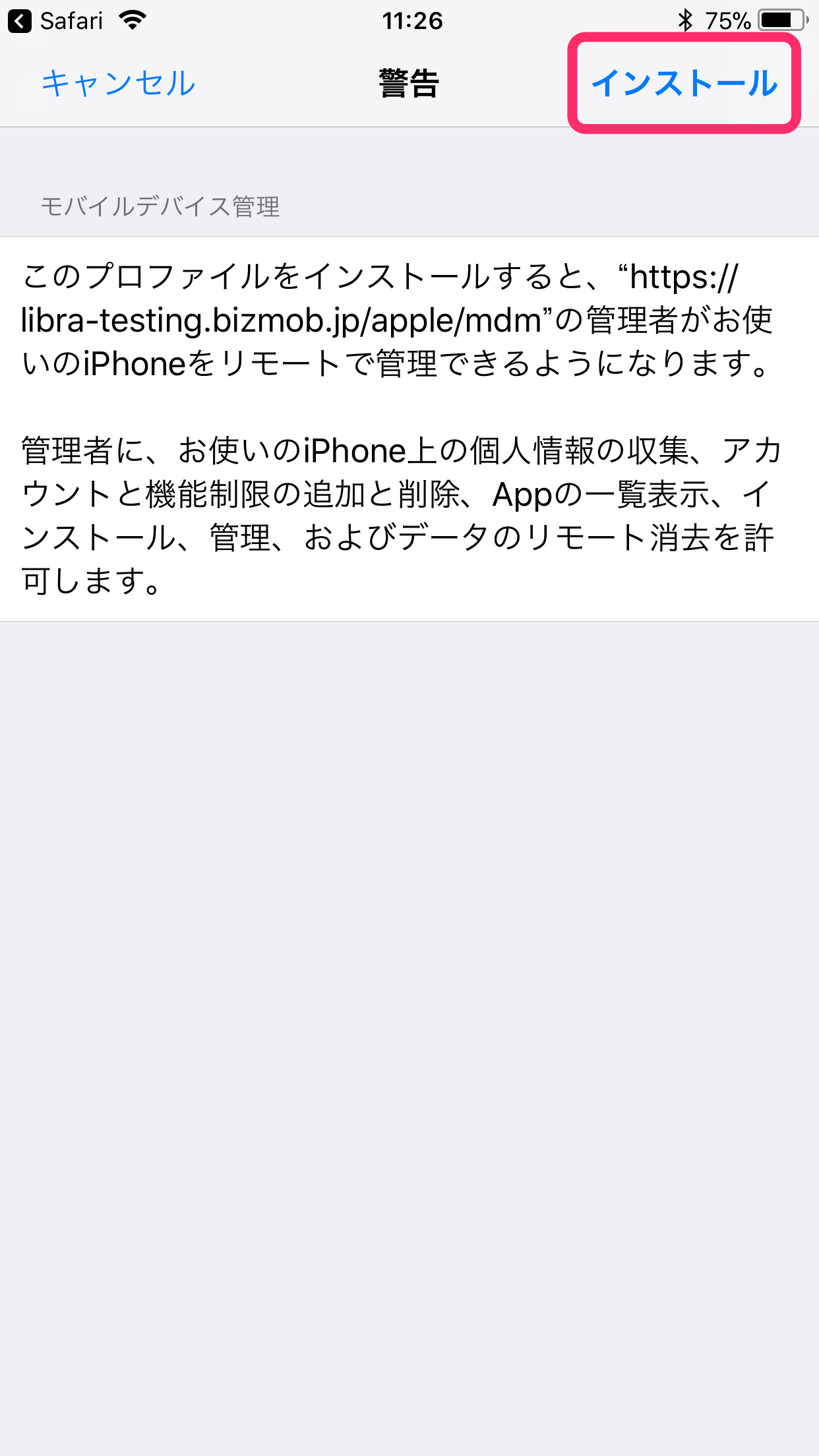
-
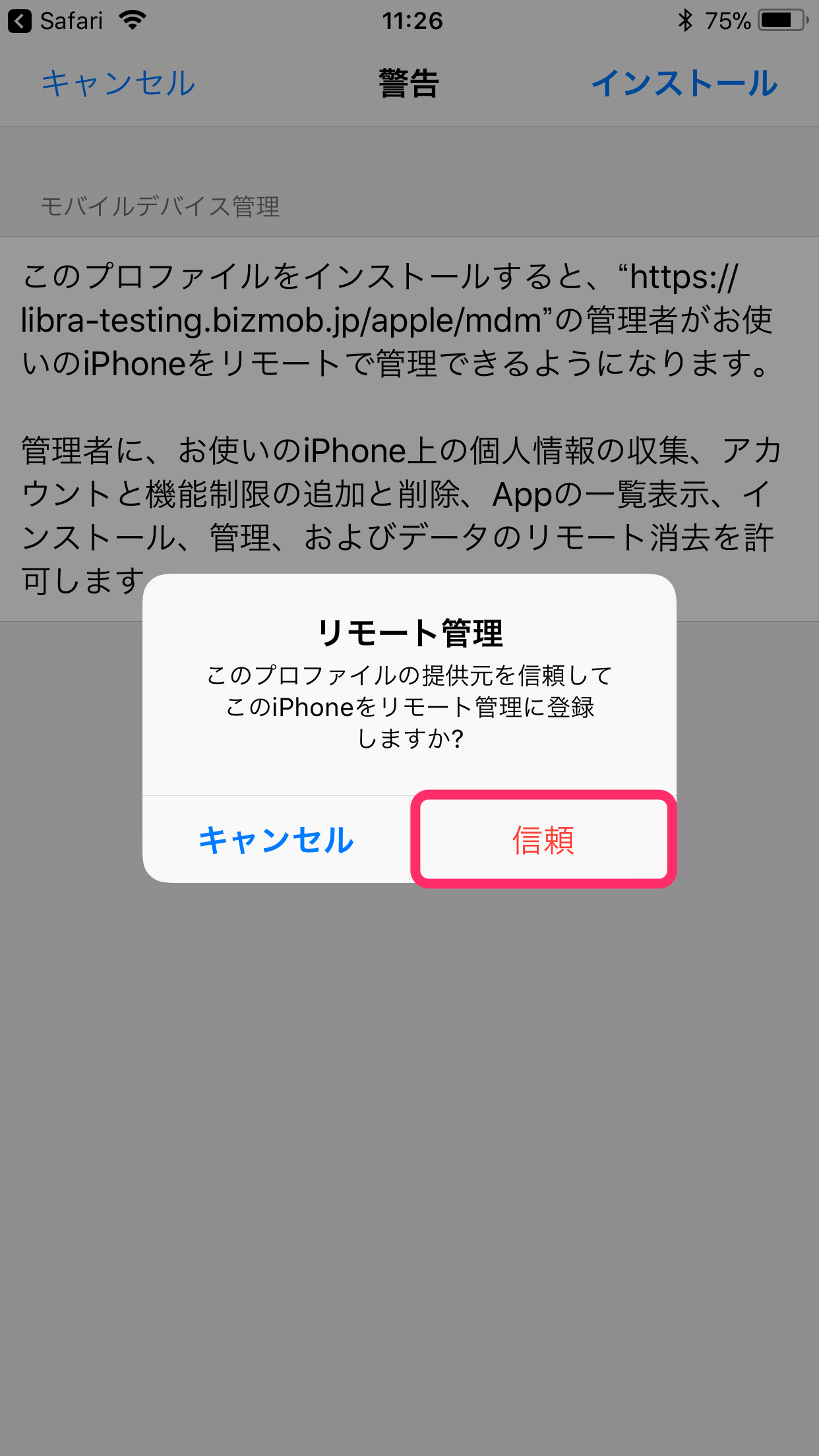
Tap Trust.
-
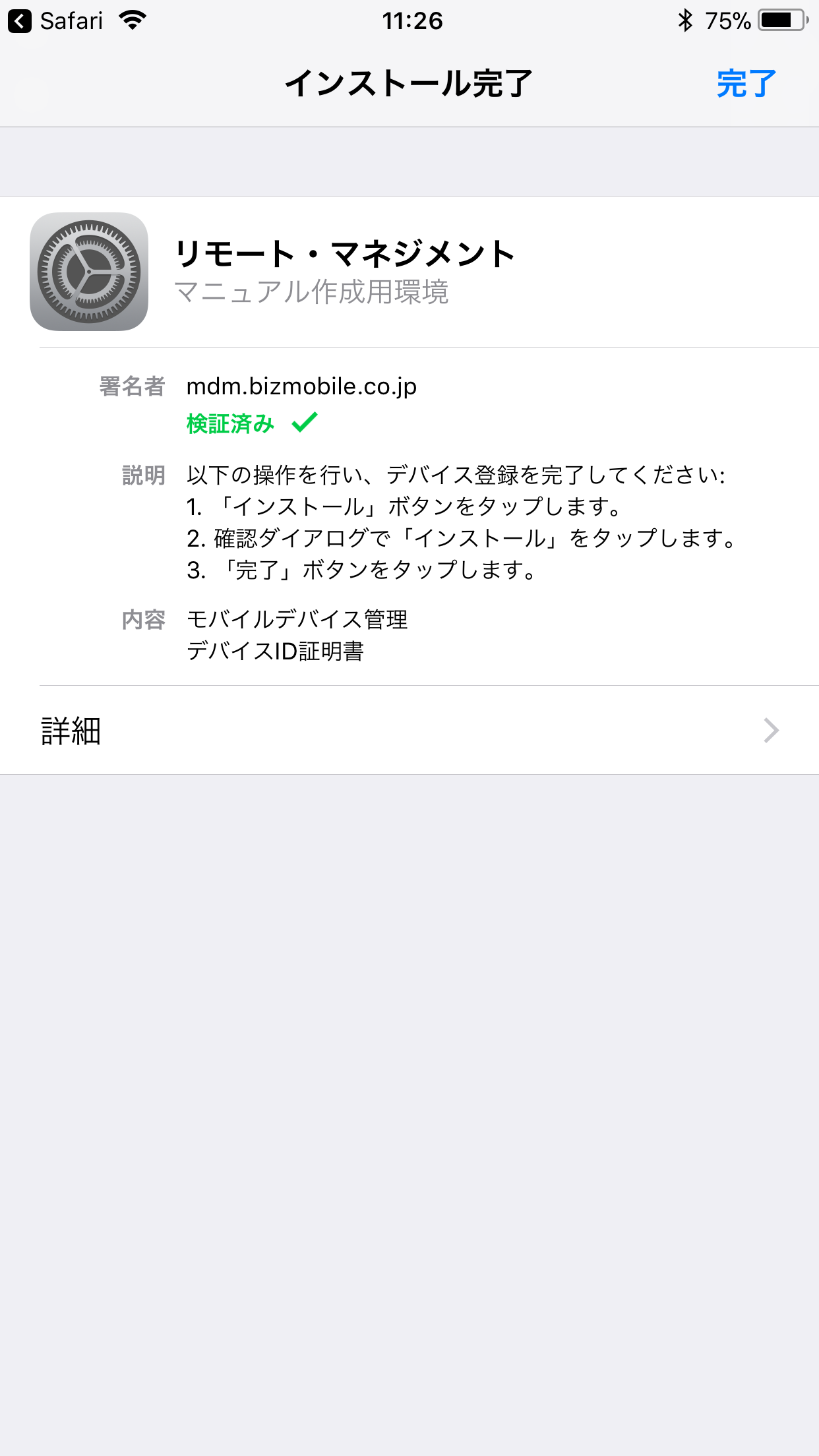
The MDM profile update is complete.
(Admin console) Check devices whose MDM profile has not been replaced
This export feature applies only to devices migrated from the former BizMobile service.
You cannot use it to extract devices whose MDM profile has expired.
Because updating the MDM profile requires an operation on the managed device, the completion status may differ from device to device.
Use the following steps to export a CSV list of devices that have not been updated, so you can identify the devices to notify.
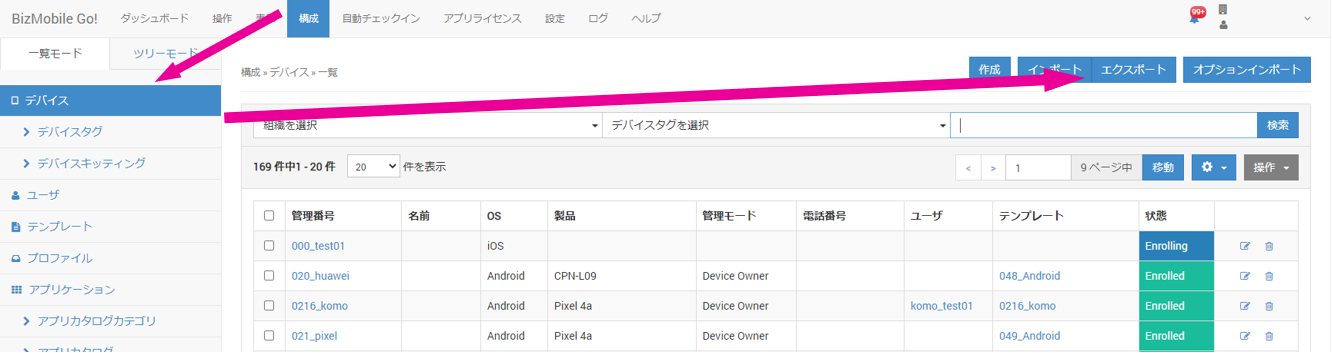
- Click CONFIG → Device → Export.
- Click
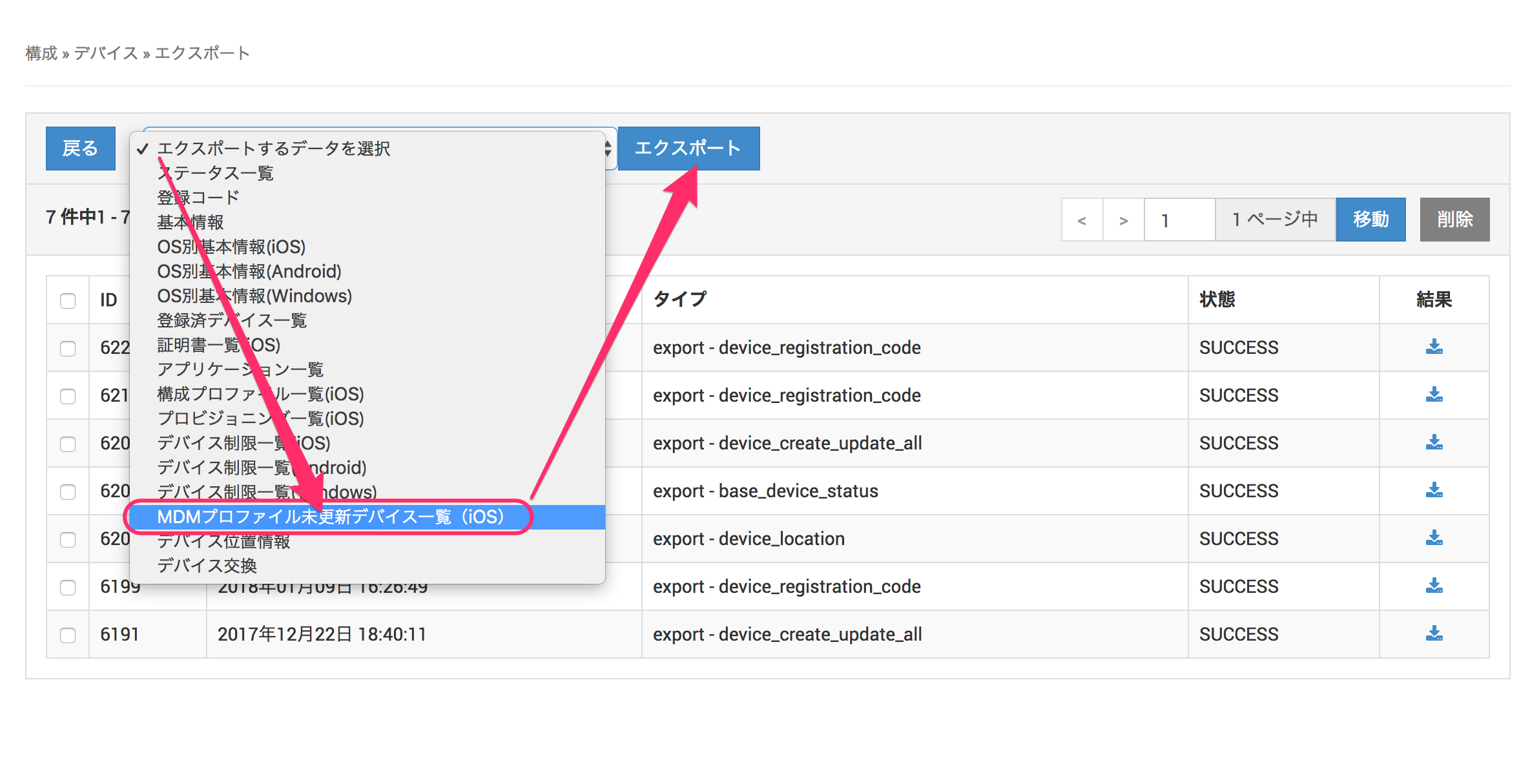
Select data to export, clickMDM Profile Not Updated Device List (iOS)to select it, and then click Export.
- On the
Do you want to create download data?message screen, click OK.

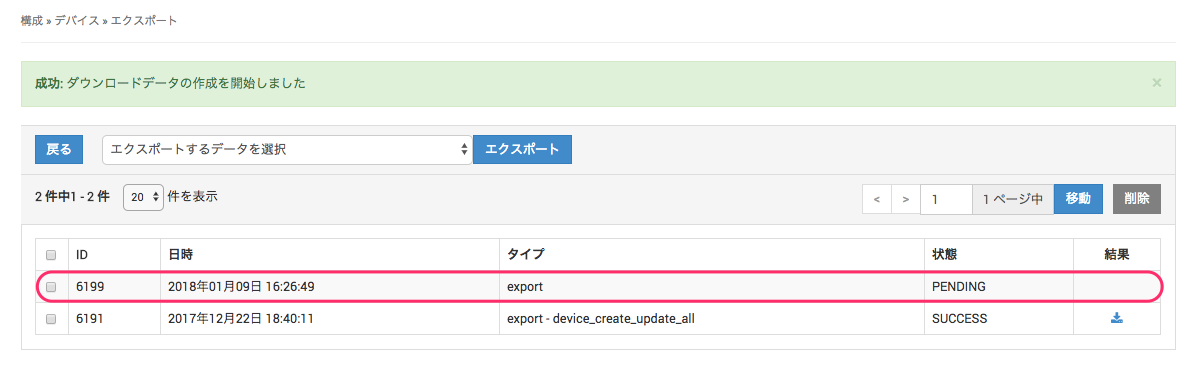
- In the export history at the bottom of the screen, the export data you are creating appears with
Status = PENDING. Wait a moment, and then click the browser's refresh button.
- After you refresh the browser, if the download data has been created,
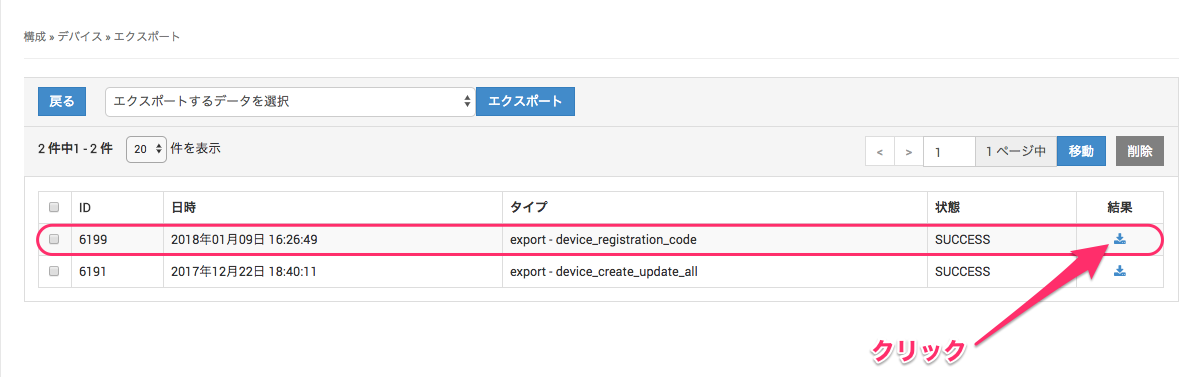
Statuschanges toSUCCESS.
Click the icon under the result to download the CSV file.
(If the status is still PENDING, wait a moment and refresh the browser again.)
- The downloaded CSV file contains only the devices whose MDM profile has not been updated.