Distribute a provisioning profile
What is a provisioning profile?
A provisioning profile is a file in .mobileprovision format that contains authentication information such as a certificate, device information, and an application ID. It is used to verify the authenticity of an iOS application developed in-house for business use (an in-house app).
A provisioning profile is always included in an in-house app. Normally, you distribute the provisioning profile by registering the in-house app in BizMobile Go! and distributing it to managed devices.
(See Create in-house app information.)
A provisioning profile is valid for one year from the date it was generated. After it expires, the in-house app can no longer be used.
To make the in-house app usable again, use one of the following methods.
- If the app's functionality has changed
Update the provisioning profile embedded in the app, register the updated version of the app in BizMobile Go!, and distribute it. - If the app's functionality has not changed
Update only the provisioning profile, and then register it in BizMobile Go! and distribute it.
With BizMobile Go!, you can distribute an updated provisioning profile to multiple devices at once.
This page describes how to update only the provisioning profile and distribute it from BizMobile Go!.
By registering a .mobileprovision file as profile information, you can distribute a common provisioning profile to the devices registered in a template.
Steps:
- In the CONFIG → Profile screen, click Create.
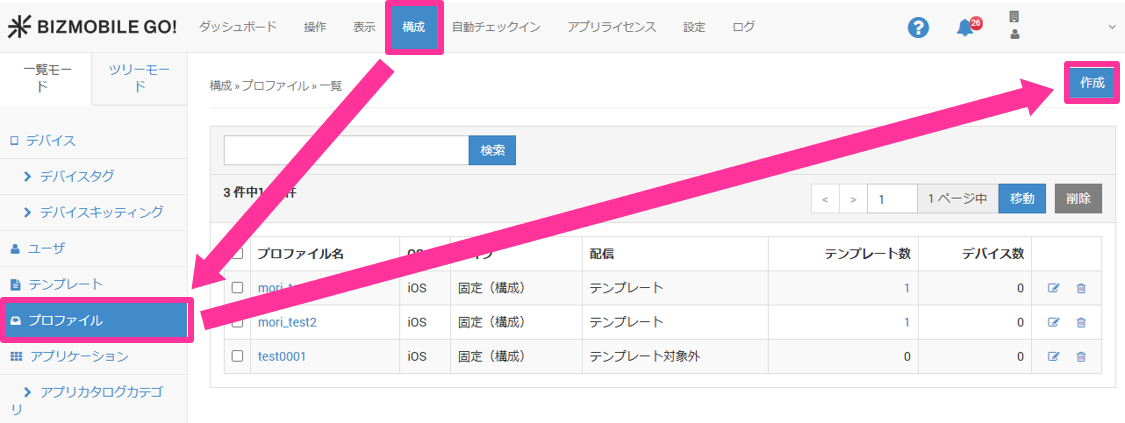
- Enter the required information on the profile information screen.
Input fields (* indicates a required field)
OS* | Select iOS. |
Distribution | Select |
Type | Select |
File* | Specify the .mobileprovision file you prepared. |
Template | Select the template to which this provisioning profile is applied. After you create a template, you can select it here. If you have not created a template yet, leave this field blank (you can also select the profile from the template screen when you create the template). |
To discard your entries, click Cancel. To save them, click Save.
BizMobile Go! raises an alarm in the following cases. For details on each alarm and how to handle it, see the **Alarm List**.
- 30 days before the provisioning profile expires
- 7 days before the provisioning profile expires
- On the day the provisioning profile expires
After you confirm the alarm, update the provisioning profile.