[Geofence v1] Create, edit, and delete a geofence
Create a geofence
Create a geofence to assign to a policy. You can assign multiple geofences to one policy.
You can register up to 20 circles in one geofence.
danger
Due to OS specifications, up to 20 circles at a time can be targets for enter and exit detection. If the total number of circles in the assigned geofences exceeds 20, the 20 circles nearest to the device become the active circles for enter and exit detection.
The accuracy of geofence enter and exit events depends on the OS and the location accuracy of the device. We recommend that you test on the devices you will actually use before setting the geofence range.
- On the Geofence screen, click [Create].
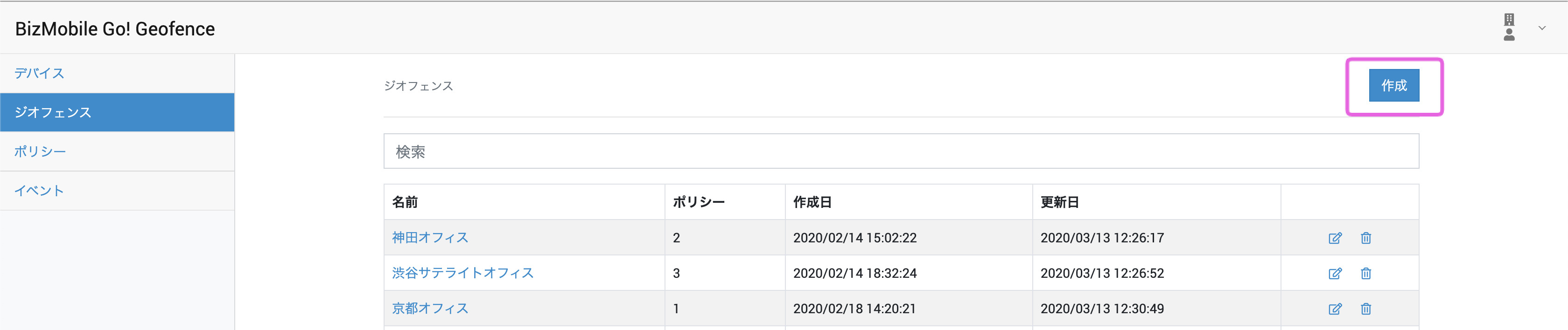
- Set circles on the map by following the steps in "How to add and delete circles" below.
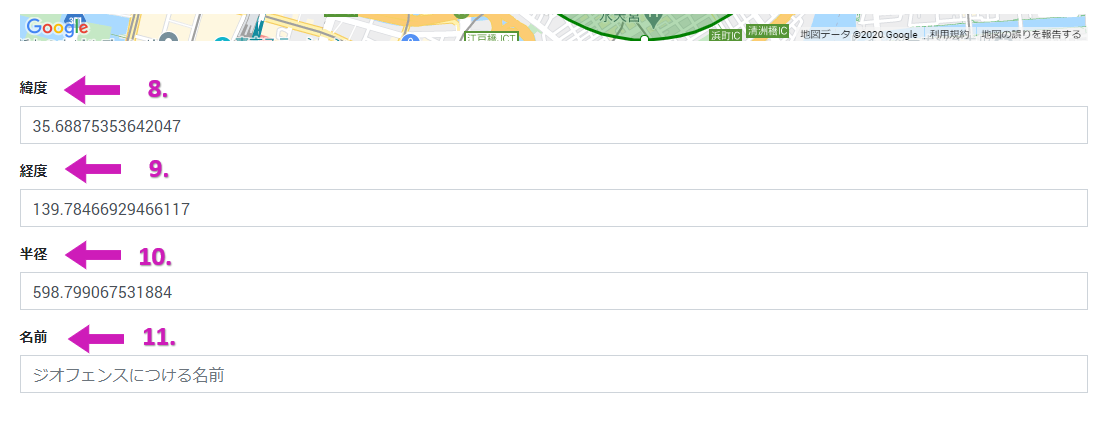
- Enter a name for this geofence in [Name] and click [Save].
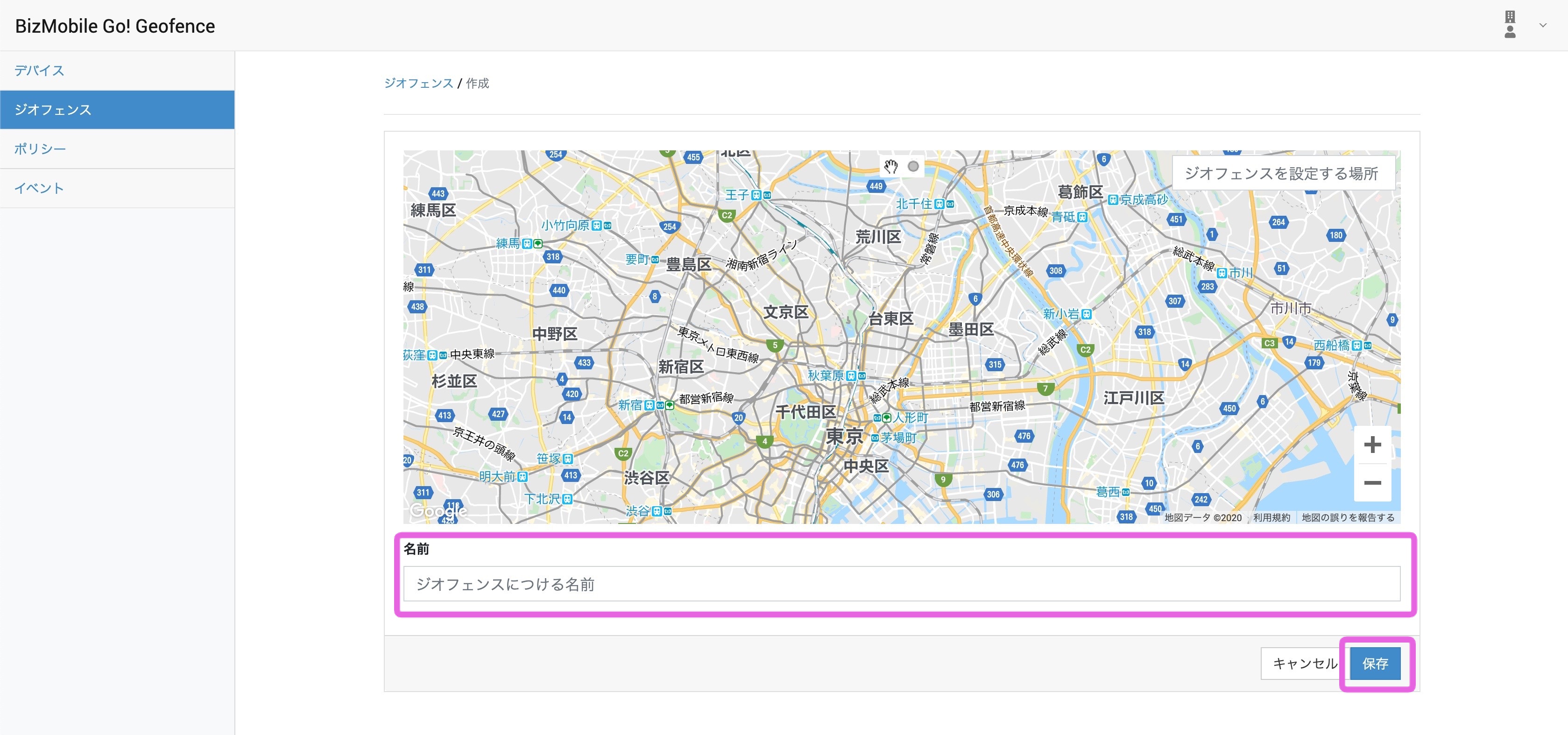
How to add and delete circles
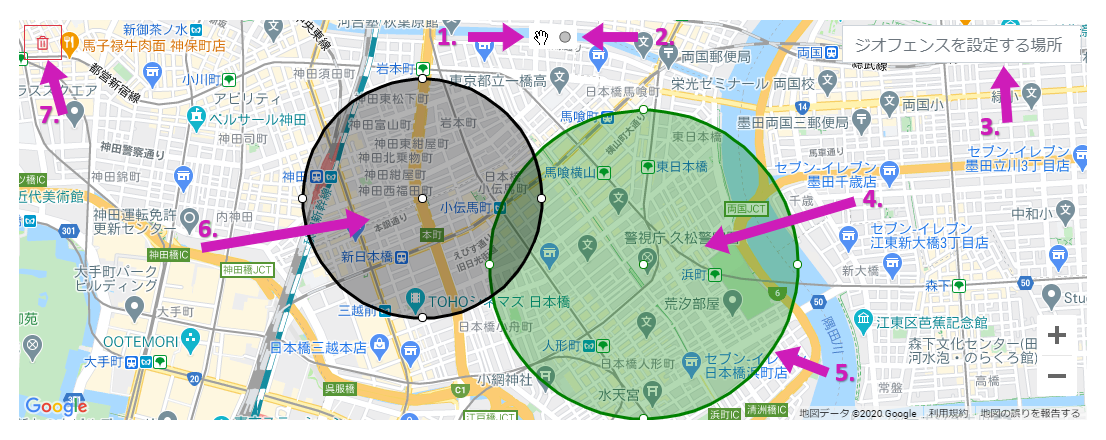
- Click the ✋ icon to switch to drawing mode. Drag and drop on the map to draw a new circle.
- Click the ● icon to switch to edit mode. Use edit mode to move or resize a drawn circle. Also use edit mode when you want to move the map.
- Search for an address or building name to move the map display.
- (Edit mode only) Click the center point of the green circle and drag and drop to move the circle.
- (Edit mode only) Click a point on the outline of the green circle and drag and drop to change the radius of the circle.
- (Edit mode only) Click a gray circle to make it the target of editing (the green circle).
- Click the delete icon to delete the target of editing (the green circle).
- Specify the latitude of the green circle as a value from 0 to 85 (degrees).
- Specify the longitude of the green circle as a value from 0 to 180 (degrees).
- Specify the radius of the green circle as a value from 50 to 10000 (meters).
Edit a geofence
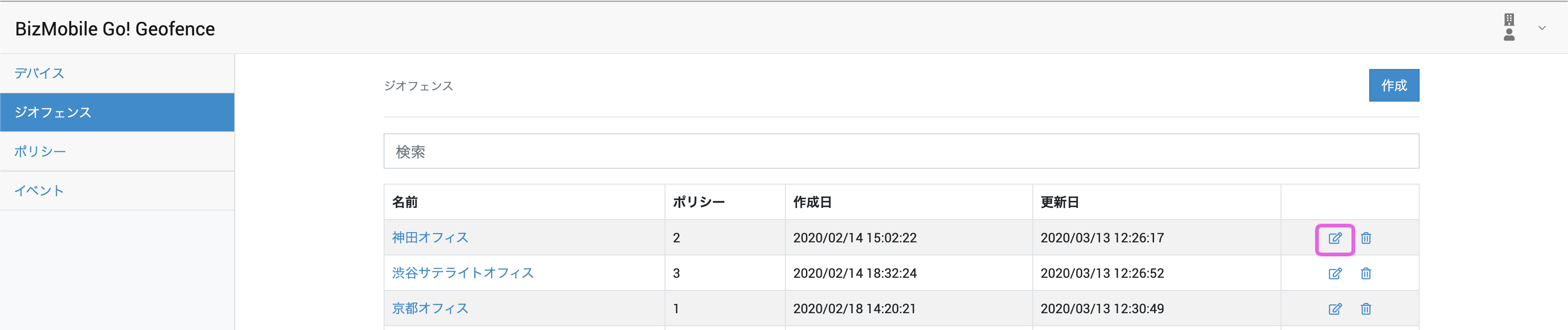
- On the Geofence screen, click the edit icon next to the geofence you want to edit.
- Edit the circles on the map by following the steps in "How to add and delete circles" below.
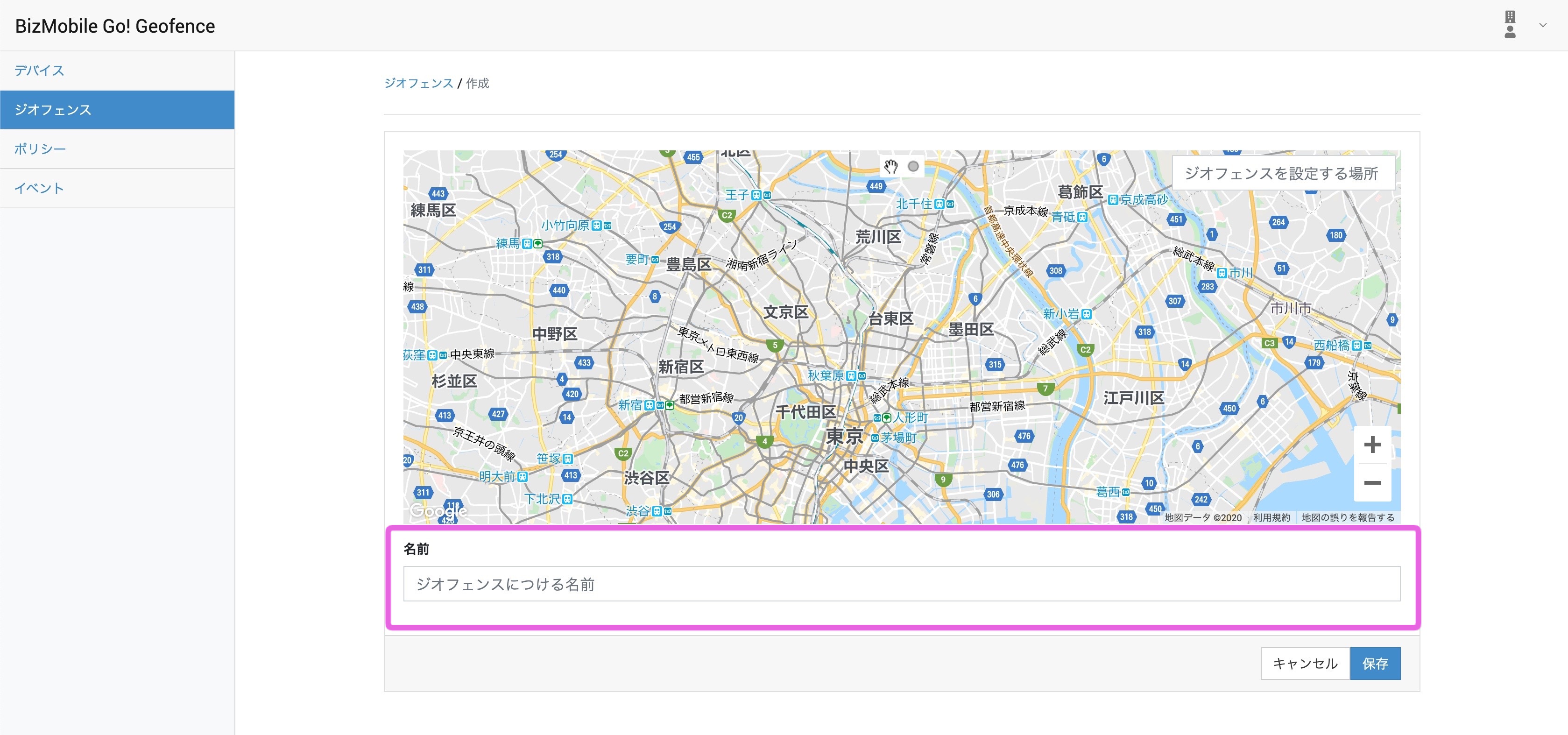
- To edit the name of the geofence, enter any name in [Name].
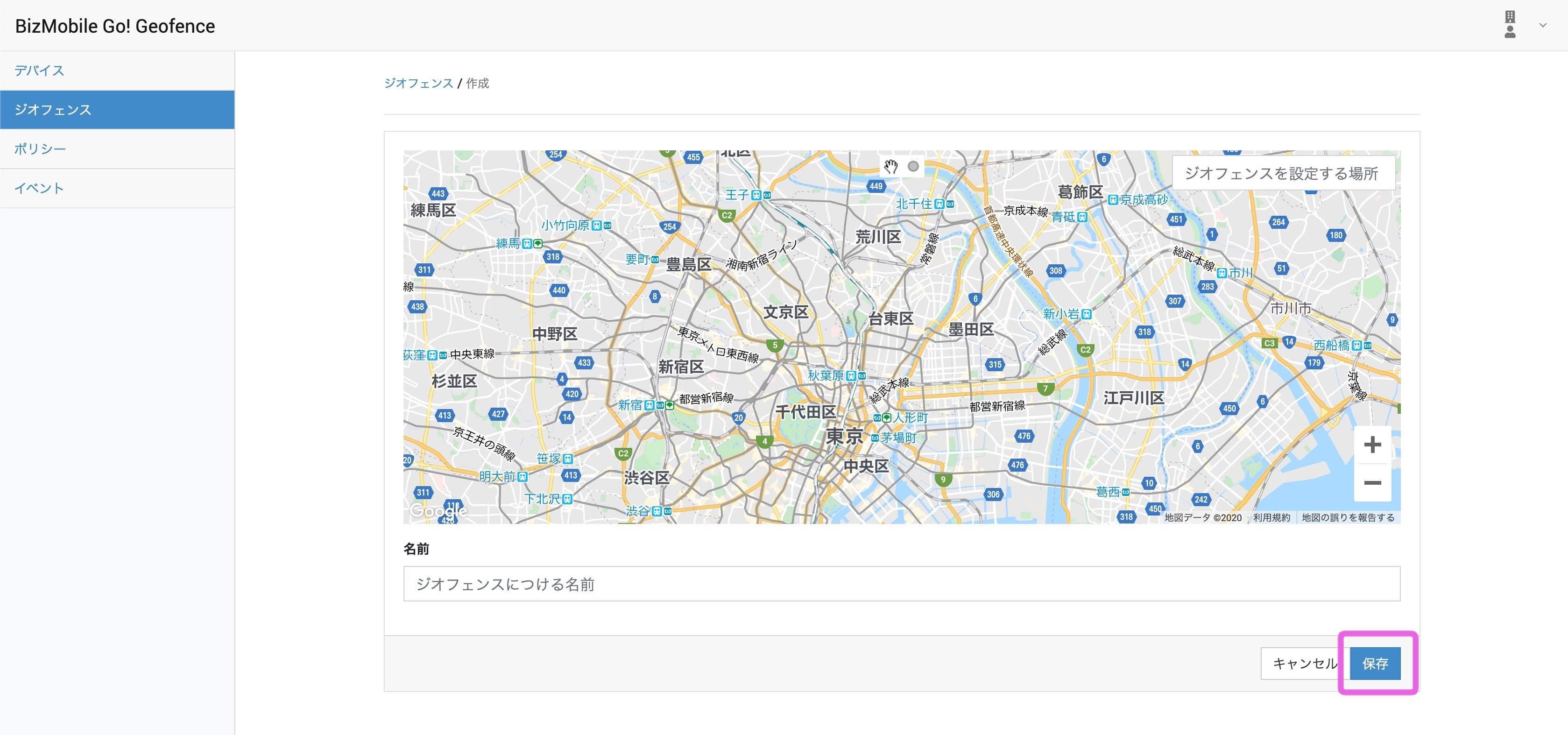
Note: Geofence names shown in past logs are not updated. - Click [Save].
How to add and delete circles
- Click the ✋ icon to switch to drawing mode. Drag and drop on the map to draw a new circle.
- Click the ● icon to switch to edit mode. Use edit mode to move or resize a drawn circle. Also use edit mode when you want to move the map.
- Search for an address or building name to move the map display.
- (Edit mode only) Click the center point of the green circle and drag and drop to move the circle.
- (Edit mode only) Click a point on the outline of the green circle and drag and drop to change the radius of the circle.
- (Edit mode only) Click a gray circle to make it the target of editing (the green circle).
- Click the delete icon to delete the target of editing (the green circle).
- Specify the latitude of the green circle as a value from 0 to 85 (degrees).
- Specify the longitude of the green circle as a value from 0 to 180 (degrees).
- Specify the radius of the green circle as a value from 50 to 10000 (meters).
Delete a geofence
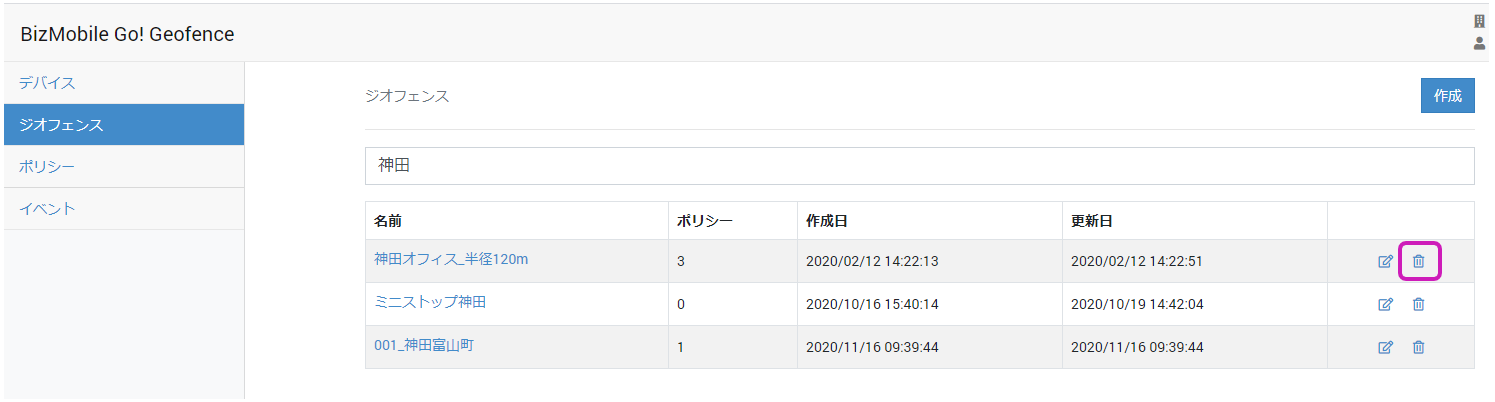
- On the Geofence screen, click the delete icon next to the geofence you want to delete.
- In the confirmation pop-up, click [Delete].
