[Geofence v1] Create, edit, and delete a policy
A policy defines the target geofences and the action performed when a device enters or exits a geofence. You can assign a created policy to multiple devices.
Create a policy
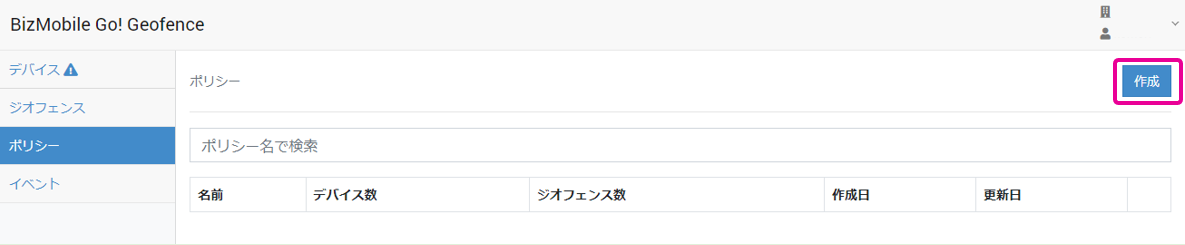
- On the Policy screen, click [Create].
- Enter the required information on the policy information screen that opens.
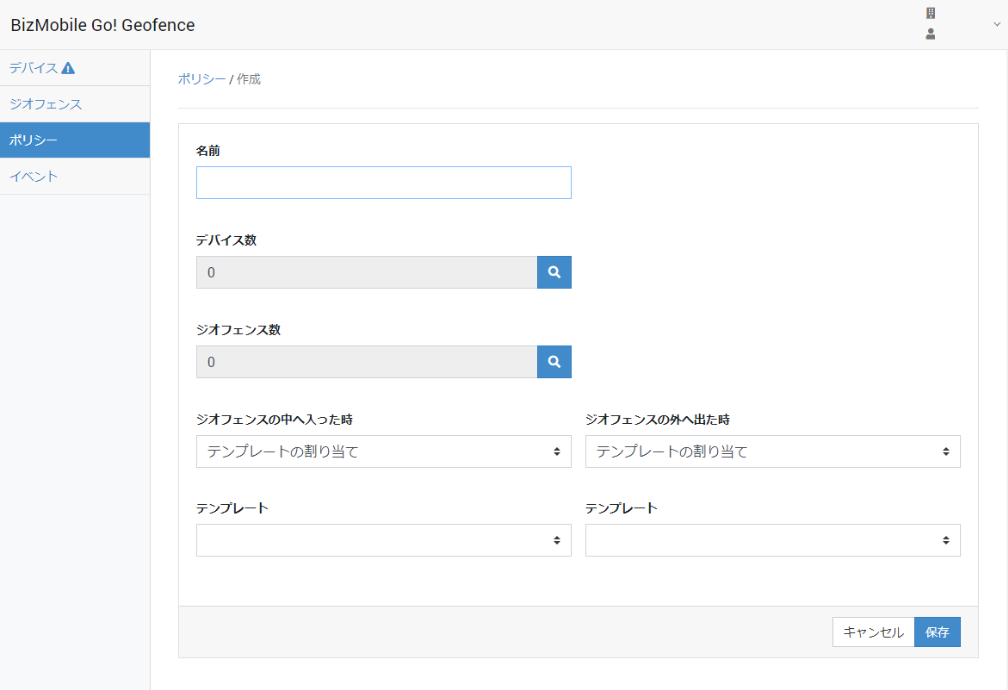
Input items (items marked with ★ are required)
| Name ★ | Name for the policy |
| Number of Devices | Select the devices to assign this policy to |
| Number of Geofences | Select the geofences to assign to this policy |
| When entering a geofence ★ | Select the action to perform when a device enters a geofence from the following - Assign template |
| Template ★ | Only when Assign template is selected. Select the template to assign when a device enters a geofence. Note: Only templates in which the BizGo!Geofence app is registered can be selected. |
| When exiting a geofence ★ | Select the action to perform when a device exits a geofence from the following - Assign template |
| Template ★ | Only when Assign template is selected. Select the template to assign when a device exits a geofence. Note: Only templates in which the BizGo!Geofence app is registered can be selected. |
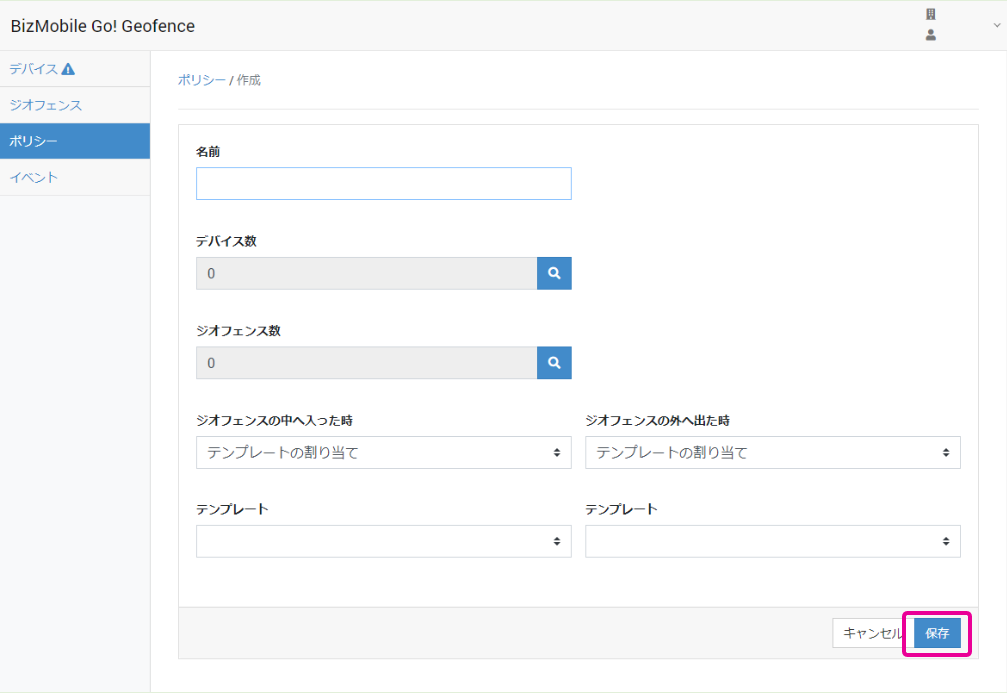
- Click [Save].
Search for and select devices with no policy assigned
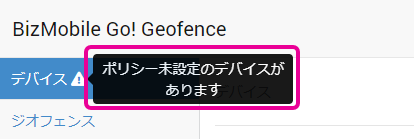
If there are devices that are not assigned to a policy, a notification mark appears next to "Device" in the left menu.
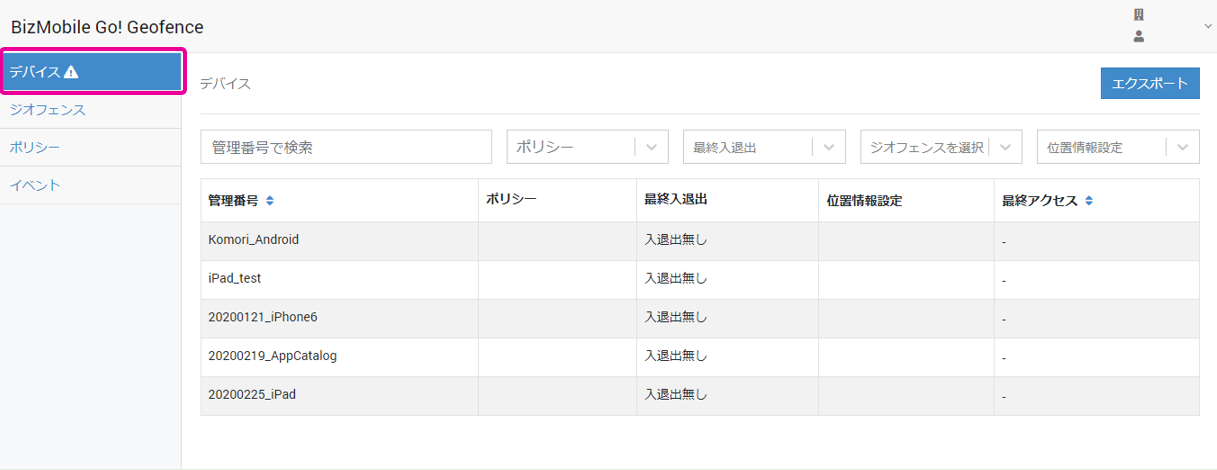
When you hover over the notification mark, a message is displayed.
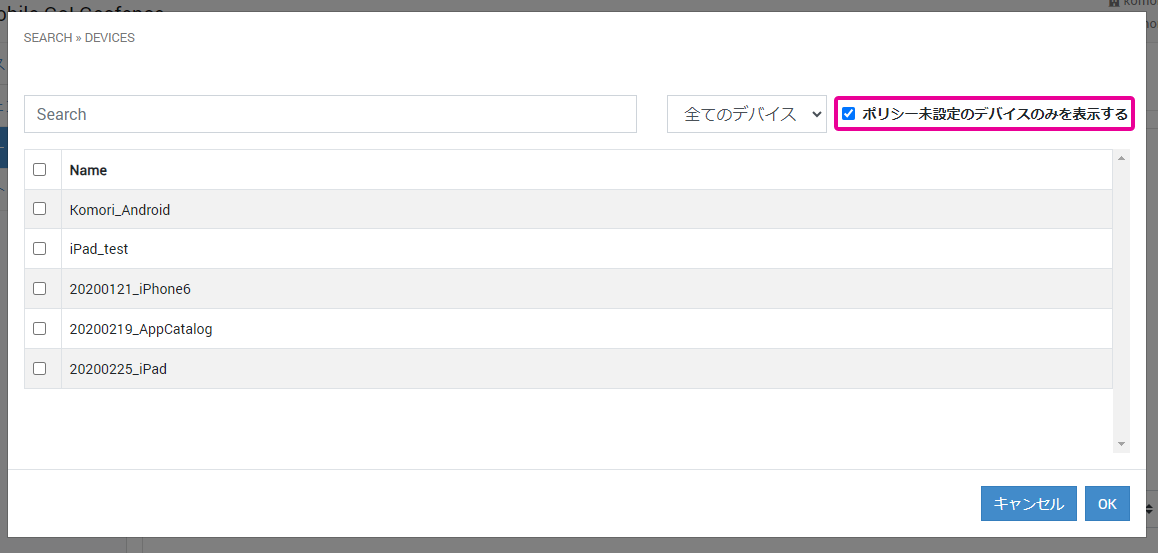
- From the "Device" menu, you can filter devices by "No Policy," then select them and assign a policy.

- When creating or editing a policy, you can filter by "Show only devices with no policy."
Select the devices to assign by device tag
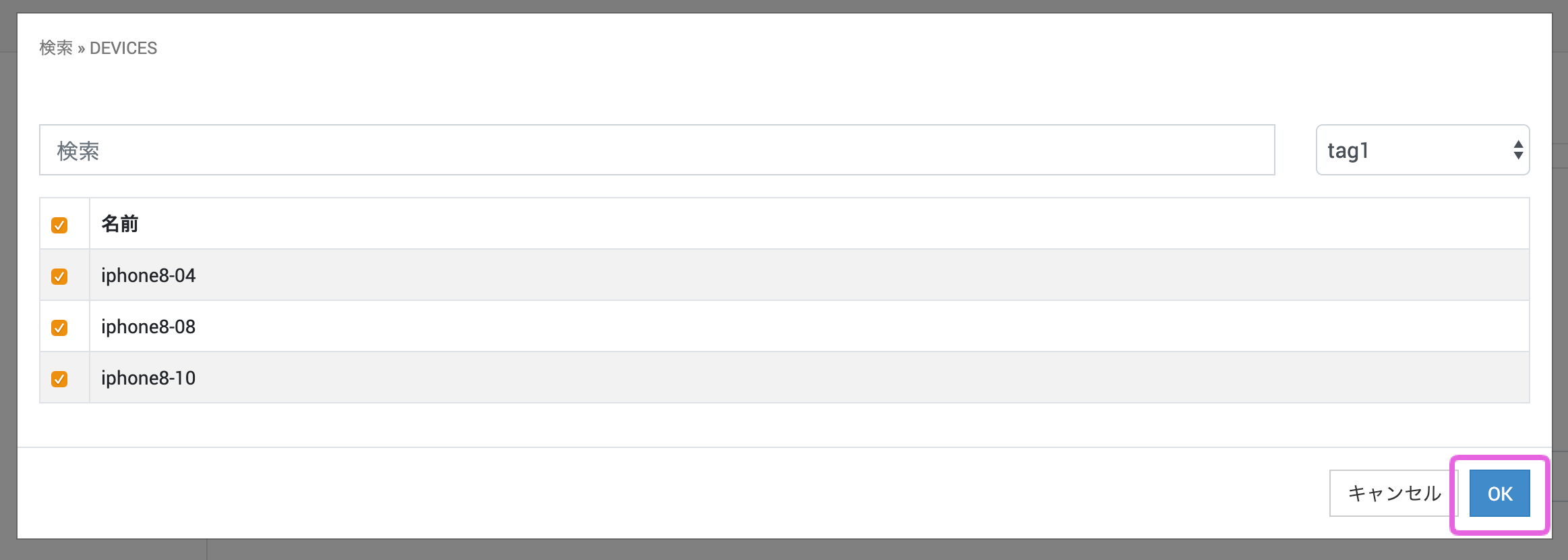
On the device search screen, you can select all devices or select devices individually as the assignment targets.
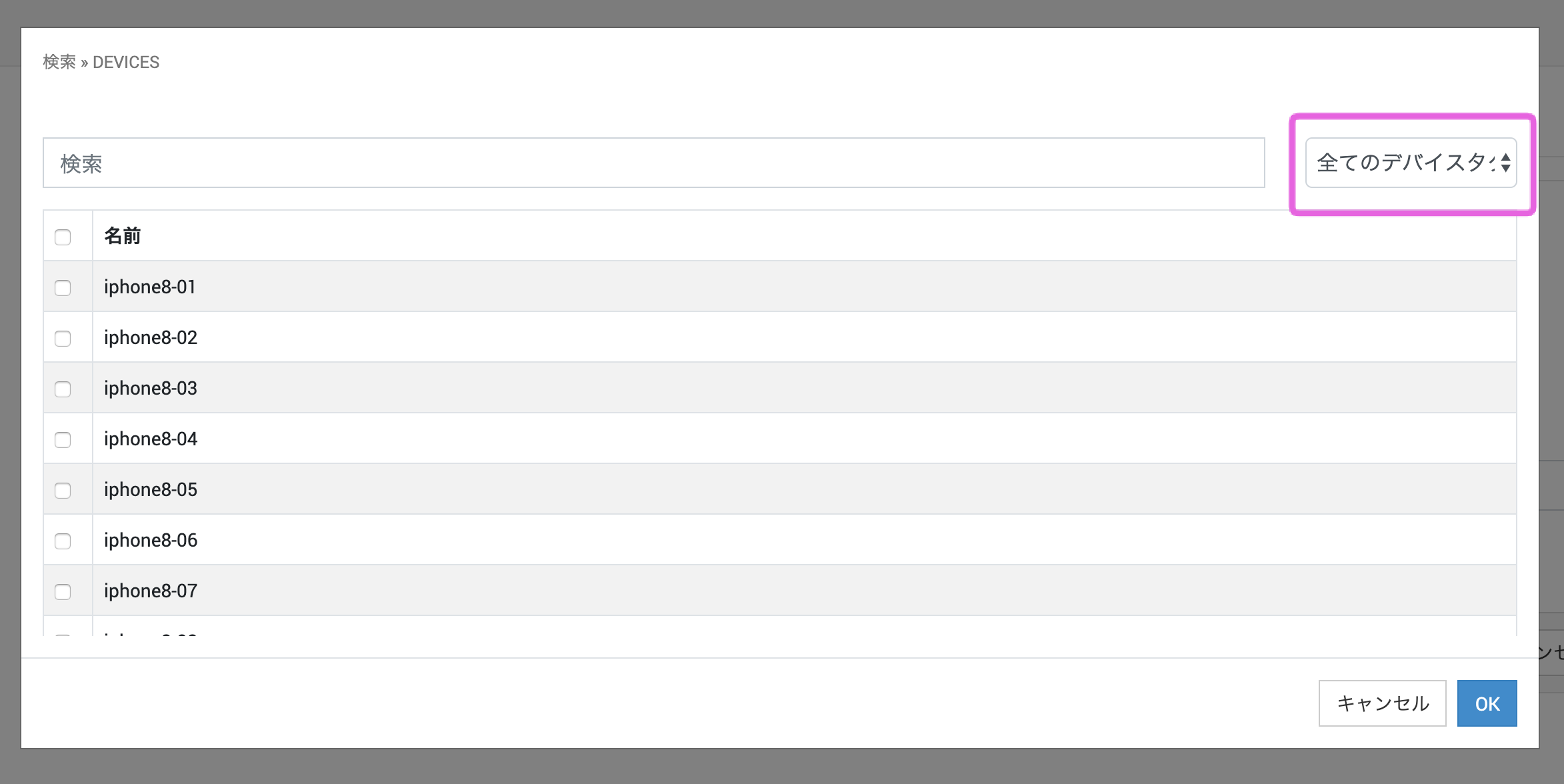
You can filter the selectable devices by one device tag, so selecting all after filtering lets you select only the devices that have the same device tag at once.
For how to create a device tag, see Device Tags.
- Click [All Device Tags] and select the device tag to filter by.
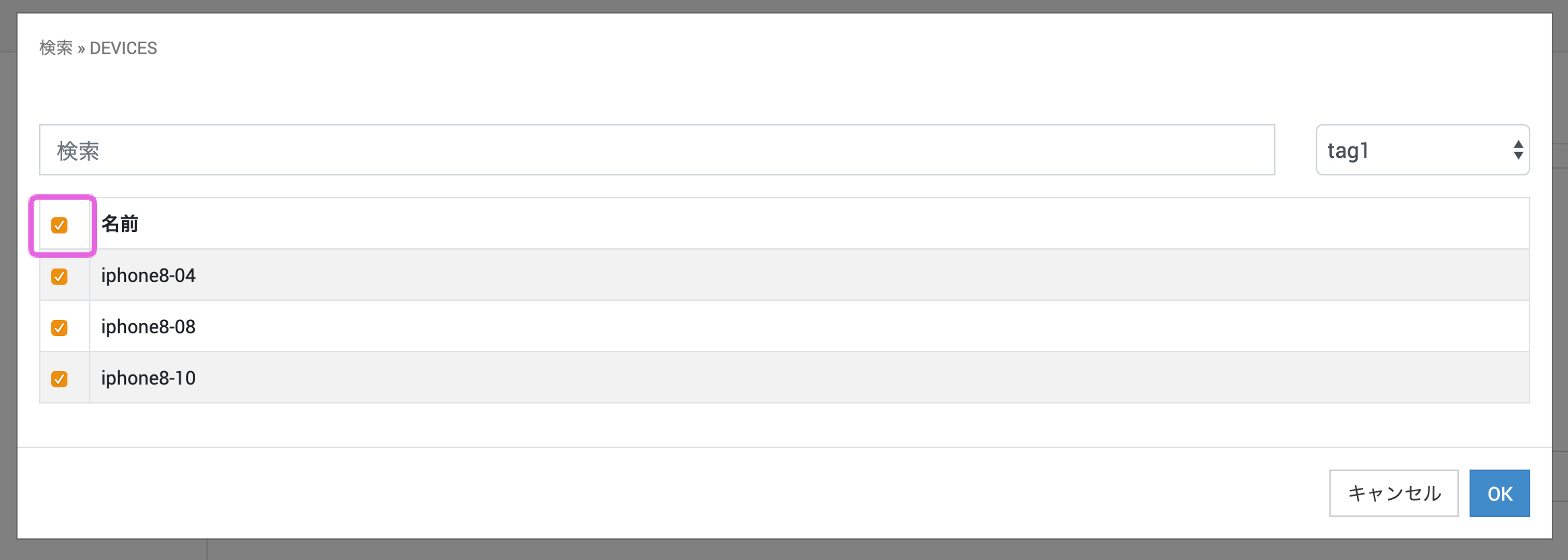
- Click the checkbox next to [Name]. All devices with the device tag you filtered by are selected.
- Click [OK].
Edit a policy
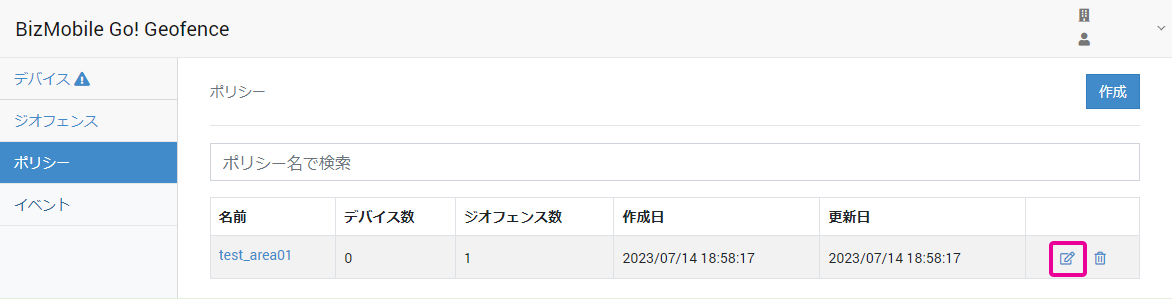
- On the Policy screen, click the edit icon next to the policy you want to edit.
- Enter the required information on the policy information screen that opens.
Input items (items marked with ★ are required)
| Name ★ | Name for the policy |
| Number of Devices | Select the devices to assign this policy to |
| Number of Geofences | Select the geofences to assign to this policy |
| When entering a geofence ★ | Select the action to perform when a device enters a geofence - Assign template |
| Template ★ | Only when Assign template is selected. Select the template to assign when a device enters a geofence. Note: Only templates in which the BizGo!Geofence app is registered can be selected. |
| When exiting a geofence ★ | Select the action to perform when a device exits a geofence - Assign template |
| Template ★ | Only when Assign template is selected. Select the template to assign when a device exits a geofence. Note: Only templates in which the BizGo!Geofence app is registered can be selected. |
- Click [Save].
Delete a policy
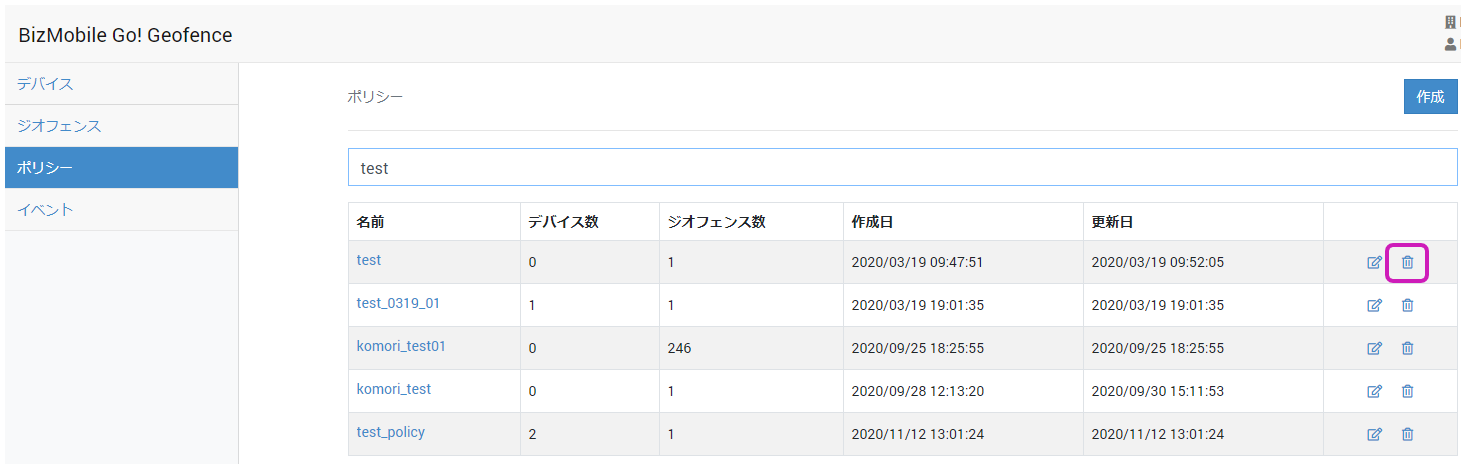
- On the Policy screen, click the delete icon next to the policy you want to delete.
- In the confirmation pop-up, click [Delete].
