Google Play Store App
Follow the steps below to create application information for an app on the Google Play Store.
To silently install or uninstall apps by using Android Enterprise (EMM) features, a user must be assigned to the device.
- Click Create on the CONFIG → Application screen.
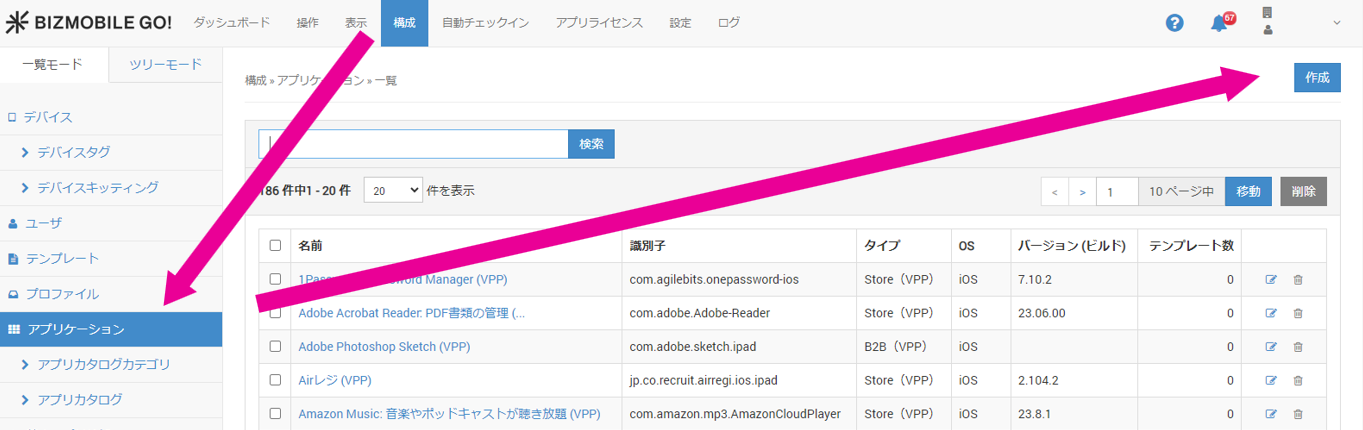
- Enter the required information on the application information screen that appears.
Input fields (items marked with ★ are required)
OS | Select Android. |
Type | Select |
Name ★ | Enter the name of the application. |
| Description | Optional information |
Package Name ★ | Enter the package name of the application. Note: In a unit where the Android EMM feature is enabled, click |
Template | Select the template in which to register this application. If you have not created a template yet, you do not need to fill in this field (you can also select the application from the template side when you create the template). |
 to open the Google Play Store app search window. When you search for and select the app,
 For each application, if any one of Identifier, Name, or Version differs, the application can be installed or updated on devices.
However, because devices manage apps internally by Identifier, you cannot assign multiple apps with the same Identifier to a template used for distribution, even if their Name or Version differs.
-
To discard what you entered, click Cancel. To register the application, click Save.
When the application is created, the following is displayed at the top of the screen.

The application name is a link. Click it to open the application details page.
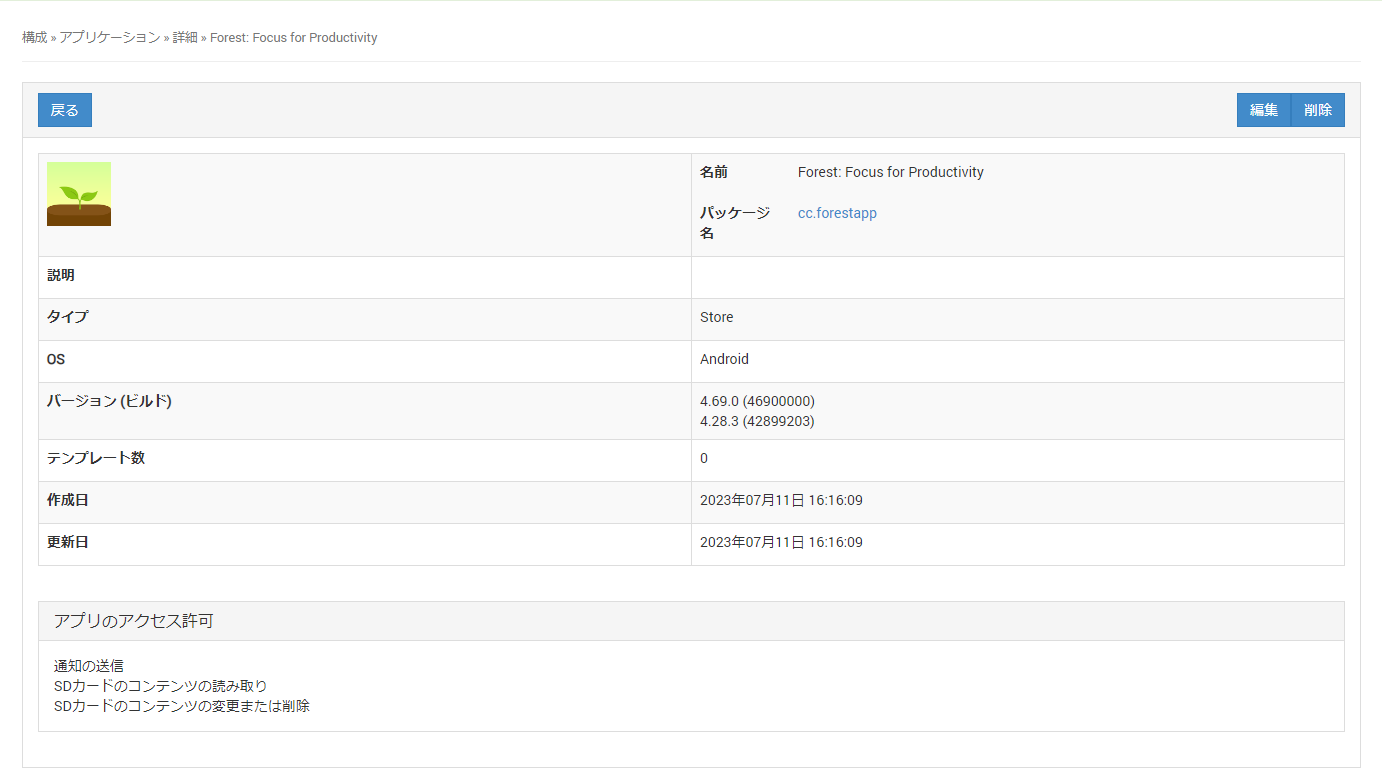
Name The app name you registered, or the app name registered automatically from the Google Play Store Package Name App package name Description Information you entered Type Store app or in-house app OS Android Version (Build) The app version is displayed, with the build in parentheses
Multiple entries are displayed for apps that support multiple platformsNumber of Templates Number of templates to which this app is assigned Created Date and time the app was created Updated Date and time the application information was last updated
Auto Update
You can choose when apps distributed from BizMobile Go! are updated.
-
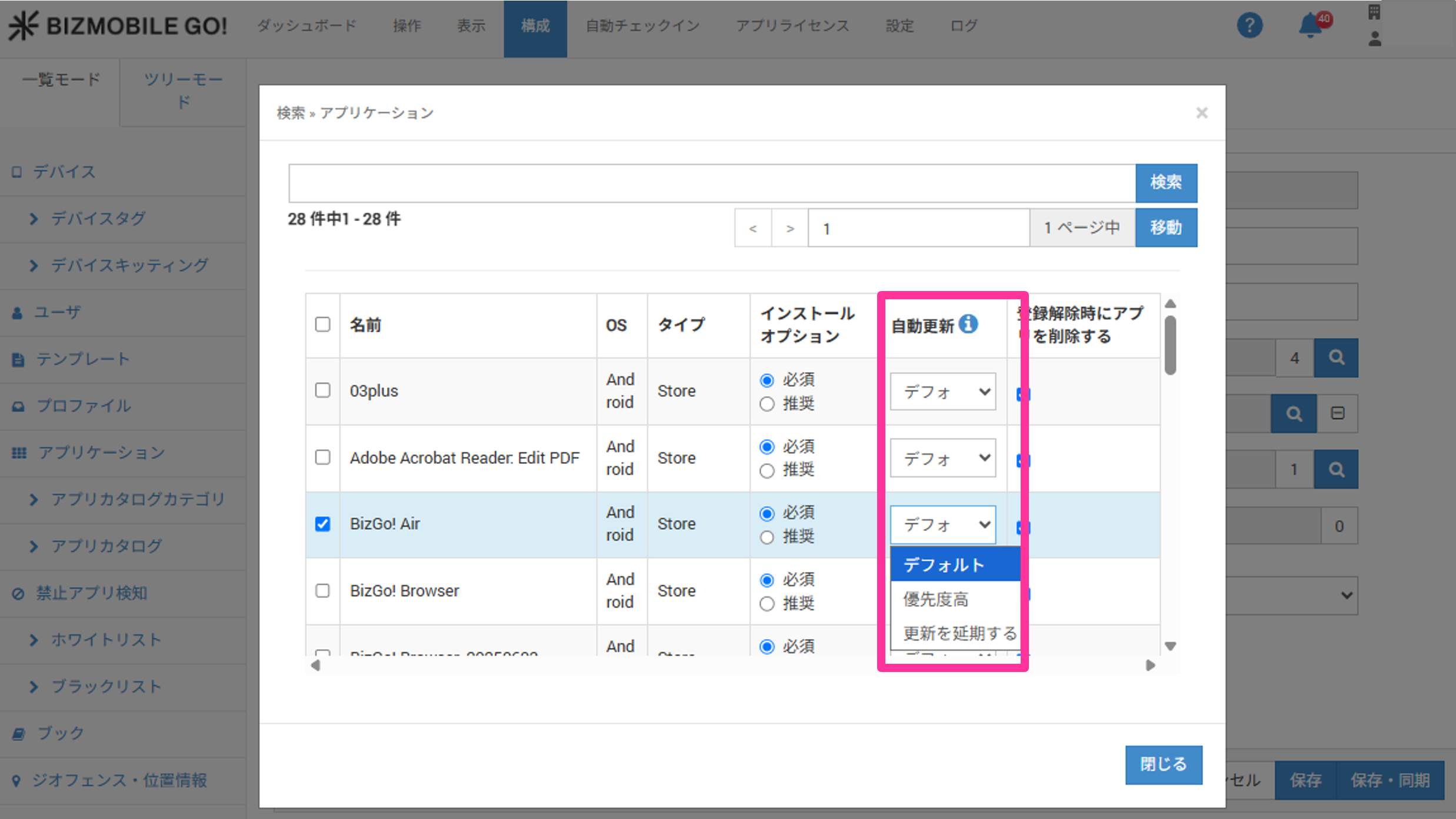
Default - Updates the app automatically when the device is connected to a Wi-Fi network and charging, and the target app is not actively in use or running in the foreground.
-
High priority - Updates the app immediately after the developer publishes a new version and Google Play reviews it.
If the device is offline at that time, the app is updated as soon as the device next connects to the internet. -
Postpone updates - Postpones app updates for 90 days after an update becomes available.
After 90 days, the latest available version is installed automatically.
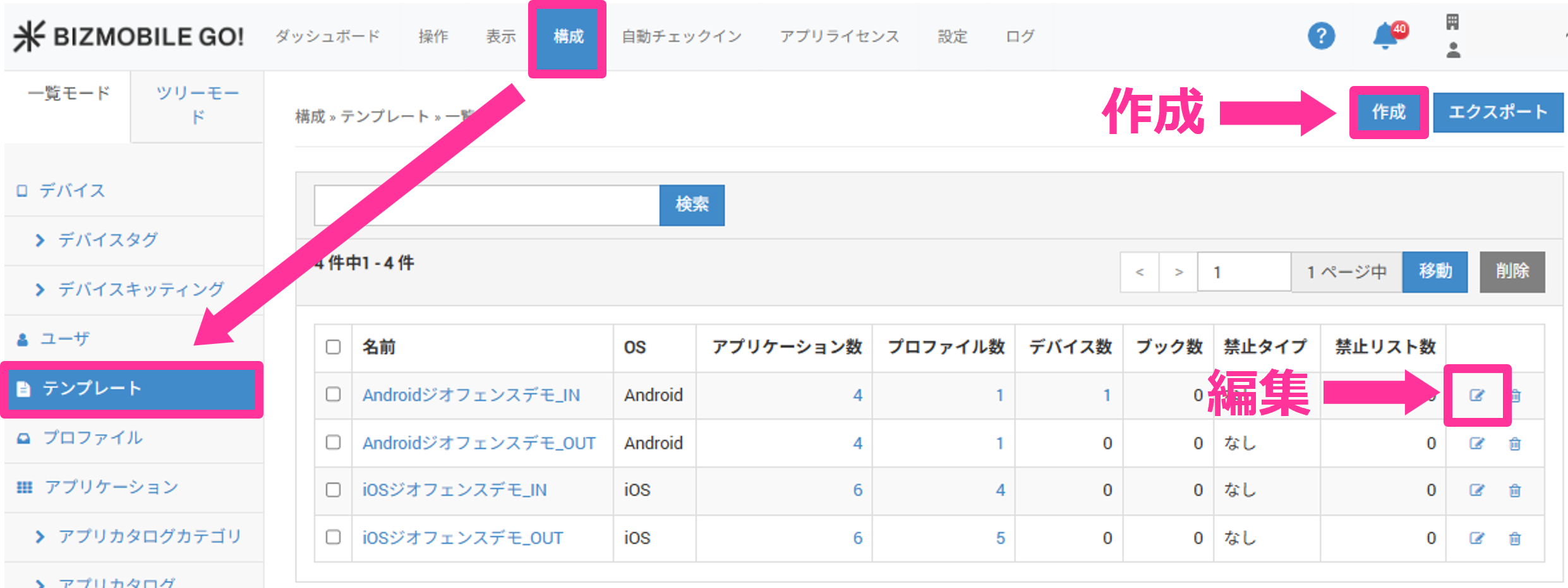
Steps from template creation/editing
-
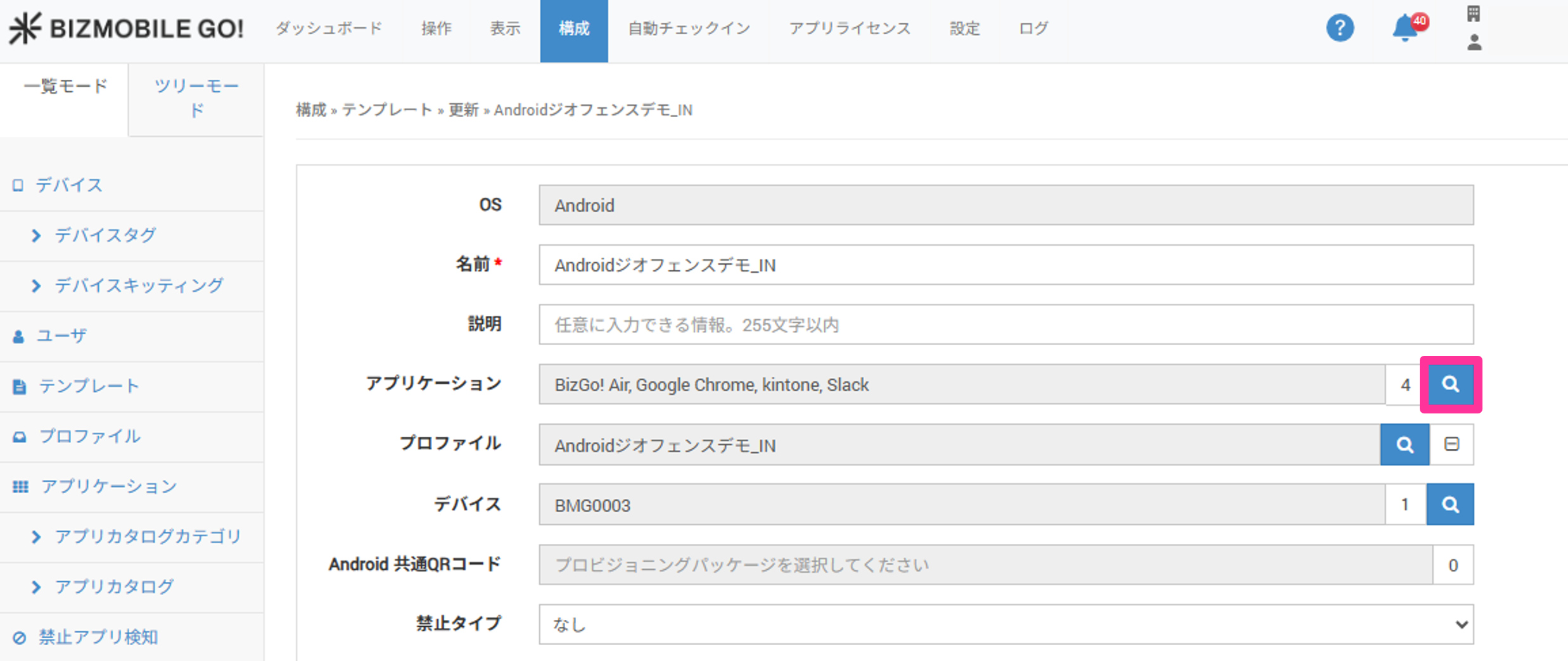
Click the
Createbutton, or theEditicon of a template, in CONFIG → Template.
-
Click the magnifying glass icon for
Application.
-
Select an update method from the
Auto Updatedrop-down menu.
Steps from application creation/editing
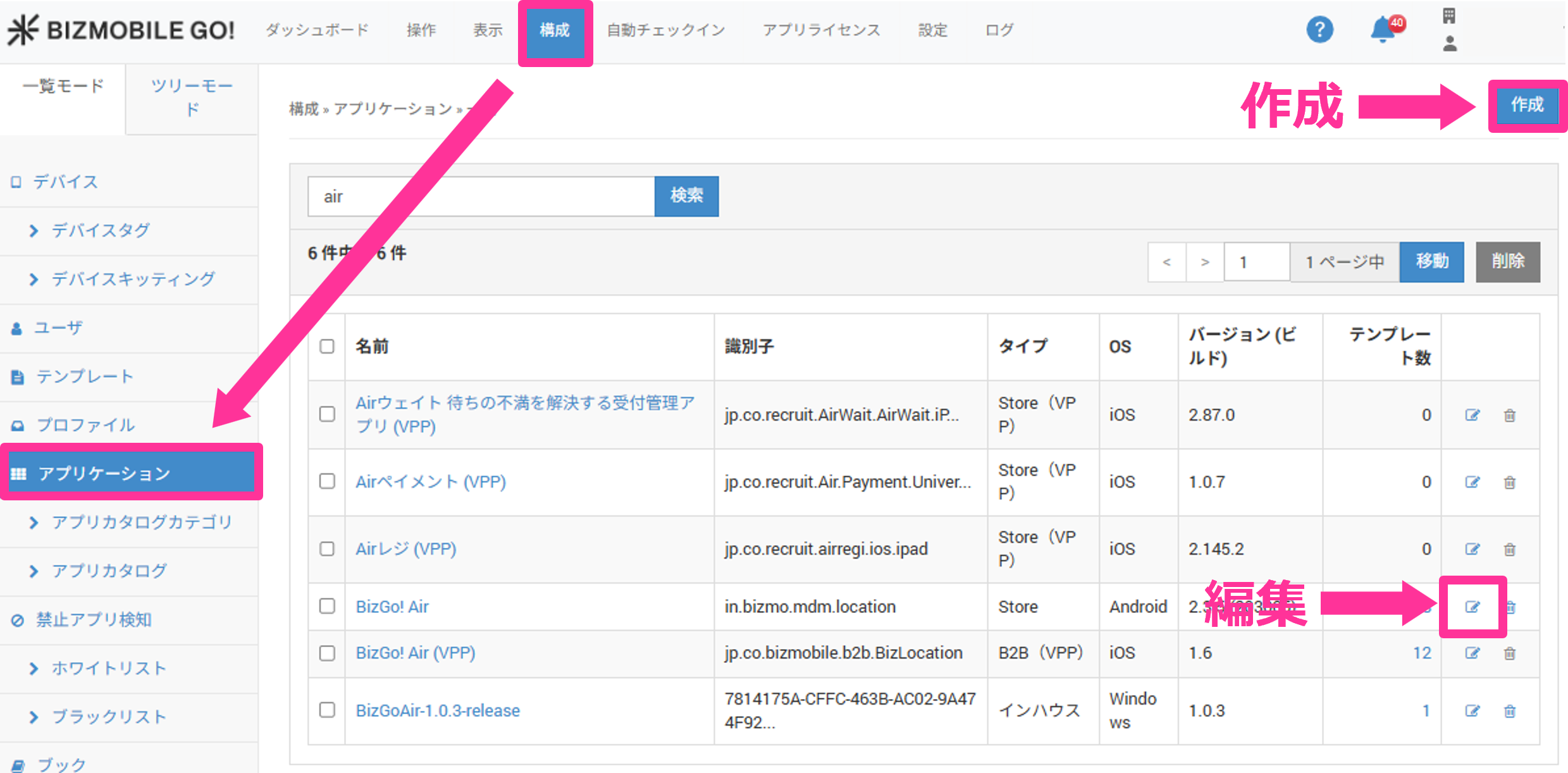
- Click the
Createbutton, or theEditicon of an app, in CONFIG → Application.
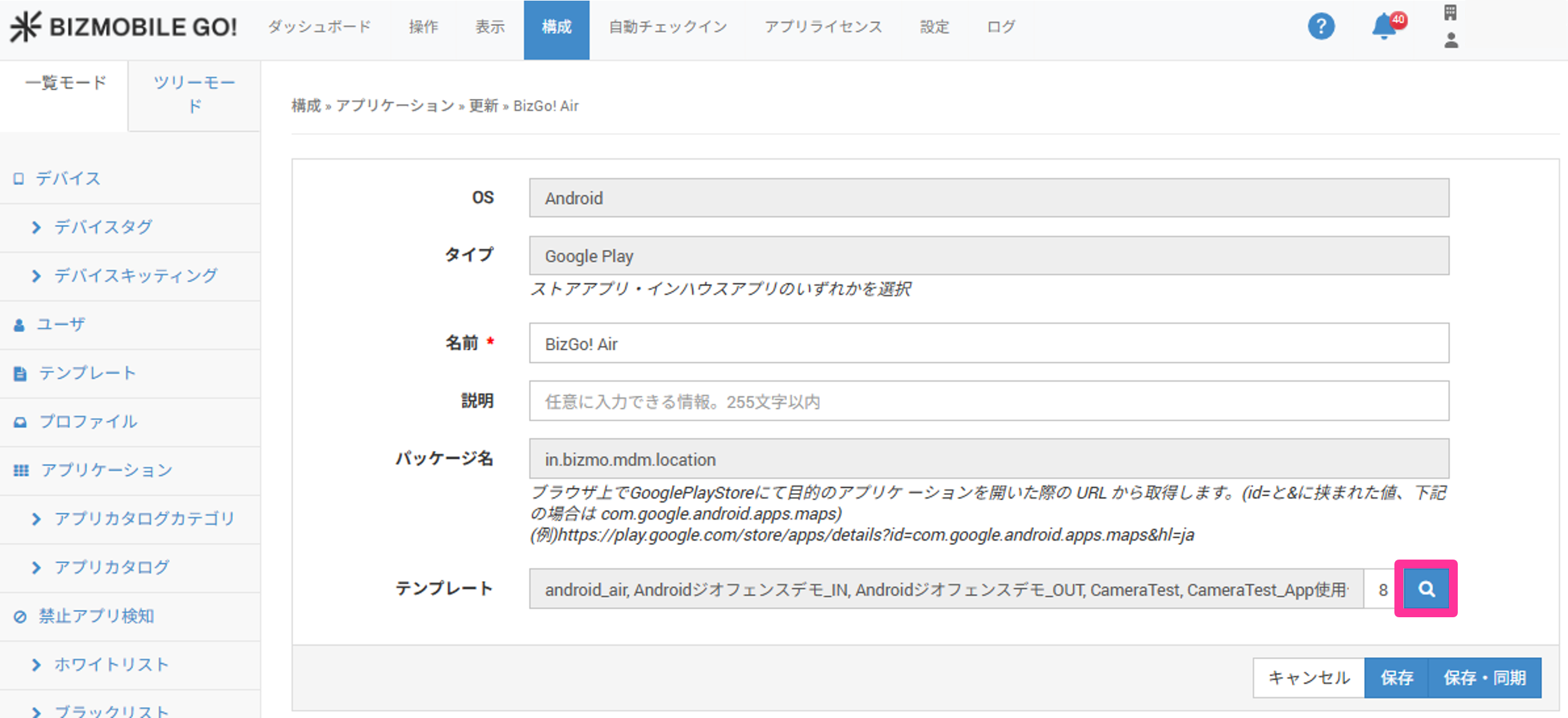
- Click the magnifying glass icon for
Template.
- Select an update method from the
Auto Updatedrop-down menu.
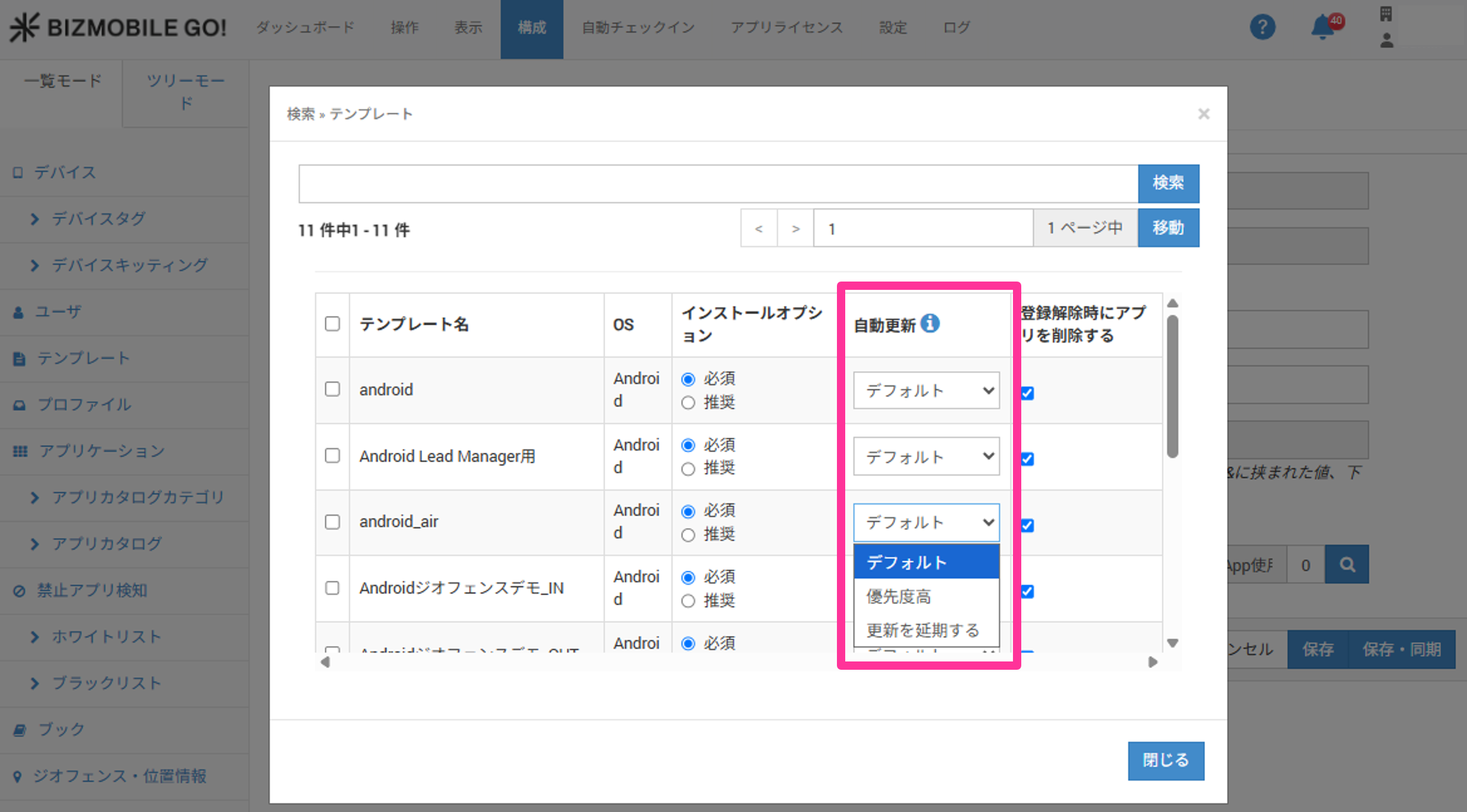
After an automatic update, you can use the latest version of the application without its settings being reset.
Configure automatic updates on the screen where you assign the application to a template.
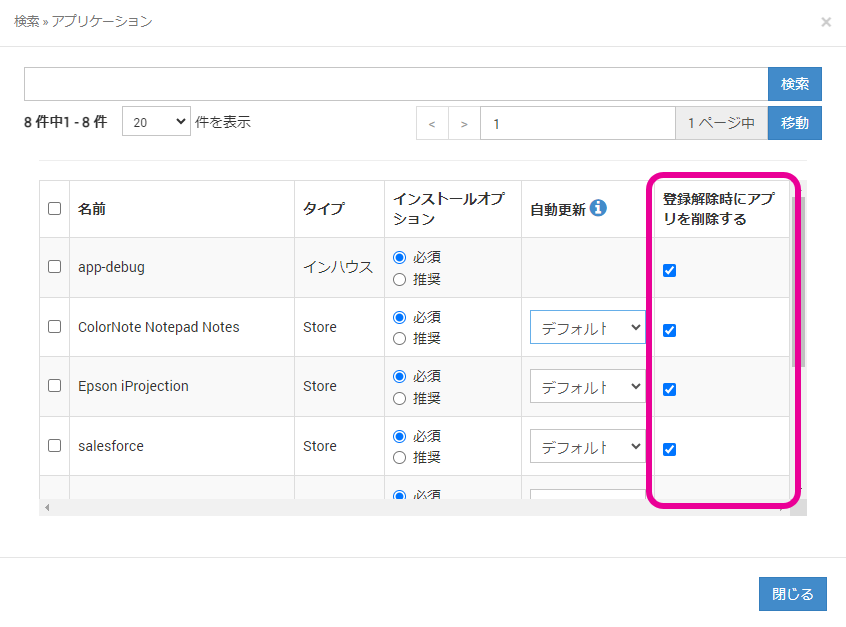
Delete Apps When Withdrawing
When a device is withdrawn, you can choose whether to delete the apps distributed from MDM or leave them on the device.
To leave the apps, clear the Remove App When Device Withdrawn check box.