Set Default Configuration per Device
There are two ways to set the default configuration per device.
-
Set per device from the device information edit screen
This sets values for a device, so you can configure only apps that are installed on the device. -
Set multiple devices at once with a CSV file
This sets values for an app, so you can configure not only apps already installed on devices but also apps not yet installed, and you can configure devices that have not yet enrolled.
Set per device from the device information edit screen
-
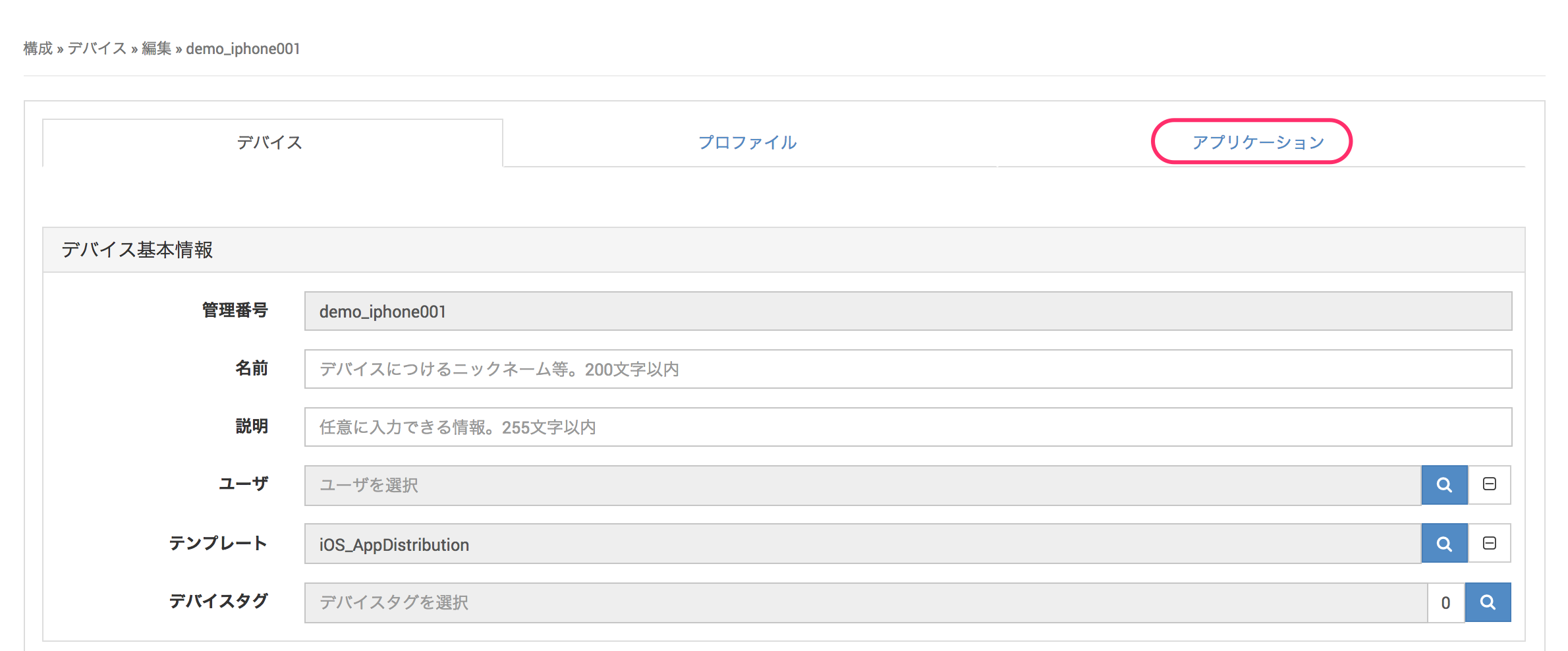
On the device edit screen, click
Applications.
-
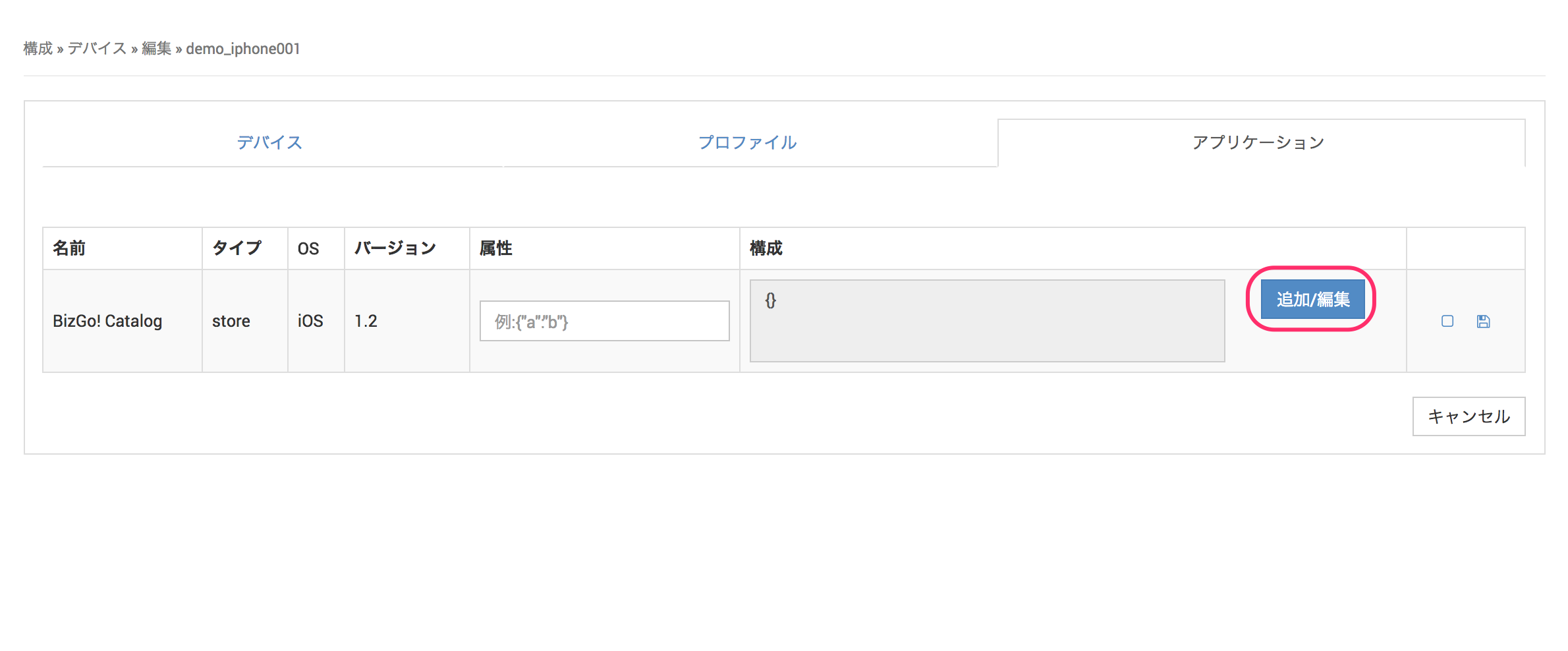
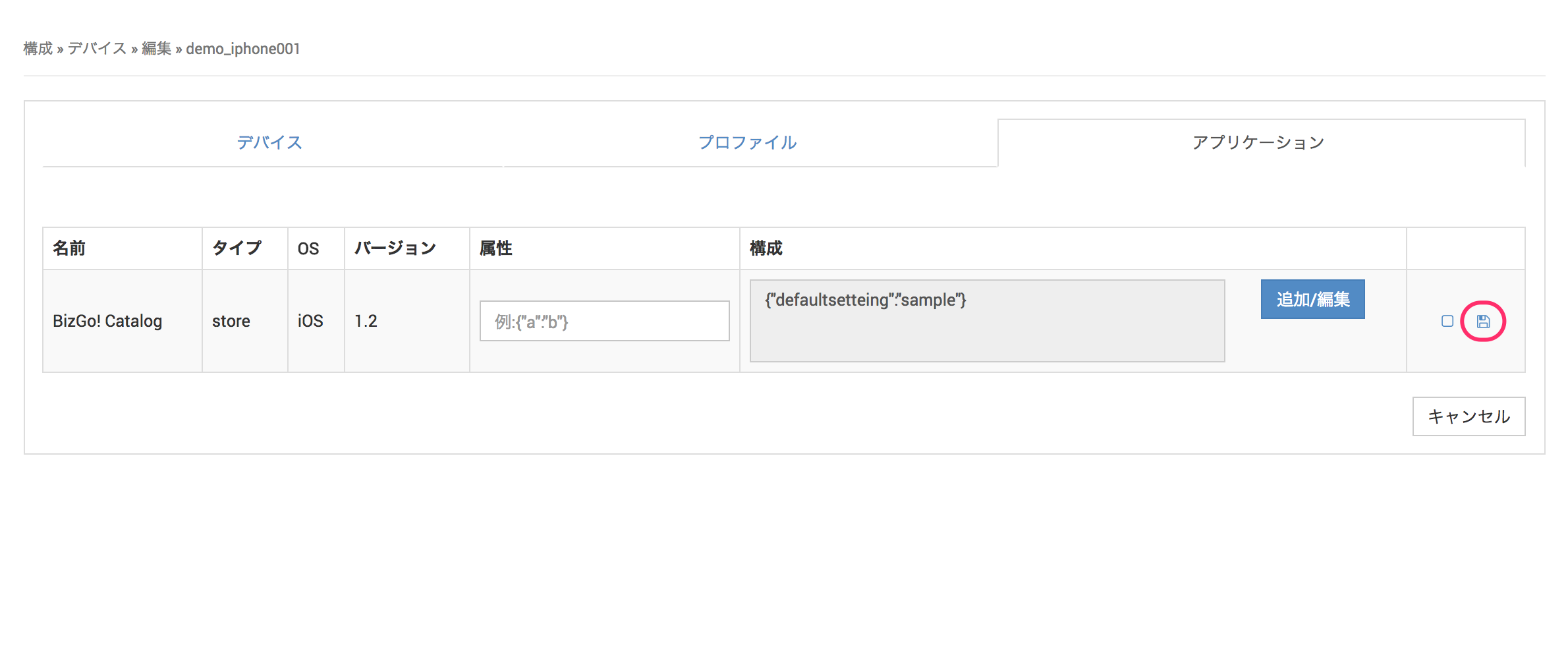
In the list of installed apps, click [Add/Edit] for the app you want to configure.
-
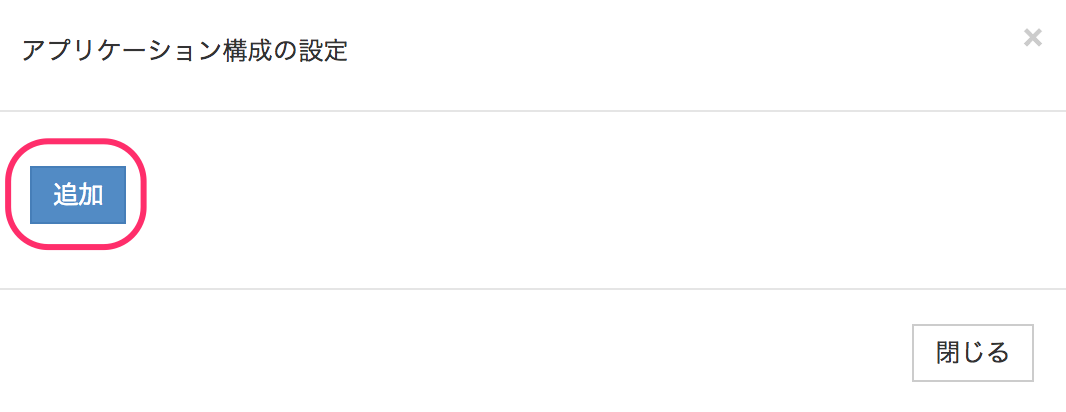
On the
Application Configuration Settingsscreen, click [Add].
-
Enter the values to distribute, and click [Close].
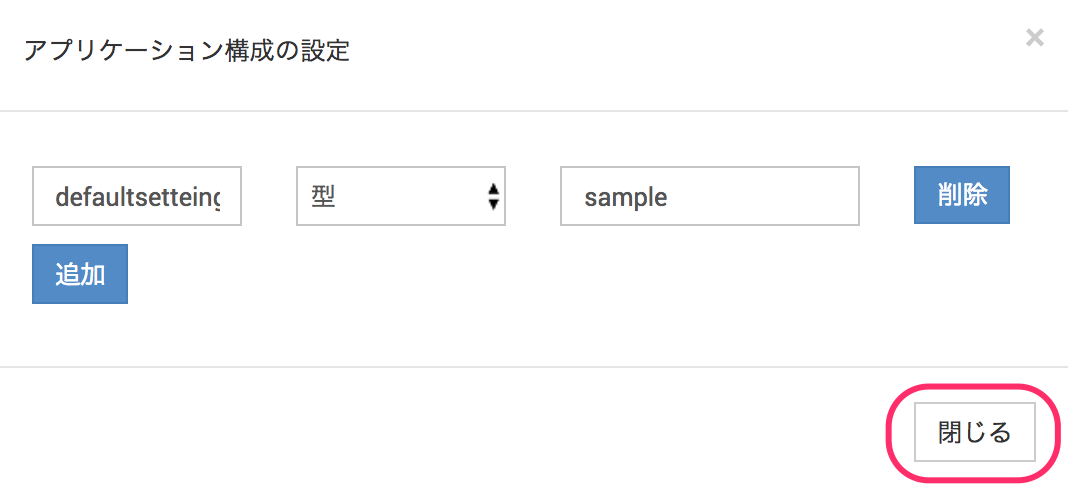
Values you can enterKey Type Value Up to 255 characters String Up to 1,024 characters Number Up to 14 characters
Numbers onlyBoolean - True
- False
JSON Up to 1,024 characters
JSON format onlyVariable - device_identifier: The device's
Identifier - device_id: A device ID that is unique in the system (included in the URL of the device detail screen)
- device_did: A device UID that is unique in the system (cannot be checked in the admin console)
- device_name: The device's
Name on Device(a value obtained from the device) - device_display_name: The device's
Name - device_imei: The device's
IMEI - device_serial_number: The device's
Serial Number - user_email: The
Email Addressof theUserassigned to the device - user_username: The
Usernameof theUserassigned to the device - unit_unitid: Unit ID
-
Click the
 icon to save.
Set multiple devices at once with a CSV file
To distribute the default configuration per device, write each device's Identifier and the Key and Value to set for it in a CSV file, and then import the file.
Only strings can be specified as the Value.
-
In the first column of the header, write
identifierto identify the device, followed by theKeycolumns.
From the second row on, write the device'sIdentifierand theValueentries.
The key and value settings must follow the app's specifications.<CSV file sample>
Identifier,sample-key1,sample-key2
device0001,AAA,XXX
device0002,BBB,YYY
device0003,BBB,YYY -
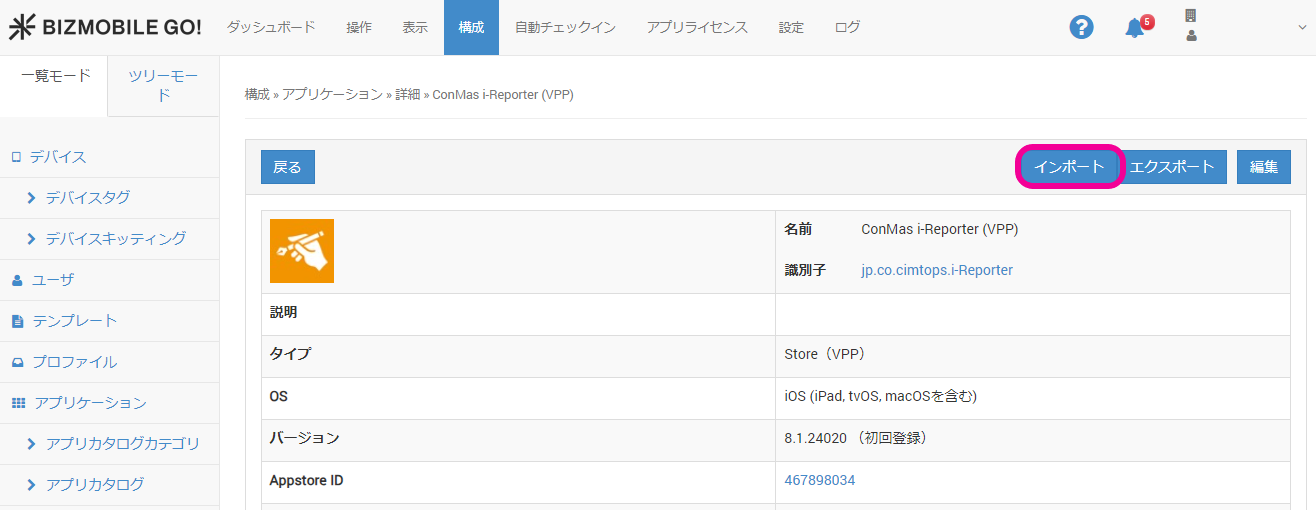
On the app detail screen under CONFIG > Applications, click
Import.
-
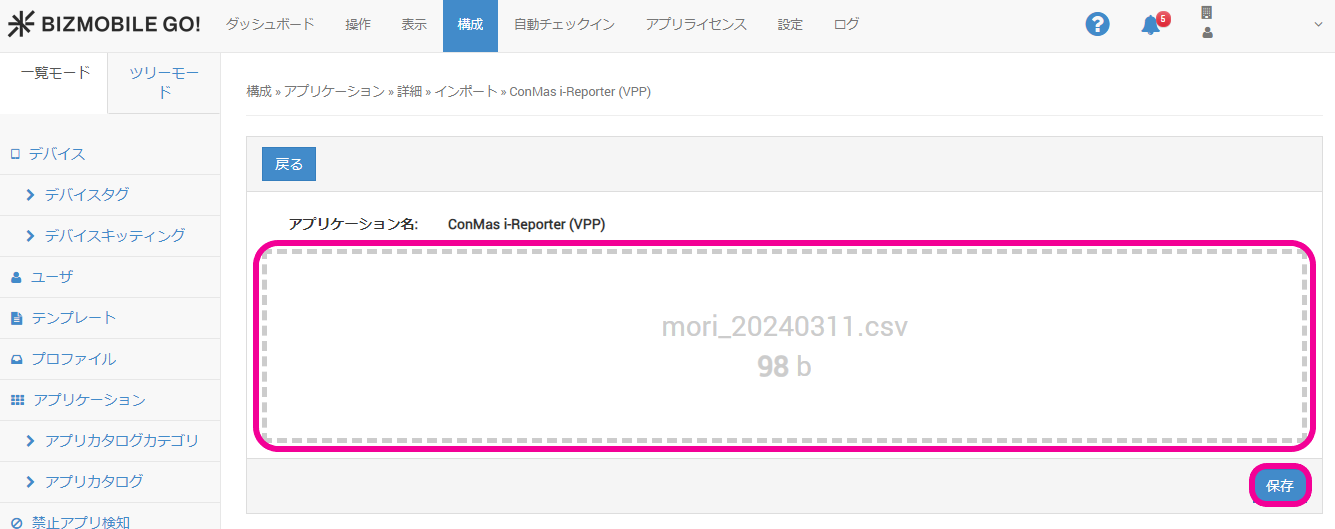
Click the area to select the CSV file, or drag and drop the file onto it, and then click
Save.
-
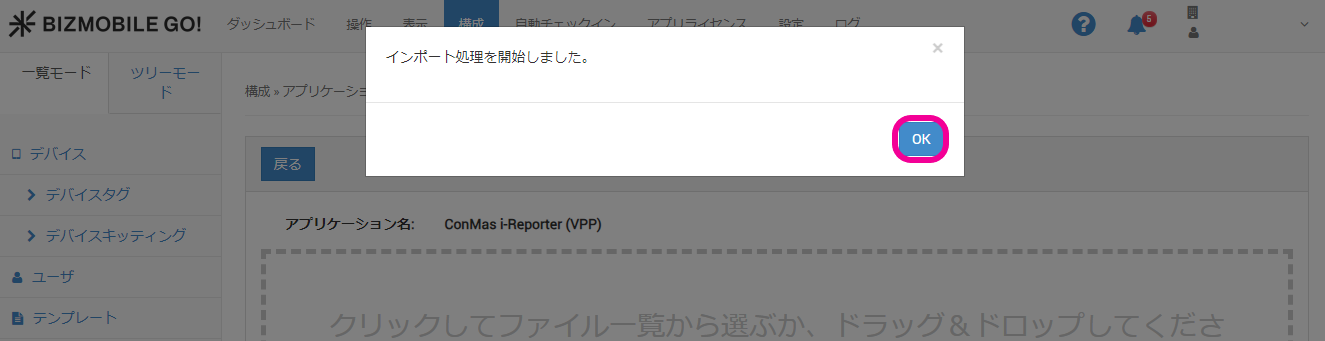
A pop-up window appears. Click
OK.
-
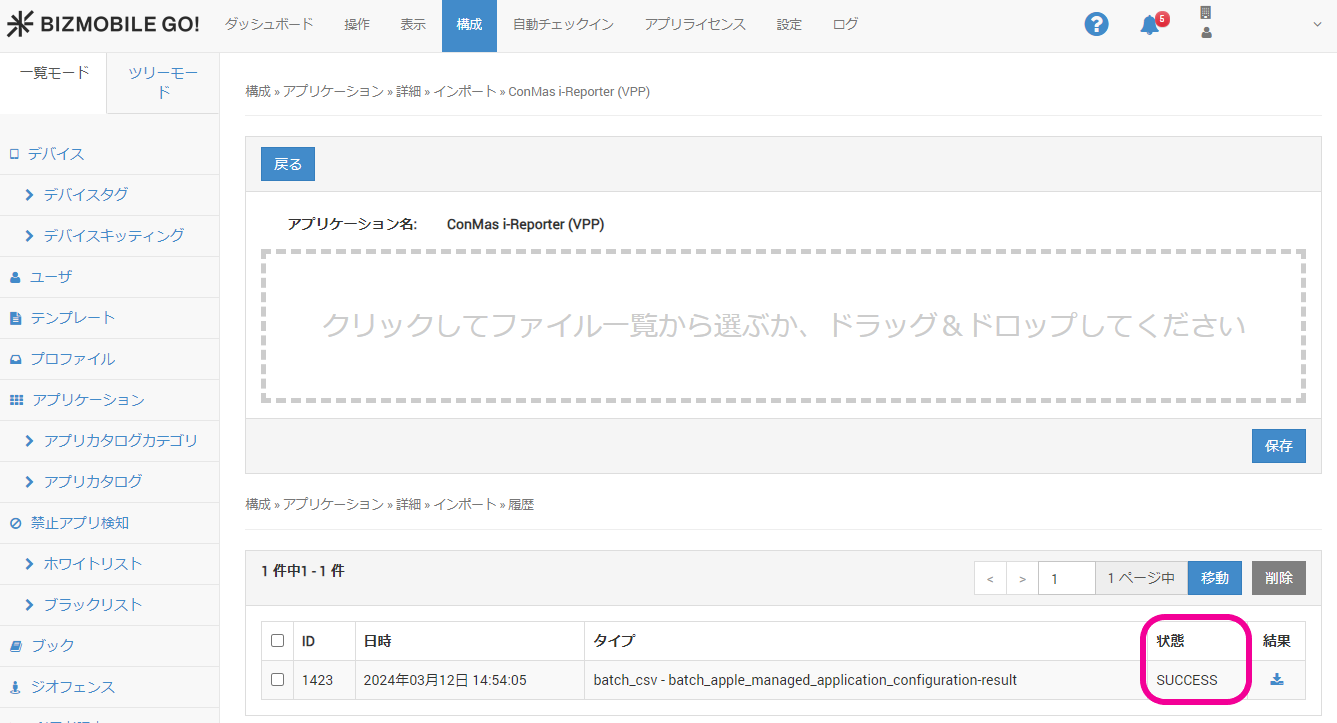
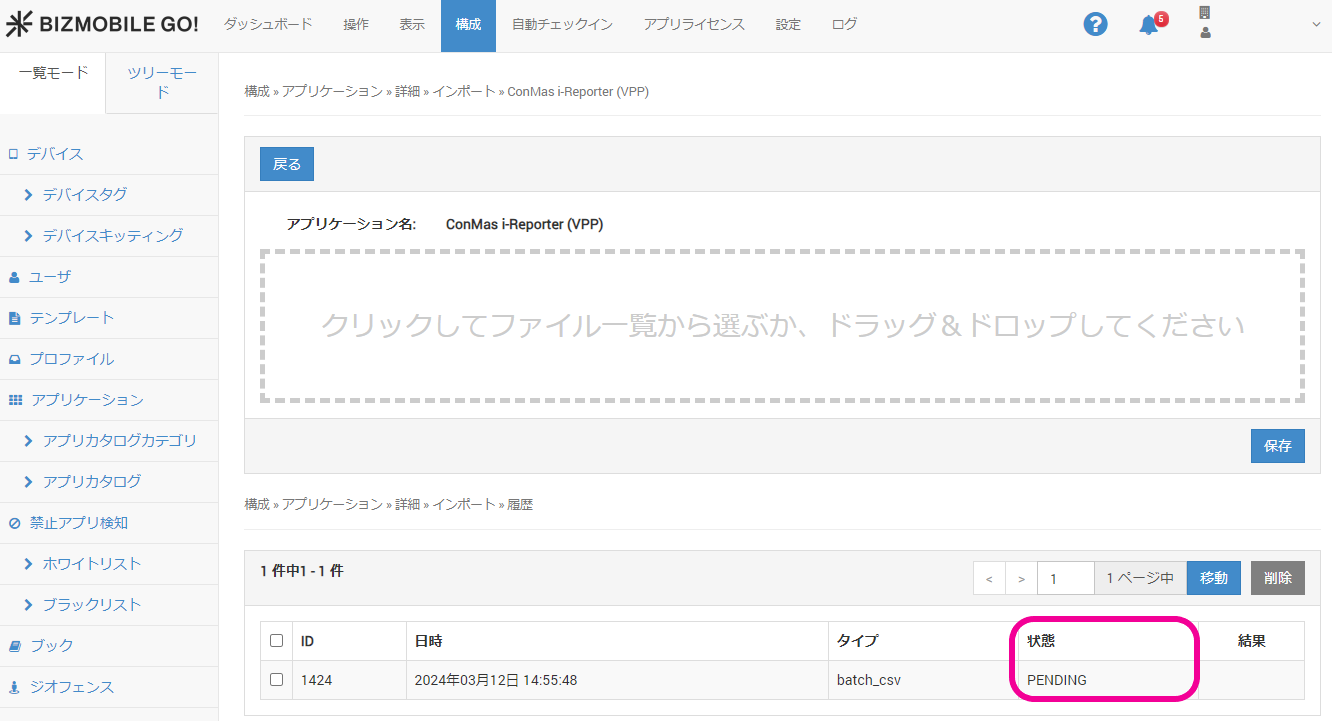
If the import history shows the status
PENDING, wait a moment and then refresh the browser.
-
When the status changes to
SUCCESS, the import is complete.