In-house (Self-developed) Apps
Follow the steps below to create information for an in-house (self-developed) app.
Note: The steps to create an in-house app are the same for iOS, Android, and Windows.
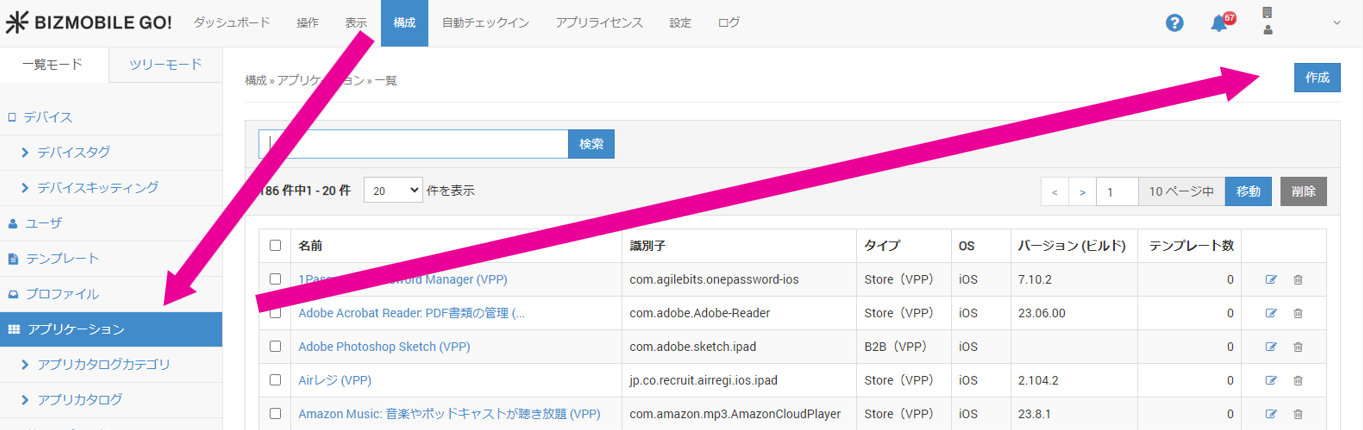
- Click Create on the CONFIG → Application screen.
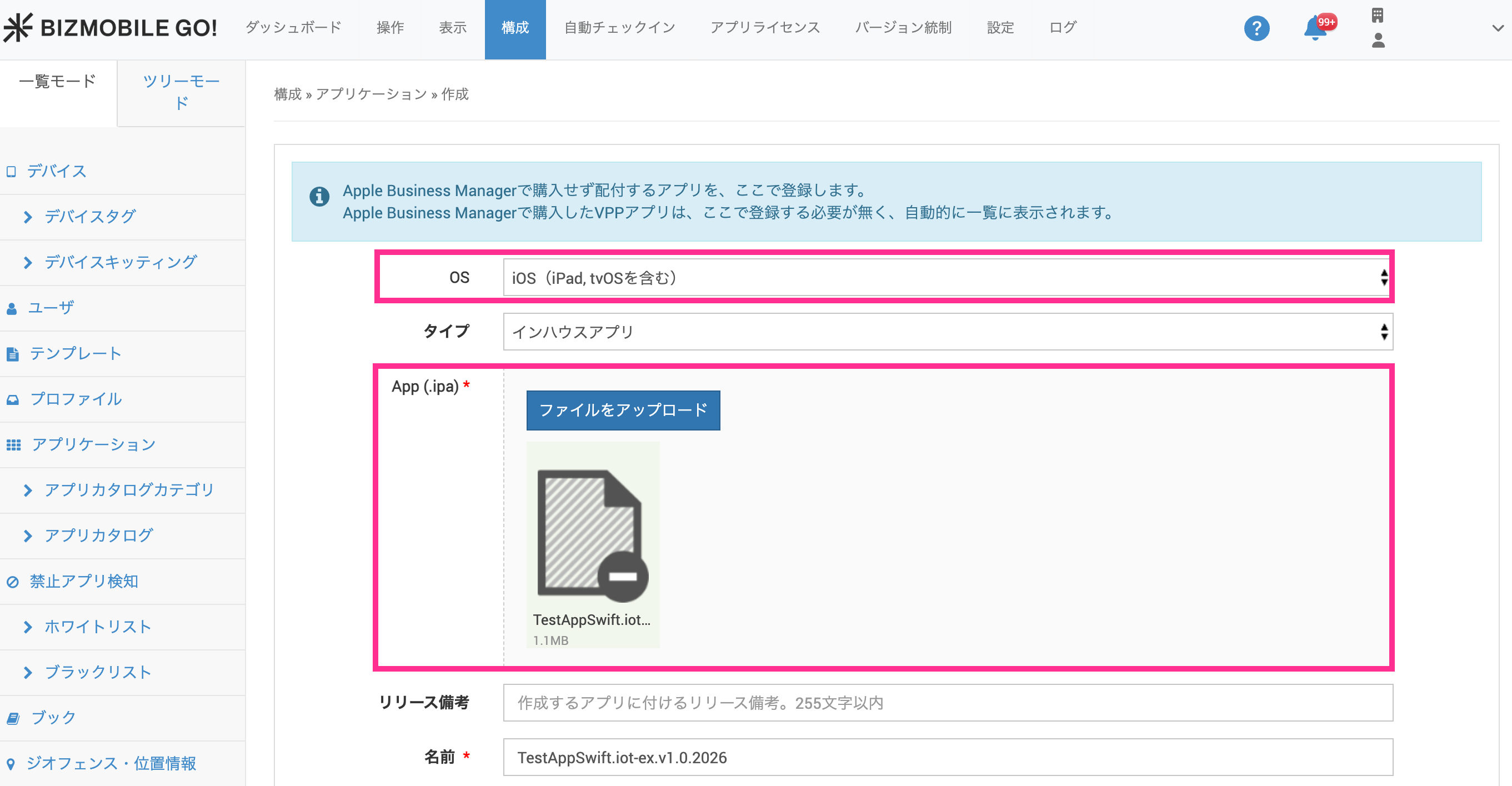
- On the screen that appears, select the OS and upload the in-house app file.
- Enter the other required information.
Input fields (items marked with ★ are required)
iOS | Android | Windows | ||
|---|---|---|---|---|
OS | Yes | Yes | Yes | Select from iOS / Android / Windows. |
Type | Yes | Yes | Yes | Select |
App (.ipa) ★ | Yes |
|
| Select the ipa file of the in-house app to upload. |
App (.apk) ★ |
| Yes |
| Select the apk file of the in-house app to upload. |
App (.appx, .appxbundle, .msi, .msix, .msixbundle) ★ |
|
| Yes | Select an in-house app file in one of the appx, appxbundle, msi, msix, or msixbundle formats to upload. |
Release Notes | Yes | Yes |
| Displayed when you upload the file After you save, it is displayed in the release history |
Name ★ | Yes | Yes | Yes | The application name is filled in automatically from the ipa/apk/msi file. |
Description | Yes | Yes | Yes | Optional information |
Identifier | Yes |
|
| The application identifier is filled in automatically from the ipa file. |
Package Name |
| Yes |
| The application package name is filled in automatically from the apk file. |
Version (Build) | Yes | Yes |
| The version registered in the app is filled in automatically. After the information is created, you can check it in the release history on the details screen. |
| Minimum Supported iOS Version | Yes | The minimum OS version that the app supports is displayed. | ||
Management Flag ★ | Yes |
|
| (At least one is required)
|
Default Attributes | Yes |
|
| Used for the Per-App VPN setting feature Sample: {"VPNUUID":"FFEC64C0-E181-11E3-8B68-000000000000"} |
Default Configuration | Yes |
|
| Only for applications that support this feature, you can define arbitrary tags in the application when you create it and set their values. Click the |
Template | Yes | Yes | Yes
| Select the template in which to register this application. If you have not created a template yet, you do not need to fill in this field (you can also select the application from the template side when you create the template). |
For each application, if any one of Identifier, Name, or Version differs, the application can be uploaded to the server. However, because devices manage apps internally by Identifier, you cannot assign multiple apps with the same Identifier to a template used for distribution, even if their Name or Version differs.
- Click Save.
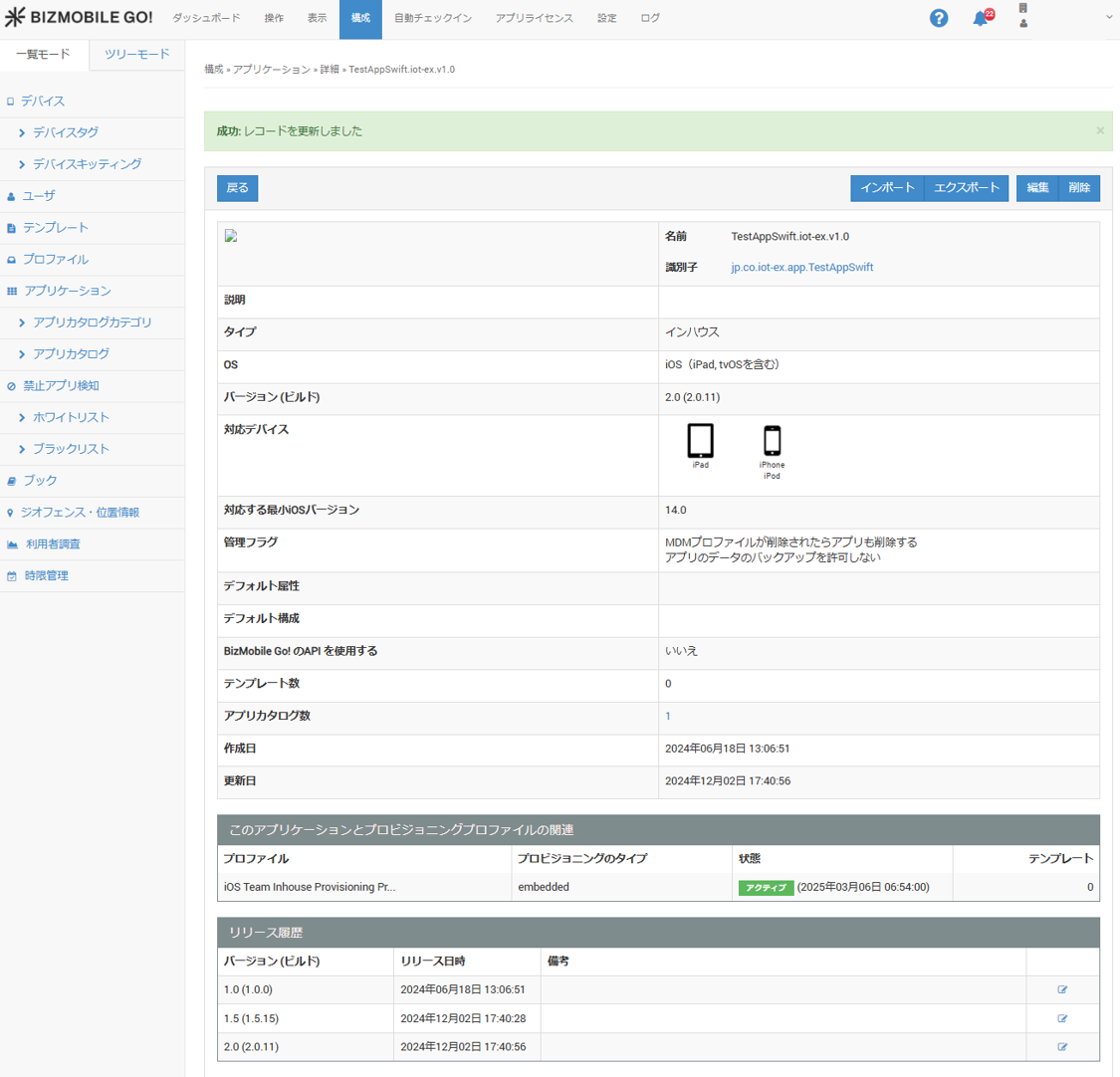
When the application is created, the following is displayed at the top of the screen.

The application name is a link. Click it to open the application details page.
The maximum size of an in-house app that can be uploaded is 1.2 GB. Operation is not guaranteed for uploads that exceed the limit.
Note: There are currently no operational restrictions, but we may charge for use that exceeds the limit.
Because no technical restriction is applied, the most likely cause of an upload failure is the network quality between your environment and Amazon S3 over the internet.
In-house apps for iOS include a provisioning profile, which is a profile for app authentication and must be renewed once a year. To learn how to distribute a renewed provisioning profile from BizMobile Go!, see Distribute a Provisioning Profile.
About the Release History (In-house Apps Only)
.ipa.apk.appx/.appxbundle
At the bottom of the application details screen, the release history is displayed, including Version, Release Date, and Notes.
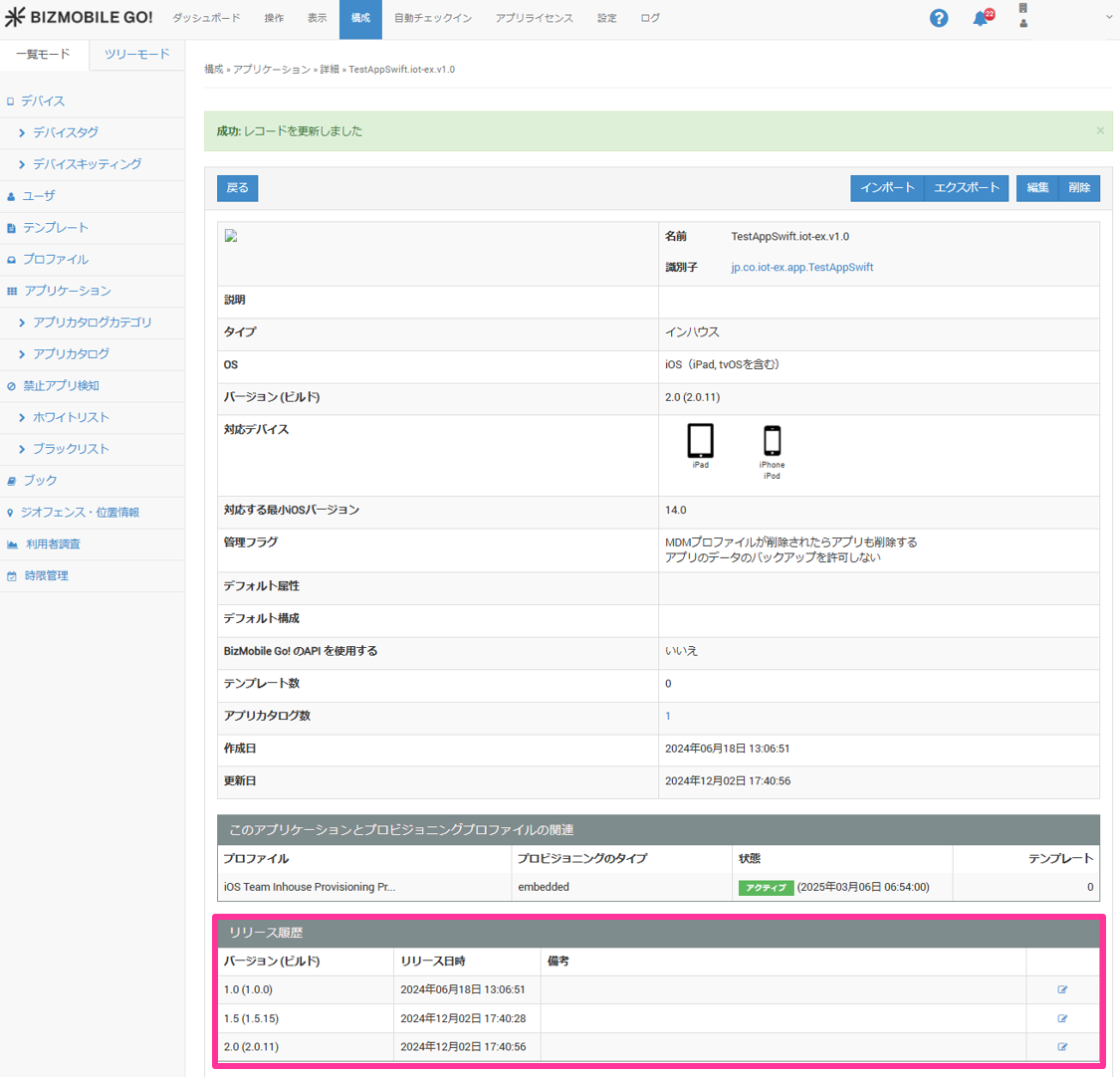
Each time you upload an in-house app with the same identifier, the existing registration information is overwritten, and you can check the changes in the release history. Notes in the release history is an optional description of up to 255 characters that you can enter in the Release Notes field when you edit the application information. You can also edit past entries.
About the Application Auto-Management Setting (iOS 9 and Later Only)
What is auto-management?
On iOS, if an application that you try to distribute from BizMobile Go! is already installed, it cannot be replaced with the application distributed from BizMobile Go! and remains unmanaged (Unmanaged).
If you enable auto-management, however, the application is automatically replaced with the one distributed from BizMobile Go! and becomes manageable (Managed).
Note: Auto-management is available only when you distribute applications to managed devices running iOS 9 or later.
If you enable the auto-management setting on a managed device running a version earlier than iOS 9, an error occurs.
When you distribute an application to a managed device running a version earlier than iOS 9, always disable auto-management.
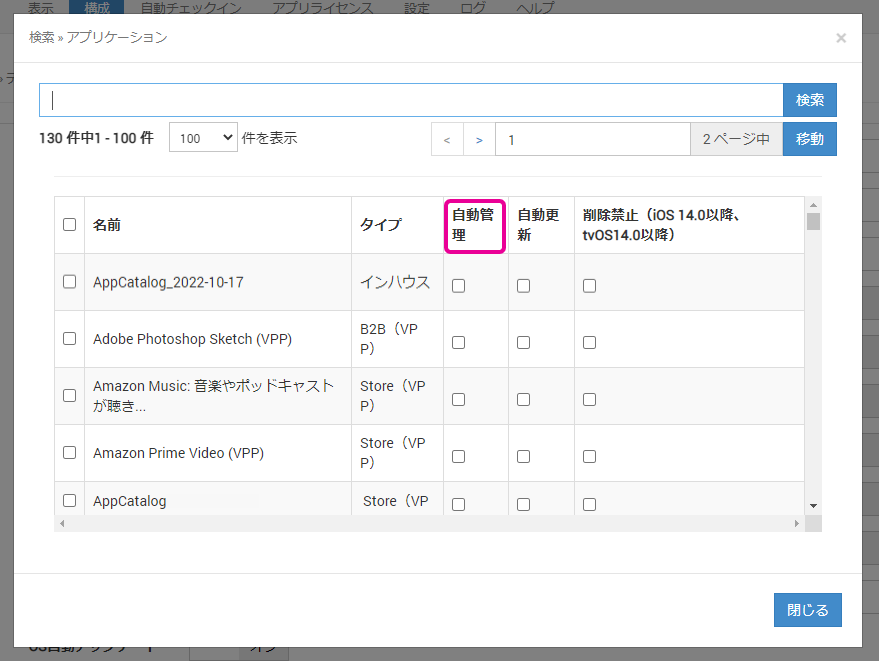
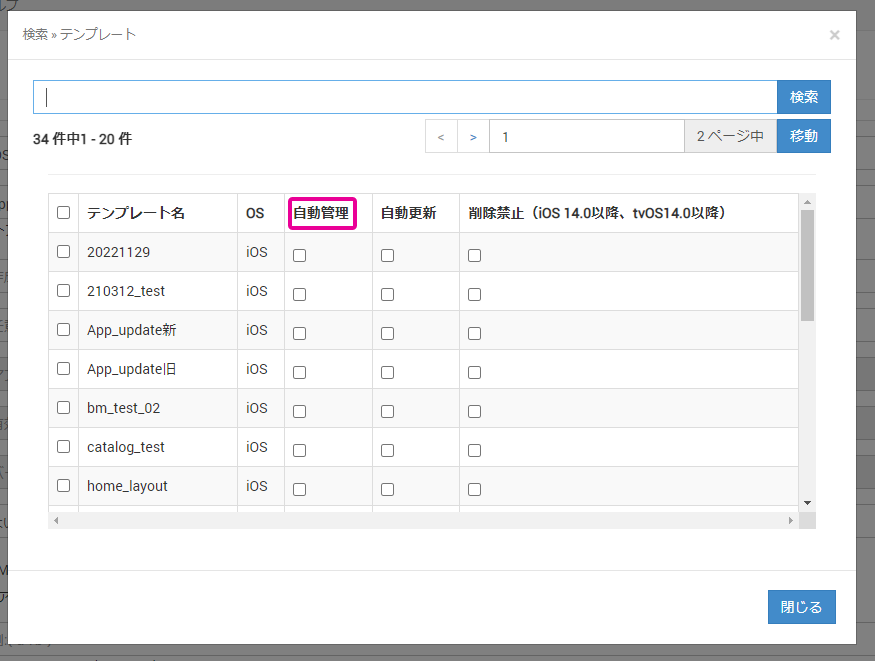
You can configure the application auto-management setting by either of the following methods.
- When you select an application from template creation/editing
- When you select a template from application creation/editing
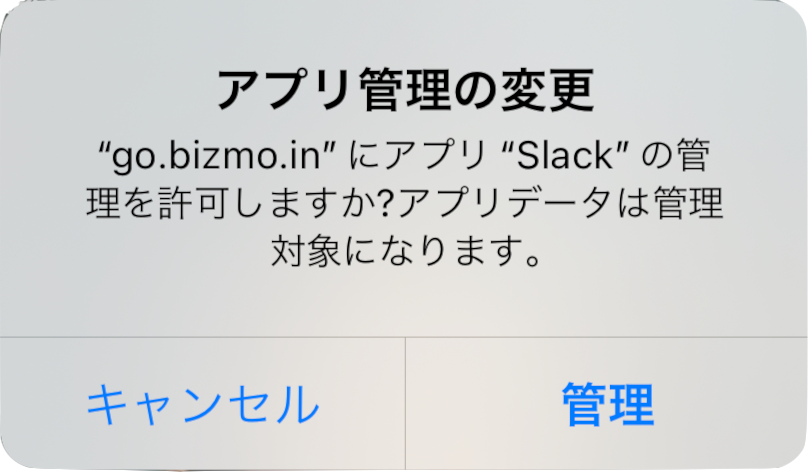
Also, when you try to distribute an application with auto-management enabled to an Unsupervised device, a message like the one below is displayed, and permission from the device user is required.
What is auto-update?
If you enable auto-update, applications installed on managed devices are updated to the latest version automatically.
You can then use the latest version of the application without its settings being reset.
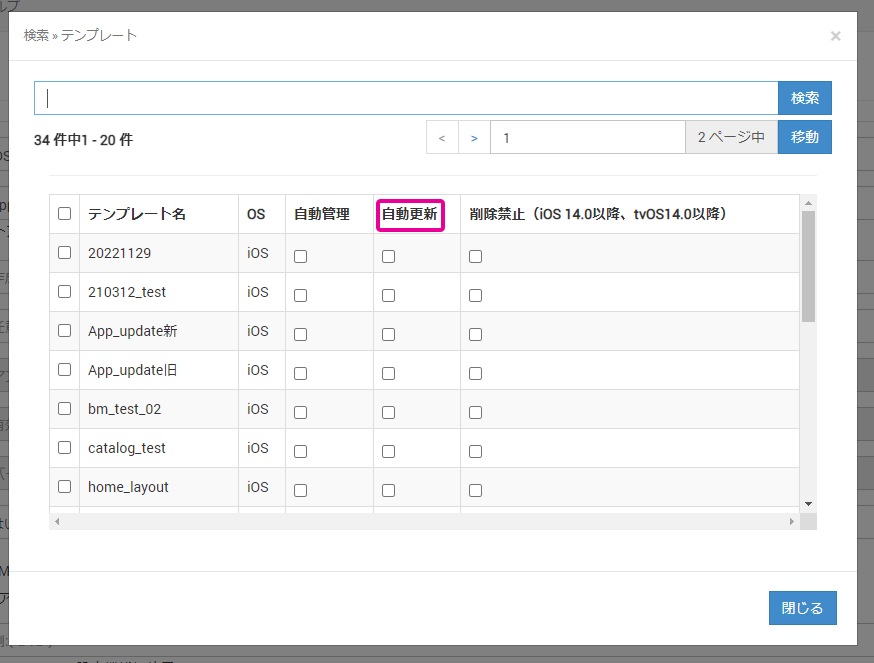
You can configure the application auto-update setting by either of the following methods.
- When you select an application from template creation/editing
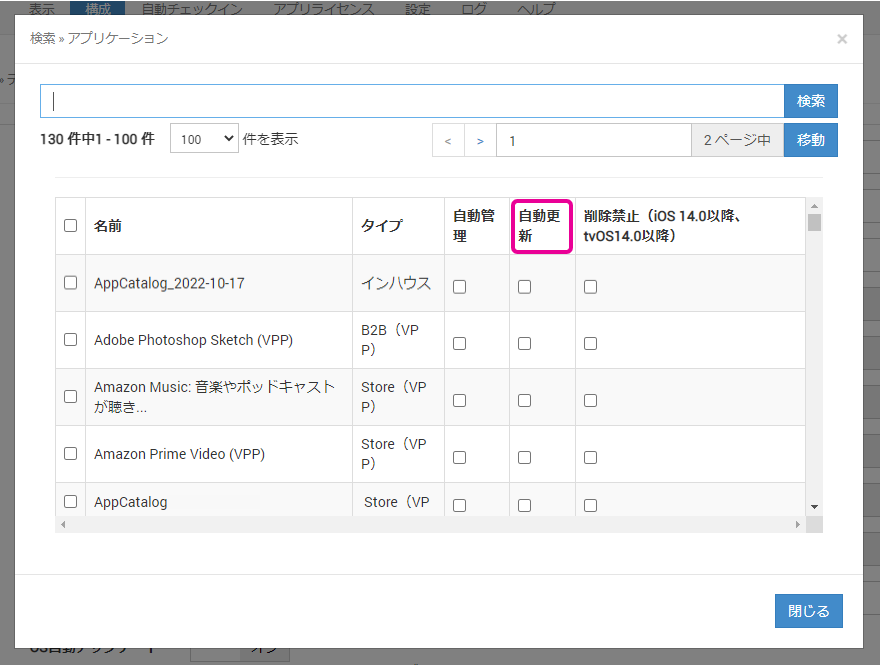
- When you select a template from application creation/editing