Purchase and Register App Store Apps (Without VPP)
This page explains how to distribute App Store applications to devices without using the VPP feature of Apple Business (formerly Apple Business Manager).
To distribute an app created by this procedure to a device, you must first register an Apple ID on the device.
Because MDM cannot force Apple ID registration on a device, register an Apple ID on each device individually.
You cannot perform this procedure in a unit where VPP is enabled.
If you use Apple Business, purchase apps in Apple Business.
When you purchase an app in Apple Business, it is automatically displayed as a VPP app on the CONFIG → Applications screen.
- Click [Create] on the CONFIG → Applications screen.
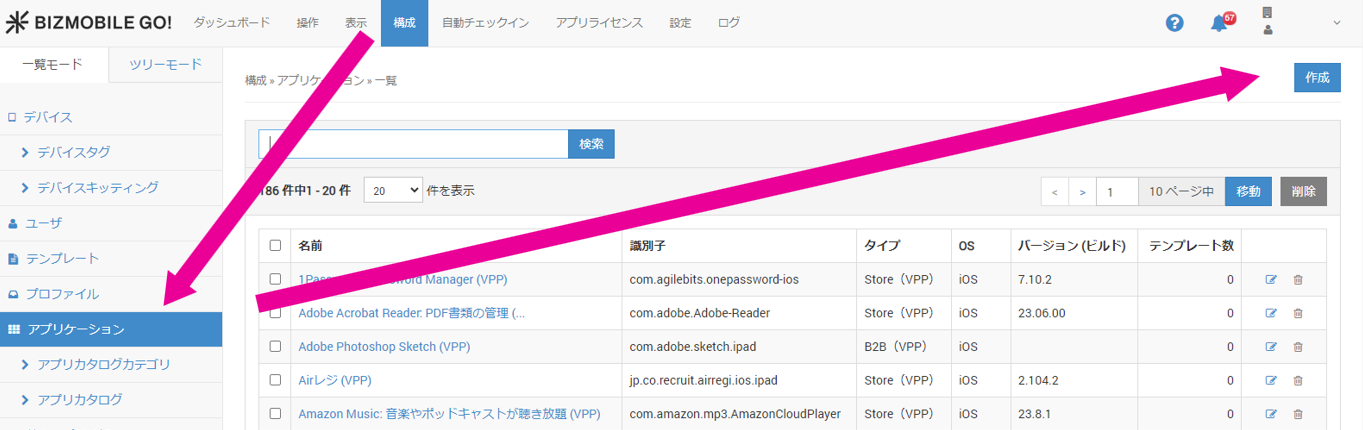
- Enter the required information on the application information screen that opens, and then click [Save].
Input items (★ indicates a required item)
OS | Select iOS. |
Type | Select |
Application Name★ | Enter the application name on the App Store or the application's App Store ID. 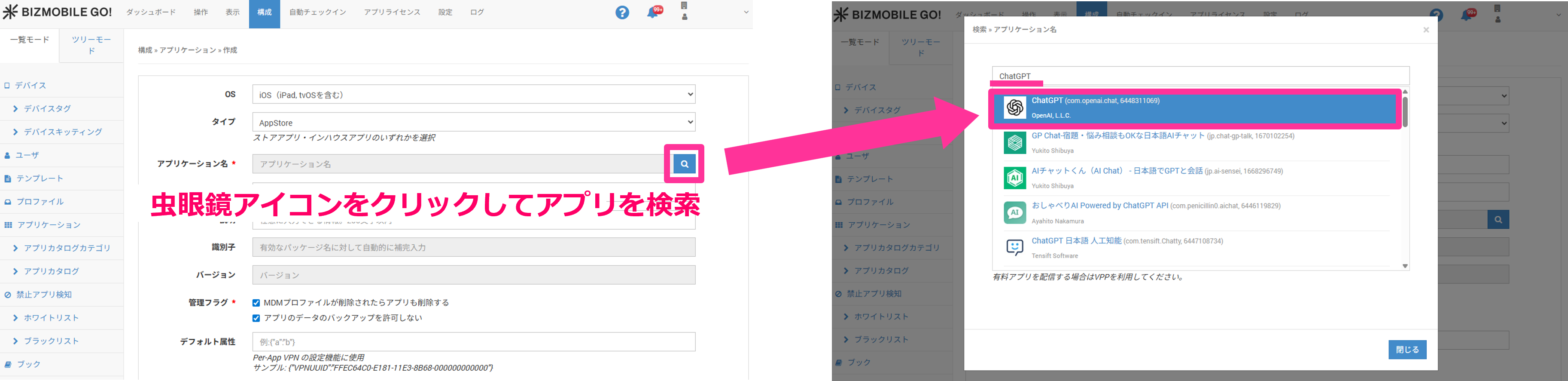 |
Name | Enter the name used to manage the application. |
| Description | Enter any information. |
Identifier | Filled in automatically for a valid package name. |
| Version | Filled in automatically. |
Management Flag | Select if needed.
|
Default Attributes | Used for the Per-App VPN setting feature. Sample: {"VPNUUID":"FFEC64C0-E181-11E3-8B68-000000000000"} |
Default Configuration | This feature applies only to applications that support it. When creating the application, you can define arbitrary tags inside the application and set their values. Click the |
Template | Select the template to register this application to. If you have not created a template yet, you do not need to fill in this item (you can also select the application from the template side when you create the template). |
You can upload an application to the server as long as at least one of Identifier, Name, and Version differs. However, because devices manage apps internally by Identifier, you cannot assign multiple apps with the same Identifier to a template for distribution, even if their Name or Version differs.
- When the message
Createdis displayed, the process is complete.
The application name is a link. Click it to open the application details.

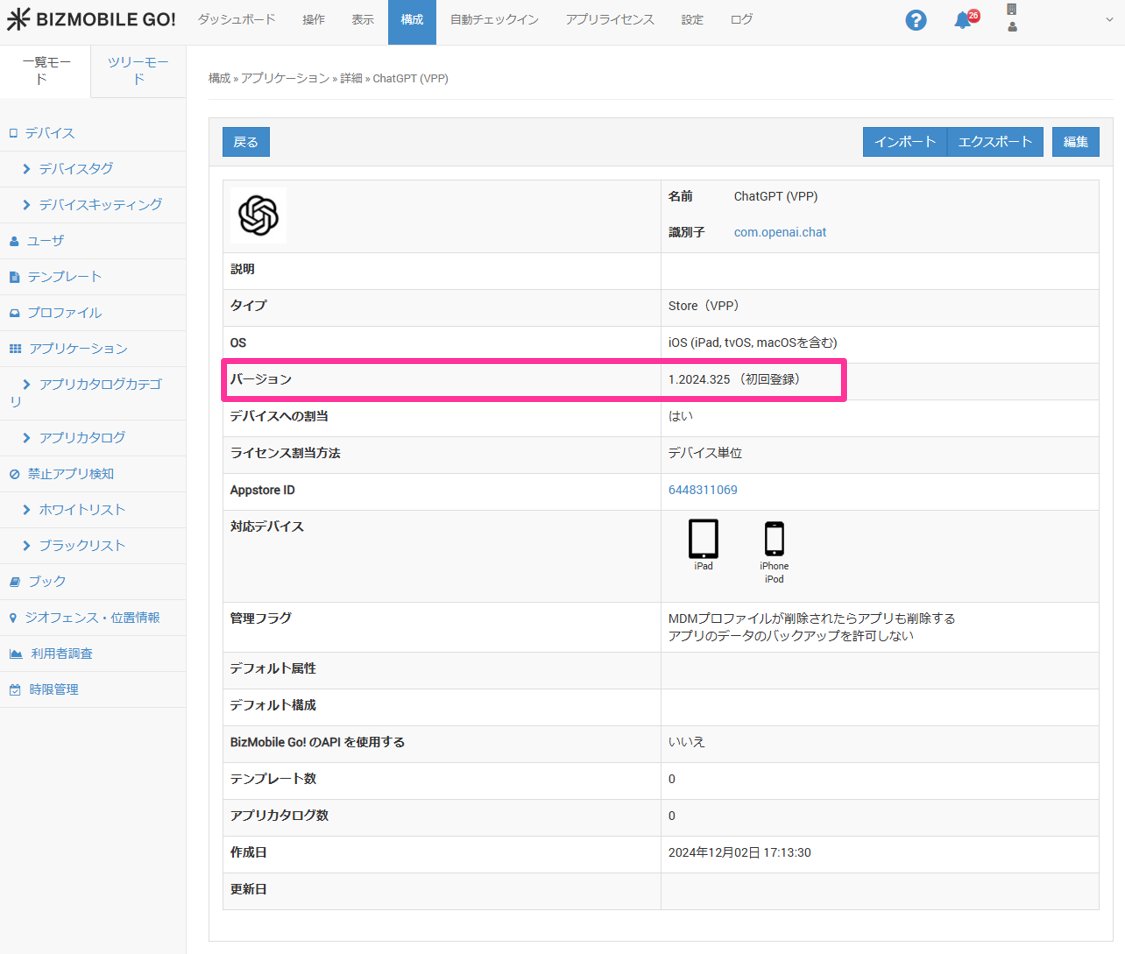
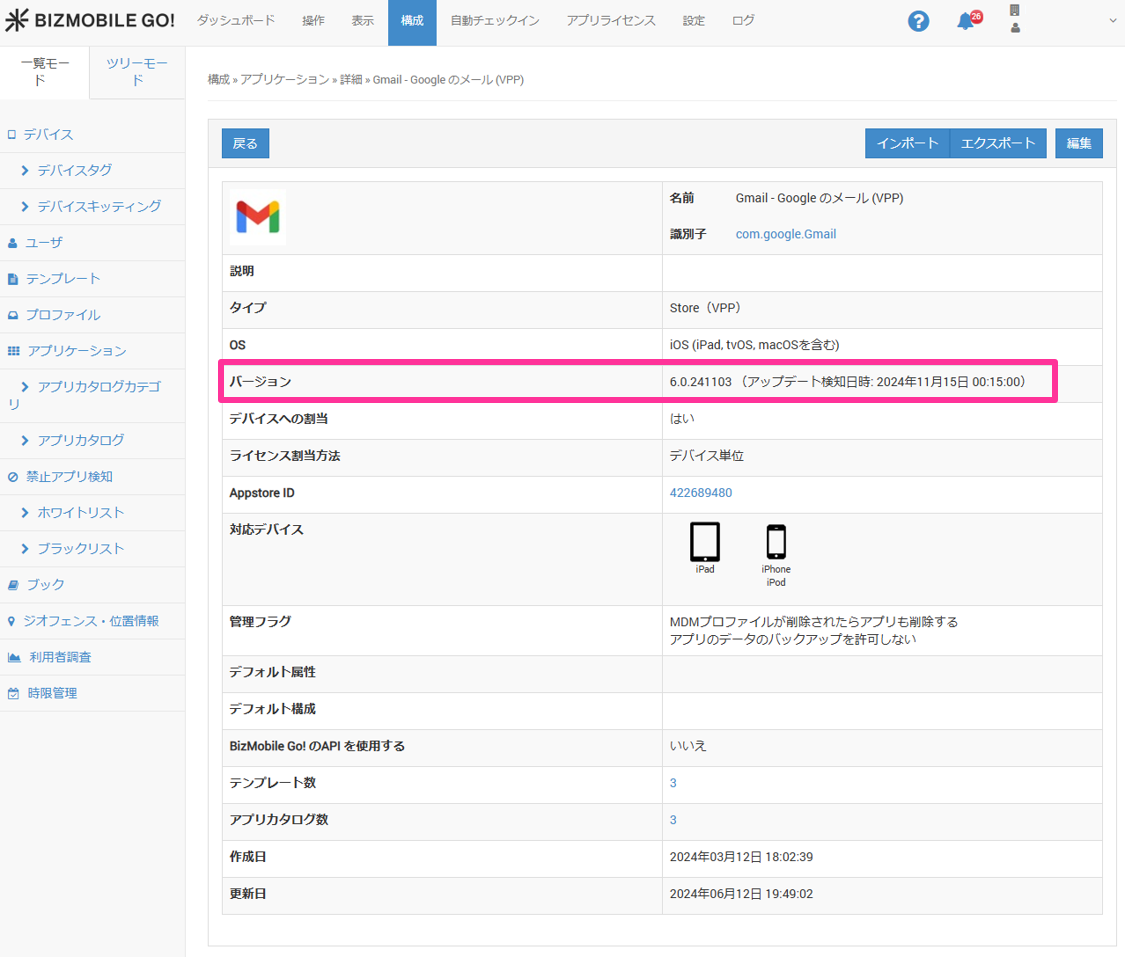
Version information
After you create an app, open the app details to check the app version.
When the app has an update, the date and time when the server detected the update is displayed.
Automatic updates
Normally, when an update is released for an App Store application distributed from BizMobile Go!, the app is not updated to the latest version unless the device user updates it manually on the device.
If you enable automatic updates, applications installed on managed devices are updated to the latest version automatically.
You can then use the latest version of the application without its in-app settings being reset.
For the procedure to run an update on a specific device at any time, see Update (Reinstall) Apps on a Specific Device Individually.
The server detects app update information once a day.
• Regular apps: After 12:00 AM
• Custom Apps (Custom B2B apps): After 11:30 PM
If a new version is released before the detection time, an app update command is sent at the next sync (including automatic sync).
You can configure automatic updates in either of the following ways.
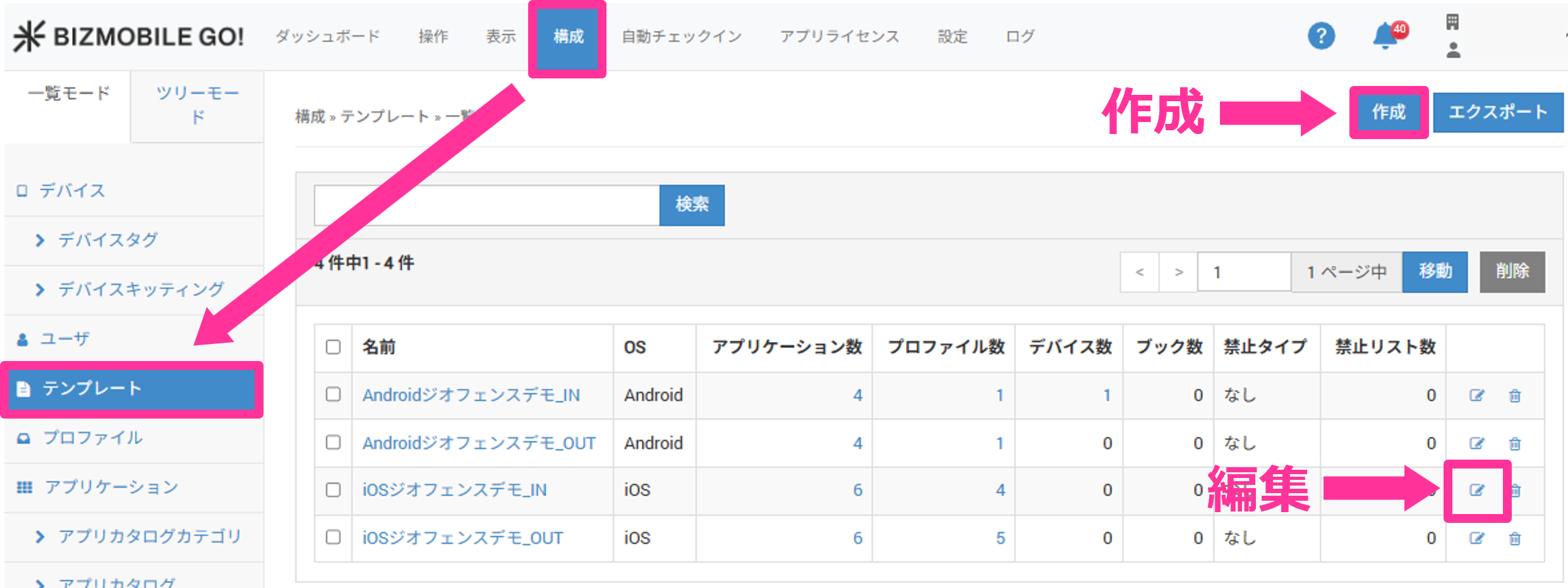
Steps from creating/editing a template
- Click the
Createbutton, or theEditicon of a template, under CONFIG → Templates.
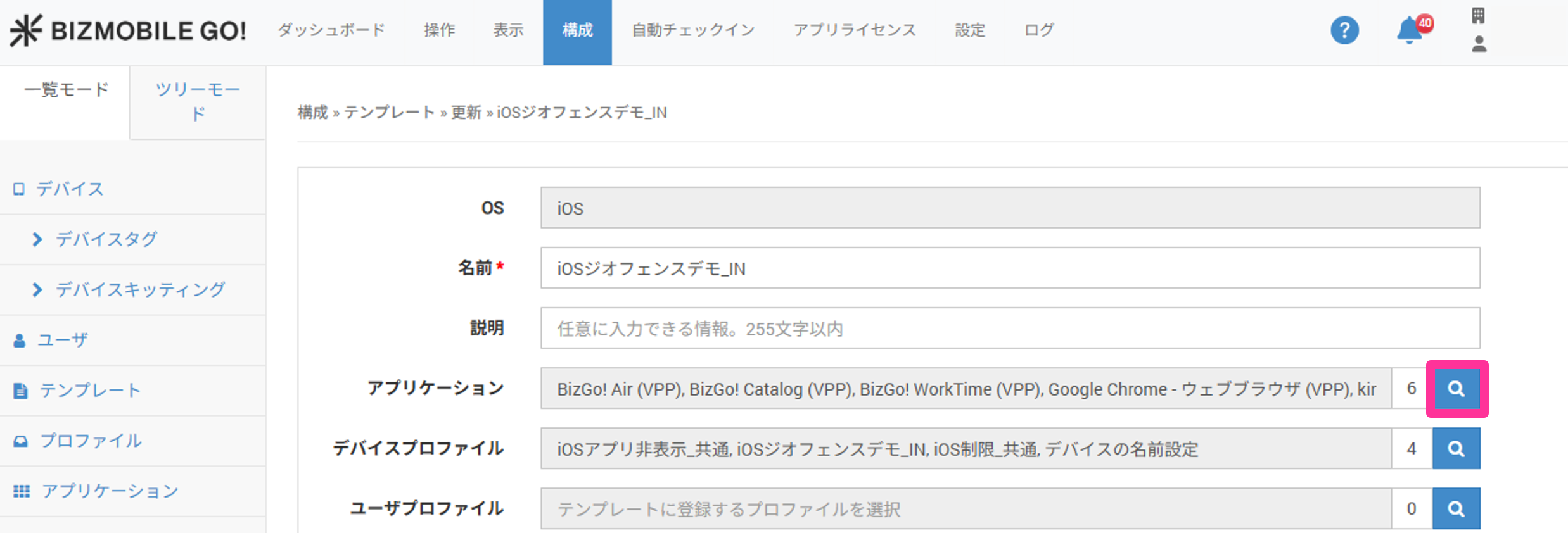
- Click the magnifying glass icon for
Application.
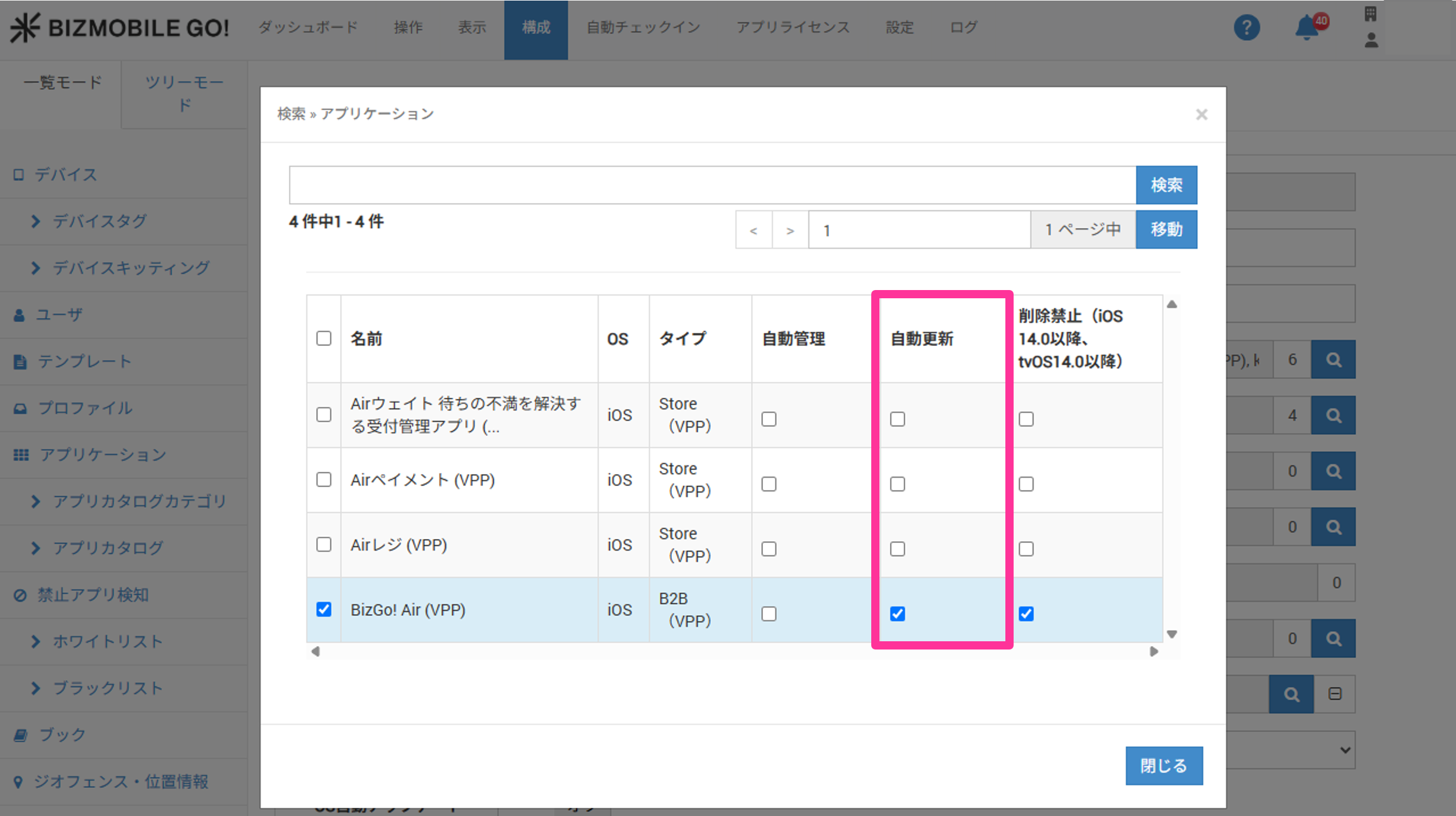
- Set
Auto UpdatetoON / OFF.
Steps from editing an application
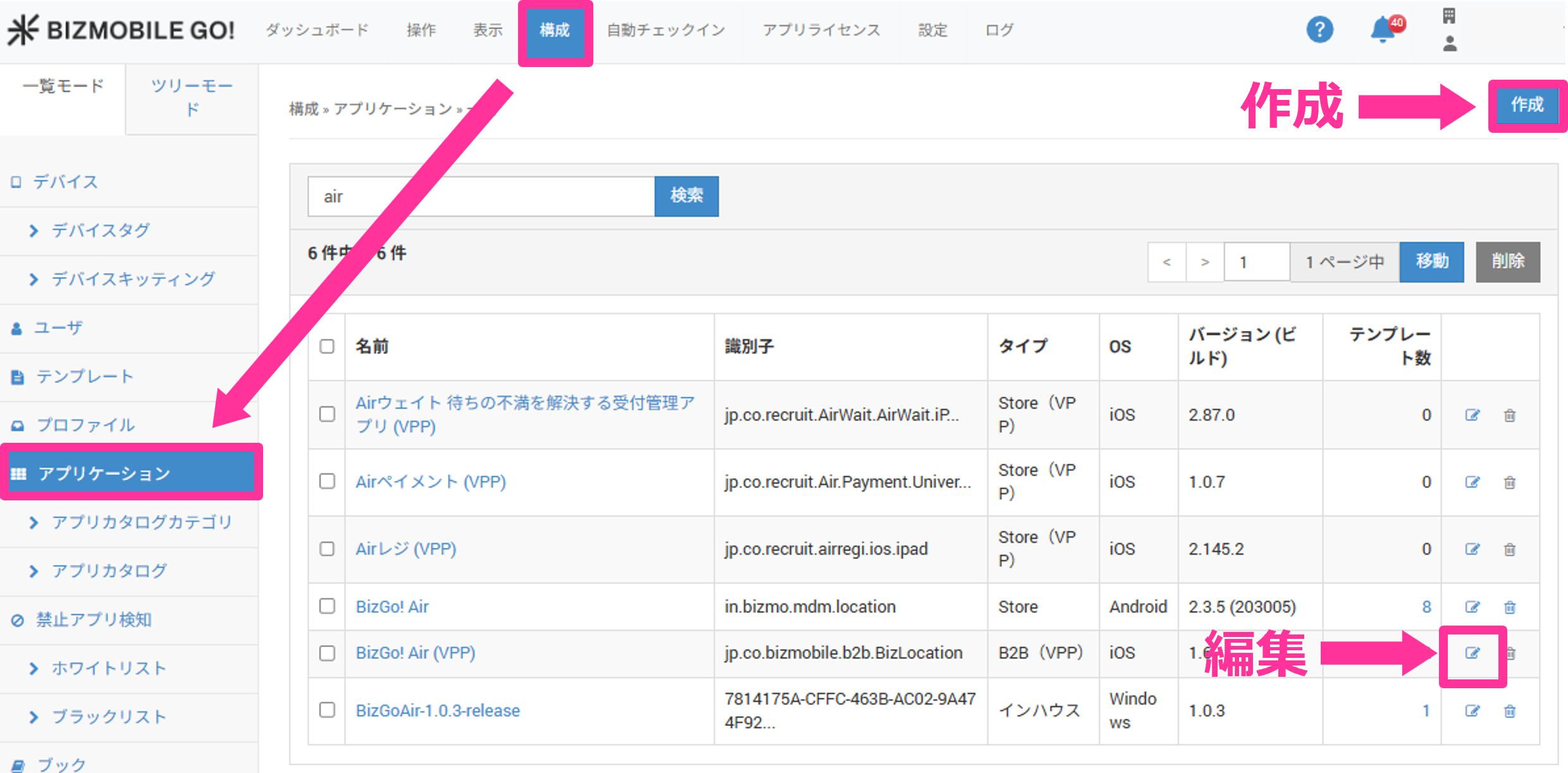
- Click the
Createbutton, or theEditicon of an app, under CONFIG → Applications.
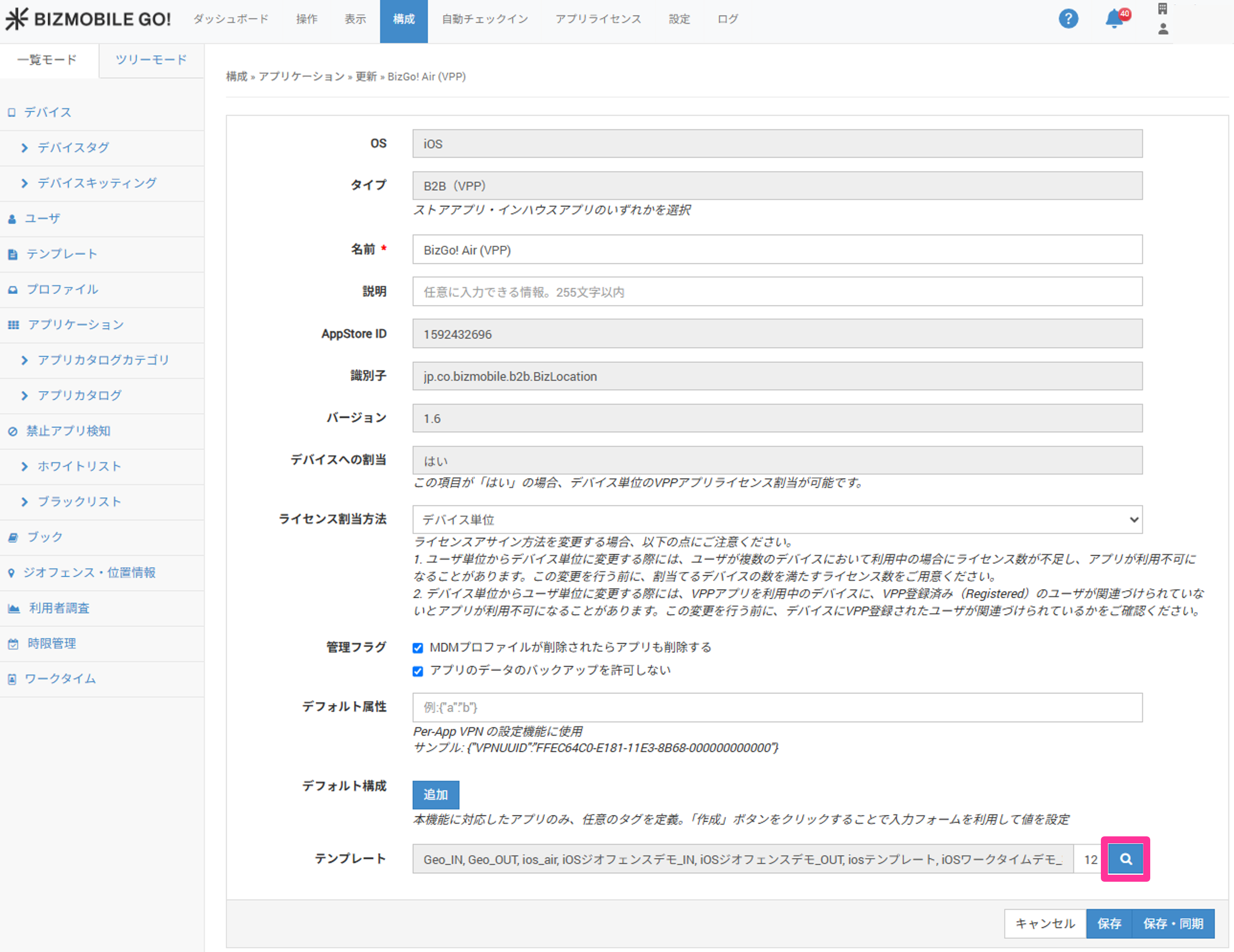
- Click the magnifying glass icon for
Template.
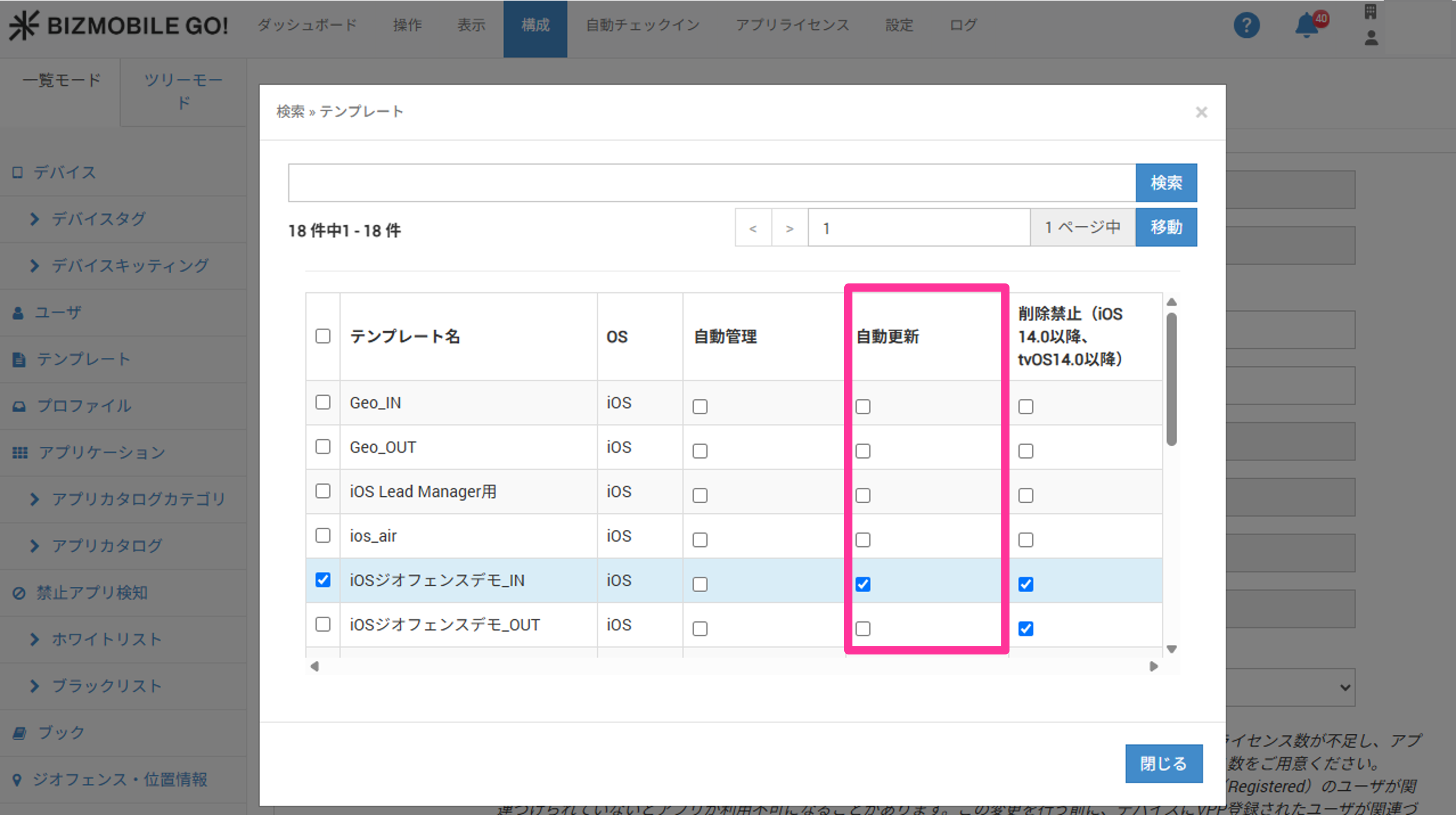
- Set
Auto UpdatetoON / OFF.
Under either of the following conditions, apps can be updated only by an MDM command, so you must use Auto Update to update them.
• The app was purchased using VPP
• App installation is prohibited by a profile restriction
Auto management (iOS 9 or later)
On iOS/iPadOS, if an application you try to install from BizMobile Go! already exists on the device, it cannot be installed. An application that already exists on the device remains unmanaged (Unmanaged) and cannot be controlled. The device's sync status also does not become Synchronized.
When you enable auto management, you can change the management mode of an application that already exists on the device from Unmanaged to Managed, so the app no longer prevents the device's sync status from becoming Synchronized.
Note: Auto management is available on devices running iOS 9 or later.
Note: Only Supervised devices can change the management mode automatically and silently. On Unsupervised devices, the message described later is displayed and the device user's permission is required.
Note: On Supervised devices running a version earlier than iOS 9, enabling the auto management setting causes an error, so disable auto management when you distribute applications.
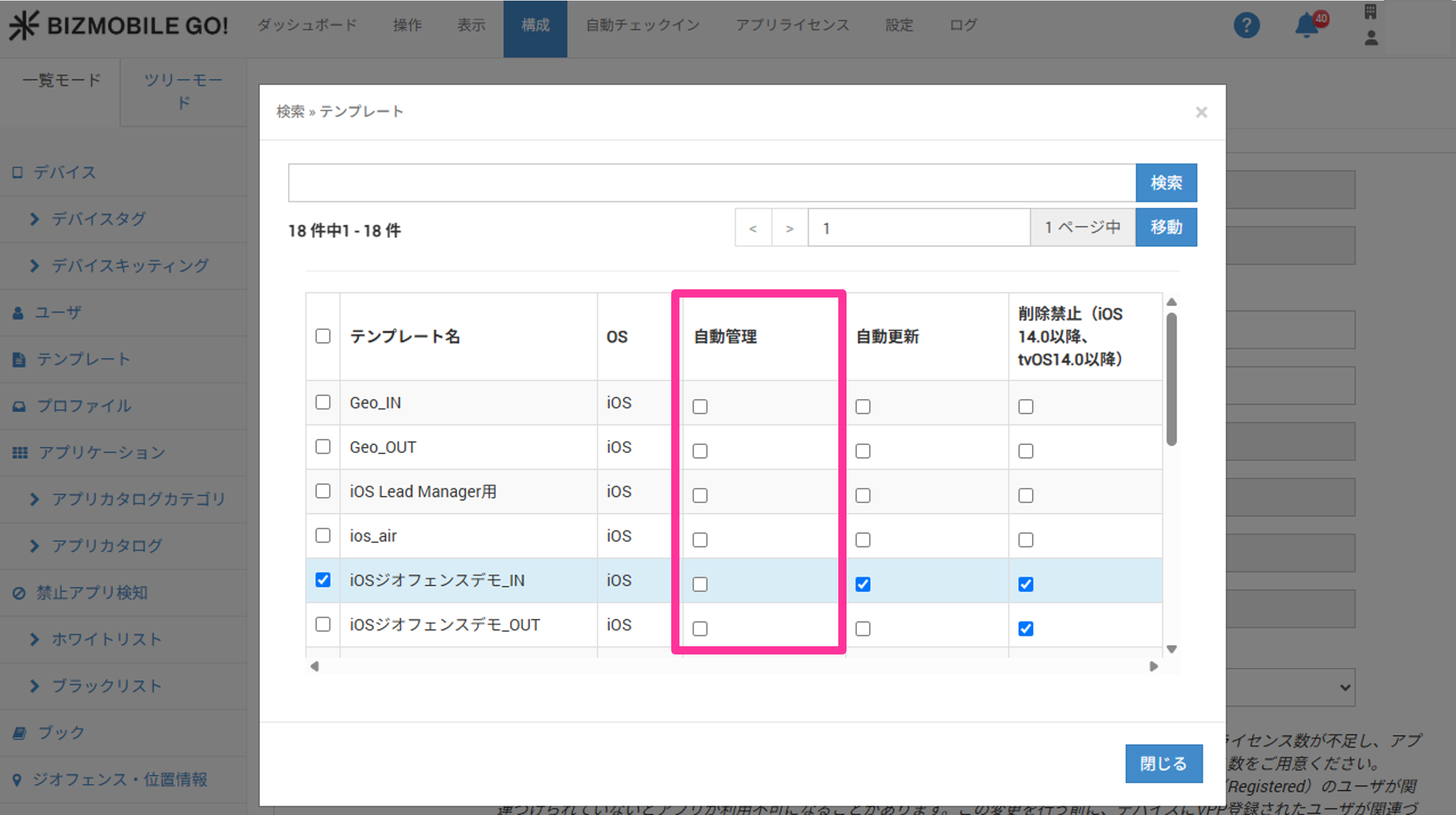
You can configure auto management in either of the following ways.
Steps from creating/editing a template
- Click the
Createbutton, or theEditicon of a template, under CONFIG → Templates.
- Click the magnifying glass icon for
Application.
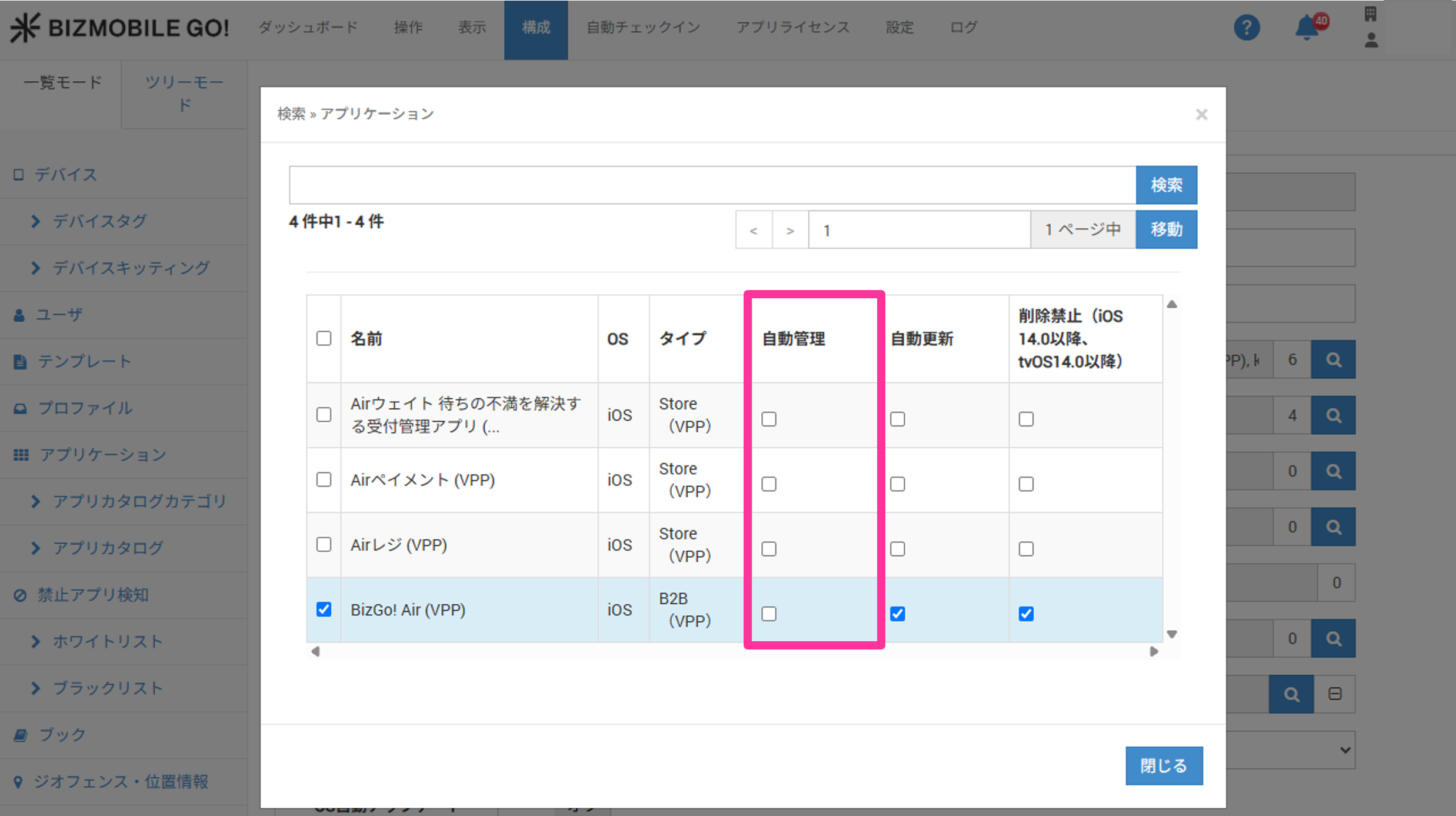
- Set
Auto ManagementtoON / OFF.
Steps from editing an application
- Click the
Createbutton, or theEditicon of an app, under CONFIG → Applications.
- Click the magnifying glass icon for
Template.
- Set
Auto ManagementtoON / OFF.
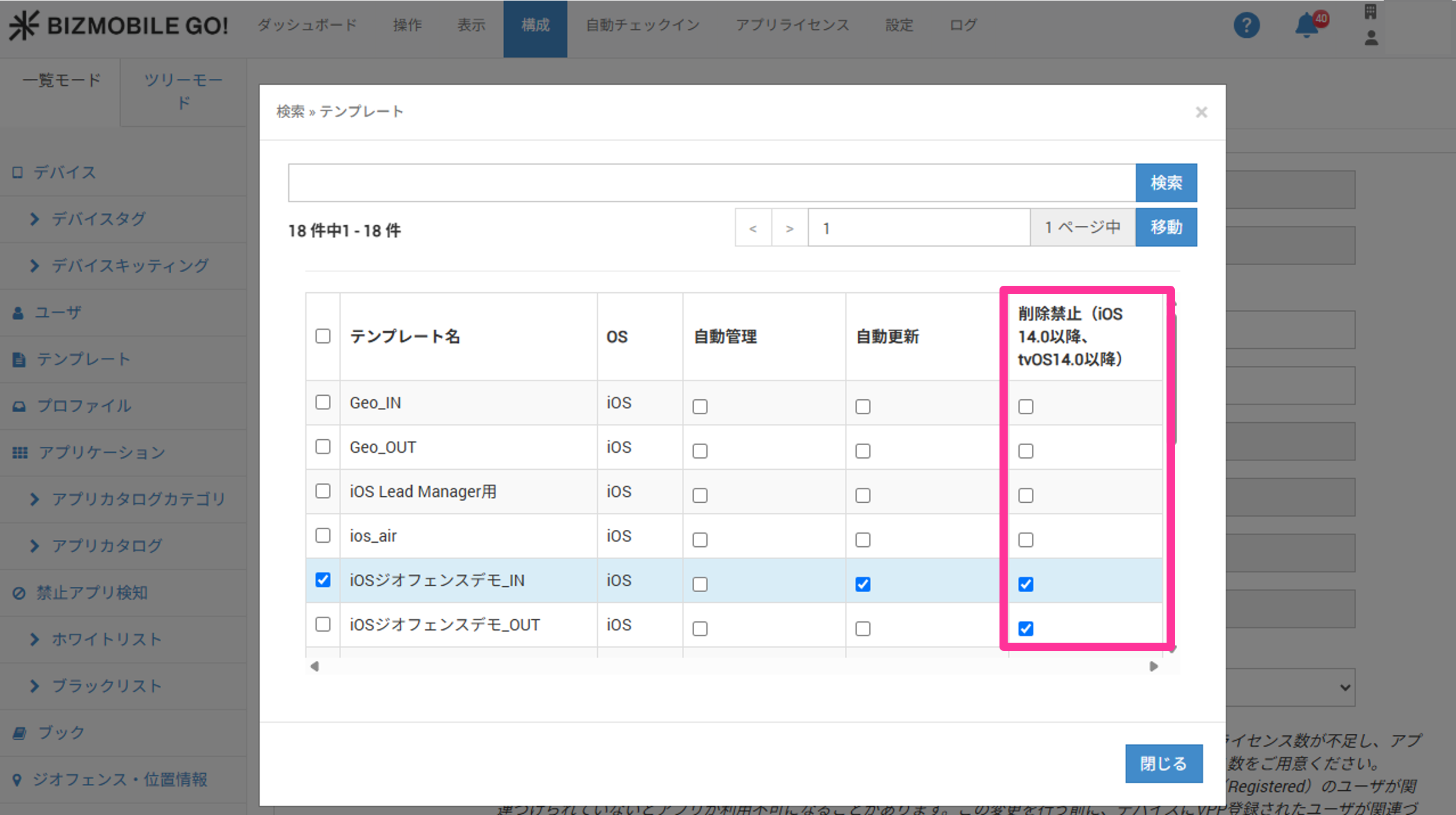
Prevent deletion
You can prevent users from deleting apps distributed from BizMobile Go!.
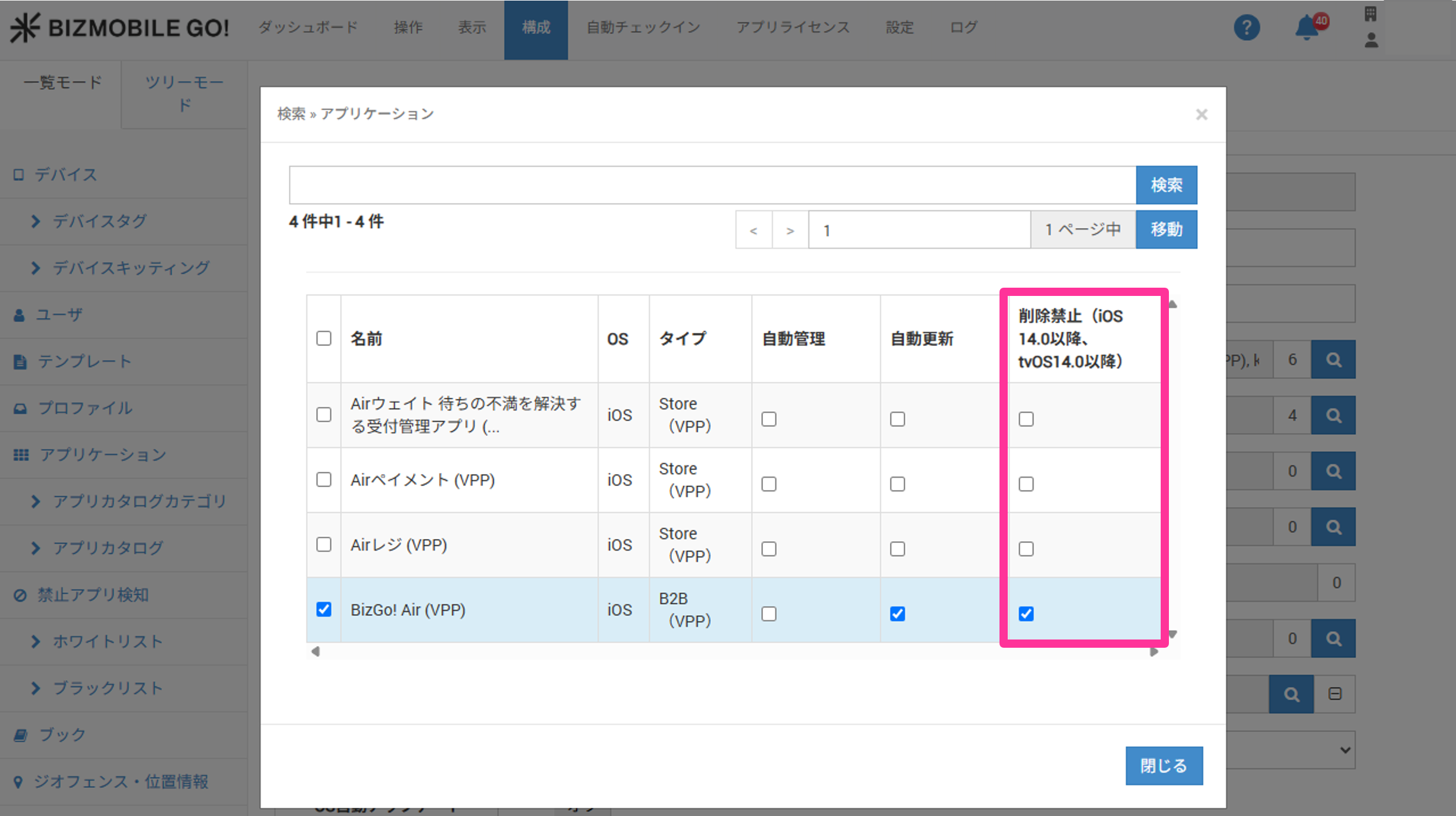
You can configure deletion prevention in either of the following ways.
Steps from creating/editing a template
- Click the
Createbutton, or theEditicon of a template, under CONFIG → Templates.
- Click the magnifying glass icon for
Application.
- Set
Prevent DeletiontoON / OFF.
Steps from editing an application
- Click the
Createbutton, or theEditicon of an app, under CONFIG → Applications.
- Click the magnifying glass icon for
Template.
- Set
Prevent DeletiontoON / OFF.