Home Screen Layout
▶︎Related video (Home Screen Layout)
You can configure the home screen layout of managed devices all at once through profile settings.
On a managed device with a home screen layout configured, the placement of apps (including web clips and in-house apps) on the home screen is set by the profile, and users cannot rearrange or delete apps.
This page describes how to configure the Home Screen Layout menu of an iOS profile.
How the Home Screen Layout Appears on the Device
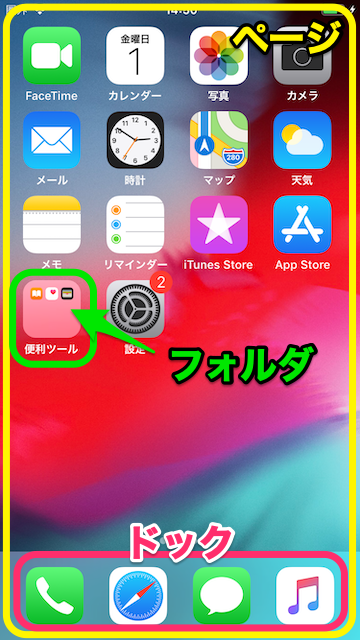
Page: The entire screen.
Folder: A group that combines multiple apps, such as Useful Tools in the screenshot.
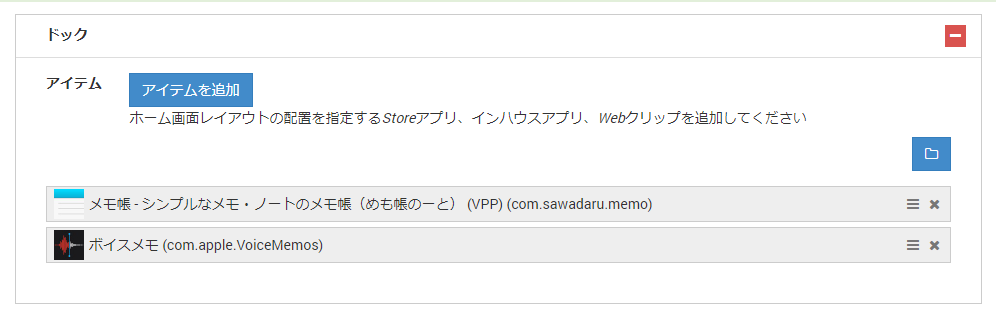
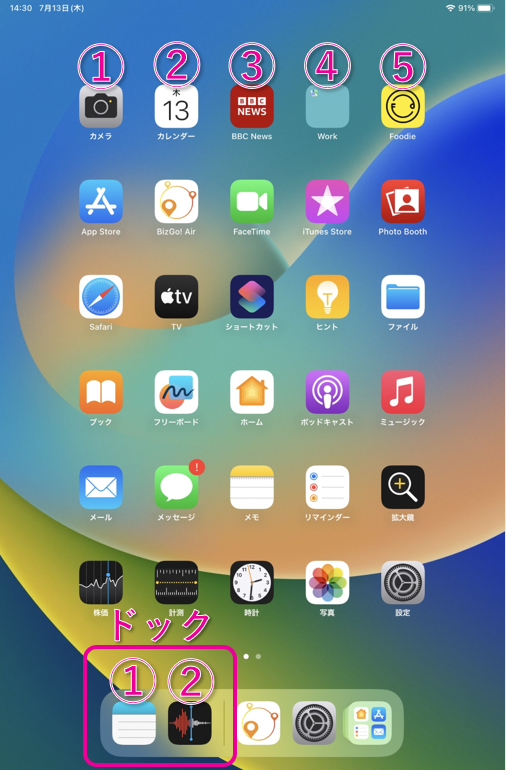
Dock: The area at the bottom of the screen. You can place up to four apps or folders in it.
Configuration Steps
-
On the CONFIG → Profile screen, click Create.
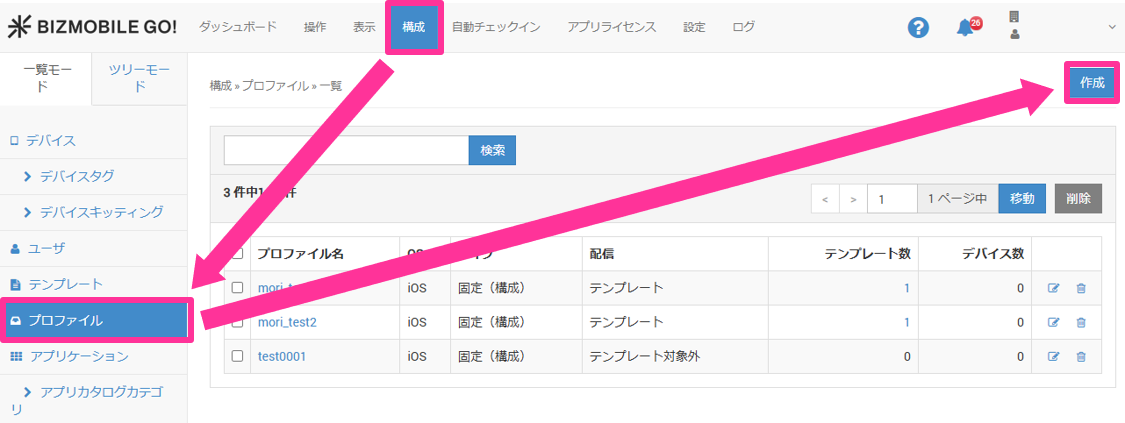
Enter the required information on the profile information screen that is displayed.
Input items (items marked with ★ are required)Item Description OS★ Select iOS. Distribution Select TemplateorNon-Template.
Profiles are normally distributed through a template. For a profile that you want to distribute on a per-device basis, selectNon-Template.Type Select from the following.
- Static (Configuration)
- Shared iPad - Device
- Shared iPad - User
- Shared iPad - GuestTemplate (Only when you select TemplateforDistribution)
Select the template to which this profile is applied. After you create a template, you can select it here. If you have not created a template yet, you do not need to fill in this item (you can also select the profile from the template side when you create the template).Device (Only when you select Non-TemplateforDistribution)
Select the managed device to which this profile is applied. After you create a device, you can select it here. If you have not created a device yet, you do not need to fill in this item (you can also select the profile from the device side after you create the device). -
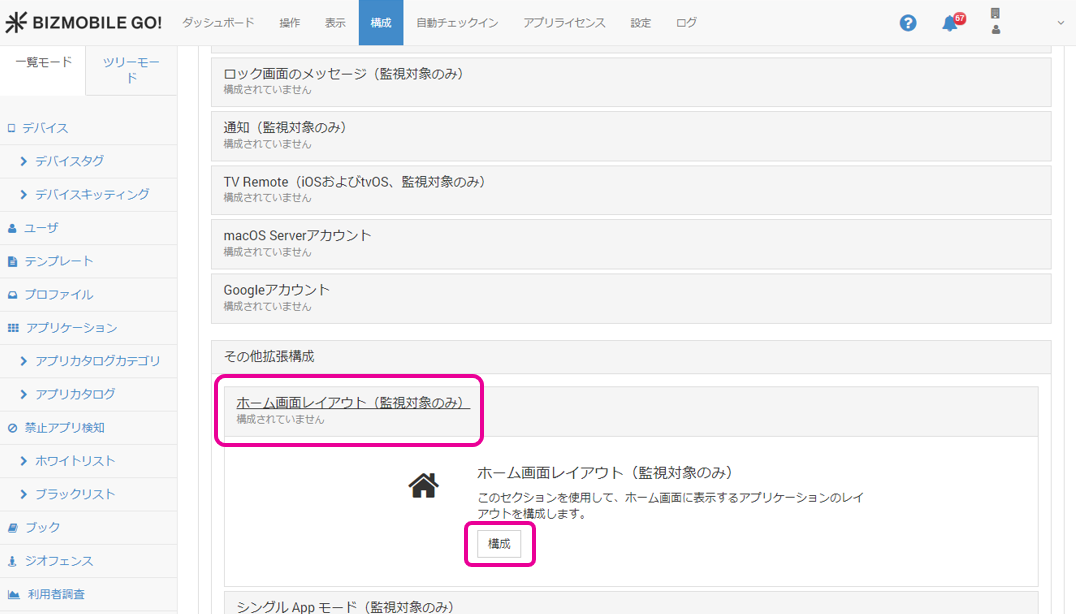
Open the Home Screen Layout menu and click Configure.
-
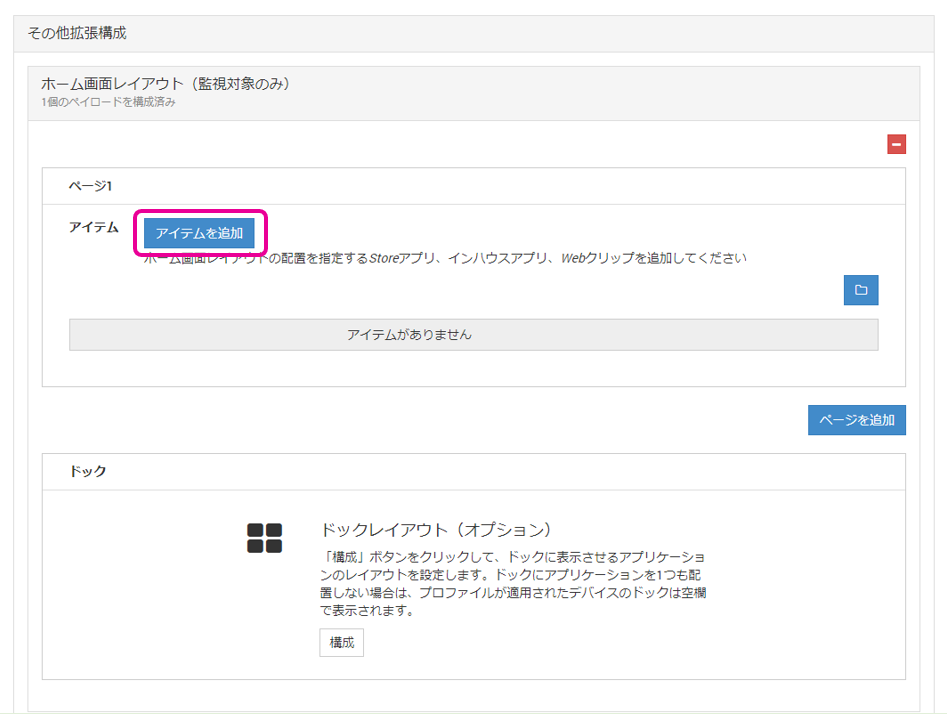
Click Add Item.
-
Select an app.
- App Store apps
- In-house apps
- Web clips
- Custom App (B2B)
Select the
AppStoretab, and then specify the app you want to place by entering the app name and searching, or by entering the App Store ID.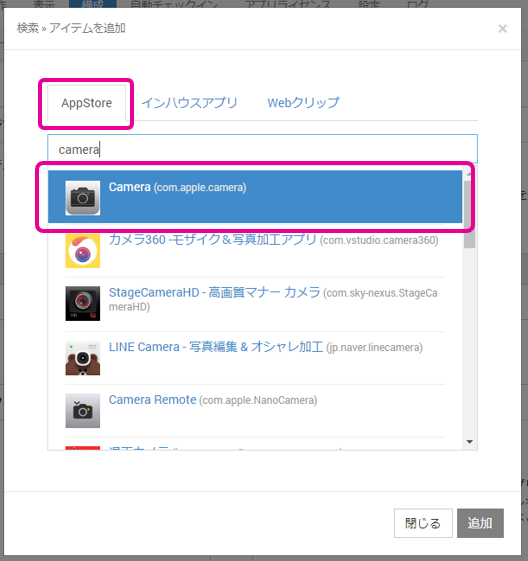
You can specify the placement of in-house apps distributed from BizMobile Go!.
Select theIn-house Apptab and search by entering the app name.
Select the app from the search results, and then click Add.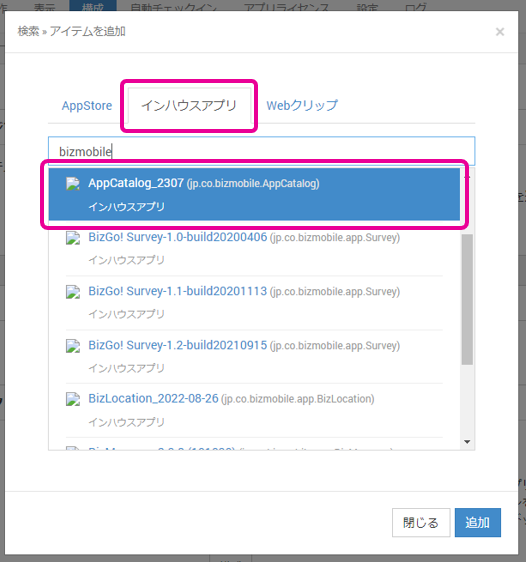
You can specify the placement of web clips that you created and distributed from CONFIG → Profile → Web Clip.
Select theWeb Cliptab, enter the URL of the web clip distributed by the profile, and then click Add.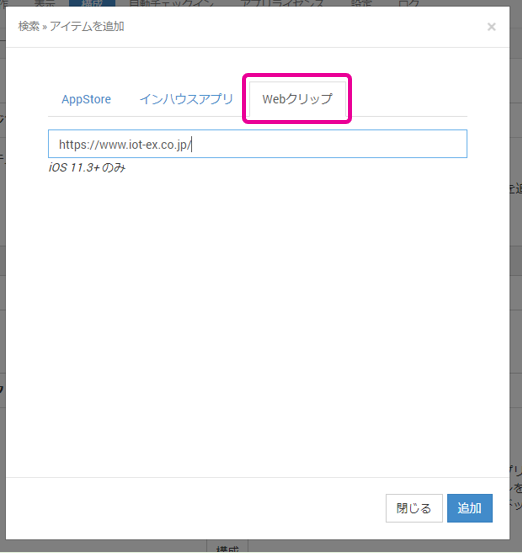
Select the
In-house Apptab and enter the app identifier.
Application not found.is displayed, but click Add as is.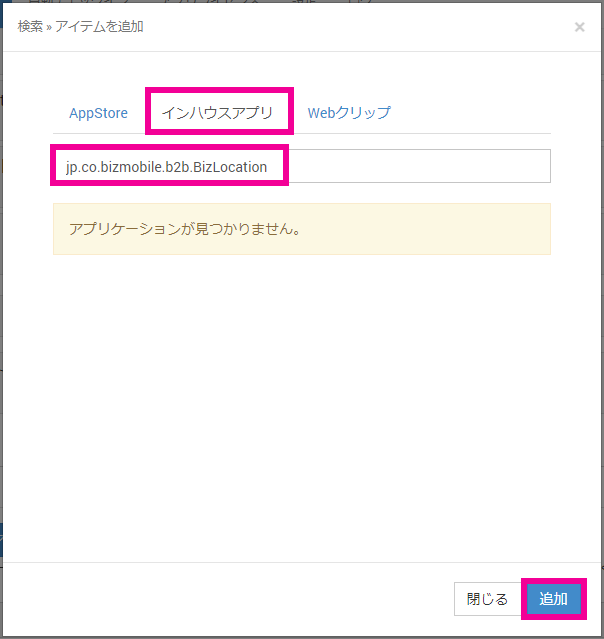
-
To add more items, click
Add Item.
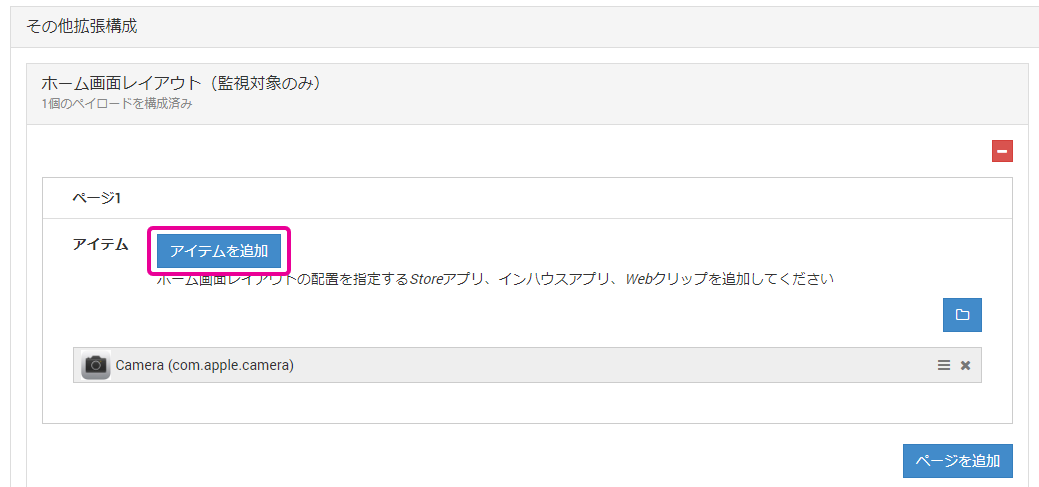
-
To use a folder, click
 and enter the name to display for the folder you are creating.
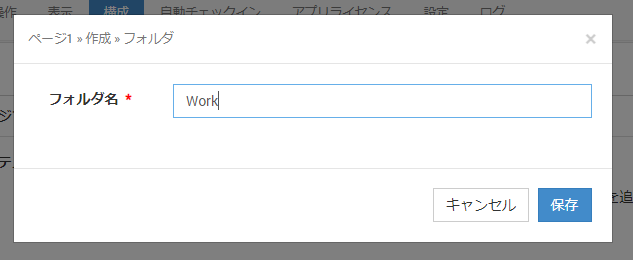
-
You can add and move apps within the folder, add pages, and rename the folder.
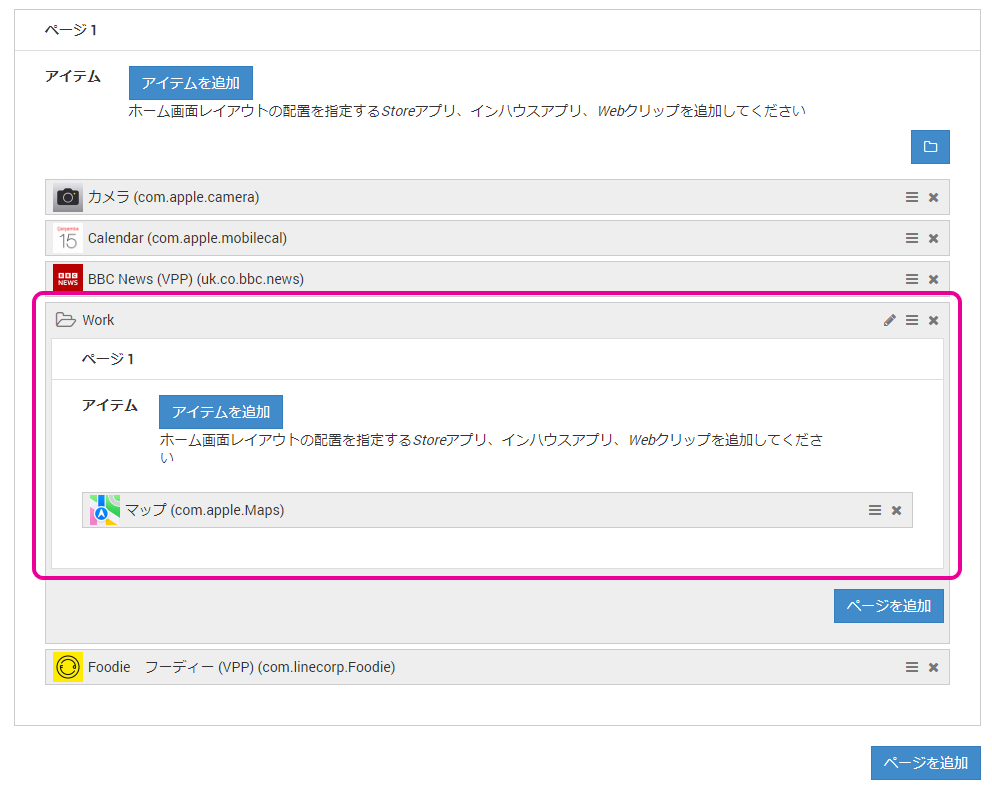
-
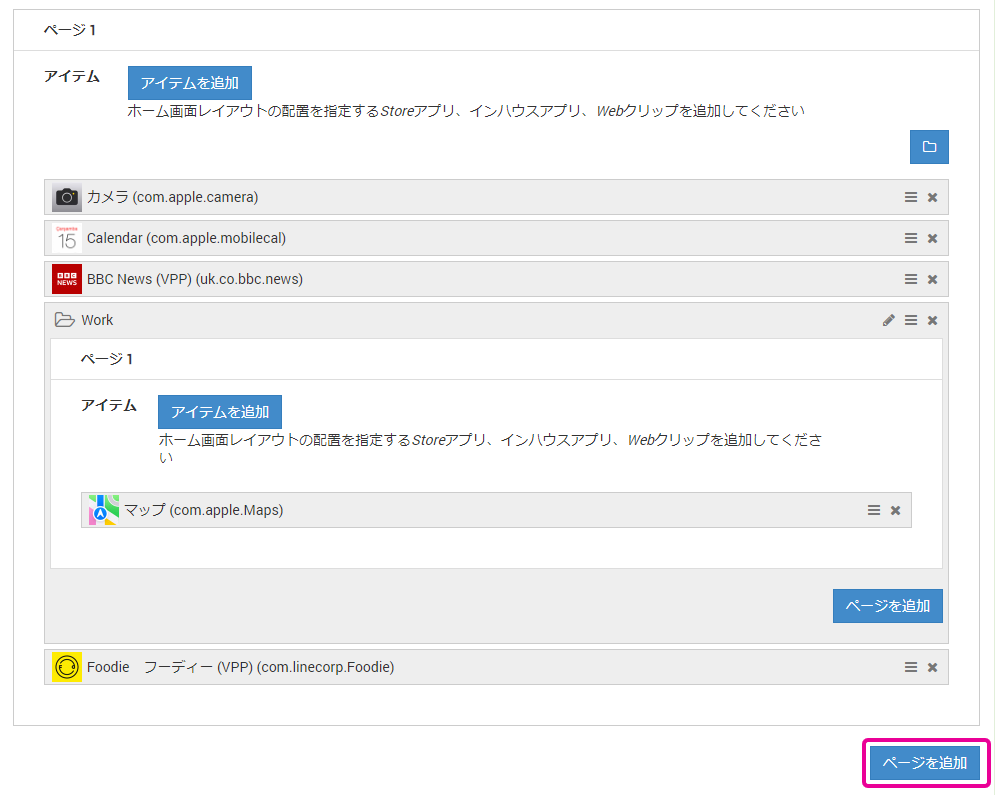
To change the order, click
 and drag the item to a new position.
To delete an item, click .
.
To rename a folder, click and change the name.
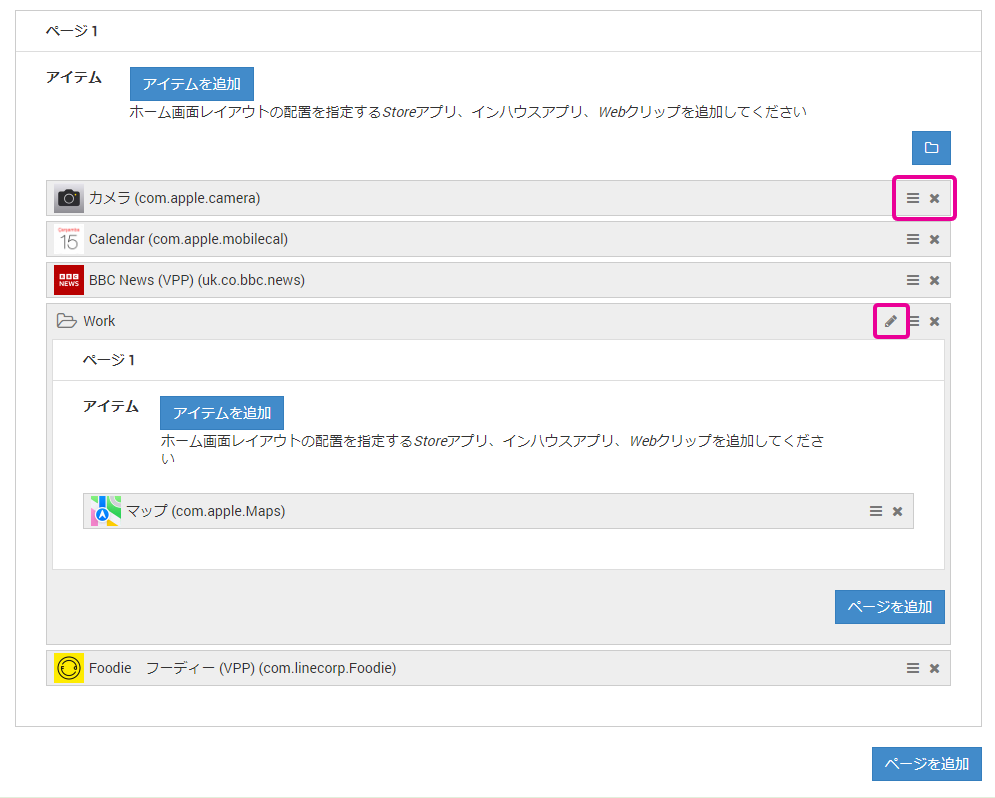
-
To add a page, click
Add Page.
Add pages when you configure a layout with multiple pages.
-
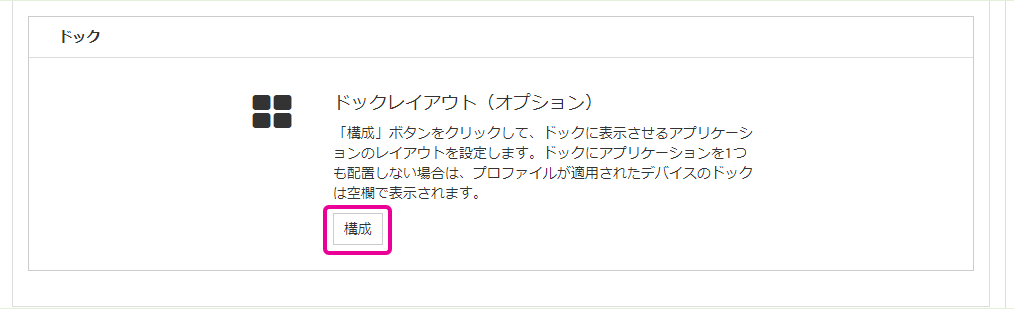
To configure the dock layout, specify the apps in the same way from Configure in the Dock menu.
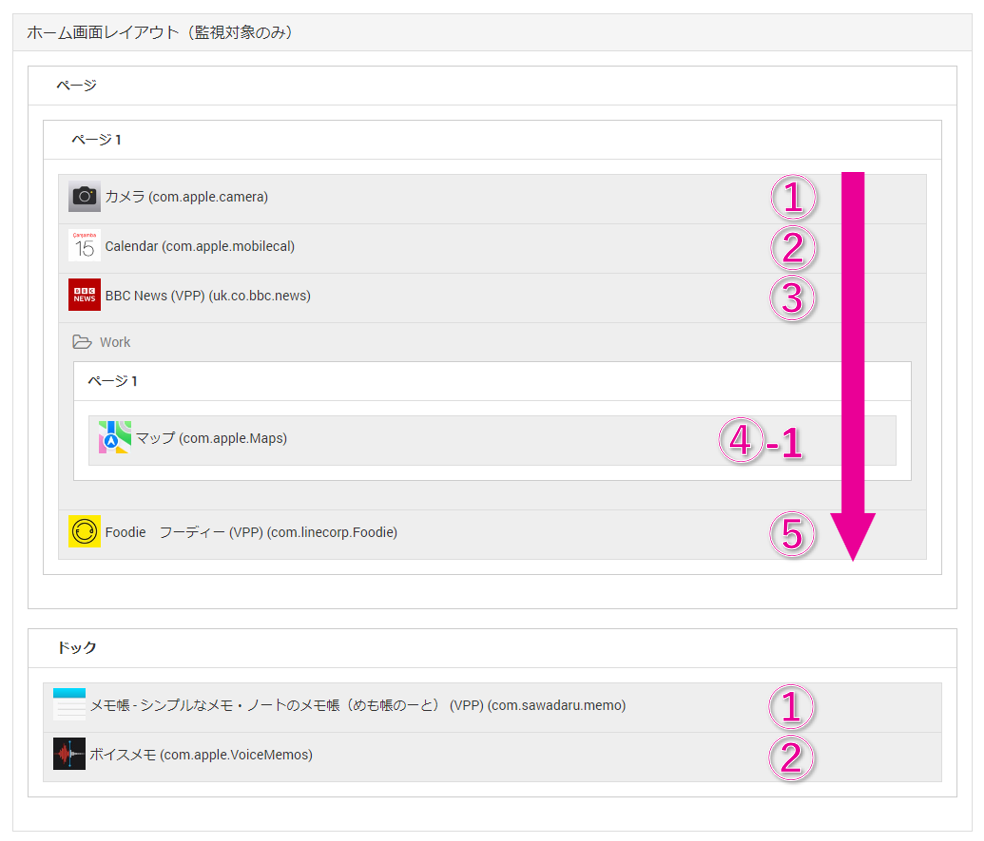
Note: Apps are placed on the managed device from the top-left, in the order they are listed in BizMobile Go!.
Apps whose placement is not specified are placed after the specified apps, in the order they were installed.
| Order on the profile (sample) | Order on the managed device (sample) |
|---|---|
 |  |