Control access to websites (iOS)
This page explains how to control access to websites by using the Content Filter feature of a profile.
The device must be Supervised.
There are two methods for controlling access to websites: an allowlist and a denylist.
| Description | |
|---|---|
| A. Allow access to only the required websites (allowlist) | If you select Specific websites only for Filter Type, you can allow access to only the required websites.When you register the URLs of the required sites in Website URL, those sites appear in the Safari Bookmarks, and no other sites can be accessed. |
| B. Prohibit access to websites that are not allowed (denylist) | If you select Limit Adult Content for Filter Type and register Not Allowed URLs, you can prohibit access to the registered sites in addition to the sites that Apple identifies as adult content.Adult content is identified automatically, so if a required site is blocked, you can allow access to it by registering the site's URL in Allowed URLs. |
Control access to websites
Select a setup method below.
A. Allow access to only the required websites (allowlist)
B. Prohibit access to websites that are not allowed (denylist)
A. Allow access to only the required websites (allowlist)
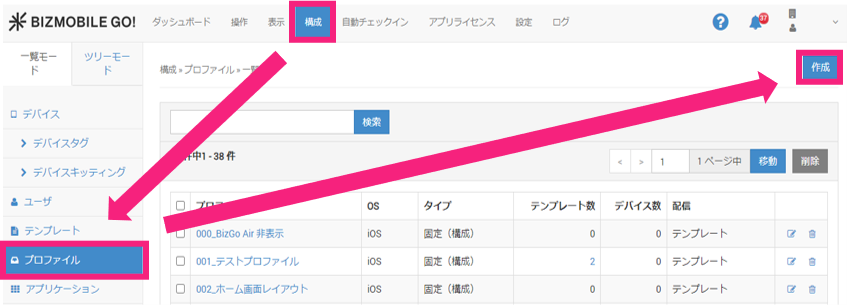
- In the admin console, click CONFIG > Profile > Create.
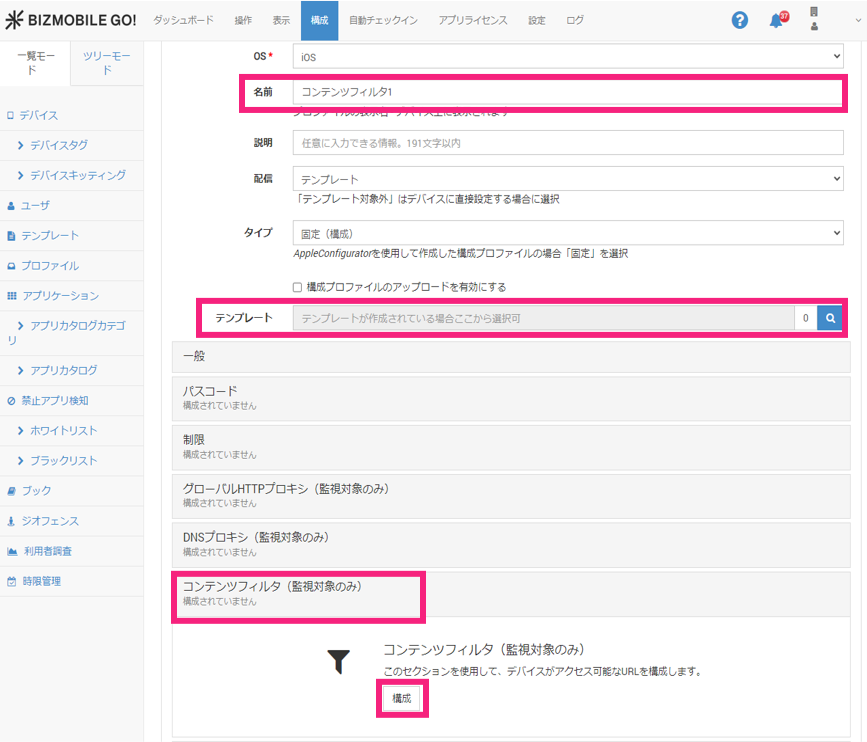
- Enter a
Name, and if there is a template to apply, register theTemplate.
Next, clickContent Filterto expand it, and then clickConfigure.
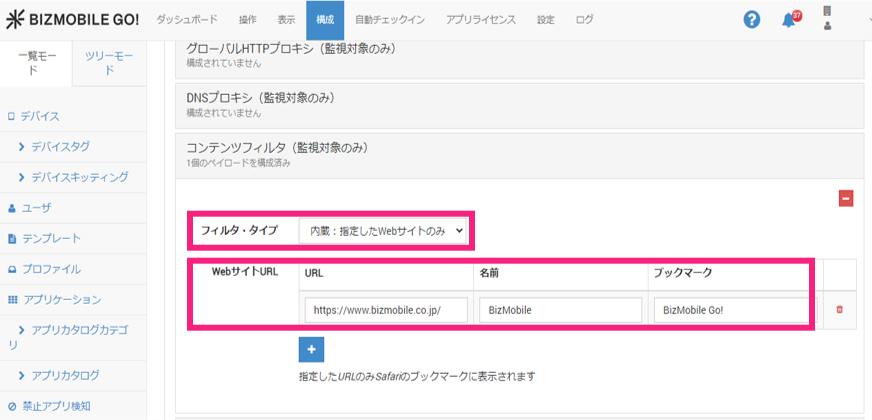
- For
Filter Type, selectSpecific websites only, enter the URLs of the sites to allow inWebsite URL, and clickSave & Sync.
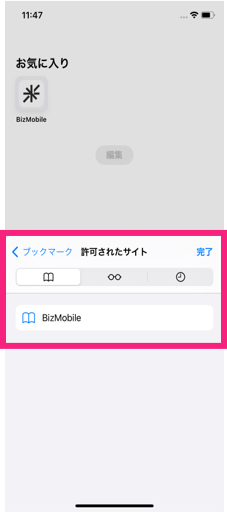
- On the device, start Safari and confirm that the sites you registered appear under
BookmarksasAllowed Sites.
B. Prohibit access to websites that are not allowed (denylist)
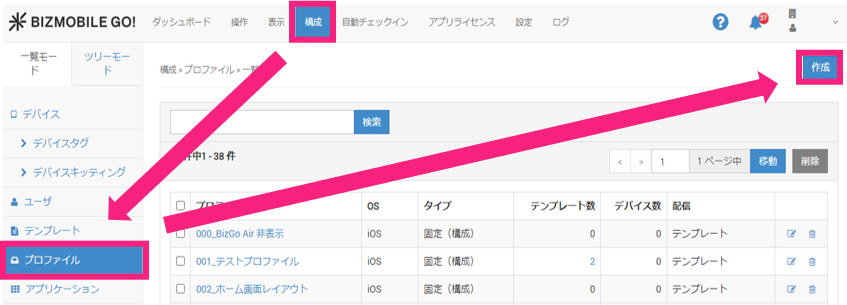
- In the admin console, click CONFIG > Profile > Create.
- Enter a
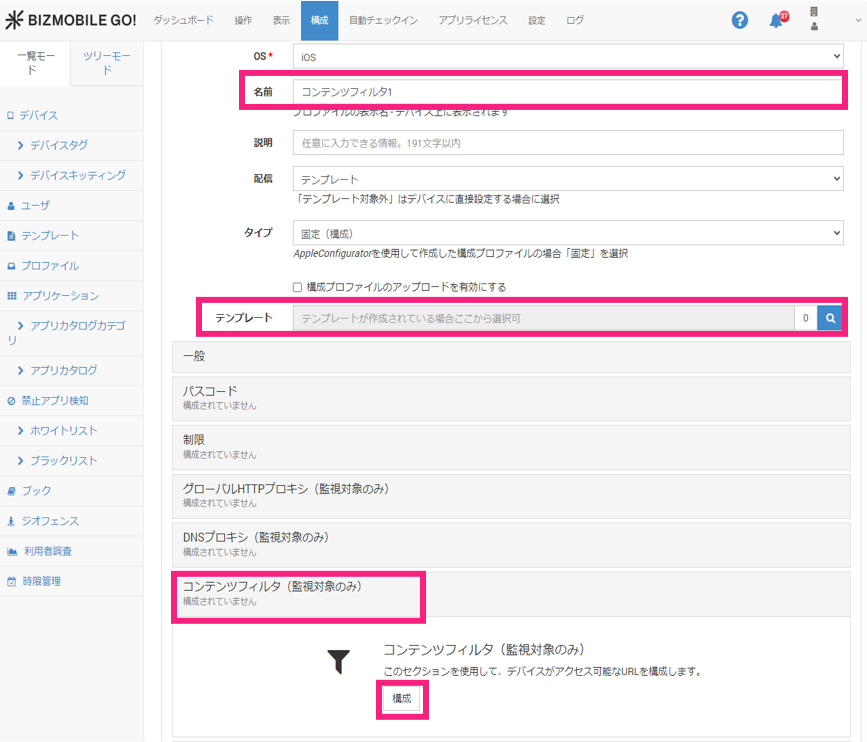
Name, and if there is a template to apply, register theTemplate.
Next, clickContent Filterto expand it, and then clickConfigure.
- For
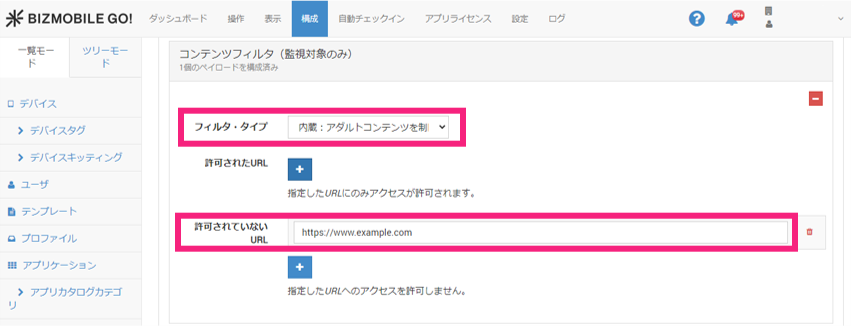
Filter Type, selectLimit Adult Content.
If there are sites to prohibit access to, register the URLs of the sites inNot Allowed URLs, and clickSaveorSave & Sync.
That completes the procedure for B. Prohibit access to websites that are not allowed (denylist).
If a required site is blocked by the filter
You can bypass the filter by registering the required site as an allowed site.
- Click
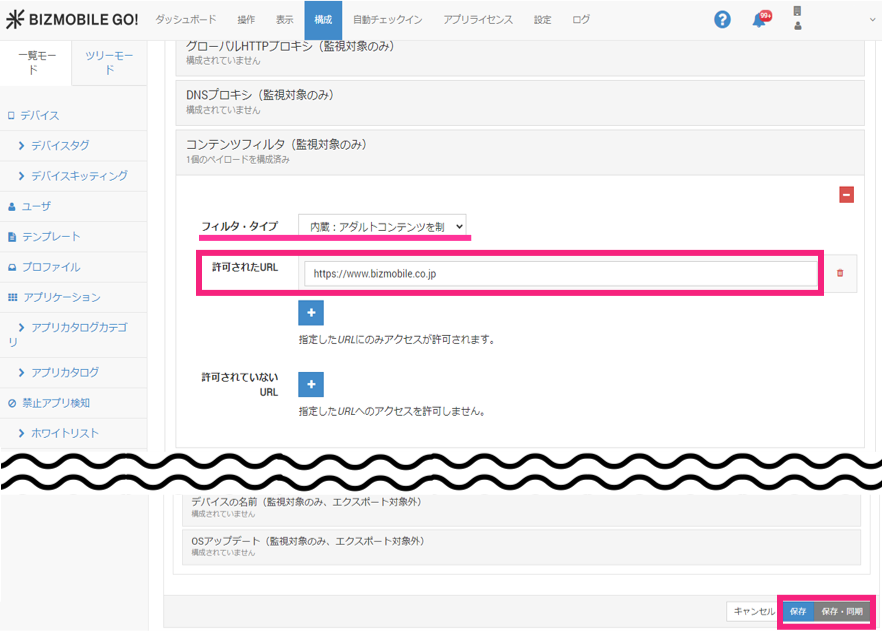
Content Filter, confirm thatLimit Adult Contentis specified for Filter Type, enter the URL of the site to allow inAllowed URLs, and clickSaveorSave & Sync.
- On the device, start Safari and confirm that you can access the required site.