Per-App VPN
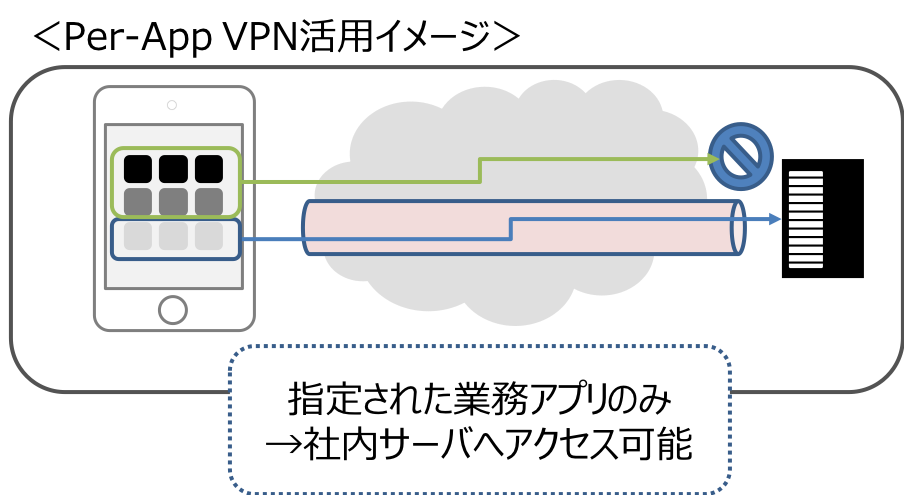
You can apply the VPN settings configured in the VPN payload of an iOS profile on a per-app basis or on a per-domain basis in Safari.
The VPN connection is enabled automatically when a specified app is used, or when a specified domain is accessed in Safari.
Note: The supported VPN connection types are as follows. (The Per-App VPN items are displayed only when you select one of the following types for Connection Type in the configuration of the VPN payload of an iOS profile.)
CiscoAnyConnect/CiscoLegacyAnyConnect/JuniperSSL/PulseSecure/F5SSL/SonicWALL Mobile Connect/ArubaVIA/CheckPointMobileVPN/Custom SSL
For how to create an iOS profile, see Profiles for iOS.
| Item | Default | Details |
|---|---|---|
| Per-App VPN | Turn on to use the Per-App VPN feature. | |
| Automatic Connection | If turned on, the VPN connection is made automatically when an app connected to Per-App VPN connects to the network. | |
| Safari domains | Click  and enter a domain in the field that appears. and enter a domain in the field that appears.The VPN connection is made automatically when the entered domain is accessed in Safari. | |
| Provider Type | App Proxy | Select the provider type.
|
| App Identifier | Click and, on the application search screen that appears, search for the app to target with the Per-App VPN feature. When you select an application on the application search screen, the app identifier is entered automatically. Note: On the application search screen, you search by the application name registered in BizMobile Go!. Note: Apple built-in apps such as the Mail app cannot be registered. |