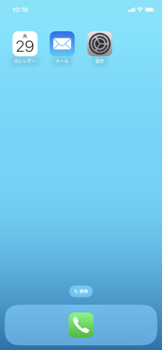
Allow only required apps (iOS)
This page explains how to restrict the apps that are displayed on a device.
There are two methods for restricting app display: an allowlist and a denylist.
An allowlist is easy to set up initially but requires additional steps during operation, so we recommend using a denylist.
| Description | |
|---|---|
| Denylist (recommended) | With a denylist, in addition to the setting that prohibits installing apps from the App Store (profile restriction) that you configure beforehand, you register the unneeded preinstalled apps as prohibited apps. This way, you do not need to add entries to the list even when apps are added during operation.Targets to specify in a denylist: • Preinstalled apps that you do not allow users to use. The preinstalled apps may differ depending on the device OS. If preinstalled apps are displayed on a newly deployed device even though you have registered a denylist, add the necessary apps to the denylist. |
| Allowlist | With an allowlist, you register the apps that are required, so you must register any additional apps that become necessary during operation in the list each time.Targets to specify in an allowlist: • Preinstalled apps that you allow users to use. • Apps distributed from the MDM. (Apps assigned to a template and apps assigned to the application catalog) Note that prohibiting system apps with an allowlist may affect the operation of required apps. |
STEP 1: Preparation. Restrict app installation (common to A and B)
Configure a setting that hides App Store so that users cannot install apps on the device.
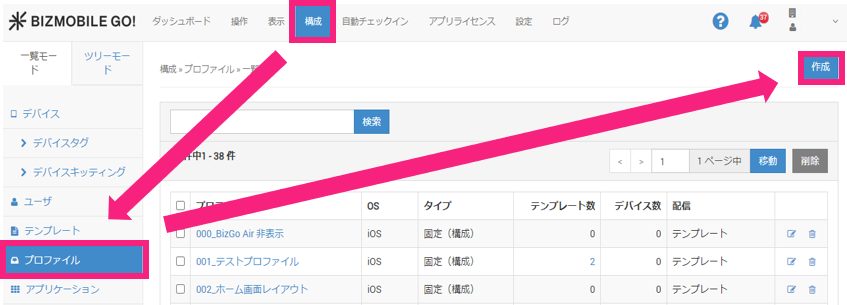
- In the admin console, click CONFIG > Profile > Create.
- Enter a
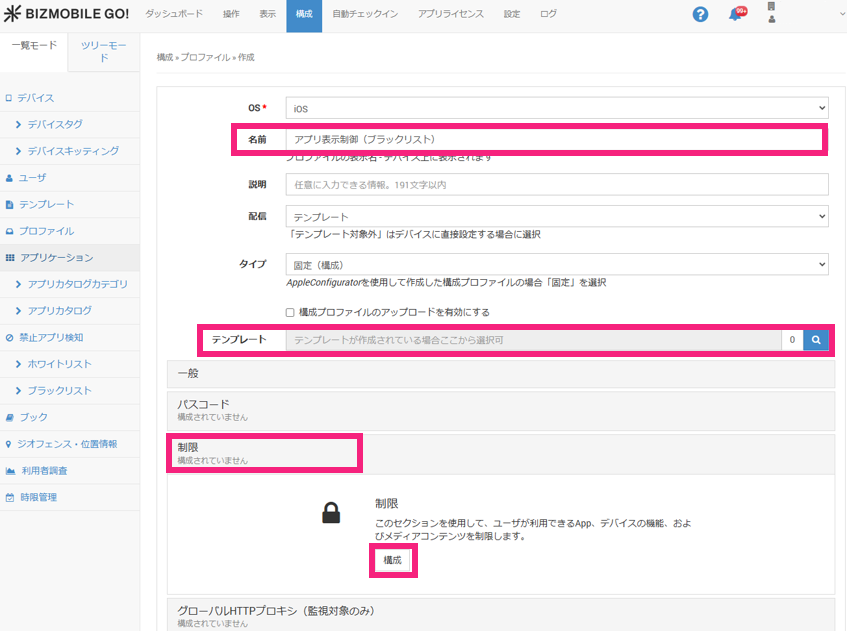
Name, and if there is a template to apply, register theTemplate. Next, clickRestrictionsto expand it, and then clickConfigure.
- Select the
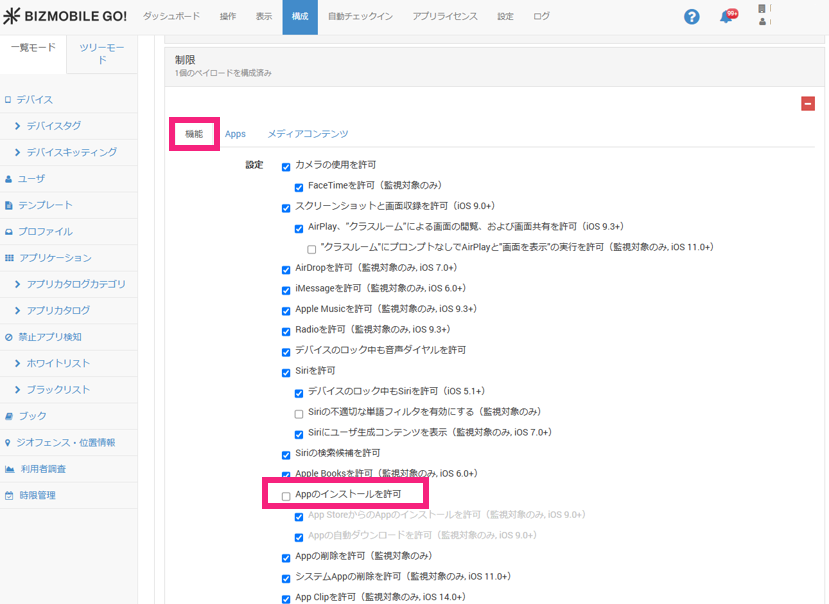
Functionalitytab, clear theAllow installing appscheck box, and clickSave.
STEP 2: Configure app display
Select a setup method below.
A. Register apps to disallow (denylist) (recommended)
B. Register apps to allow (allowlist)
A. Register Disallowed Apps (Denylist)
- In the admin console, click CONFIG > Profile > Create.
- Enter a
Name, and if there is a template to apply, register theTemplate. Next, clickRestrictionsto expand it, and then clickConfigure.
- Select the
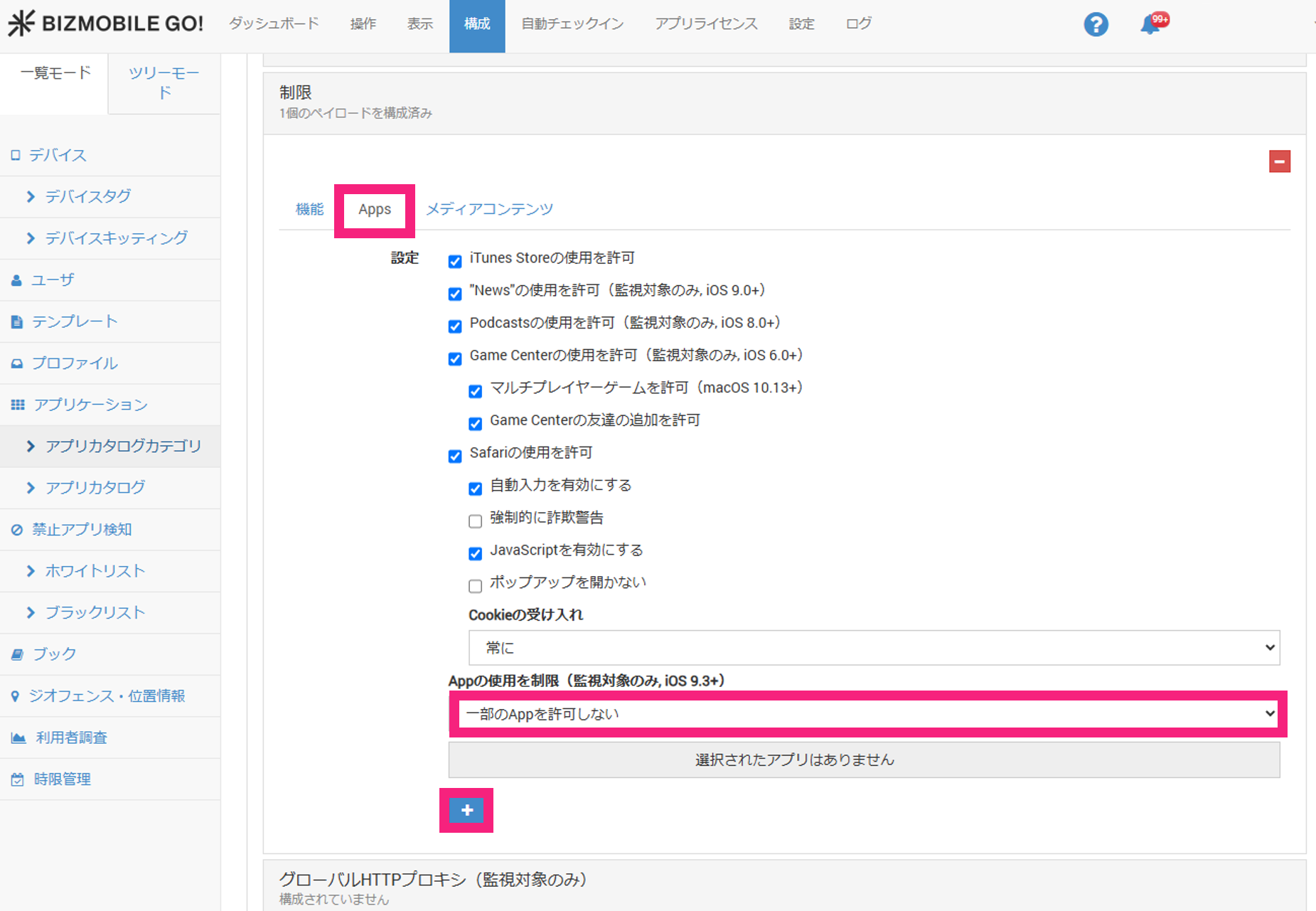
Appstab, selectDo not allow some apps, and click+ (plus).
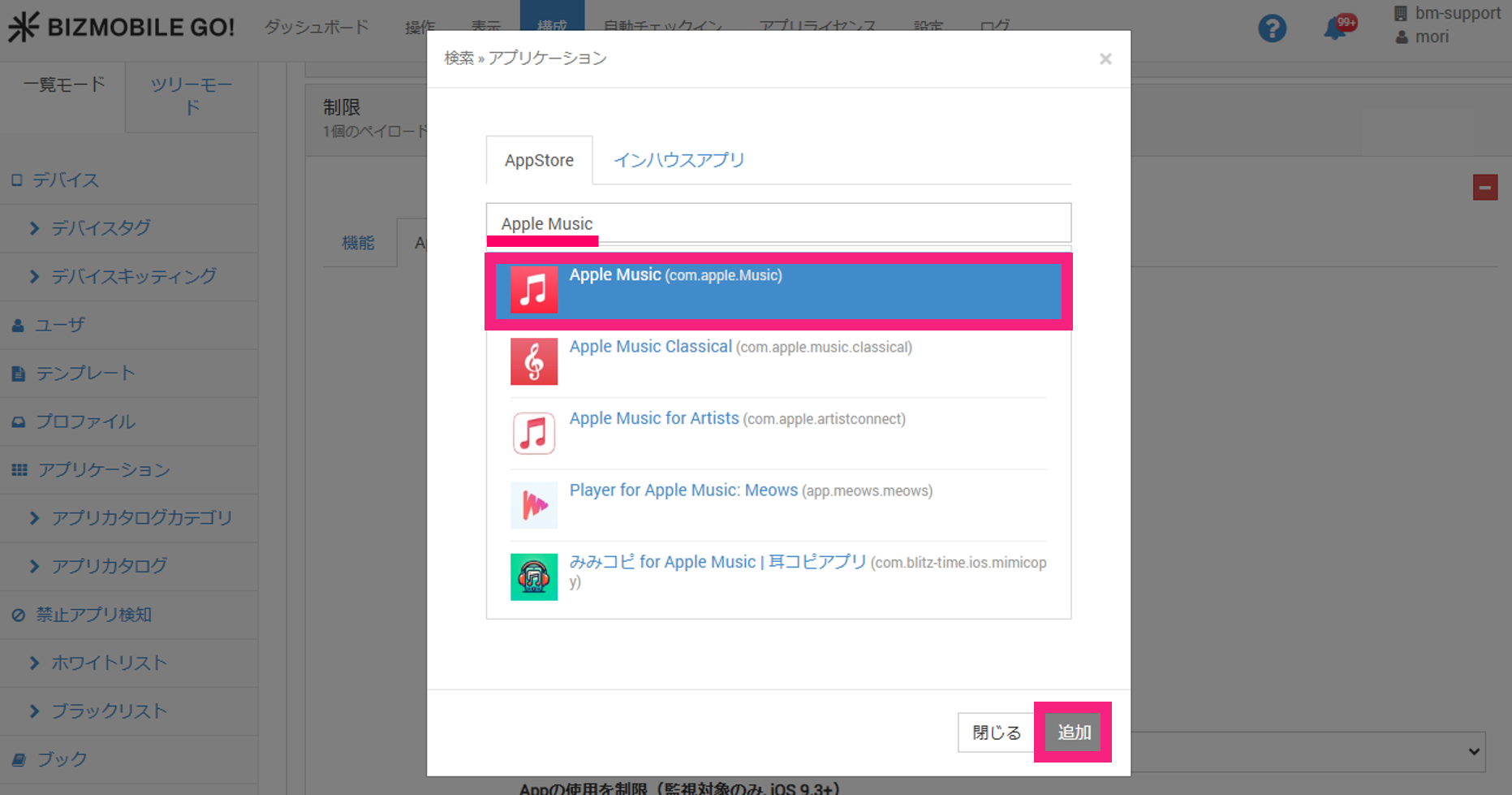
- Enter an app name to search, select the app to prohibit from the results, click
Add, and then clickSaveorSave & Syncfor the profile.
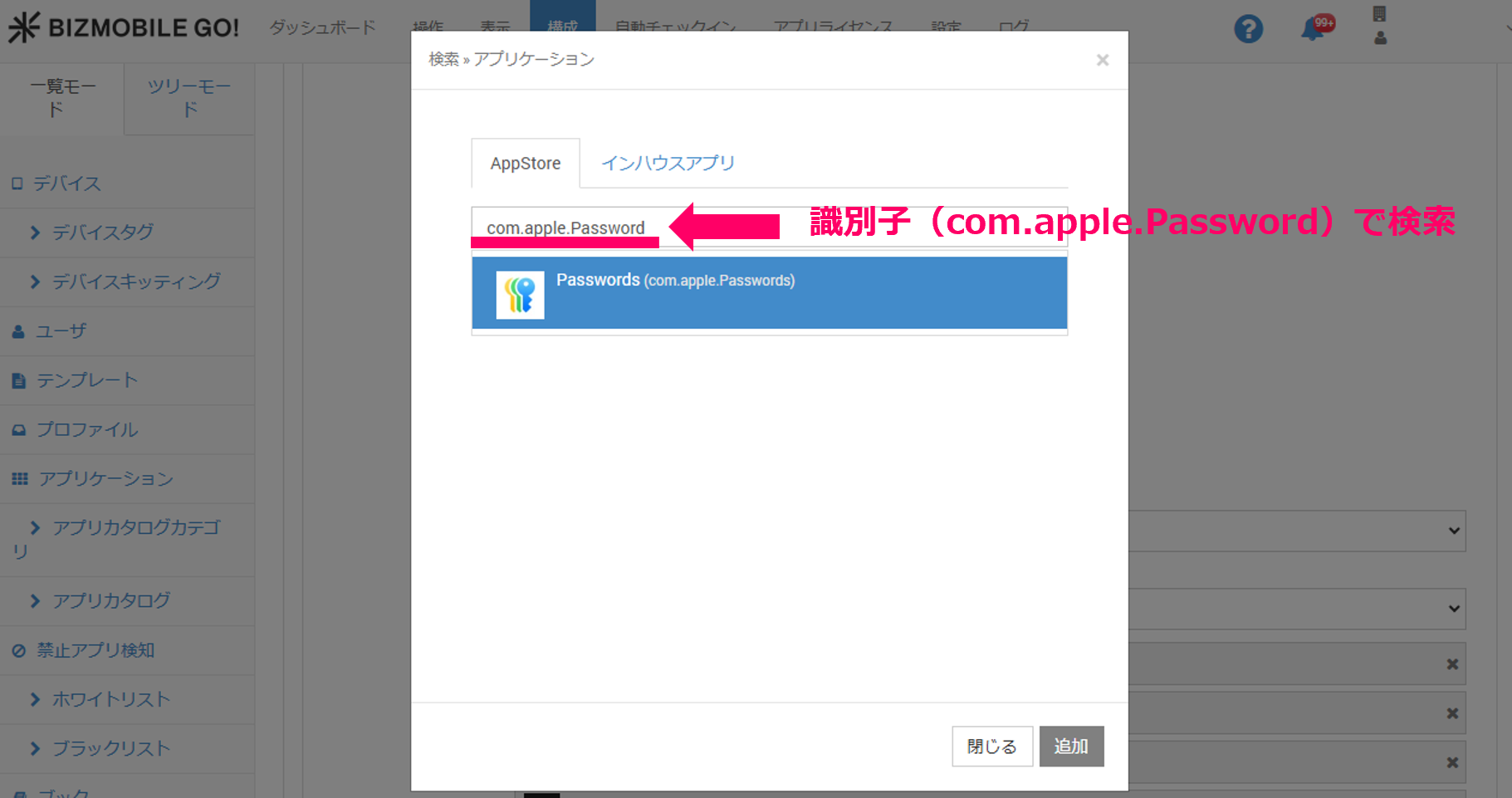
If the app does not appear in the search results, search by entering the app identifier. You can check the identifiers of preinstalled apps on the following Apple support page. https://support.apple.com/en-us/guide/deployment/depece748c41/web For the identifiers of other apps, check with the app developer.
To register an in-house app, select the In-house Apps tab and register the app in the same way.
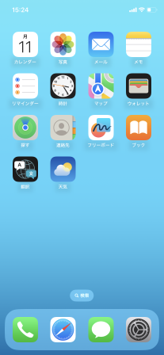
- Confirm that the prohibited apps are not displayed on the device.
Note:
- Phone
- Settings
B. Register Allowed Apps (Allowlist)
- In the admin console, click CONFIG > Profile > Create.
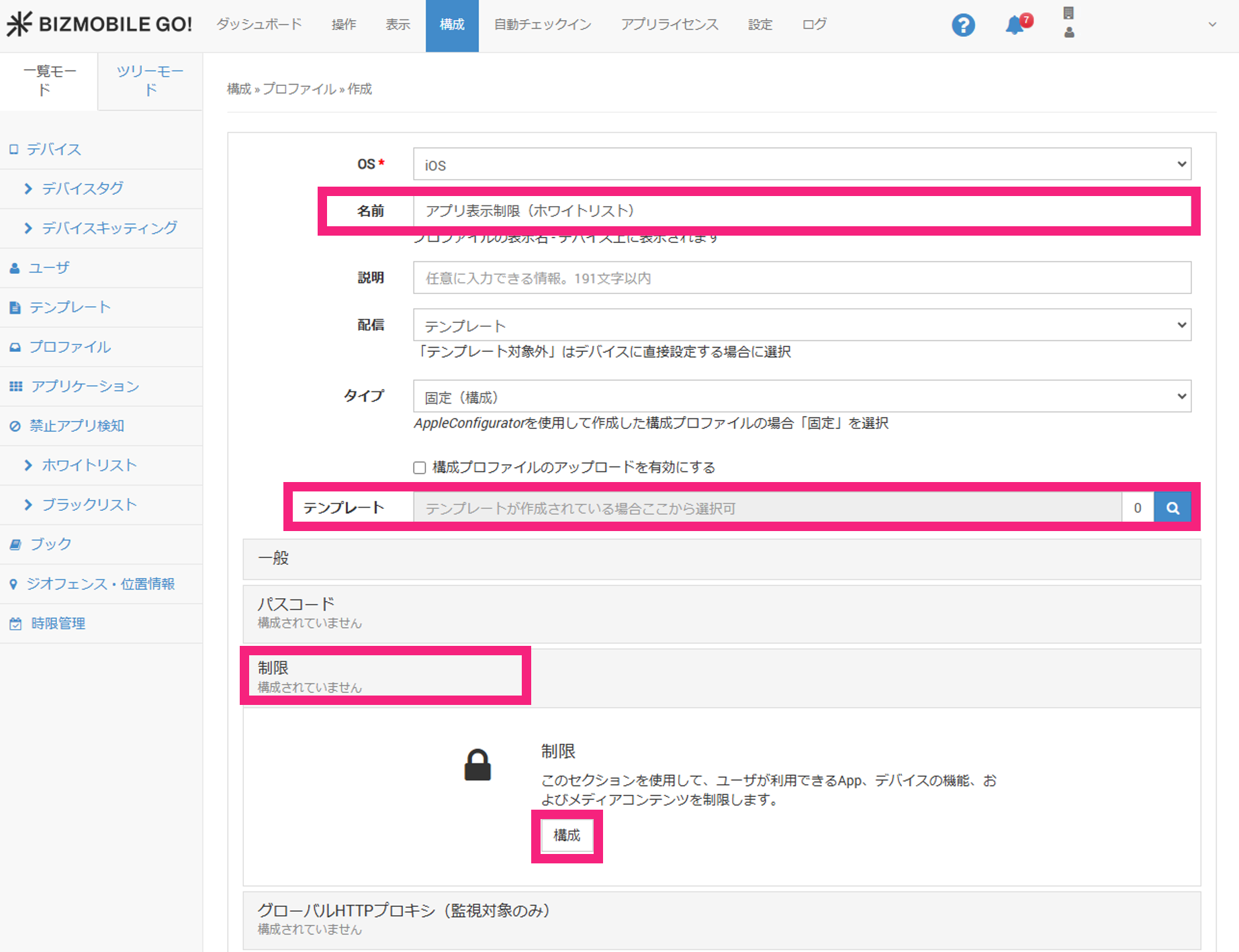
- Enter a
Name, and if there is a template to apply, register theTemplate. Next, clickRestrictionsto expand it, and then clickConfigure.
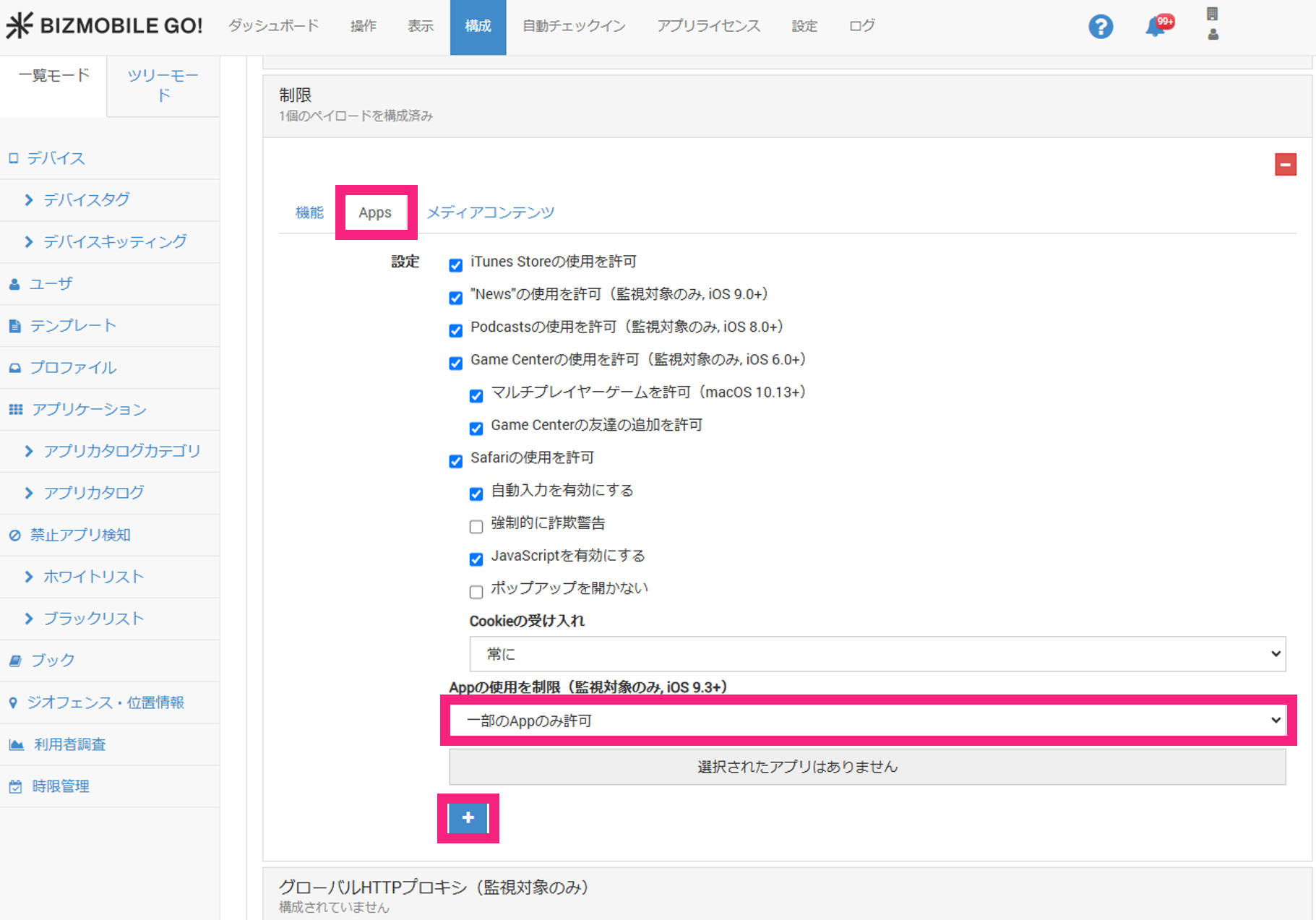
- Select the
Appstab, selectAllow only some apps, and click+ (plus).
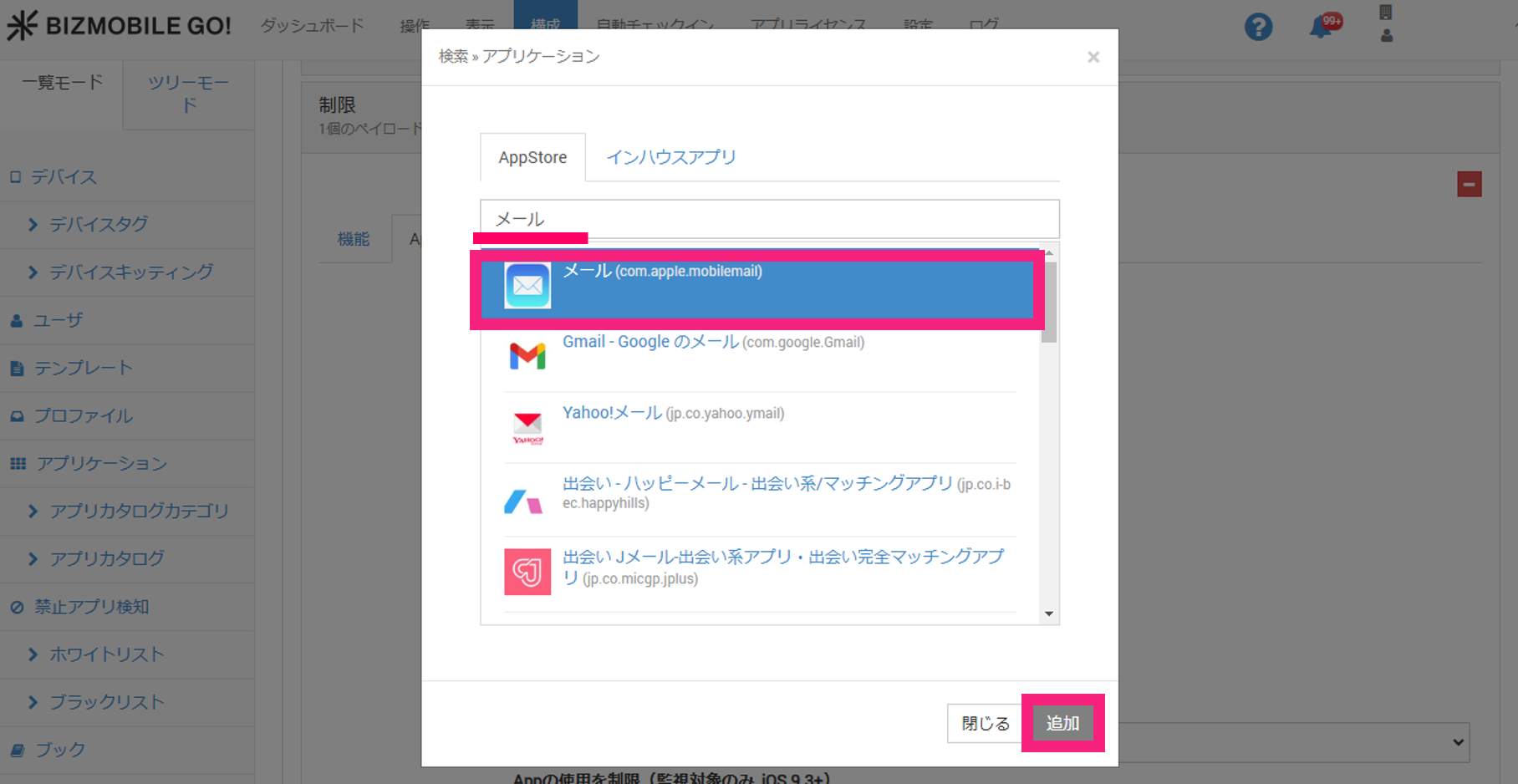
- Enter an app name to search, select the app to allow from the results, click
Add, and then clickSaveorSave & Syncfor the profile.
If the app does not appear in the search results, search by entering the app identifier. You can check the identifiers of preinstalled apps on the following Apple support page. https://support.apple.com/en-us/guide/deployment/depece748c41/web For the identifiers of other apps, check with the app developer.
To register an in-house app, select the In-house Apps tab and register the app in the same way.
- Confirm that only the allowed apps are displayed on the device.
Note:
- Phone
- Settings