iOS
The screenshots in this manual show the Japanese version of each screen.

(Shared iPad) Sign in and sign out

After enrollment is complete and the device is ready, sign in to the Shared iPad.
This page describes how to sign in with a managed Apple ID for an individual user and how to sign in as a guest without a managed Apple ID.

Sign in with a managed Apple ID​

Sign in with a managed Apple ID that has already been assigned in the user profile.

info

If you sign in with an Apple ID that is not assigned in the user profile, you are forcibly signed out.

The first time you sign in with a managed Apple ID, you are asked to change the initial password.
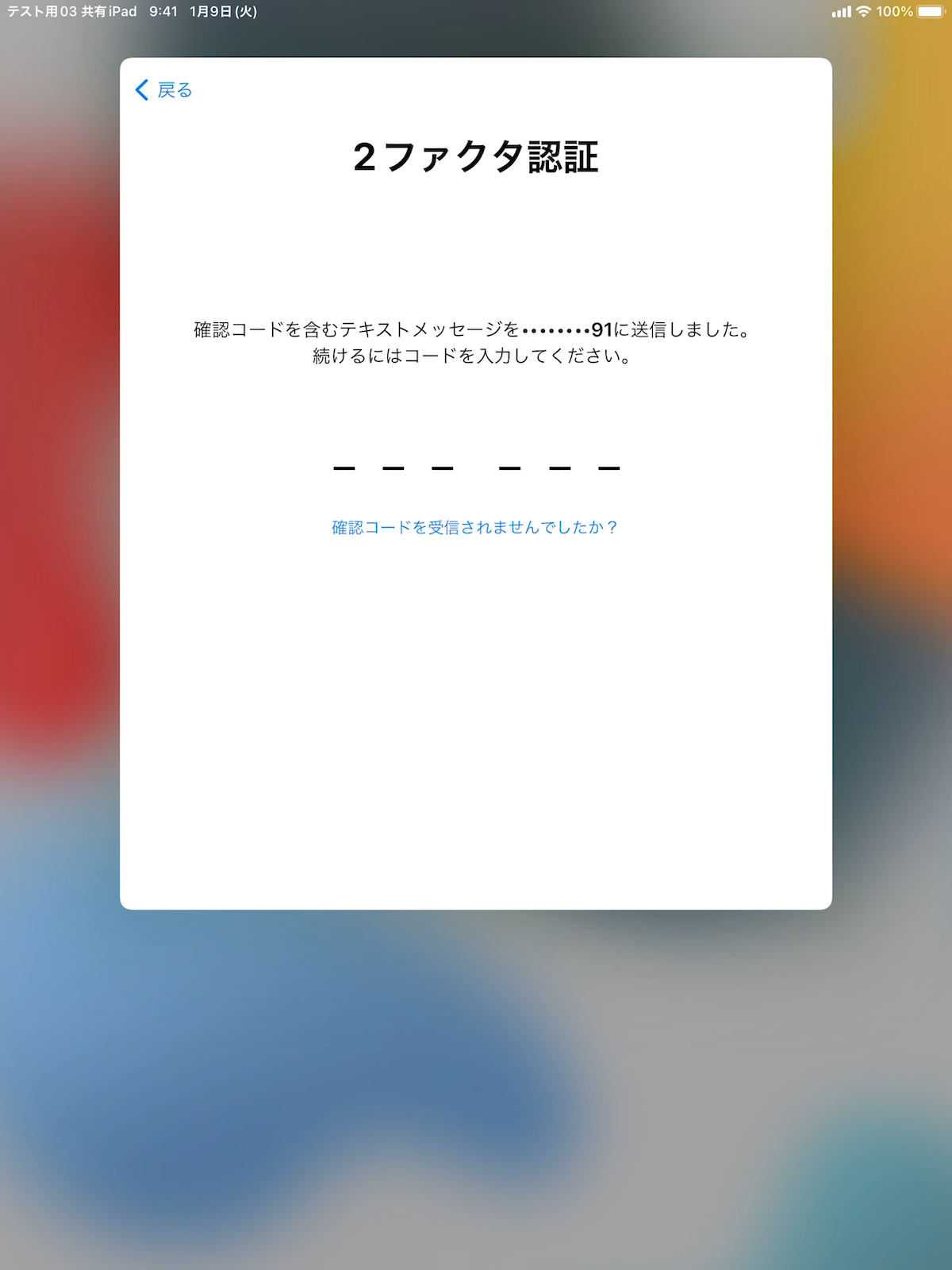
At this point, a two-factor authentication code is sent to the phone number that was linked to the account when the managed Apple ID was created.

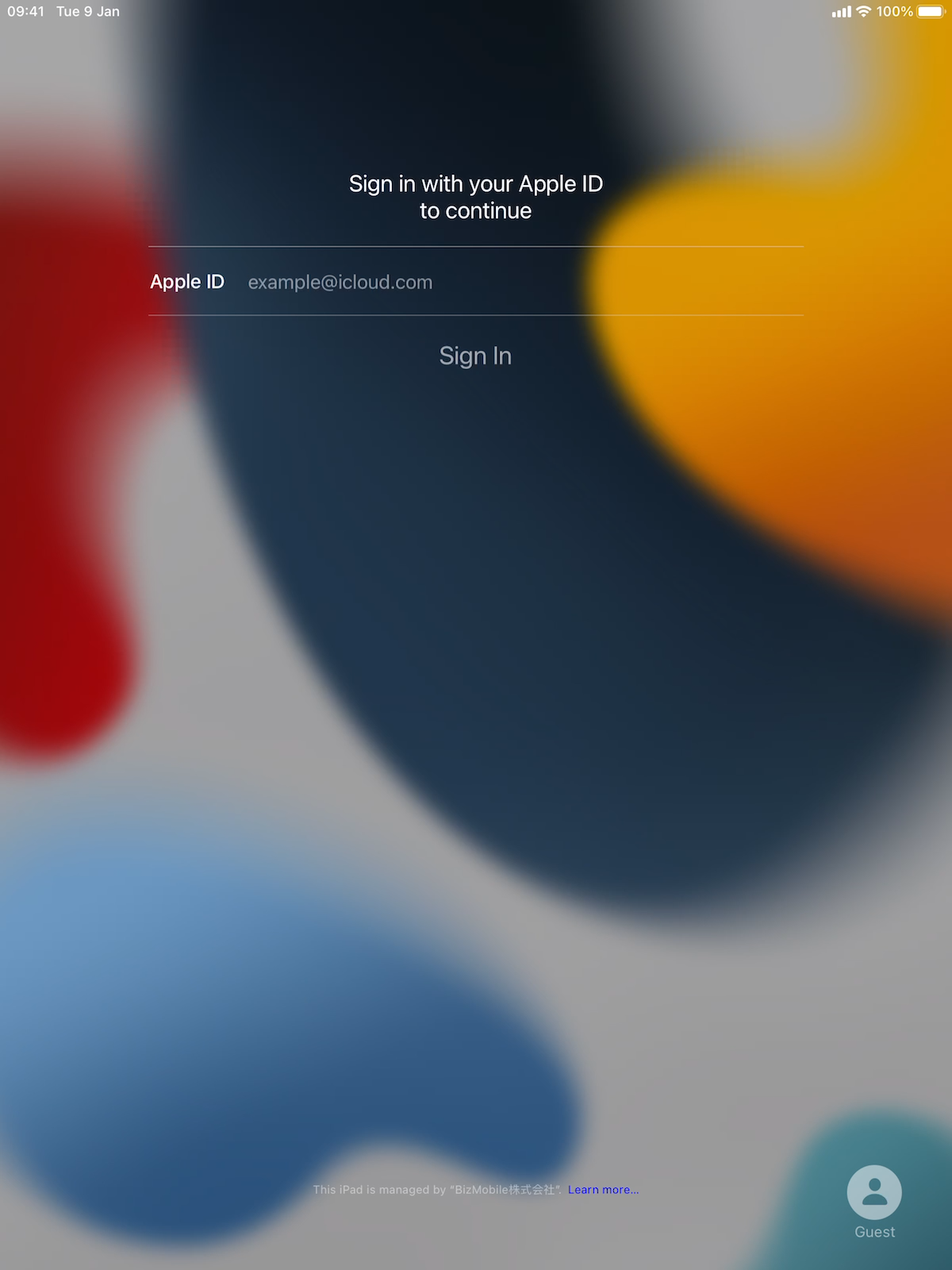
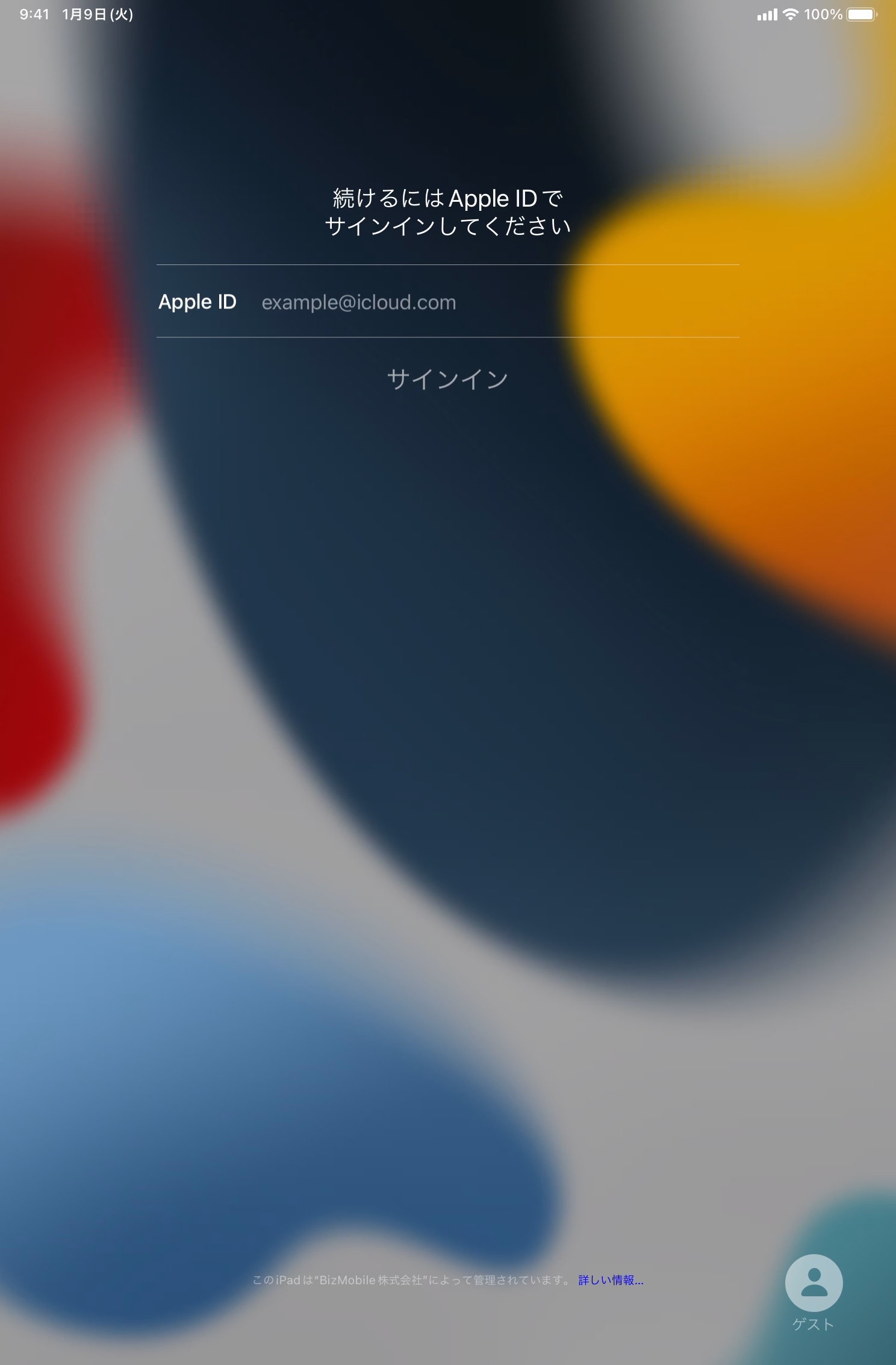
  1. After enrollment is complete, the sign-in screen for managed Apple IDs appears.
    Enter the Apple ID and proceed to the next screen.
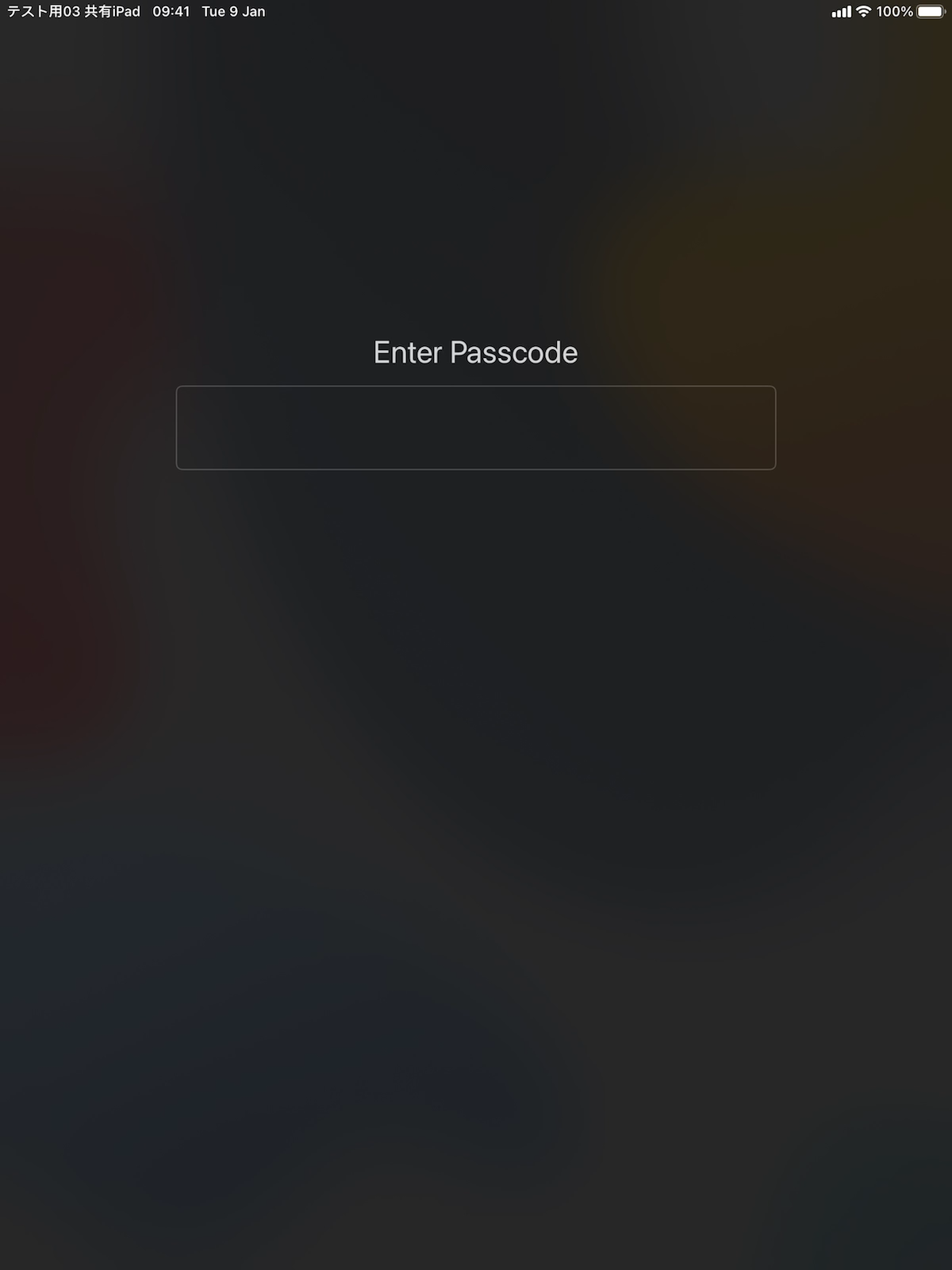
  1. Enter the password.
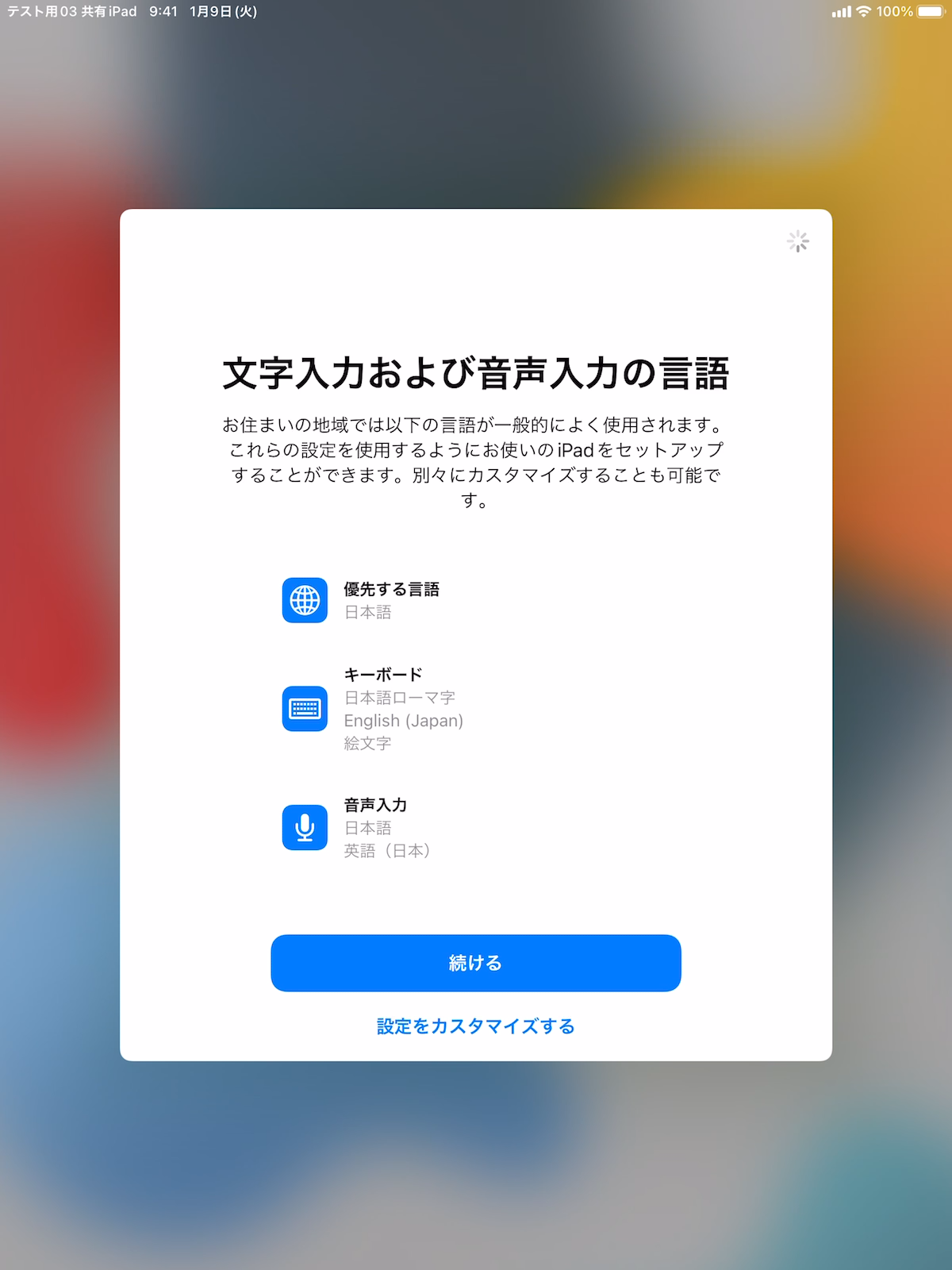
  1. The screen changes.
    Tap Continue to proceed.
  1. The two-factor authentication screen appears.
    A verification code is sent to the phone number linked to the managed Apple ID. Enter the code you received.
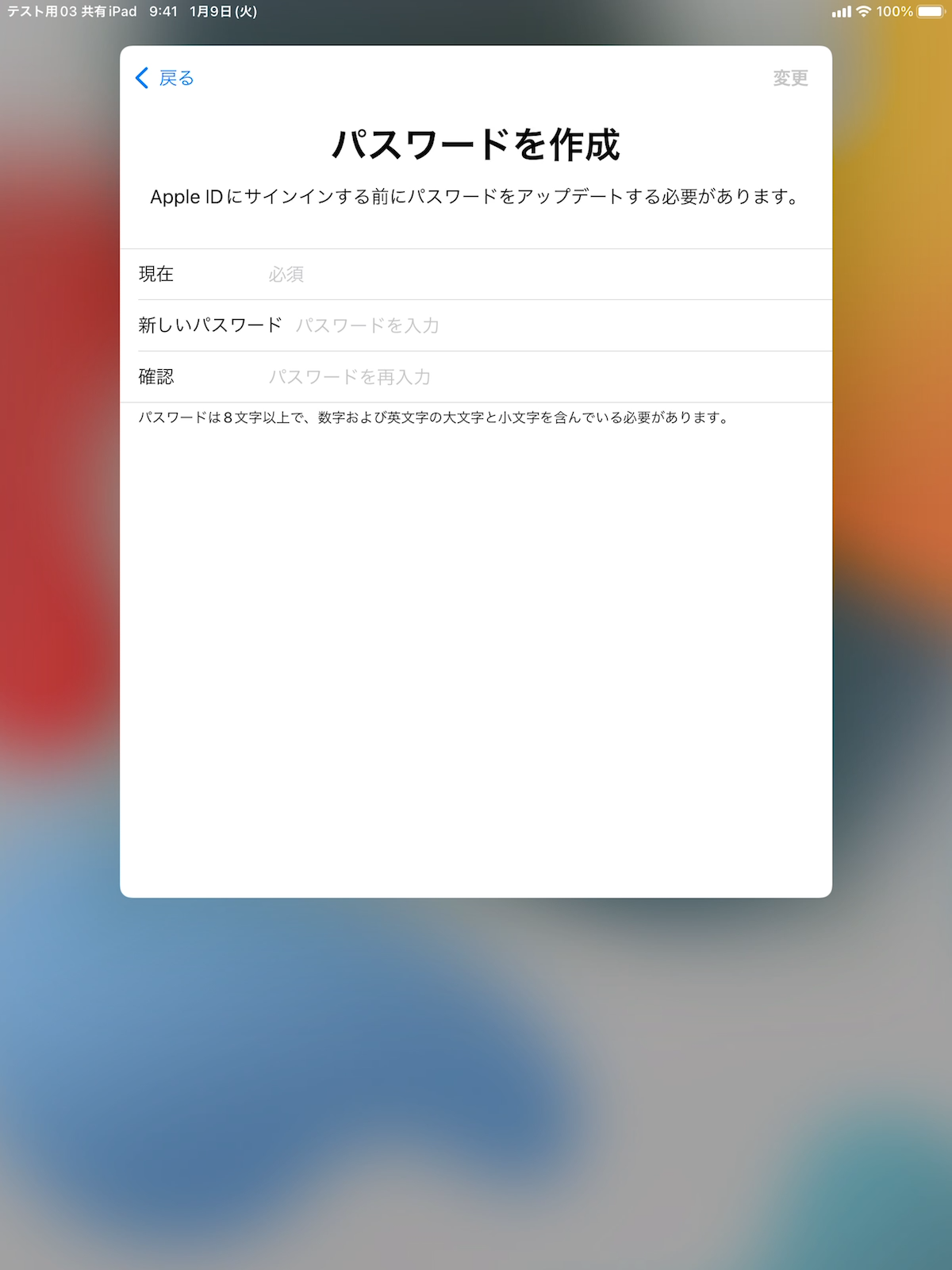
  1. After you enter the code, the screen for creating a password appears.
    Enter both your initial password and the new password you will use from now on.
    After you fill in all the fields, tap Change at the upper right of the screen.
  1. When the process is complete, you can sign in with the new password.
 

How to sign out​

On a Shared iPad, each user's data is saved when the user signs out.

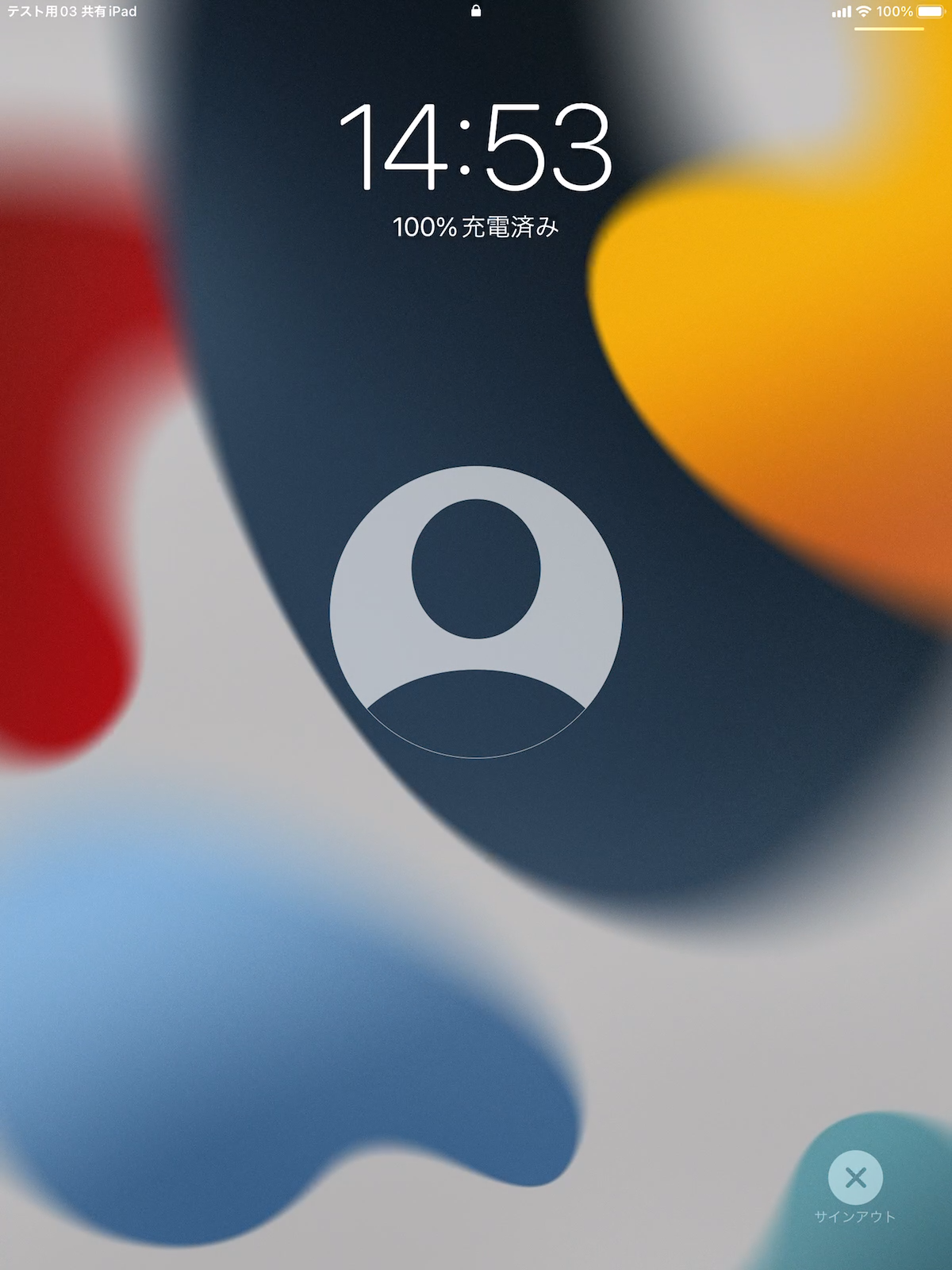
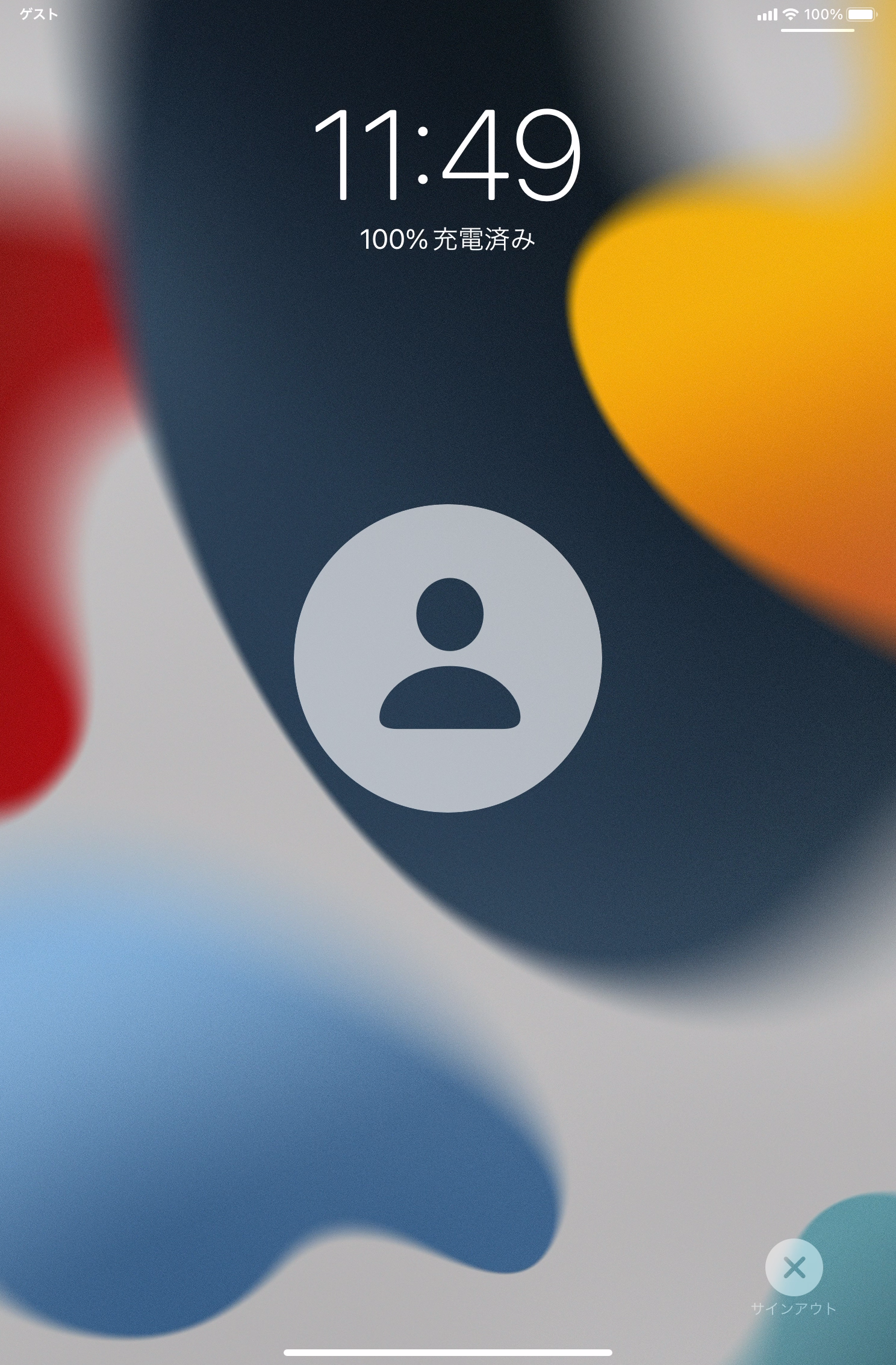
  1. Lock the screen, for example by pressing the power button on the device.
    Tap Sign Out at the lower right of the screen to sign out.

Sign in as a guest​

Temporary users who do not have a managed Apple ID can also sign in as a guest.

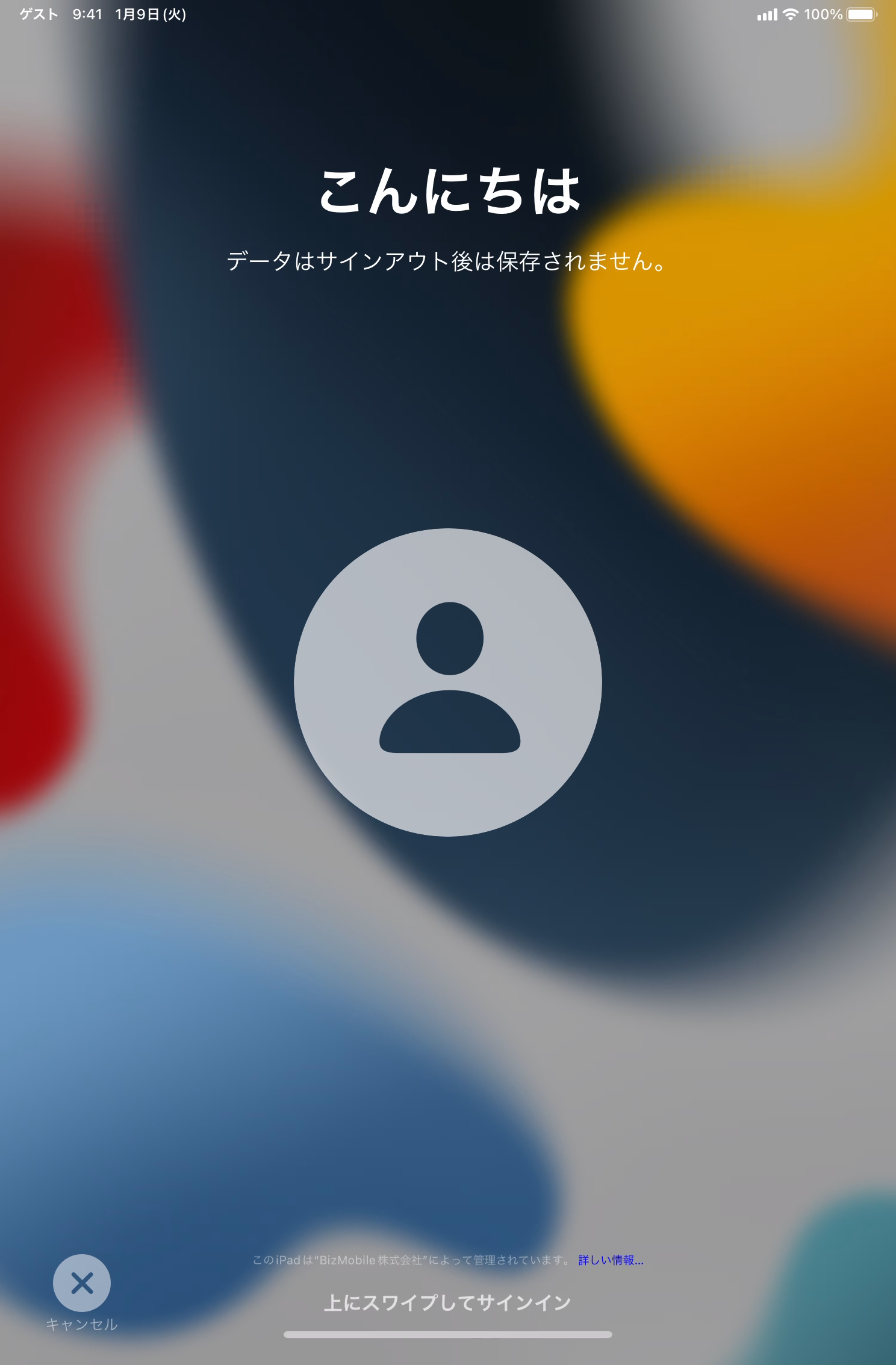
  1. Tap Guest at the lower right of the screen.
  1. Swipe up to sign in.

How to sign out as a guest


  1. Lock the screen, for example by pressing the power button on the device.
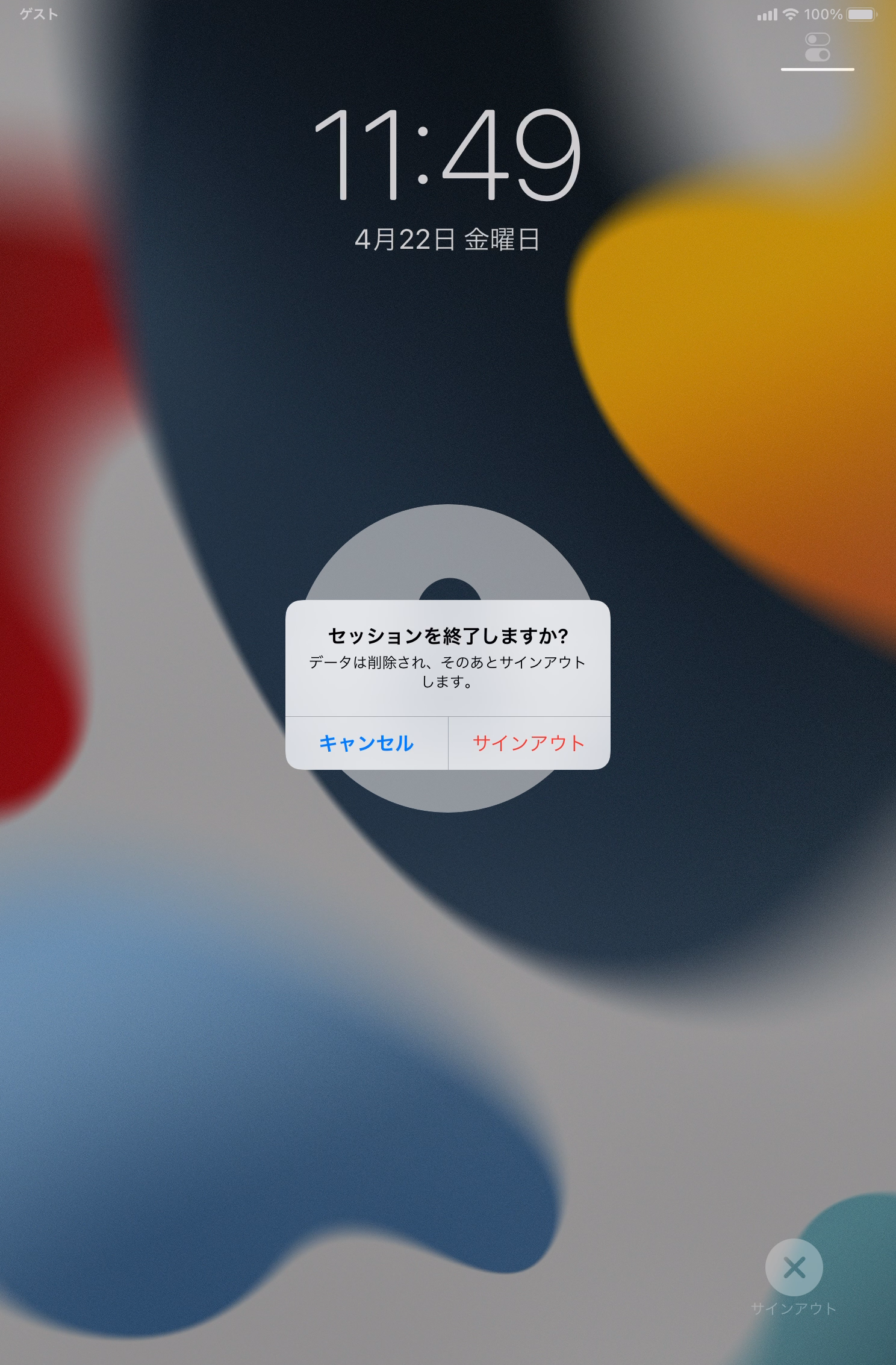
    Tap Sign Out at the lower right of the screen.
  1. Tap Sign Out to finish.