What is Shared iPad?
Shared iPad is a feature, available on iPadOS 13.4 or later, that lets multiple users sign in to one iPad.
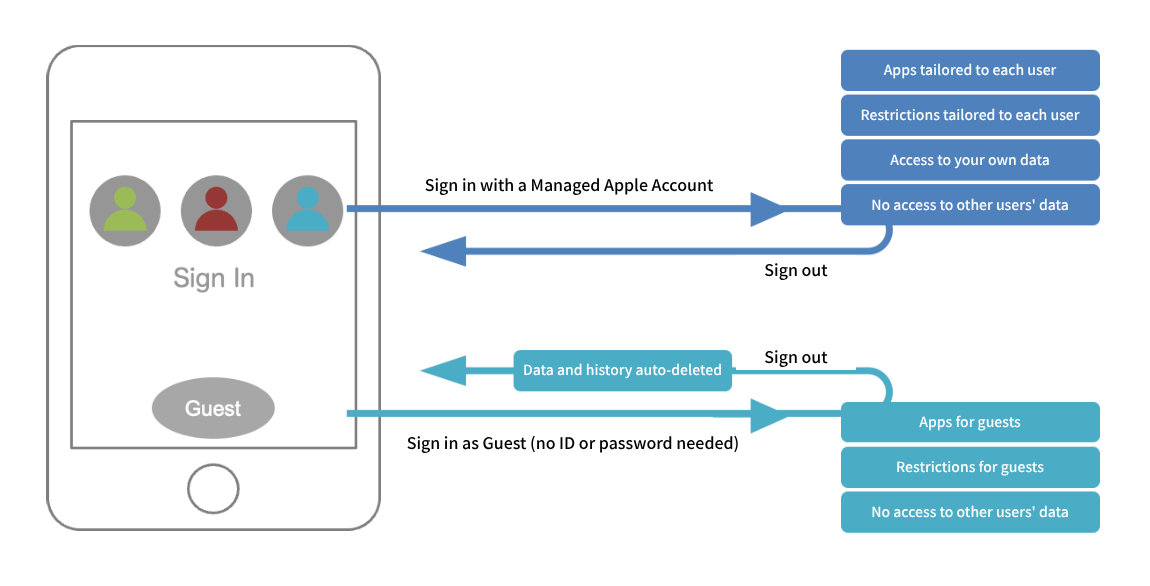
In user mode, users sign in with managed Apple IDs created in Apple Business (formerly Apple Business Manager). While a user is signed in, the profile assigned to that user is applied.
Storage on the iPad is allocated to each user (managed Apple ID) who signs in. While signed in, a user can access only their own storage and the data in the iCloud account of their managed Apple ID. Users of the same iPad cannot access each other's data.
Alternatively, in guest mode, which does not require a managed Apple ID, you can let an unspecified number of temporary users (guests) use the iPad.
In guest mode, all of a guest's data and usage history are deleted automatically when the guest signs out, so other guests cannot view that data.
This allows multiple users to share a single iPad, each for their own purposes.
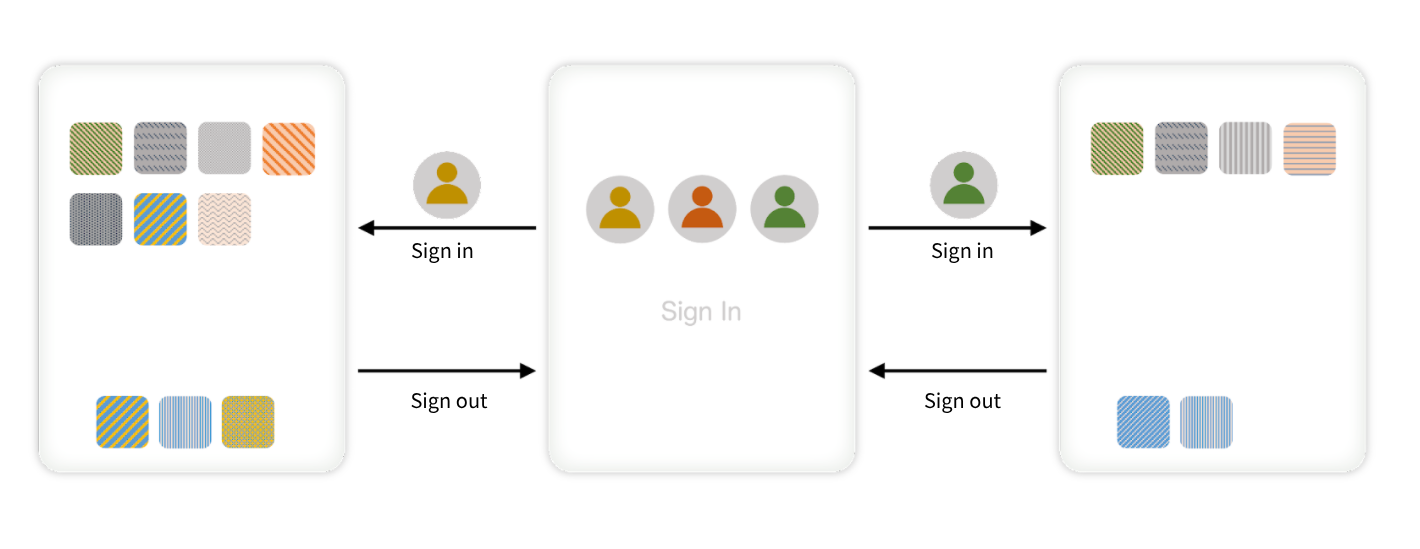
For example, an inspection worker and an inventory worker can each do their work on the same iPad used in a factory.
Considerations before deployment
[Features that are not available compared with a standard iPad]
Some features are restricted on a Shared iPad compared with a standard iPad.
For example, some of the standard Apple apps that are normally preinstalled cannot be used, certain iCloud features are unavailable, and the OS cannot be updated from the device itself.
For details, see the following Apple document.
https://support.apple.com/en-us/guide/deployment/depc3485c493/1/web/1.0
Compared with a standard iPad, some BizMobile Go! features are also not supported.
Check the support status on each manual page below.
[App usage control]
On a Shared iPad, the device storage is divided into a shared area and a personal area.
Apps are saved in the shared area, and app data is saved in the personal area.
Therefore, by default, the apps assigned to a template can be used by all users who sign in to that Shared iPad.
If you want to allow only specific users to use an app, create separate profiles to assign to users and control app usage by changing the app usage restrictions in each profile. In addition to app restrictions, there are other features you can achieve by using separate profiles.
[App data management]
App data is saved in the personal area of the Shared iPad or in iCloud.
Data saved in iCloud can also be used when you sign in to another Shared iPad, but whether an app supports iCloud and how it saves data differ from app to app.
To check whether an app is optimized for use on a Shared iPad, see the following Apple page.
https://developer.apple.com/jp/education/shared-ipad/
[Data capacity management]
A Shared iPad's storage is divided into shared storage (system, apps, and media) and storage allocated to each user.
Note: A Shared iPad requires an iPad with a capacity of 32 GB or more.
The storage for users is automatically divided into 10 parts, and one part is allocated to each user who signs in.
When an 11th user signs in to a single Shared iPad, the data of whichever of the other 10 users signed in least recently is deleted automatically, and that area is allocated to the 11th user.
For details, see the following Apple document.
https://support.apple.com/en-us/guide/deployment/dep6fa9dd532/1/web/1.0