iOS/iPadOS deployment flow using VPP only (shared QR code authentication)
If you are new to BizMobile Go!, are about to start preparing for device setup (kitting), or are taking over management of devices that are already in operation, use this page to find the procedures you need.
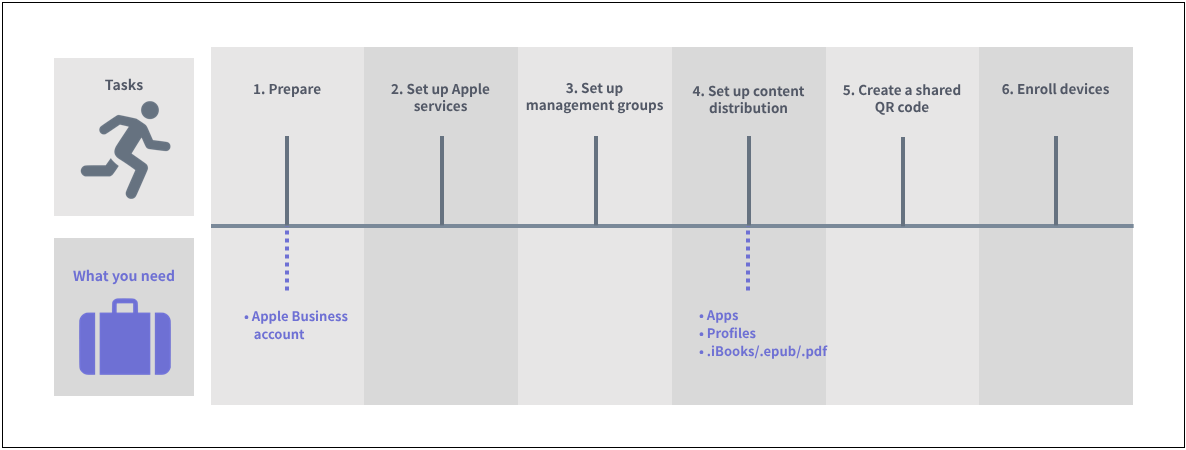
| Task and link to the manual | Where to work | Frequency | |||||
|---|---|---|---|---|---|---|---|
BizMobile Go! admin console | Apple site | Managed device | First time | Yearly | As needed | ||
| 1. Prepare | 1) Apply for Apple Business (formerly Apple Business Manager) |
| Yes |
| Yes |
|
|
2. Set up Apple services | 2) Register the Apple Push certificate | Yes | Yes |
| Yes | Yes |
|
| 3) Enable VPP | Yes | Yes |
| Yes | Yes |
| |
| 3. Set up management groups | 4) Create a management group (template) | Yes |
|
| Yes |
| Yes*1 |
| 4. Set up content distribution | 5) Purchase and register apps | Yes | Yes |
| Yes |
| Yes*1 |
| 6) Register apps (in-house) | Yes |
|
| Yes |
| Yes*1 | |
| 7) Register profiles | Yes |
|
| Yes |
| Yes*1 | |
| 8) Register books (.ibooks/.epub/.pdf) | Yes |
|
| Yes |
| Yes*1 | |
| 5. Create a shared QR code | 9) Create a shared QR code for Apple devices | Yes |
|
| Yes |
| Yes*2 |
| 6. Enroll devices | 10) Enroll the device |
|
| Yes | Yes |
| Yes*2 |
\*1 When a management group is added or changed
*2 When a device is added