iOS/iPadOS deployment flow using Shared iPad
This page is for people who are new to BizMobile Go!, are about to start preparing for device setup (kitting), or are taking over management of devices that are already in operation. It explains how to deploy Shared iPad, which lets multiple users share a single iPad.
Shared iPad has a user mode, in which users sign in with a managed Apple ID assigned to the iPad in advance, and a guest mode, which does not require a managed Apple ID.
For user mode, use the Shared iPad user profile to specify in advance which managed Apple IDs are allowed to sign in. For guest mode, likewise use the Shared iPad guest profile to allow guest mode in advance.
You can use a single Shared iPad in user mode only, in guest mode only, or in both.
In user mode, data is created on the iPad for each user who signs in with a managed Apple ID. Even when users share the same iPad, they cannot view each other's data.
In guest mode as well, all data created by a guest and the guest's usage history are deleted automatically from the iPad when the guest signs out, so other guests cannot view that data.
Before you follow the deployment flow below, read the explanation of Shared iPad.
Shared iPad can be used on the following devices:
- iPad Pro
- iPad (5th generation or later)
- iPad Air 2 or later
- iPad mini (4th generation or later)
- iPad with 32 GB or more of storage running iPadOS 13.4 or later
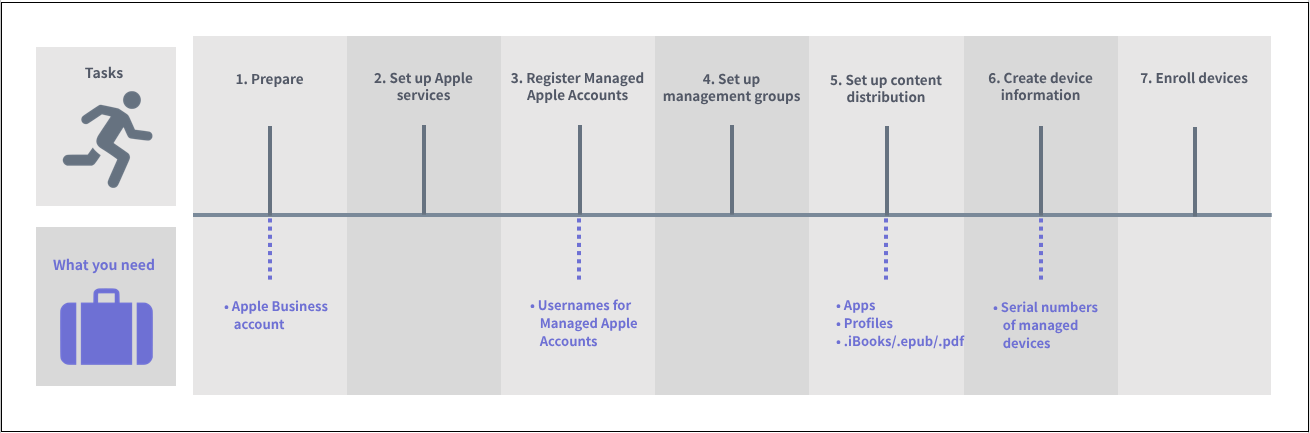
| Task and link to the manual | Where to work | Frequency | |||||
|---|---|---|---|---|---|---|---|
BizMobile Go! admin console | Apple site | Managed device | First time | Yearly | As needed | ||
| 1. Prepare | 1) Apply for Apple Business (formerly Apple Business Manager) |
| Yes |
| Yes |
|
|
2. Set up Apple services | 2) Register the Apple Push certificate | Yes | Yes |
| Yes | Yes |
|
| 3) Enable ADE | Yes | Yes |
| Yes | Yes |
| |
| 4) Create an ADE profile | Yes |
|
| Yes |
| Yes*1 | |
| 5) Enable VPP | Yes | Yes |
| Yes | Yes |
| |
| 3. Register Managed Apple Accounts | 6) Create managed Apple IDs |
| Yes |
| Yes |
| Yes |
| 4. Set up management groups | 7) Create a management group (template) | Yes |
| ||||
| 5. Set up content distribution | 8) Purchase and register apps | Yes | Yes |
| Yes |
| Yes*1 |
| 9) Register apps (in-house) | Yes |
|
| Yes |
| Yes*1 | |
| 10) Register device profiles | Yes |
|
| Yes |
| Yes*1 | |
| 11) Register user profiles | Yes |
|
| Yes |
| Yes*1 | |
| 6. Create device information | 12) Register devices in Apple Business | Yes | Yes |
|
|
| Yes*2 |
| 13) Import ADE devices from Apple Business into BizMobile Go! |
| Yes |
| Yes |
| Yes*2 | |
| 14) Create device information and associate it with the ADE device | Yes |
|
| Yes |
| Yes*2 | |
| 7. Enroll devices | 15) Enroll the device |
|
| Yes | Yes |
| Yes*2 |
\*1 When a management group is added or changed
*2 When a device is added
Operating Shared iPad after enrollment
See how to sign in and sign out to use the device.