Create a Management Group (Template)
Create a template, which is the basis of device management.
If you are following the deployment flow, enter only the required fields OS and Name (and Description if needed), and then save the template.
A template is the basic unit for managing devices, so create one for each organization or group that has different settings.
Register the basic information of the template
- Open the template creation screen.
On the CONFIG > Template screen, click [Create].
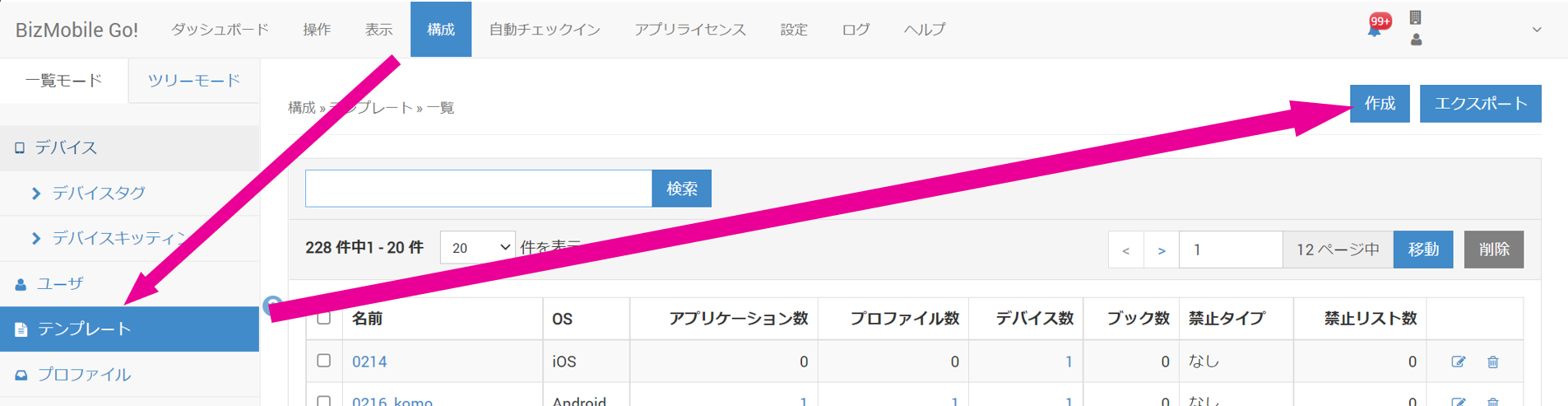
- Enter the basic information of the template.
★ indicates a required field.
| iOS/iPadOS | Android | Windows | macOS | tvOS |
|
|---|---|---|---|---|---|---|
OS★ | Yes | Yes | Yes | Yes | Yes | Select the OS of the devices managed by the template. |
Name★ | Yes | Yes | Yes | Yes | Yes | Enter the name of the template. We recommend a name that represents the organization or group to be managed. |
Description | Yes | Yes | Yes | Yes | Yes | Notes about this template. |
- Save the template.
If you are creating a new template by following the deployment flow, you can skip the items from Applications onward below (you can register them if you have already created the content).
Eventually, you register all content to be installed on devices, such as applications and profiles, in the template. However, you create and register that content in later steps of the deployment flow, so you can skip it here.
Register the content to be distributed from the template
Register the content to be installed on devices in the template.
| iOS/iPadOS | Android | Windows | macOS | tvOS |
|
|---|---|---|---|---|---|---|
Applications | Yes | Yes | Yes | Yes | Select the applications to register in the template. | |
Device Profile | Yes
| Yes
| Yes
| Yes
| Yes
| Select the profiles to register in the template. |
| User Profile | Yes | Select the profiles to register in the template. | ||||
Device | Yes | Yes | Yes | Yes | Yes | Select the devices to register in the template. |
Book | Yes |
|
|
| Select the books to register in the template. | |
| Application Catalog | Yes |
|
| Select the application catalog to register in the template. | ||
Banned Type | Yes
| Yes
|
| Yes
|
| Specify the type of list this template uses. |
Banned Apps (required when a banned type is specified) | Yes | Yes |
|
| This field is displayed when | |
Provisioning Package for MDM Bulk Enrollment |
|
| Yes
|
| This template is assigned to devices that enroll using the .ppkg file of the provisioning package specified here. | |
| OS Update Management (Legacy) | Yes | Yes | Select whether to perform OS updates during automatic synchronization. | |||
| OS Update Management (DDM) | Yes | Yes | Yes | Select whether to manage OS updates with Declarative Device Management (DDM). | ||
| SIM Change Detection | Yes | Yes | Select whether to detect a change of the inserted SIM card during device synchronization. |