Distribute UWP Apps
To distribute a UWP app that was converted from a desktop app, you must meet the following two conditions.
This page explains each procedure, followed by the procedure to distribute the UWP app.
Allow installation of sideloaded apps
- Click [Create] under CONFIG → Profiles. (If you have already created a Windows profile, open the profile edit screen.)
- Enter the required information on the profile information screen that opens.
OS★ | Select Windows. |
Name★ | Enter the name of the profile. |
Template | Select the template to apply this profile to. After you create a template, you can select it here. If you have not created a template yet, you do not need to fill in this item (you can also select the profile from the template side when you create the template). |
- Click Custom → [Configure].
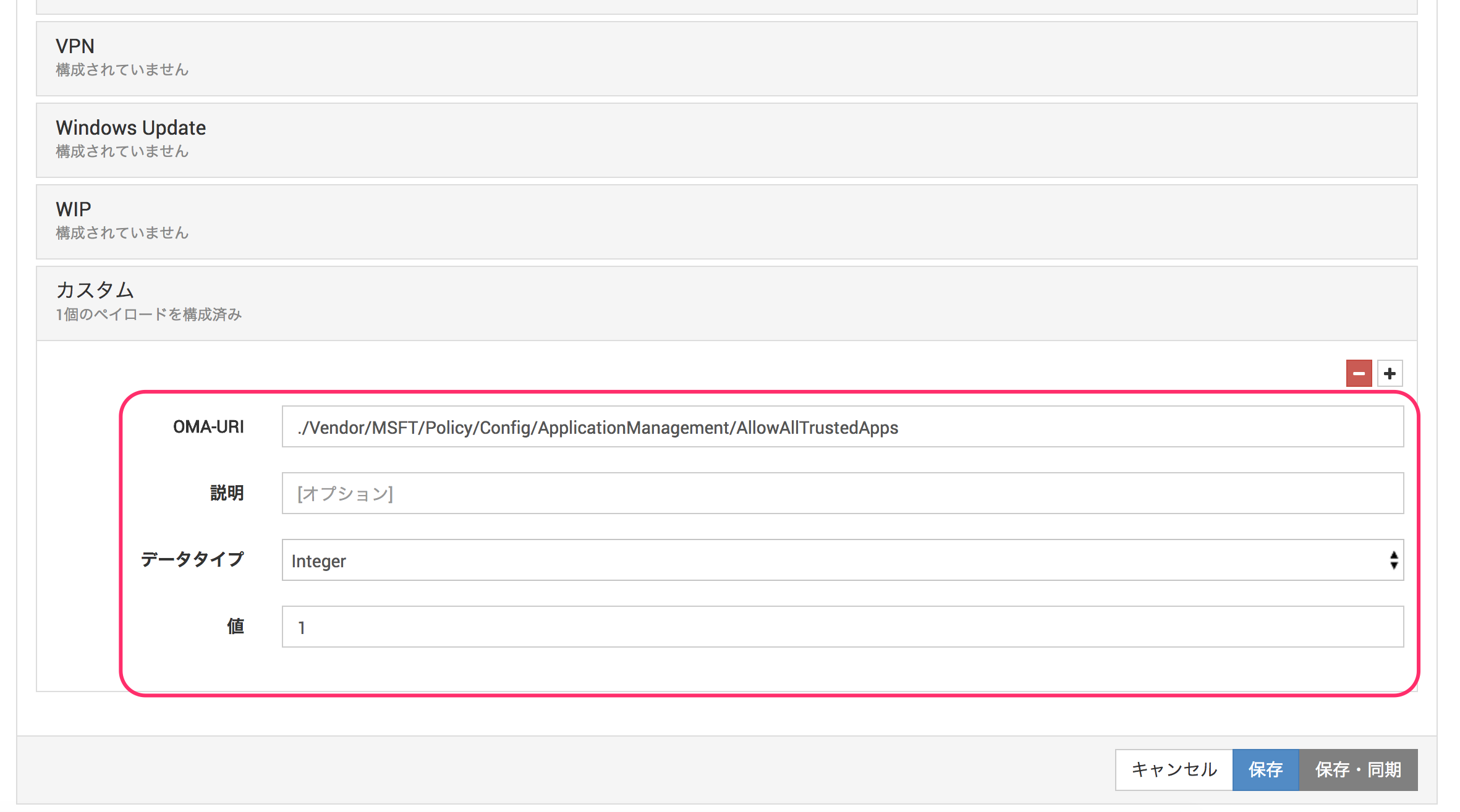
- Enter the following.
| Item | Value to enter |
|---|---|
| OMA-URI | ./Vendor/MSFT/Policy/Config/ApplicationManagement/AllowAllTrustedApps |
| Description | [Optional] |
| Data Type | Integer |
| Value | 1 |
- Click [Save] to save. (If you have assigned the profile to a template, you can click [Save & Sync] to save and distribute the profile at the same time.)
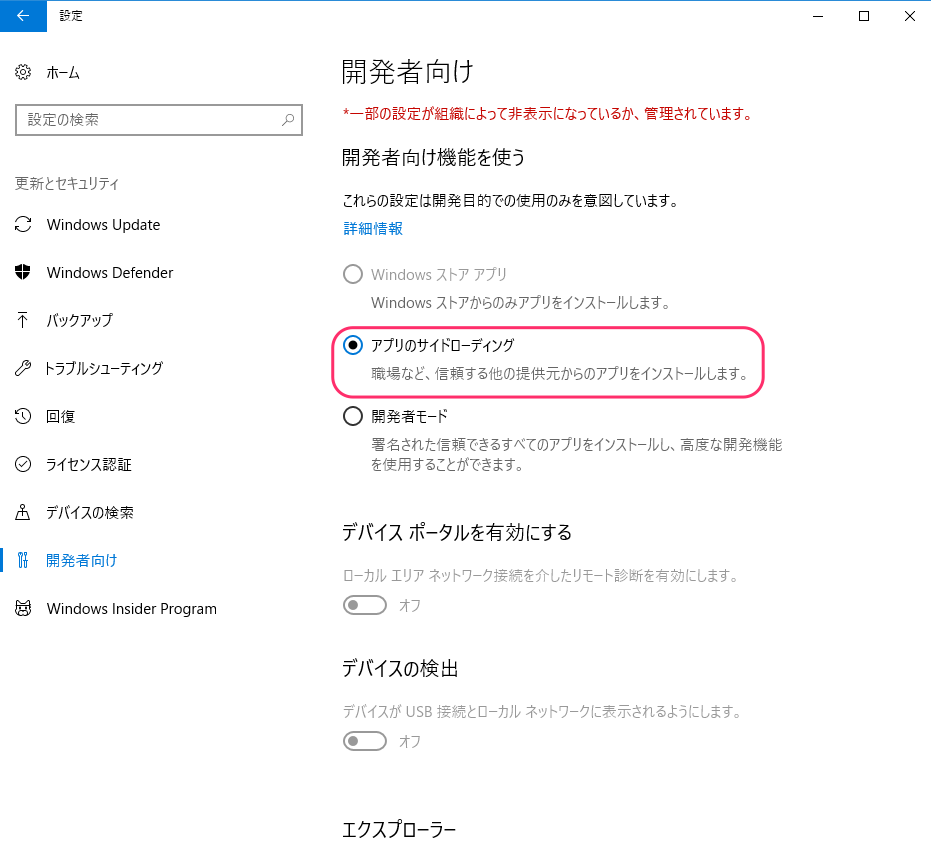
On devices to which this profile is applied, Settings > Update & Security > For developers > Sideload apps is enabled.
Distribute Dependencies
Distribute Dependencies in .appx format to the device.
To obtain the Dependencies, contact the app developer.
Note: Allow installation of sideloaded apps must already be applied.
- Click [Create] under CONFIG → Applications.
- Enter the required information on the application information screen that opens, and upload the file.
OS★ | Select Windows. |
Type | In-house app |
| App (.appx, .appxbundle, .msi) | Click [Upload File] and select the Dependencies. 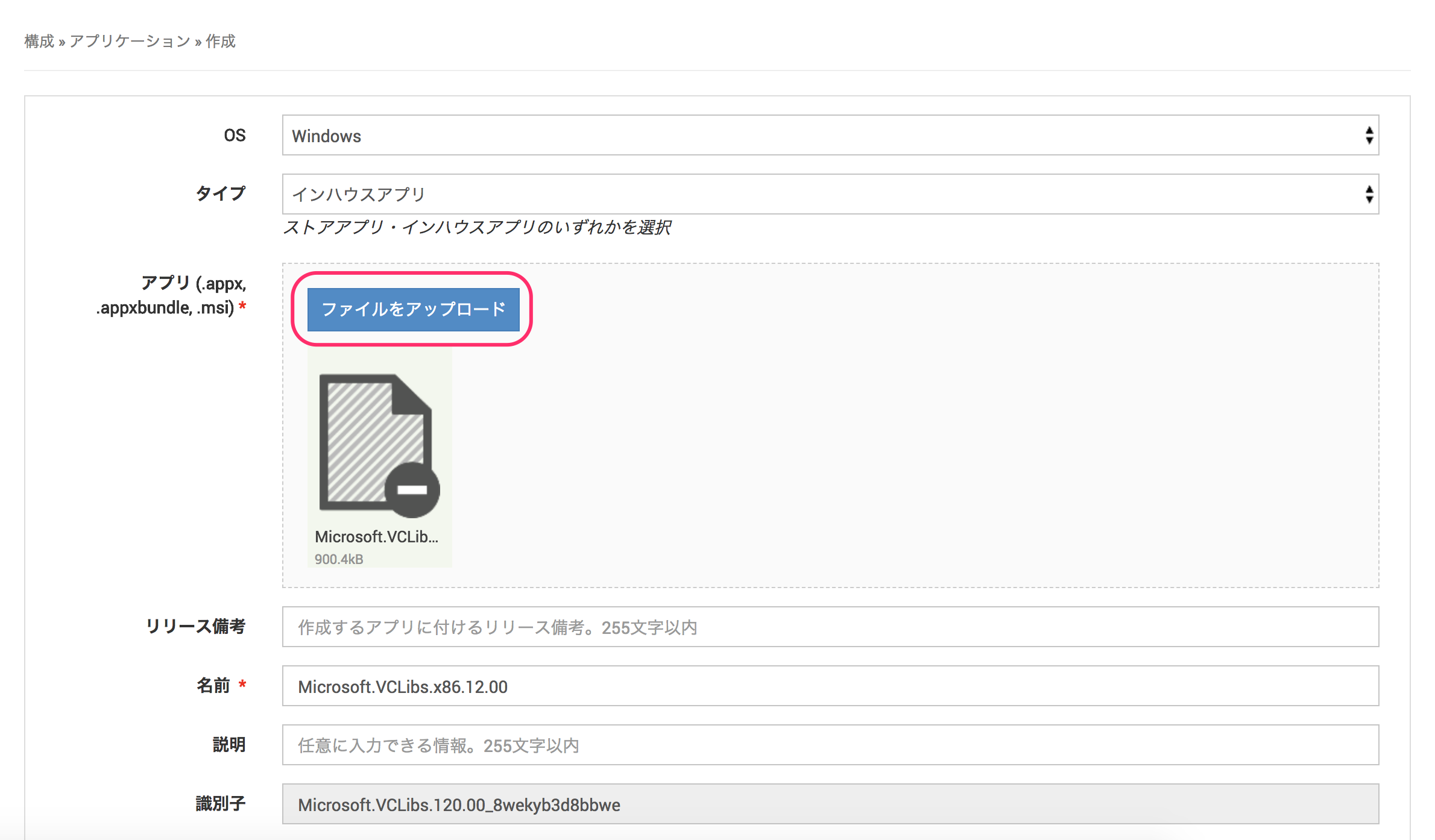 |
| Release Notes | Enter release history for this information here if you want to keep it. |
| Name | Entered automatically when the file is uploaded. |
| Description | Enter a description of this information if you want to keep one. |
| Identifier | Filled in automatically when the file is uploaded. |
Template | Select the template to apply this profile to. After you create a template, you can select it here. If you have not created a template yet, you do not need to fill in this item (you can also select the profile from the template side when you create the template). |
- Click [Save] to save. (If you have assigned the app to a template, you can click [Save & Sync] to save and distribute the application information at the same time.)
Distribute the profile settings and Dependencies to devices
Distribute the profile and application information you created in the steps above to devices.
(If you have already distributed them to the device with [Save & Sync], this procedure is not required.)
For the procedure, see Sync in Control Devices Remotely.
Distribute the UWP app
After you complete the steps above, you can distribute and install the UWP app on devices.
Note: Before you start, confirm that the sync status of the target devices is Synchronized (meaning the profile and Dependencies created in the steps above are installed).
- Click [Create] under CONFIG → Applications.
- Enter the required information on the application information screen that opens, and upload the file.
OS★ | Select Windows. |
Type | In-house app |
| App (.appx, .appxbundle, .msi) | Click [Upload File] and select a UWP app in .appx or .appxbundle format. |
| Release Notes | Enter release history for this information here if you want to keep it. |
| Name | Entered automatically when the file is uploaded. |
| Description | Enter a description of this information if you want to keep one. |
| Identifier | Filled in automatically when the file is uploaded. |
Template | Select the template to apply this profile to. After you create a template, you can select it here. If you have not created a template yet, you do not need to fill in this item (you can also select the profile from the template side when you create the template). |
- Click [Save] to save. (If you have assigned the app to a template, you can click [Save & Sync] to save and distribute the application information at the same time.)