Android Deployment Flow with Shared Device QR Code Authentication (Device Owner)
This page explains how to deploy devices using shared device QR code authentication. It is intended for people who are new to BizMobile Go!, are about to start preparing devices for deployment, or are taking over management of devices already in operation.
Shared device QR code authentication lets you automate part of MDM enrollment.
In BizMobile Go!, you set in advance the conditions for automatically generating device and user information, along with the Wi-Fi information if the device uses Wi-Fi during MDM enrollment.
To enroll a device in MDM, reset it, follow the on-screen instructions to make it ready for use (activation), and then simply scan the shared QR code. Everything from Device Owner setup to check-in to BizMobile Go! then completes automatically.
Device and user information is generated automatically when check-in is complete, so you do not need to prepare it in advance.
This page describes the basic steps common to device management, followed by the deployment steps for shared device QR code authentication, in order. You can also read only the steps you need.
Use this page to find the steps required for your use case.
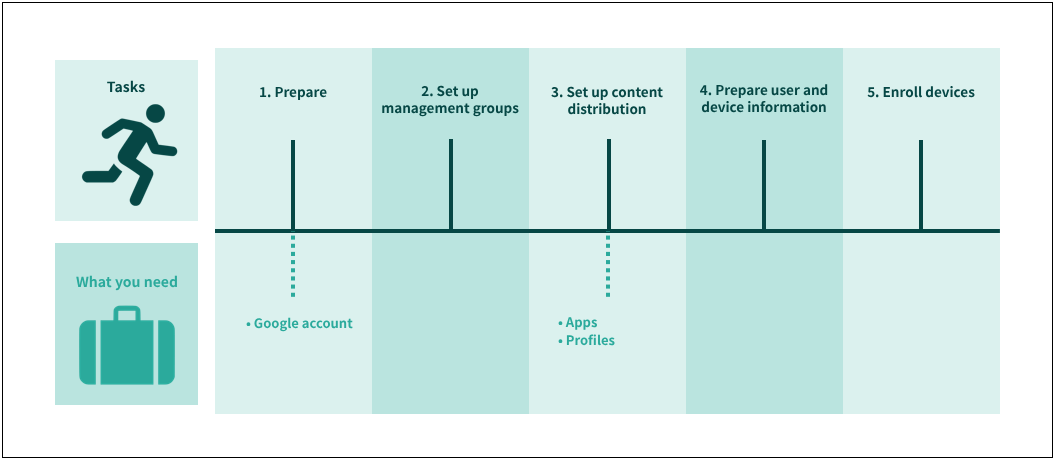
| Task and link to the manual | Where to work | Frequency | ||||
|---|---|---|---|---|---|---|
BizMobile Go! admin console | Google Play site | Managed device | First time | As needed | ||
| 1. Prepare | 1) Configure Android EMM |
| Yes |
| Yes |
|
| 2) Configure device integrity alarms | Yes |
|
| Yes |
| |
2. Set up management groups | 3) Create a template | Yes |
|
| Yes | Yes*1 |
| 3. Set up content distribution | 4) Register apps (Google Play Store) | Yes |
|
| Yes | Yes*1 |
| 5) Register apps (in-house) | Yes |
|
| Yes | Yes*1 | |
| 6) Register profiles | Yes |
|
| Yes | Yes*1 | |
| 4. Prepare user and device information | 7) Create an Android shared device QR code | Yes |
| Yes | Yes*2 | |
| 5. Enroll devices | 8) Check in the devices to enroll them |
|
| Yes | Yes | Yes*2 |
\*1 When adding or changing a management group
*2 When adding devices