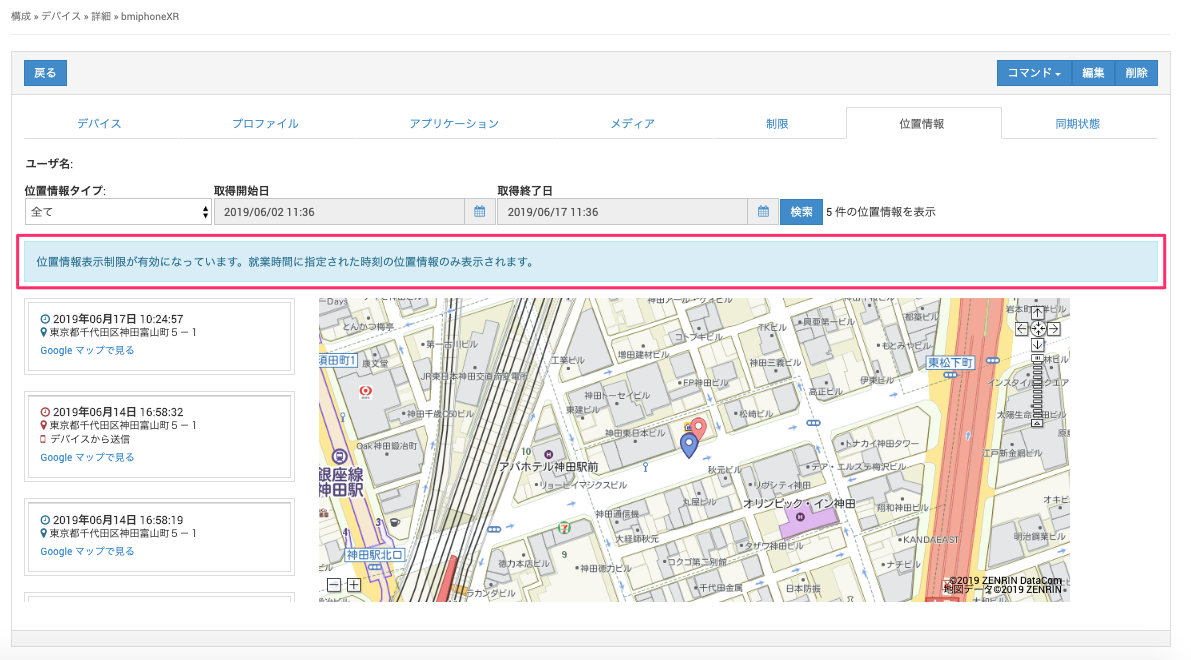
Restrict Location Display
This feature limits the display of location data to specific dates and times. It is available only for units that have subscribed to the "Location service".
It displays location data in the BizMobile Go! admin console only during the specified dates and times. It does not restrict location retrieval to those times.
This setting uses the same dates and times (time zone) as the BizMobile Go! admin console.
Location data retrieved by using the administrator lock is not covered by this feature, so its display cannot be restricted.
The default setting is "Off". To display location data only during specific dates and times, follow the steps below.
Setup procedure
- Click SETTING → Unit Detail → "General".

- Under "Location Settings", click Edit Location Settings.

- Select the "Restrict Displayed Locations" check box.
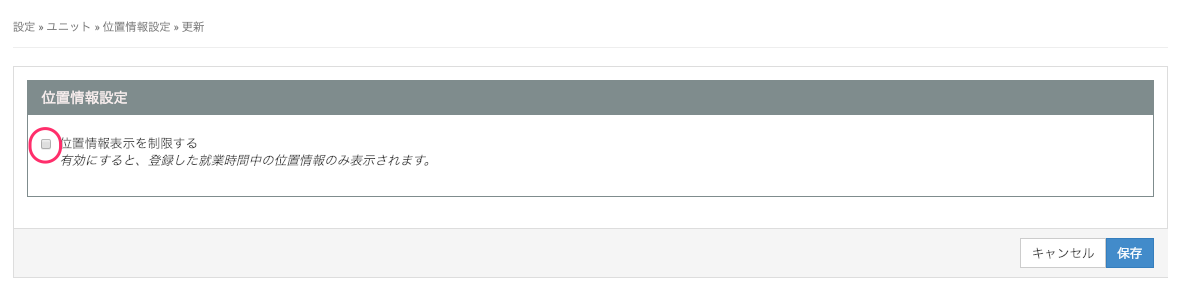
- When you select the check box, the "Work Hours" and "Holidays" items appear.
Under "Work Hours", specify the days of the week and time periods during which you want to display location data.
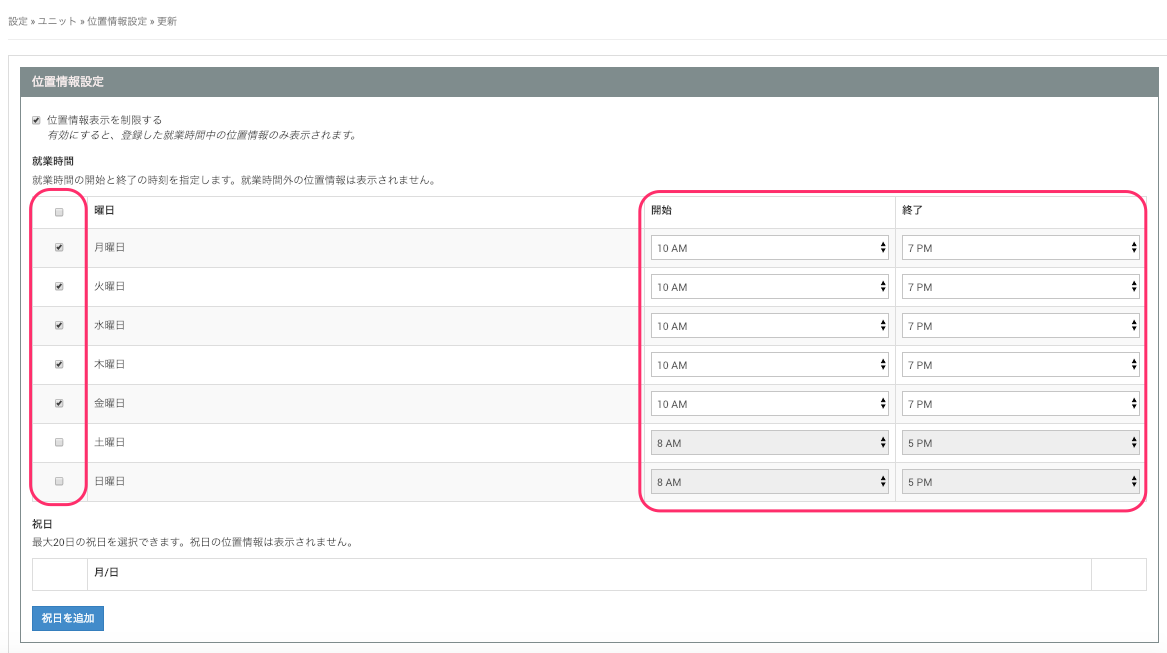
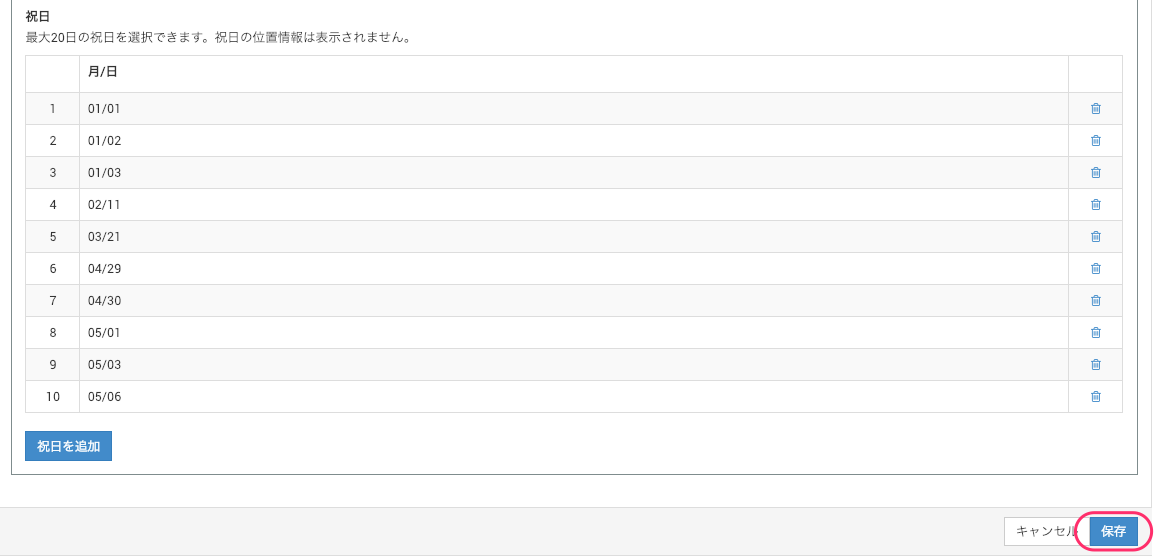
- Under "Holidays", you can add holidays. If you specify a holiday, location data is not displayed on that day.
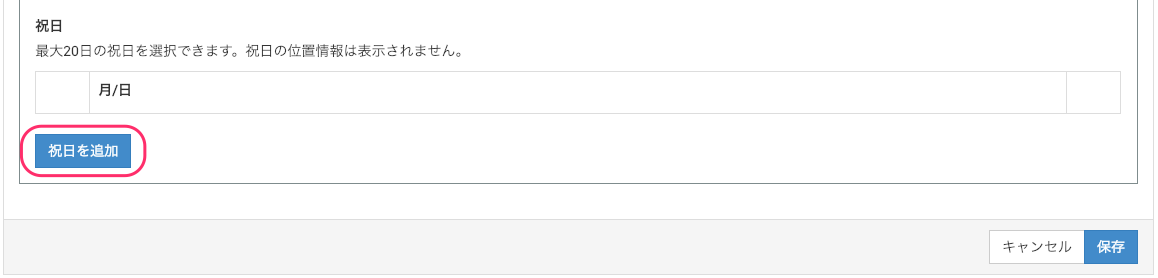
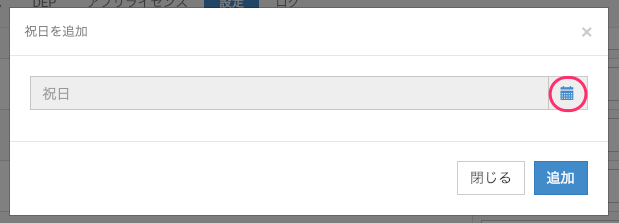
- Click the calendar icon.
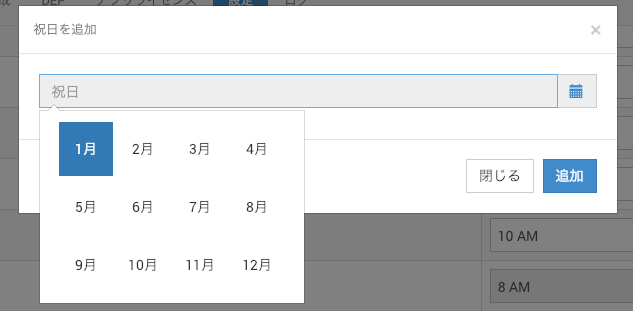
- Select the "month" of the holiday.
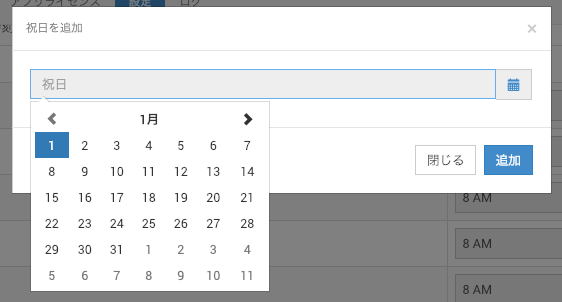
- Select the "day" of the holiday.
- Click "Add".
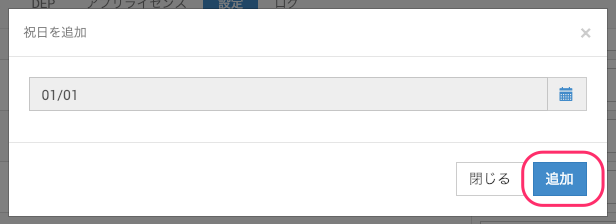
- When you finish adding holidays, click "Save" to complete the setup.
After setup, the specified working hours and holidays are displayed under SETTING → Unit Detail → "General" → "Location Settings".
While this setting is active, location data is displayed as follows.