Perform Remote Operations as a Device User
This page explains the operations on the Personal screen.
Log in to and log out of the Personal screen
-
Go to the following URL.
(Tokyo region) https://mdm.bizmo.in/personal/
(Singapore region) https://as-mdm.bizmo.in/personal/ -
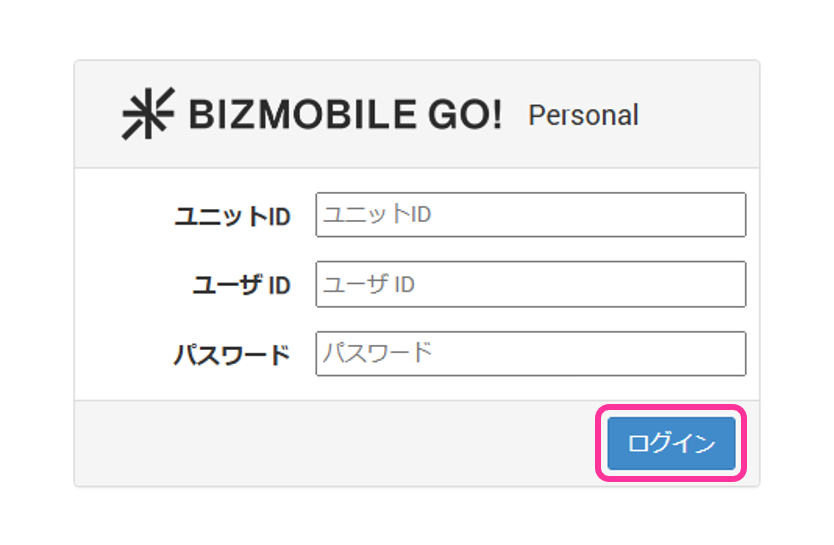
The login screen opens. Enter the following information provided by the device administrator.
- Unit ID
- User ID
- Authentication password
-
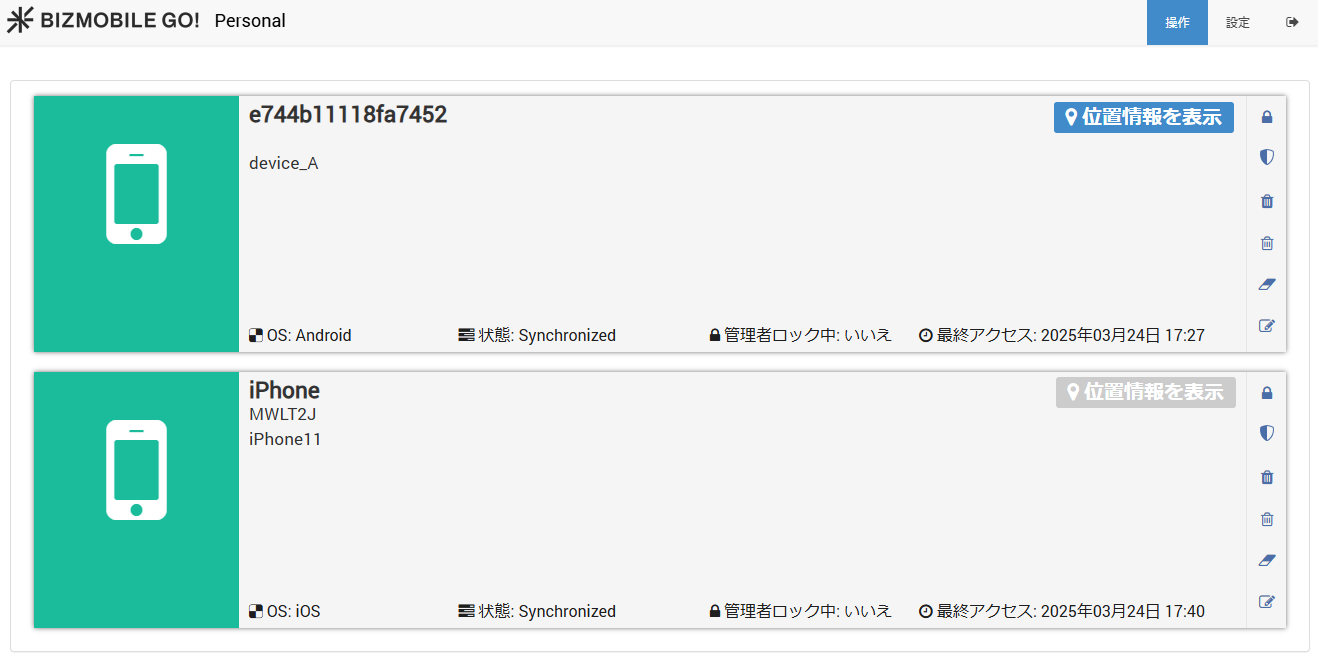
The Personal screen opens.
-
To log out, click the
Logouticon at the upper right of the screen.

About the Personal screen
The Personal screen displays the devices assigned by the device administrator.
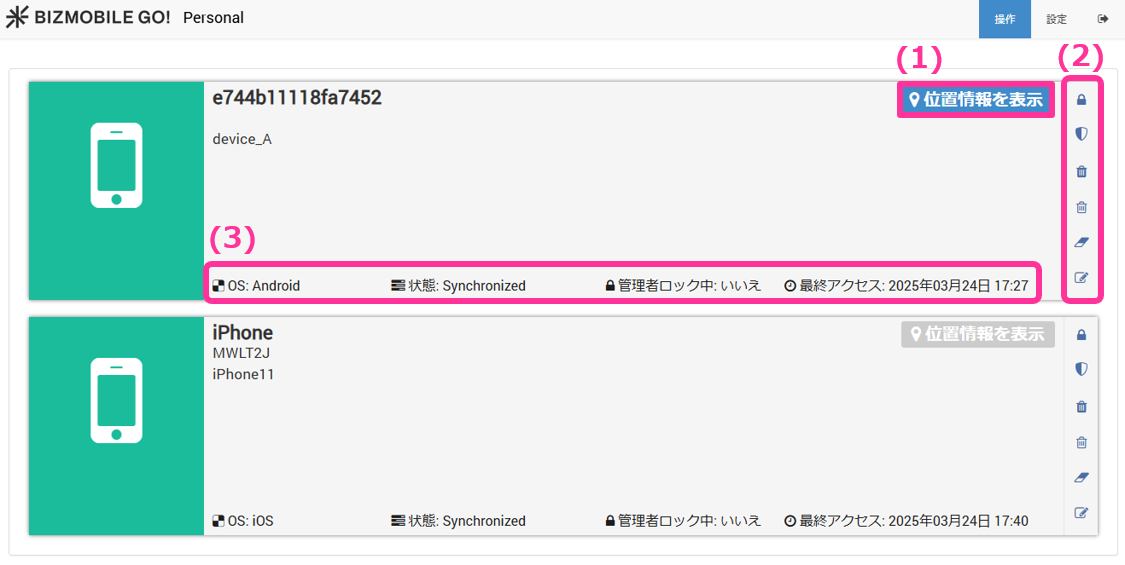
(1) Remote operation menu
The remote operation menu for the device is displayed. The OS support for each menu item is as follows.
| Operation | Supported OS |
| Lock | iOS, Android, Windows |
| Admin Lock | iOS, Android |
| Wipe | iOS, Android, Windows |
| Selective Wipe | iOS, Android, Windows |
| Clear Device Passcode | iOS, Android |
| Edit Location Sharing Settings | iOS, Android |
(2) Show location button
Click this button to view the device's location history obtained by the location service.
- The button is displayed only for units that are using the location service.
- Even for a unit that is using the location service, the button is inactive if the device administrator has turned off location acquisition for the device.
(3) Device information
The device information is displayed.
| OS | The OS of the device |
| Status | The sync status of the device |
| Lock Status | The status of the admin lock |
| Last Access | The date and time of the last access |
Change the Personal authentication password
Device users can change their own authentication password.
(If a device user forgets the password and cannot log in to the Personal screen, see Set the Password for Personal Screen Authentication.)
- Click Settings on the Personal screen.

- Click the Edit button.

- The password change screen opens. Enter the current password and the new password, and then click the Save button.
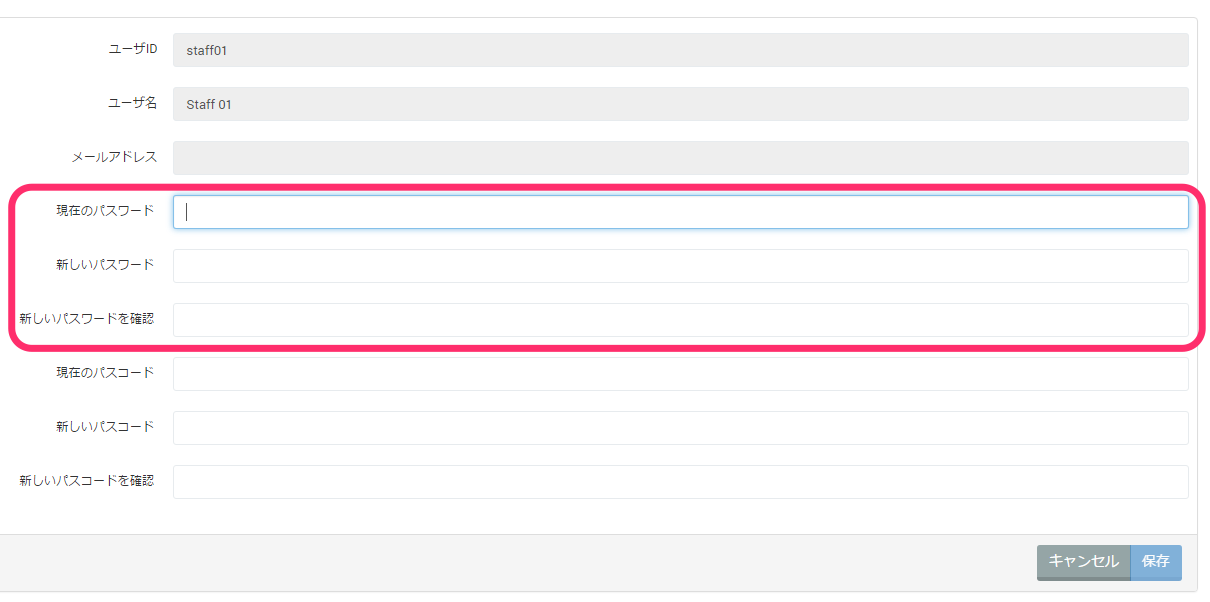
The authentication password change is now complete.