Set the Password for Personal Screen Authentication
This page explains how to set the password for Personal screen authentication.
You set the password in the BizMobile Go! admin console (hereafter, "admin console").
Log in to the admin console before you begin. (For how to log in, see Log In and Log Out.)
Set a password for an individual user in the admin console
-
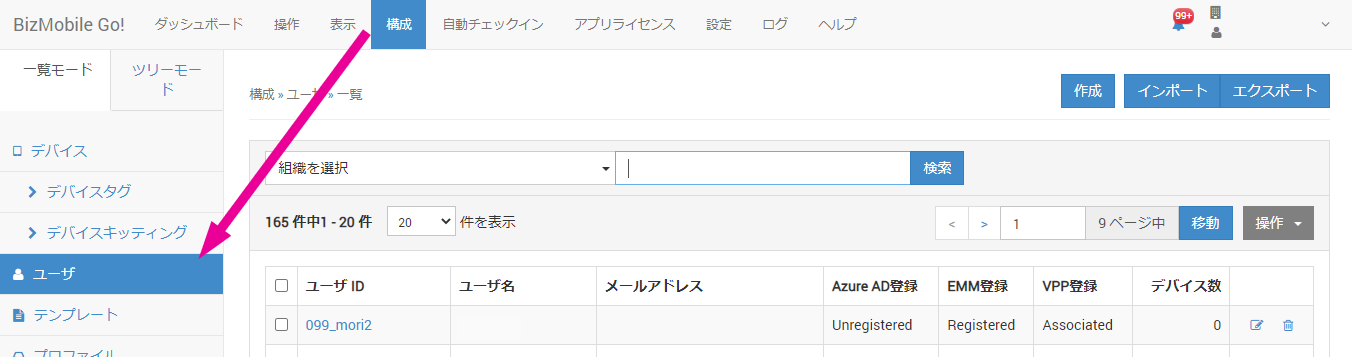
Open the CONFIG → User screen in the admin console.
-
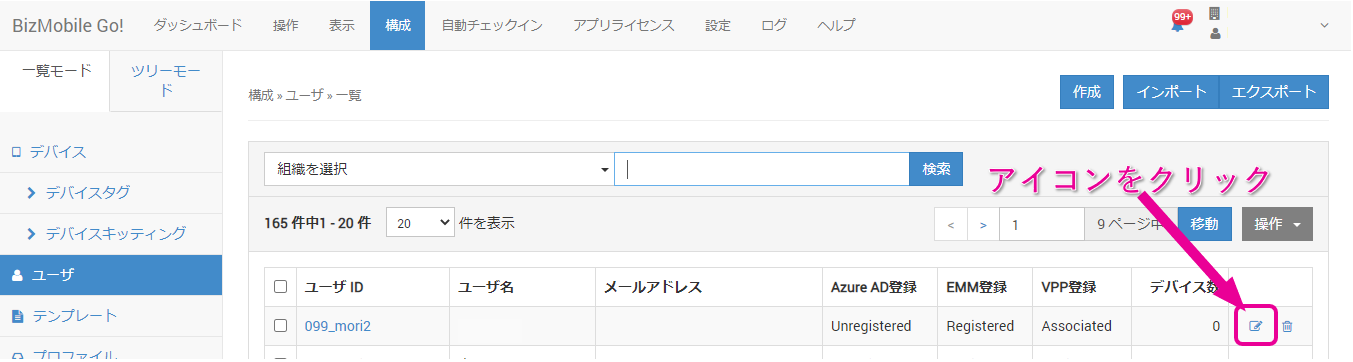
In the user list, click the edit icon at the right end of the row of the user for whom you want to set a password.
-
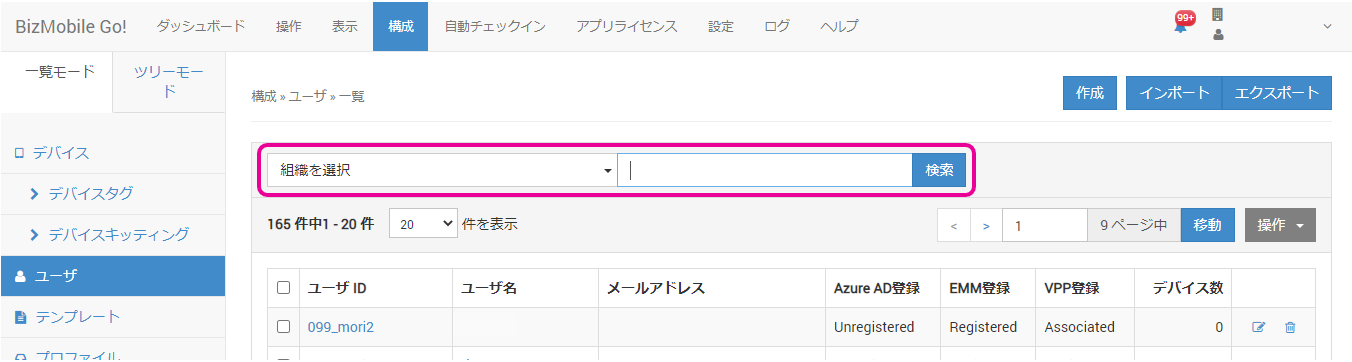
You can filter the users. To search, enter a keyword in the search field at the top of the list, and then click the Search button.
-
The user edit screen opens. Enter the authentication password in
Personal Web Password, and then click the Save button.
The password setting is now complete.
Notify the device user of the following information.- Unit Group ID
- User ID
- Password for Personal screen authentication
Set passwords for multiple users at once
You can set passwords for multiple users at once by importing a CSV file.
-
Prepare a CSV file that contains the user and password information.
The CSV file format is as follows.- The first row of the CSV file contains the header item names.
- Do not include spaces in the header item names.
- The value of each item is case-sensitive.
Header item name
Content to register
UserName
A registered user ID
Password
The password for Personal screen authentication
- Specify the password using half-width alphanumeric characters.
Passcode
This item is not used on the Personal screen. Leave it blank.
-
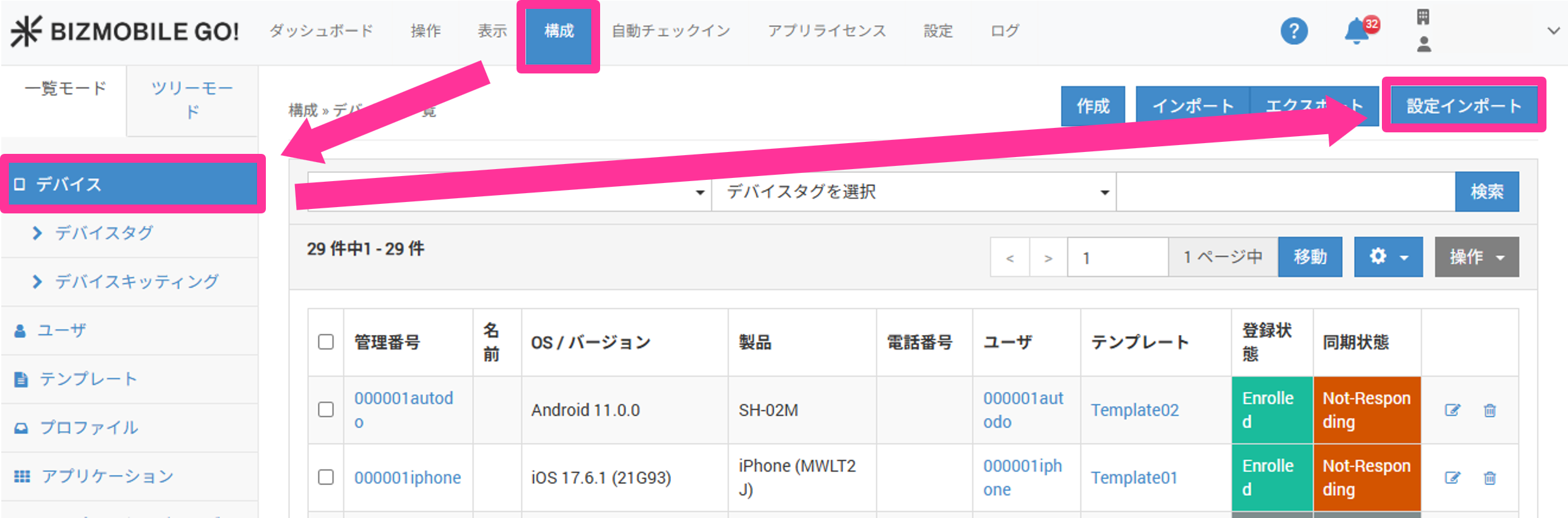
In the admin console, click CONFIG → Device → Settings Import.
-
Click the
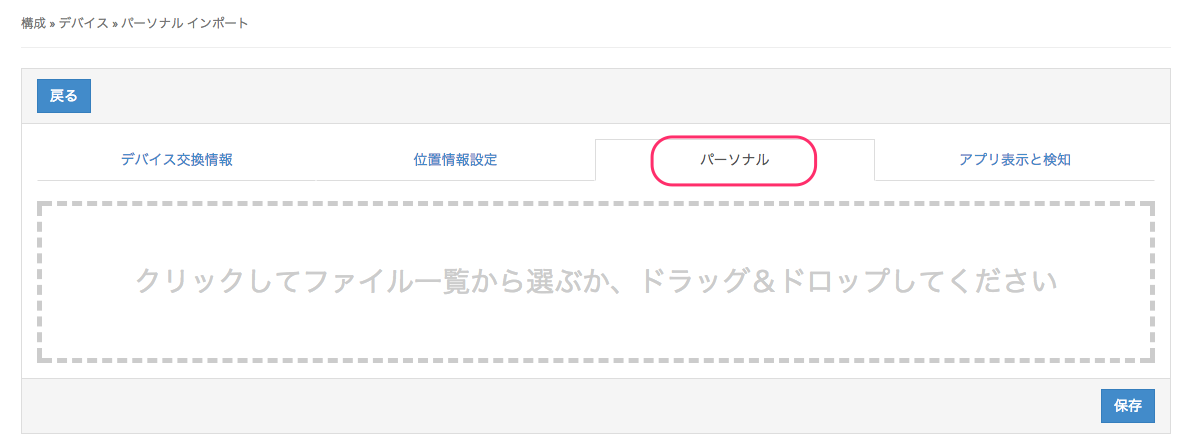
Personaltab, and then upload the CSV file you prepared in step 1.
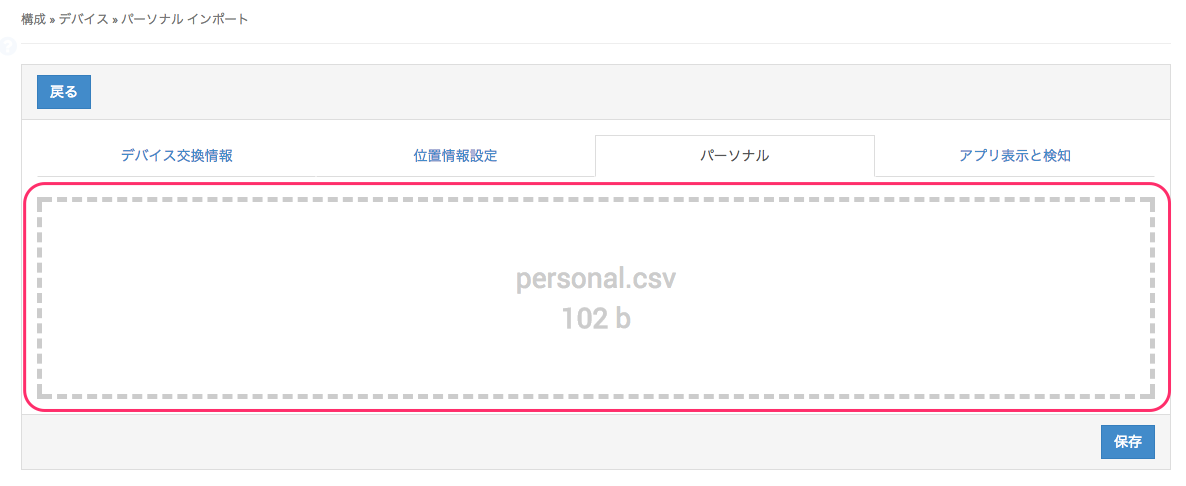
To upload, click the upload area and select the file from the file list, or drag and drop the CSV file onto the upload area.
-
Click the Save button.
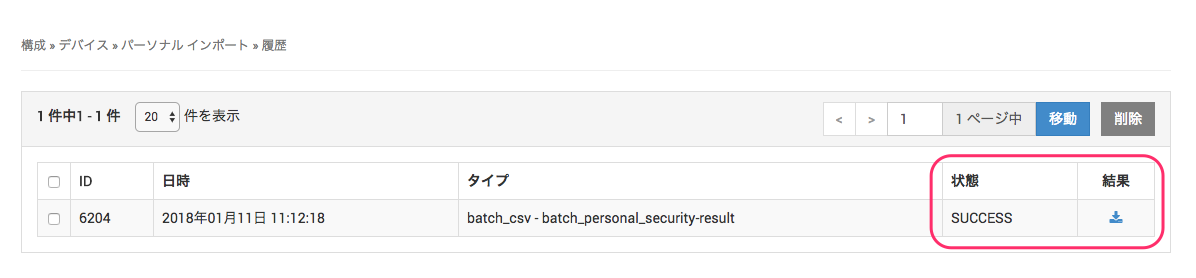
The CSV file import process runs. Check the status of the import process on the Import History screen at the bottom of the screen.
Click the browser'sRefreshbutton to refresh the screen. When the import status showsSUCCESS, the import process is complete.
The passwords for multiple users are now set.
Notify the device users of the following information.- Unit Group ID
- User ID
- Password for Personal screen authentication