SIM Change Detection
By detecting SIM card changes and automatically applying an admin lock, you can prevent devices from being used with an unapproved SIM card inserted.
Administrators are notified of SIM card changes by alarm, and can release the admin lock by approving the new SIM card.
You can also choose to receive only alarm notifications, without an admin lock.
You configure this feature per template.
If you set SIM Change Detection in the template to OFF while a device is under an admin lock caused by detection, the admin lock can no longer be released. To release it, set the template setting back to ON, and then release the admin lock.
Similarly, if you remove a device under an admin lock from the template (equivalent to a selective wipe), the admin lock can no longer be released. To release it, return the device to the original template, and then release the admin lock.
When SIM changes are detected
• iOS: At synchronization (detection is based on the device information obtained during synchronization.)
• Android: Immediately (detection occurs when the SIM card tray is opened or closed.)
A change is also detected when a single SIM card is inserted or removed, even if no SIM cards are swapped. The timing of SIM card change detection differs by OS.
Enable SIM change detection
-
Open the template creation or edit screen.
-
Turn on
SIM Change Detection.


| Action when a SIM card change is detected | |
|---|---|
| Notify by alarm | Notifies you of the SIM change detection by alarm. |
| Detect by alarm and apply admin lock to the device | Notifies you of the SIM change detection by alarm and, at the same time, applies an admin lock to the device. |
| Conditions for clearing a SIM card change detection event | |
|---|---|
| Cleared by an administrator | The alarm and the admin lock are cleared when an administrator performs the approval operation in the admin console. The detection events that require approval are as follows. |
| Cleared by an administrator, or by reinserting an approved SIM card | The alarm and the admin lock are cleared when an administrator performs the approval operation in the admin console. The detection events that require approval are as follows. |
- Click
Save.
Behavior when SIM change detection is enabled on a template in operation
When you enable SIM change detection on a template in operation that includes enrolled devices, the following message appears when you save.
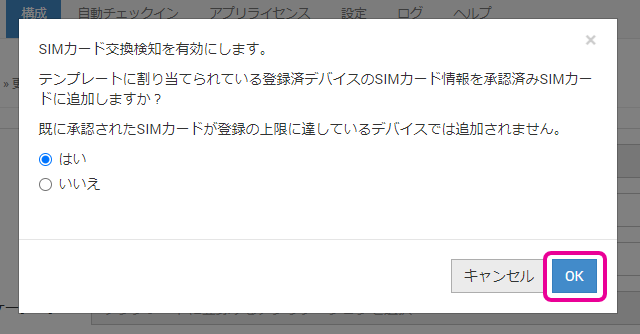
| • | Select Yes | |
The SIM card inserted in the device at that time is added to the whitelist as an Approved SIM Card.If no SIM card is inserted, No SIM card is treated as approved. | ||
| • | Select No | |
| The SIM card inserted in the device is not added to the whitelist. | ||
After you click OK, the SIM card status of the device is compared with the whitelist information, and if there is a difference, an admin lock is applied.
Behavior when a device is enrolled
The SIM card inserted in the device at that time is added to the whitelist as an Approved SIM Card.
If no SIM card is inserted, No SIM card is treated as approved.
Manage the SIM cards allowed in the whitelist
- Open the device creation or edit screen.
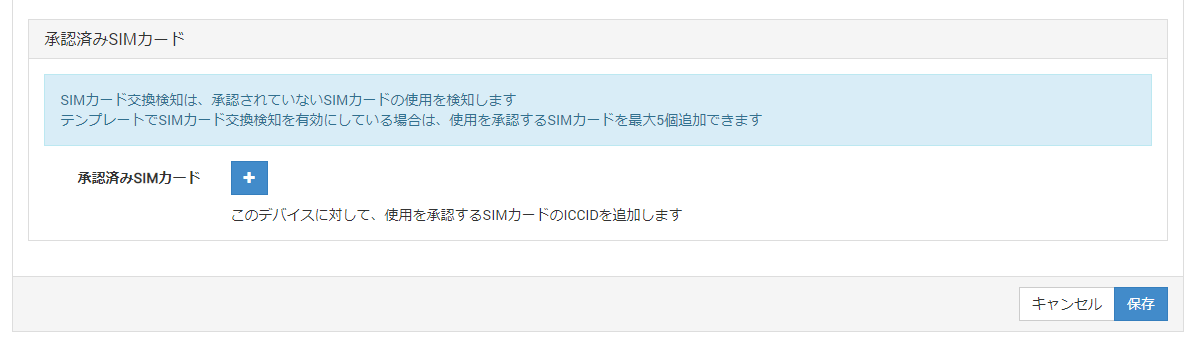
In theApproved SIM Cardsfield at the bottom of the page, register up to 5 SIM cards that you approve for use on the device.
- Click
Save.
Clear the SIM card change detection state
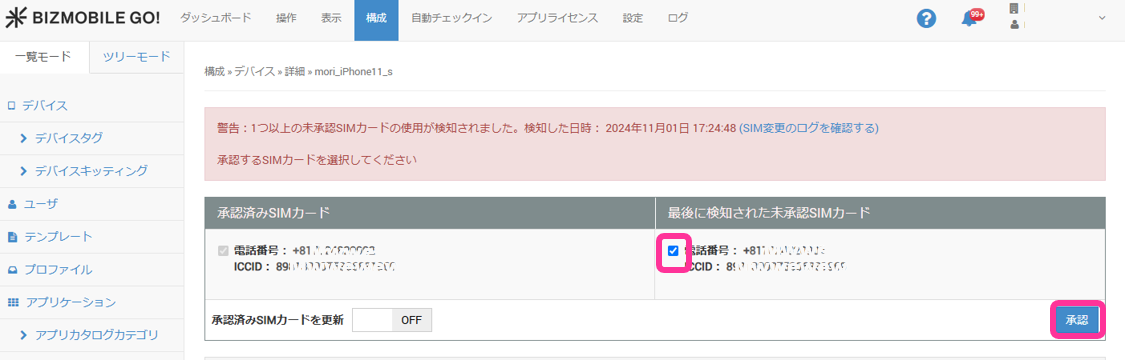
- Clear alarms and admin locks caused by SIM card change detection from the device detail screen.
Check the information inLast Detected Unapproved SIM Card, and if there is no problem, select the checkbox and clickApprove.
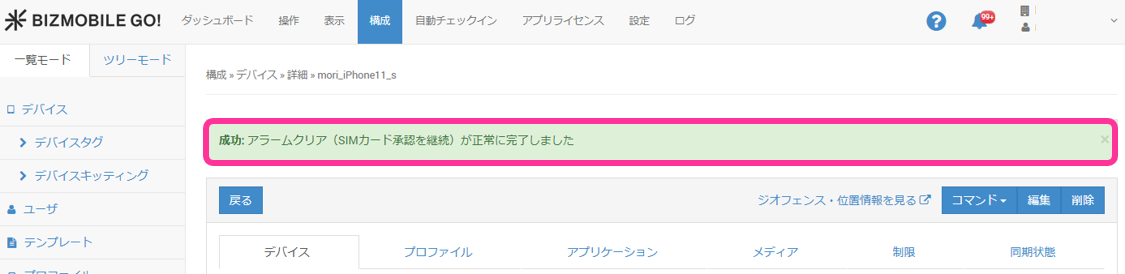
- When the detection state is cleared, the following message appears.