OS Update Management (DDM)
This feature manages OS updates by using Declarative Device Management (DDM). You configure it per template.
With this feature, you can do the following.
- Force an OS update by specifying the OS version to apply and a deadline
- Defer the number of days until an OS update appears on the device
- Specify the version to be offered as the update on the device (update path)
- Lock the user's automatic download and automatic installation settings
- Restrict users from installing or rolling back Rapid Security Responses
The settings are divided into two sections: Update Restrictions and Forced Update.
| Section | Description |
|---|---|
| Update Restrictions | Controls how updates behave for users |
| Forced Update | Makes the specified OS version be applied by the specified date and time |
Target devices
The required OS version differs by section.
| Section | iOS / iPadOS | macOS | tvOS |
|---|---|---|---|
| Forced Update | 17.0 or later | 14.0 or later | 18.4 or later |
| Update Restrictions | 18.0 or later | 15.0 or later | 18.4 or later |
For iOS / iPadOS, this feature applies to supervised devices.
Managing devices that do not meet the supported versions
This feature does not manage OS updates on devices running versions earlier than those above. Use the following settings.
| What you want to do | Setting to use |
|---|---|
| Run OS updates | OS Update Management (Legacy) (iOS / iPadOS 10.3 or later, tvOS) |
| Defer updates, restrict Rapid Security Responses | The Restrictions payload of a profile |
| Update path | The OS Update payload of a profile |
You can configure both this feature and OS Update Management (Legacy) in the same template. The applicable setting is selected automatically based on the device's OS version.
| Category | Not covered by this feature | Only Forced Update supported | Forced Update + Update Restrictions supported |
|---|---|---|---|
| iOS / iPadOS | Earlier than 17 | 17 | 18 or later |
| macOS | Earlier than 14 | 14 | 15 or later |
| tvOS | Earlier than 18.4 | (Not applicable) | 18.4 or later |
| Restriction settings | The profile settings apply | The profile settings apply | For items set in this feature, this feature applies. For items not set in this feature, the profile applies |
| Running the update | Executed by the update command of OS Update Management (Legacy) | Executed by Forced Update (the update command of OS Update Management (Legacy) does not work) | Executed by Forced Update (the update command of OS Update Management (Legacy) does not work) |
If all devices assigned to the template run an OS version supported by this feature, you can delete the OS Update Management (Legacy) setting. If supported and unsupported versions are mixed, do not delete it.
On devices running iOS / iPadOS 27, macOS 27, or tvOS 27 or later, OS updates are not executed by OS Update Management (Legacy). Use this feature.
Steps
- Open the template creation/edit screen.
For details on creating a template, see Create a Management Group (Template). - Set
OS Update Management (DDM)toOn. The two sectionsUpdate RestrictionsandForced Updateare displayed. Enter the required items and clickSave.
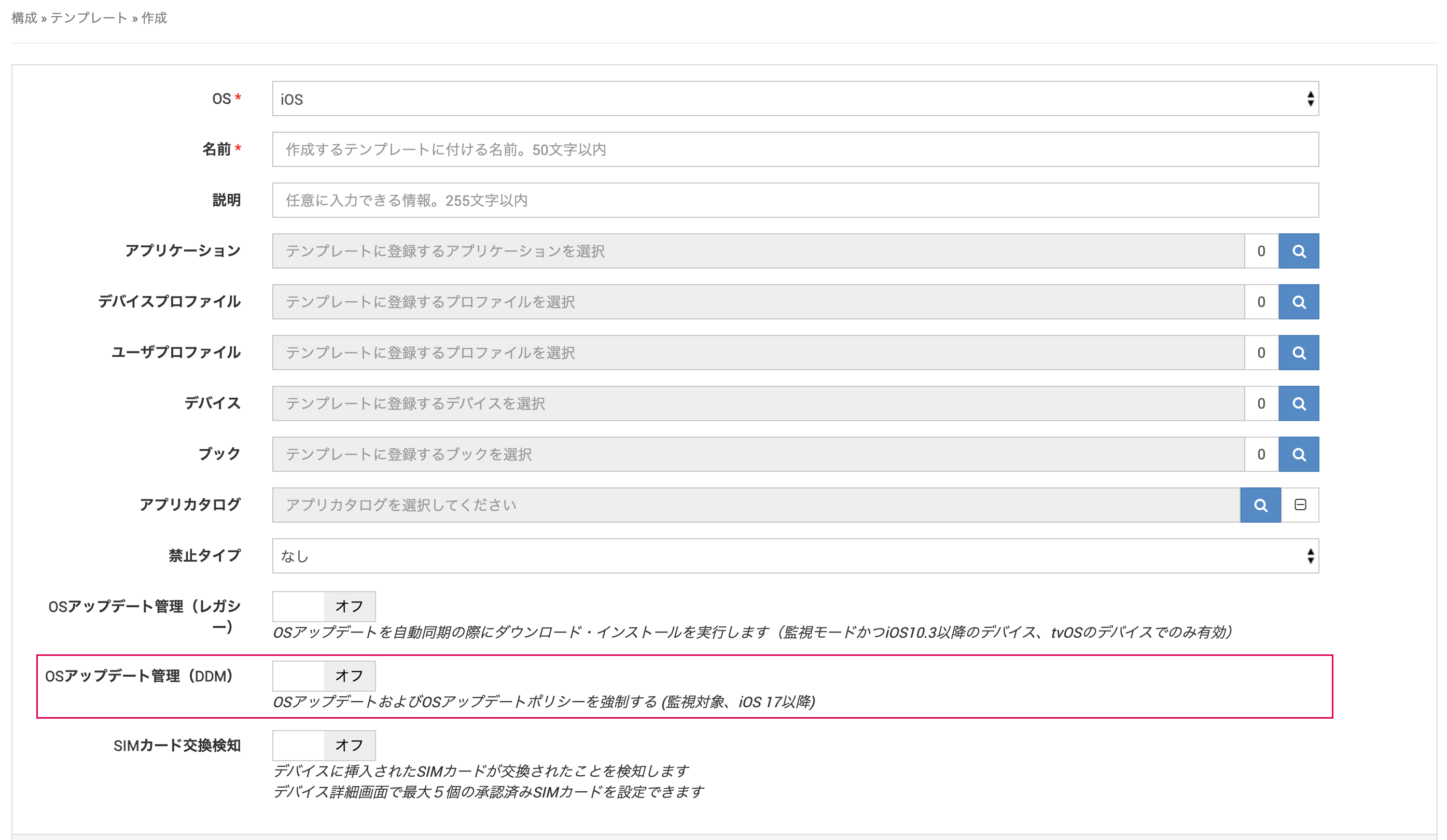
- After you save, the settings are applied to devices at the next synchronization.
The default value of OS Update Management (DDM) is Off. The settings of this feature are not applied to devices until you set it to On.
Update Restrictions
Controls how updates behave for users. Supported on iOS / iPadOS 18 or later, macOS 15 or later, and tvOS 18.4 or later.
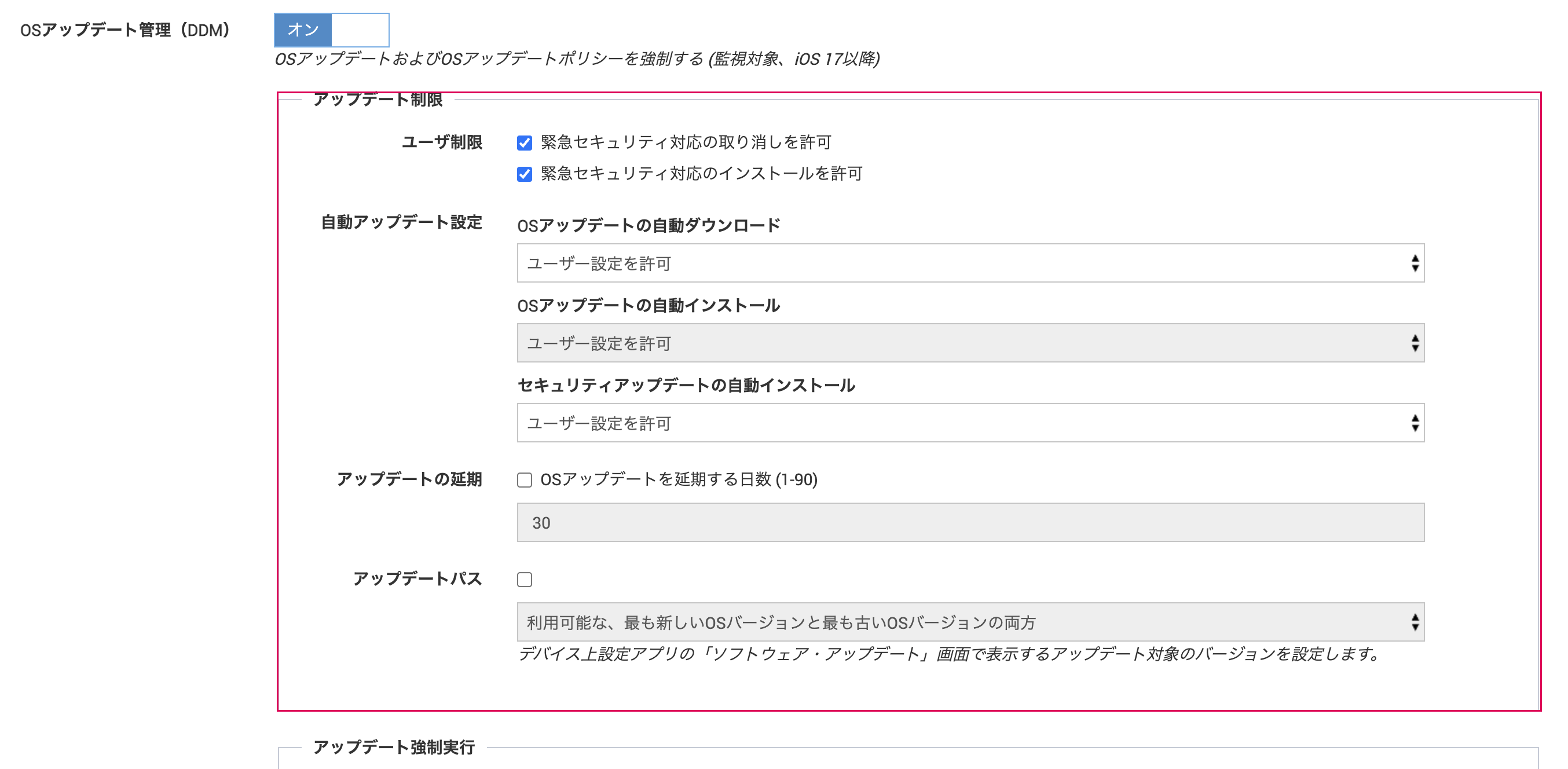
User restrictions
| Item | Description | Target OS | Default |
|---|---|---|---|
| Allow standard users to perform OS updates | If set to Off, only users with administrator privileges can perform major/minor updates. | macOS only | On |
| Allow rollback of Rapid Security Responses | If set to Off, users can no longer roll back Rapid Security Responses. | iOS / macOS / tvOS | On |
| Allow installation of Rapid Security Responses | If set to Off, users can no longer install Rapid Security Responses. | iOS / macOS / tvOS | On |
Even if you set Allow installation of Rapid Security Responses to Off, Forced Update still installs Rapid Security Responses.
Automatic update settings
As the administrator, you can lock the automatic update settings on the device.
| Item | Description | Default |
|---|---|---|
| Automatic download of OS updates | Allow user setting: Users can turn automatic download on or off on the device.Always on: Always enables automatic download.Always off: Always disables automatic download. | Allow user setting |
| Automatic installation of OS updates | Select from Allow user setting / Always on / Always off. | Allow user setting |
| Automatic installation of security updates | Select from Allow user setting / Always on / Always off. | Allow user setting |
If you specify Always off, users can no longer turn on automatic updates on the device.
Update deferral
Specify the period during which OS updates are not shown on the device. When you set the checkbox to On, you can enter the number of days.
The number of days is the number of days since Apple released that update. It is not the day the device was enrolled in MDM or the day the template was saved. Until the specified number of days have passed since the release, the update is not shown on the device and users cannot run it. After the specified number of days have passed, the update is shown on the device.
Example: If you set Days to defer OS updates to 30, an update that Apple released on August 1 is not shown on the device until August 31.
| Item | Description | Target OS |
|---|---|---|
| Days to defer OS updates (1-90) | Does not show major/minor OS updates on the device until the specified number of days have passed since release. | iOS / iPadOS / tvOS |
| Days to defer major OS updates (1-90) | Does not show major OS updates (example: 15.x to 26.x) on the device until the specified number of days have passed since release. | macOS only |
| Days to defer minor OS updates (1-90) | Does not show minor OS updates (example: 26.1 to 26.2) on the device until the specified number of days have passed since release. | macOS only |
| Days to defer system and non-OS updates (1-90) | Does not show system updates other than OS updates on the device until the specified number of days have passed since release. | macOS only |
If the checkbox is Off, the days input field is disabled and the setting is not applied to the device. The default number of days is 30.
Update path
In Update path, "path" refers to a major version line such as 26.x or 18.x.
Apple may offer multiple update paths to a device at the same time. For example, a device running iPadOS 18.5 is offered two updates: iPadOS 18.7.1 (security fixes only), which stays in the same 18.x line, and iPadOS 26.6, which moves up to the 26.x line. In this case, both versions are shown on the device's Software Update screen, and the user can choose which one to apply.
This setting lets you show only one of these two on the device. Use it when you want to apply only security fixes without raising the major version, or conversely to align devices to the latest major version.
| Item | Description |
|---|---|
| Update path | When you set the checkbox to On, you can select the version to be offered as the update on the Software Update screen of the Settings app on the device.Both the newest and oldest available OS versionsOldest available OS versionNewest available OS version |
Example: When a device running iPadOS 18.5 is offered both iPadOS 18.7.1 and iPadOS 26.6
| Setting | Versions shown on the device |
|---|---|
| Both the newest and oldest available OS versions | Both iPadOS 18.7.1 and iPadOS 26.6 |
| Oldest available OS version | Only iPadOS 18.7.1 (stays in the 18.x line) |
| Newest available OS version | Only iPadOS 26.6 |
If only one update path is offered, that version is shown regardless of the setting of this item.
Relationship with profile settings
The items in Update Restrictions can also be set in profiles. The correspondence is as follows.
| Item in this section | Item in the profile |
|---|---|
| Update deferral | Restrictions payload > Defer Software Updates |
| Allow installation of Rapid Security Responses | Restrictions payload > Allow installation of Rapid Security Responses |
| Allow rollback of Rapid Security Responses | Restrictions payload > Allow rollback of Rapid Security Responses |
| Update path | OS Update payload > Update path |
If both are set, the settings in this section take precedence. For items not set in this section, the profile settings apply.
On devices with an OS version that this section does not support (earlier than iOS / iPadOS 18, macOS 15, or tvOS 18.4), use the profile settings.
How it appears on the device
The settings are reflected in Settings > General > Software Update on the device.
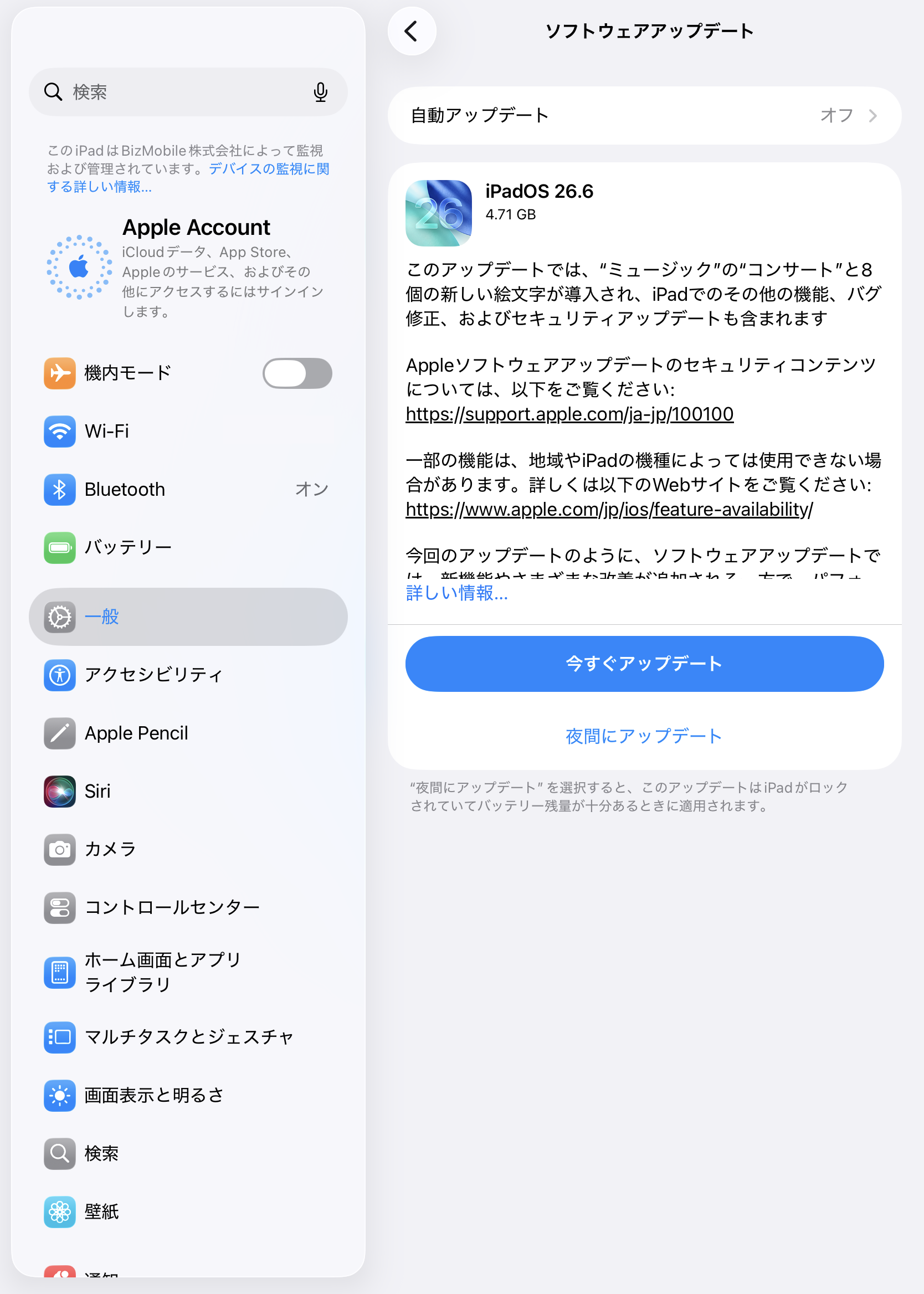
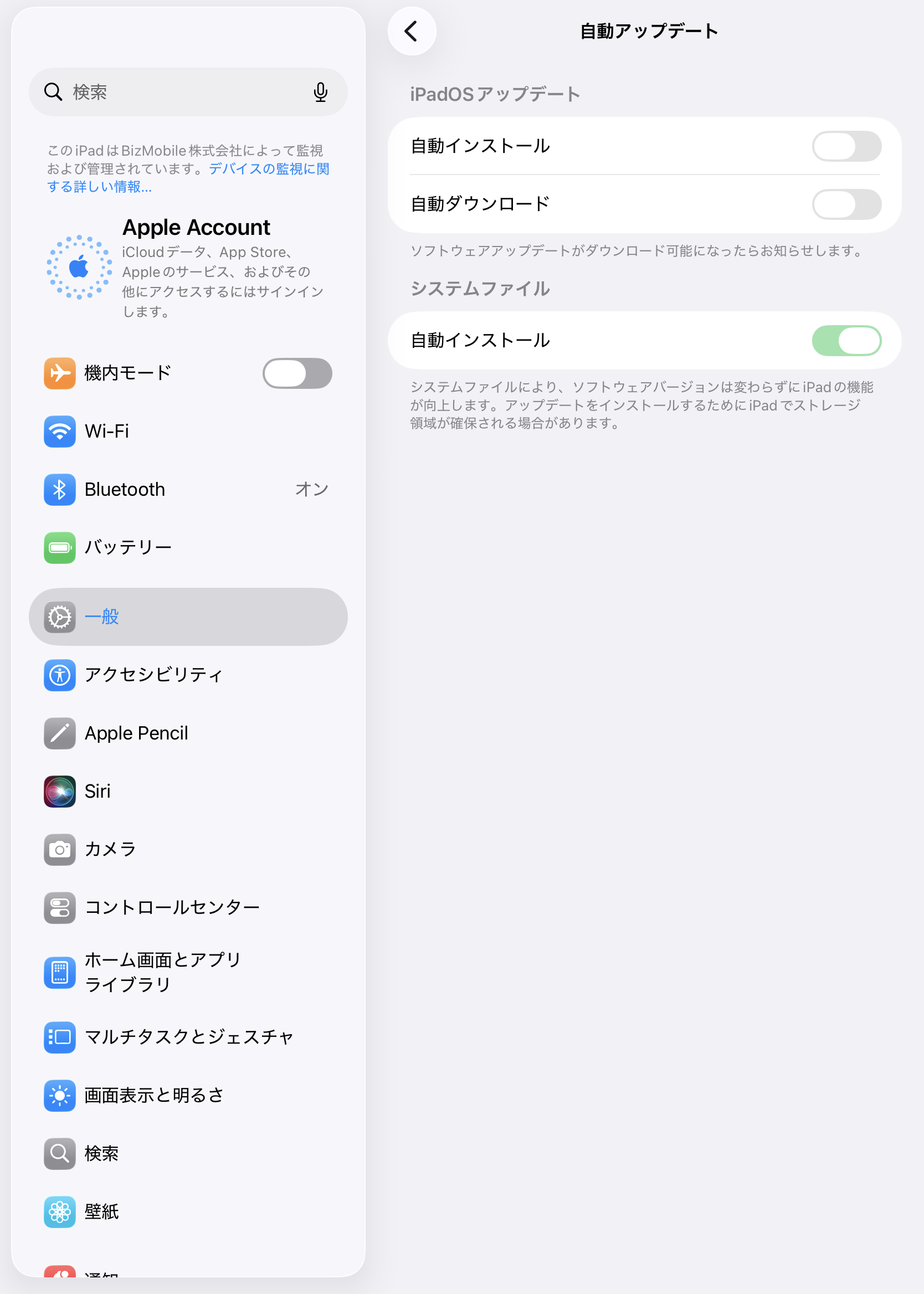
The screens show an iPadOS example. The actual display may vary depending on the OS version and model.
Forced Update
Applies the specified OS version by the specified date and time. Supported on iOS / iPadOS 17 or later, macOS 14 or later, and tvOS 18.4 or later.
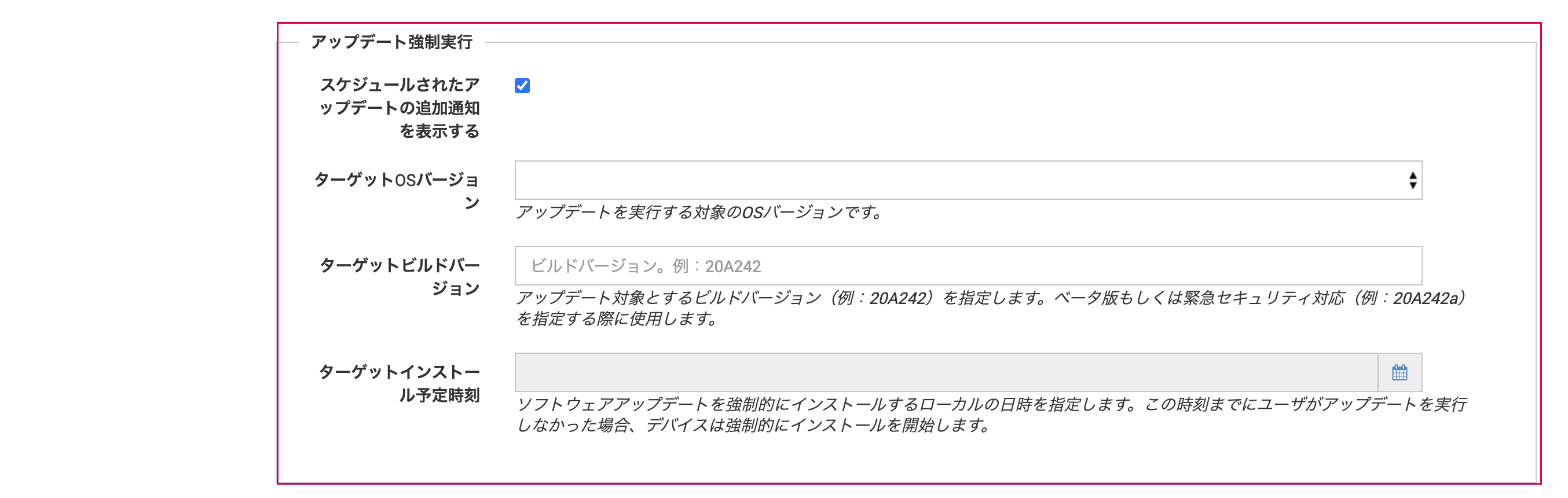
| Item | Description |
|---|---|
| Target OS Version | Select the OS version to update to from the list of versions published by Apple. The list is updated once a day. |
| Target Build Version | Specify a build version (example: 20A242). Use this when specifying a beta or a Rapid Security Response (example: 20A242a). Optional. |
| Target Local Date Time | Specify the date and time at which the software update is forcibly installed. If the user has not run the update by this time, the device forcibly starts the installation. The specified date and time is treated as the device's local time. |
| Show additional notifications for scheduled updates | On (default): Shows all notifications about the forced update on the device.Off: Shows only the notification 1 hour before the enforcement deadline and the restart countdown notification. |
Downgrading is not possible. Do not specify a version older than the current OS version.
Input rules
- Set both
Target OS VersionandTarget Local Date Time, or leave both unset. - To set
Target Build Version, you must also setTarget OS VersionandTarget Local Date Time.
Target Local Date Time is evaluated in the device's local time. If you manage devices across multiple time zones in the same template, the actual time at which the forced installation starts differs for each device.
To avoid affecting business operations, we recommend setting Target Local Date Time outside business hours.
Installation may not start, depending on the remaining battery level or available storage.
How it appears on the device
Notifications before the deadline
Users are notified in stages until Target Local Date Time.
- The deadline is shown in
Settings(iOS / iPadOS / tvOS),System Settings(macOS), and in notifications - As the deadline approaches, the frequency of notifications and the available choices change according to the remaining time. From 24 hours before the deadline, notifications are shown even when Do Not Disturb is on
- If the device is connected only through a cellular connection, a download confirmation message is shown. If the user does not confirm, the device starts the download when a Wi-Fi connection becomes available
- To reduce the number of notifications, set
Show additional notifications for scheduled updatestoOff
For details on notifications, see Apple's Install or enforce software updates on Apple devices.
Display when the deadline passes
After Target Local Date Time passes, a pop-up titled Managed Update is shown on the device.
- It informs the user that the deadline for updating to the target OS version has passed
- The user can go to the software update screen from
Detailsand start the update - If the user does not update, a countdown begins and installation starts automatically after 1 hour
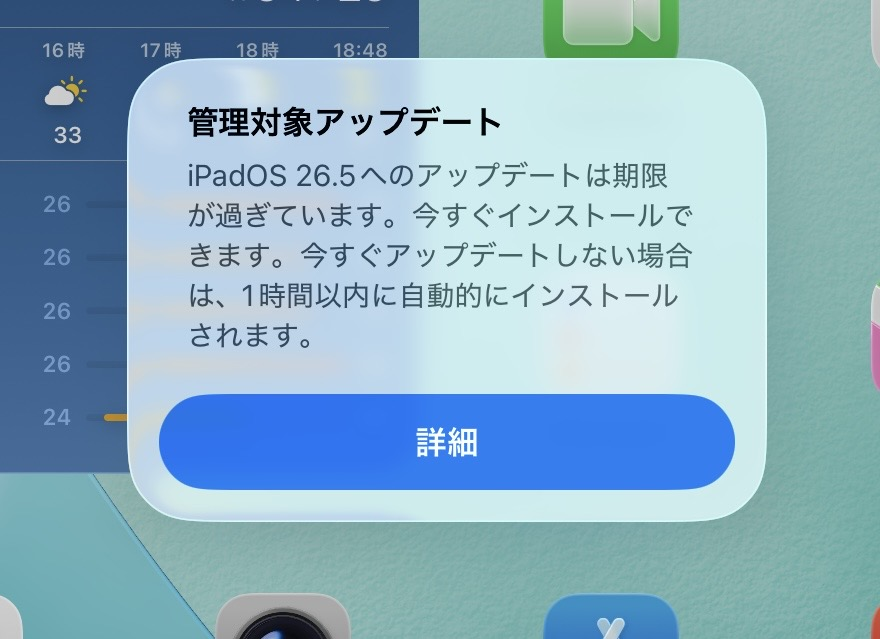
The displayed text may vary depending on the OS version.