(Shared iPad) Register a template
Group the content to be distributed to Shared iPad devices and register it in a template.
You must create a template dedicated to Shared iPad, separate from the templates used for normal device management.
-
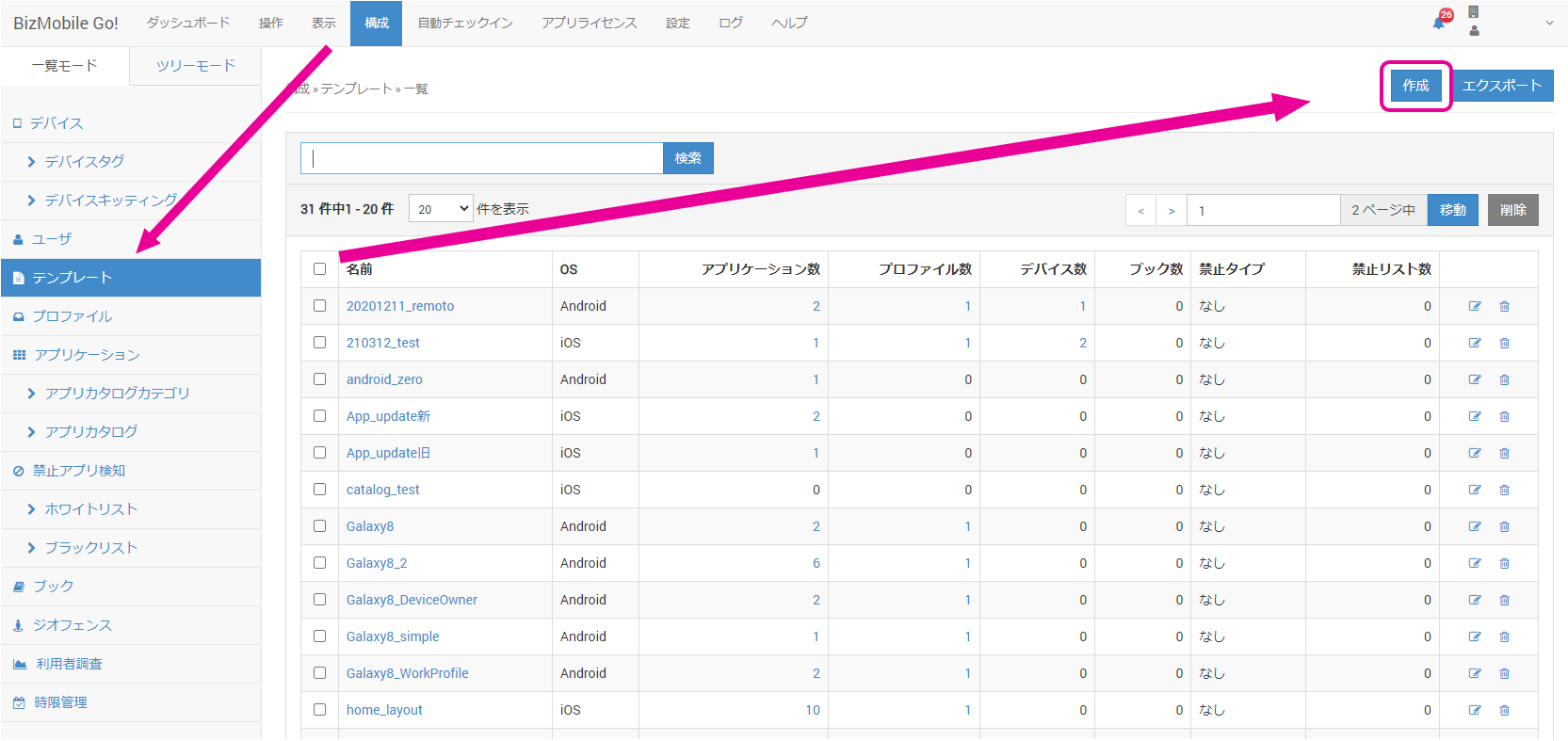
On the CONFIG > Template screen, click Create.
-
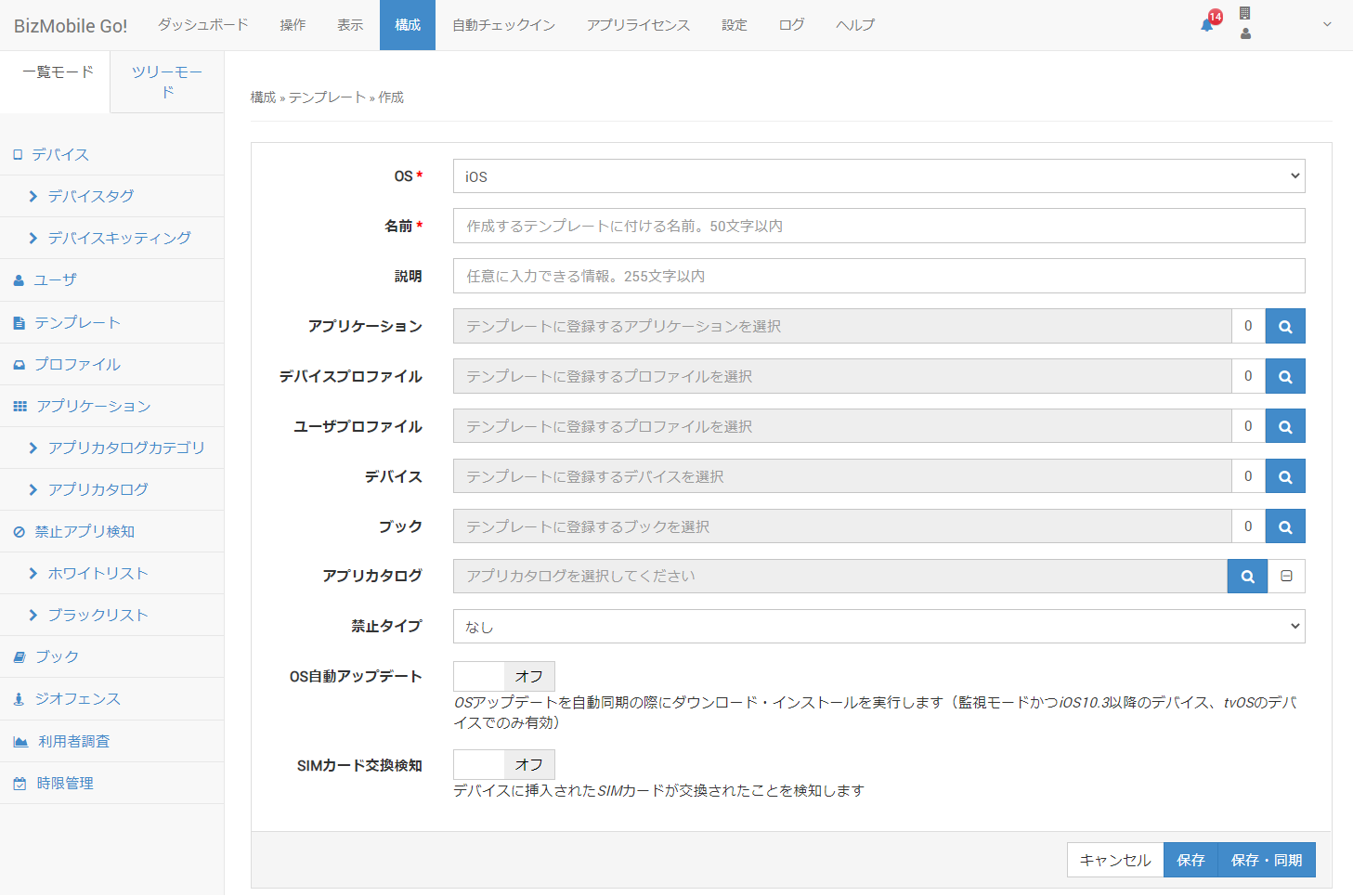
On the screen that appears, enter the required items and any other items you need, and select the Shared iPad profile you created.
OS*
Select the target OS of the template you want to create.
Name*
The name of the template.
Description
Notes about this template.
Applications
Select the applications you want to register in the template.
On iOS/tvOS 14.0 and later, you can allow deletion for each app.
Note: You can also select the template to apply from the application information creation screen.
For details, see Applications.
Profile
Select the profiles you want to register in the template.
Note: You can also select the template to apply from the profile registration screen.
For details, see Profile.
User Profile Select the Shared iPad profile you want to register in this template. (You must create a template dedicated to Shared iPad, separate from the templates used for normal device management.)
If a user signs in after theShared iPad Profileis deleted, the user is forcibly signed out. If the profile is deleted while a user is signed in, the signed-in state is kept, and the user is forcibly signed out at the next sign-in.
For details, see Profile for Shared iPad.Device
Select the devices you want to register in the template.
Note: You can also select the template to apply from the device information creation screen.
For details, see Create Device Information.
Book
Select the books you want to register in the template.
Note: You can also select the template to apply from the book creation screen.
For details, see Book Information (iOS 8 and later only).
Application Catalog Select the application catalogs you want to register in the template. Note: You can also select the template to apply from the device information creation screen.
For details, see Application Catalog.
Banned Type
Specify the type of list that this template uses.
If you select
None, theBanned Appsselection field is not displayed.Banned Apps (required when a banned type is specified)
This item is displayed when you select
WhitelistorBlacklistforBanned Type.Note: You cannot select a blacklist that includes an app registered in the template.
For details, see Banned App Detection.
Provisioning Package for MDM Bulk Enrollment
This template is assigned to devices that enroll using the .ppkg file of the provisioning package specified here.
For details, see "Enroll using a provisioning package on a Windows 10 device (use the bulk enrollment file created in the admin console)" in Device enrollment procedure for Windows.
OS Auto Update Select whether to perform OS updates during automatic sync.
For details, see (iOS / iPadOS / tvOS) OS Auto Update.
SIM Change Detection Select whether to detect a change of the inserted SIM card when the device syncs.
For details, see SIM Change Detection.