OS Update Management (Legacy)
This page describes the template item OS Update Management (Legacy) in the admin console.
On devices running iOS / iPadOS 17 or later, macOS 14 or later, or tvOS 18.4 or later, you can also use OS Update Management (DDM). In a template, you can force an update by specifying the OS version to apply and a deadline, and configure update-related restrictions.
On devices running iOS / iPadOS 27, macOS 27, or tvOS 27 or later, the feature on this page does not run OS updates. Use OS Update Management (DDM).
▶︎Related video (OS Update Management)
You can instruct managed devices to run an OS update at a specified time. You configure this per template, which helps you keep the devices assigned to the same template on the same OS version.
Because you can specify the time window in which the update instruction is sent, you do not need to worry about an update starting during business hours and disrupting work.
When you run Sync with OS auto update set to ON, the device starts downloading the update data.
After the download is complete, installation starts at the next Sync.
Before installation, a confirmation pop-up for the update appears on the device, and the user can select Install Now or Later.
Whichever option the user selects, the user must then enter the device passcode.
If the user selects Later three times, only Install Now is displayed in subsequent pop-ups.
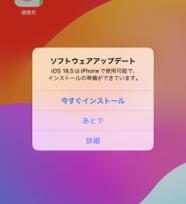
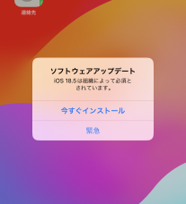
This feature sends the OS update instruction when the setting is On. Setting it to Off does not prevent users from updating the OS on the device.
Even during the period set by Defer Software Updates in a profile (for example, 90 days), you can have the OS updated automatically while preventing users from performing the update themselves.
Steps
- Open the template creation/edit screen.
For details on creating a template, see Create a Management Group (Template). - Set
OS Auto Updateto On, enter the required items, and clickSave.
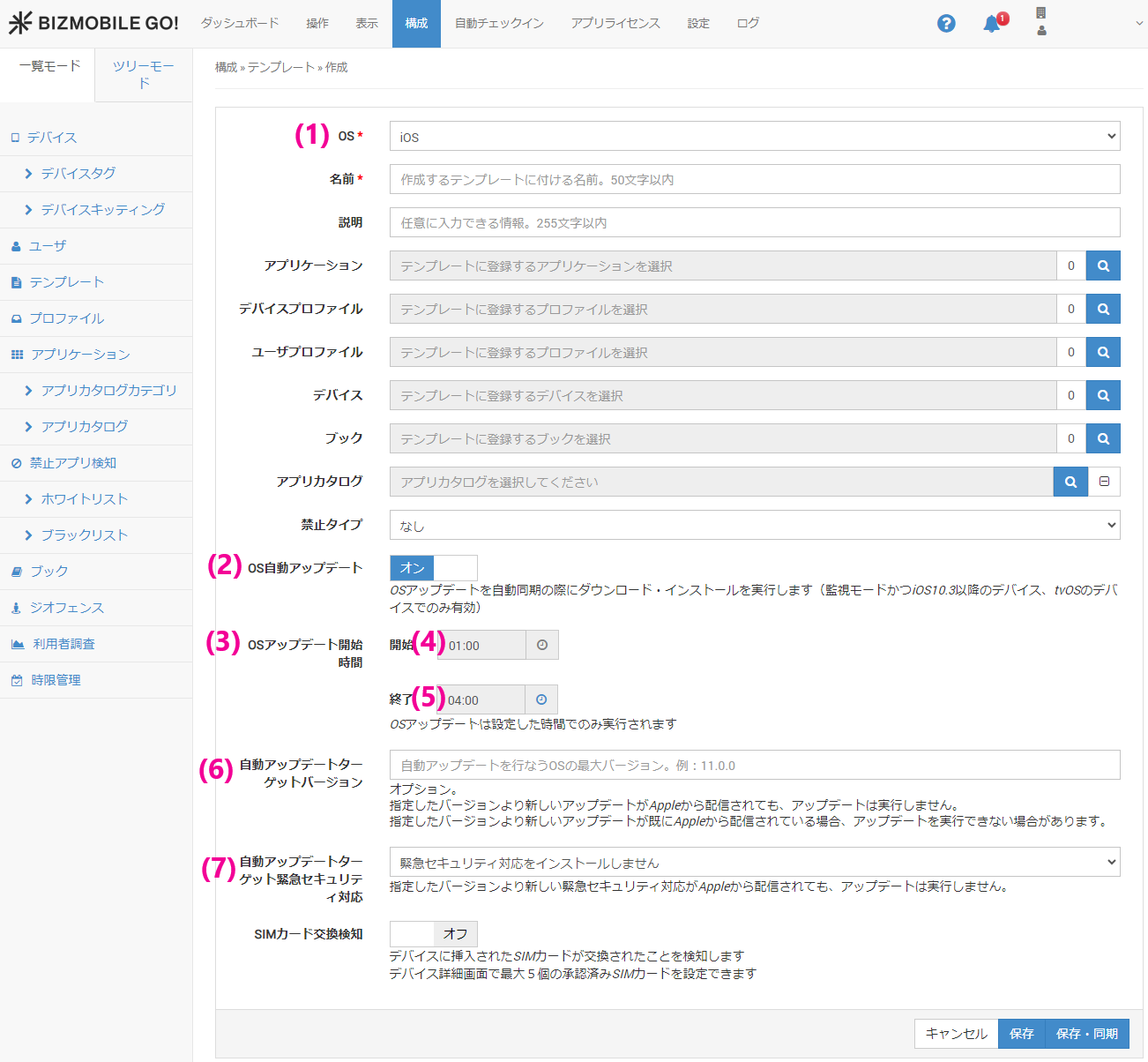
| (1) OS | Items (2) to (6) are displayed only when iOS / tvOS is selected. |
| (2) OS Auto Update | Items (3) to (6) are displayed only when On is selected. |
| (3) OS Update Start Time | Specify the time window in which the OS update instruction is sent to managed devices. |
| (4) Start | The daily automatic synchronization start time (1:00 a.m.) or a manual synchronization instruction |
| (5) End | The end time for executing the OS update instruction. The device cannot be used while the OS update is running, so we recommend setting a time before business hours. |
| (6) Auto Update Target Version | Specify the highest OS version targeted by the OS update instruction. |
| (7) Auto Update Target Rapid Security Response | A Rapid Security Response is a software release intended for urgent security fixes that do not require a full software update. Specify the highest OS version targeted by the software update instruction. Even if Apple releases a version update later than the specified version, the OS update instruction is not executed. If a version later than the specified version has already been released, the update may not run. Note: This does not restrict OS updates that users run on the device. To restrict operations on the device, use the Restrictions payload of the profile. |
- At the next
Sync, the data download instruction is sent.
The following message is recorded in the log.
--------------------------------------------------------------------
Download of iOS version X.X has been scheduled
--------------------------------------------------------------------

- After the data download in step 3 is complete, the data installation instruction is sent at the next
Sync.
The following message is recorded in the log.
--------------------------------------------------------------------
Update to iOS version X.X has been scheduled
--------------------------------------------------------------------

Device-side conditions for performing an OS update (these may vary depending on the OS version)
• Download: A Wi-Fi connection is required
• Installation: The device must be connected to power or have at least 50% battery remaining
If a passcode is set on the device, the passcode must be entered to start the installation. If no passcode is set on the device, the update is installed automatically.
If OS Update Management (DDM) is set to On in the same template, the settings on this page do not take effect on devices running a DDM-compatible OS version (iOS / iPadOS 17 or later, macOS 14 or later, tvOS 18.4 or later). The settings on this page are used only for devices running versions that do not support DDM.
If your environment has devices running both supported and unsupported versions, do not delete the settings on this page.