Schedule
In a schedule, you specify when time-based switching runs, based on working hours.
You can also optionally set annual holidays for each schedule.
Create a schedule
-
On the Schedule screen, click Create.

-
Enter the required information on the schedule entry screen that opens, and then click Save.
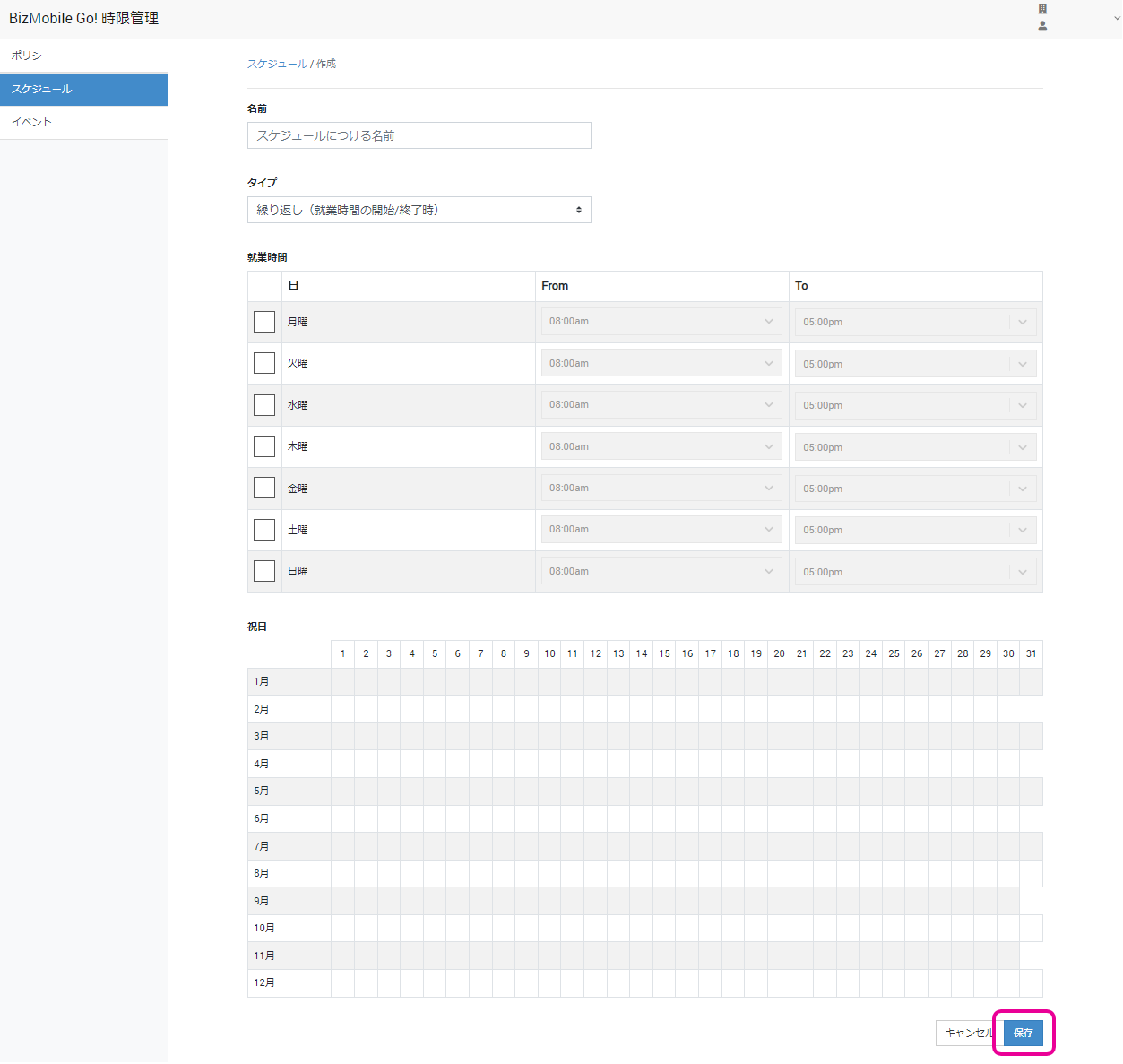
Input items (★ indicates a required item)Name★ The name to give the schedule Type★ Select one of the following two
- Repeat (at start/end of working hours)
- Repeat (once during working hours)
Work Hours★ Specify the time-based switching times for each day of the week Holidays Select annual public holidays and any other days off from the calendar -
After the schedule is created, it appears on the list screen.

Edit a schedule
-
On the Schedule screen, click the
 icon of the schedule you want to edit.
 -
Change the items (all items can be edited).
-
Click Save.
Delete a schedule
-
On the Schedule screen, click the
 icon of the policy you want to delete.
 -
In the confirmation pop-up, click Delete.
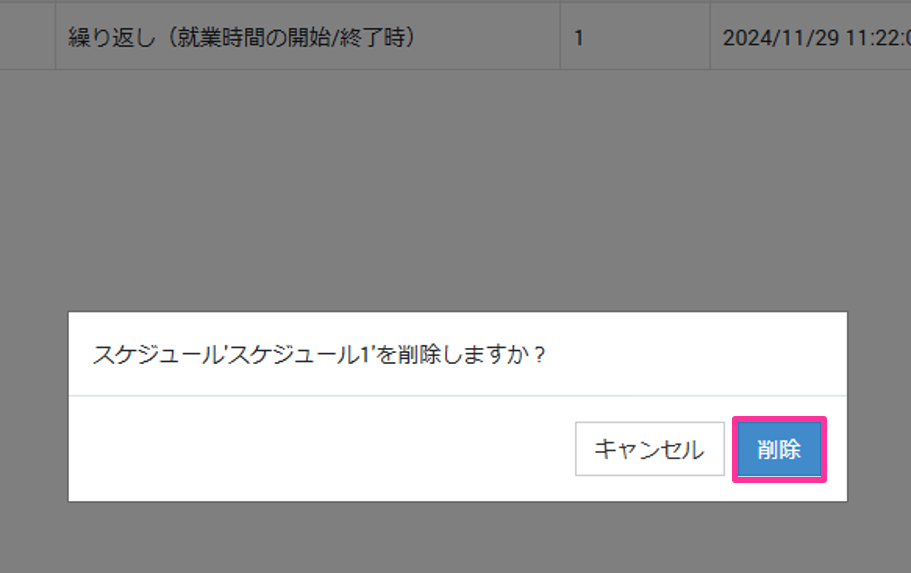
Delete multiple schedules at once
-
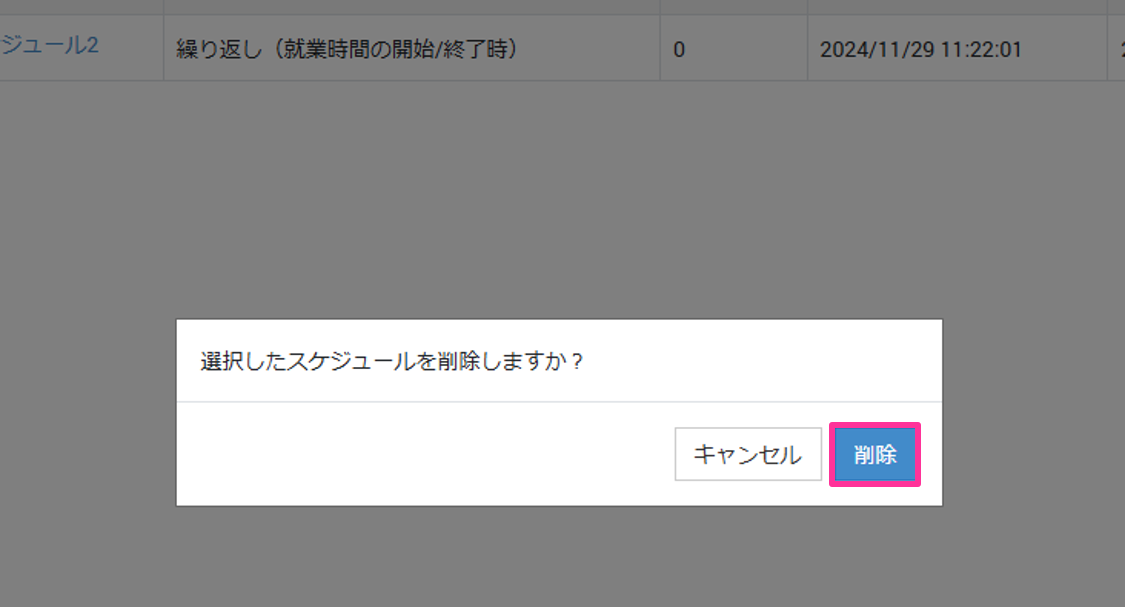
On the Schedule screen, select the check boxes of the schedules you want to delete, and then click Delete.

-
In the confirmation pop-up, click Delete.