Policy
In a policy, you define the times at which templates are switched and the template applied at each of those times,
and specify the time at which devices are restarted automatically.
When switching templates:
All devices assigned to the templates specified as switching targets are affected.
Each template can be specified in only one policy, and you specify one template each for "in-hours" and "out-of-hours". You cannot specify the same template for both "in-hours" and "out-of-hours".
Create a policy for template switching
-
On the Policy screen, click Create.

-
Enter the required information on the screen that opens, and then click Save.
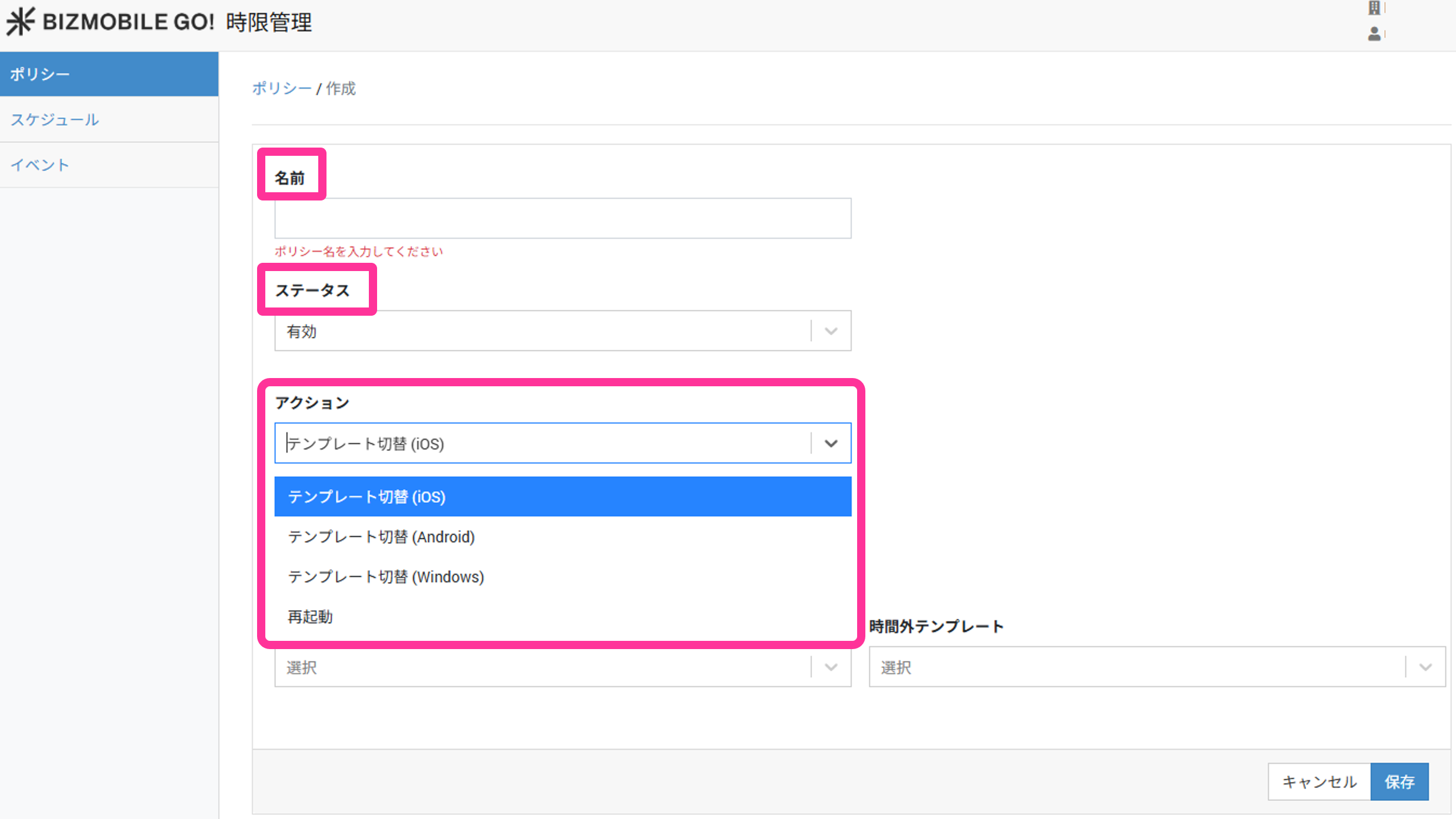
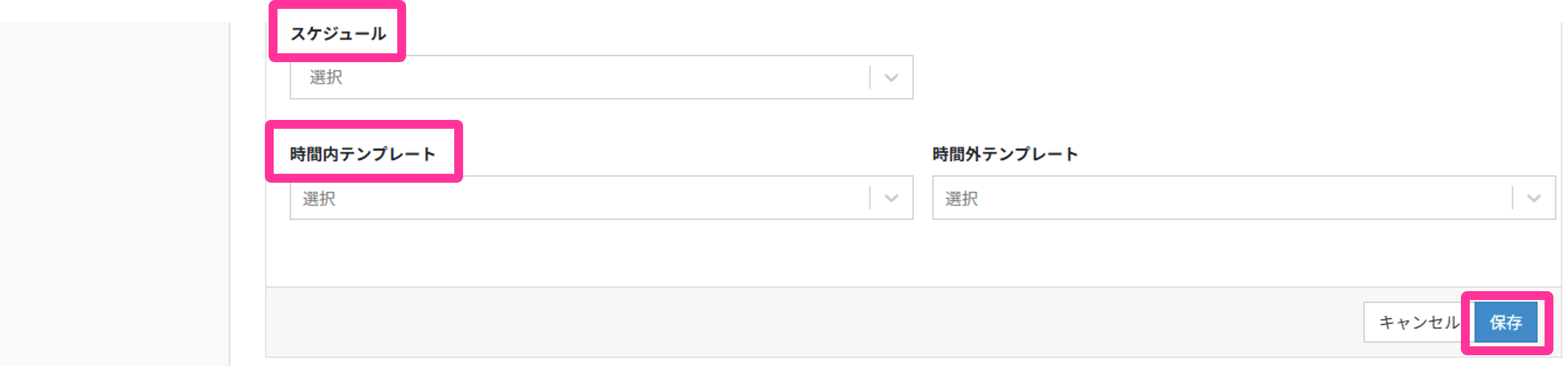
Input items (★ indicates a required item)Name★ The name to give the policy Status★ Select Enabled or Disabled
(If Disabled, template switching stops running.)Action★ Select from the following
- Template Switch (iOS)
- Template Switch (Android)
- Template Switch (Windows)
Schedule Select any schedule from the list of created schedules In-hours Template★ Select the template to assign during the specified hours Out-of-hours Template★ Select the template to assign outside the specified hours -
After the policy is created, it appears in the list.

Create a policy for automatic device restart
-
On the Policy screen, click Create.
-
Enter the required information on the screen that opens, and then click Save.
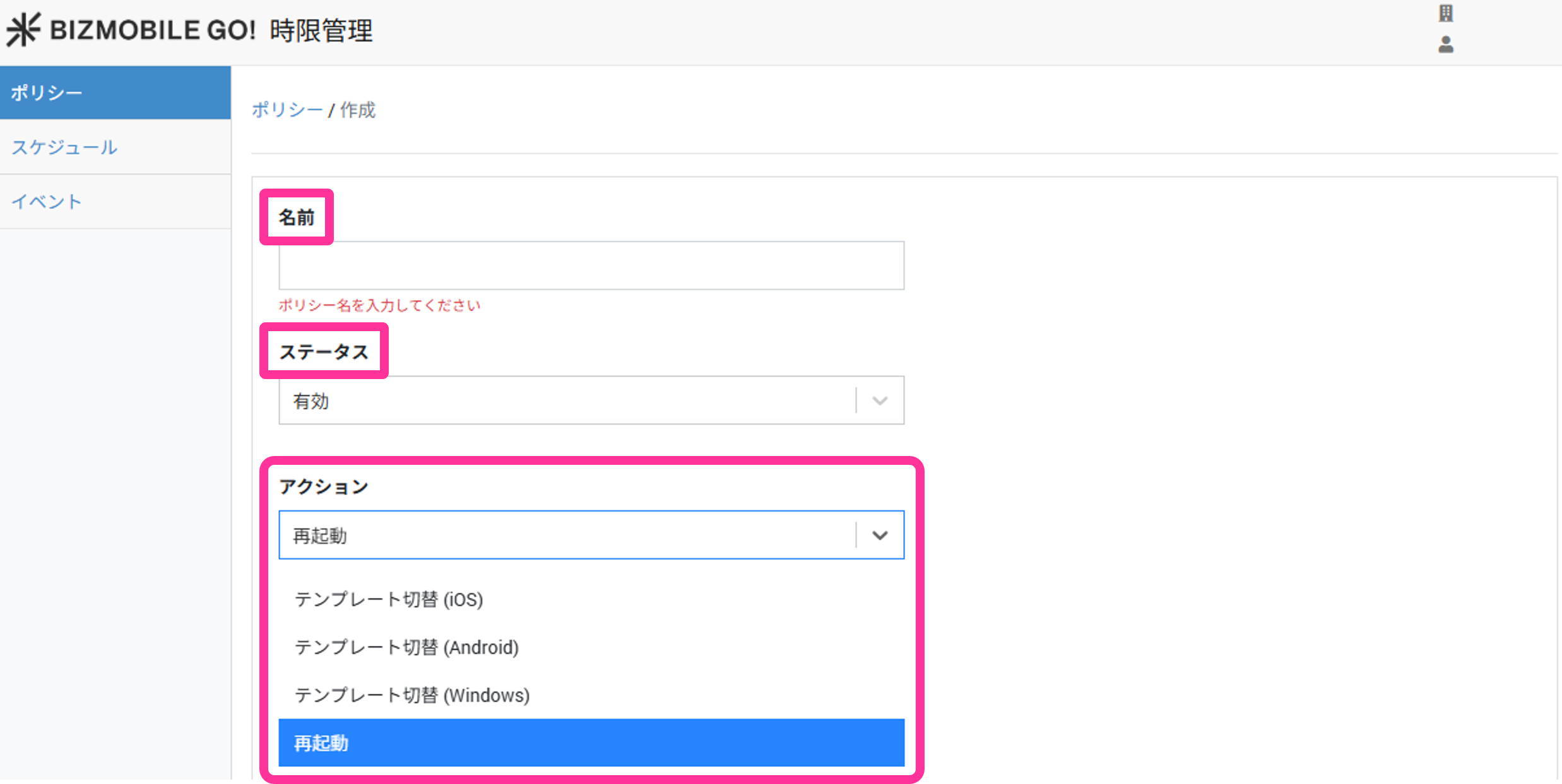
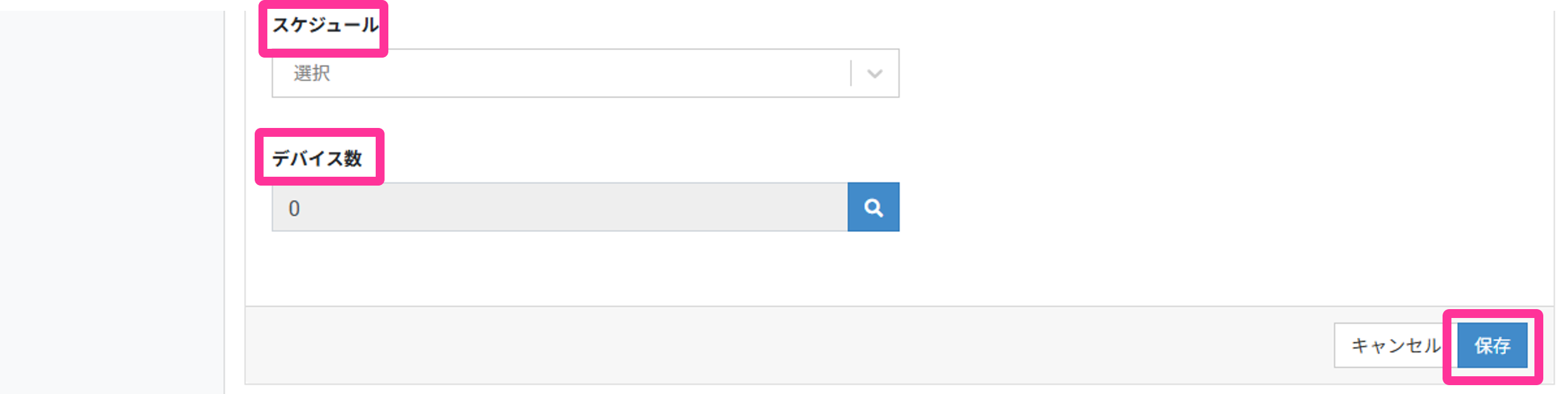
Input items (★ indicates a required item)Name★ The name to give the policy Status Select Enabled or Disabled
(If Disabled, template switching stops running.)Action Select Restart
Schedule Select any schedule from the list of created schedules Number of Devices You can specify devices by searching by identifier, or specify them in bulk by filtering by device tag
Edit a policy
- On the Policy screen, click the
 icon of the policy you want to edit.
 - On the policy information entry screen that opens, change the items (all items can be edited).
- Click Save.
Delete a policy
-
On the Policy screen, click the
 icon of the policy you want to delete.
 -
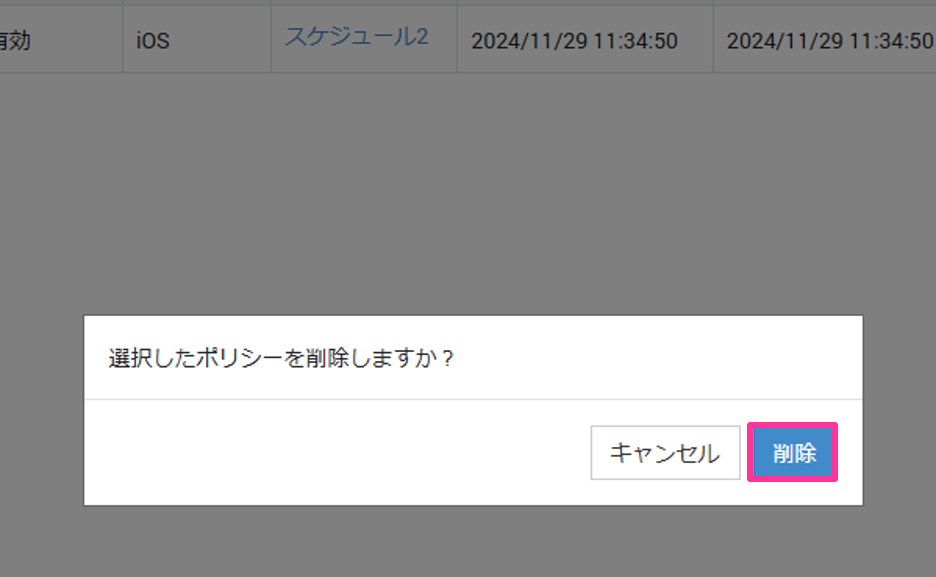
In the confirmation pop-up, click Delete.
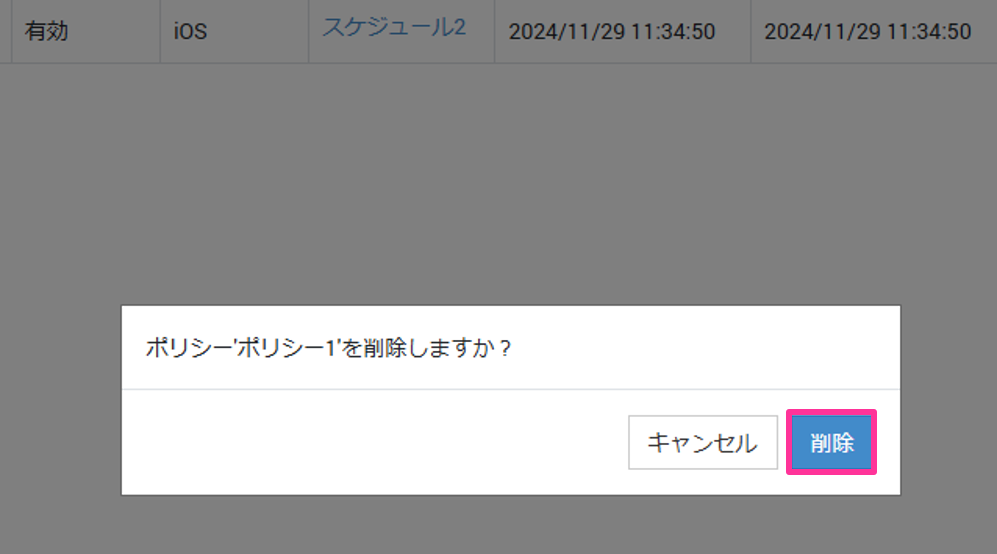
Delete multiple policies at once
-
On the Policy screen, select the check boxes of the policies you want to delete, and then click Delete.

-
In the confirmation pop-up, click Delete.