Create Device Information
▶︎Related video (creating device information for manual enrollment)
Create the information used to register devices in BizMobile Go!.
Before a device can enroll, you must first create its device information. Follow the steps below.
You can also create device information in bulk by using a CSV file. To create device information in bulk, see Create and Edit Information with a CSV File.
If you use DEP, see Create Auto-Enrollment Devices.
Steps to create device information
- Click Create on the CONFIG → Device screen.
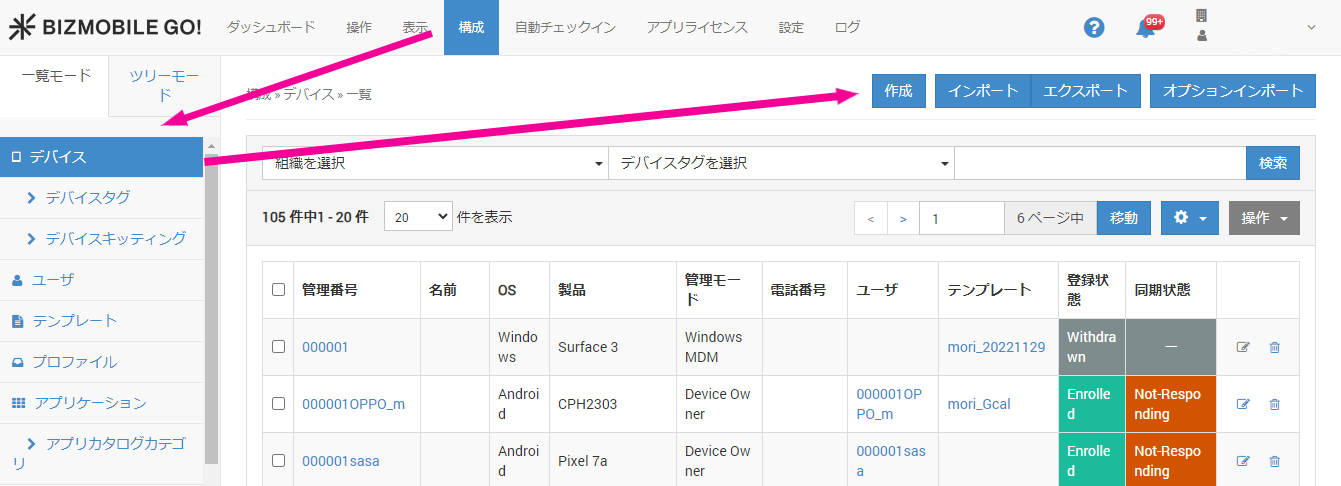
- Enter the required information on the device information input screen that appears.
Input fields (★ indicates a required field)
| Basic Device Information | |
|---|---|
OS★ | Select the OS. Some settings differ depending on the OS. |
Identifier★ | An identifier that uniquely identifies the device |
Name | A nickname or similar name for the device |
Description | Any information you want to enter |
User | If users have been created, you can select one here |
Template | If templates have been created, you can select one here |
Device Tag | If device tags have been created, you can select one here |
Enrollment Restrictions
Use these settings when you want to specify which devices can enroll.
| Item | iOS / iPadOS | Android | Windows | macOS | tvOS | Notes |
|---|---|---|---|---|---|---|
| Enrollment Method | ||||||
| Key | Yes | Yes | Yes | Yes | Yes | Automatically generated from the identifier and the unit name (format: identifier@unit). Required at enrollment |
| Code | Yes | Yes | Yes | Yes | Yes | A passcode required at enrollment. If you do not enter one, the system automatically generates a random value. |
| Enrollment Email (optional) | Yes | Yes | Yes | Enter the email address to send the enrollment email to. Note: An enrollment email is sent every time you save or update the device information with an email address entered. For a sample email, see Enrollment Email Sample later on this page. | ||
| Enrollment Phone Number (Note: optional service) | Yes | Yes | Enter the mobile phone number to send the enrollment URL to by SMS. Note: An enrollment SMS is sent every time you save or update the device information with a mobile phone number entered. | |||
| Enrollment Restrictions (optional) | ||||||
| UDID | Yes | Yes | Yes | Enter this to restrict device enrollment by UDID. | ||
| IMEI | Yes | Yes | Enter this to restrict device enrollment by IMEI. Not available on Wi-Fi-only models. | |||
| MEID | Yes | Yes | Enter this to restrict device enrollment by MEID. Not available on Wi-Fi-only models. | |||
| Wi-Fi MAC | Yes | Yes Note: Not available on Android 6.0 or later | Yes | Yes | Enter this to restrict device enrollment by Wi-Fi MAC address. | |
| Serial Number | Yes | Enter this to restrict device enrollment by hardware serial number. | ||||
| Enrollment Expiration Date | Yes | Yes | Yes | Yes | Select the enrollment deadline. The default is one week from today. On the SETTING screen, you can also configure the unit so that the expiration date is not checked. |
| iOS / iPadOS | Android | Windows | macOS | tvOS | ||
|---|---|---|---|---|---|---|
| Enrollment Method | ||||||
Key | Yes | Yes | Yes | Yes | Yes | Automatically generated from the identifier and the unit name (format: identifier@unit). Required at enrollment |
Code | Yes | Yes | Yes | Yes | Yes | A passcode required at enrollment. If you do not enter one, the system automatically generates a random value. |
Enrollment Email (optional) | Yes | Yes | Yes | Enter the email address to send the enrollment email to. | ||
| Enrollment Phone Number (Note: optional service) | Yes | Yes | Enter the mobile phone number to send the enrollment URL to by SMS. Note: An enrollment SMS is sent every time you save or update the device information with a mobile phone number entered. | |||
| Enrollment Restrictions (optional) | ||||||
UDID | Yes |
|
| Yes | Yes | Enter this to restrict device enrollment by UDID. |
IMEI | Yes | Yes |
|
| Enter this to restrict device enrollment by IMEI. | |
MEID | Yes | Yes |
|
| Enter this to restrict device enrollment by MEID. | |
Wi-Fi MAC | Yes | Yes |
| Yes | Yes | Enter this to restrict device enrollment by Wi-Fi MAC address. |
Serial Number |
|
| Yes | Enter this to restrict device enrollment by hardware serial number. | ||
Enrollment Expiration Date | Yes | Yes | Yes | Yes | Select the enrollment deadline. The default is one week from today. On the | |
Non-MDM-Managed App Information
| iOS / iPadOS | Android | Windows | macOS | tvOS | ||
|---|---|---|---|---|---|---|
Non-MDM-Managed App Information | Yes |
|
| Yes | Yes | For units created on or before December 18, 2024, this setting specifies, for all devices, whether to collect information about apps not distributed from BizMobile Go! (unmanaged apps). (Old setting)
|
Location Option (requires a separate application to use the option)
iOS / iPadOS | Android | Windows | macOS | tvOS | ||
|---|---|---|---|---|---|---|
Fetch Location | Yes | Yes | Yes | Turn this ON to collect location information from the managed device | ||
Share Location with Administrator | Yes | Yes | Yes |
| Select whether to share the collected location information of the managed device with administrators (that is, display it on the admin console), in addition to showing it on the device. |
Approved SIM Cards
iOS | Android | Windows | macOS | tvOS | ||
|---|---|---|---|---|---|---|
Approved SIM Cards | Yes | Yes |
| Register the ICCID of the SIM card approved for use on the device. |
-
Enter the required items and click
Save.
The process is complete whenCreatedis displayed.

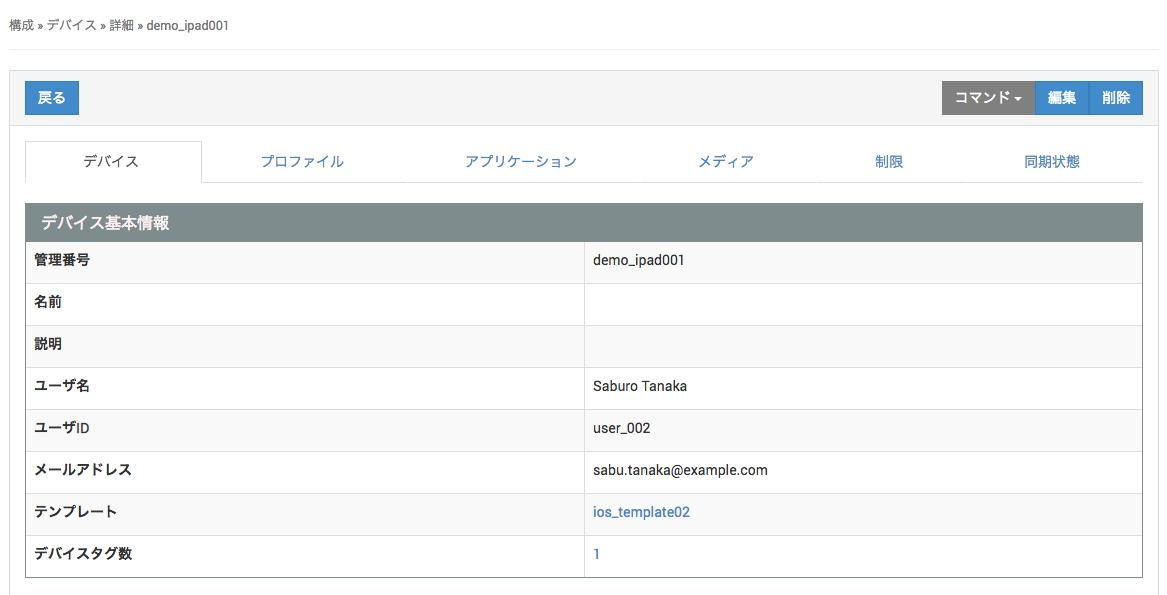
The device name is a link. Click it to go to the device details page.
Enrollment Email Sample
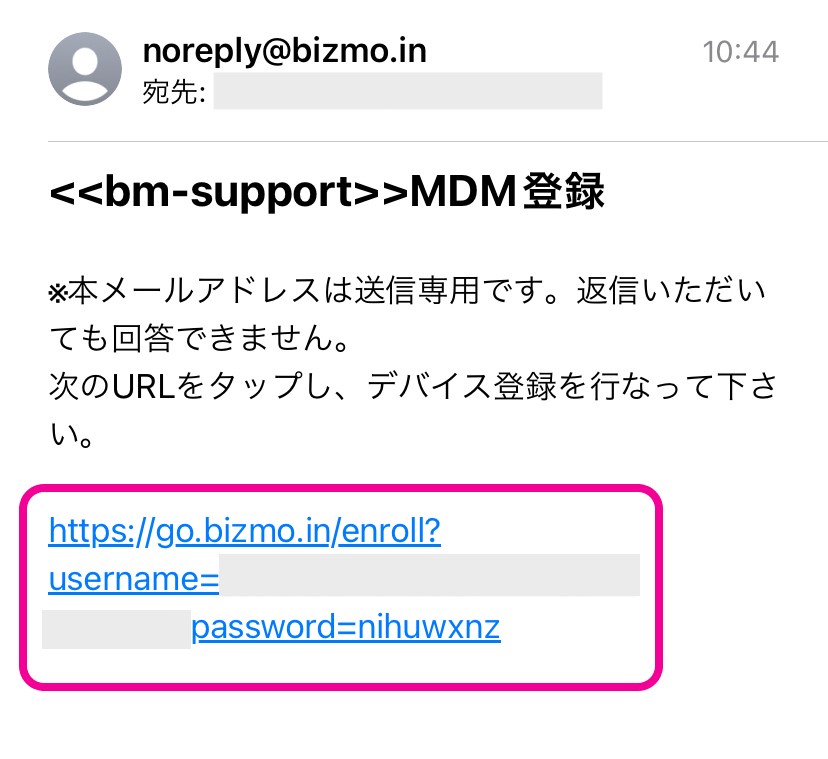
You can customize the email body on the settings screen (Unit Detail → Check in Email Information).