Create messages and check response status
Create a message
Create a survey message in the BizMobile Go! admin console.
-
Click CONFIG → Message.
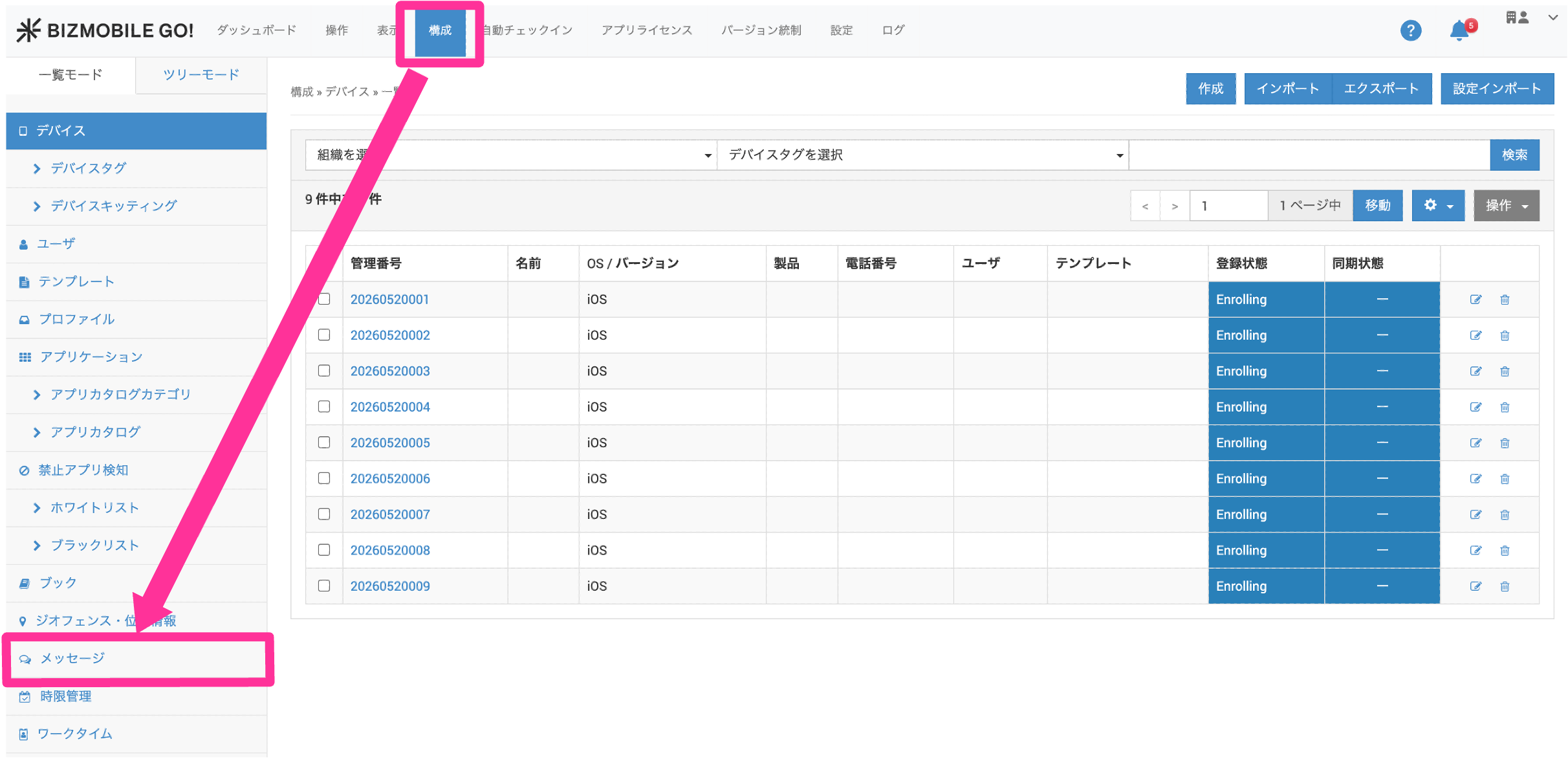
-
Click "Create".
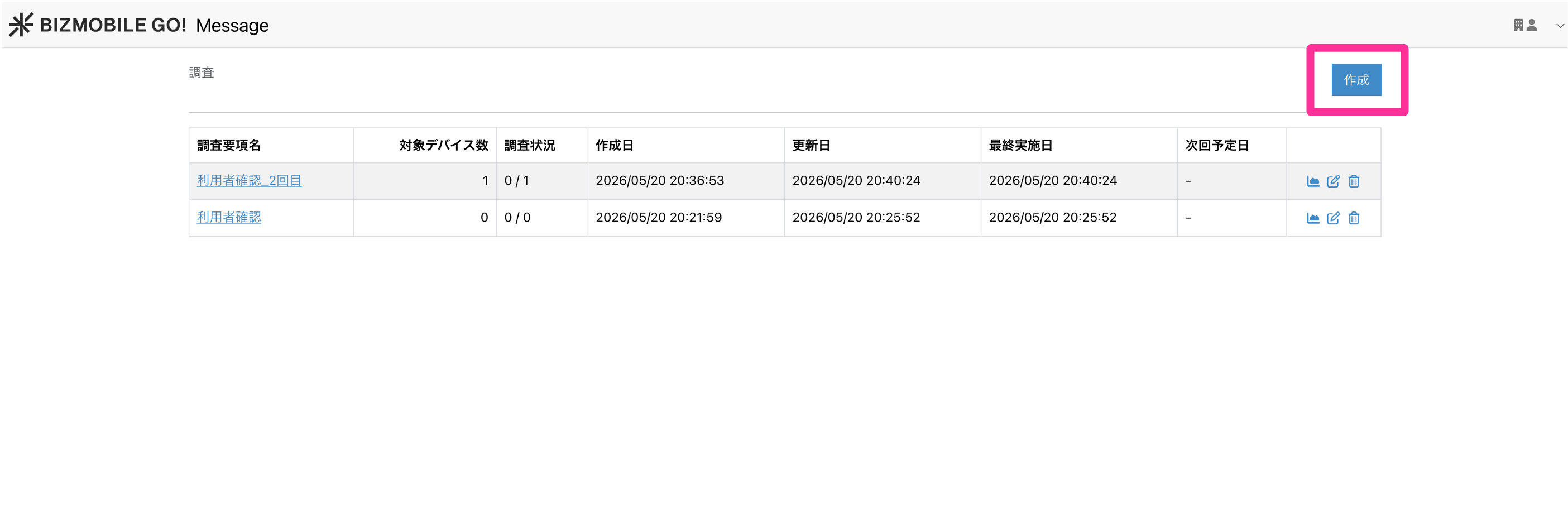
-
Enter the survey details.
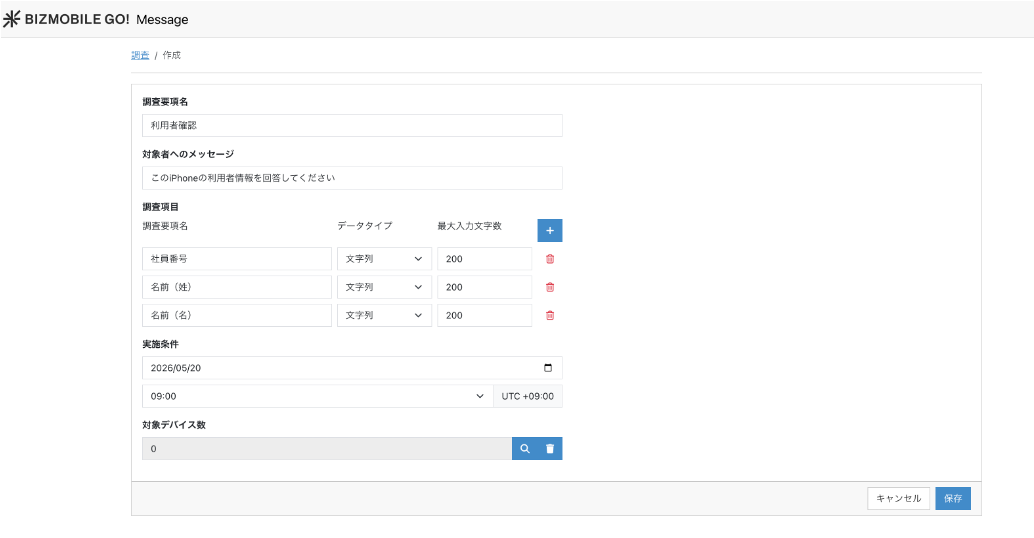
Item Description Survey Name The name of the survey Message to Recipients The survey title displayed in the BizGo!Message app Survey Items
Click the icon to register multiple items
Configure the following detail items:
- Survey Name: Name (up to 100 characters)
- Data Type: Select Number or Text
- Maximum Number of Characters: Number of characters that can be entered (1 to 200)
Execution Conditions Set the schedule for sending the survey
Number of Target Devices Select the devices to survey.
 Search and select by identifier
On the device search screen, you can narrow down the target devices by device tag.
 Delete all selected devices at once
 - Survey Name: Name (up to 100 characters)
-
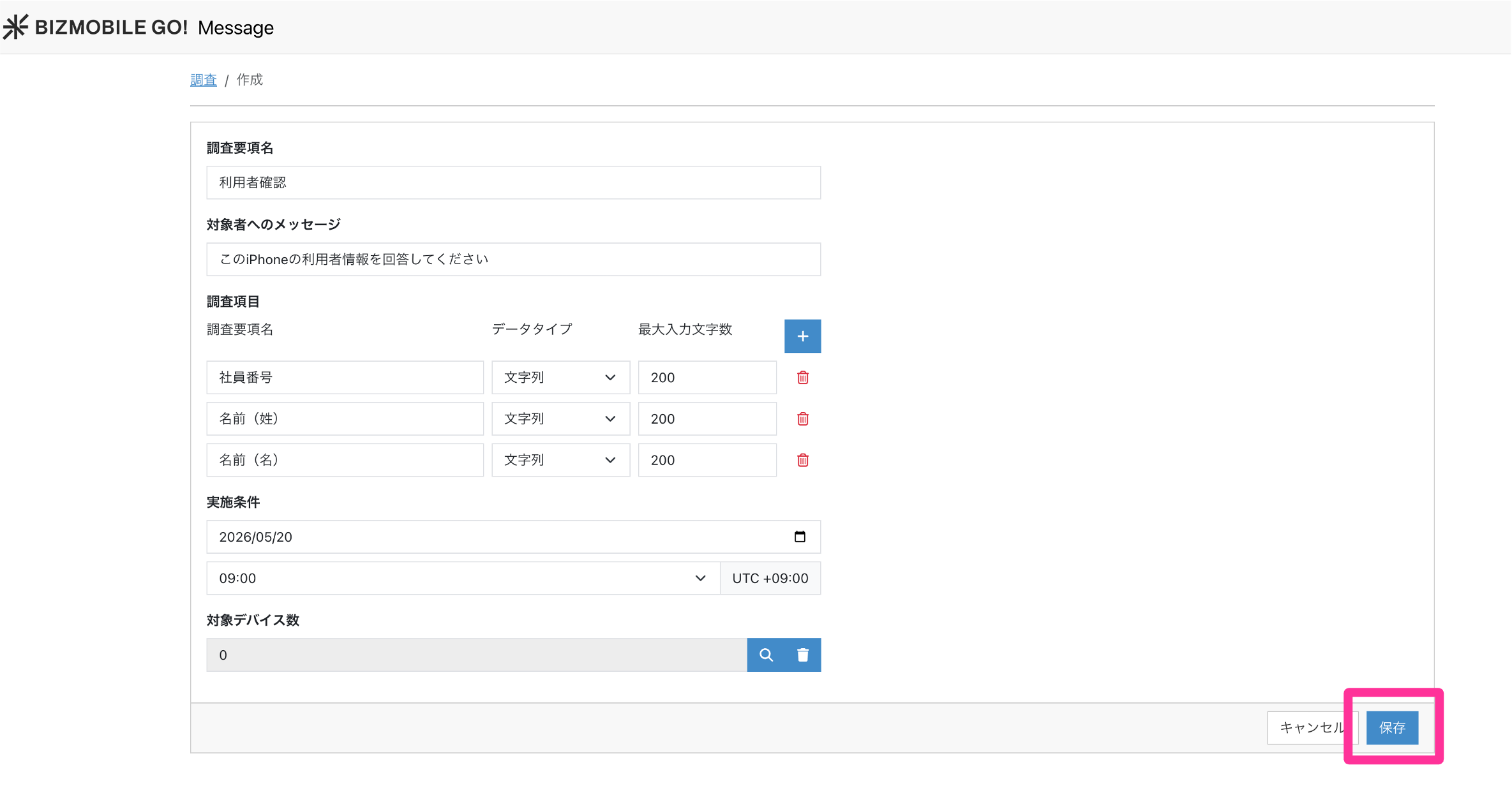
Click "Save".
Check response status
View the results of surveys that users have answered. You can view the results in the admin console or export them as a CSV file.
-
On the survey list screen, click the report icon.
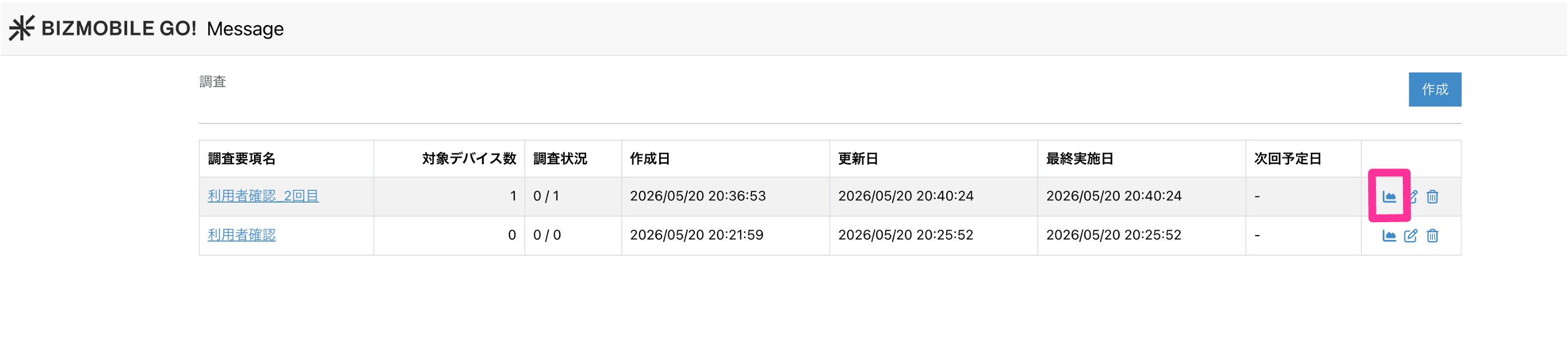
-
Click the start date of the target survey.

-
The results for the selected survey start date are displayed.

Item Description Identifier The "identifier" of the target device Survey Items Responses to the distributed survey items Survey Status Sending status of the survey
sent: Notified
replied: AnsweredLocation The device's location when the survey was answered Address The device's address when the survey was answered -
Click [Export] to download a CSV file.

Item Description device_id The "identifier" of the target device status Sending status of the survey
sent: Notified
replied: Answeredlocation Location where the survey was answered (latitude and longitude) address Location where the survey was answered (address) Survey item names you set
(a column is created for each item)Response content