Operate Version Control
This page explains how administrators operate the Version Control feature.
Check the dashboard
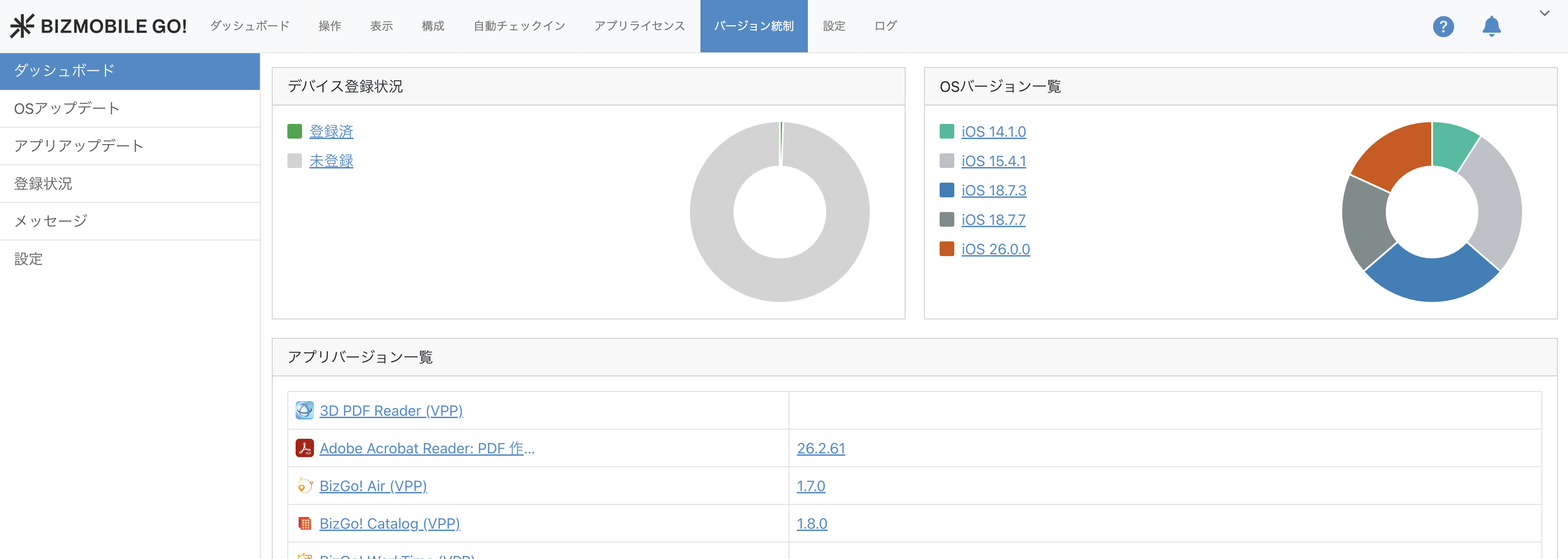
On the [Version Control > Dashboard] screen, you can check the list of OS and app versions of the devices registered as Version Control targets.
Click each link to go to the list screen of the target devices.
Request a device OS update
-
On the [Version Control > OS Update] screen, specify "OS Version" in the device list to find the devices that need an update.
You can filter by "exact match (exact)" with a specific version or by "range (range)".
You can also go to the device list screen by clicking a chart on the dashboard.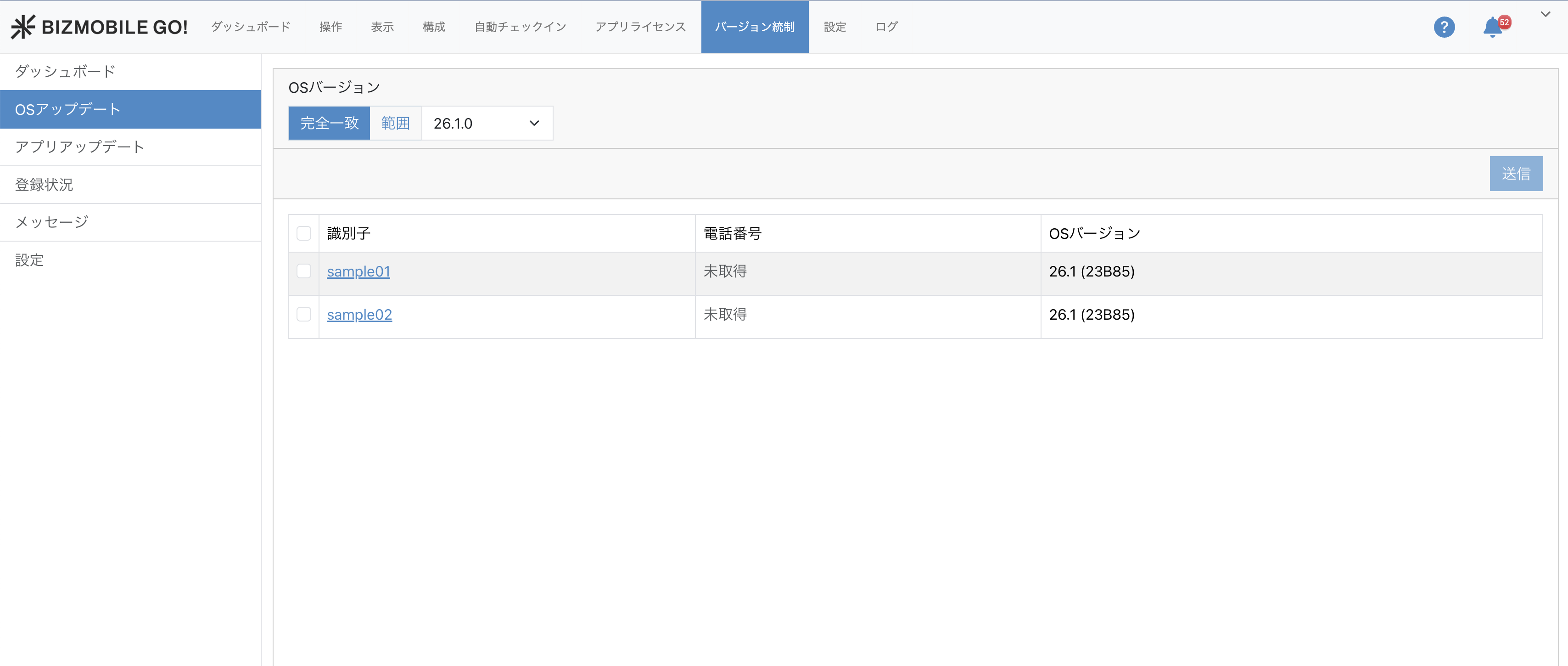
-
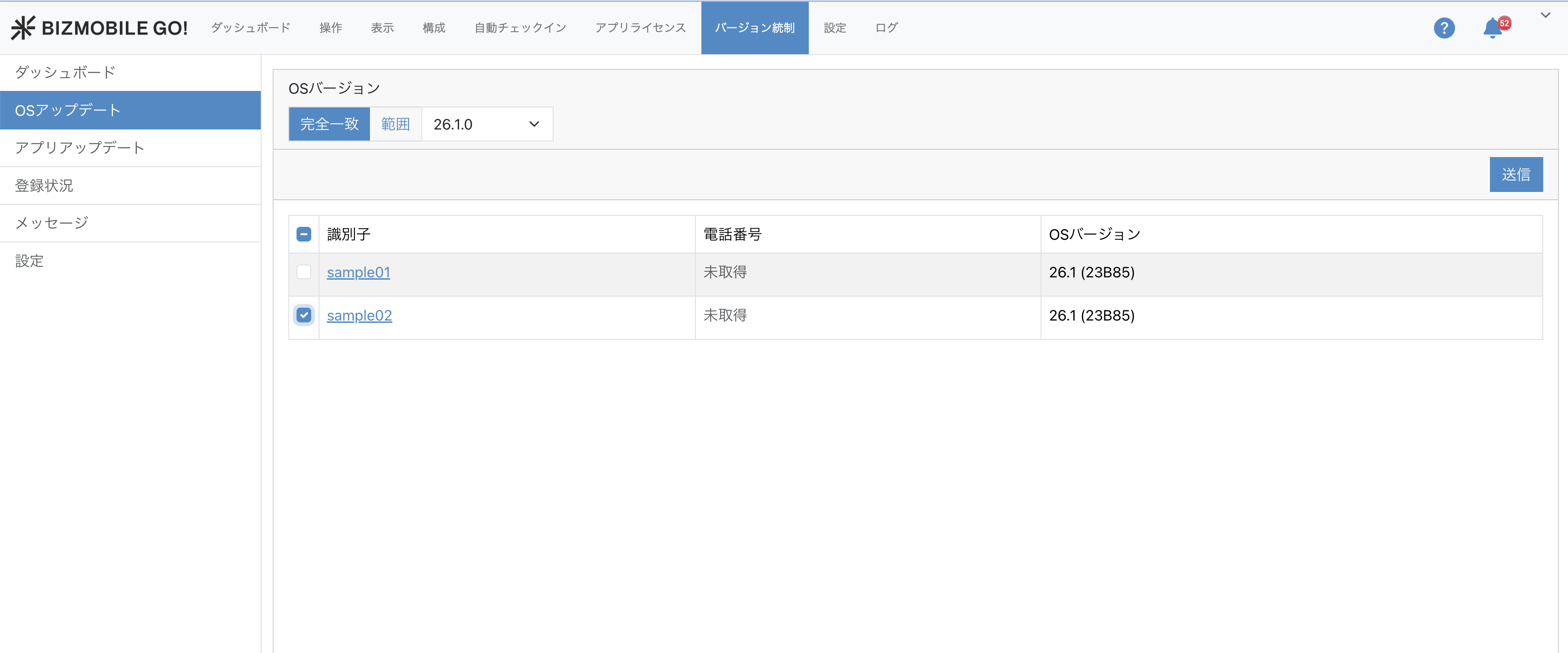
Select the devices and click the
Sendbutton.
-
Enter the message to send and click the
Sendbutton to send the push notification.
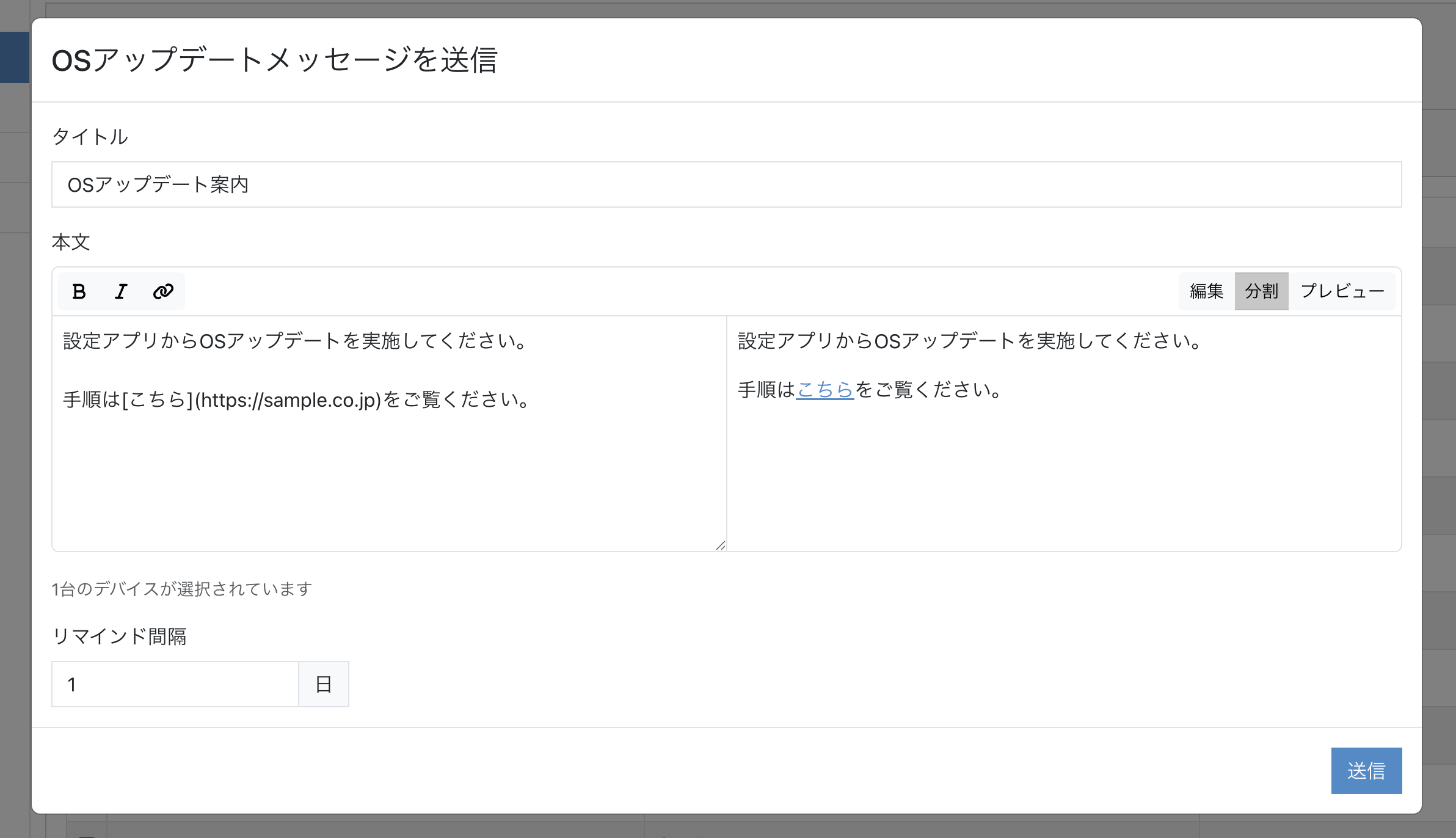
Item Description Title The title displayed in the notifications and message list of the BizGo! Update app Body The body of the message. The notification template on the [Settings] screen is set by default. You can include URL links (see Edit the message body) Reminder Interval The interval (in days) at which a reminder message is sent to devices that have not completed the update
A reminder message is sent automatically, at the interval in days specified in [Reminder Interval], to users who have not completed the update.
Request an app version update
-
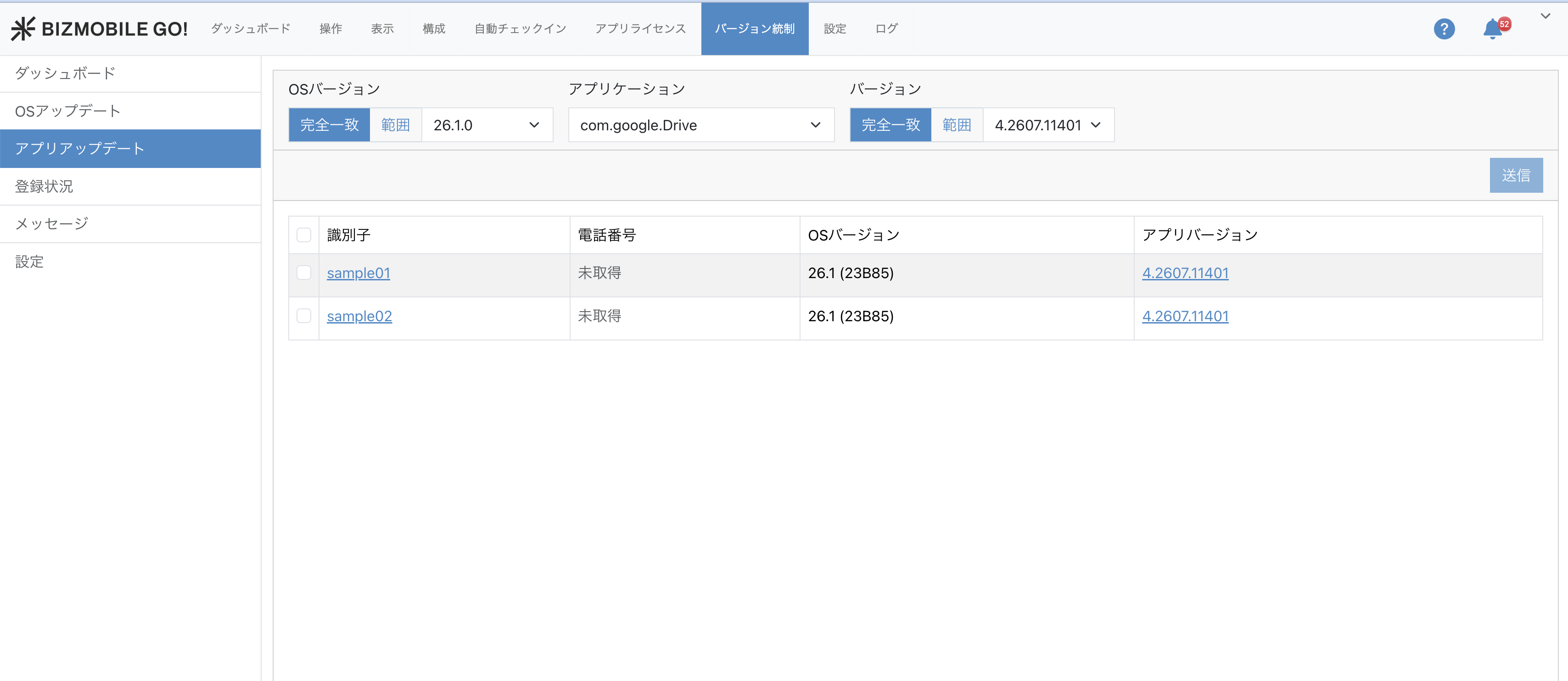
On the [Version Control > App Update] screen, select the target "App" in the device list to find the devices that need an update.
After you select the target app, filter the devices by app version using "exact match (exact)" or "range (range)". You can also combine this with a filter on the OS version.
You can also go to the device list screen by clicking a chart on the dashboard.
-
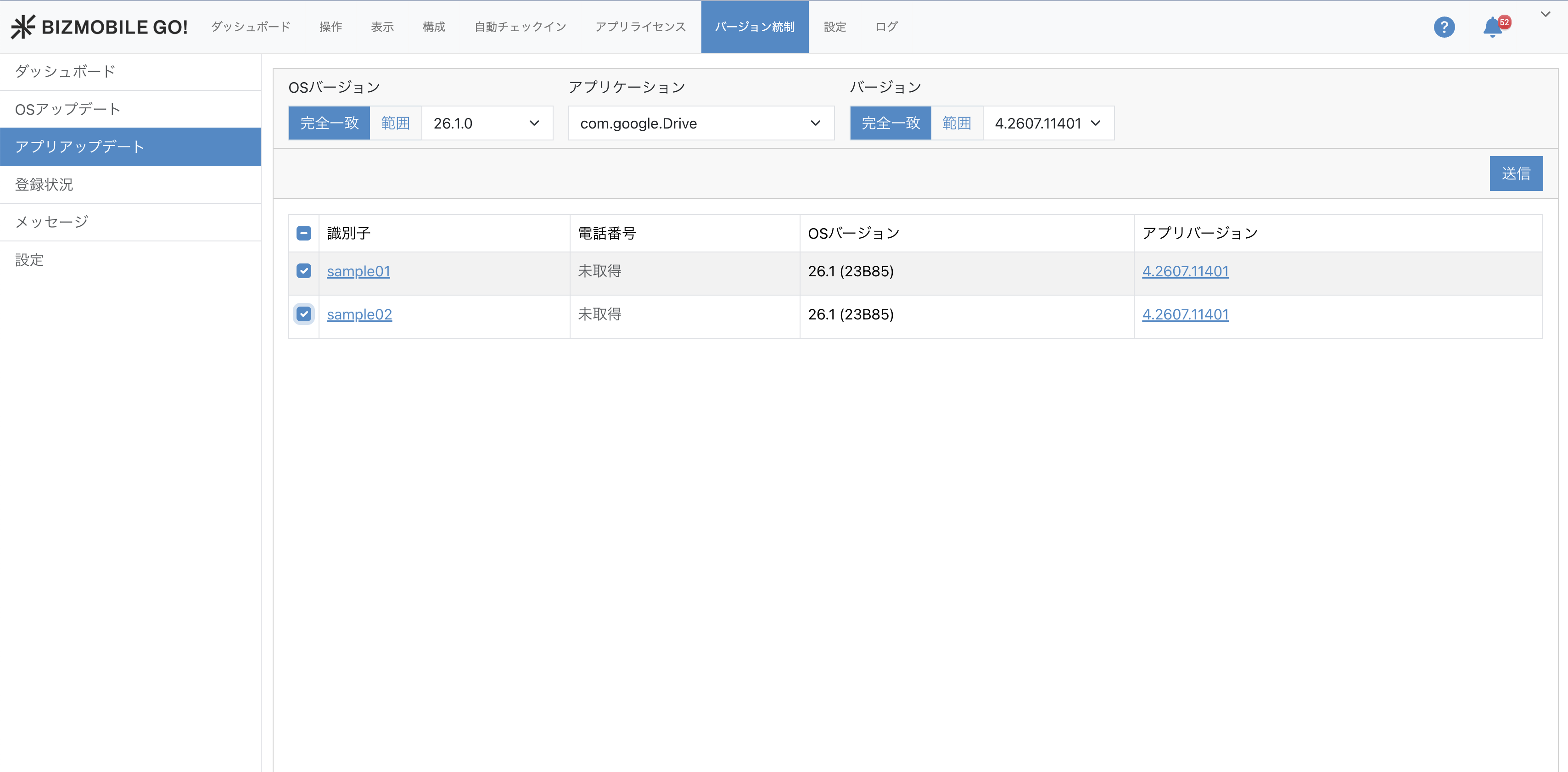
Select the devices and click the
Sendbutton.
-
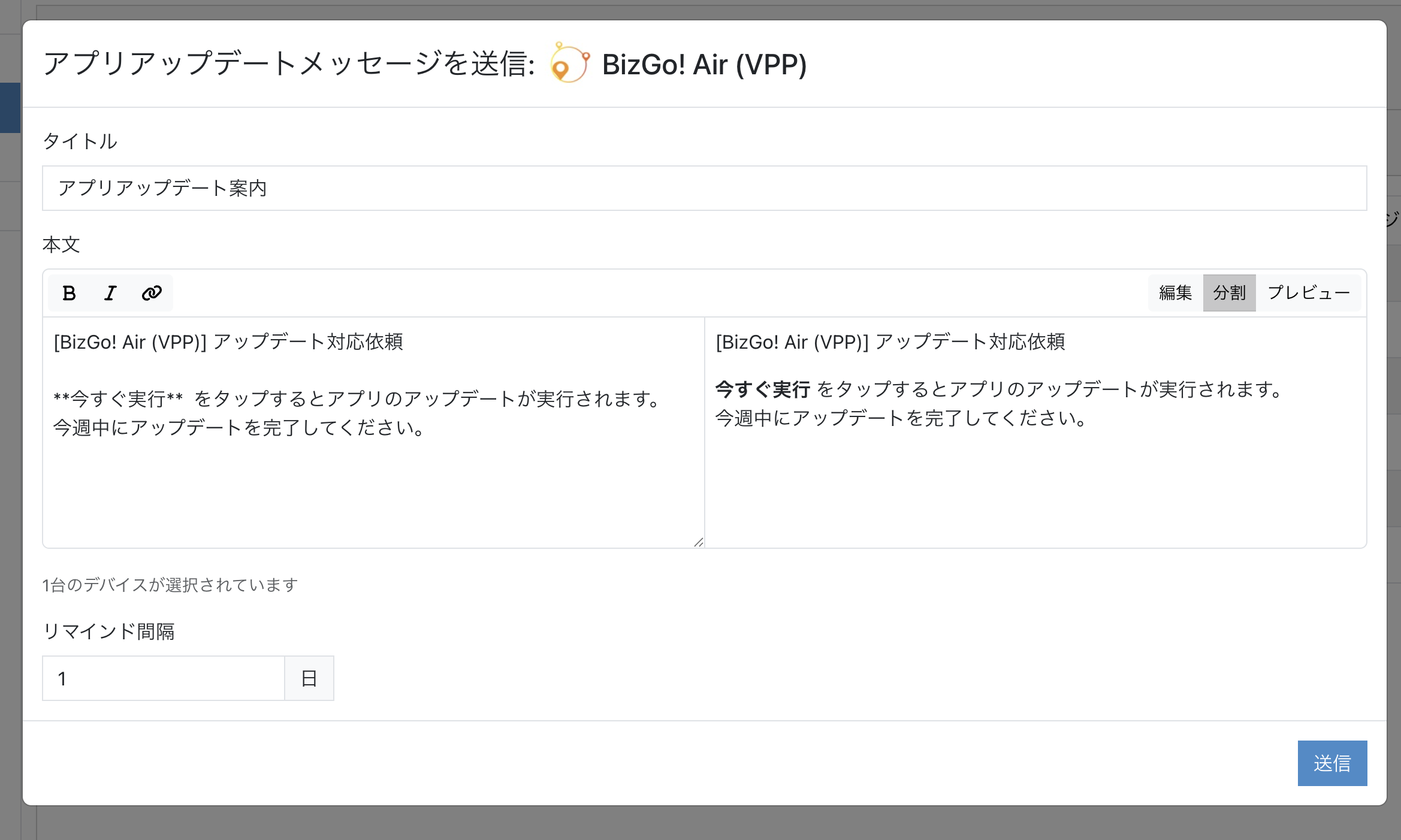
Enter the message to send and click the
Sendbutton to send the push notification.
The name of the target app is displayed in the title area of the message send screen. To avoid sending a message by mistake, confirm that the target app is correct before you send.
The input items are the same as for sending an OS update message.
A reminder message is sent automatically, at the interval in days specified in [Reminder Interval], to users who have not completed the update.
Edit the message body
You can enter the [Body] on the message send screen in Markdown format. From the toolbar at the top of the editor, you can insert bold text, italic text, and URL links.
- Enter a URL link in the format
[display text](https://example.com). In the BizGo! Update app, the display text appears as a link, and tapping it opens the web page. - Use
Edit/Split/Previewat the upper right of the editor to switch the view and check how the message appears in the app.