Operate the BizGo! Update App as a User
This page explains the initial setup of the BizGo! Update app used for Version Control, and how device users use it in daily operation.
Activate BizGo! Update
To receive messages from the administrator, you must launch the app for the first time and allow notifications.
-
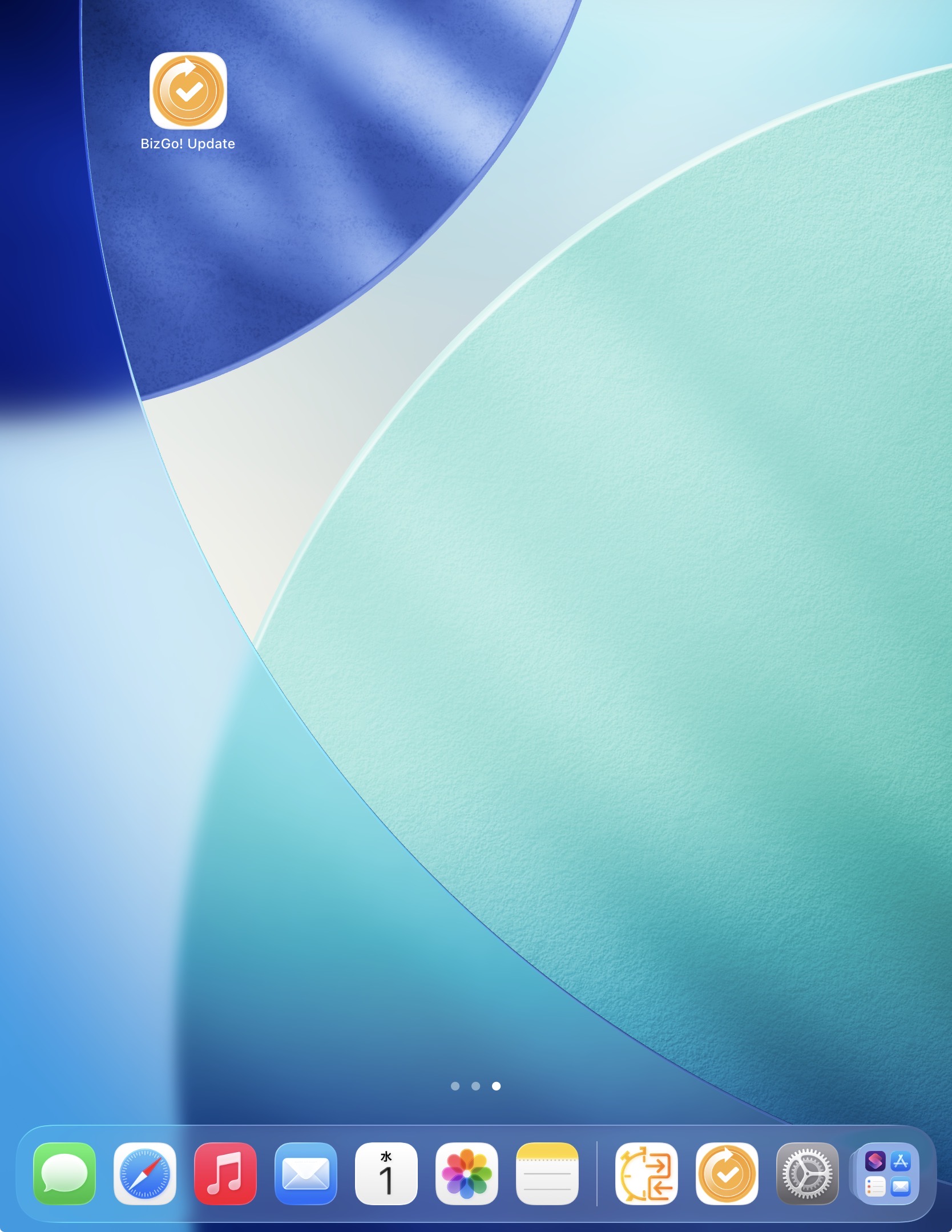
Launch the "BizGo! Update" app from the Home Screen.
-
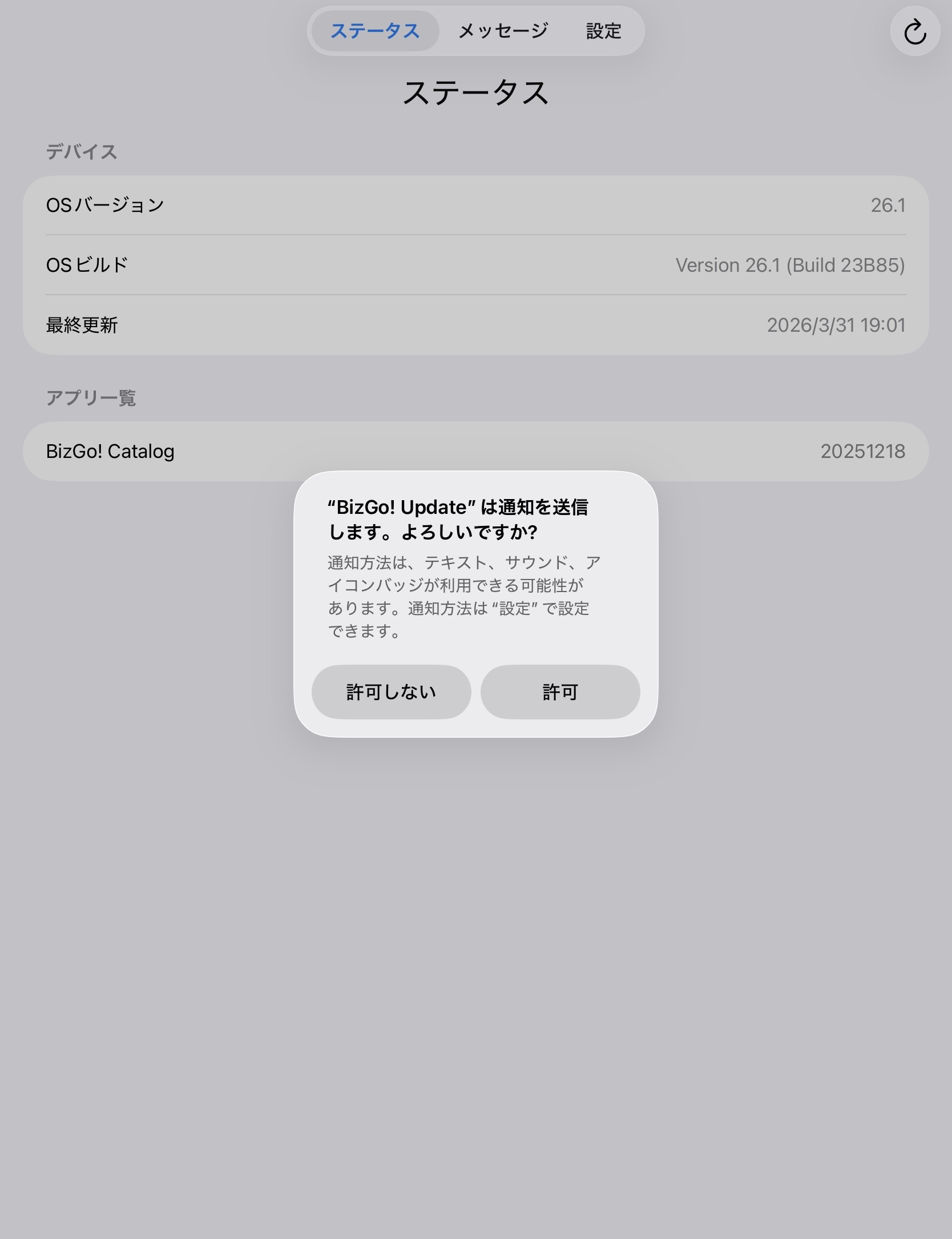
Allow notifications.
You can skip this step by configuring the "Notifications" payload in a profile.
-
The
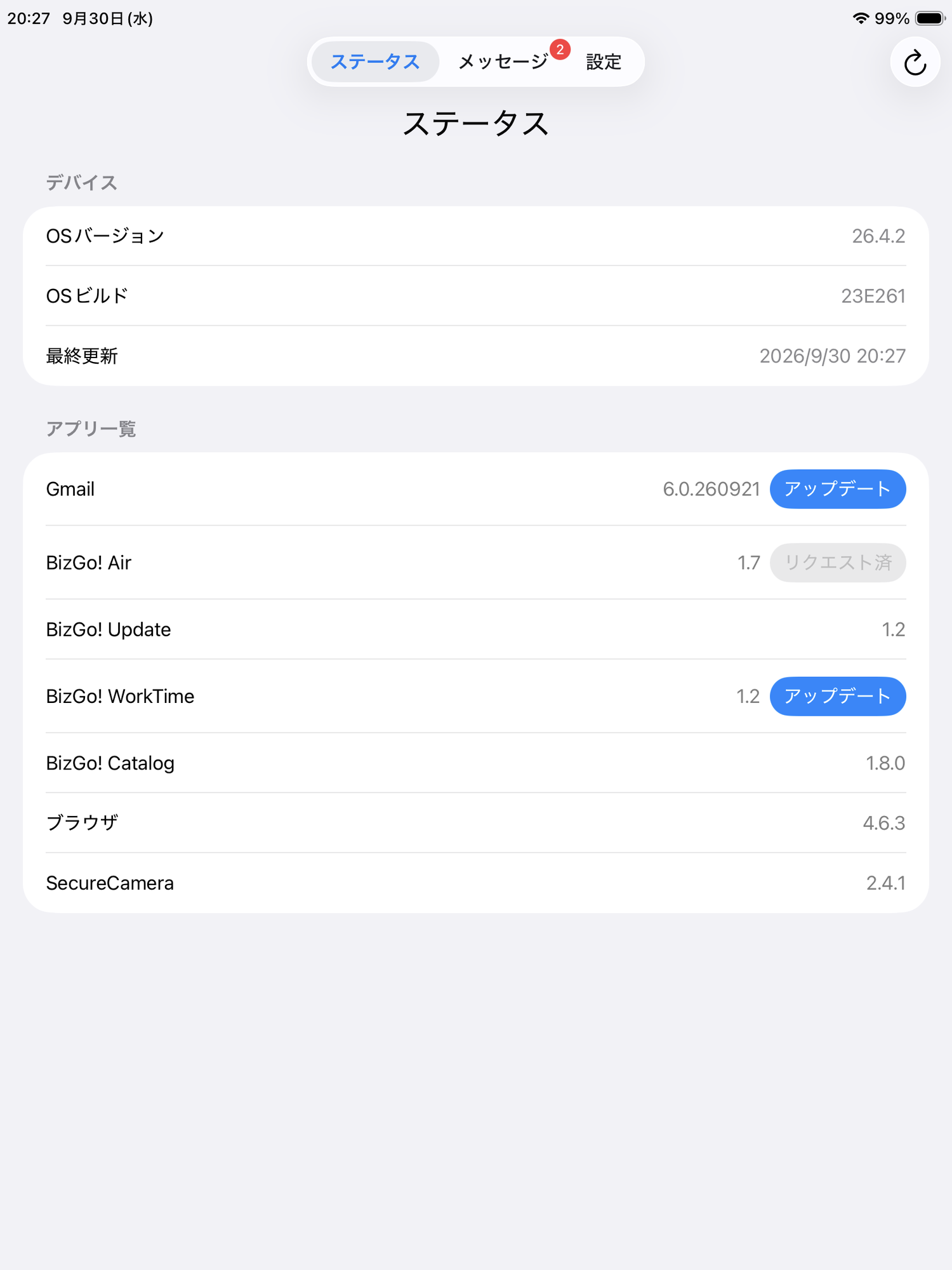
Statusscreen displays the current OS version and the version information of the apps set as Version Control targets.
Tap the refresh icon at the upper right of the screen to retrieve the latest device state that the MDM server has confirmed and update the display.infoThe refresh icon does not sync with the MDM server. The device's OS and app version information is reflected on the server by syncing with the MDM server.
Check messages and update
Check the message from the administrator and run the update.
For OS updates, only the message is displayed. The user must run the OS update manually from the Settings app.
For app updates, you run the update from the BizGo! Update app.
The unread badge, displaying the message body from a notification, and updating from the app list are available in BizGo! Update app v1.2 and later.
-
Notification and unread badge when a message is received
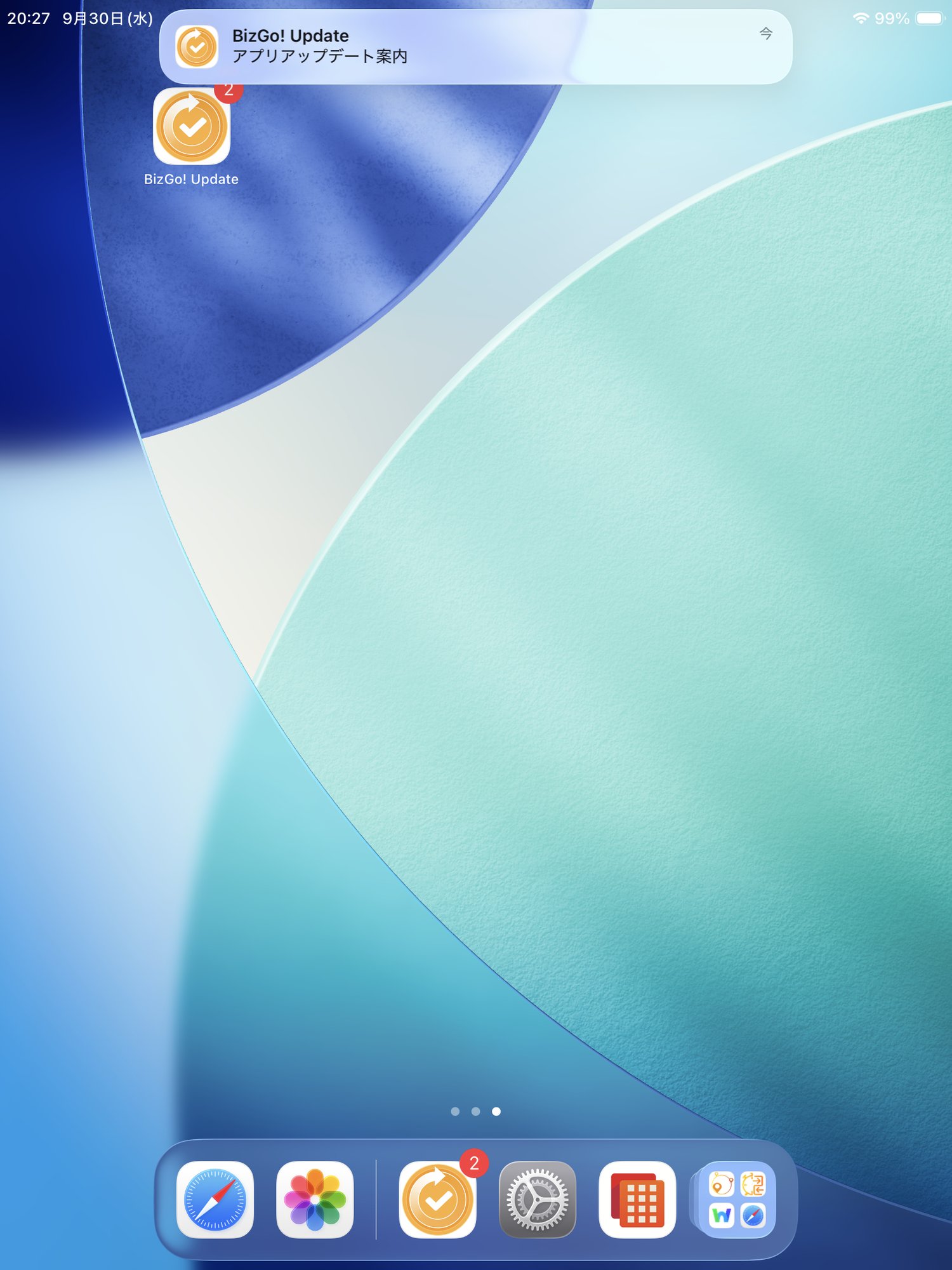
The notification bar displays the title of the message.
The number of unread messages is displayed on the app icon badge.
When you tap the notification, the BizGo! Update app launches and displays the body of that message. -
Message list screen
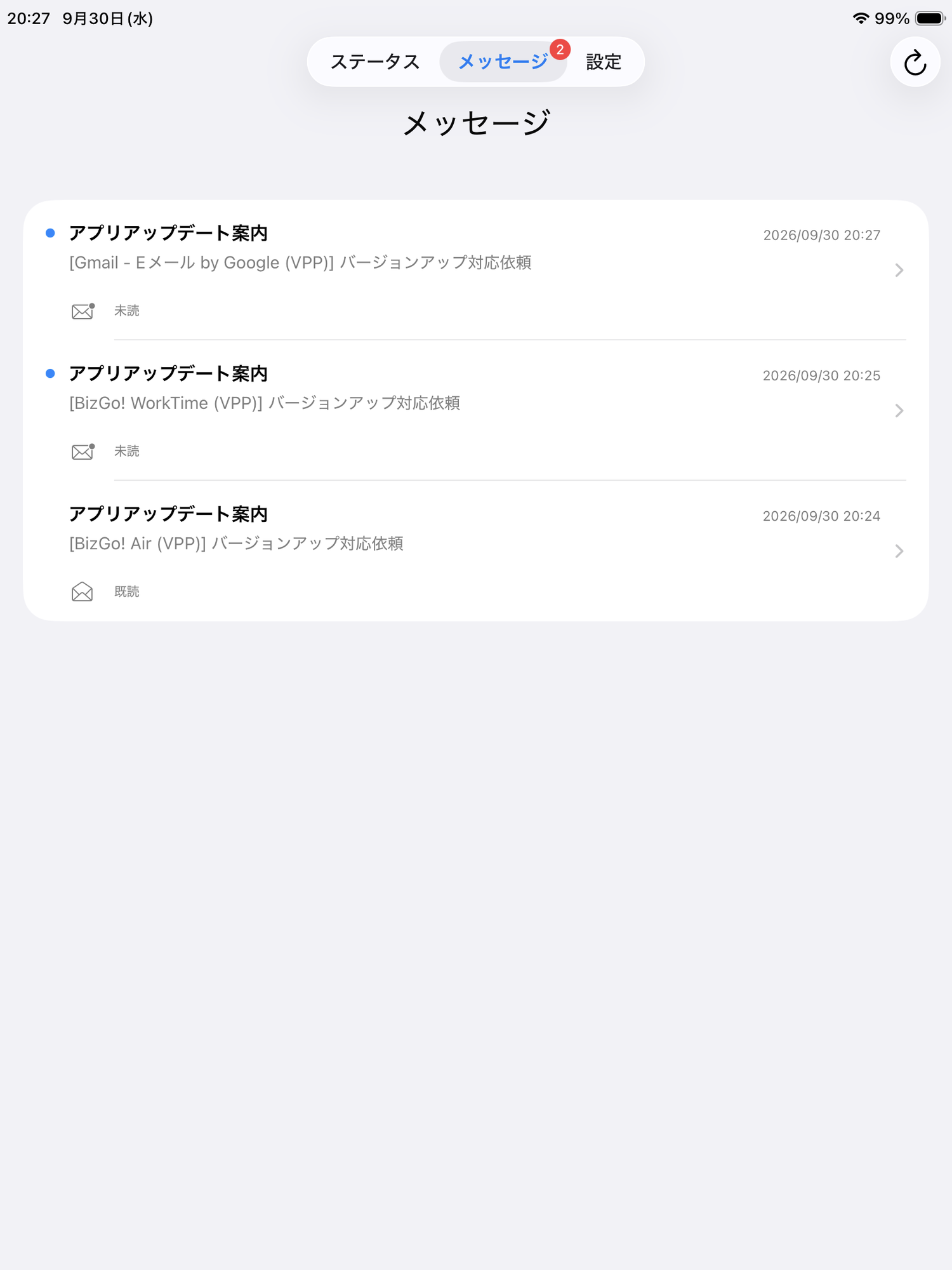
The list of messages whose updates are not yet complete is displayed.
Unread messages show a blue mark and "Not Read", and messages that have been checked show "Read".
The number of unread messages is also displayed as a badge on theMessagestab at the top of the screen.
When the device syncs after the update is complete, the message is deleted. -
Message display (OS update notice)
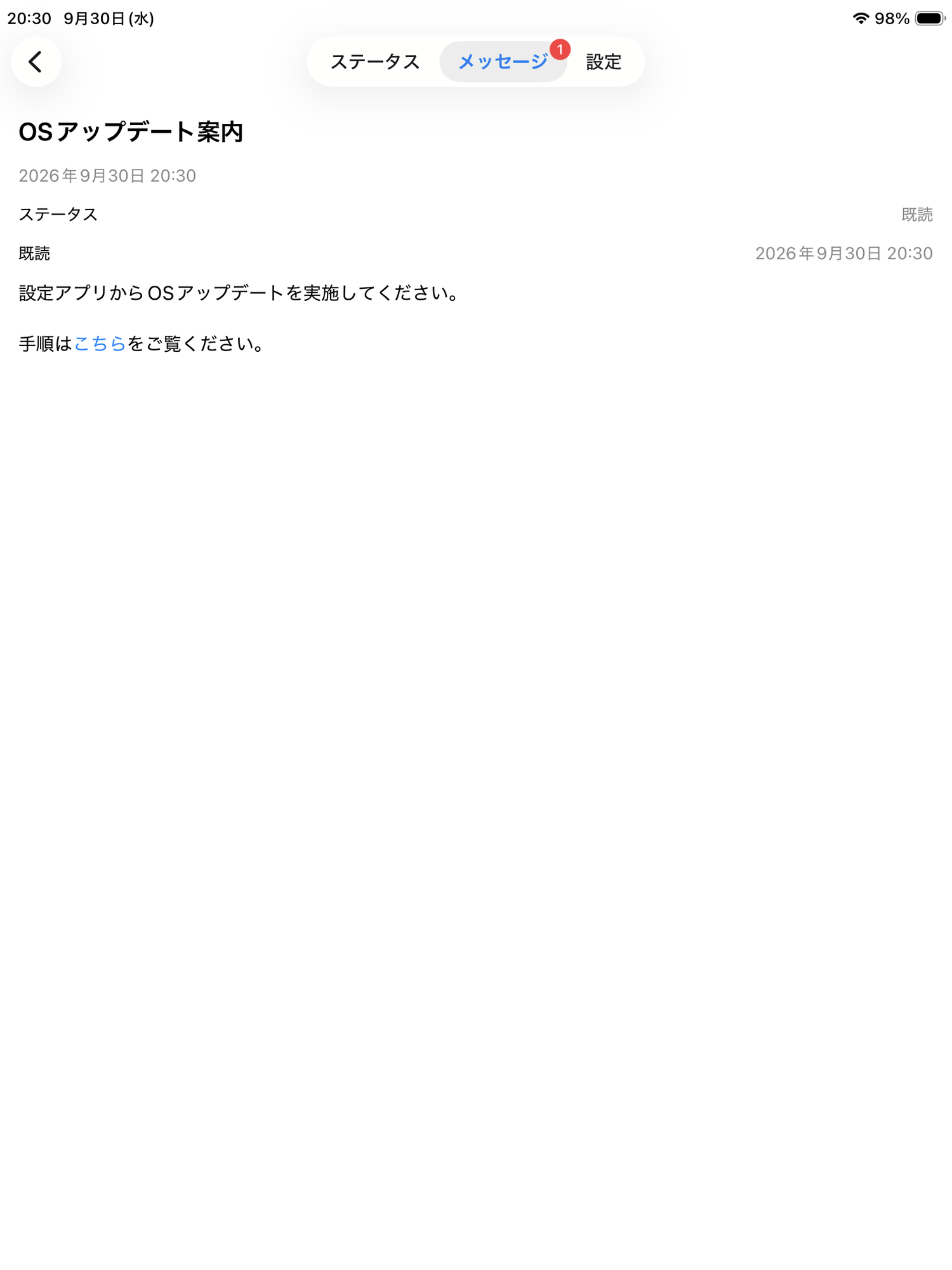
If the administrator has set a URL link in the message, you can tap the link to display a web page such as a procedure guide. -
Message display (app update notice)
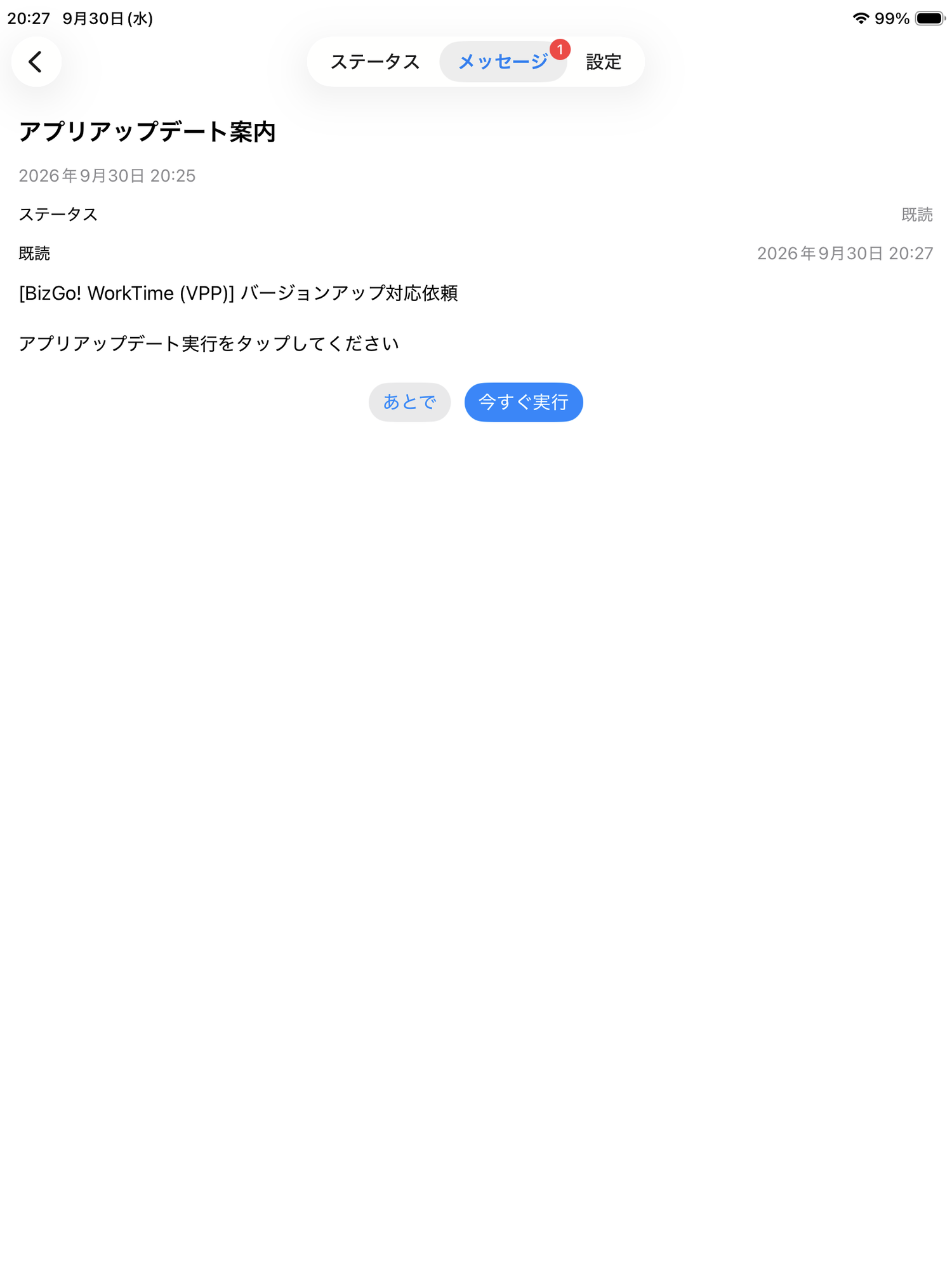
When you tapRun Now, an update command request is sent to the MDM server. The app update command is then executed.
Update from the app list
You can also run an app update directly from the app list on the Status screen without going through a message.
- An
Updatebutton is displayed for apps that need an update. When you tap it, an update command request is sent to the MDM server. - Apps for which a request has been sent show
Requested. The app update command is then executed. - The
Requesteddisplay disappears when the MDM server confirms that the update is complete at the next sync after the update.