Deploy with Android Shared Device QR Code Authentication (Work Profile Mode)
Android
What is a shared QR code?
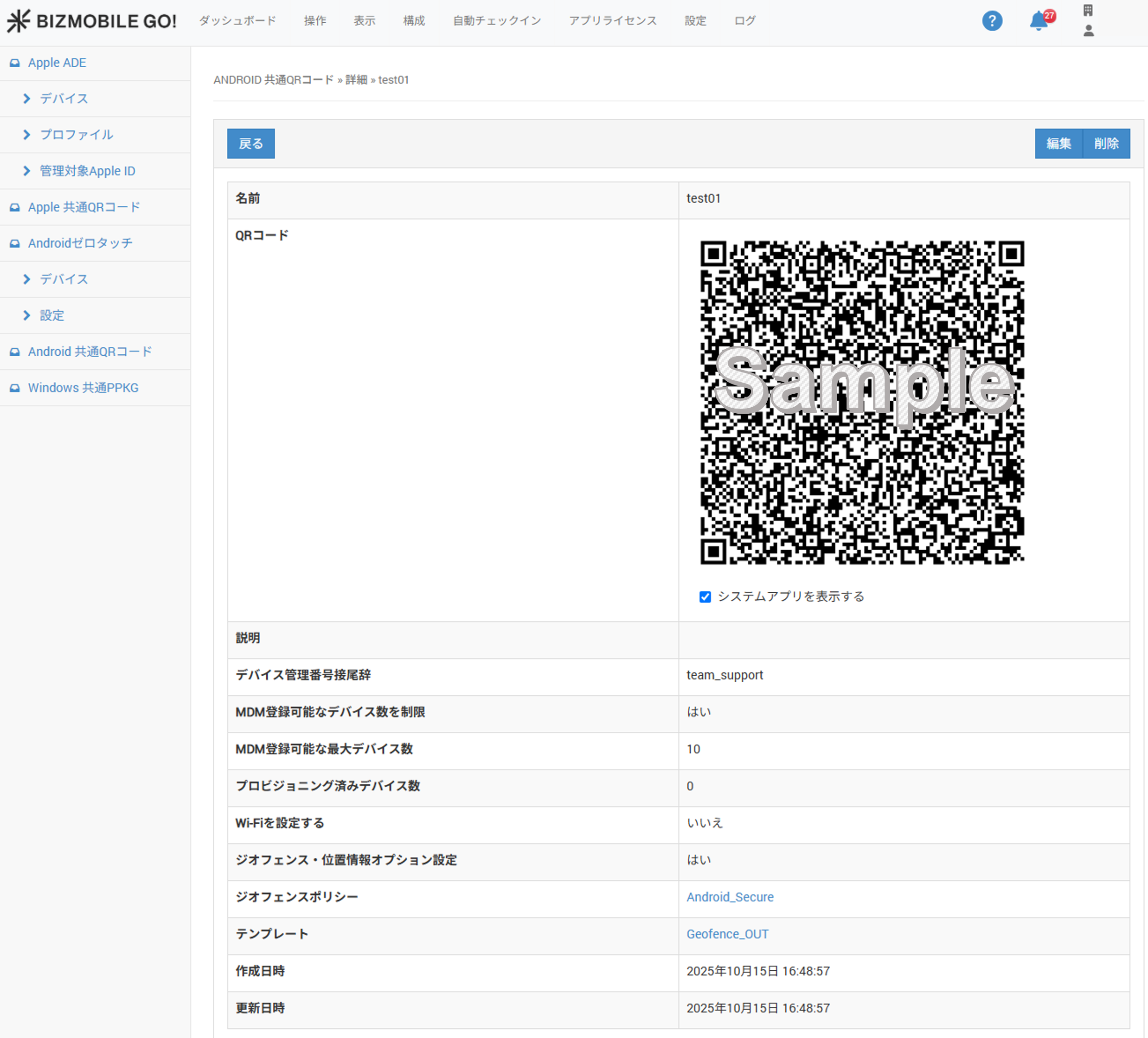
A shared QR code is a single QR code that contains device check-in information and can be shared by multiple devices. Scanning one QR code performs both the Device Owner setup and the device check-in.
Devices that check in with the same QR code are automatically assigned an identifier that contains a common suffix.
You can check in by scanning the QR code without creating device information, including an identifier, in advance. After check-in is complete, you can view the device information under CONFIG → Device.
Note: When checking in multiple devices with the same QR code, wait a few minutes between check-ins.
Create an Android shared QR code
-
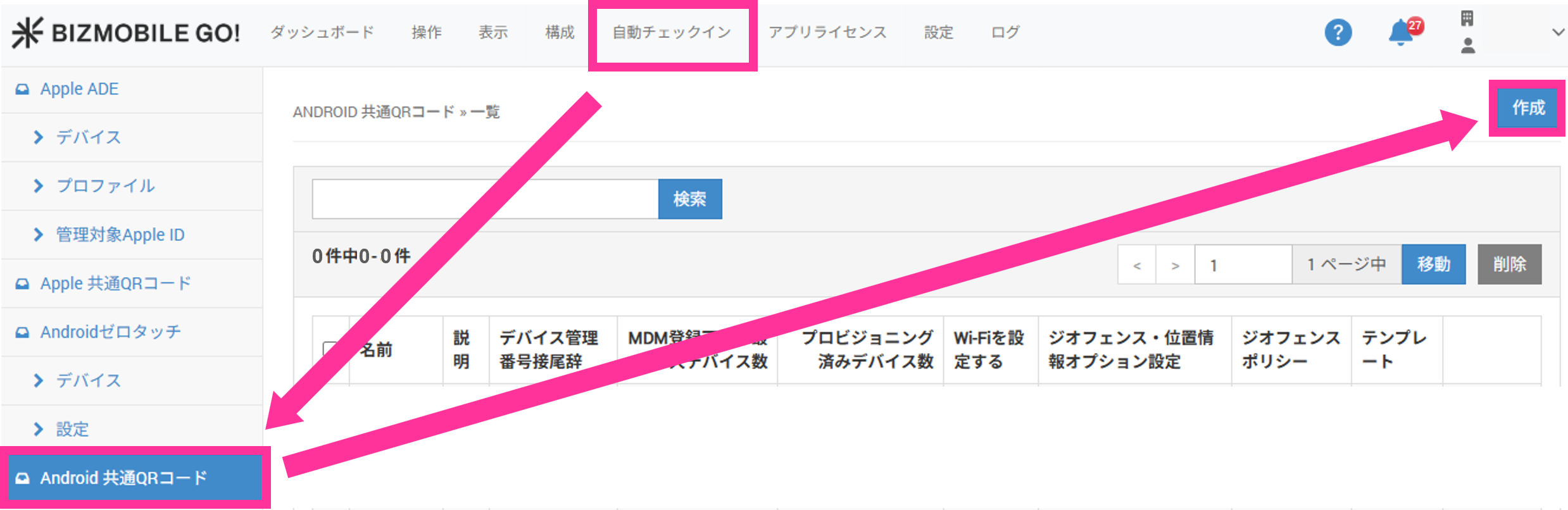
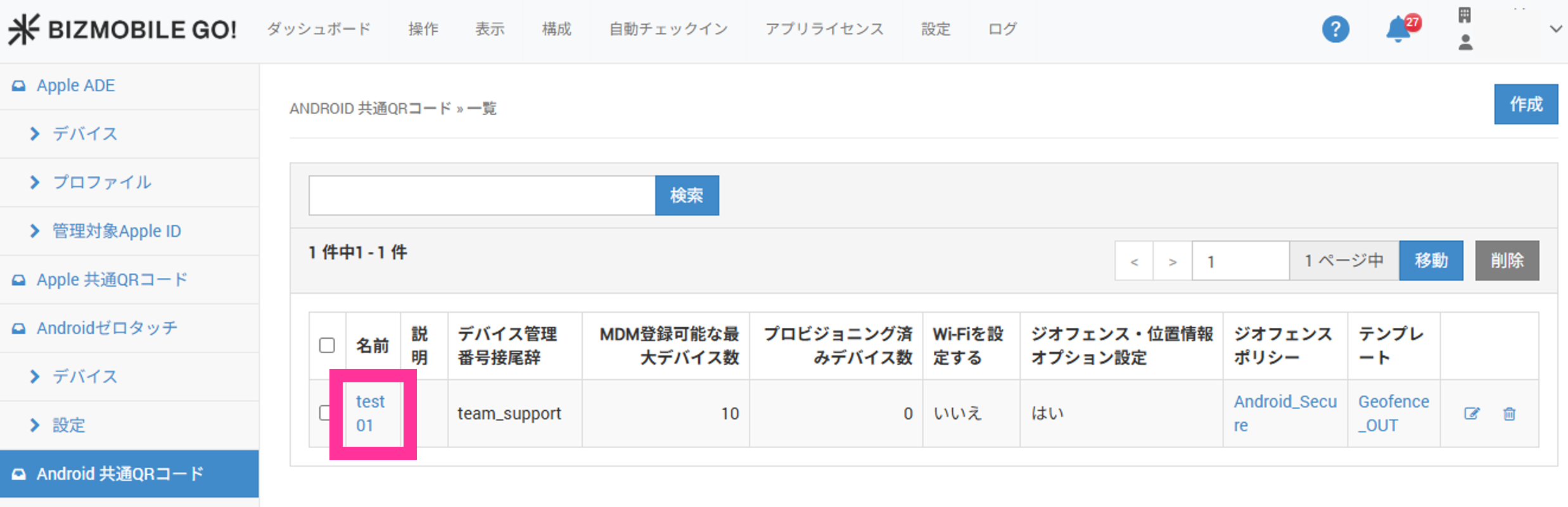
Click "Create" for AUTO ENROLLMENT → ANDROID SHARED QR CODE.
-
Enter the required information on the screen that expands.
Input fields (★ indicates a required field)
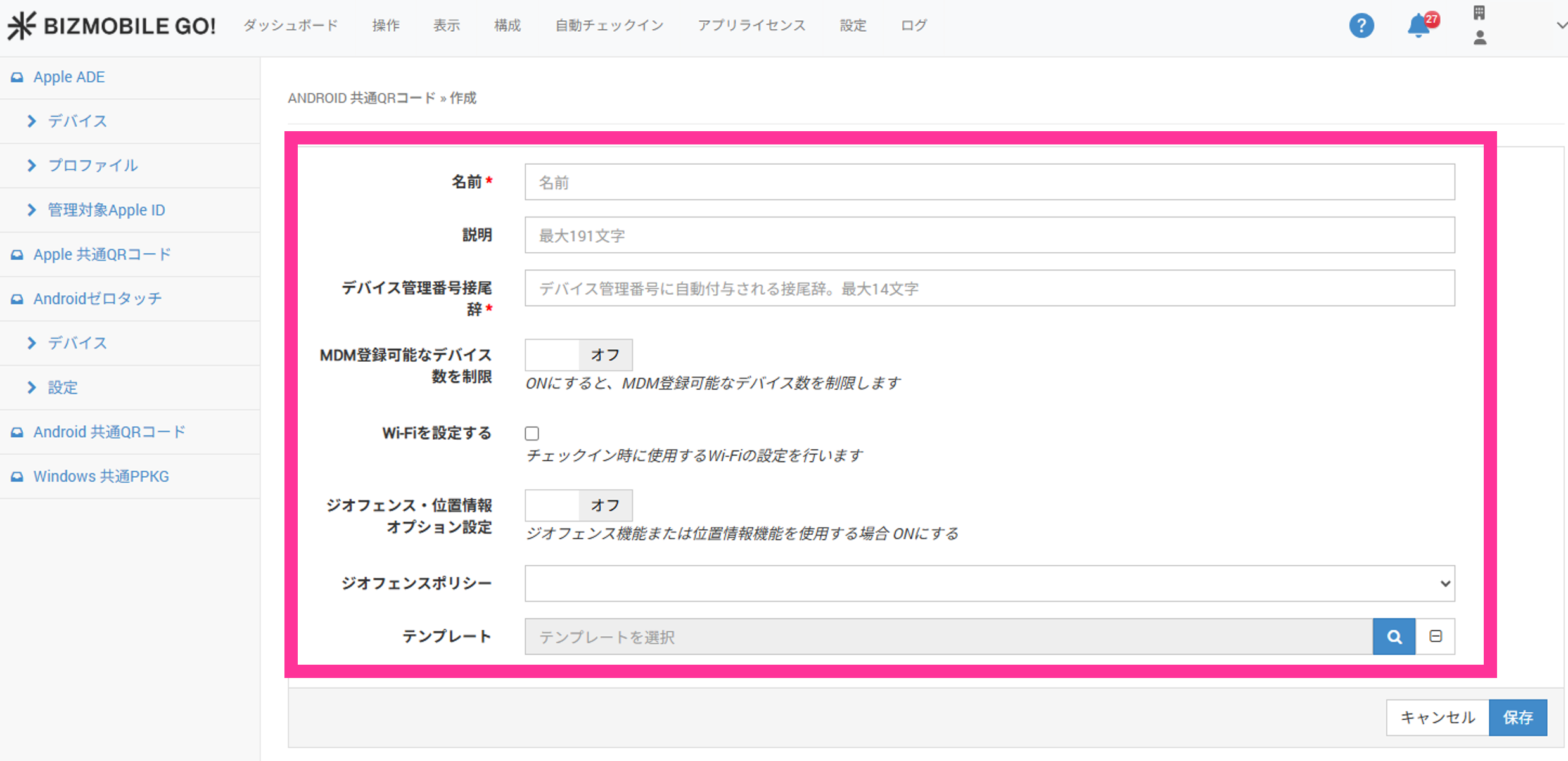
Name★ Specify the display name of the shared QR code. Description You can add any description. Device ID Suffix Specify the suffix that is automatically appended to the device identifier when a device checks in with this shared QR code.
The identifier consists of a 6-digit number followed by the suffix. Numbers are assigned automatically in the order of check-in and cannot be changed after check-in.
(Example) Identifier: 000001bizgodevice
000001 = automatically assigned number, bizgodevice = suffixLimit the number of devices that can enroll in MDM When turned on, you can specify the number of devices that can enroll. There is no upper limit to the number you can set. Configure Wi-Fi When turned on, you can configure the Wi-Fi settings used at check-in. Geofence/Location option settings Turn this ON if you use the Geofence or Location feature of the optional services. Geofence Policy To apply a geofence policy, select it here. Template You can select a template if one has already been created.
The template selected here is automatically assigned to devices that check in with this shared QR code.
When "Limit the number of devices that can enroll in MDM" is turned on, the "Number of Devices" field is required.

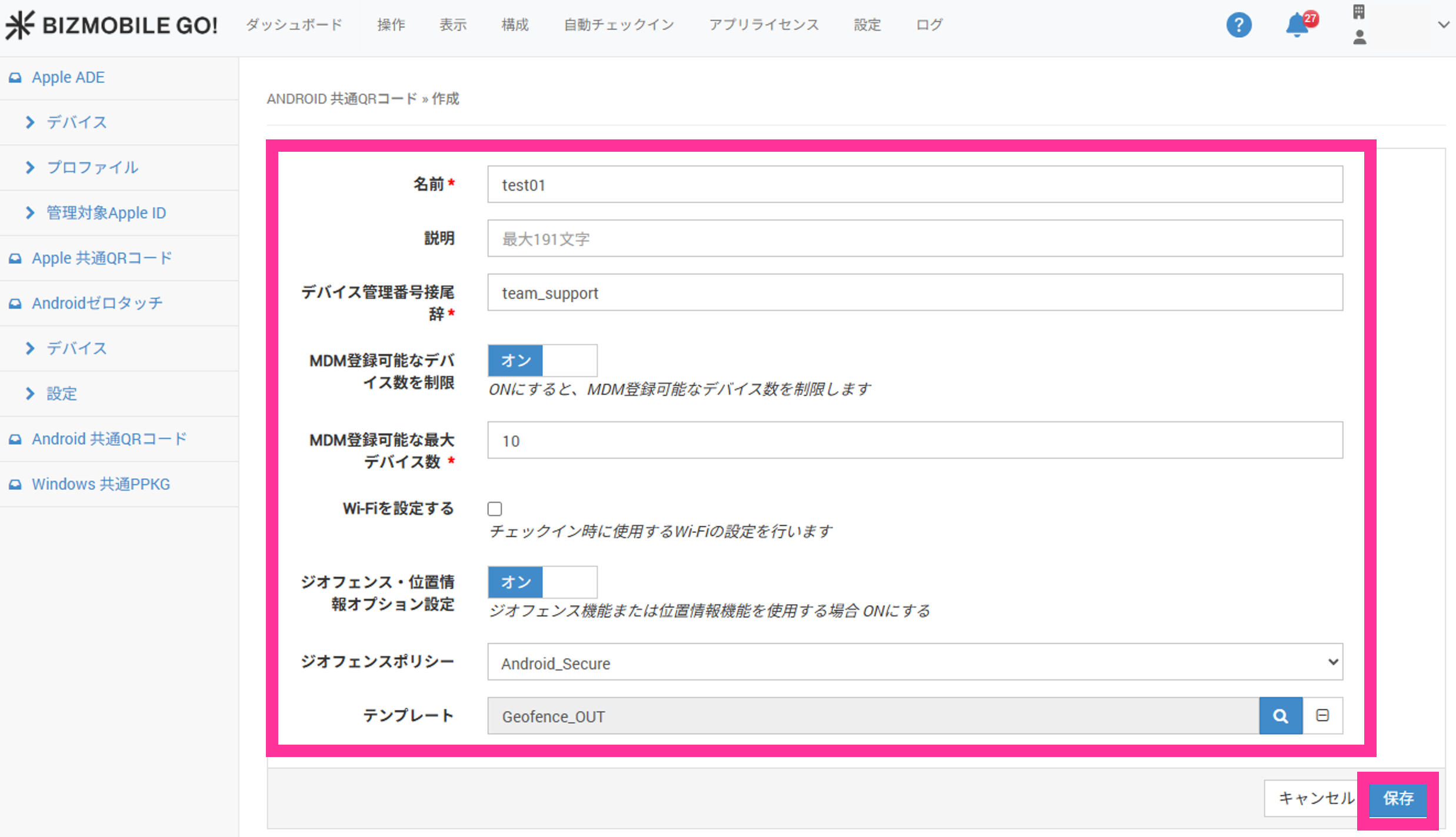
- After entering the required information, click "Save".
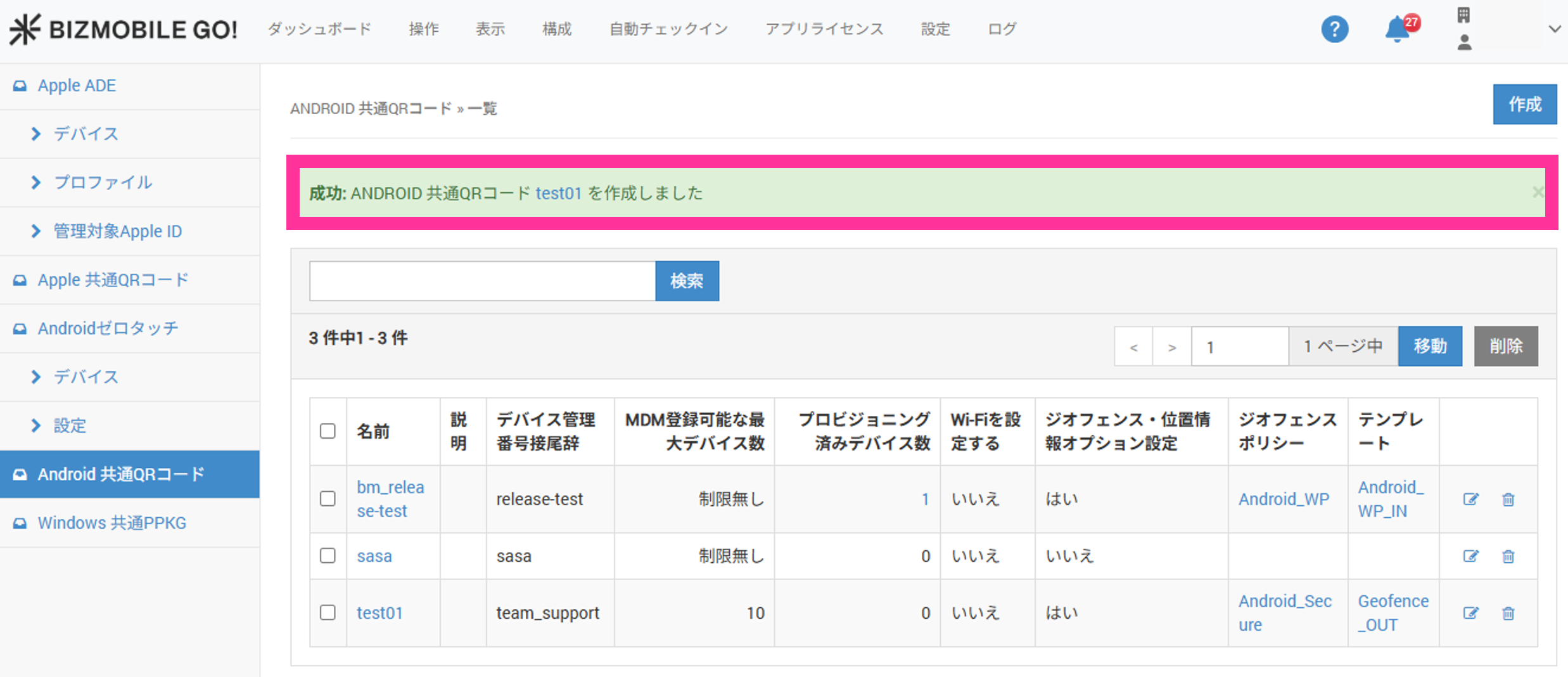
- When "Success" appears, the shared QR code has been created.
Check in using the Android shared QR code
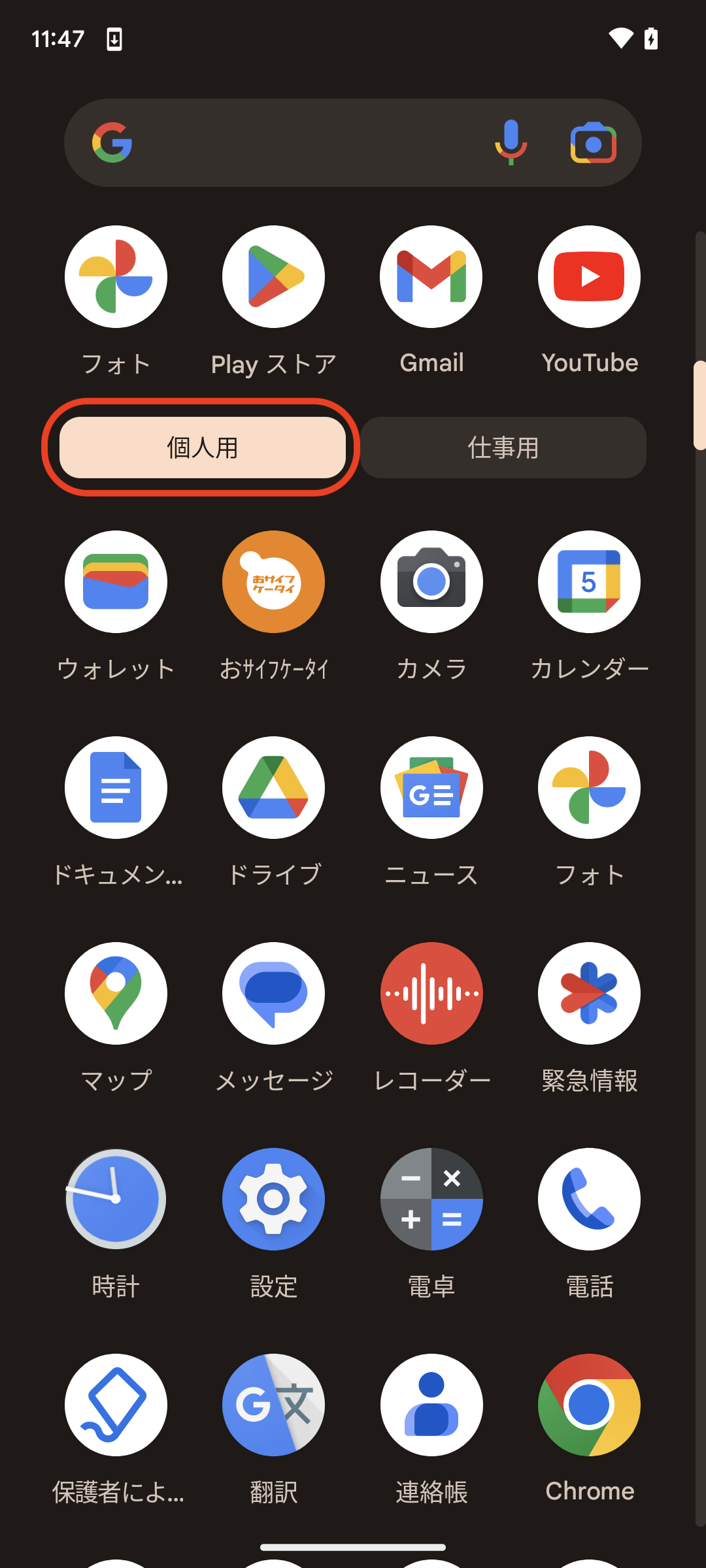
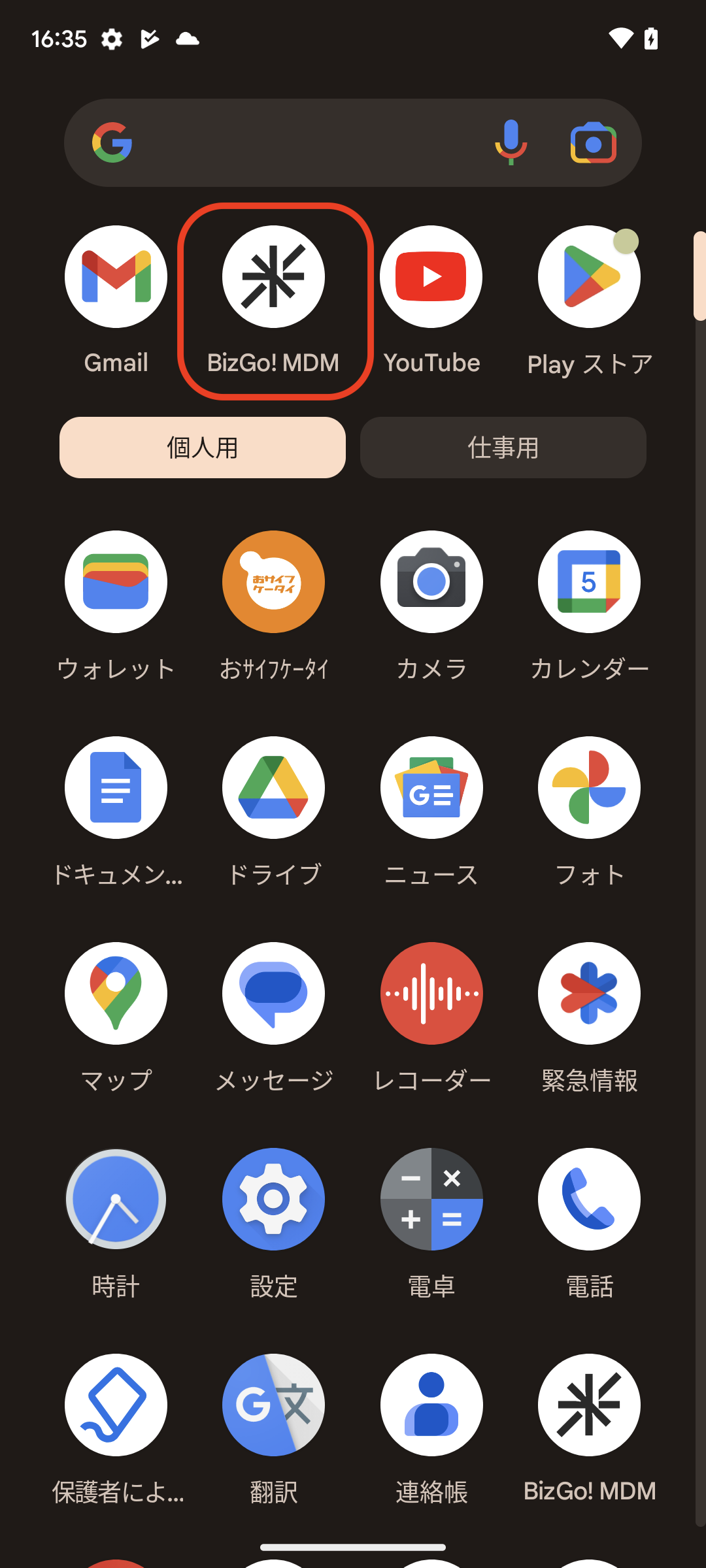
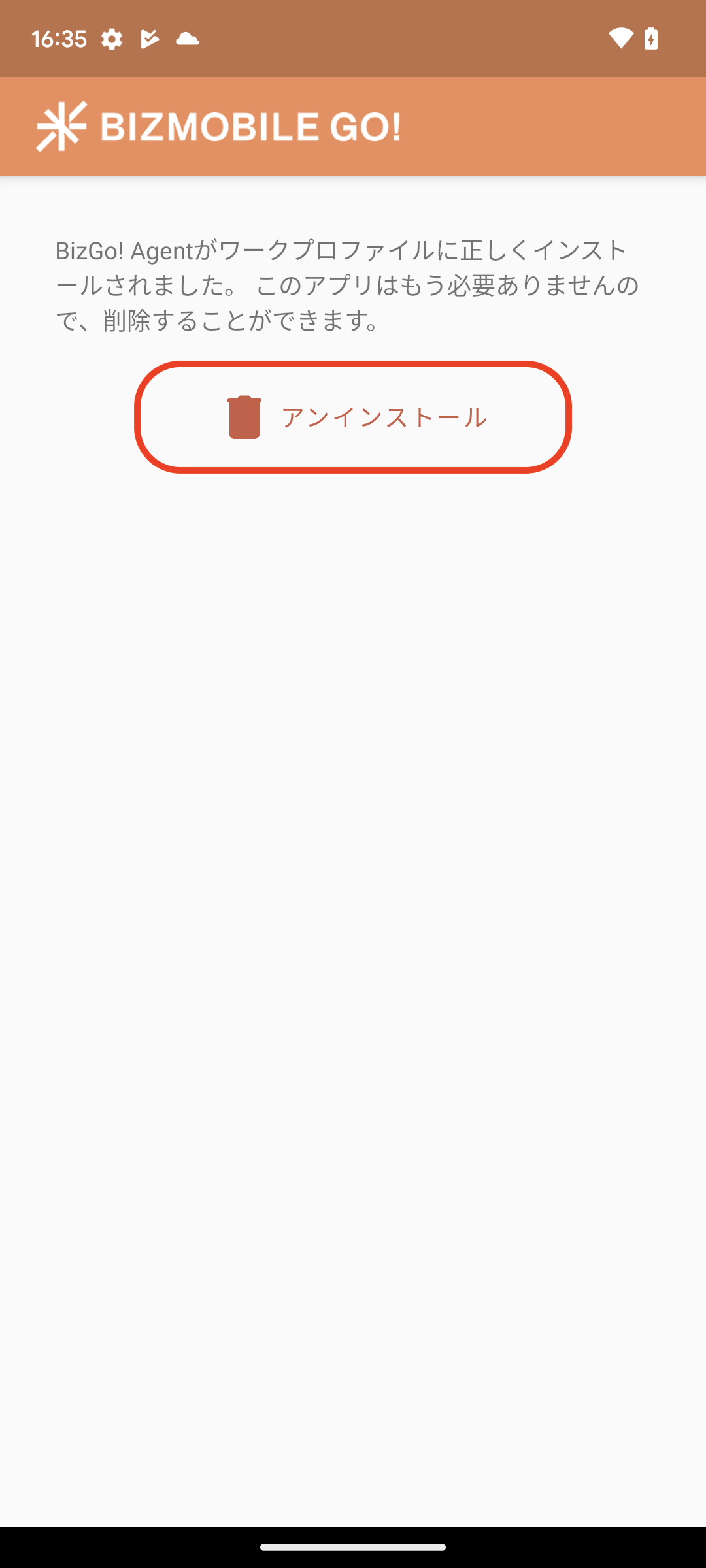
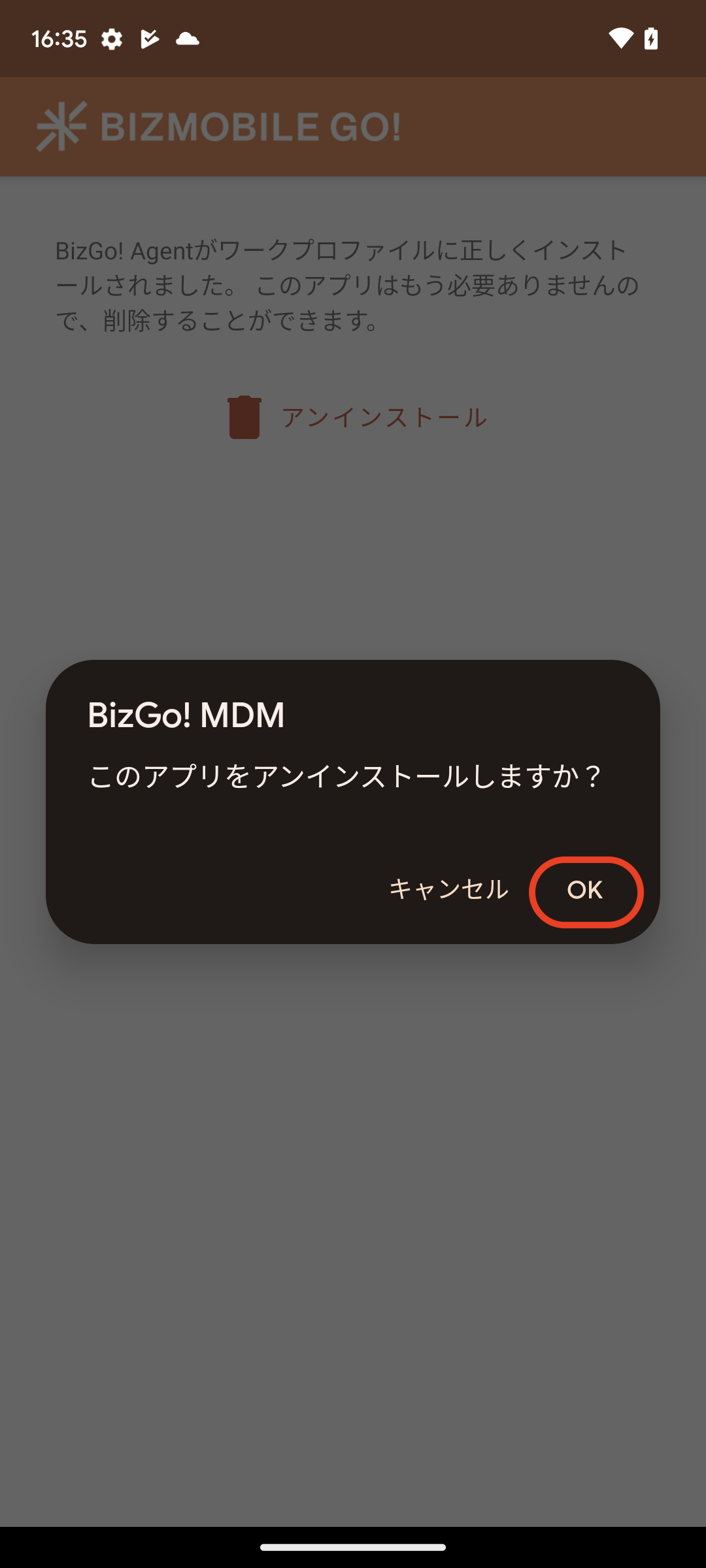
As the final step to enable device management, check in the device. When check-in is complete, the device is registered in BizMobile Go! and can be managed.
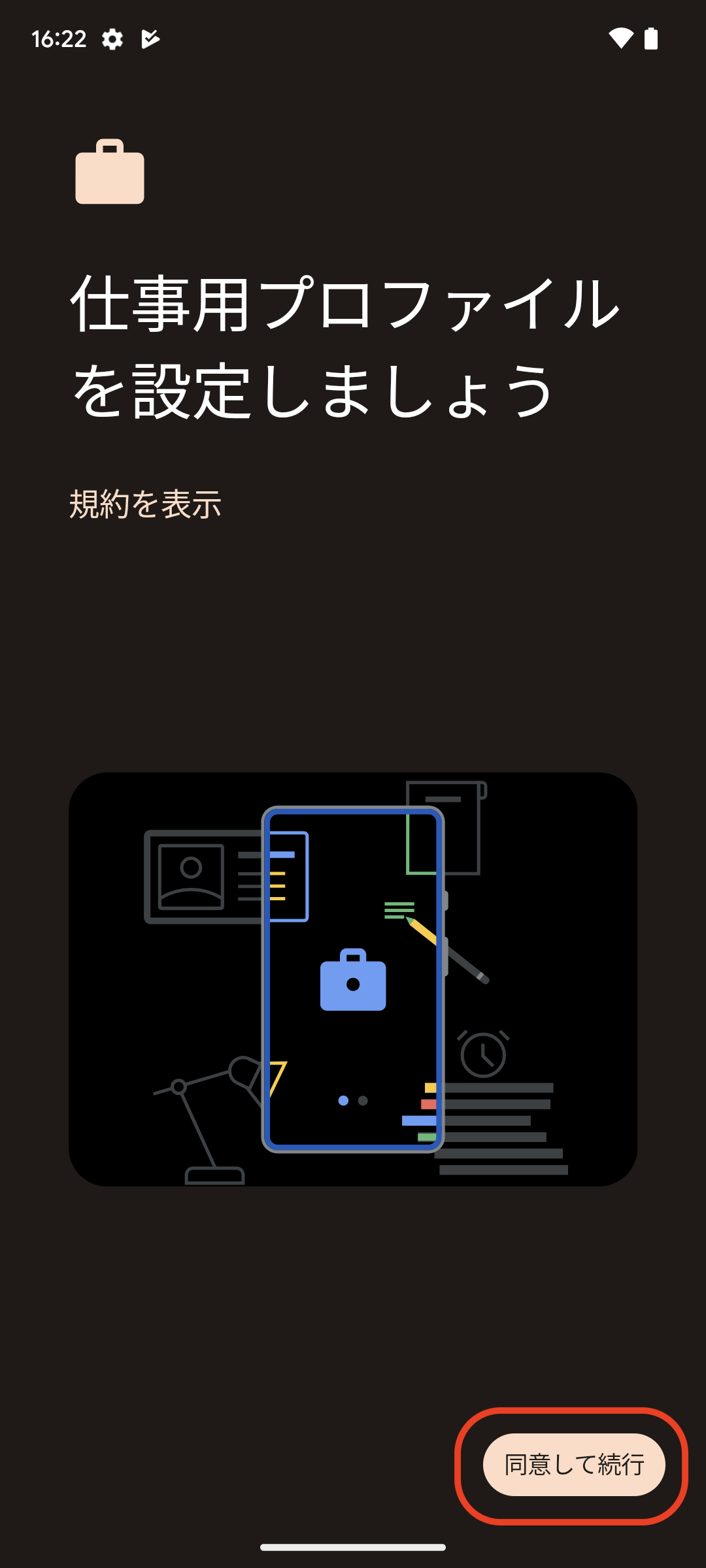
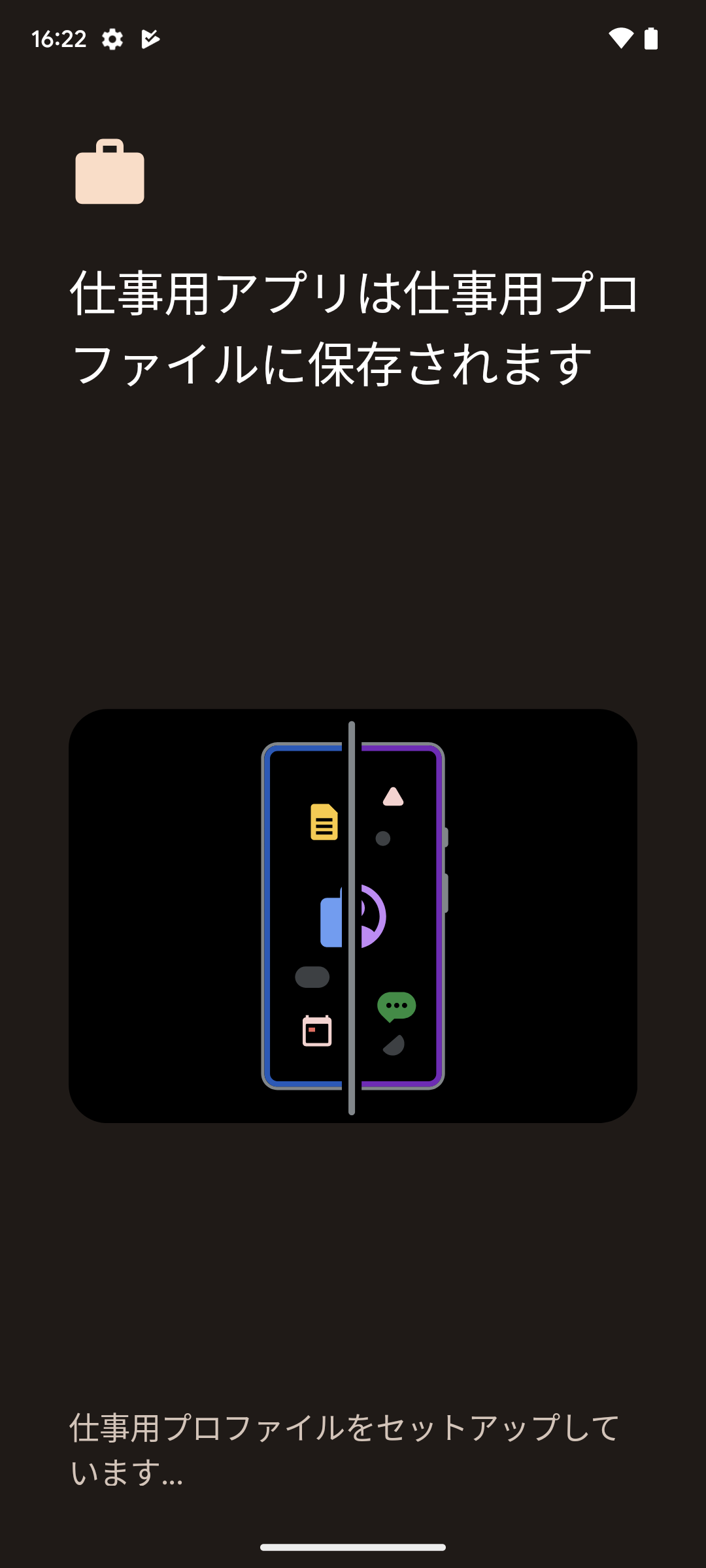
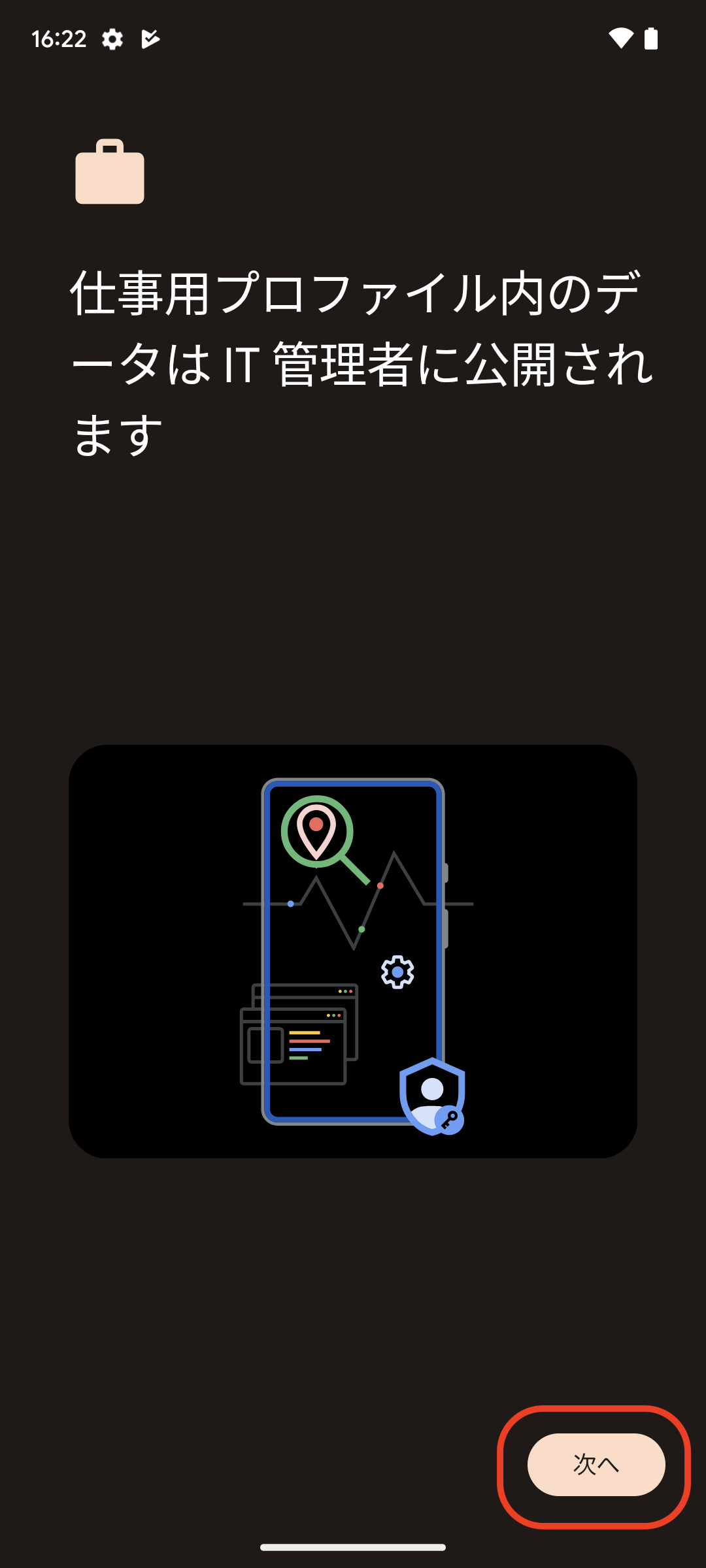
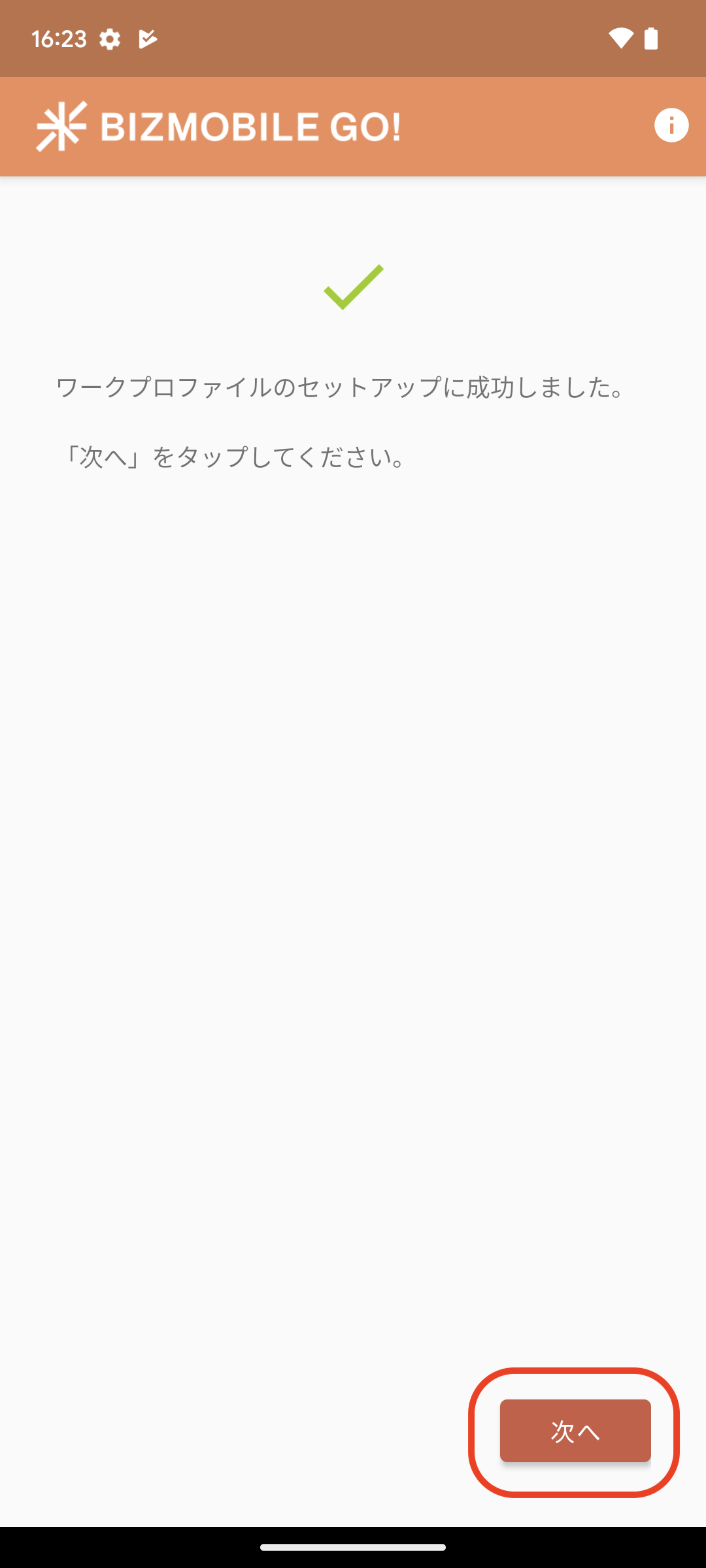
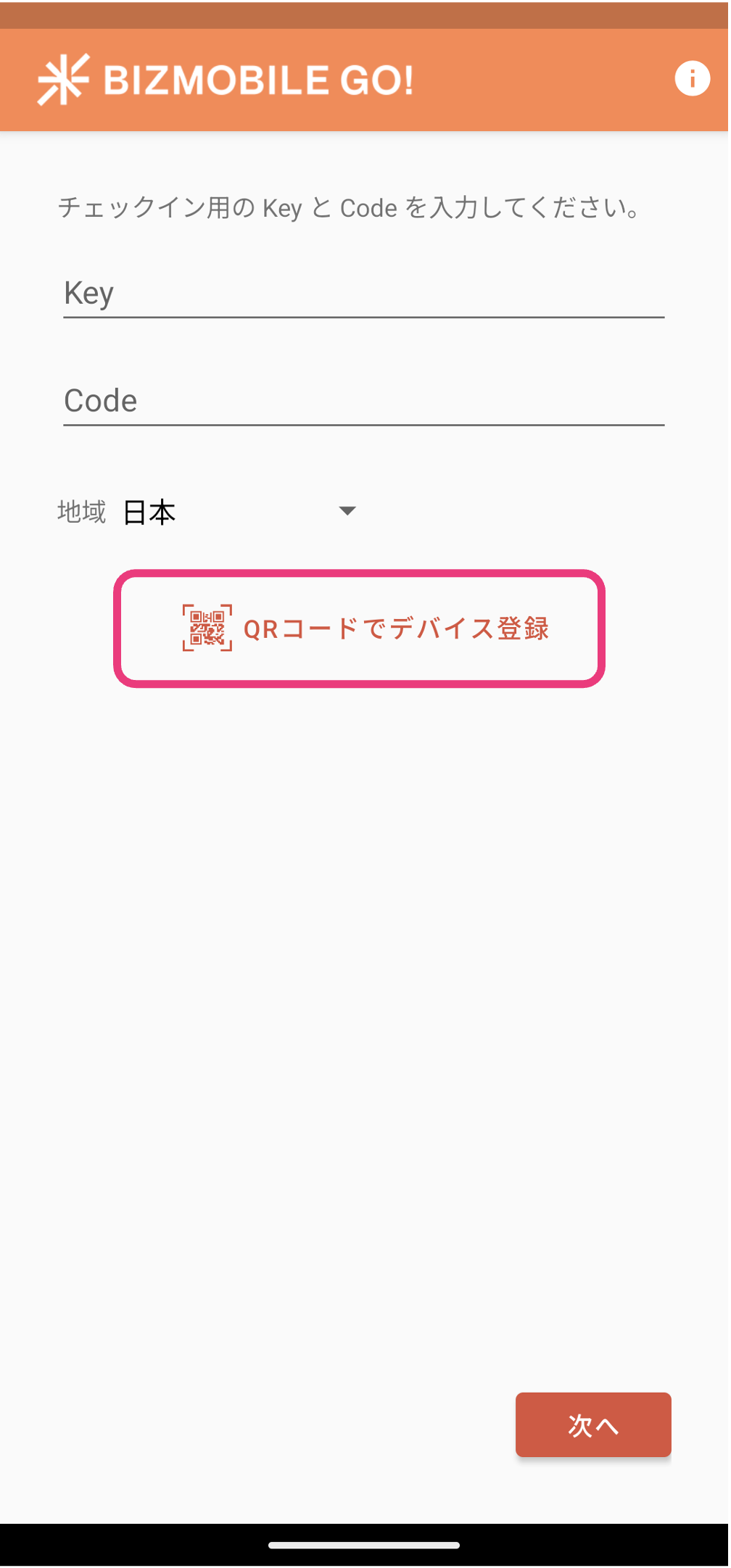
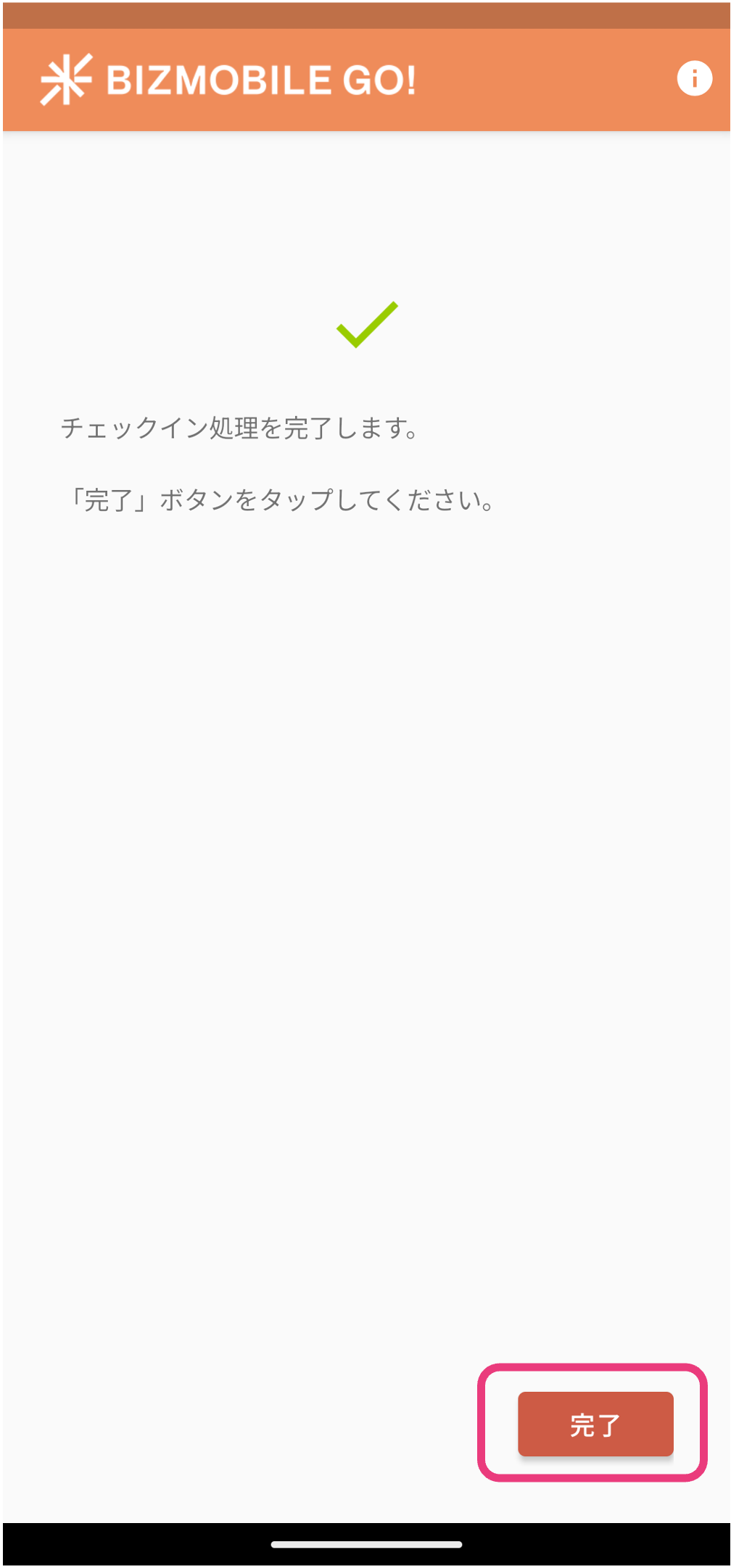
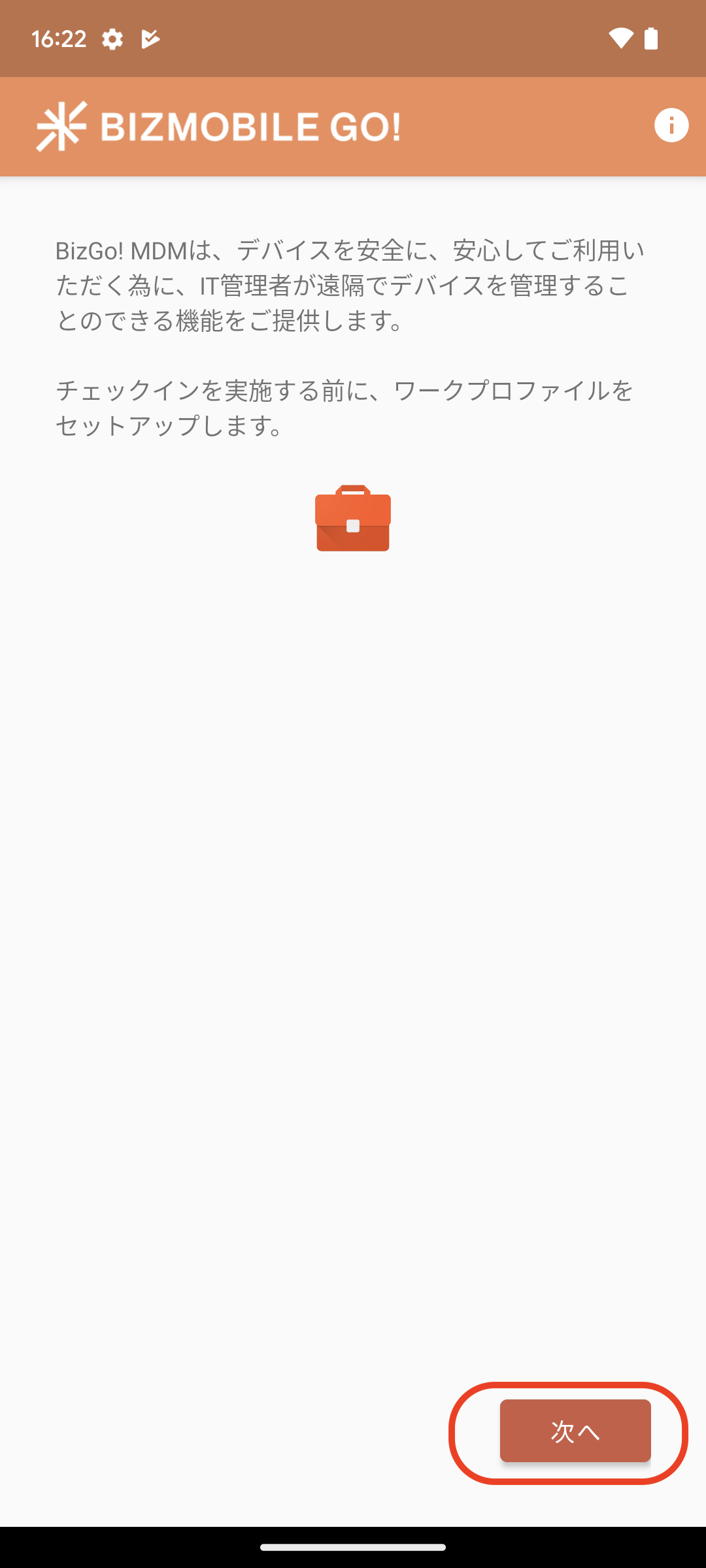
To enroll in MDM, reset the device, scan the shared QR code as described in the check-in procedure, and then follow the on-screen instructions to set up the device for use (activation). The Device Owner setup and check-in to BizMobile Go! then complete automatically.
When check-in is complete, the device is registered in BizMobile Go!, and the profiles, apps, and other items registered in the same template as the device are distributed to the device, completing device setup (kitting) automatically.
Note: The images show the settings screens on Android 13 and a Pixel 4a.
Note: When checking in multiple devices with the same QR code, wait a few minutes between check-ins.
Prepare
|  |
|  |
Perform check-in
The display may differ depending on the model, OS, and version of the agent app.
| |
|
|
|
|
|
|
|
|
|  |
|  |
|  |
|  |
|  |
|  |
|  |
|  |
|  |
|  |
| 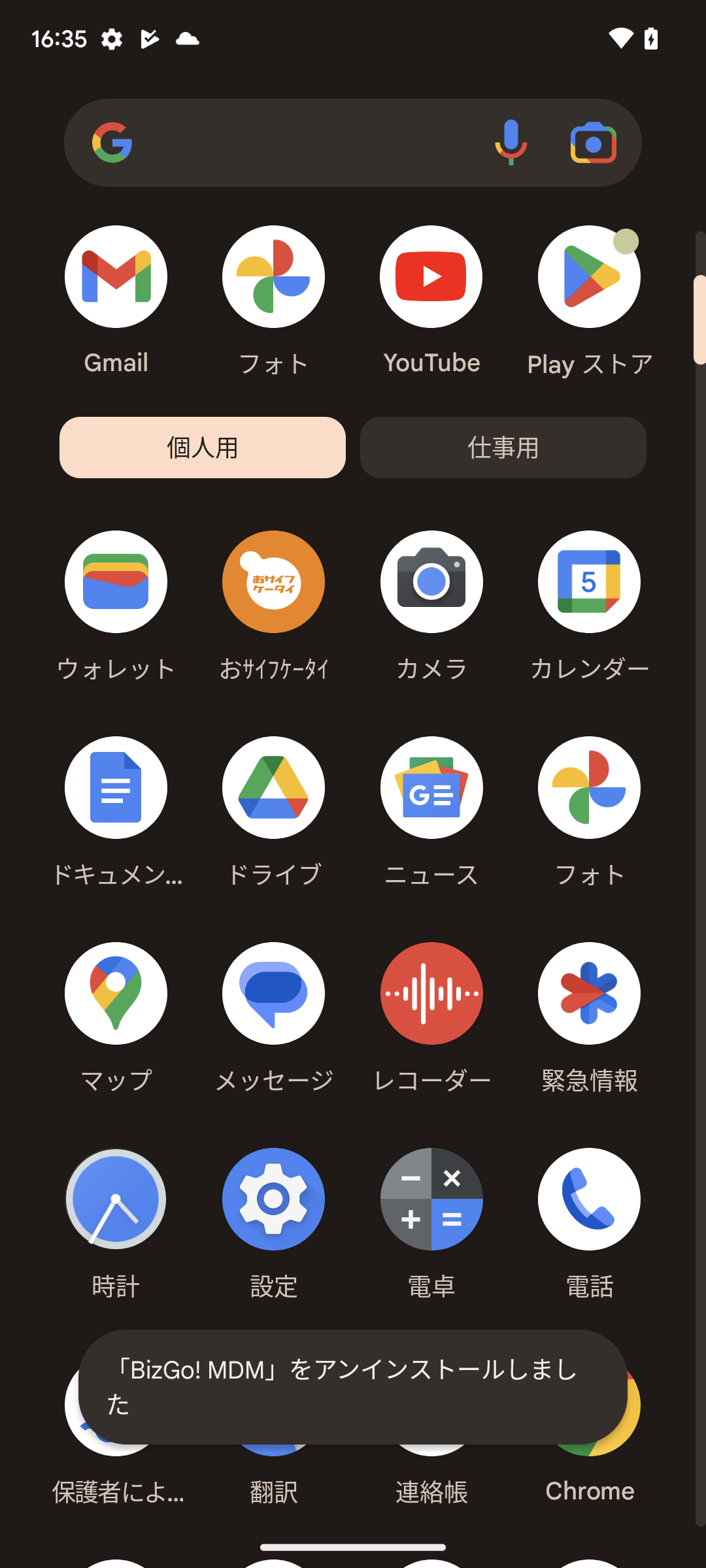 |

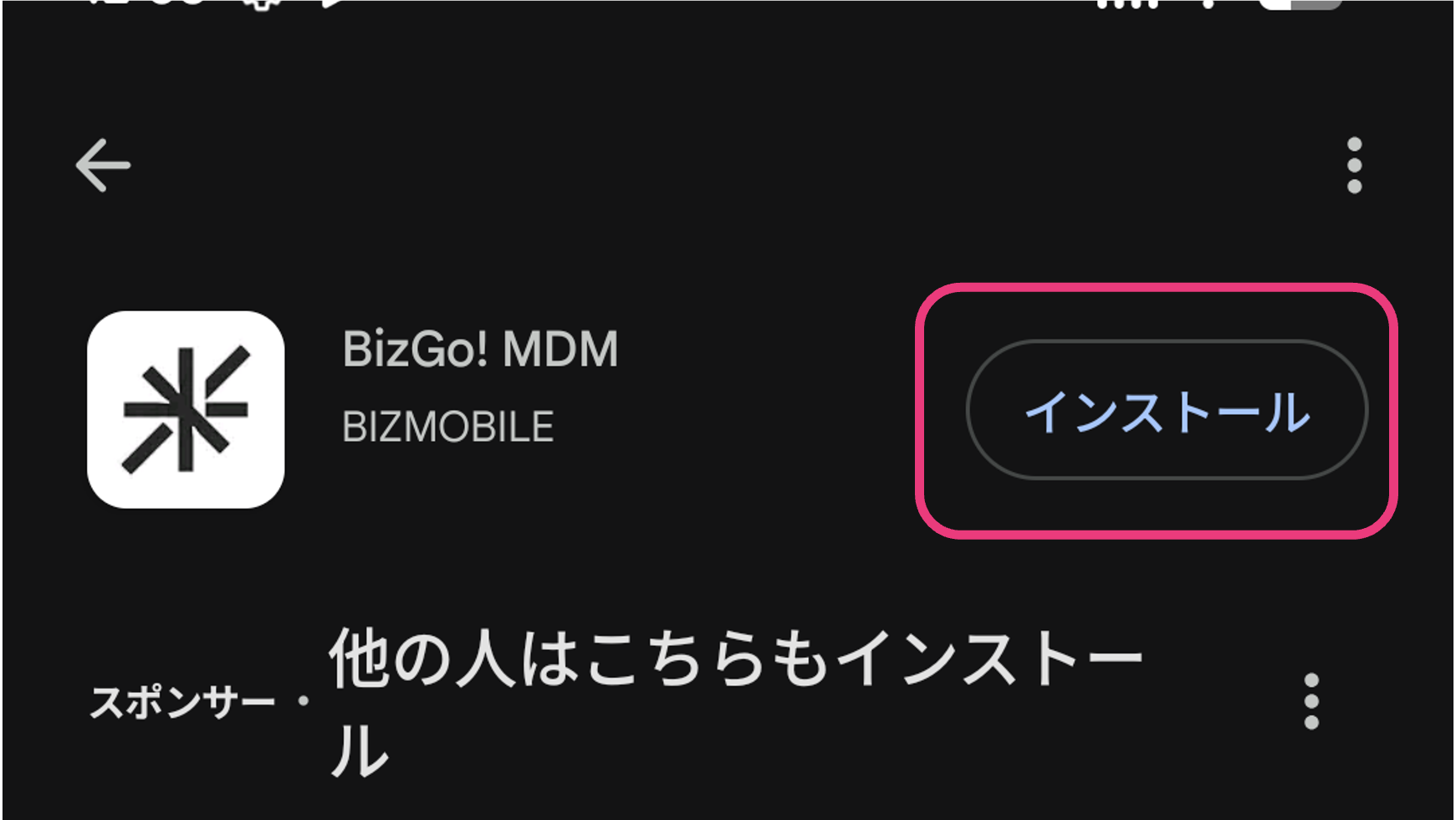
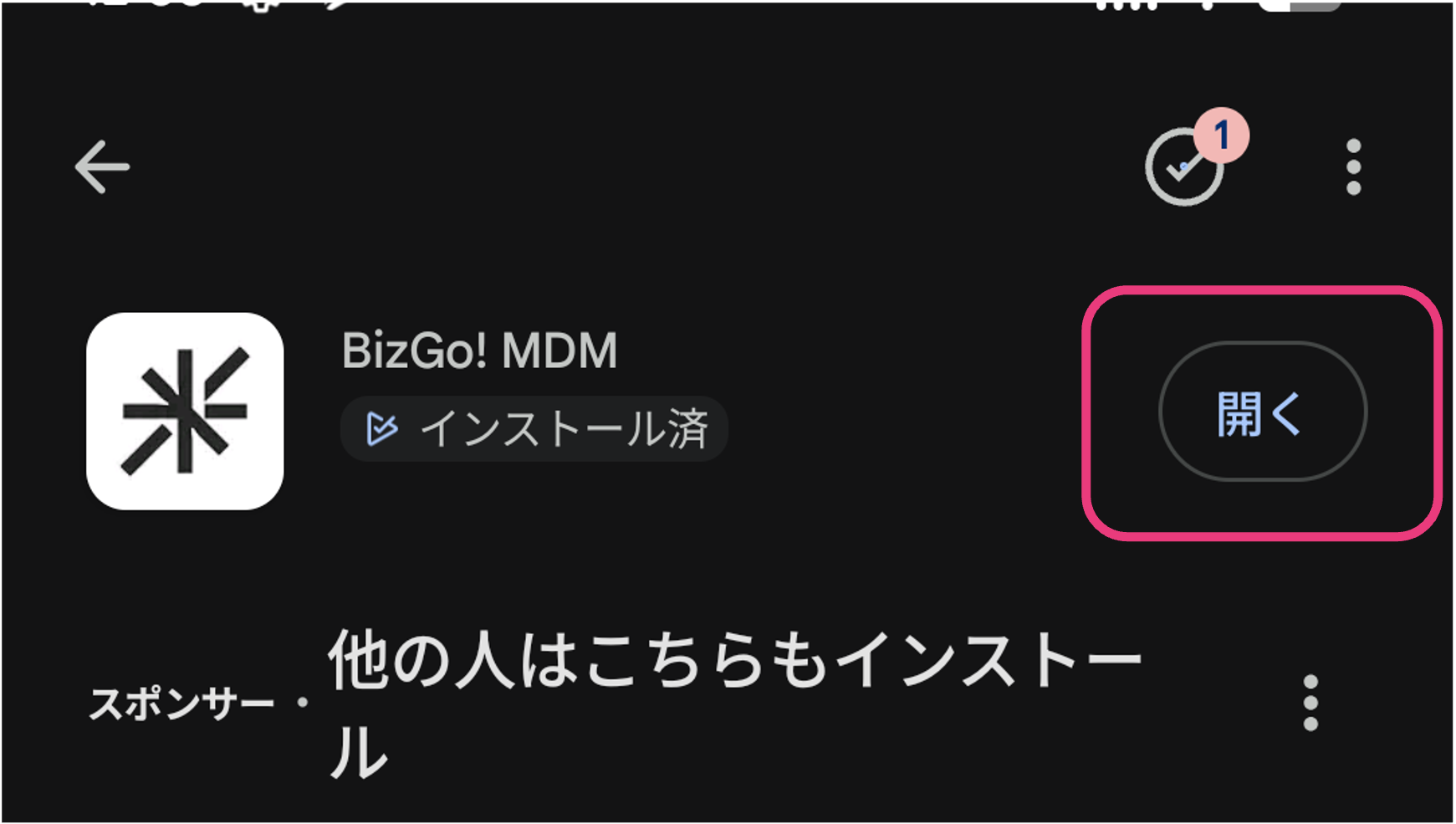
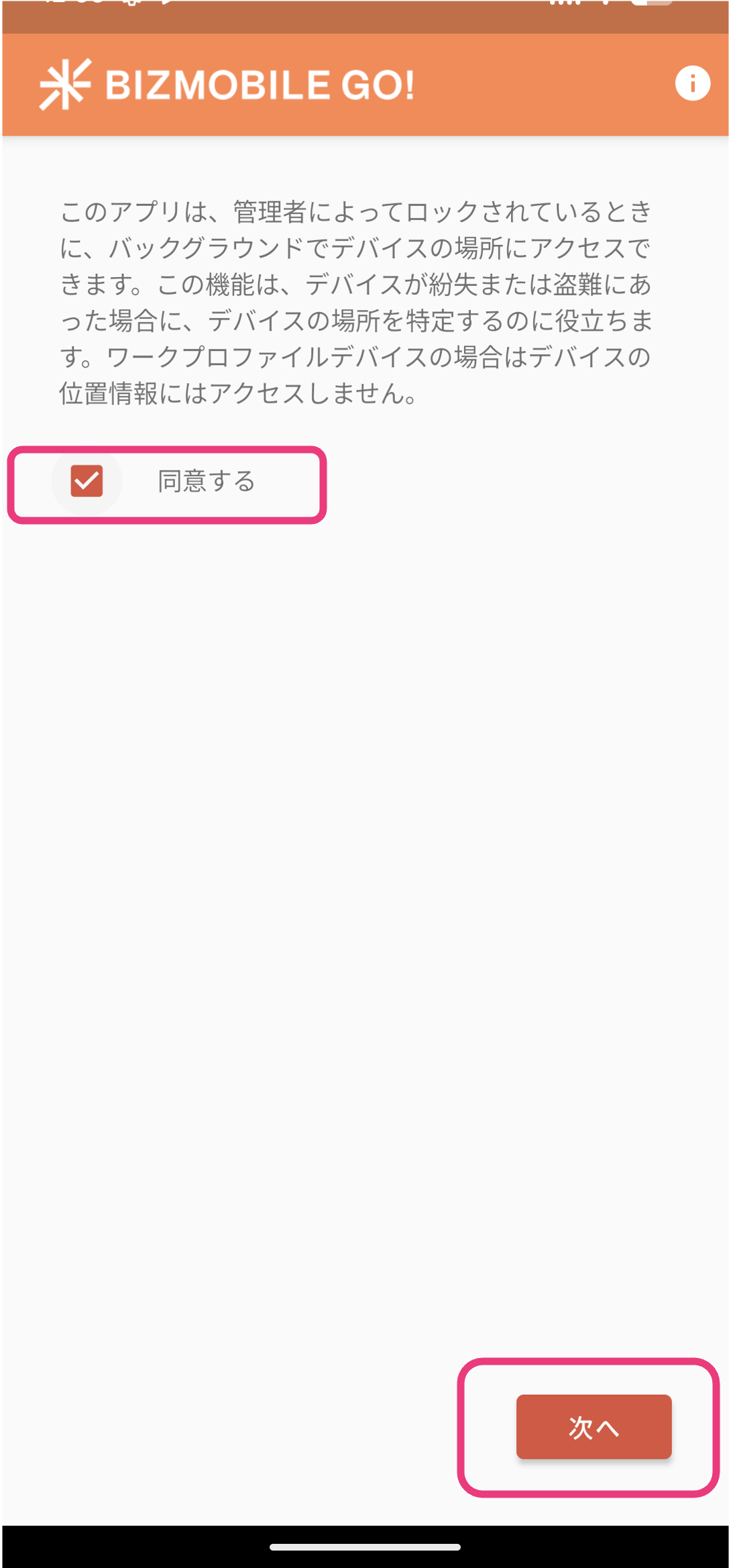
Depending on the network conditions in the device setup (kitting) environment, it may take some time for all the profiles, apps, and other items registered in the template to be installed on the device.
Before you sign in to the device with a Google Workspace account, wait at least 5 minutes after check-in is complete.
(If you configured EMM using a Google Workspace account, sign in to the device only after the first EMM sync following check-in is complete.)