Device Exchange
iOSAndroid MacOSWindows
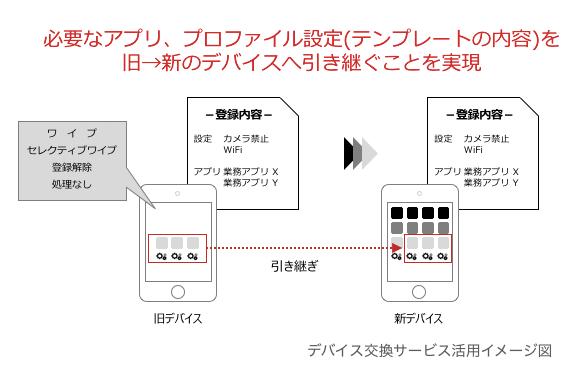
This feature lets you move a device under BizMobile Go! management to a new device while keeping the management information of the original device (only a new "device identifier" is set).
When you replace a device, for example when changing models, you can continue managing it in BizMobile Go! by carrying over the existing management information, without registering new device information.
The management information is transferred when the new device is enrolled, and you can choose the action for the original device (withdraw, selective wipe, wipe, or none). Note: If the original device is a macOS device, you cannot select [Wipe].
On iOS and iPadOS, apps installed with the BizGo! Catalog app (Application Catalog) are not installed automatically on the new device.
Launch the BizGo! Catalog app on the new device and install the apps.
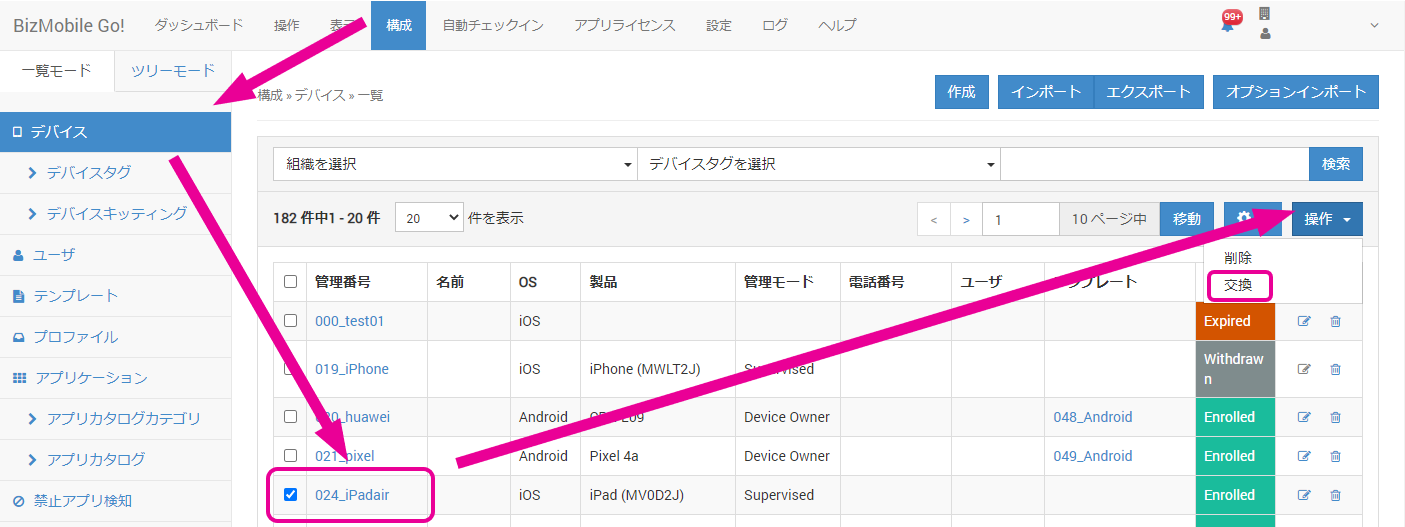
Register device exchange information
- Click CONFIG → Device, select the check box of the original device, and then click CONTROL → "Exchange".
- The original device must be in the "Enrolled" status.
- Enter the required information on the device exchange screen that appears.
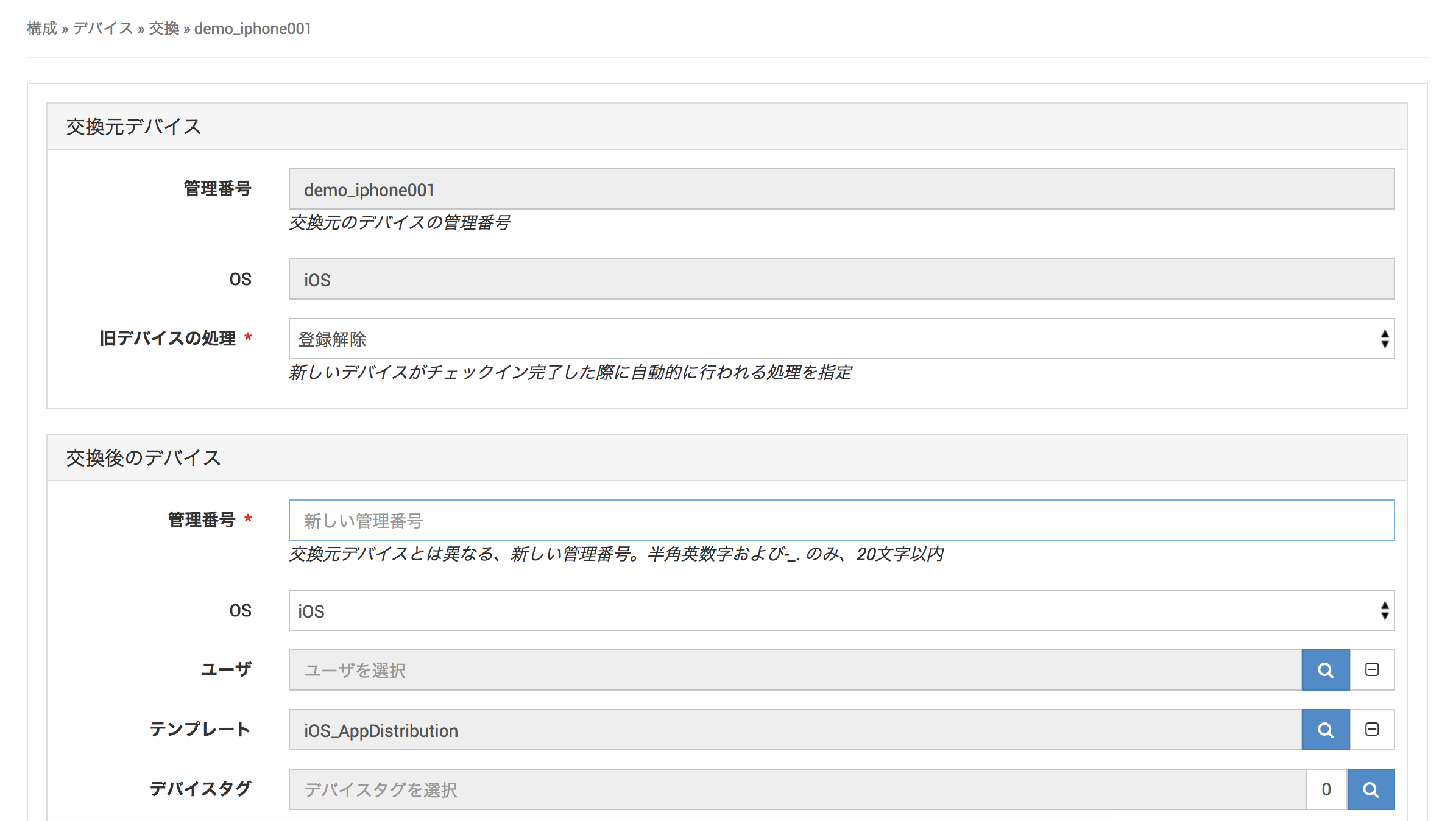
Input fields (items marked with ★ are required)
| Old Device | |
| Identifier★ | The identifier of the device you selected as the original device is displayed by default. |
| OS | The OS of the device you selected as the original device is displayed by default. |
| Old Device Action | Select the action to perform automatically when enrollment of the new device is complete.
|
| New Device | |
| Identifier | Enter a new identifier that differs from that of the original device. |
| OS | Select the OS of the new device. |
| User | Specify the user of the new device. |
| Template | Specify the template to assign to the new device. |
| Device Tag | Specify the device tag to assign to the new device. |
| Key | Generated automatically from the identifier and the unit name (format: identifier@unit). |
| Code | The passcode required when you enroll the new device. |
| Enrollment Email | Enter the address to send the enrollment information email to. |
| Expiration Date | Select the enrollment deadline for the new device. The default is one week from today. |
- To clear the information you entered, click [Cancel]. To register the information, click [Save].
You can also create the information for many device exchanges at once by using a CSV file. For details, see Create Information with a CSV File (Settings).
Check device exchange information
- On the CONFIG → Device screen, click the identifier of the device you want to check.
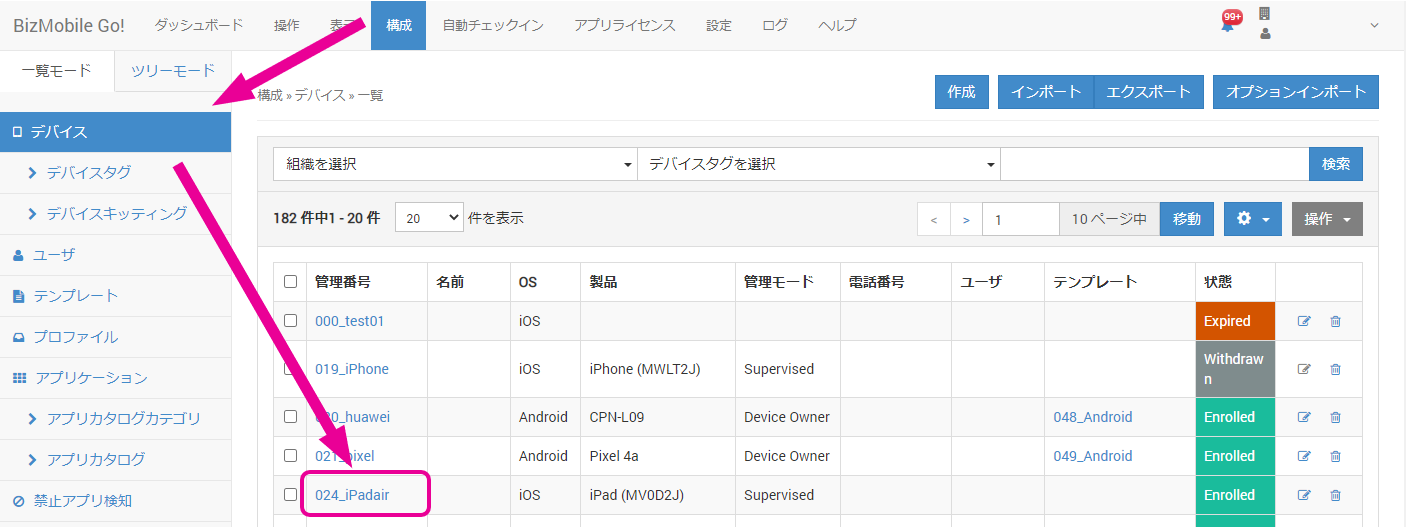
- "Device Exchange Information" is displayed at the bottom of the device detail screen. This information appears only for devices that were the original or new device in an exchange.

New Device | The identifier of the new device. |
Old Device | The identifier of the original device. |
Old Device Action | Shows the action performed automatically when enrollment of the new device is complete.
|
Change device exchange information
You cannot register new exchange information while information for the new device already exists.
To change the information of the new device, first delete the new device information that was already created, and then register it again.