Create Device Information Using a CSV File (With ADE (formerly DEP))
You can use a CSV file (a comma-separated text file) to create and update information in bulk for devices that use ADE (formerly DEP). If you specify the DEPMethod column, you can link ADE devices to device information.
For devices that do not use ADE, see Create Device Information Using a CSV File.
CSV File Specifications
- The first row is the header (field names). Do not include spaces in field names.
- Entries are case-sensitive. However, only Identifier (identifier) and Serial (serial number) are case-insensitive. (Example:
DEVICE01anddevice01, orAABBCCDD12andaabbccdd12, are treated as the same.) - You can upload only files with the .csv extension.
If you leave an optional column blank when updating, the registered value is cleared (except for Code and ExpirationDays). For details, see Handling of Blank Values.
Field List
"Header" indicates whether the column is required in the header row. The two columns on the right indicate whether a value is required for each use.
| Header Field Name | Description | Header | User and ADE device | ADE device only |
|---|---|---|---|---|
| UserName | An ID that uniquely identifies the user. Displayed as "User ID" on the screen. | Required | Required | Blank |
| Name | The user's full name. Displayed as "User Name" on the screen. | Required | Optional | Blank |
| EmailAddress | The user's email address | Required | Optional | Blank |
| UserDescription | Optional information for the user | Required | Optional | Blank |
| Organizations | The organization IDs of the organizations the user belongs to. The organizations must be created in advance. To specify multiple values, separate them with |. | Can be omitted | Optional | Optional |
| Identifier | The identifier that uniquely identifies the device. Displayed as "Identifier" on the screen. Cannot be changed after creation. | Required | Required | Required |
| Template | The template to associate with the device. The template must be created in advance. | Can be omitted | Optional | Optional |
| Code | The code used for enrollment (Note:) | Required | Optional | Optional |
| OS | Specify ios. | Required | Required | Required |
| DeviceTags | The device tag names to set on the device. The device tags must be created in advance. To specify multiple values, separate them with |. | Can be omitted | Optional | Optional |
| WifiMac | The Wi-Fi MAC address that restricts which devices can enroll | Required | Optional | Optional |
| IMEI | The IMEI that restricts which devices can enroll | Required | Optional | Optional |
| MEID | The MEID that restricts which devices can enroll | Required | Optional | Optional |
| UDID | The UDID that restricts which devices can enroll | Required | Optional | Optional |
| Serial | The serial number of the ADE device. Displayed as "Serial Number" on the screen. | Required | Required if DEPMethod is Serial | Required if DEPMethod is Serial |
| ExpirationDays | The number of days until the enrollment expires. The date and time that is this many days after the import time is displayed as "Enrollment Expiration Date" on the screen (Note:). | Required | Optional | Optional |
| DisplayName | A name for the device, such as a nickname. Displayed as "Name" on the screen. | Required | Optional | Optional |
| Description | Optional information for the device. Displayed as "Description" on the screen. | Required | Optional | Optional |
| RegistrationEmail | The destination address for the enrollment email. When a value is entered, an enrollment email is sent each time you save or update. | Required | Optional | Optional |
| DEPMethod | The method for linking ADE devices to device information. Specify Serial or Keycode. | Required when linking to ADE devices | Required | Required |
Note: Code and ExpirationDays handle blank values differently from the other columns. See the following table.
Handling of Blank Values
| Column | If blank when creating | If blank when updating |
|---|---|---|
| Code | A random code is generated automatically | The registered code is kept |
| ExpirationDays | Automatically set to 7 days later | The registered expiration is kept |
| Any other optional column | No value is registered | The registered value is cleared |
Update Using an Exported CSV
To update registered information, the easiest way is to export a CSV file by using Export and selecting Registered Devices on the CONFIG → Device screen, edit the file, and then import it. For the export procedure, see Export Registered Information.
Keep the following in mind when editing:
- In the exported file, ExpirationDays appears as a date and time (example:
2026-04-09 05:35:22). Before you import, change it to a number of days or leave it blank. If you leave it blank, the registered expiration is kept. - In the DEPMethod column, specify the method for linking to ADE devices. For the values you can specify, see Field List.
- If you clear the value in a column that you are not updating, the registered value is cleared. Leave those values as exported.
CSV File Samples
UserName,Name,EmailAddress,UserDescription,Identifier,Template,Code,OS,WifiMac,IMEI,MEID,UDID,Serial,ExpirationDays,DisplayName,Description,RegistrationEmail,DEPMethod
user0001,Test User 1,user0001@example.com,User description 1,apple001,,,ios,,,,,AAABBBCCCDDD,,iOS Device 1,,,Serial
user0002,Test User 2,user0002@example.com,User description 2,apple002,,,ios,,,,,BBBCCCDDDAAA,,iOS Device 2,,,Serial
UserName,Name,EmailAddress,UserDescription,Identifier,Template,Code,OS,WifiMac,IMEI,MEID,UDID,Serial,ExpirationDays,DisplayName,Description,RegistrationEmail,DEPMethod
,,,,apple001,,,ios,,,,,AAABBBCCCDDD,,iOS Device 1,,,Serial
,,,,apple002,,,ios,,,,,BBBCCCDDDAAA,,iOS Device 2,,,Serial
UserName,Name,EmailAddress,UserDescription,Identifier,Template,Code,OS,WifiMac,IMEI,MEID,UDID,Serial,ExpirationDays,DisplayName,Description,RegistrationEmail,DEPMethod
user0001,Test User 1,user0001@example.com,User description 1,apple001,,123,ios,,,,,,,iOS Device 1,,,Keycode
user0002,Test User 2,user0002@example.com,User description 2,apple002,,123,ios,,,,,,,iOS Device 2,,,Keycode
UserName,Name,EmailAddress,UserDescription,Identifier,Template,Code,OS,WifiMac,IMEI,MEID,UDID,Serial,ExpirationDays,DisplayName,Description,RegistrationEmail,DEPMethod
,,,,apple001,,123,ios,,,,,,,iOS Device 1,,,Keycode
,,,,apple002,,123,ios,,,,,,,iOS Device 2,,,Keycode
For the procedure to upload a CSV file, see Upload a CSV File.
Check the Device Information Link
On the CONFIG → Device screen, click the identifier of the device you want to check, and then check ADE Enrollment on the device details screen.
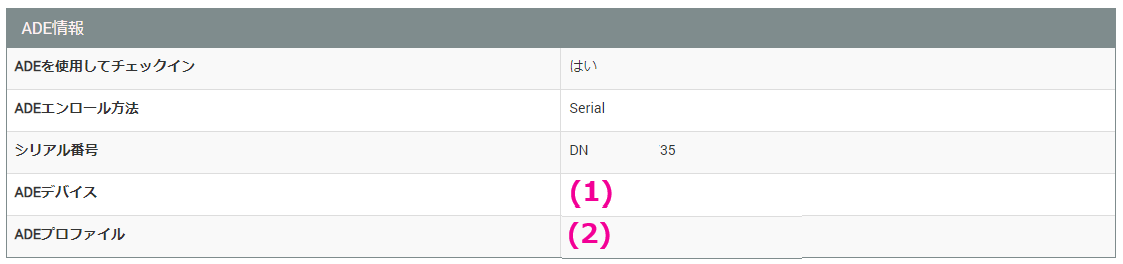
(1) ADE Device
When ADE device setup and enrollment are complete, the serial number of the ADE device is displayed.
(2) ADE Profile
When ADE device setup and enrollment are complete, the name of the ADE profile linked to the ADE device is displayed.