How to use the BizGo! Catalog app
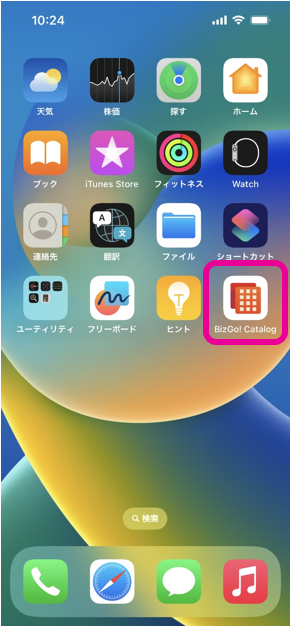
Device users can use the BizGo! Catalog app distributed from BizMobile Go! to freely download the applications they want from the application list.
Note: For VPP apps, you cannot download the application if there are not enough purchased app licenses.
|  |
|   |
|
 at the upper left of the screen. When the refresh is complete, the
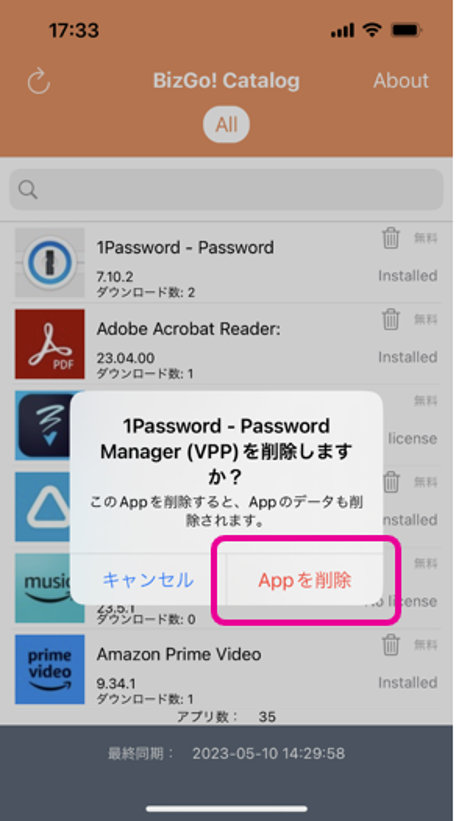
 If an app is deleted by any method other than the procedure here, such as deleting it from the Home Screen or from the storage information in the Settings app,
the app is automatically reinstalled at the next sync.
Apps that were installed automatically by the Install setting of the application catalog behave differently from the above. If the device user deletes such an app, it is not automatically reinstalled at the next sync. To install it again, install it manually from the BizGo! Catalog app.
| |
|  |
|   |
|
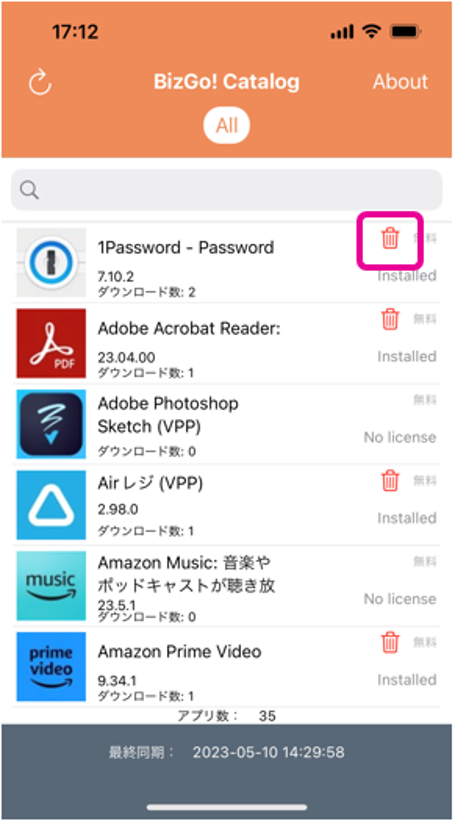
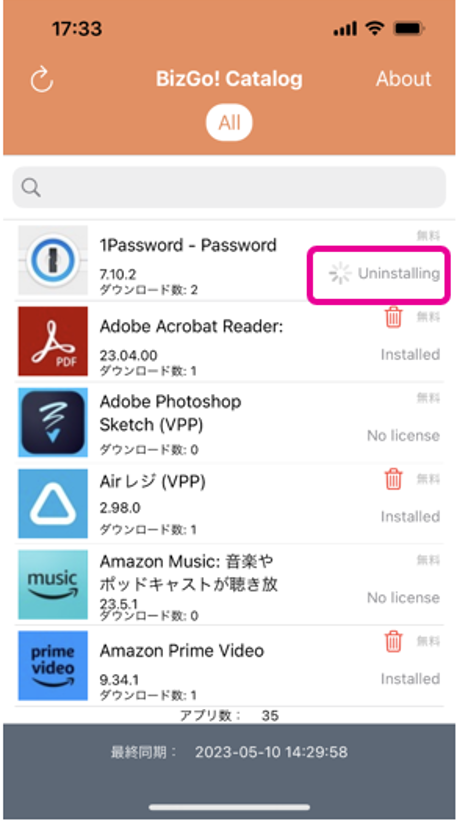
 displayed to the right of the app you want to delete.
The app list shows a Paid or Free label for each app. (From BizGo! Catalog Ver. 1.5)
The number of downloads shows the total number of apps downloaded from the BizGo! Catalog app across the entire unit.
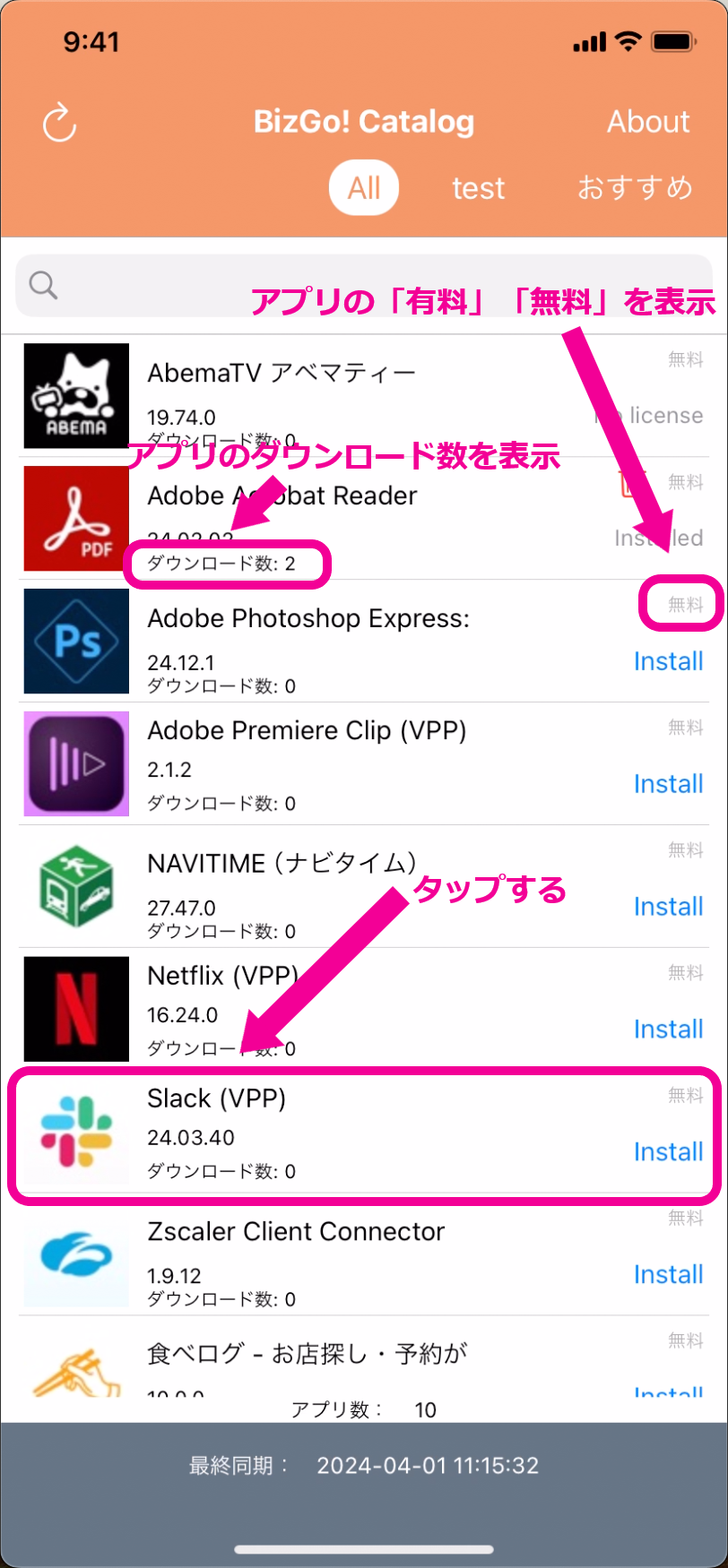
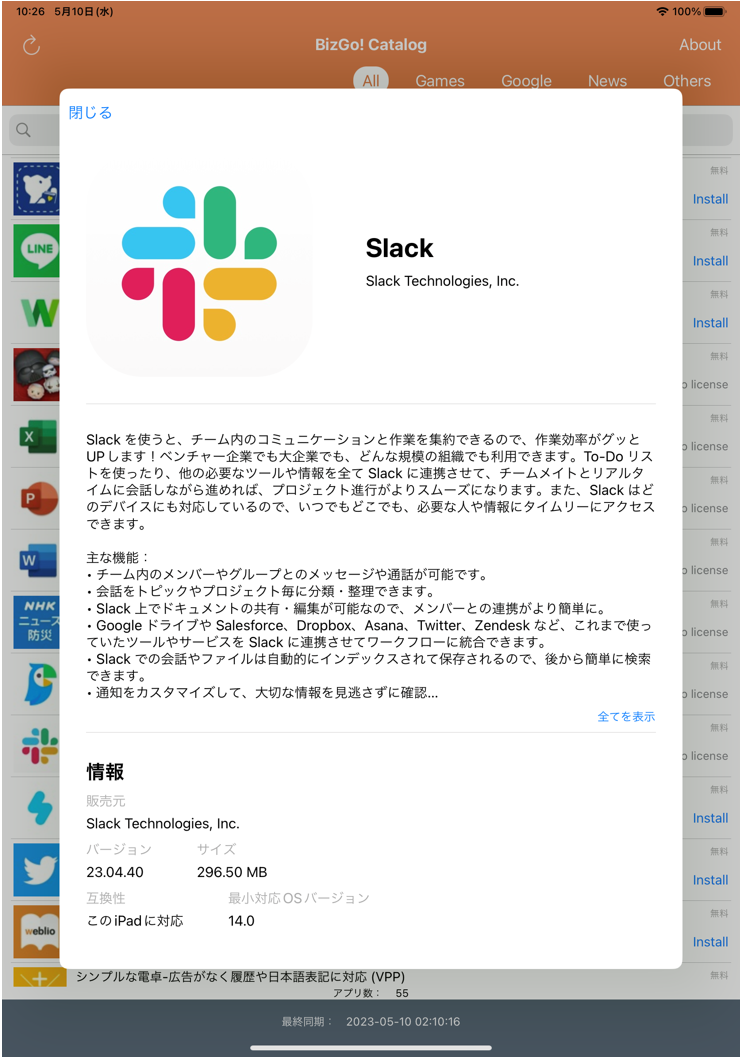
Tap an app to display its detail screen, where you can check the app information, version, compatibility, and more.
If a Detail Page URL is specified, the page at the specified URL is displayed.
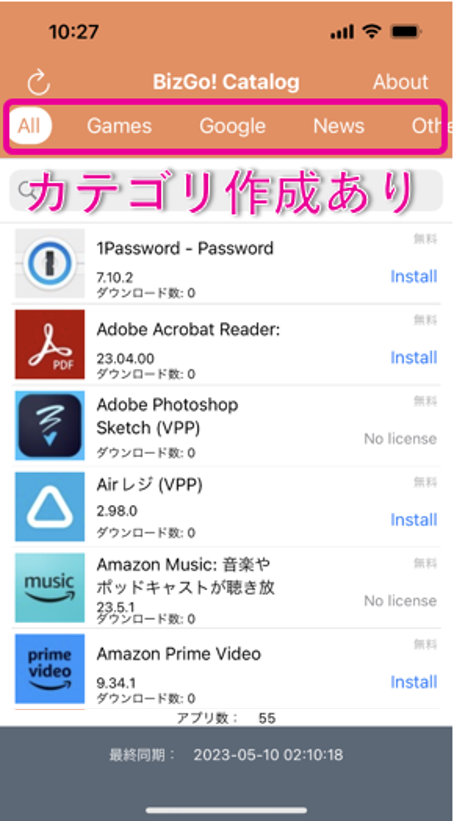
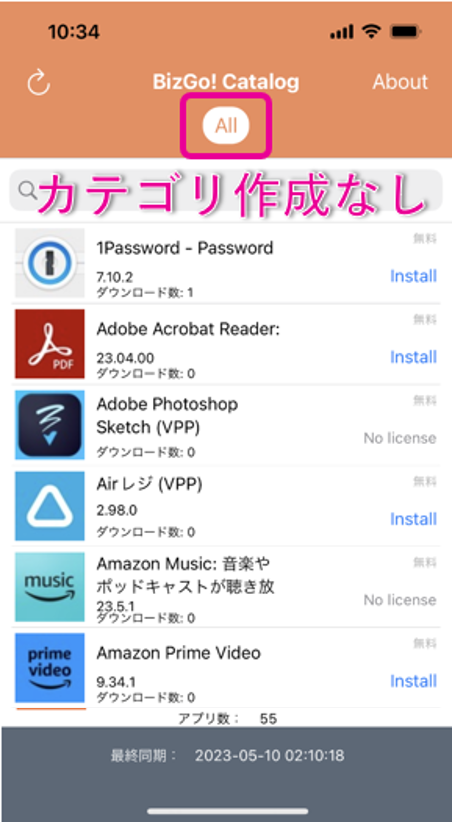
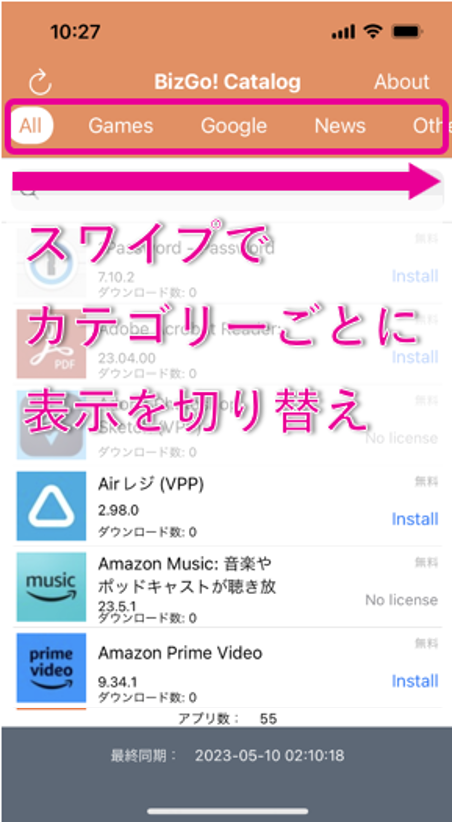
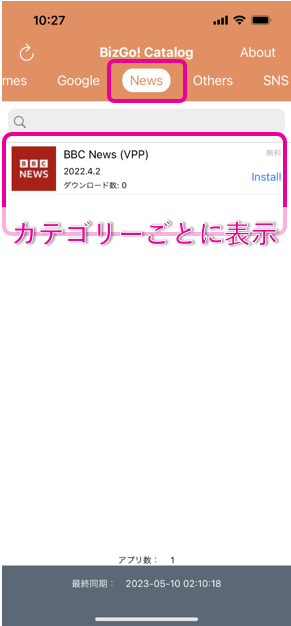
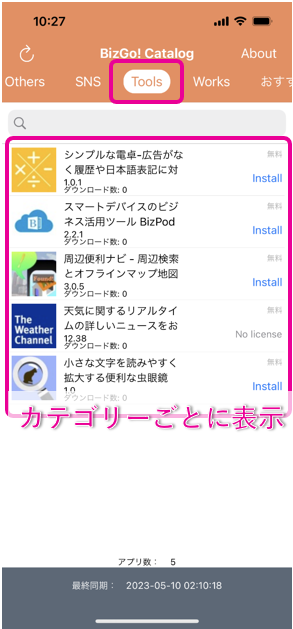
If you created categories in the application catalog (app list), opening the BizGo! Catalog app displays the list of apps registered in the application catalog.
Swipe the category bar to switch the display by each category you created.
You can also use the app in landscape orientation.
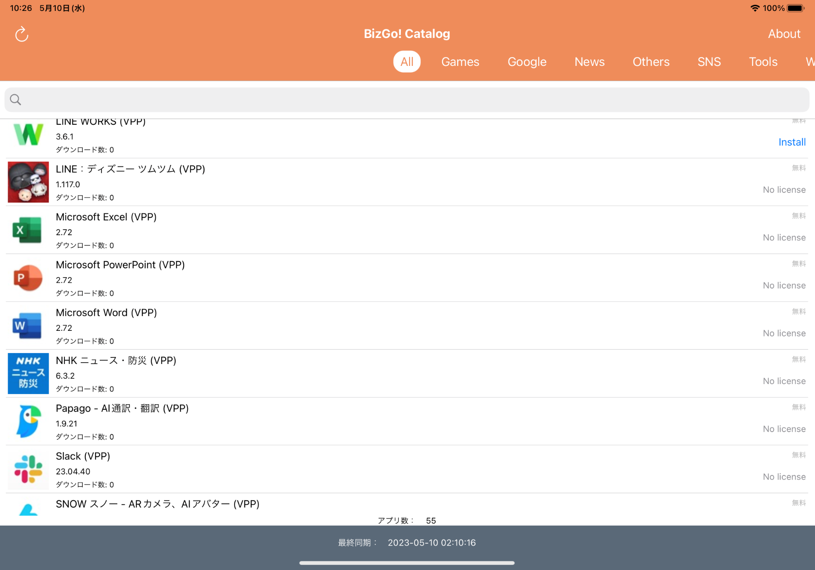
You can use the search box to search by application name.
Tapping the search box lets you filter the display by status.
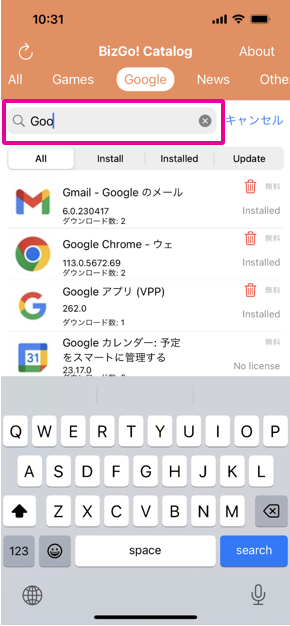
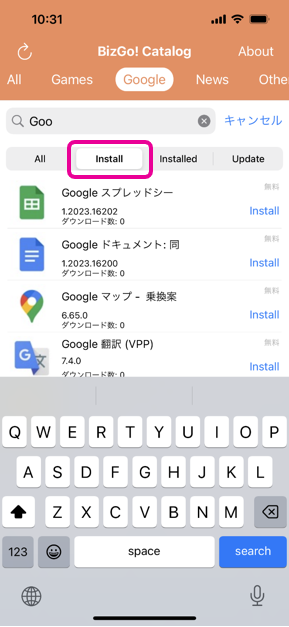
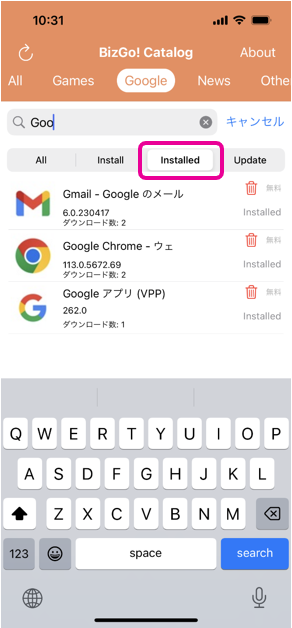
Filter conditions
All | Displays the list of all applications in the application catalog. |
Install | Displays the list of applications that can be installed (or are being installed). |
Installed | Displays the list of installed applications. |
Update | Displays the list of applications that can be updated (or are being updated). |
You can check the state of each application from the status shown to the right of the application name.
Install | The application is available to install. Tapping it sends an install request to the BizMobile Go! server, and the display changes to |
Requesting | An app install/update request is being sent to the BizMobile Go! server. After receiving the request from the managed device, the BizMobile Go! server assigns a VPP app license on the Apple server. When the license assignment is complete, it sends an app install/update command to the managed device. When the device receives the app install/update command, the status changes to Installing or Updating. |
Installing | The app is being installed (after the BizMobile Go! server's app install command has been received). |
Installed | The application is installed. |
Update | The application can be updated. |
Updating | The app is being updated (after the BizMobile Go! server's app install command has been received). |
Uninstalling | The app is being deleted (after the BizMobile Go! server's app delete command has been received). |
No license | There are not enough licenses for the application purchased in the VPP account. |
| Incompatible | The app does not support the device model and cannot be installed. |