Application catalog (app list)
The application catalog is a feature for cases where, within a template (management group) created for each organization, the apps needed differ by member depending on job title or responsibilities. You define a list of permitted or recommended apps, and each member selects and downloads the apps they need from that list.
Create and edit an application catalog (app list)
Create a list of apps that device users can freely install. Assign the created application catalog to a template to distribute it to devices.
You can also group apps by purpose using the category feature.
You cannot register multiple apps with the same identifier in a catalog.
-
On the CONFIG → Application Catalog screen, click [Create].
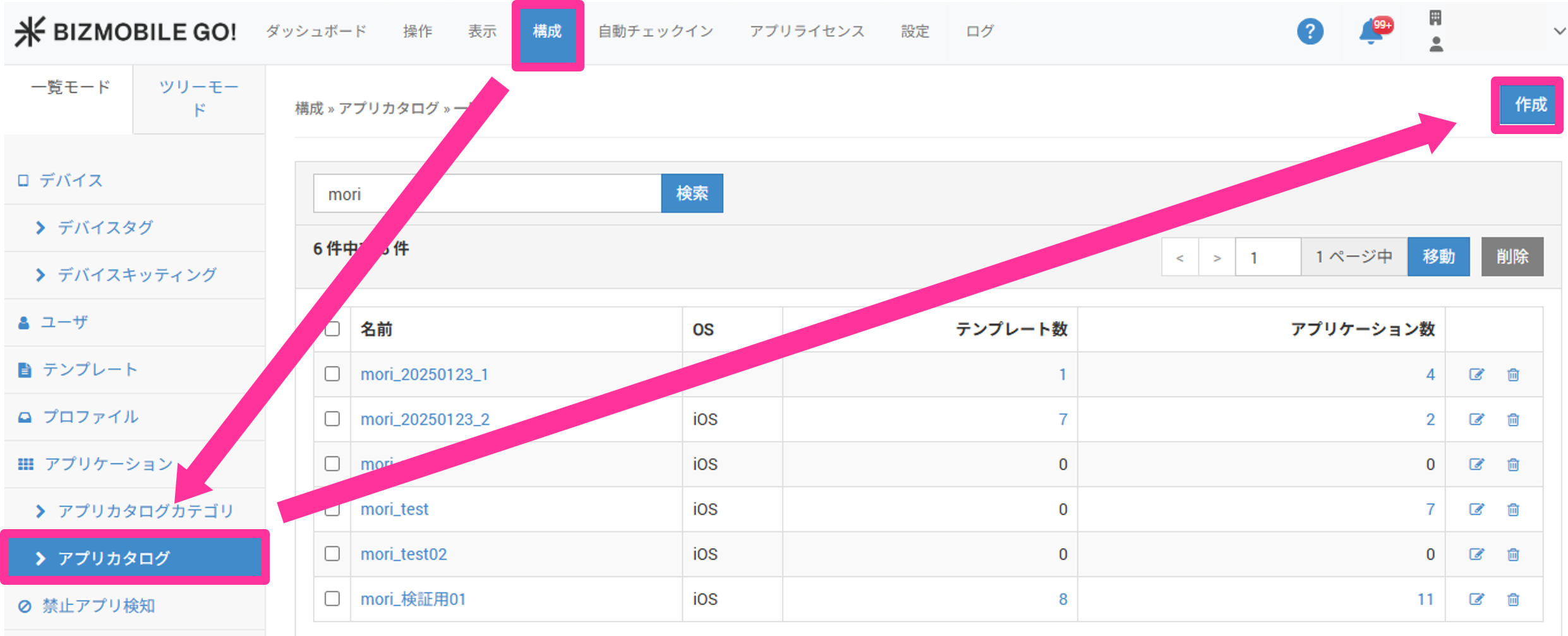
To edit an application catalog, click the edit icon .
.
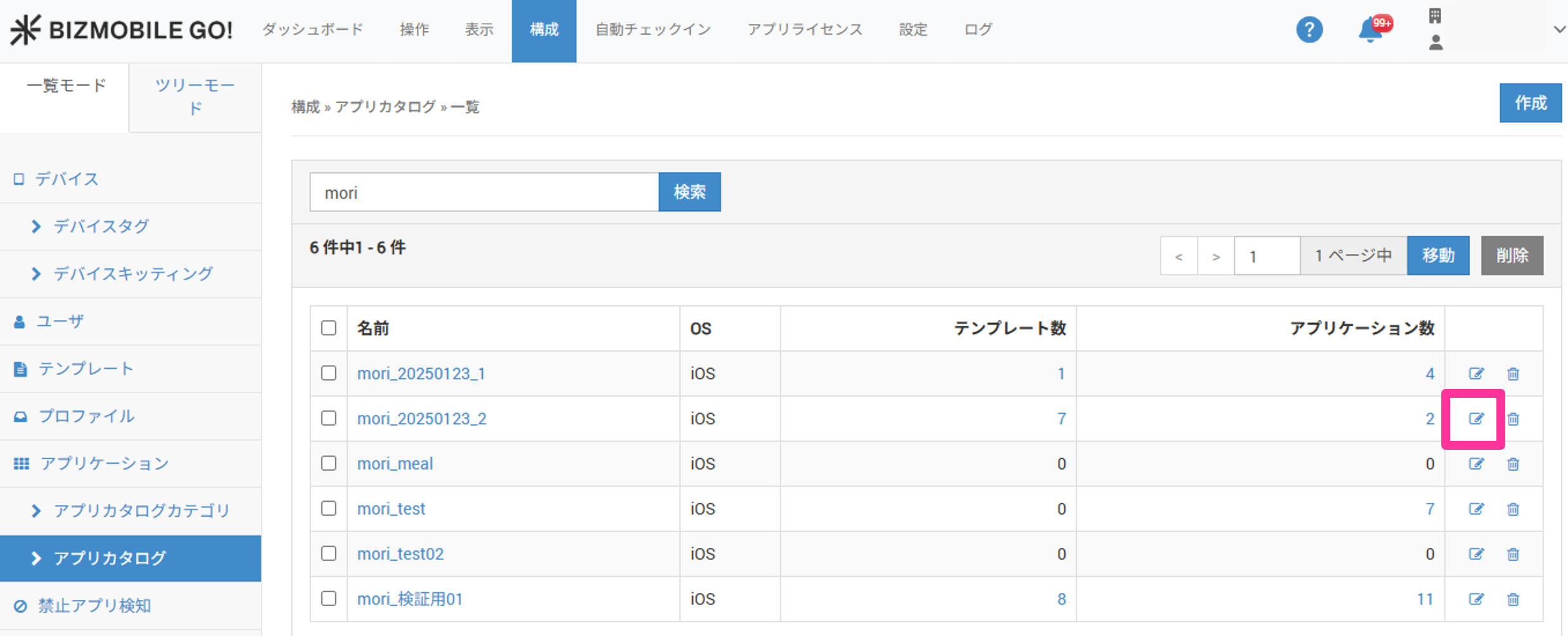
-
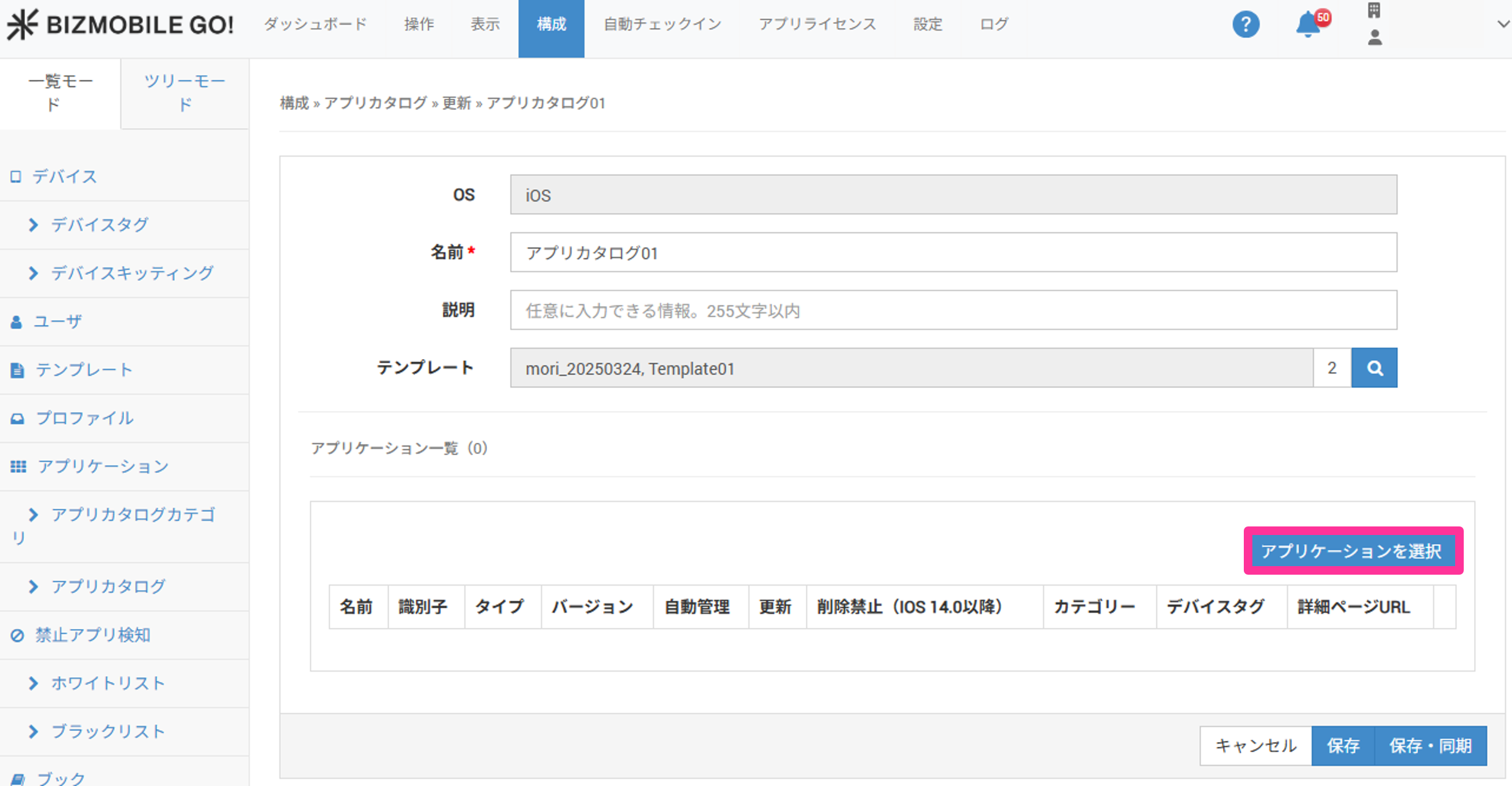
Enter the required information on the application catalog entry screen that expands.
Input items (★ indicates a required item)OS
(Fixed to
iOS)Name★
A name that uniquely identifies the application catalog (up to 50 characters)
Description
Optional information (up to 255 characters)
Template
Assign a template
You can also assign it later on the application catalog edit screen or the template edit screen. -
Click [Select Application].
-
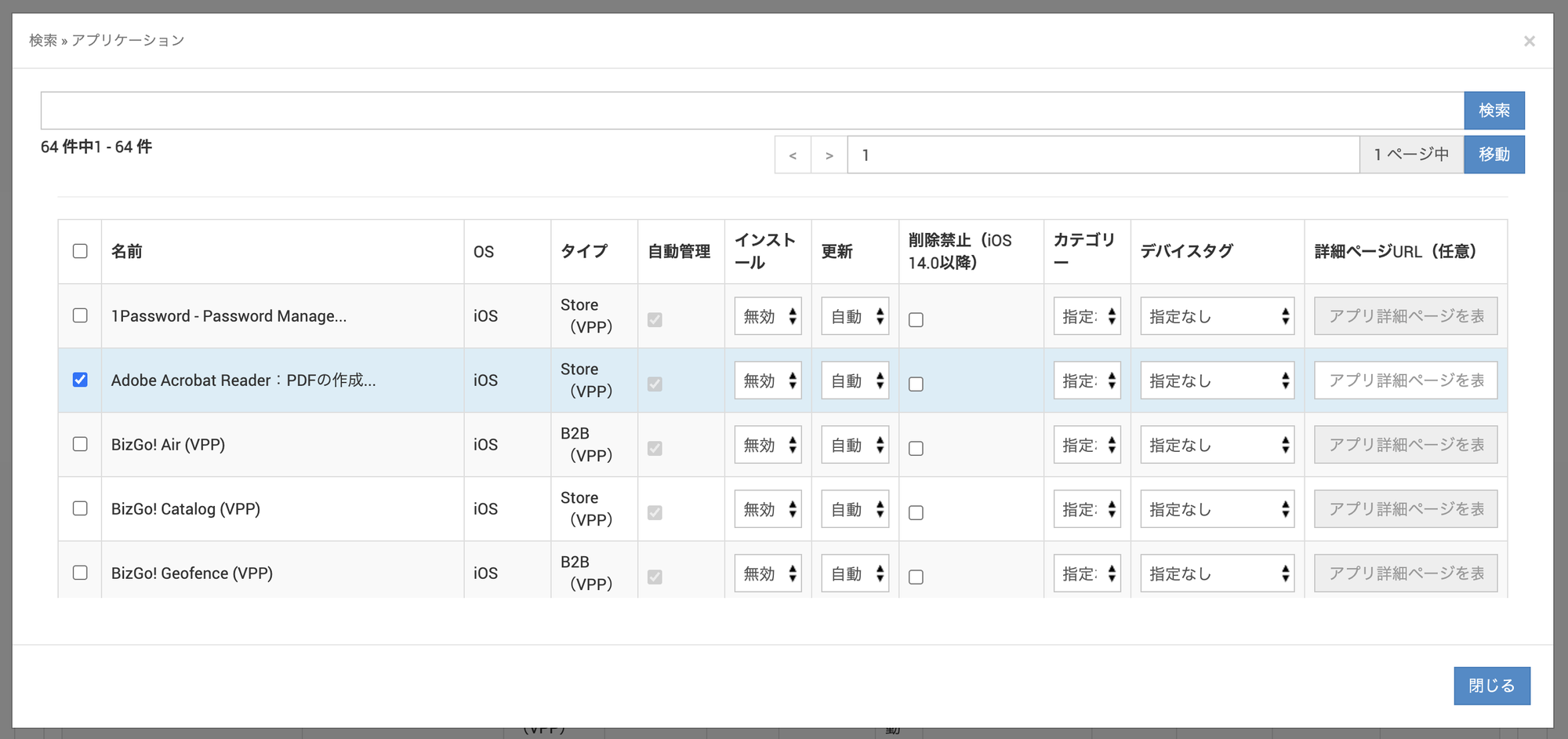
Select the applications to add to the application catalog, and configure the following items as needed. When you finish, click
Close→Save.
Input items (★ indicates a required item)Auto Management★
(Auto Management is fixed to
ON) Apps selected here automatically become manageable from the MDM (Managed).Install
Specify whether to automatically install the app on devices. The default is
Disabled.Disabled: The app is not installed automatically. The device user installs it from the BizGo! Catalog app at any time.Enabled: The app is installed automatically only once, when the device enrolls. In addition, for devices that have already enrolled but do not have this app installed, the app is installed automatically only once the next time the device accesses the server.At Enrollment Only: The app is installed automatically only once, when the device enrolls. It is not installed automatically on devices that have already enrolled.Note: If the device user deletes the app after it is installed automatically, it is not reinstalled automatically.
Note: App updates are controlled by theUpdatesetting.Update★
Specify whether app updates are performed automatically from the MDM, performed manually from the device, or disabled.
If automatic, when a new release is detected on the server, an update command is sent at the next sync, including automatic syncs.
If manual, the user tapsUpdatedisplayed on the app on the device to update it.
If disabled, the server does not send update commands.Delete
If you select this setting, the delete icon for the app is hidden in the application catalog.
On devices running iOS 14 or later, the app also cannot be deleted from the Home Screen.
To prevent deleting apps from the Home Screen on devices running iOS 14 or earlier, configure the following item in a restrictions profile.
------------------------------------------------------------
Allow removing apps (supervised only): OFF
------------------------------------------------------------
With this setting, no apps can be deleted.Category
Assign a category.
Device Tag
You can use device tags to specify the devices on which the app can be downloaded (installed).
The app is displayed and can be downloaded only on devices registered to the tag (permitted to install).
If no tag is registered (default), the app is displayed and can be downloaded on all devices without restriction.
If you set a tag after the app has been downloaded, the app remains usable on devices registered to the tag, but it is deleted (uninstalled) from devices not registered to the tag.
Similarly, if you remove a registered device from the tag linked to the app, the app is deleted (uninstalled) from that device.Detail Page URL
You can register the URL of an information site that you prepared in advance, such as a description of how to use the app.
When the app in the catalog is tapped, the website at the registered URL is displayed. If no URL is registered, the app detail information published on the App Store is displayed.
-
When the application catalog is created, it is displayed at the top of the screen as shown below. Click the catalog name to check the registered content.

-
Check the content of the application catalog on the displayed detail page.
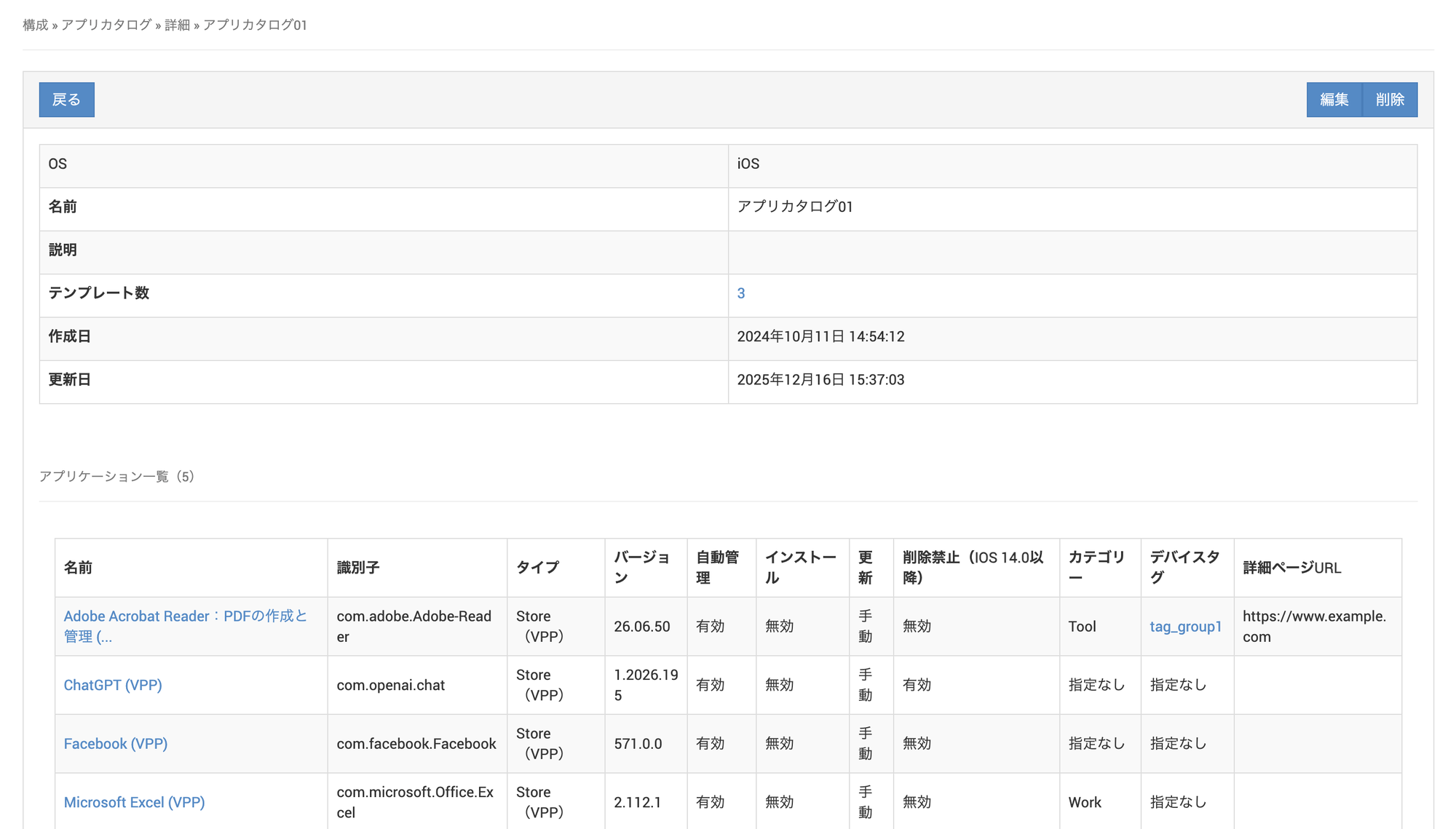
If you delete an app from the application catalog, it is also removed from the application catalog on the device. If the deletion is not immediately reflected in the application catalog on the device, relaunch the application catalog once.
If you delete an app from the application catalog, apps installed on devices through the application catalog are also deleted.
When you edit the application catalog (add, delete, and so on), it becomes subject to device sync management, and the sync status of all devices registered to that template changes to Sync in Progress.
To set Install to Enabled or At Enrollment Only, the BizGo! Catalog app must be registered in the template of the target devices and installed on the devices. Automatic installation is not performed while the BizGo! Catalog app is not installed.
For how to distribute the BizGo! Catalog app, see Distribute the BizGo! Catalog app to devices.
Create and edit categories (app groups)
This feature groups apps by purpose.
By categorizing apps, you can display them by category in the BizGo! Catalog app on devices, which makes it easy to find the app you want. Creating categories is optional.
Category examples: Work Efficiency, Lifestyle, and so on
Creation steps
- On the CONFIG → Applications → Application Catalog Category screen, click [Create].
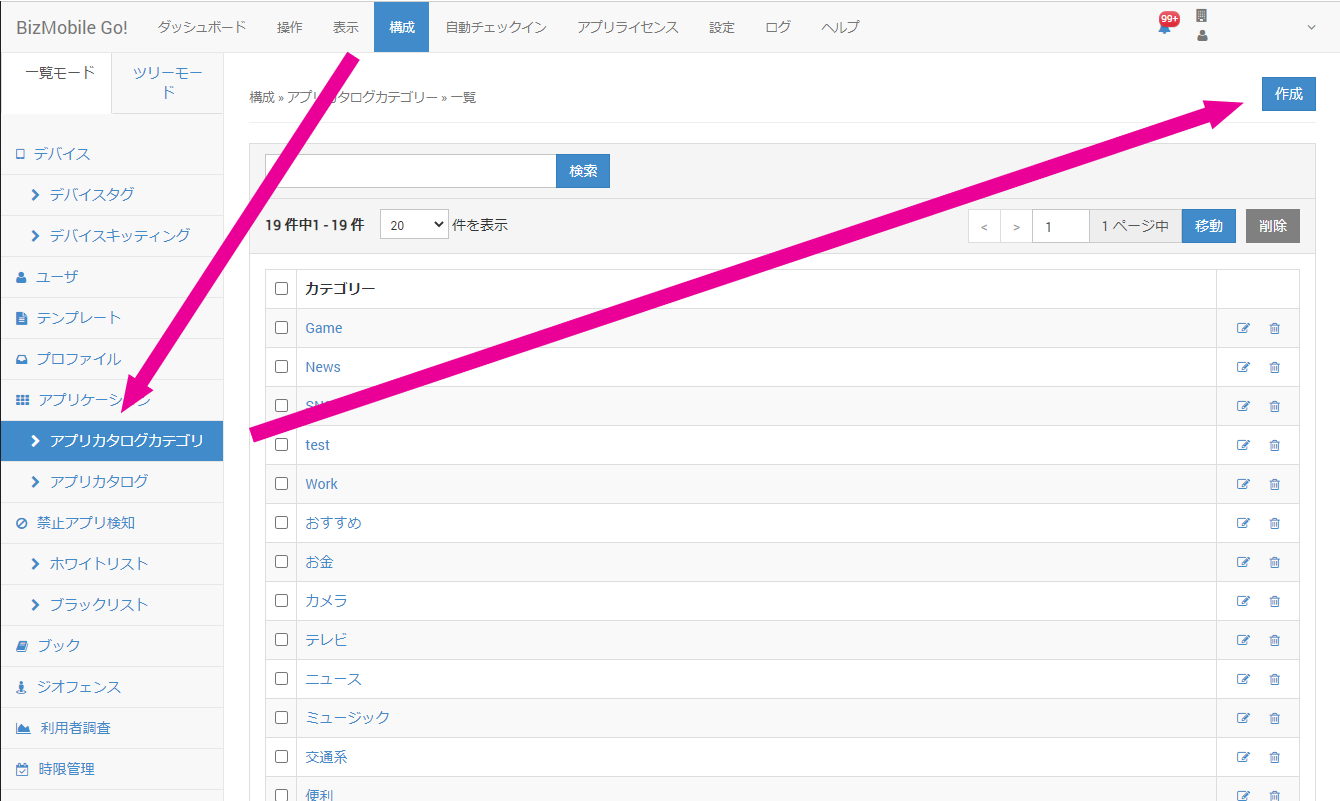
- Enter the category name you want in
Category, and then clickSave.

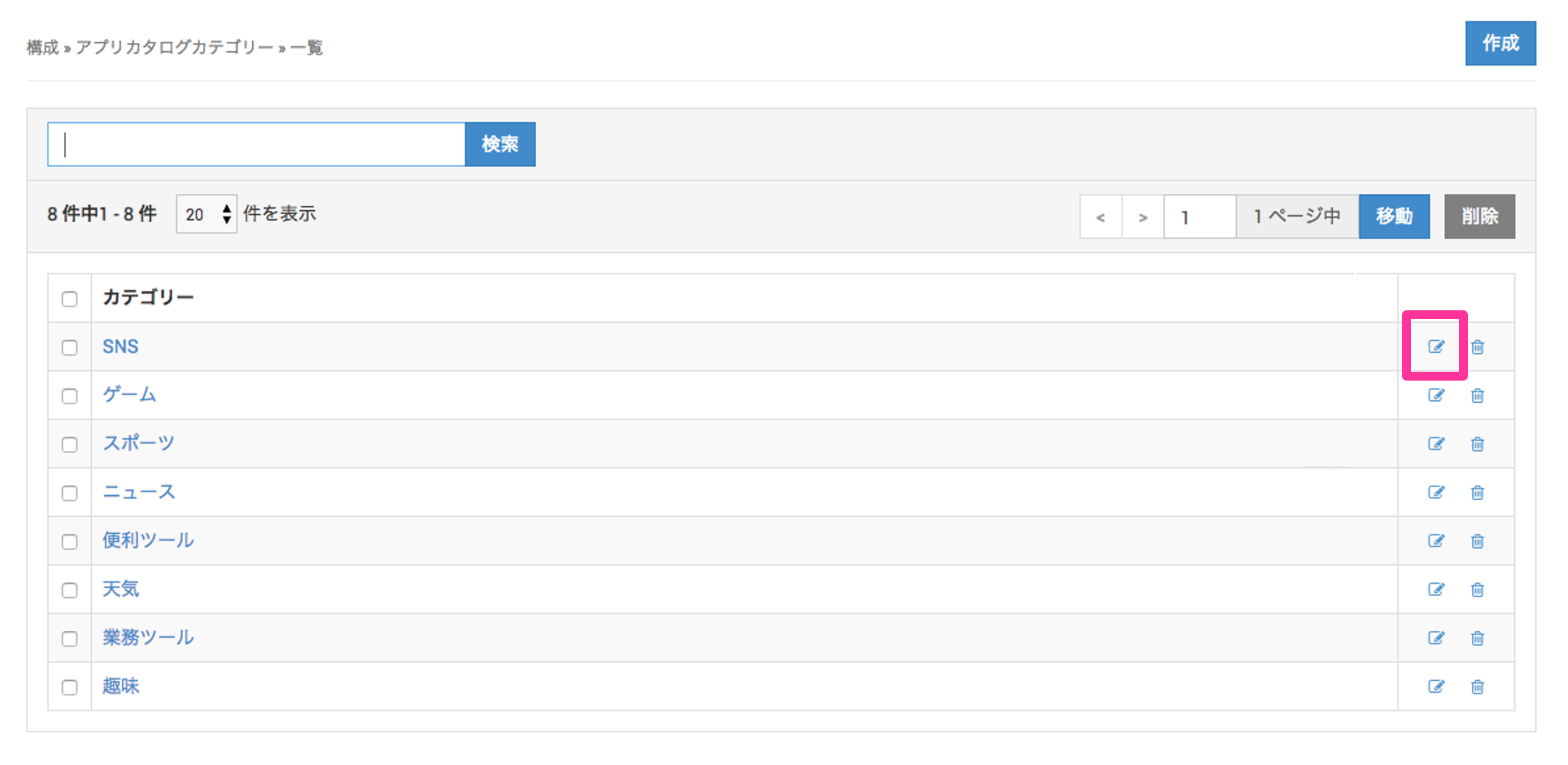
- When the category is created, it is displayed at the top of the screen as shown below.

The category name is a link. Click it to go to the category detail page.

- To edit a category you created, click the edit icon for the category in the application catalog category list, edit it, and then click
Save.
- After you finish creating the category, you can assign it to applications.