Steps to create a VPN profile
Work Profile/Device Owner
By using a custom profile, you can distribute VPN settings to the F5 Access app, including authentication information (certificate/ID/password) that differs for each device. Create the profile by following the steps below.
Steps to create
-
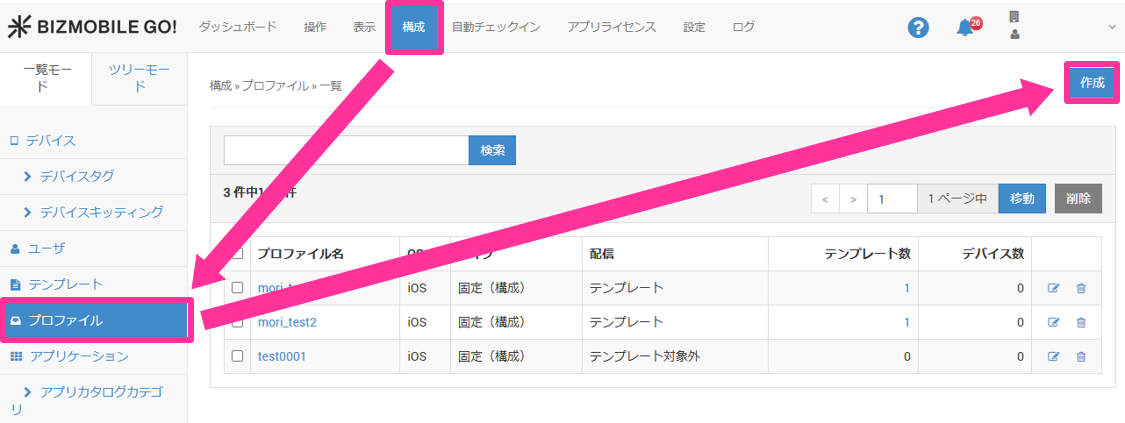
On the CONFIG → Profile screen, click Create.
-
Enter the required items.
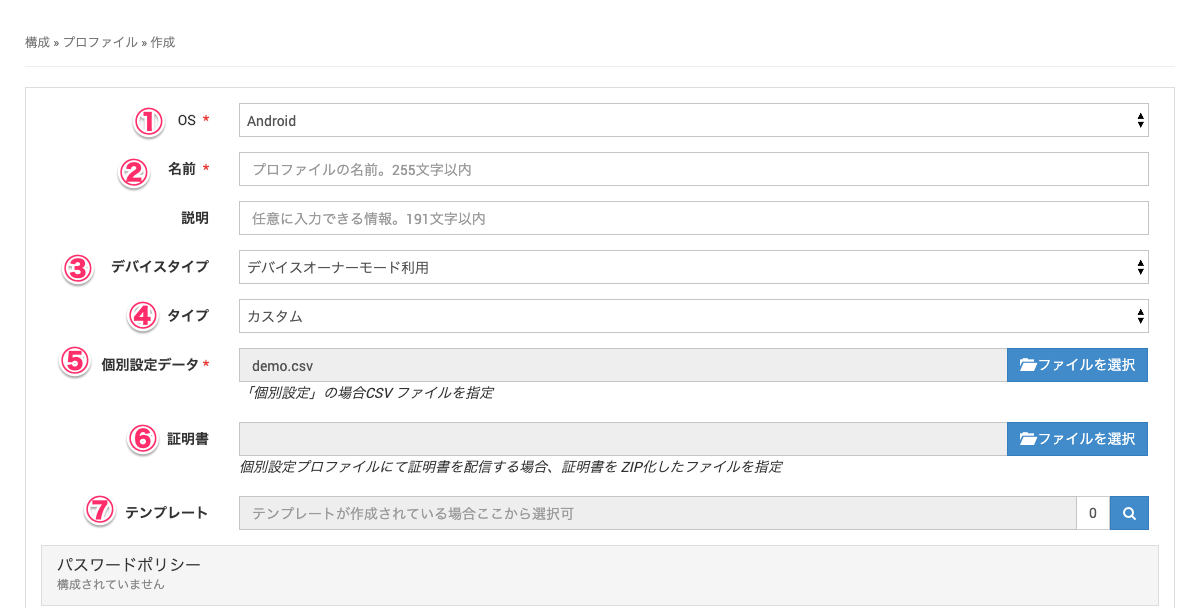
① OS: SelectAndroid.
② Name: Enter a name for the profile.
③ Device Type: SelectWork ProfileorDevice Owner(select the type of device to which you distribute the VPN settings).
④ Type: SelectCustom.
⑤ Custom Data: Note: Displayed only when ④ isCustom.
Upload a CSV file that specifies the certificate distribution information (see CSV sample).
⑥ Certificate: Note: Displayed only when a file has been uploaded in ⑤.
Upload the certificates used for VPN authentication (compress the certificates to distribute into a ZIP file. Compress the certificate files directly, without creating a folder).
⑦ Template: Specify the template to which this profile is assigned. -
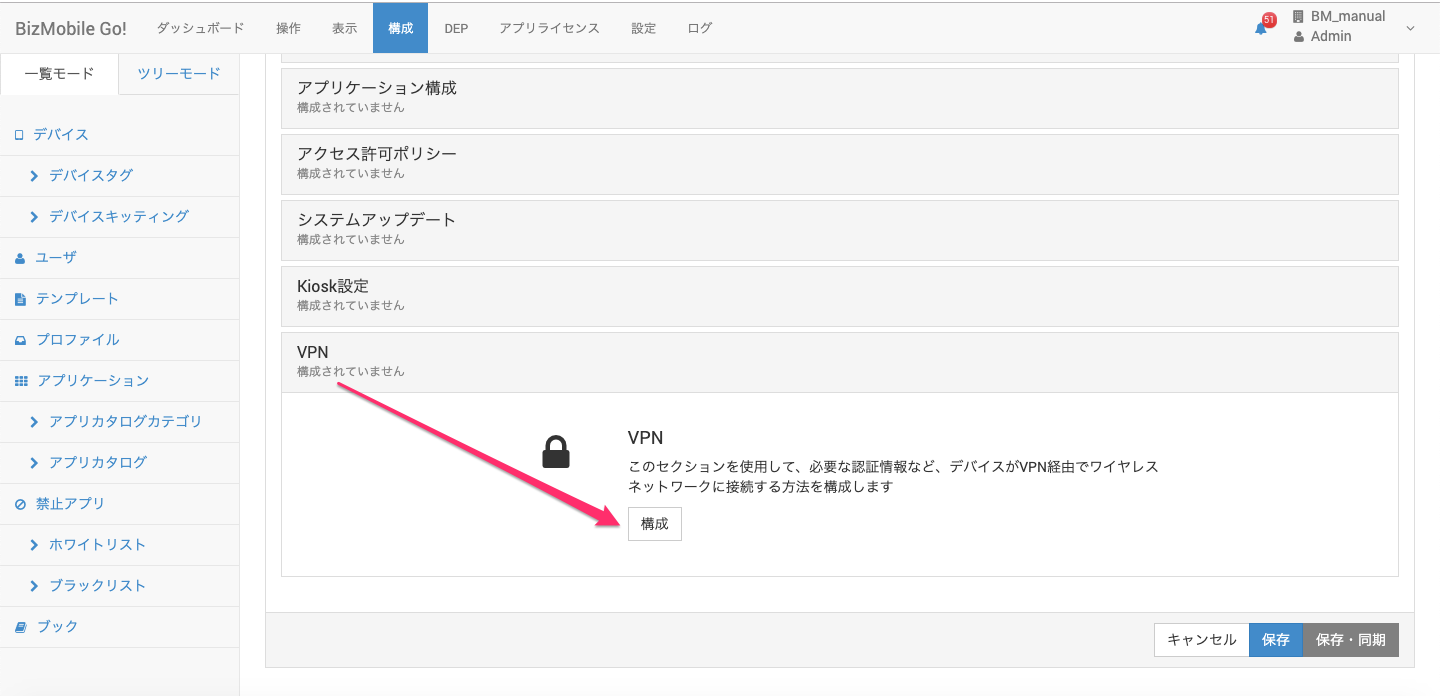
Click
Configurein theVPNpayload.
-
Enter the VPN settings.
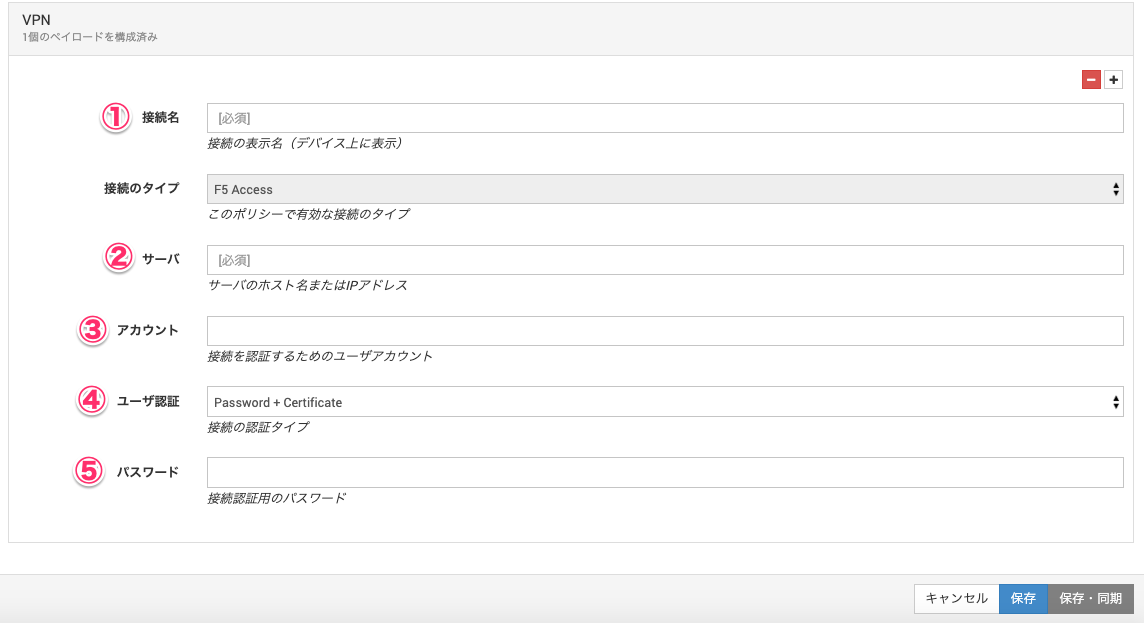
① Connection Name: Enter a connection name.
② Server: Enter the host name or IP address of the VPN server.
③ Account: Optional (enter this if authentication requires an ID and password). Enclose a name of your choice in {{ and }}. (Example) {{id}}
④ User Authentication: Select the VPN authentication type. For certificate-only authentication, selectCertificate. For authentication with a certificate plus an ID and password, selectPassword + Certificate.
⑤ Password: Optional (enter this if authentication requires an ID and password). Enclose a name of your choice in {{ and }}. (Example) {{pw}} -
After you enter the required information, click
SaveorSave & Sync.
CSV sample
- The first row of the CSV file contains the header item names. Create it according to the specified format.
- Header item names contain no spaces.
- Entries in the CSV file are case-sensitive, except for the device identifier. (Example:
DEVICE01anddevice01are treated as the same.)
| Header | Value |
|---|---|
device_identifier | Device identifier |
vpn[N].certfile Note: N is 0 if there is only one certificate | Certificate file name |
vpn[N].certpass Note: N is 0 if there is only one certificate | Certificate password |
| The value enclosed in {{ and }} in ③ of step 4 | ID of the authentication account |
| The value enclosed in {{ and }} in ⑤ of step 4 | Password of the authentication account |
CSV file sample 1: certificate authentication only
device_identifier,vpn[0].certfile,vpn[0].certpass
nexus_tanaka,user01.p12,123
nexus_yamada,user02.p12,123
CSV file sample 2: authentication with a certificate plus ID and password
device_identifier,vpn[0].certfile,vpn[0].certpass,id,pw
nexus_tanaka,user01.p12,123,tanaka,123
nexus_yamada,user02.p12,123,yamada,321
*When {{id}} is specified in ③ of step 4 and {{pw}} is specified in ⑤ of step 4