Enable ADE (formerly DEP)
DEP has been renamed ADE (Automated Device Enrollment).
This is the first procedure to make ADE available in BizMobile Go! after you have registered an account with Apple Business (formerly Apple Business Manager).
Follow the steps below to download an ADE token from Apple Business and upload it to BizMobile Go!.
An Apple ADE token is valid for one year.
Keep the login account (Apple ID) and password for Apple Business in a safe place.
BizMobile Go! has an Apple ID Note field to help you avoid losing track of your Apple ID. We recommend recording your Apple ID in the following field so that you can renew the token without problems a year later.
Location: SETTING → Unit Detail → Apple ID Note on the Apple tab
If the token expires, ADE features can no longer be used.
For the renewal procedure, see Renew the Apple ADE (formerly DEP) Token.
Work in Apple Business
If you are using a Windows PC, use Google Chrome or Microsoft Edge for this procedure.
Steps
| Step | Screen |
|---|---|
| 1. Click SETTING → Unit Detail → Apple → Apple ADE Token. | 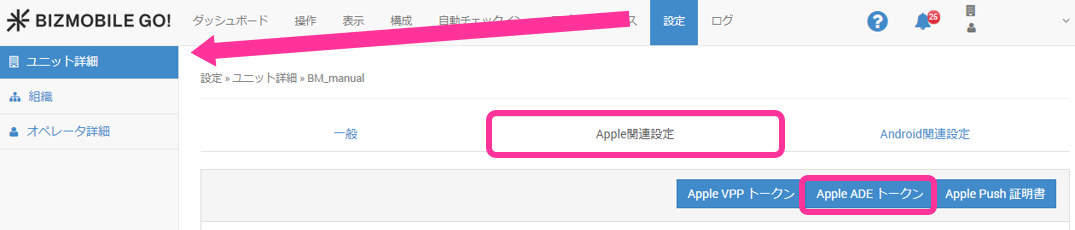 |
2. Click Step 1: Download Certificate to download the certificate file required to download the token. | 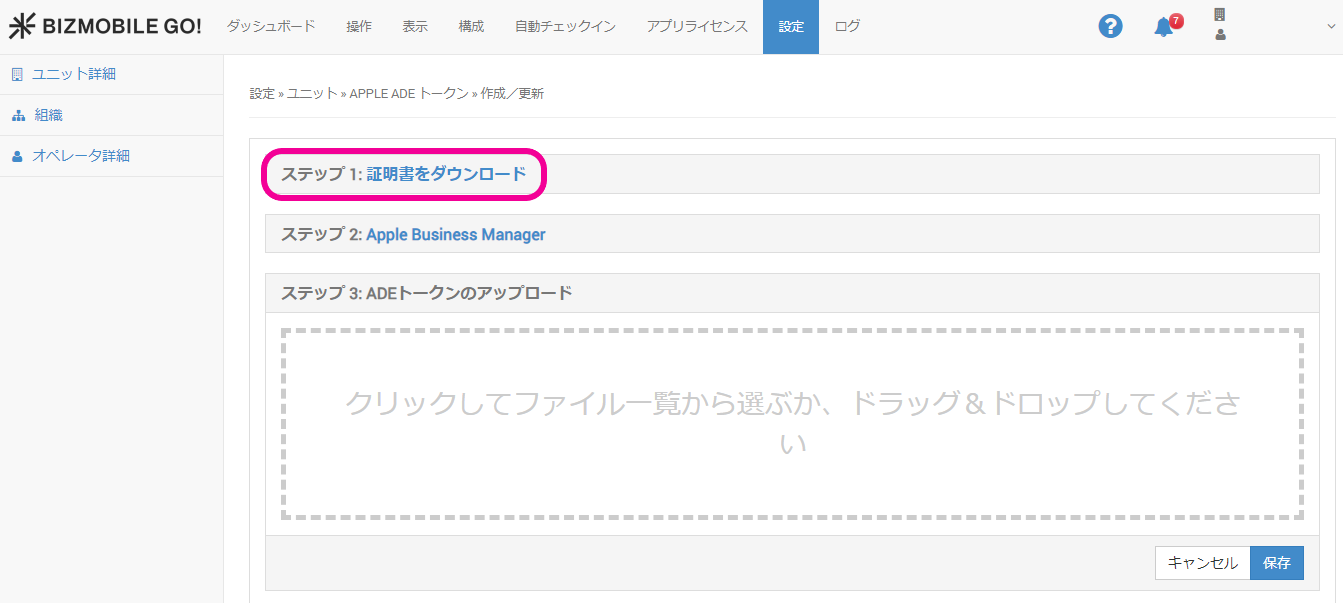 |
| 3. Step 2: Sign in to Apple Business (https://business.apple.com/login). | 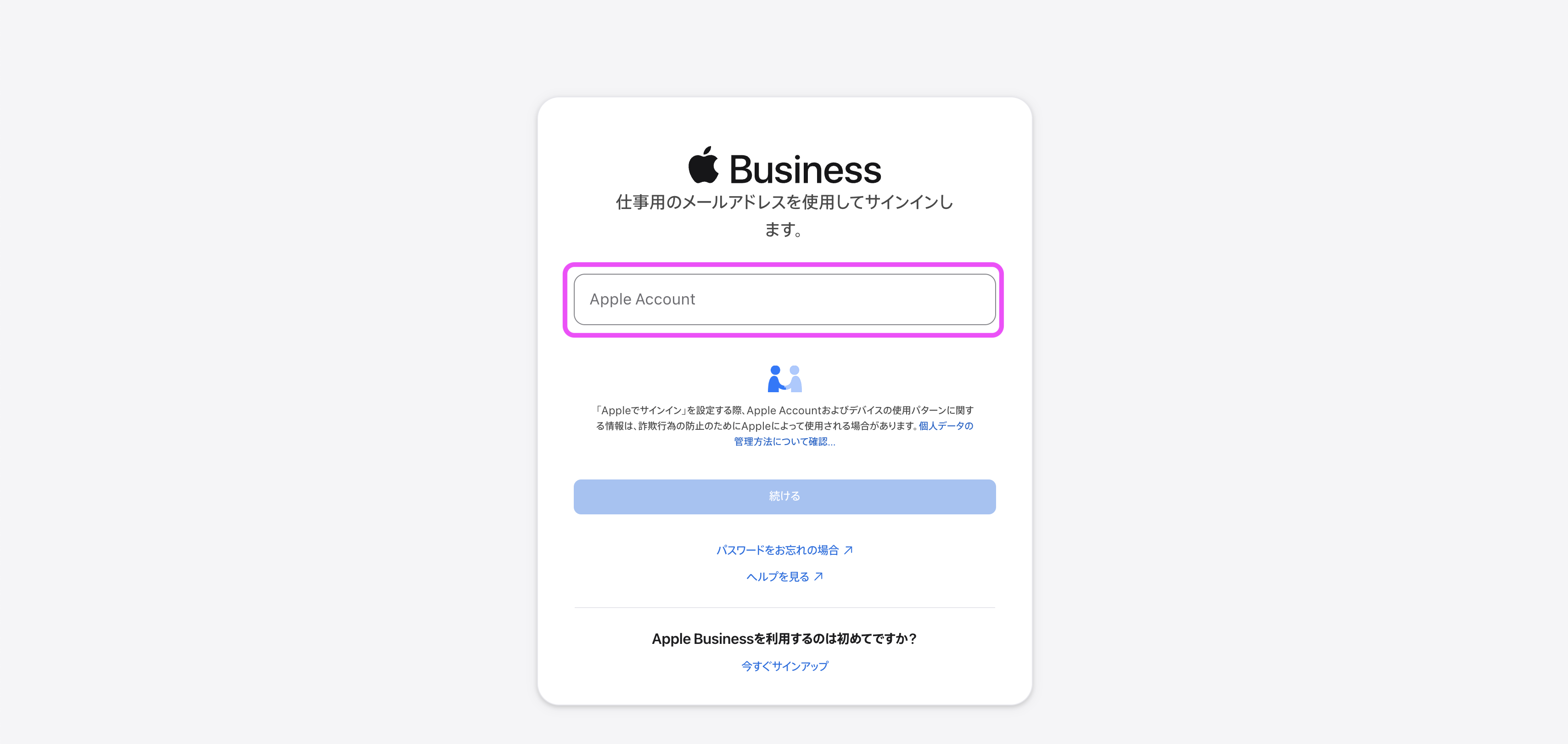 |
4. Click Devices at the top of the screen. | 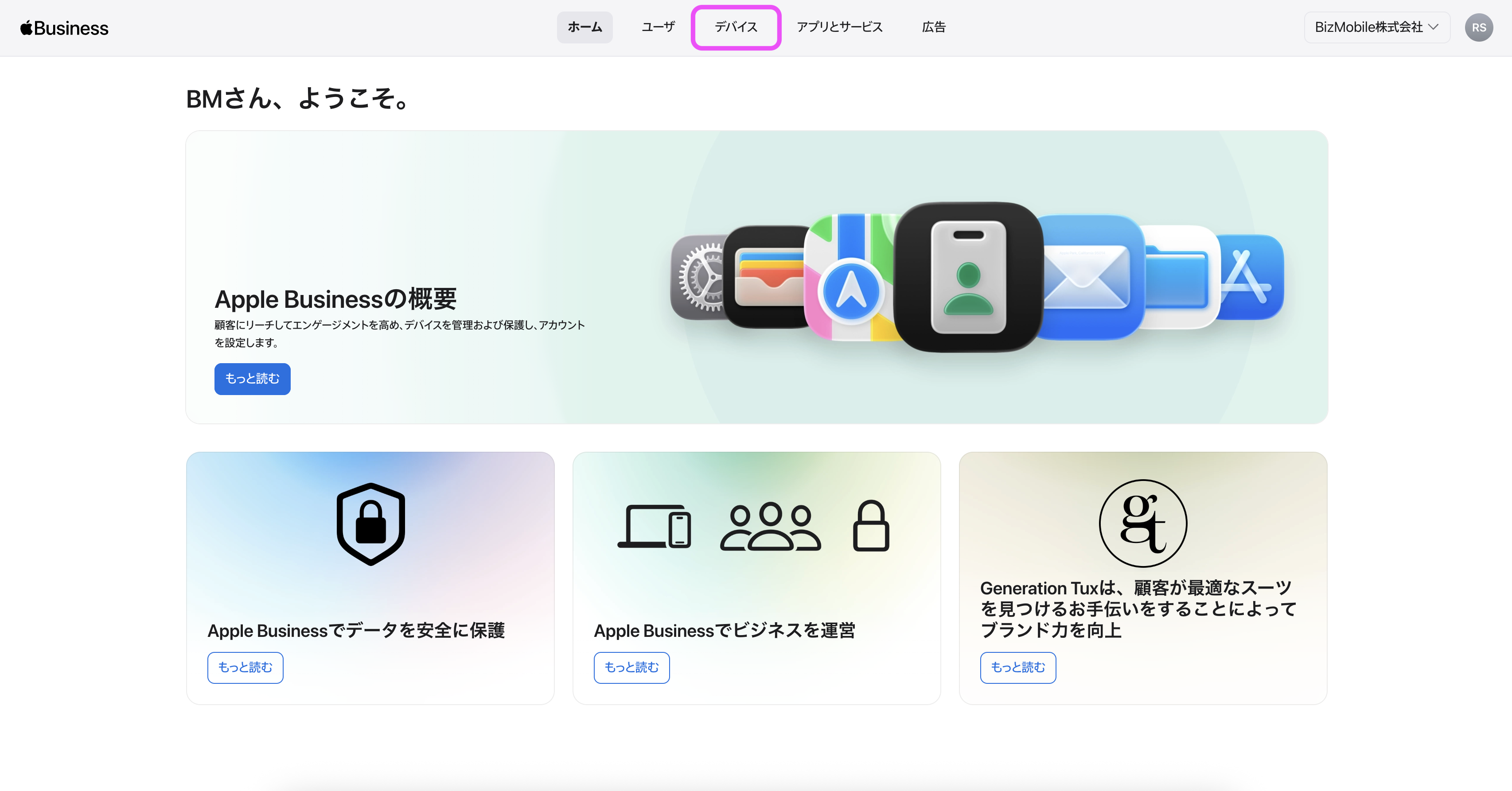 |
5. Click the Add button in the Management Services menu. | 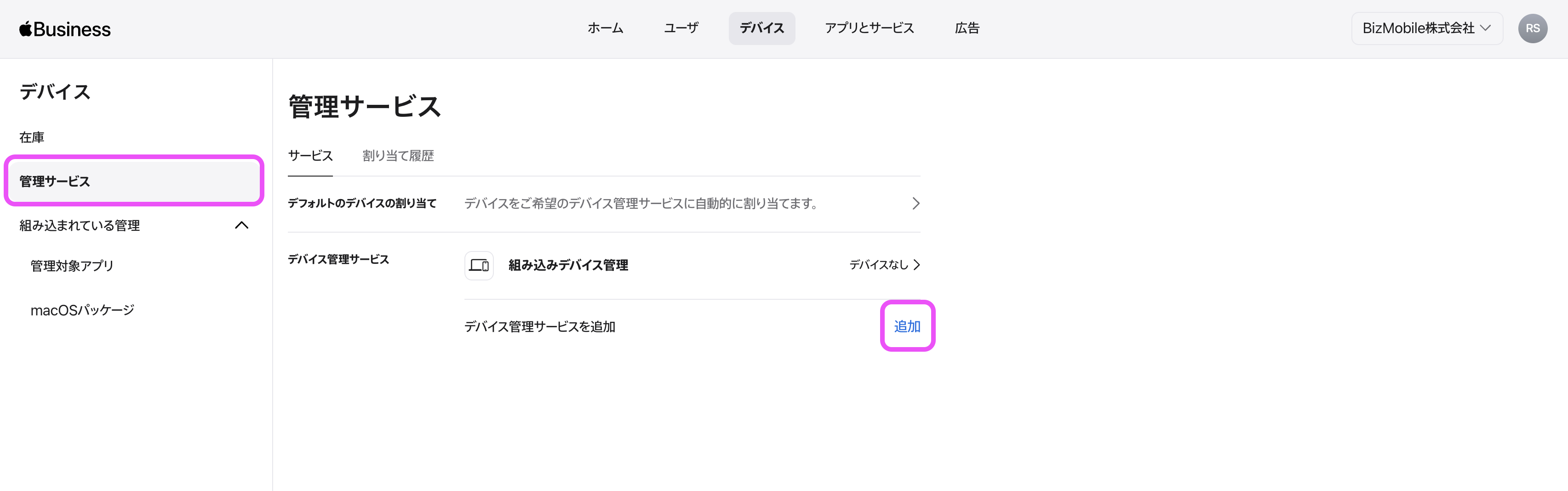 |
6. Enter the following server information and click Save.MDM Server Information: Enter the BizMobile Go! unit ID (recommended) MDM Server Settings: Click Choose File... and upload the certificate file you downloaded in step 2Note: In the following deployment steps, the MDM server you created will be linked to the BizMobile Go! unit and to the ADE profiles registered in that unit. Note: Each MDM server corresponds to exactly one unit. Do not change the MDM server created here afterwards. | 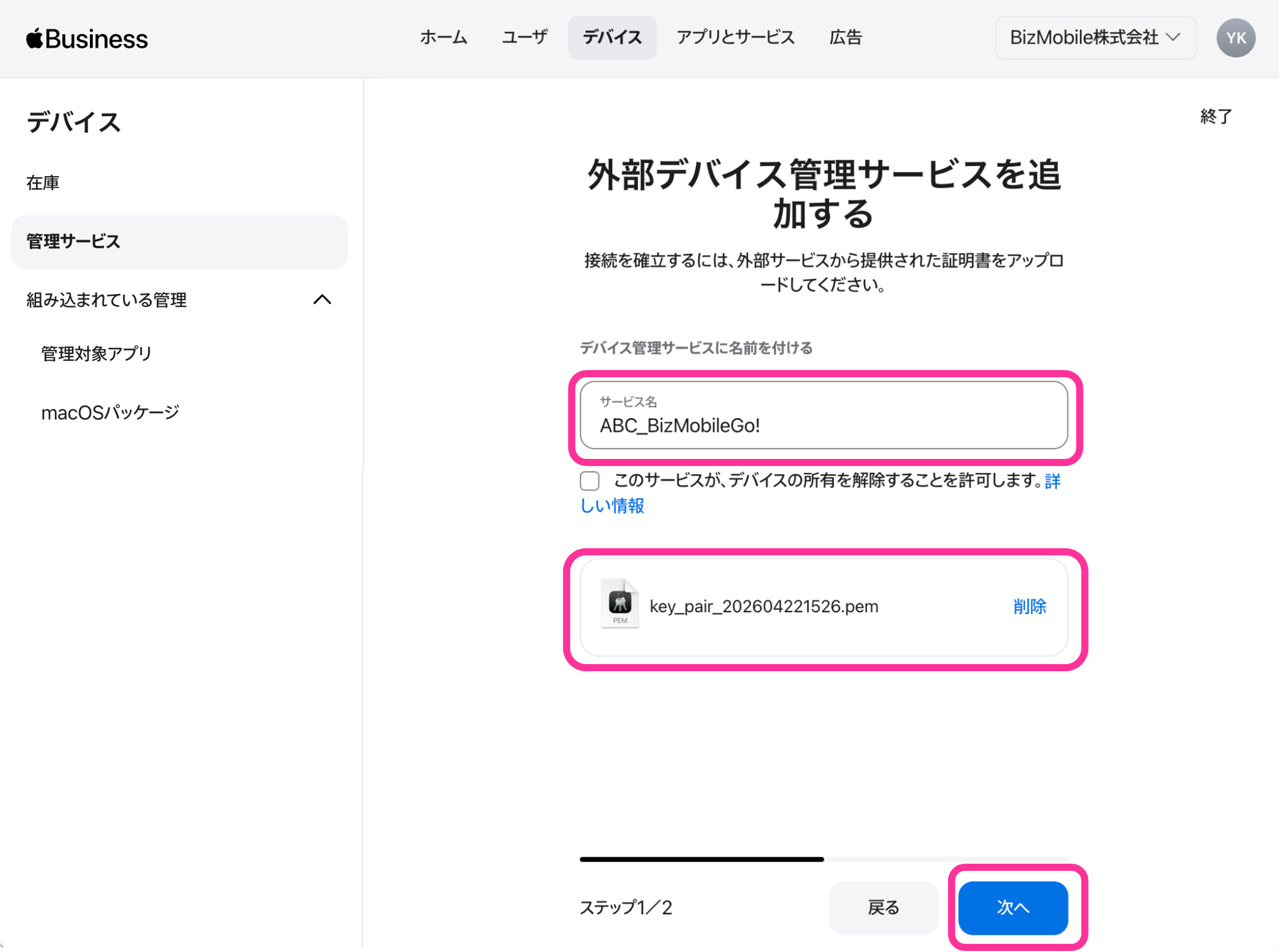 |
7. Select Download Service Token to download the token file, and then click Done. | 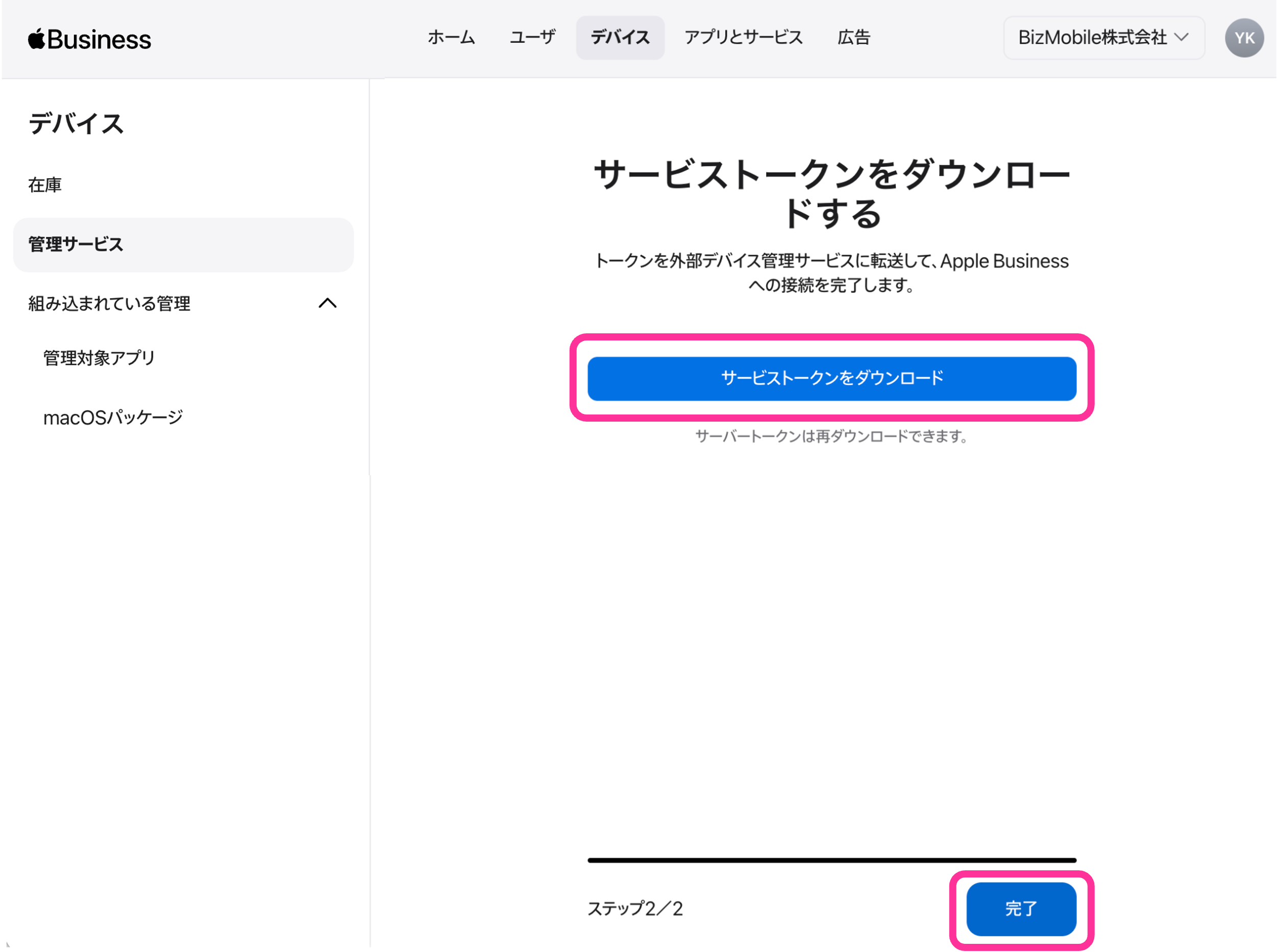 |
8. Return to the admin console and upload the downloaded token (a .p7m file). Either click the CLICK HERE OR DROP FILE HERE area and select the file, or drag and drop the file onto the area. Then click Save. | 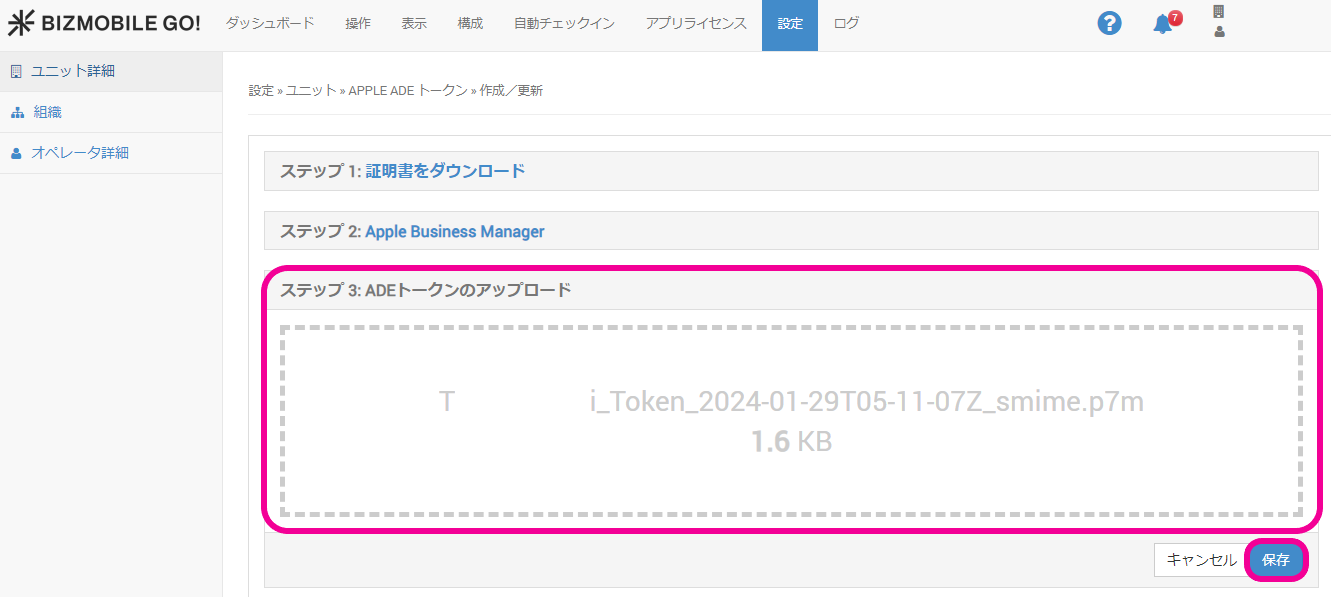 |
| 9. When a message appears, the upload is complete. |  |
10. If the registration succeeded, Last sync at: is displayed under AUTO ENROLLMENT → Device. If it is not displayed, log out of the admin console, log in again, and check again. | 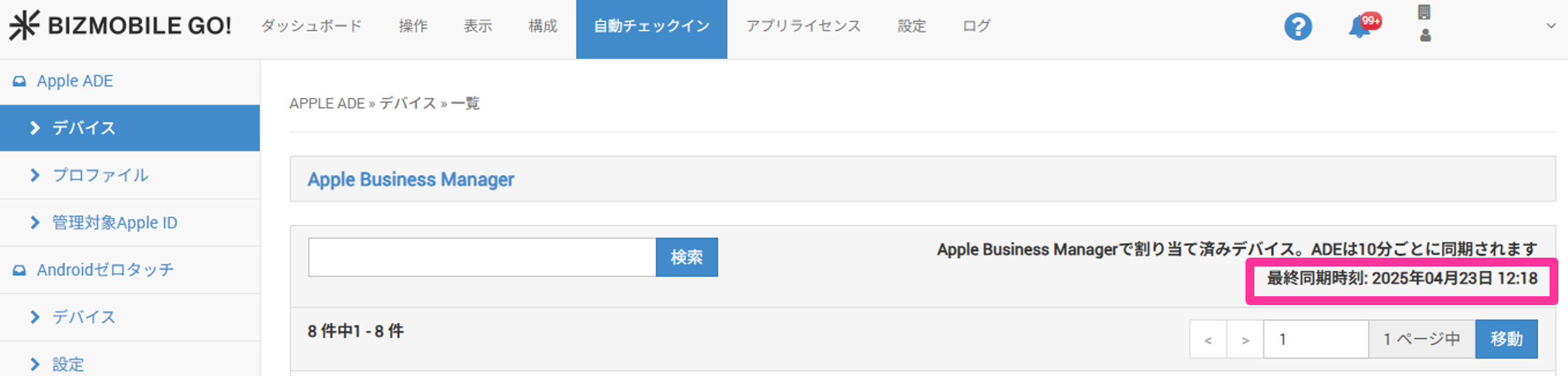 |