Register an ADE (formerly DEP) Profile
DEP has been renamed ADE (Automated Device Enrollment).
Using an ADE profile simplifies device activation during device setup (kitting).
You can also make the MDM profile non-removable to prevent devices from being unintentionally removed from MDM management.
The ADE profile is the first item applied to a device during device activation (enrollment in BizMobile Go!).
If you change the MDM server in Apple Business (formerly Apple Business Manager), you can no longer enroll new devices or re-enroll devices that are under MDM management.
ADE profiles created up to that point cannot be used and must be created again.
Create an ADE Profile
Note: Once an ADE profile is created, its settings cannot be edited or deleted.
If you need to change the contents of an ADE profile you created, create a new ADE profile and reassign the devices.
Click [Create] under [AUTO ENROLLMENT] → [ADE Profile].
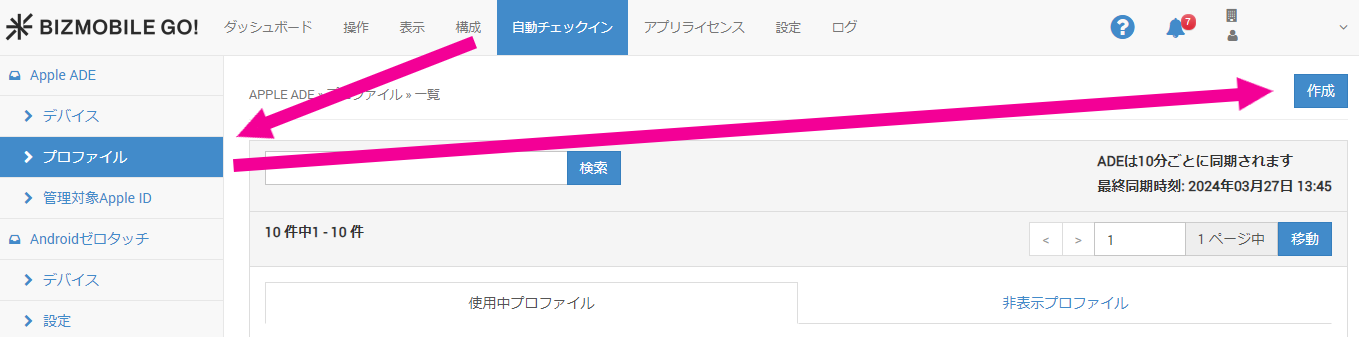
The ADE profile creation screen opens. You can configure the following items.
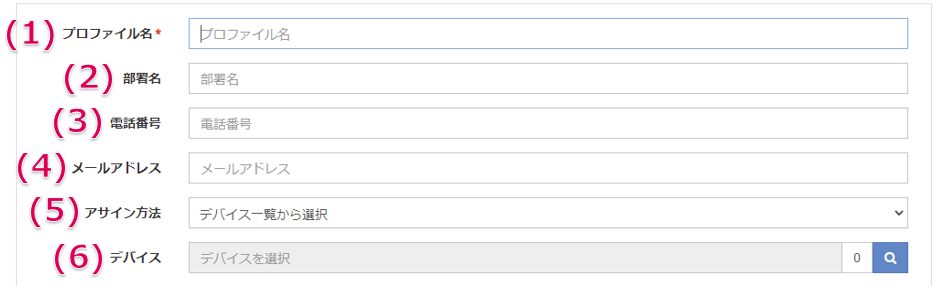
| Setting | Description |
|---|---|
| (1) Profile Name | Enter a management name for the ADE profile (required). |
| (2) Department | Enter the name of the department the device is distributed to. |
| (3) Phone Number | Enter the phone number of the device administrator. |
| (4) Email Address | Enter the email address of the device administrator. |
| (5) Assignment Method | Do not specify an assignment method; leave it at the default setting. • Default setting: Select from the device list The first ADE profile you create is automatically set as the Default ADE Profile.When a Default ADE Profile is set, devices are automatically assigned to it during activation (enrollment), so you do not need to assign the ADE profile to individual devices. Note: If an ADE profile already exists, a newly created ADE profile does not become the Default ADE Profile.After you create the ADE profile, you must set it as the Default ADE Profile on the ADE profile list screen. For the procedure, see Set the Default ADE Profile. |
| (6) Device / File | --- No need to assign devices --- Using the Default ADE Profile feature eliminates the need for assignment.Note: Use this only for a specific purpose, such as when you need to assign test devices to an ADE profile created for trial use separately from the Default ADE Profile. For the assignment procedure, see Assign Devices to an ADE Profile. |
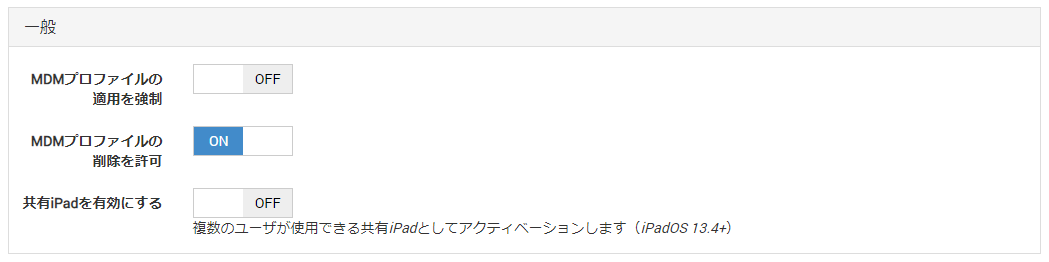
| General | Description |
|---|---|
| Apply MDM Profile | When ON, the MDM profile is applied forcibly. |
| Allow MDM profile removal | When OFF, users are prohibited from manually removing the MDM profile on the device. |
| Enable Shared iPad | When ON, the device is set up as a Shared iPad. |
The Allow pairing with host PC setting was deprecated in iOS 13, so it cannot be configured in newly created ADE profiles. To control pairing with a PC, use Allow pairing with hosts other than Configurator (supervised only, iOS 7.0+) in the Restrictions payload of the profile.
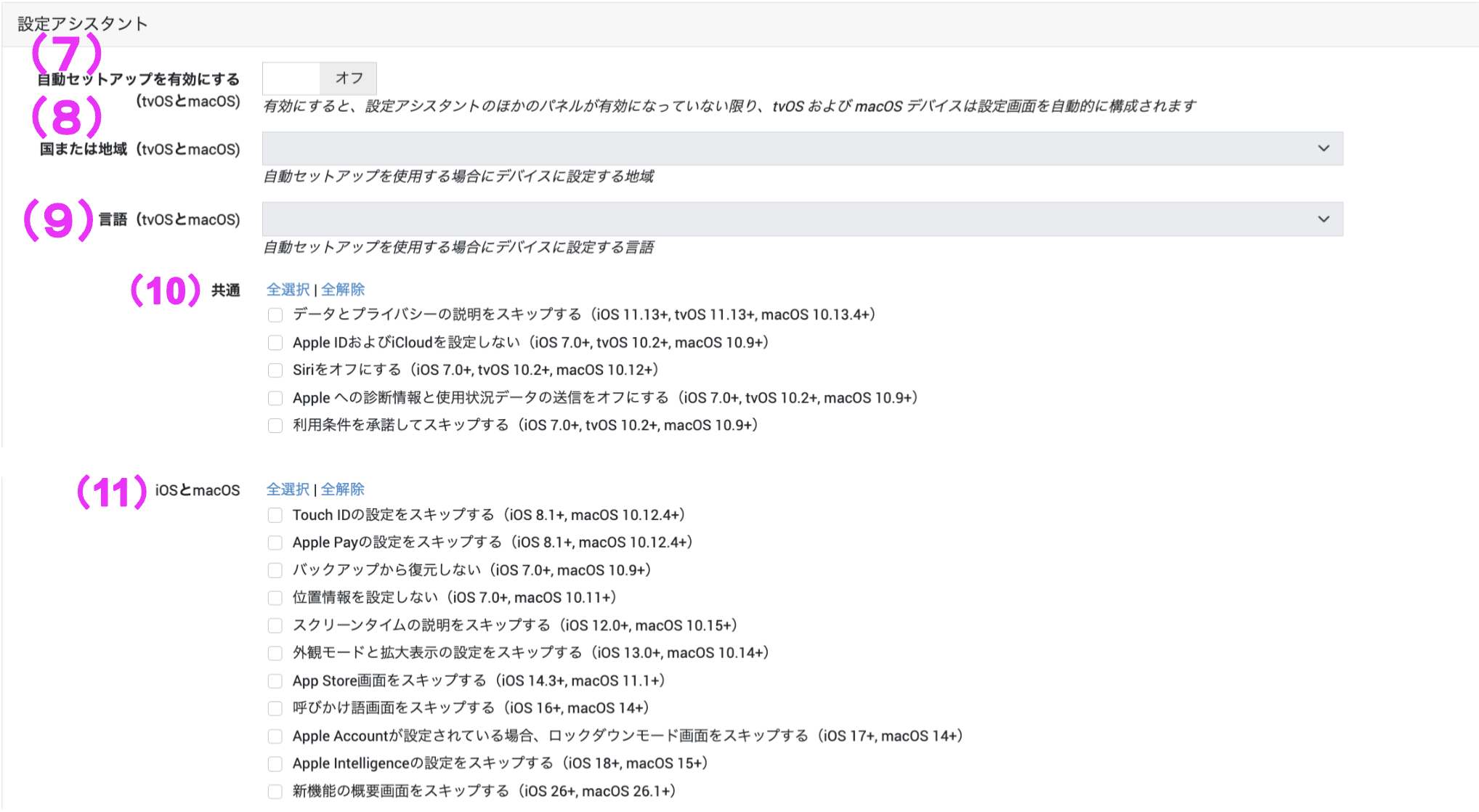
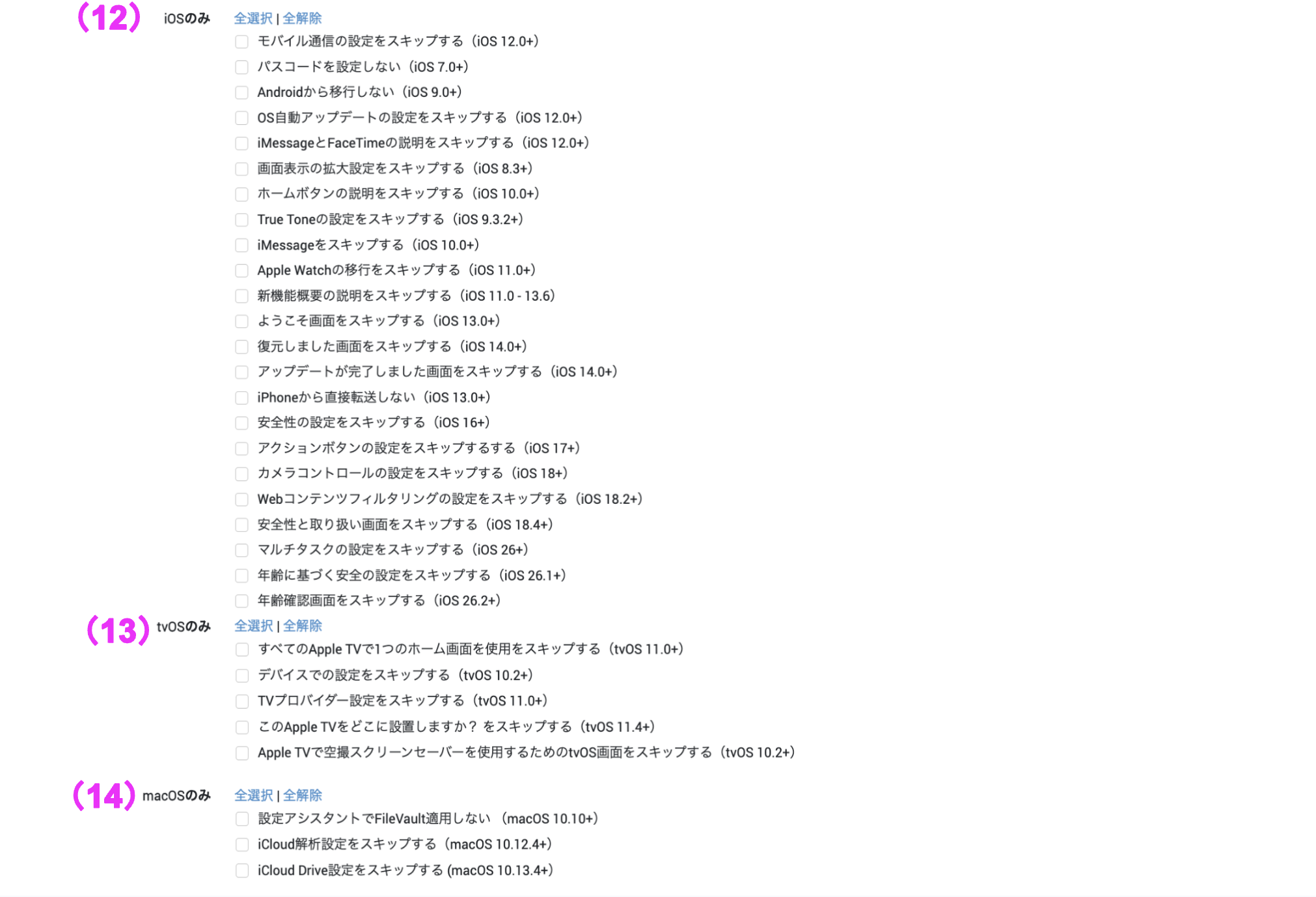
| Setup Assistant | Description |
|---|---|
| (7) Enable automatic setup (tvOS and macOS) | When ON, manual setup items that can be skipped are automated. |
| (8) Country or region (tvOS and macOS) | Set the country or region to use. This field is disabled when the "Enable automatic setup" option is OFF. |
| (9) Language (tvOS and macOS) | Set the language to use. This field is disabled when the "Enable automatic setup" option is OFF. |
| (10) Common (iOS, tvOS, and macOS) | Checked items are skipped during the initial setup of the device. These items can be set for iOS, tvOS, and macOS. |
| (11) iOS and macOS | Checked items are skipped during the initial setup of the device. These items can be set for iOS and macOS only. |
| (12) iOS only | Checked items are skipped during the initial setup of the device. These items can be set for iOS only. |
| (13) tvOS only | Checked items are skipped during the initial setup of the device. These items can be set for tvOS only. |
| (14) macOS only | Checked items are skipped during the initial setup of the device. These items can be set for macOS only. |
To finish, click [Save]. To stop configuring the ADE profile and return to the list screen, click [Cancel].
Set the Default ADE Profile
Set the Default ADE Profile, which is applied automatically when a new device is added.
The first ADE profile created in a unit is automatically set as the Default ADE Profile, so this procedure and the ones that follow are not necessary in that case.
Use this procedure only when you want to set an ADE profile you added as the Default ADE Profile.
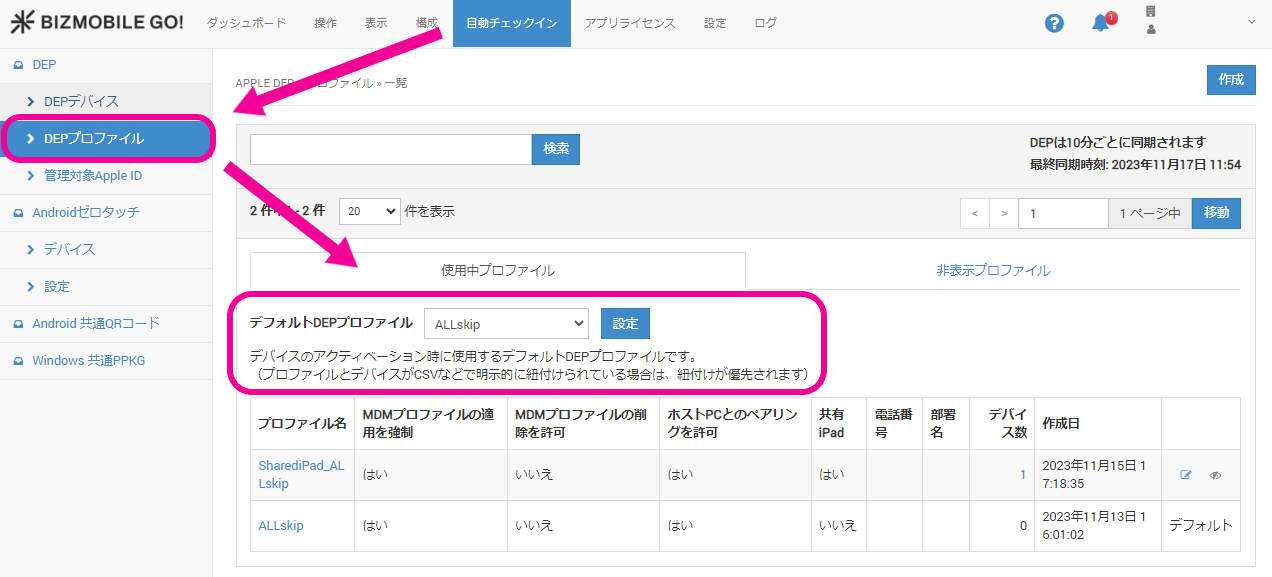
You can change the Default ADE Profile, but you cannot remove the default profile altogether.
Hide an ADE Profile
Once an ADE profile is created, it cannot be deleted.
To keep the list screen manageable, you can hide ADE profiles that are not in use (that have no ADE devices assigned).
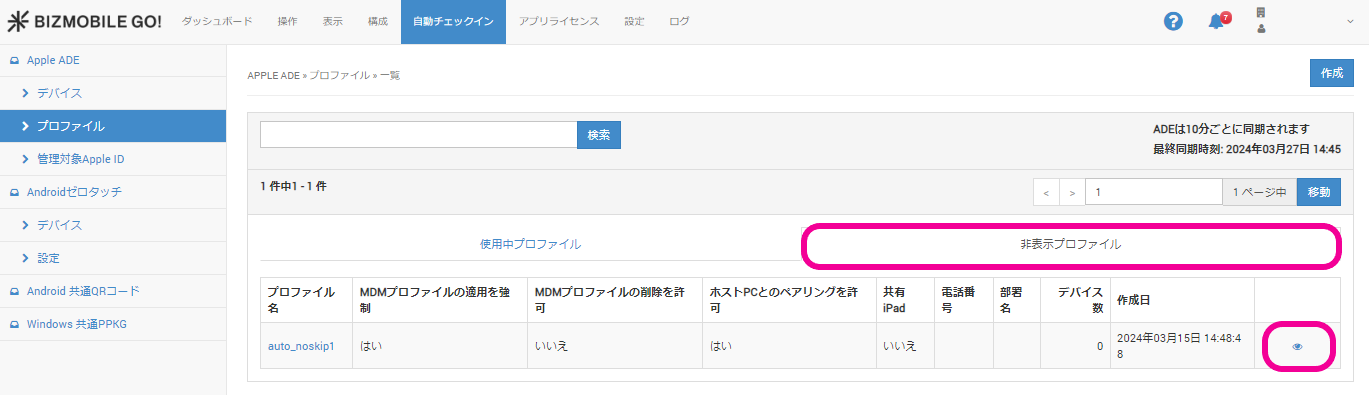
After an ADE profile is created, it is displayed in the Active Profiles list by default. Click  to the right of the Edit button of the profile you want to hide.
You cannot hide the Default ADE Profile.
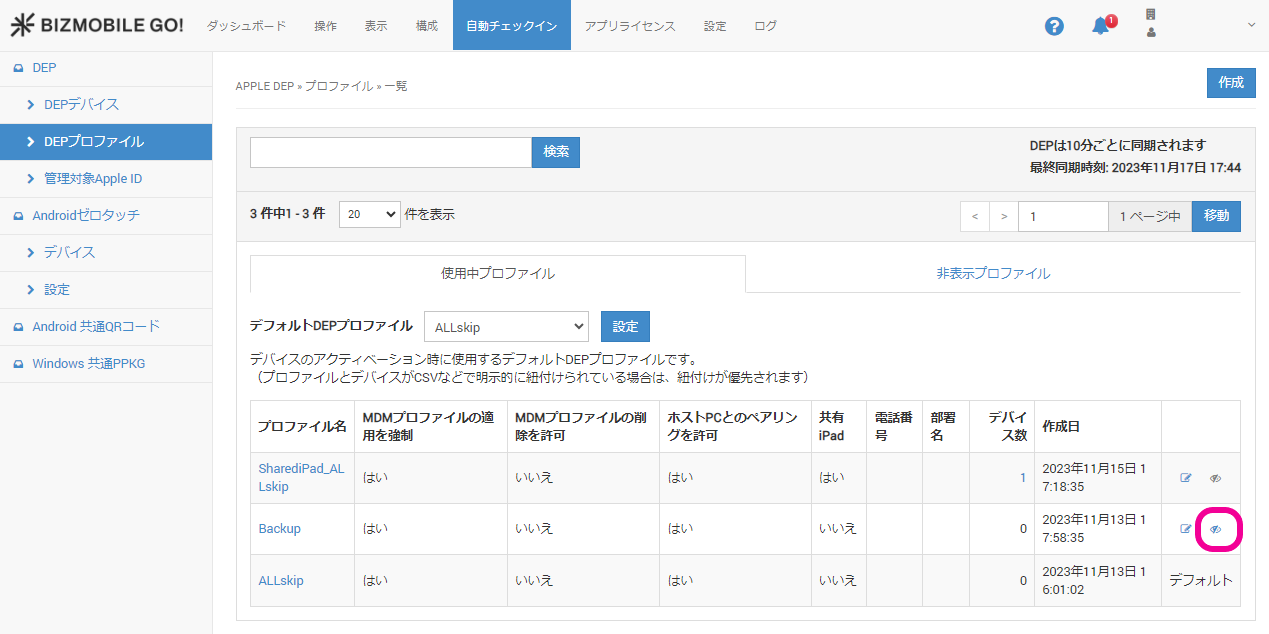
Select OK.
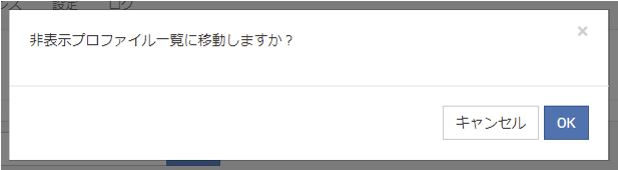
When the Success message appears, the profile is hidden.

The selected ADE profile moves to the Hidden Profiles list.
To move it back to the Active Profiles tab, click  .
.
Select OK.

When the Success message appears, the profile has been moved back to Active Profiles.
Assign Devices to an ADE Profile
For normal operation, use the Default ADE Profile feature.
Setting an ADE profile as the Default ADE Profile eliminates the need to assign individual devices.
Use this only for a specific purpose, such as assigning test devices to an ADE profile created for trial use separately from the Default ADE Profile.
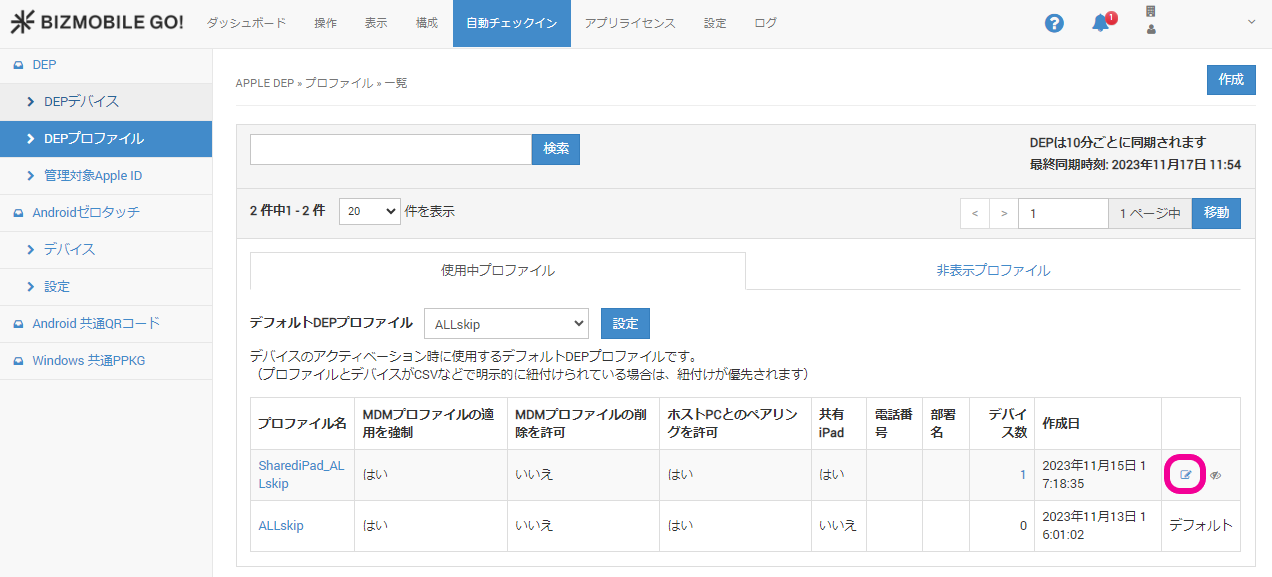
Use the Default ADE Profile feature instead of a CSV file.
Setting the ADE profile you want to use as the Default ADE Profile eliminates the need to assign individual devices by CSV.
CSV file format
| Header | Description |
|---|---|
| SERIAL_NO | Serial number of the ADE device |
CSV file sample
This is an example of applying an ADE profile to three DEP devices.
SERIAL_NO
111A03B04C5D6EF7GH
222A03B04C5D6EF7GH
333A04B05C6D7EF8GH
If you reapply an ADE profile to a DEP device whose profile status is pushed, the profile status changes to assigned.
When that ADE device is set up again after a wipe or reset, the applied ADE profile is distributed.