Import ADE (formerly DEP) Devices from Apple Business into BizMobile Go!
Import ADE devices manually
DEP has been renamed ADE (Automated Device Enrollment).
To use ADE devices in BizMobile Go!, you must assign them from Apple Business (formerly Apple Business Manager).
If you are using a Windows PC, use Google Chrome or Microsoft Edge for this procedure.
| Step | Screen |
|---|---|
| 1. Sign in to Apple Business (https://business.apple.com/login). | 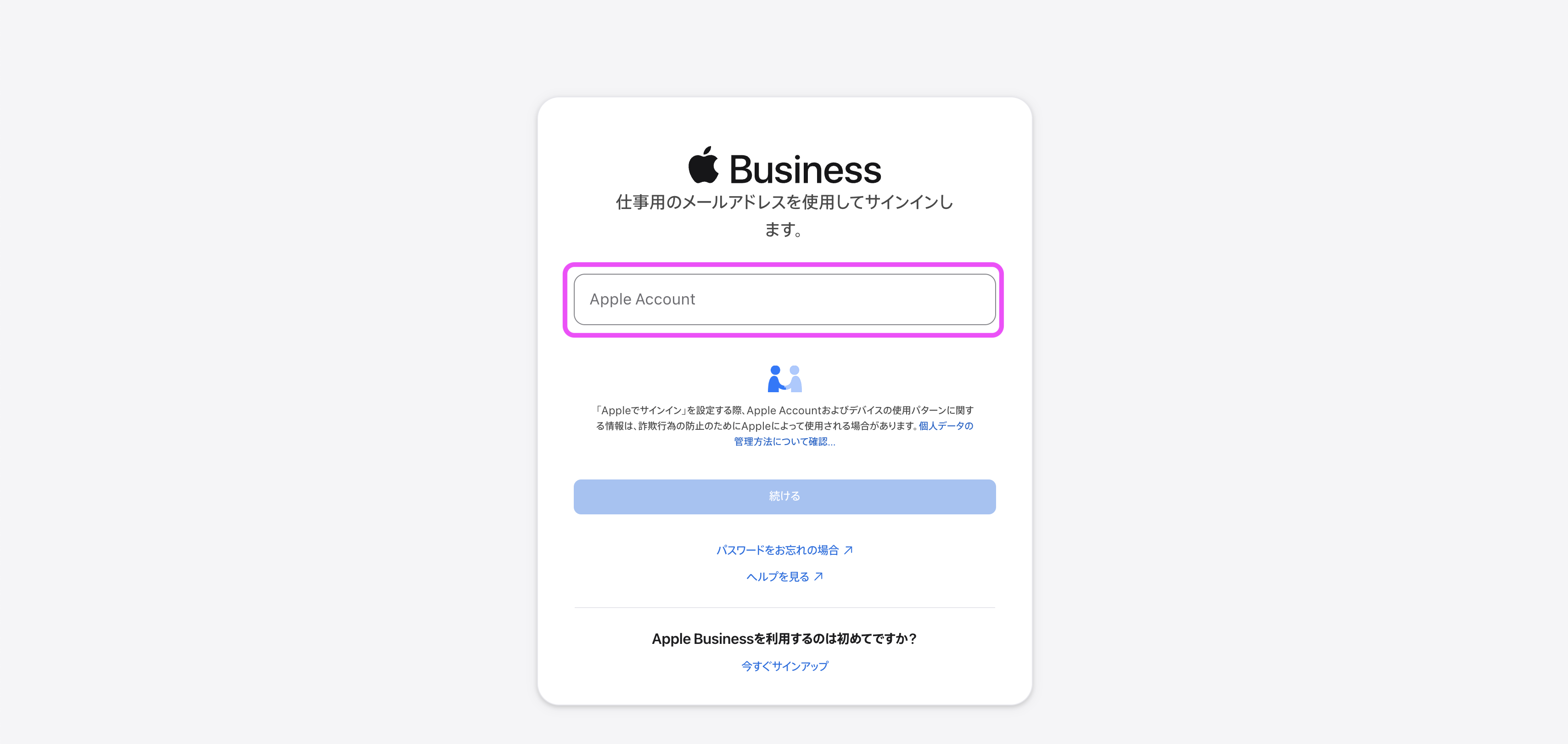 |
2. Click Devices → Inventory. | 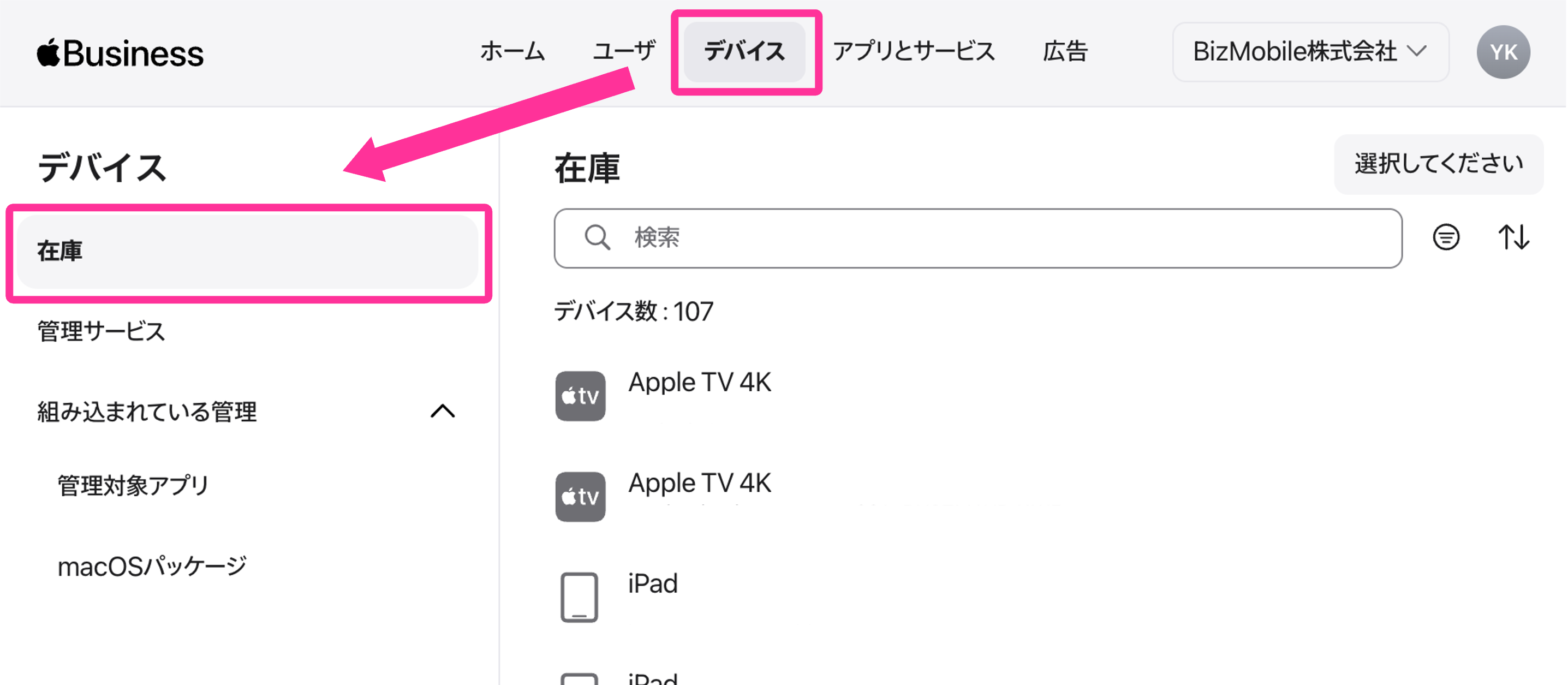 |
| 3. [Filter by individual device serial number] Enter the serial number in the search box at the top of the screen to narrow down the devices to assign to the MDM server. When the device is displayed, click Assign Device Management to assign it.[Filter devices with filters] Click Filter below the search box at the top of the screen, and narrow down the devices to assign to the MDM server by device order number, device type, and so on.You can specify multiple devices for each filter. Important For devices assigned to the MDM server by the operation above, BizMobile Go! automatically links them to an ADE profile. When the link to the ADE profile is complete, the device can be enrolled. Operation to avoid For the second and subsequent assignments, do not use the following procedure, which differs from the one above. Devices > All Devices > Assign Device Management Service > [Select MDM server] > Continue (execute) If you use the procedure that targets All Devices, all existing links between ADE profiles and devices are cleared (Empty).You can assign All Devices to the MDM server only at the initial deployment. | 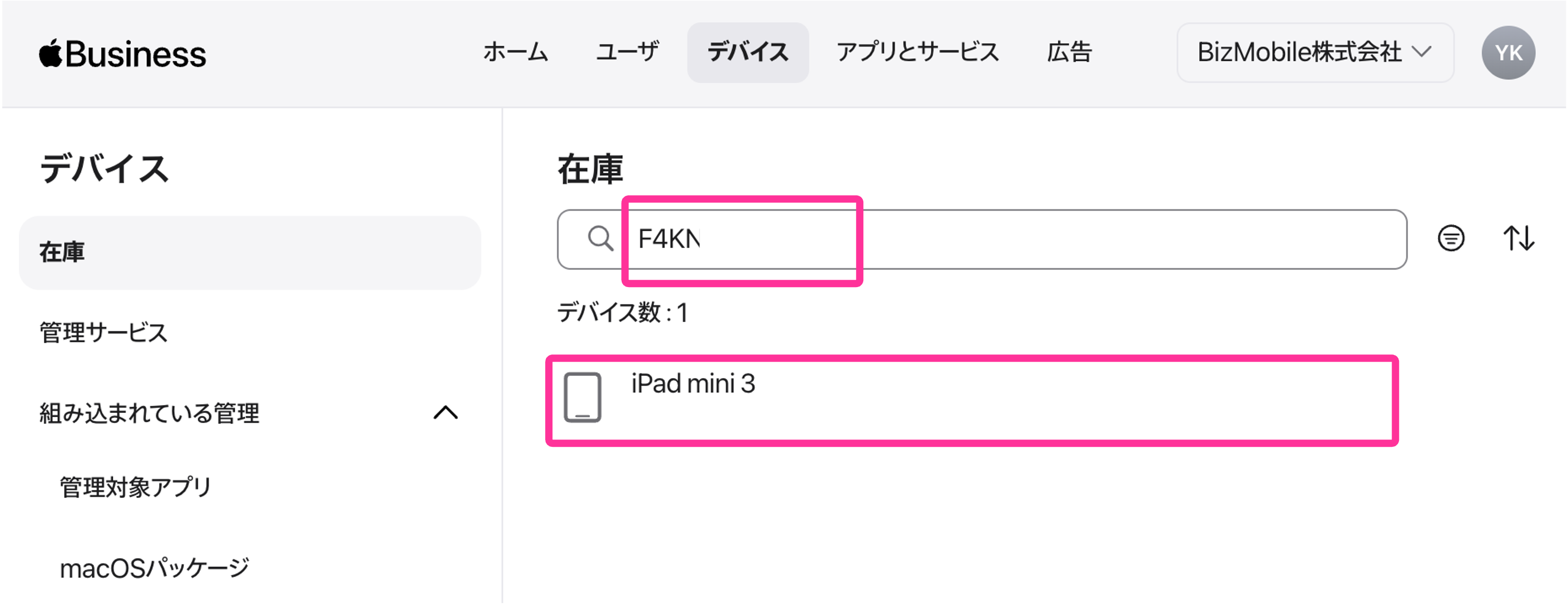 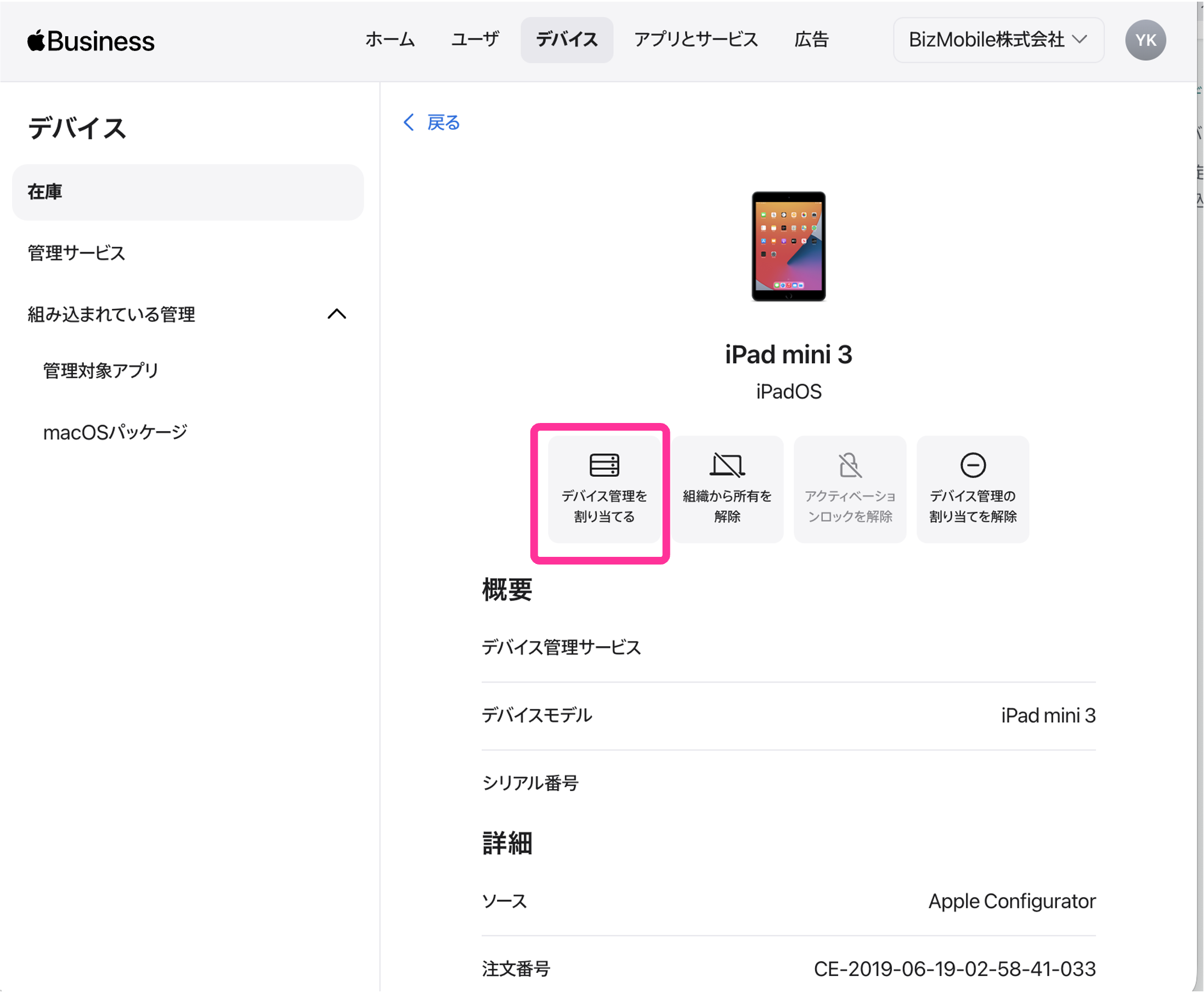 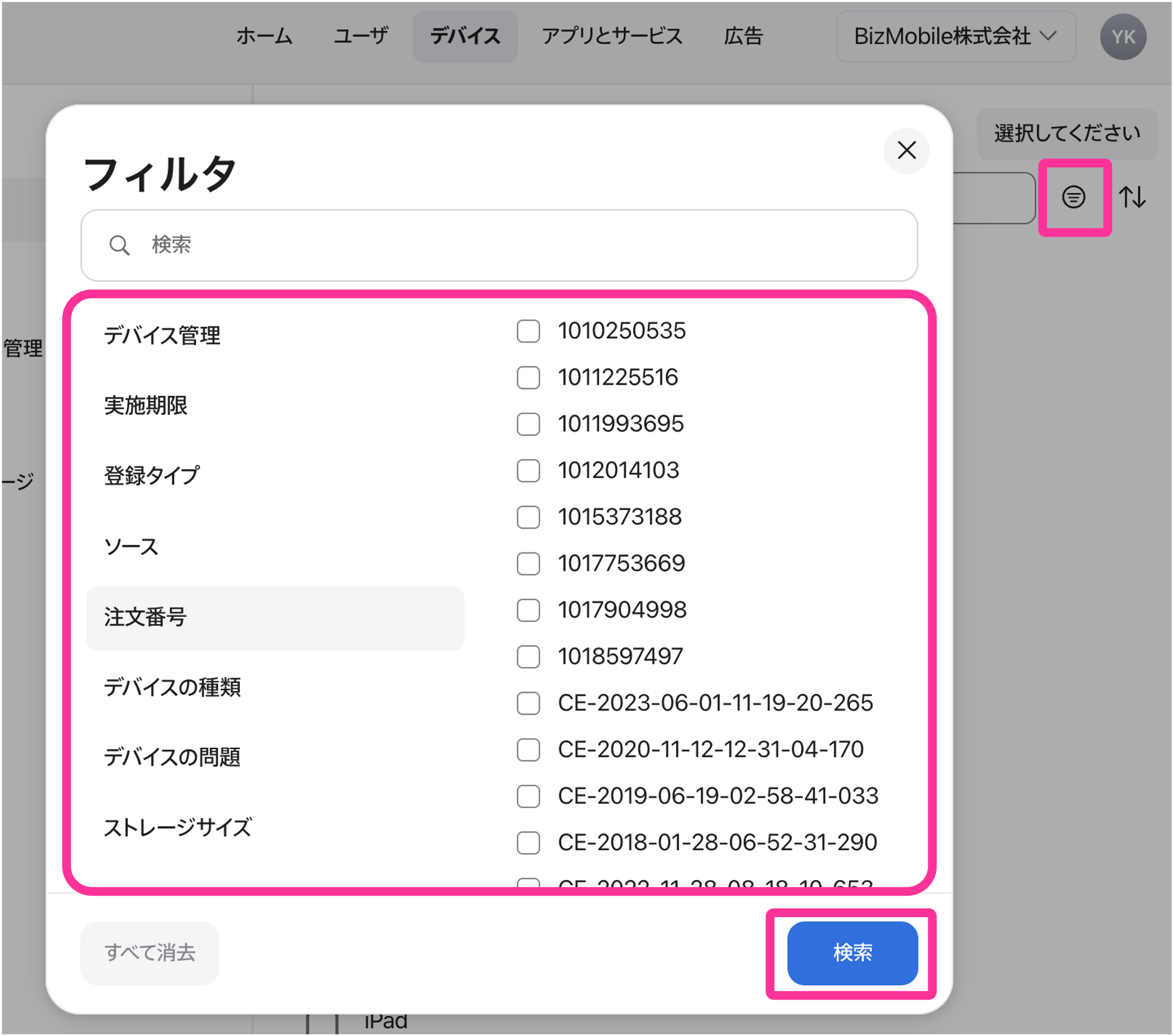 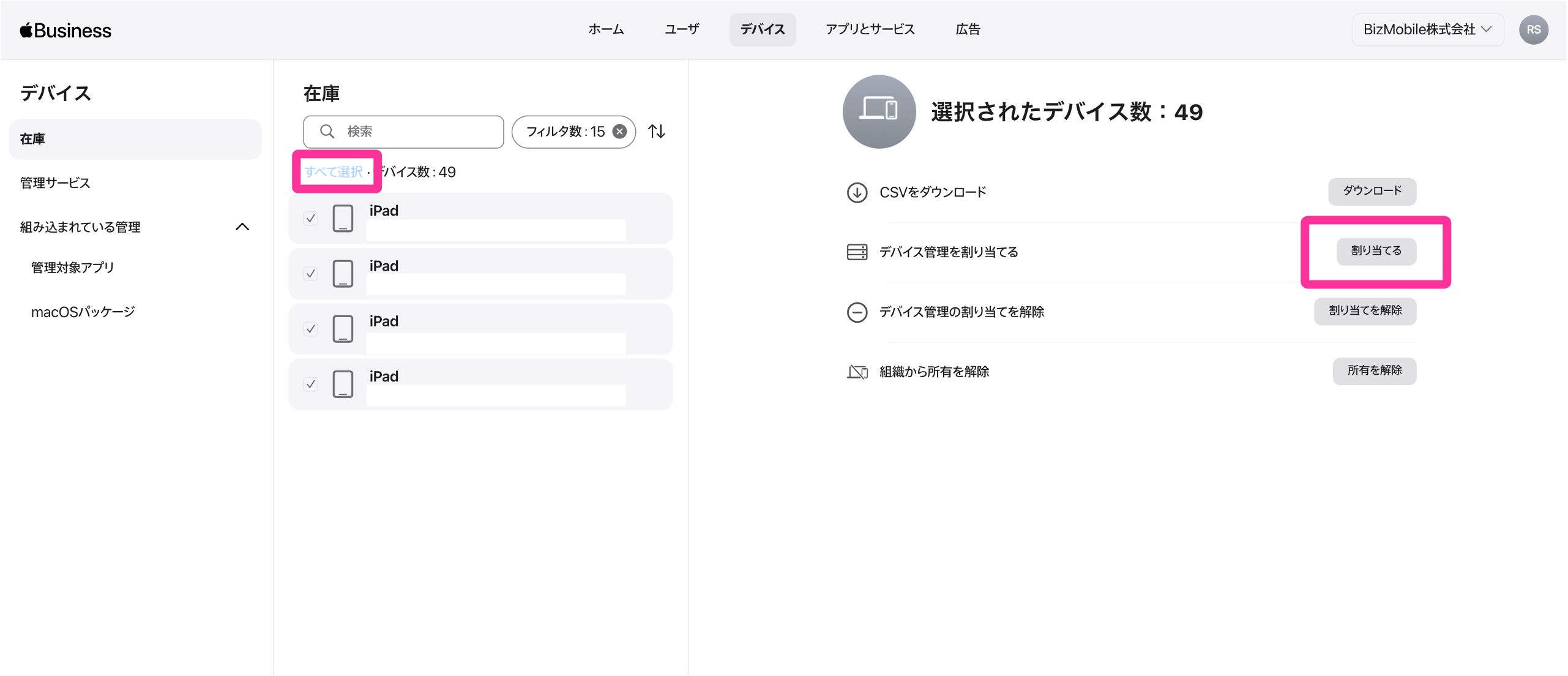 |
4. Specify the server from the drop-down list and click Continue. | 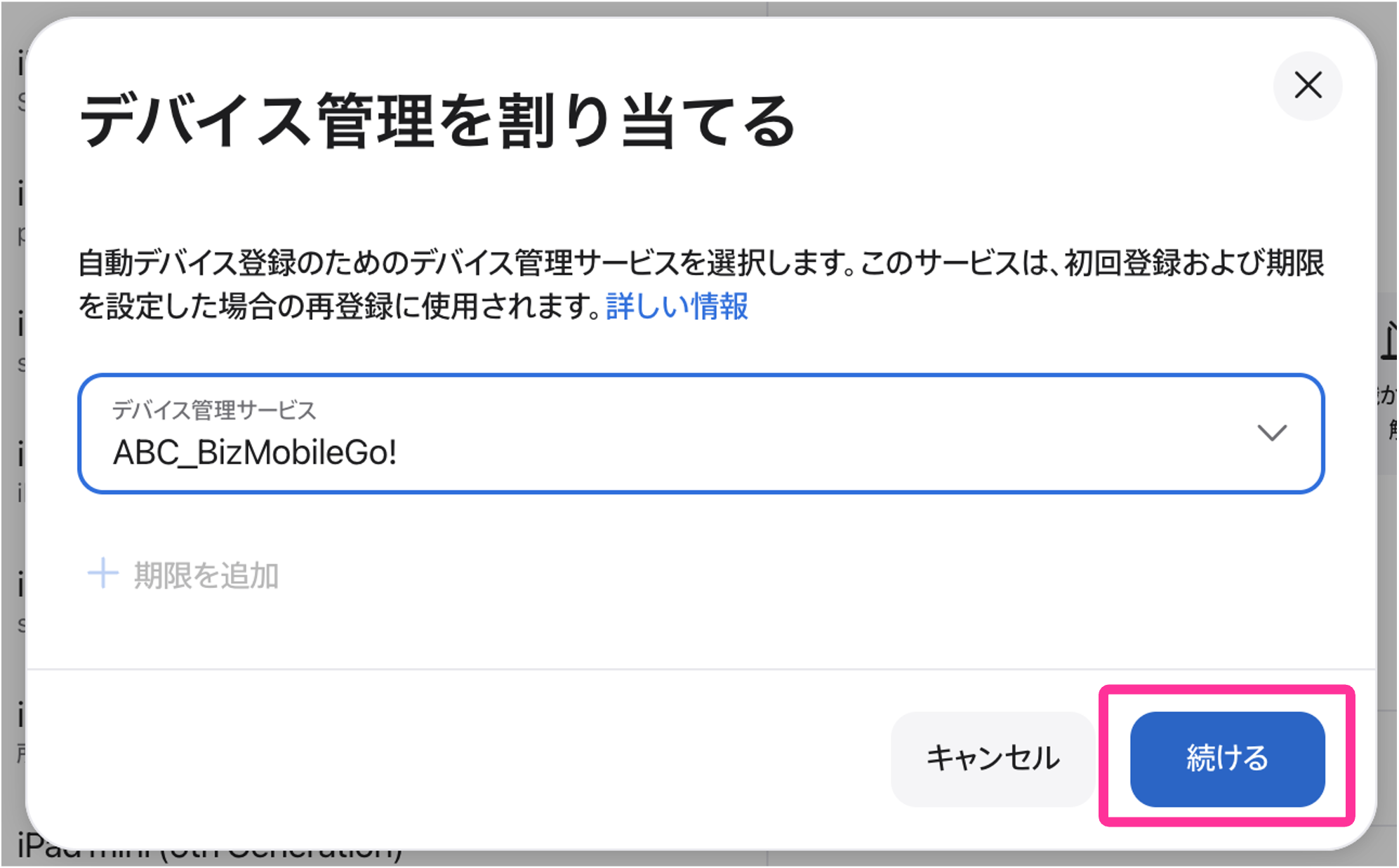 |
5. When the completion screen appears, you are done. Click Done to close the screen. | 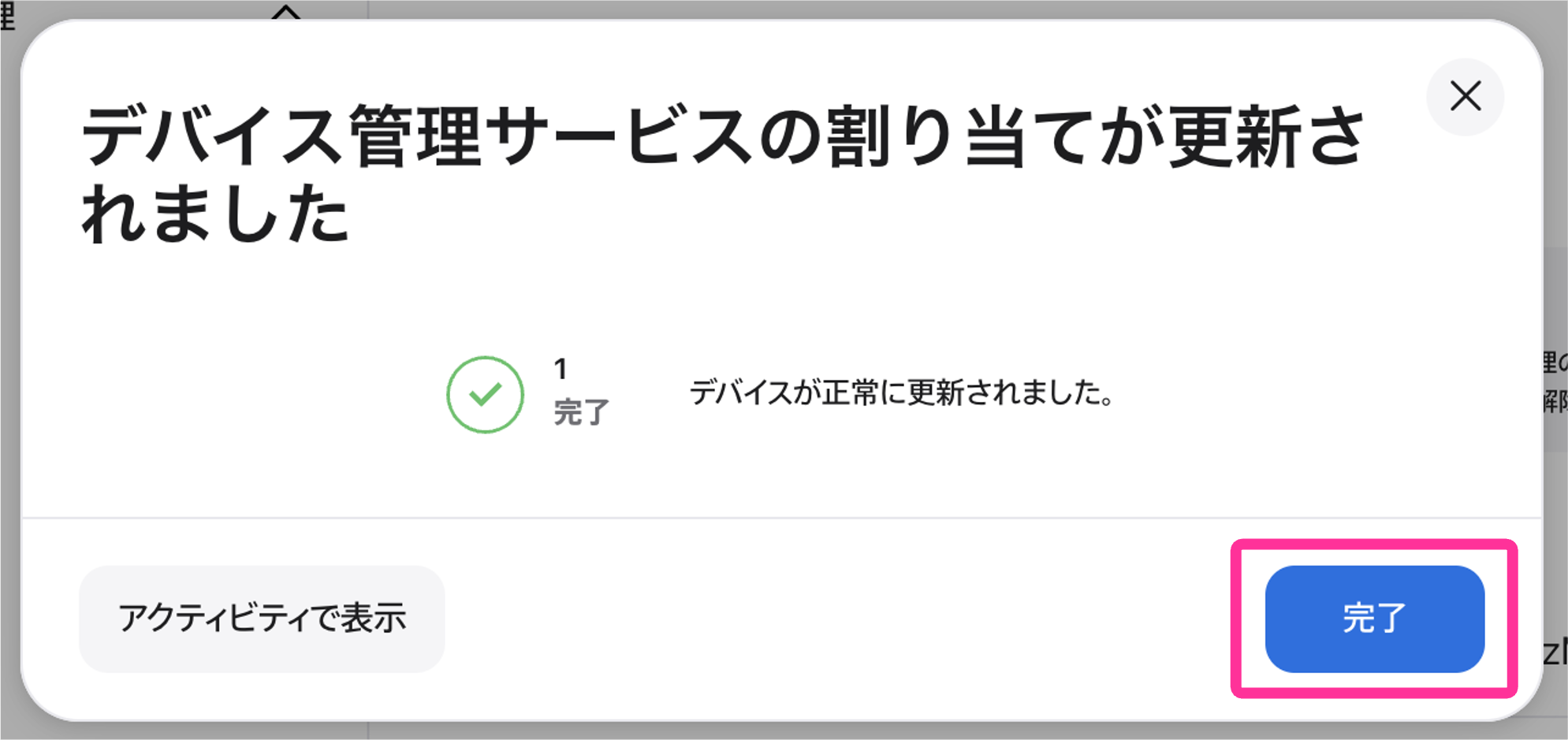 |
For ADE devices that will be newly added in the future, you can configure a default setting so that you do not need to import them manually. For details, see the procedure in Automatic ADE Device Import with Default Settings.
Check the imported devices
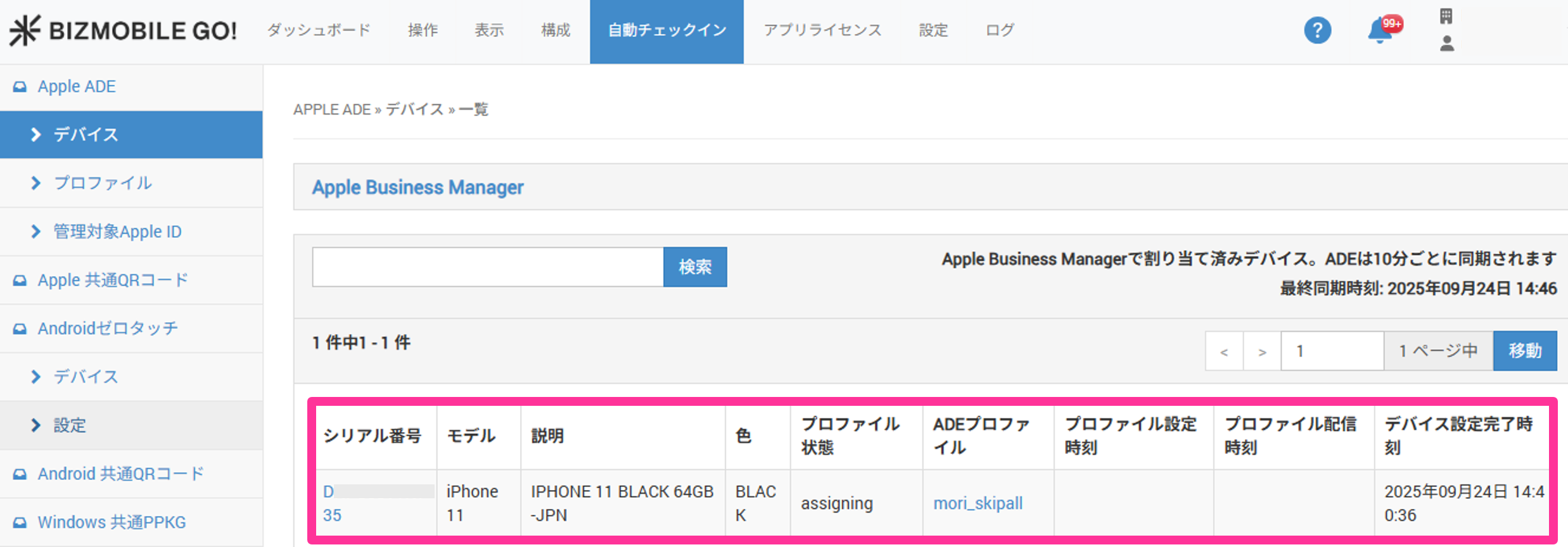
The registered ADE devices are listed on the ADE device screen of BizMobile Go!. You can open the ADE device screen from AUTO ENROLLMENT in the top menu.
|  |
|  |
| 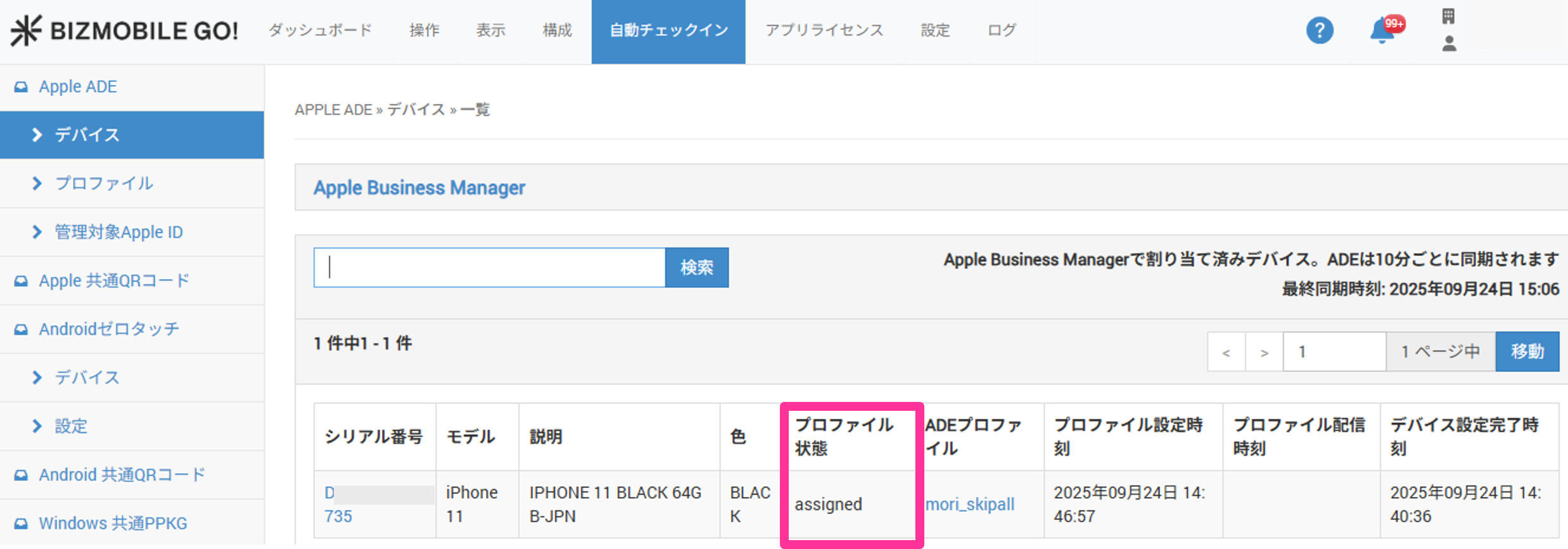 |
After you have confirmed all of the above, proceed to the next procedure. → Enroll an ADE (formerly DEP) Device
AUTO ENROLLMENT Device List Screen
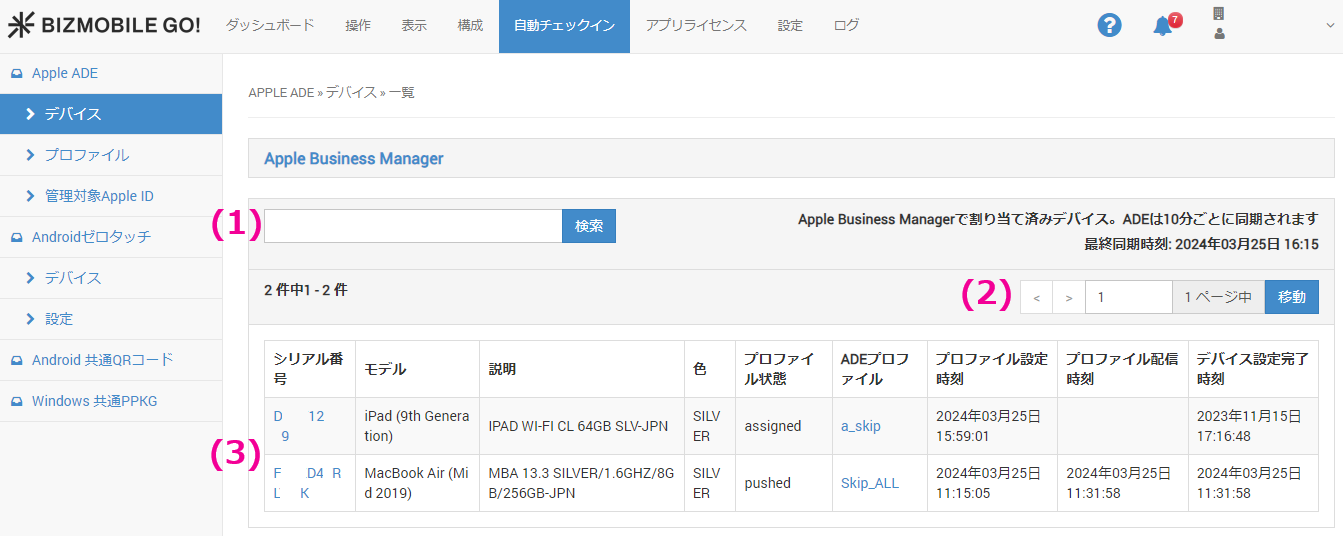
(1) Search
You can search by serial number.
(2) Page navigation
If the list spans multiple pages, page navigation is displayed. Click a page to select it, or enter a page number directly to move to it.
(3) ADE device list
This is the list of ADE devices registered in the ADE portal. The items displayed in the list and in the details view are as follows.
Notes
You cannot edit or delete ADE device information.
Item | Description |
|---|---|
Serial Number | The unique serial number of the device. Click it to display detailed information |
Model | The model name. Information provided by Apple |
Description | A description of the device. Information provided by Apple |
Color | The body color of the device. Information provided by Apple |
empty: No ADE profile is assigned to the ADE device assigning: Assignment of the ADE profile to the ADE device is in progress assigned: Assignment of the ADE profile to the ADE device is complete pushed: Installation of the ADE profile on the ADE device is complete removed: The assignment between the ADE device and the ADE profile was removed | |
ADE Profile | The applied ADE profile. Click it to display detailed information about the profile |
Profile Set Time | The time the profile was set Reference If you use an ADE device that was registered on another server, the time the profile was last set on the other server is displayed. After you register the ADE device on the server and apply an ADE profile, the time is updated. |
Profile Distribution Time | The time the profile was distributed to the device |
Device Setup Completion Time | The time registration of the ADE device was completed in the ADE portal |
Automatic ADE Device Import with Default Settings
You can register a default server to which newly added ADE devices are assigned.
When a device is added to your organization, it is automatically assigned to the server you registered in advance, so you no longer need to assign it to the server manually.
| Step | Screen |
|---|---|
| 1. Sign in to Apple Business (https://business.apple.com/login). | |
2. Click Devices → Management Services → Default Device Assignment. | 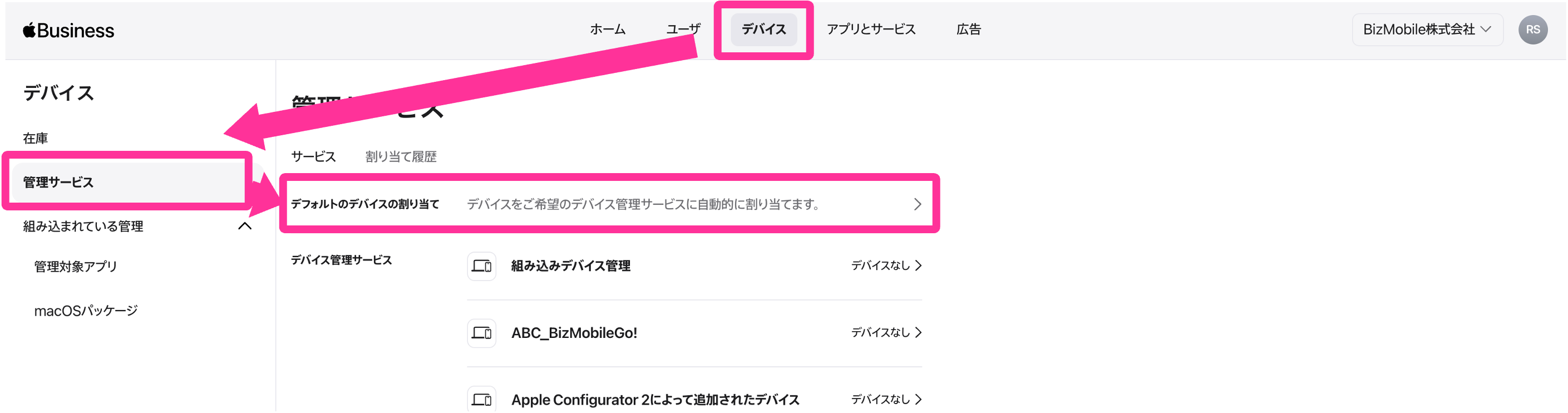 |
| 3. Register the default server for newly added devices. Select the assignment server from the drop-down list and click Save. | 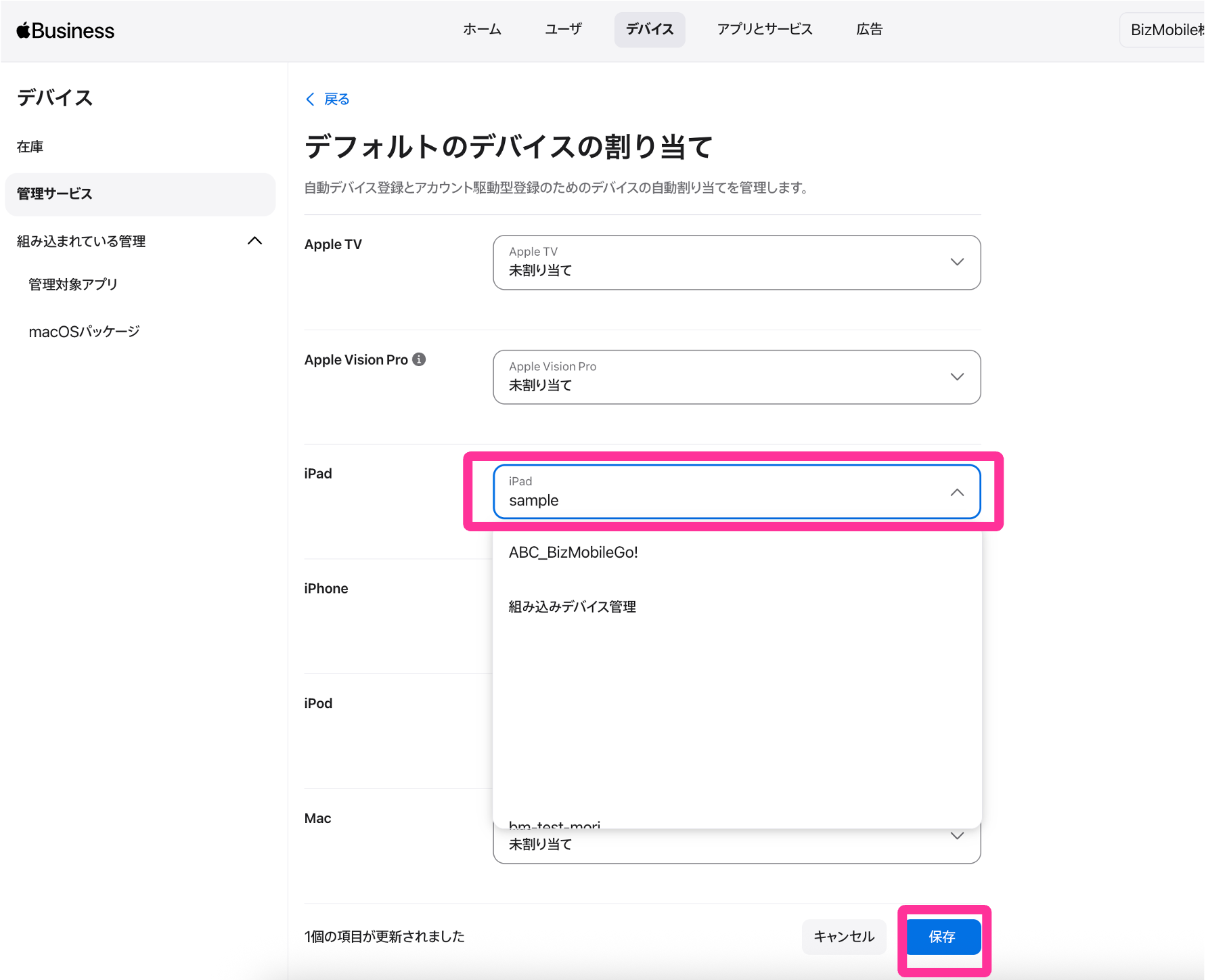 |