Export Registered Information
Export device information
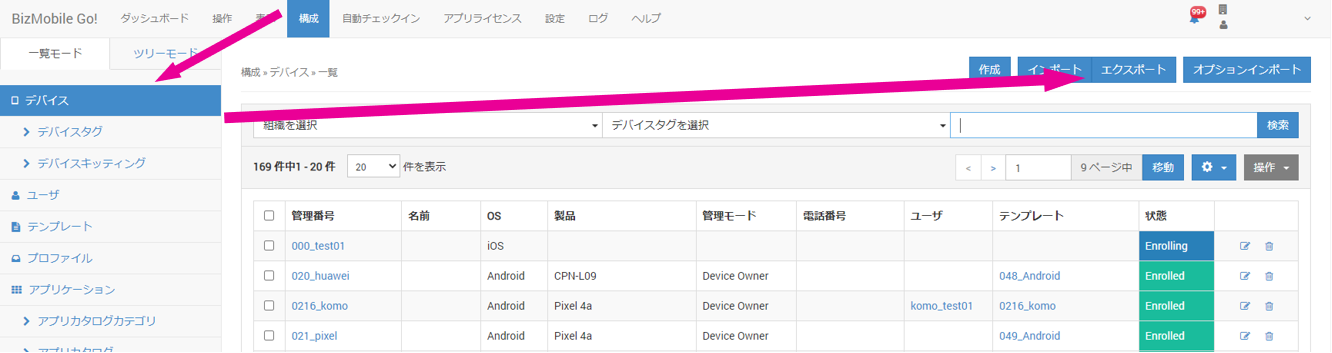
- To export device information, click [Export] on the CONFIG → Device screen.
- Select an item from the
Select data to exportdrop-down menu, and then click [Export].
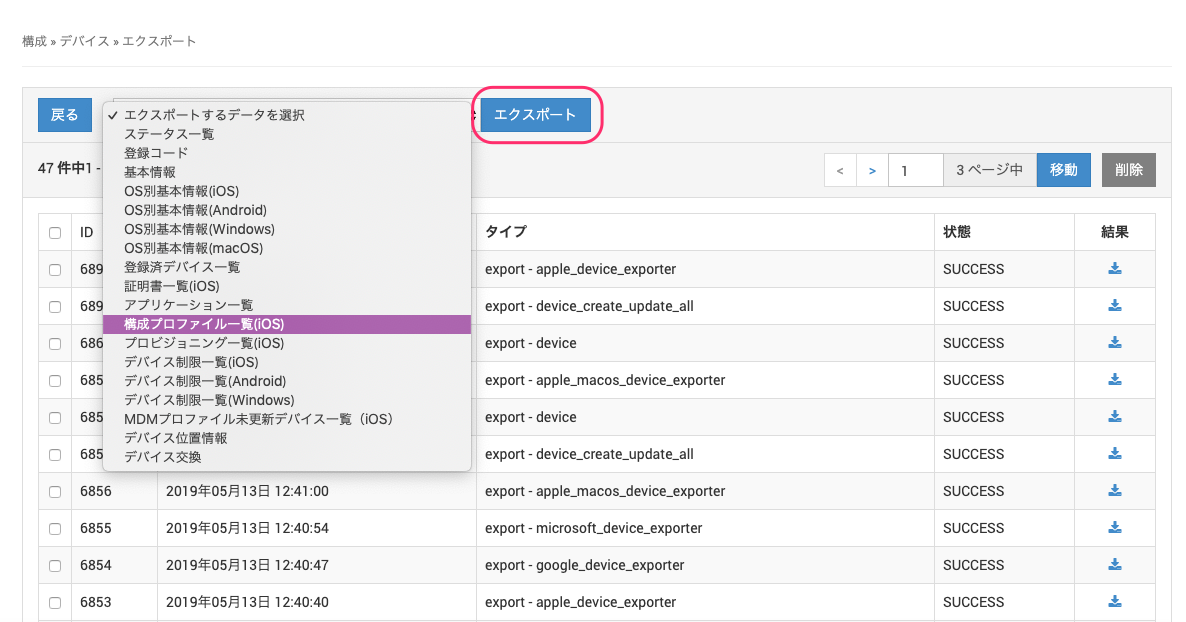
The types of data you can export are as follows. For details, see Types and Contents of Exported CSV Files.
- Status List
- Registration Code
- Basic Information
- Basic Information by OS (iOS)
- Basic Information by OS (Android)
- Basic Information by OS (Windows)
- Basic Information by OS (macOS)
- Registered Devices
- Certificate List (iOS)
- Application List
- Configuration Profile List (iOS)
- Provisioning List (iOS)
- Device Restriction List (iOS)
- Device Restriction List (Android)
- Device Restriction List (Windows)
- List of Devices with Outdated MDM Profile (iOS)
- Device Location Information
- Device Exchange
- On the
Do you want to create the download data?message screen, click [OK].

- In the export history at the bottom of the screen, the export data you just created appears with
Status = PENDING. Wait a moment, and then click the browser's refresh button.
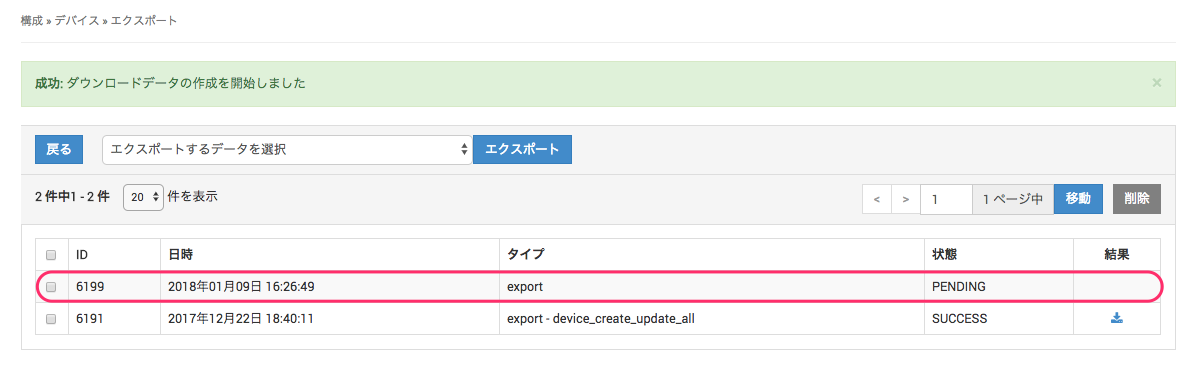
After you refresh the browser, if the download data has been created, theStatuschanges toSUCCESS.
Click the icon under the result to download the CSV file.
(If the status remains PENDING, wait a moment and refresh the browser again.)
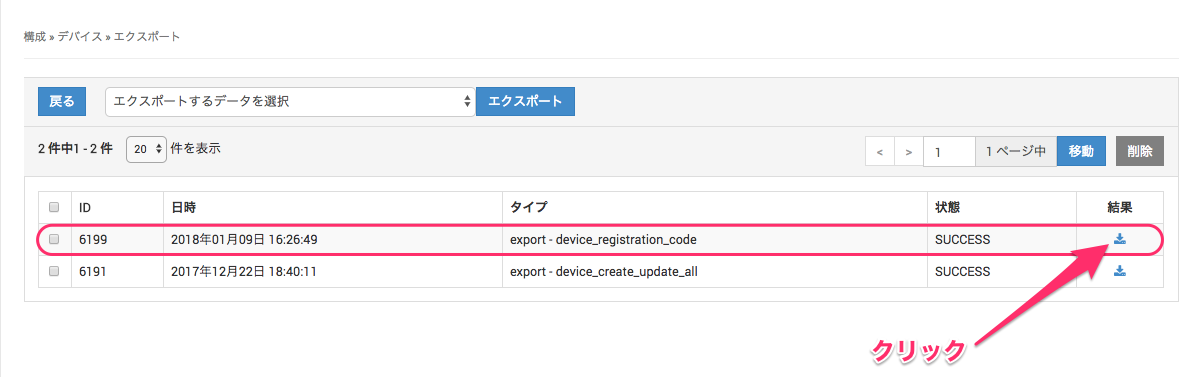
You can also use the export history to view and delete the list of previously exported information.
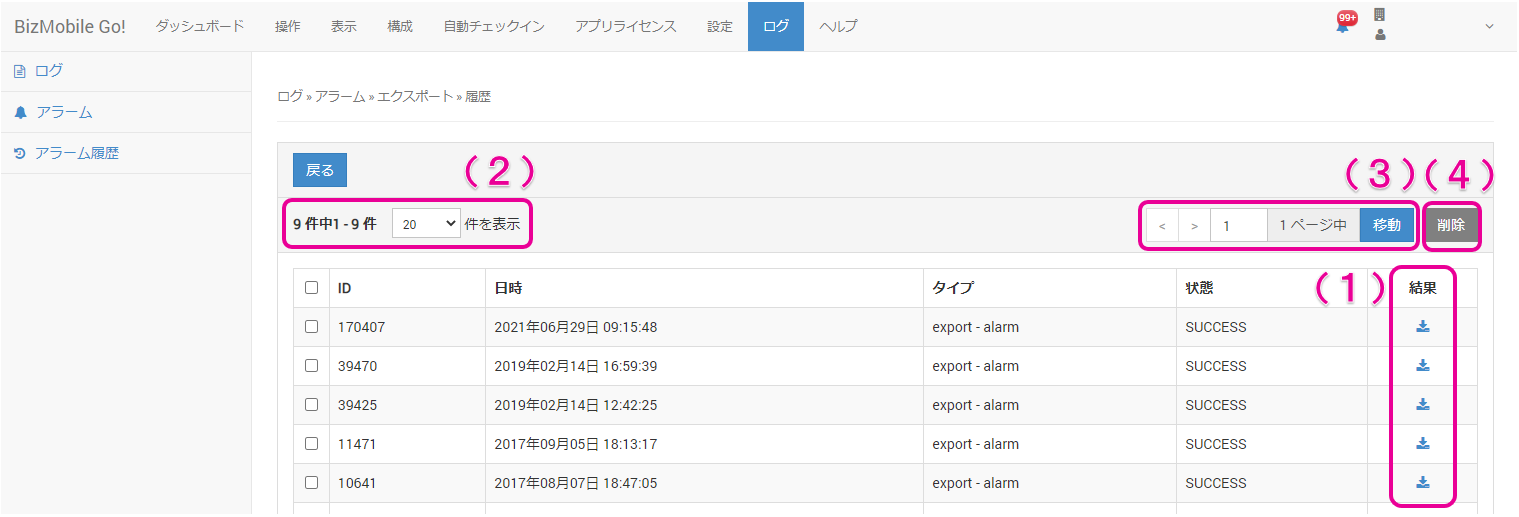
(1) Click the icon to download a past export result again
(2) You can select 20 (default), 50, or 100 items to display in the history list
(3) If the history spans multiple pages, you can move between pages
(4) You can select check boxes in the history list to delete entries
Export template information
-
To export template setting information, click [Export] on the CONFIG → Template screen.
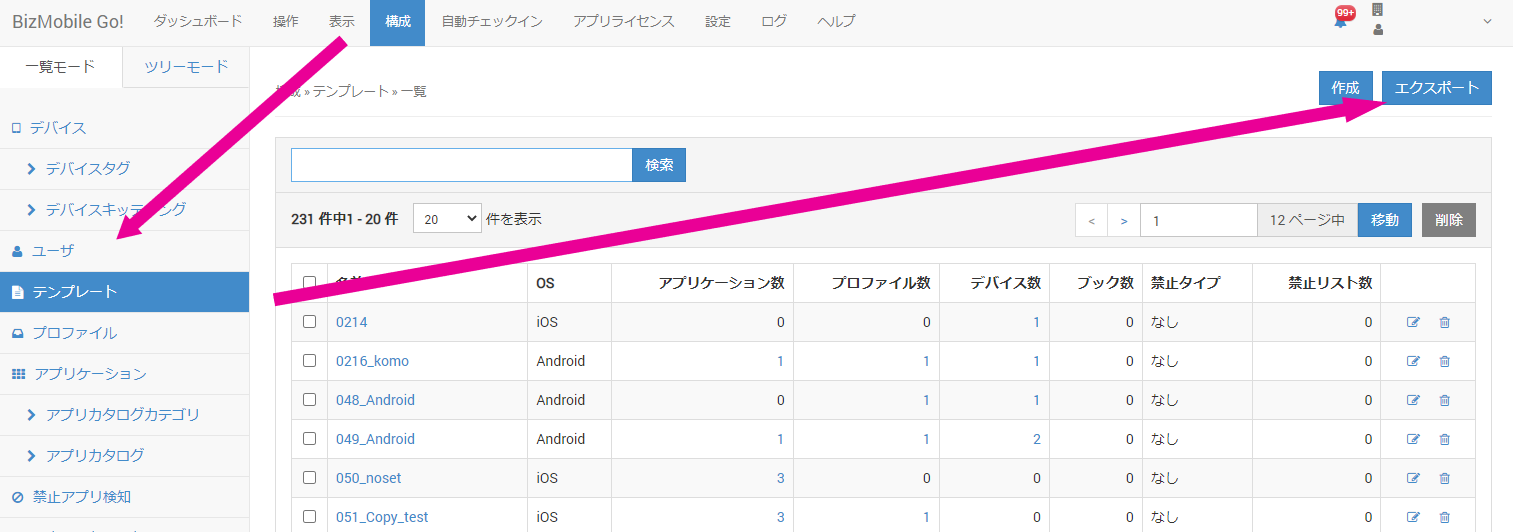
-
Select an item from the
Select data to exportdrop-down menu, and then click [Export].
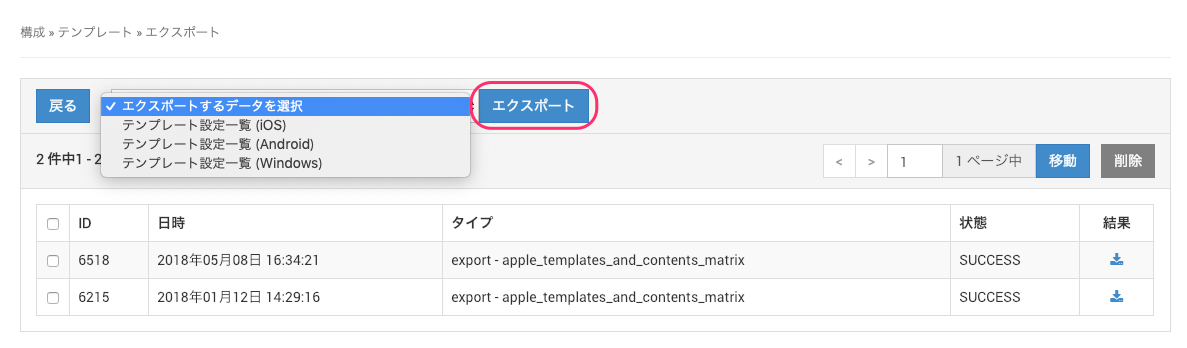
The types of data you can export are as follows. For details, see Types and Contents of Exported CSV Files.
-
Template Settings List (iOS)
-
Template Settings List (Android)
-
Template Settings List (Windows)
- On the
Do you want to create the download data?message screen, click [OK].
- In the export history at the bottom of the screen, the export data you just created appears with
Status = PENDING. Wait a moment, and then click the browser's refresh button.
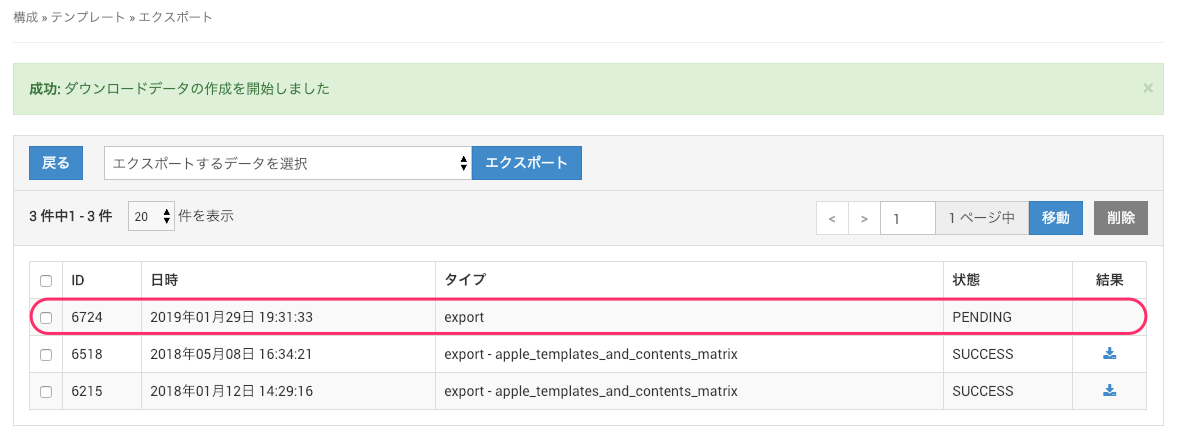 After you refresh the browser, if the download data has been created, the
 Statuschanges toSUCCESS.
Click the icon under the result to download the CSV file.
(If the status remains PENDING, wait a moment and refresh the browser again.)
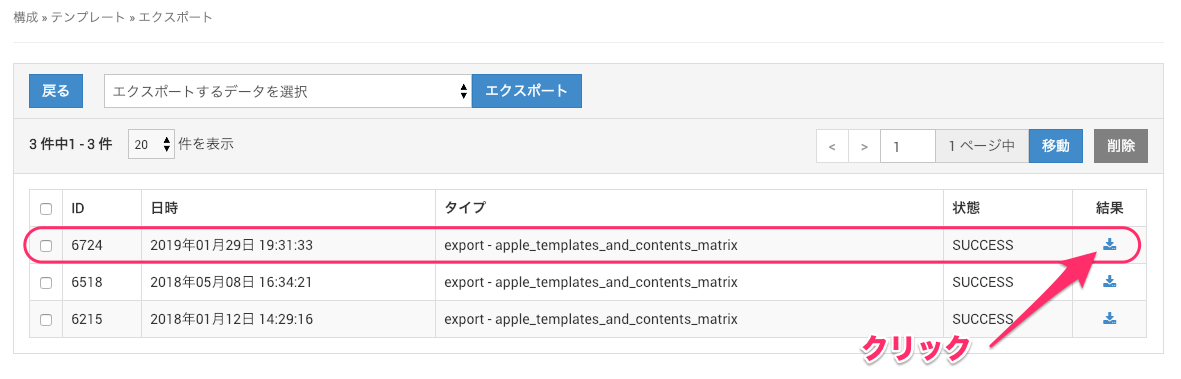
You can also use the export history to view and delete the list of previously exported information.
(1) Click the icon to download a past export result again
(2) You can select 20 (default), 50, or 100 items to display in the history list
(3) If the history spans multiple pages, you can move between pages
(4) You can select check boxes in the history list to delete entries
Export organization information
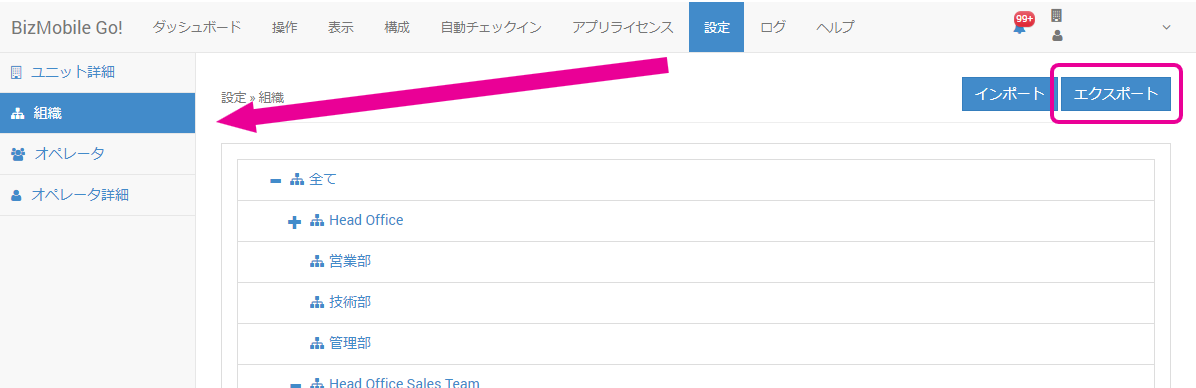
To export organizations, export from SETTING → Organization.