Create and edit schedules
Set a schedule so that a silent push notification is sent once per hour to check the status of the device (whether it is inside or outside the geofence area).
warning
Set a schedule so that a silent push notification is sent once per hour to check the status of the device (whether it is inside or outside the geofence area).
danger
The following conditions must be met for the status check to run.
- Notification setting of the BizGo! Air app is enabled
- Location setting of the BizGo! Air app is "Always"
Create a schedule
-
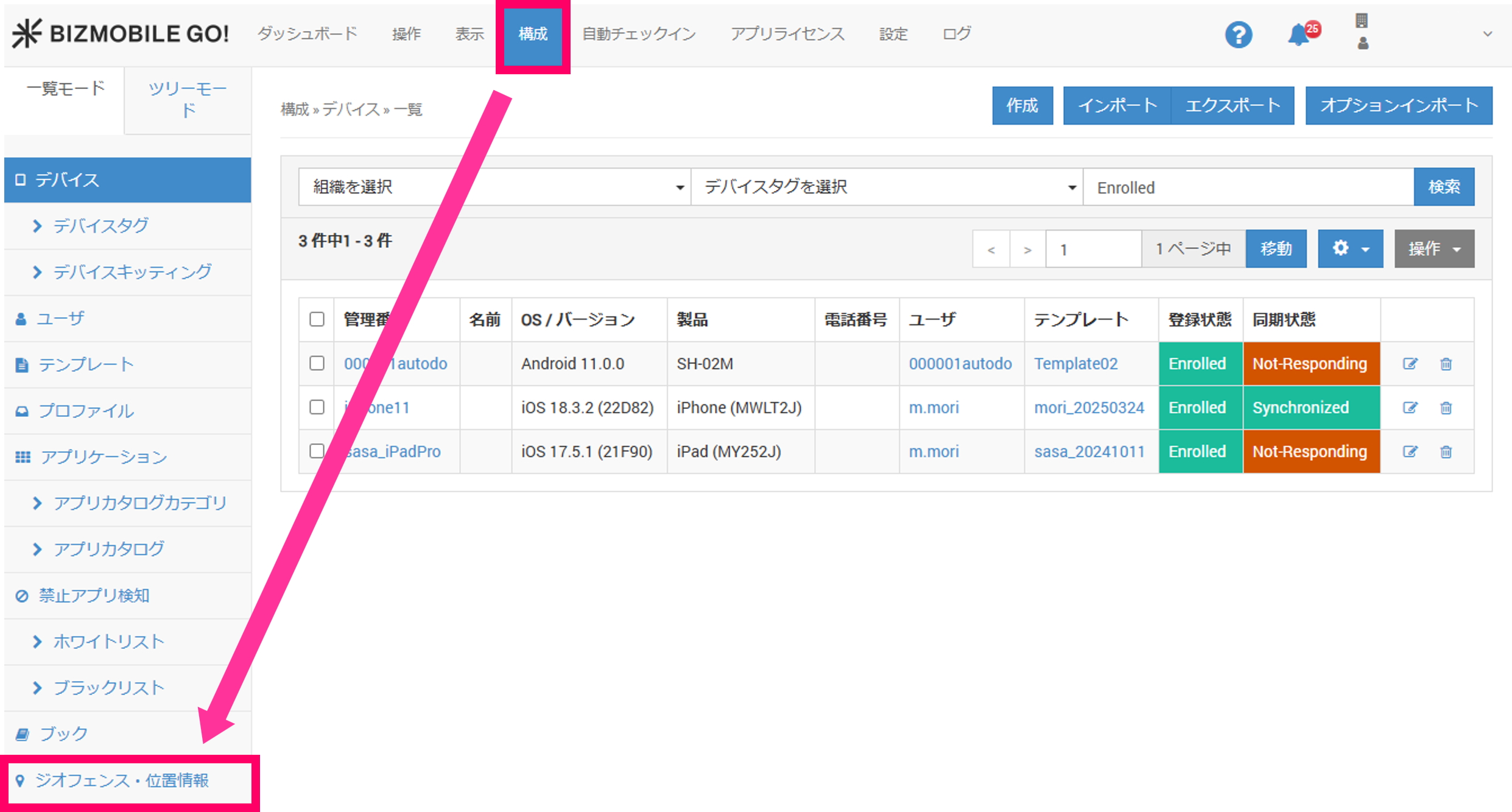
On the menu bar, click CONFIG > Geofence / Location.
-
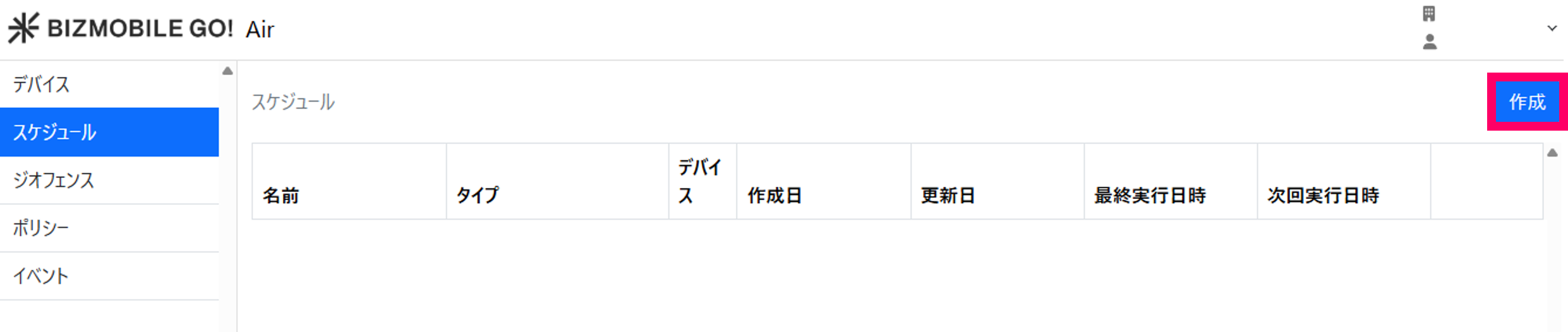
Click Create.
-
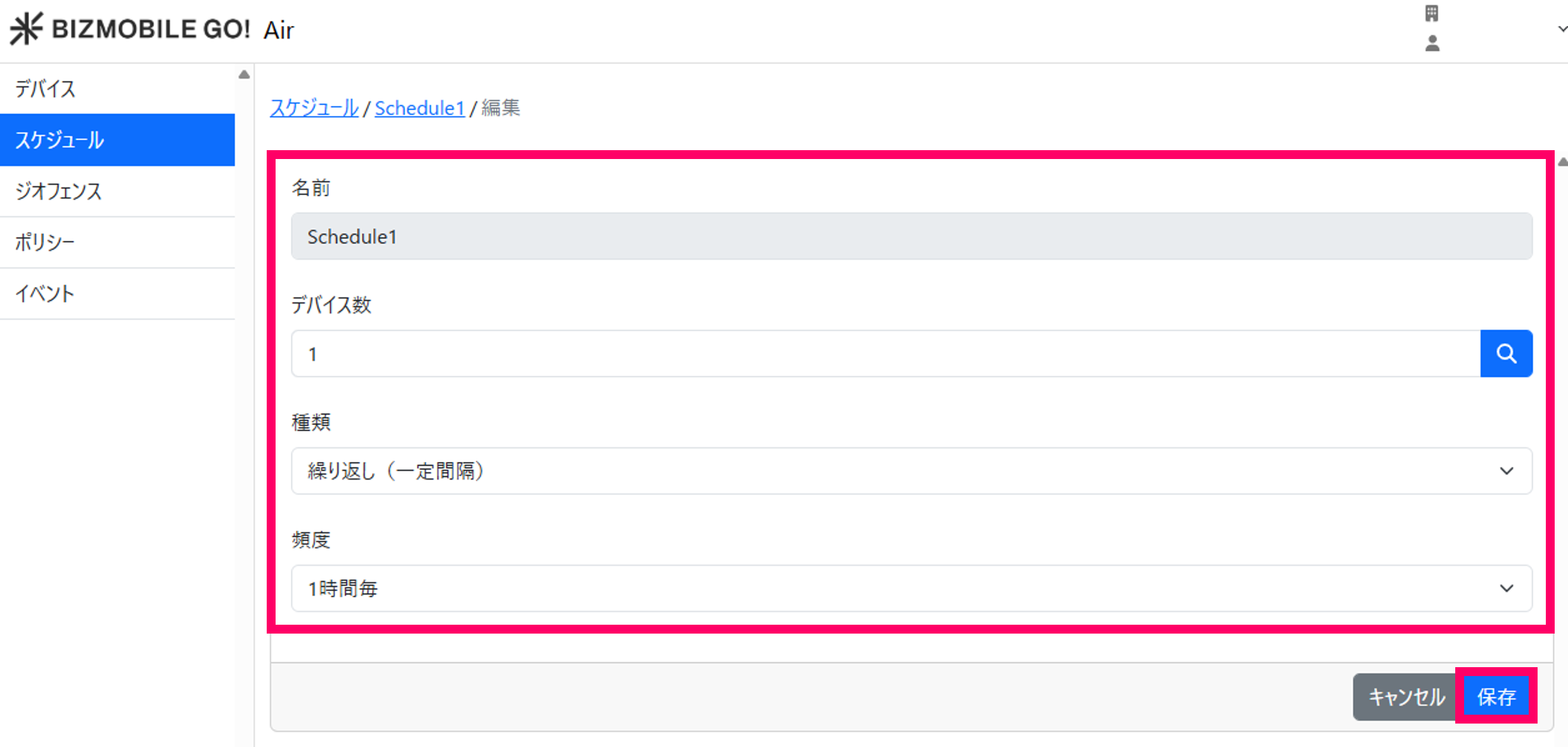
Configure each item and click Save.
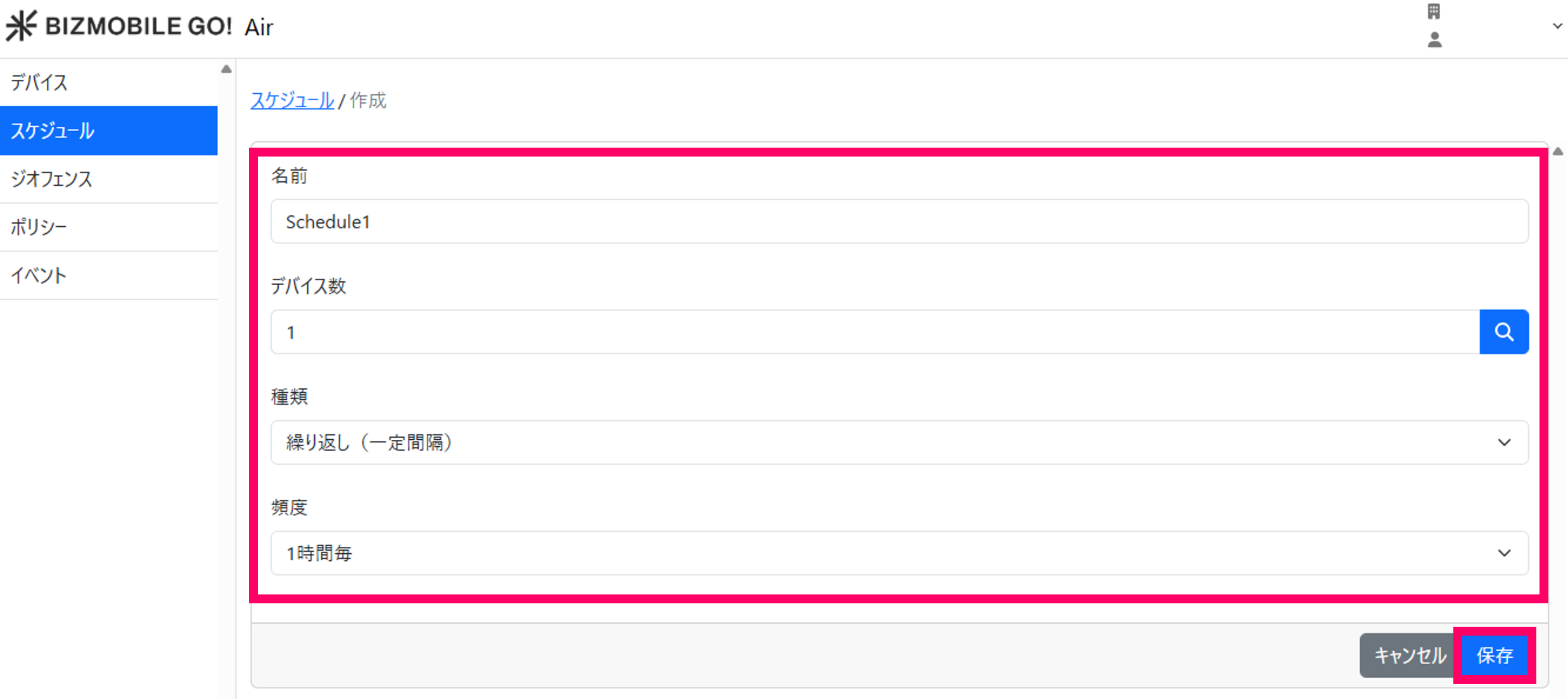
Input itemsName Specify the name of the schedule
Number of Devices Select the devices to apply the schedule to by using the magnifying glass icon
Type Select "Repeat (fixed interval)"
Frequency Select "Every hour"
-
Confirm that the schedule has been registered correctly.
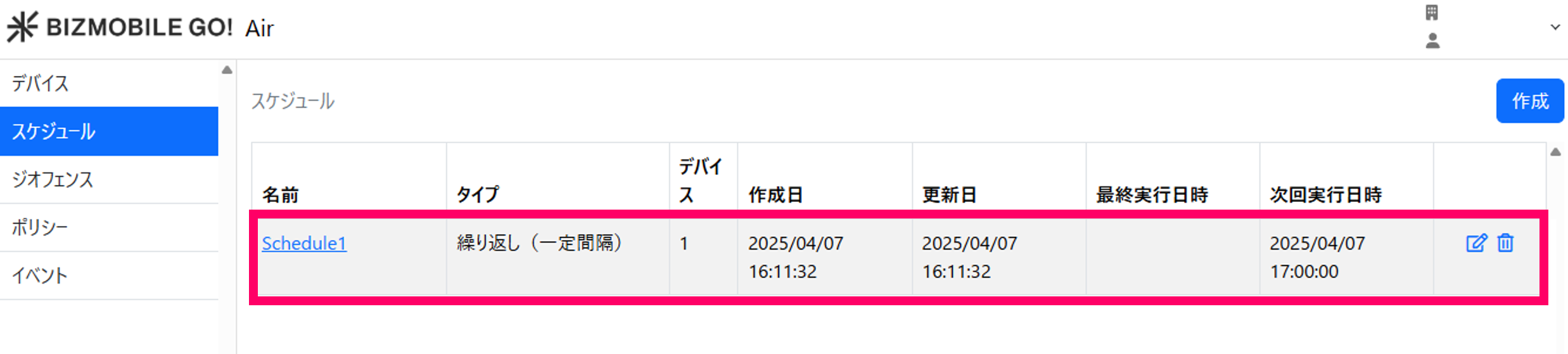
Edit a schedule
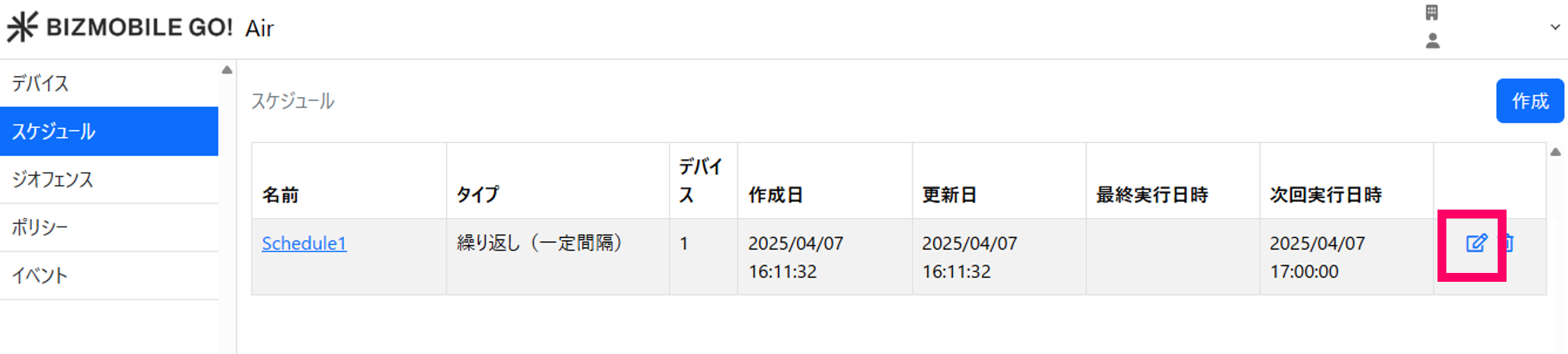
- On the Schedule page, click the edit icon next to the schedule you want to edit.
- Enter the required information in the schedule edit form that expands and click Save.
Delete a schedule
- On the Schedule page, click the delete icon next to the schedule you want to delete.
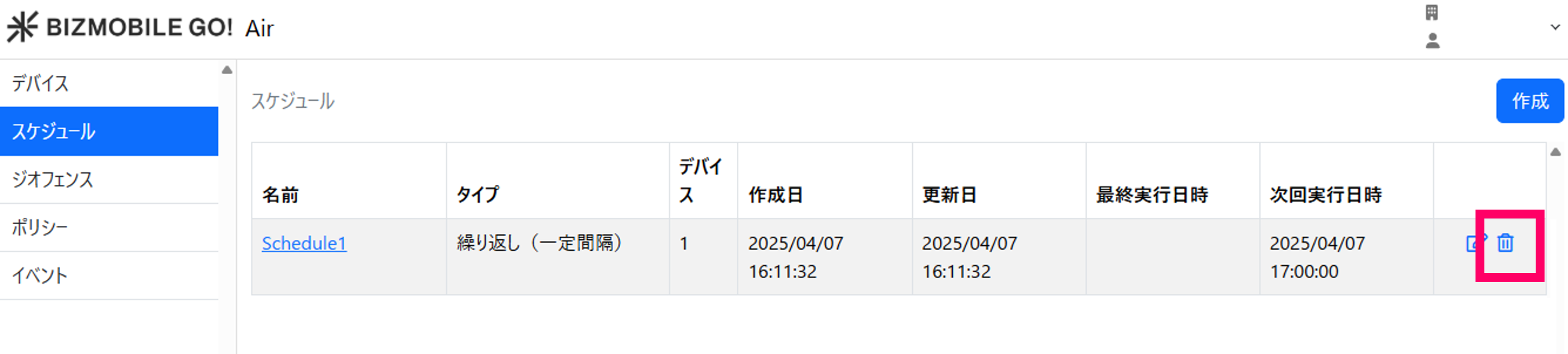
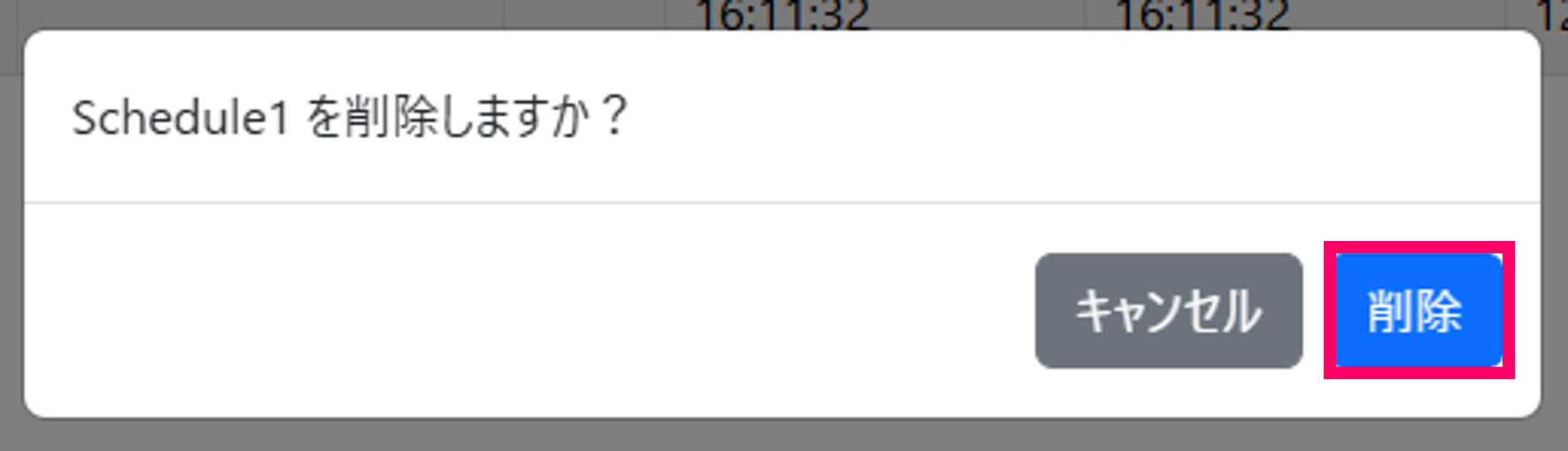
- In the confirmation pop-up, click Delete.