Create and edit policies
A policy defines the target geofences and the actions to perform when a device enters or exits a geofence. You can assign a created policy to multiple devices.
The geofence (area) information assigned to a policy is applied to the device as the target of entry and exit detection when the BizGo! Air app starts.
If you change the geofence (area) assignment (add, delete, or update) after the BizGo! Air app has been launched for the first time, you must restart the BizGo! Air app to apply the change.
Create a policy
-
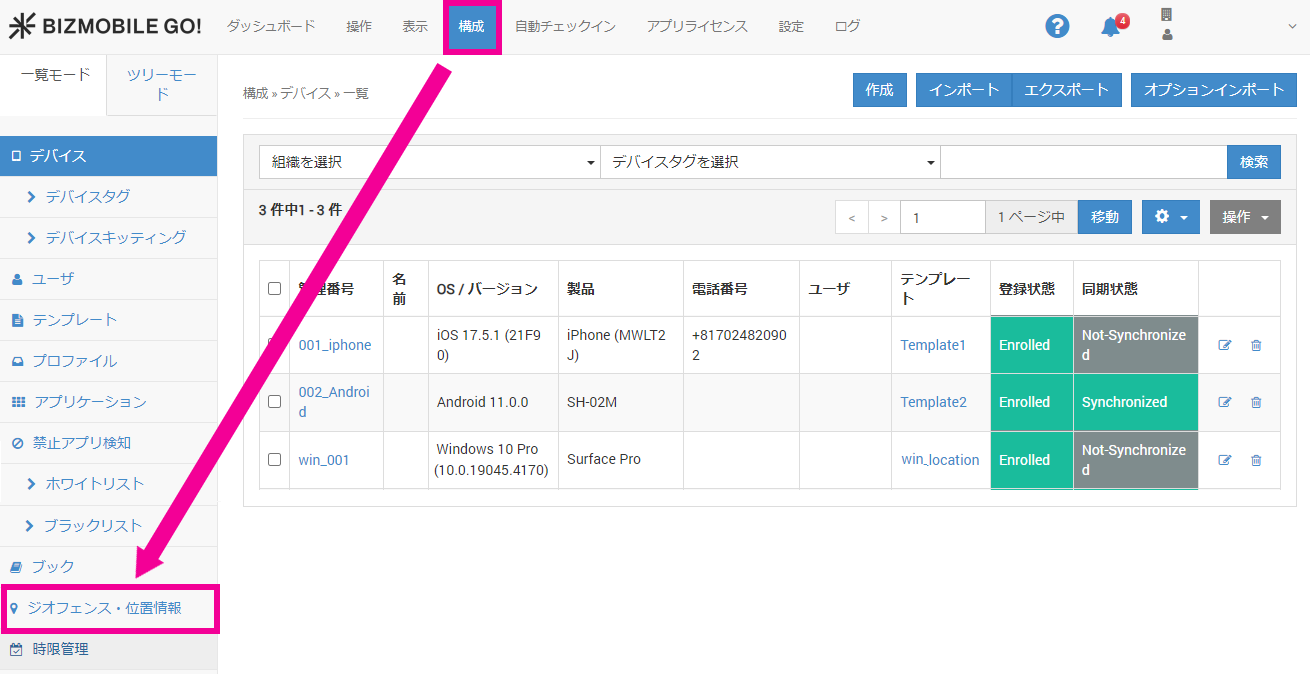
On the menu bar, click CONFIG > Geofence / Location.
-
On the Policy page, click Create.

-
Enter the required information in the policy information form that expands.
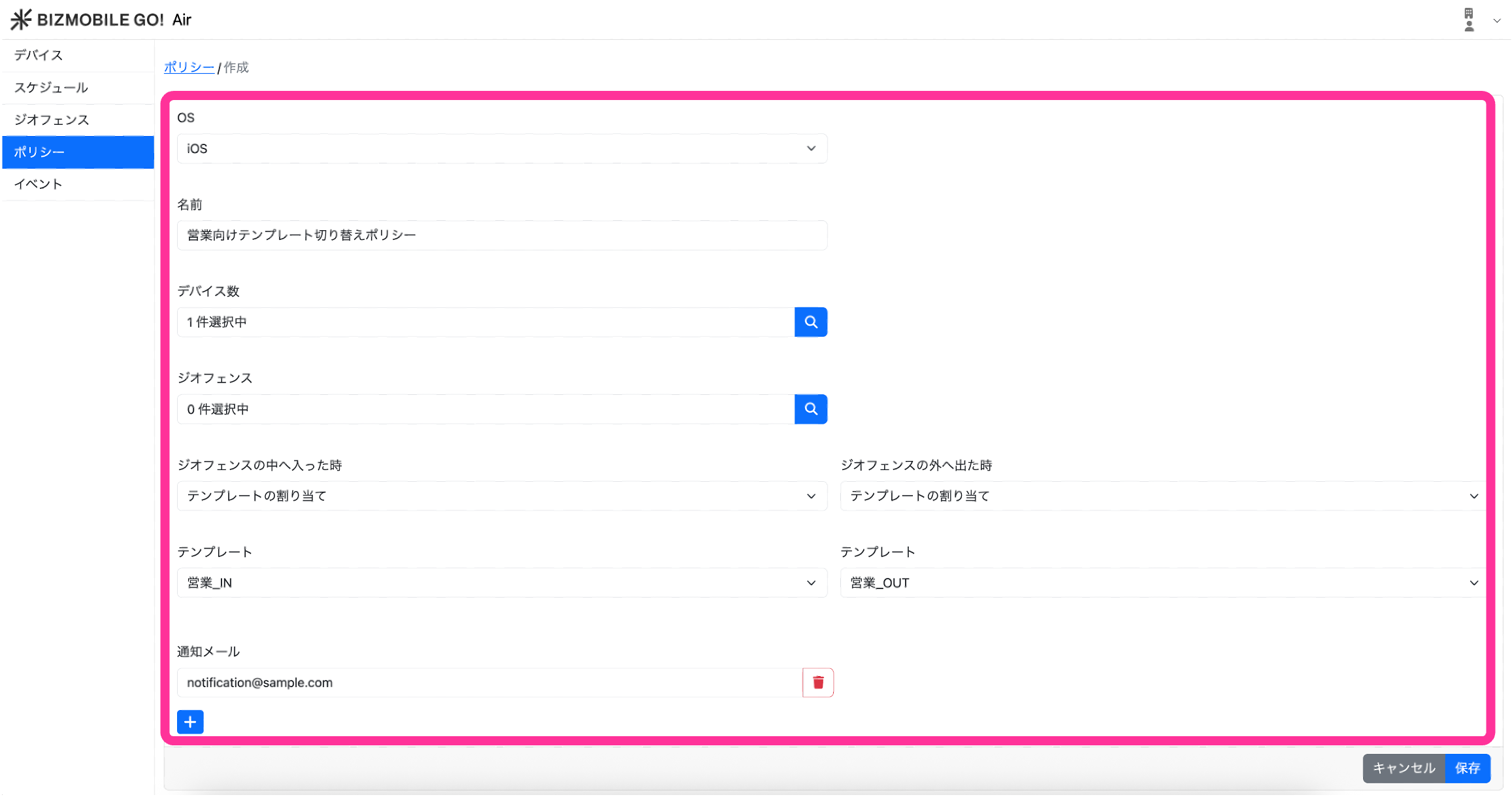
Input items (items marked with ★ are required)Item Description OS★ Select the OS Name★ Name to give the policy Number of Devices Select the devices to assign this policy to Geofence Select the geofences to assign to this policy When entering the geofence★ Select the action to perform when a device enters the geofence from the following
• Assign templateTemplate★ Only when "Assign template" is selected.
Select the template to assign when a device enters the geofence
Note: Only templates in which the BizGo!Air app is registered can be selected.When exiting the geofence★ Select the action to perform when a device exits the geofence from the following
• Assign templateTemplate★ Only when "Assign template" is selected.
Select the template to assign when a device exits the geofence
Note: Only templates in which the BizGo!Air app is registered can be selected.Notification Email Register the email addresses to notify of geofence events (up to 5)
For the content of the email, see Notification Email. -
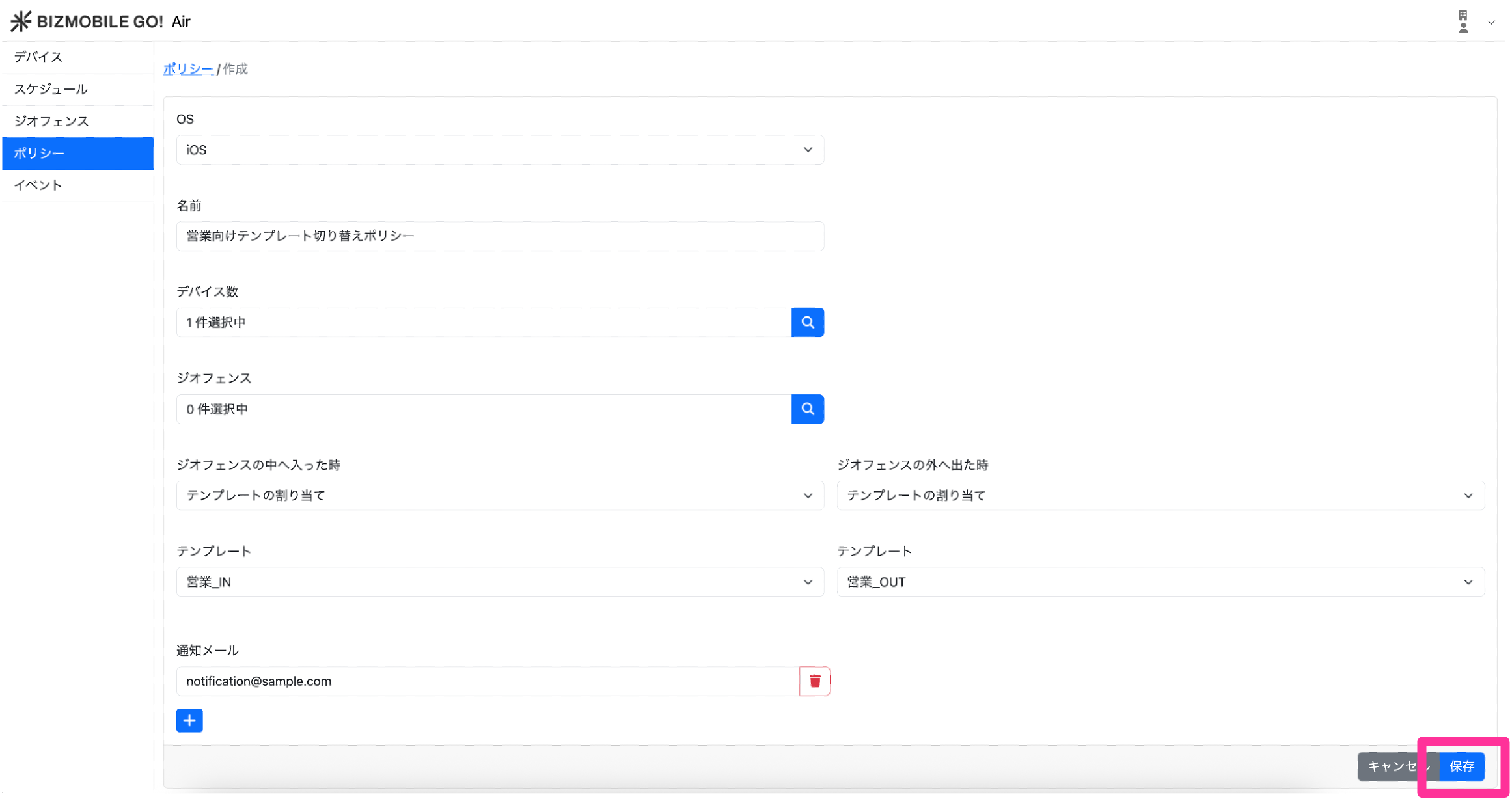
Click Save.
Edit a policy
-
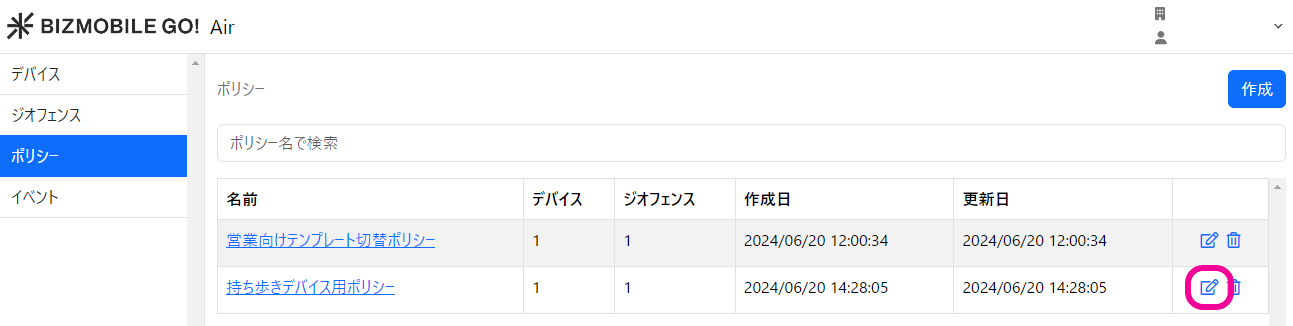
On the Policy page, click the edit icon next to the policy you want to edit.
-
Enter the required information in the policy information form that expands.
Input items (items marked with ★ are required)Item Description OS★ Select the OS Name★ Name to give the policy Number of Devices Select the devices to assign this policy to Number of Geofences Select the geofences to assign to this policy When entering the geofence★ Select the action to perform when a device enters the geofence
• Assign templateTemplate★ Only when Assign template is selected.
Select the template to assign when a device enters the geofence
Note: Only templates in which the BizGo!Air app is registered can be selected.When exiting the geofence★ Select the action to perform when a device exits the geofence
• Assign templateTemplate★ Only when Assign template is selected.
Select the template to assign when a device exits the geofence
Note: Only templates in which the BizGo!Air app is registered can be selected.Notification Email Register the email addresses to notify of geofence events (up to 5)
For the content of the email, see Notification Email. -
Click Save.
Delete a policy
- On the Policy page, click the delete icon next to the policy you want to delete.
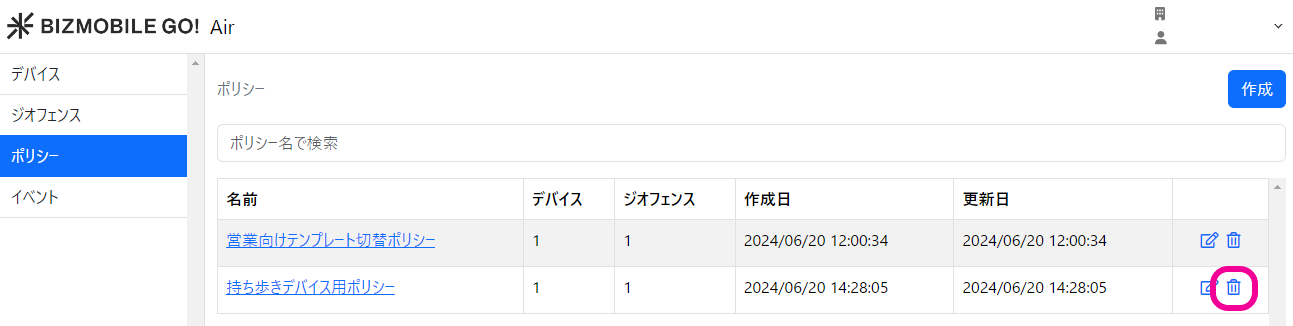
- In the confirmation pop-up, click Delete.

Notification Email
If you have registered notification emails, an email is sent to the registered email addresses when a device enters or exits a geofence (when Enter / Exit is detected).
Sample email (Enter)
Date/time: 2026-05-20 10:06:31
Device: iPhone001
Event: Enter
Geofence: Kanda Business Cube
Sample email (Exit)
Date/time: 2026-05-20 10:06:31
Device: iPhone001
Event: Exit
Geofence: Kanda Business Cube