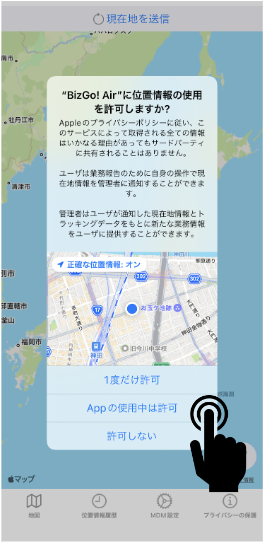
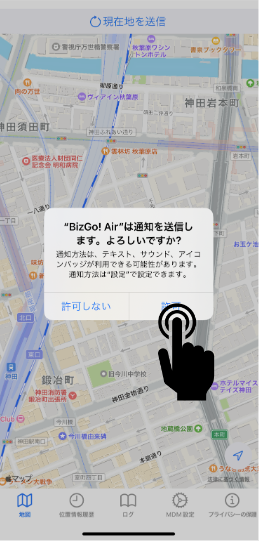
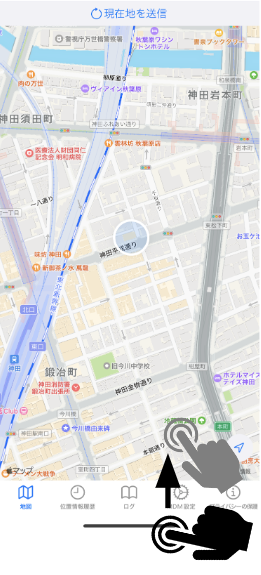
Start the app on the device and enable location acquisition and notifications
Configure the app that has been installed on the device.
The procedure differs between devices with iOS/iPadOS 13.4 or later and devices with iOS/iPadOS 13.0 – 13.3.1.
Check the OS version of your device before you begin.
This setting cannot be automated by the MDM, so you must configure it on each device.
Reason:
To protect privacy, location information cannot be acquired without the user's permission.
Therefore, you cannot force the "location permission" and "notification permission" that are required to acquire location information.
This is due to Apple's privacy policy, which requires the user to explicitly grant permission on the device.
Setup steps for iOS/iPadOS 13.4 or later
| 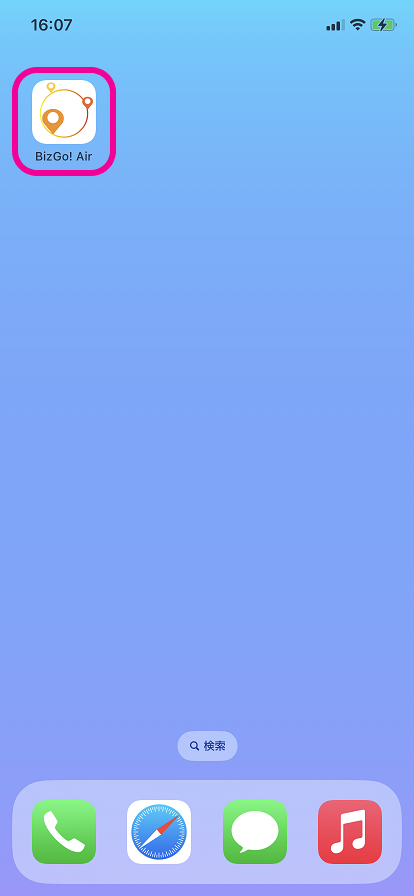 |
| 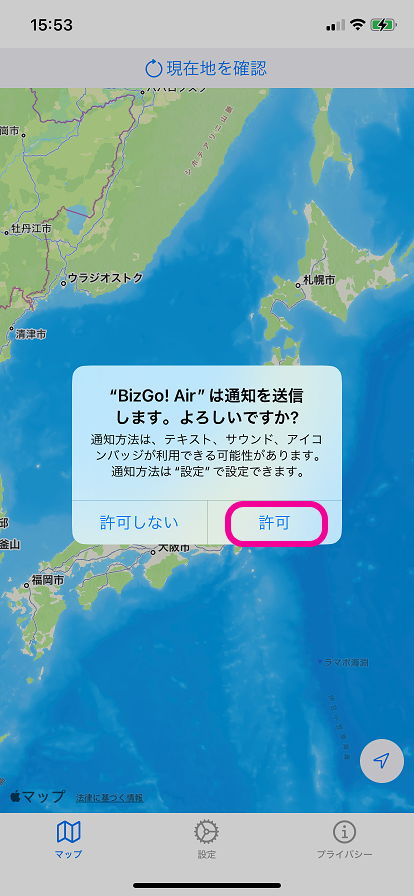 |
| 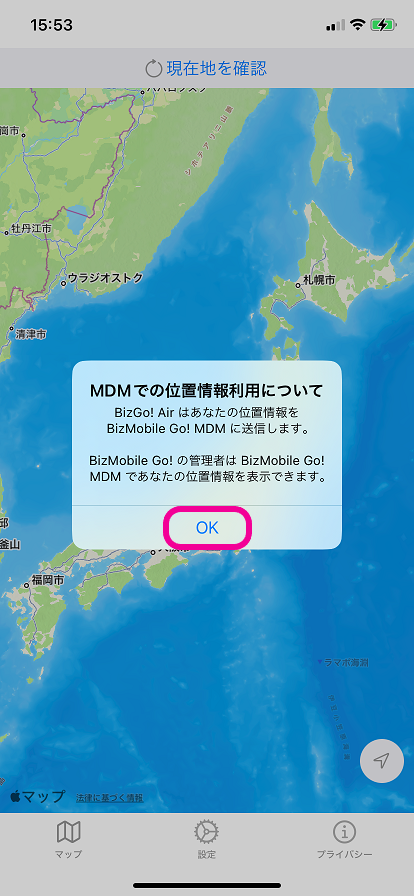 |
| 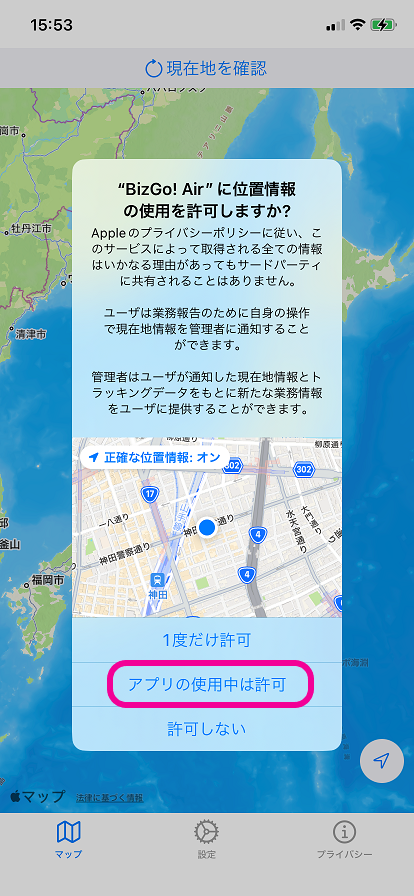 |
| 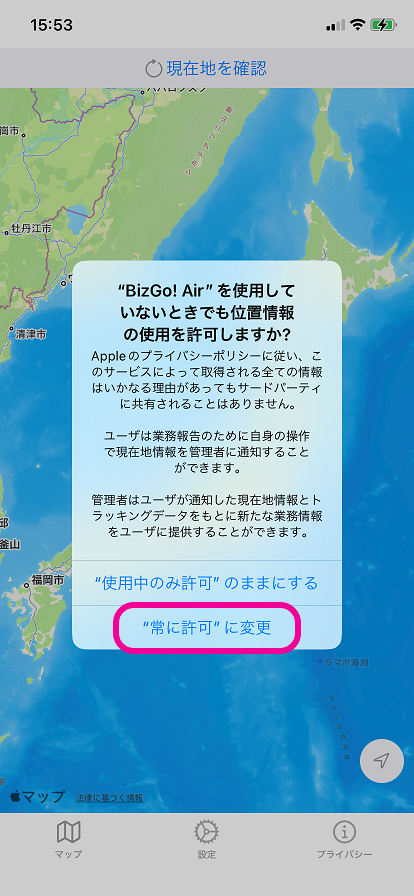 |
| 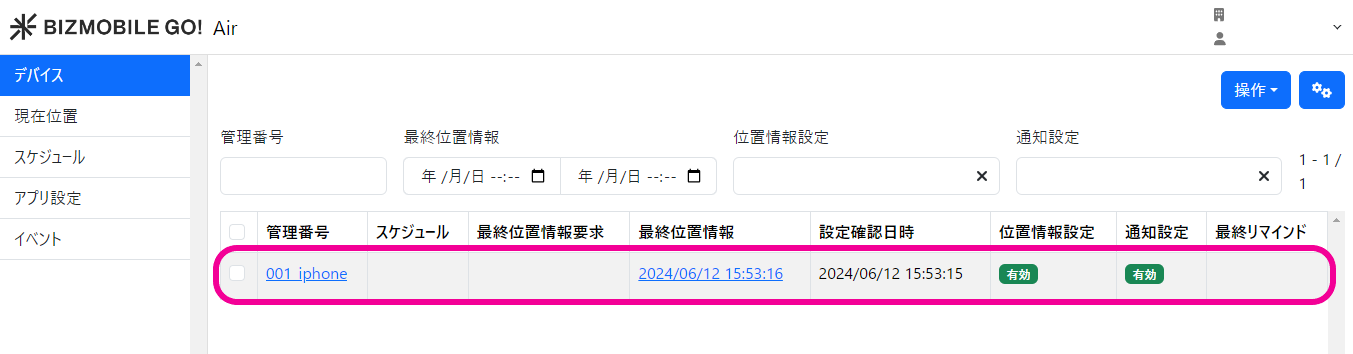 |
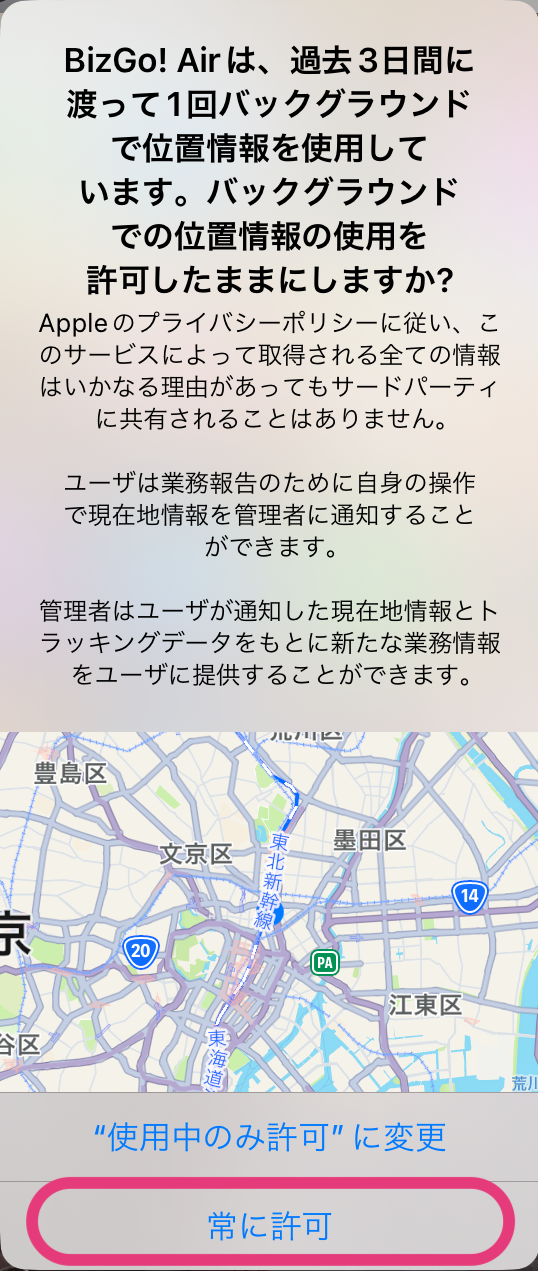
The OS occasionally displays a pop-up asking about the use of location information. If you select "Change to Only While Using", BizGo! Air cannot acquire location information.
Tell users to select "Keep Always Allow".
Setup steps for iOS/iPadOS 13.0 – 13.3.1
| 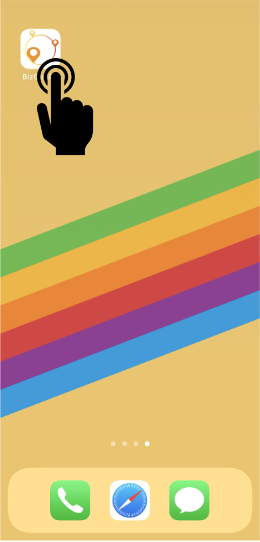 |
|  |
|  |
| |
| |
|  |
|  |
| |
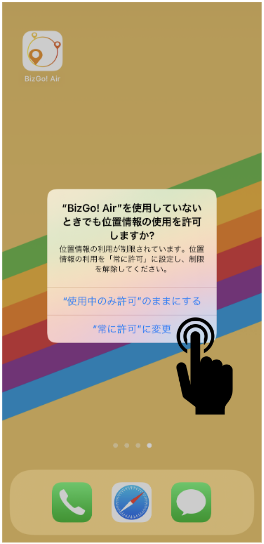
The OS occasionally displays a pop-up asking about the use of location information. If you select "Change to Only While Using", BizGo! Air cannot acquire location information.
Tell users to select "Keep Always Allow".