View location information in the admin console
After the setup on the device is complete, you can view the device's location information in the admin console.
View the device list
-
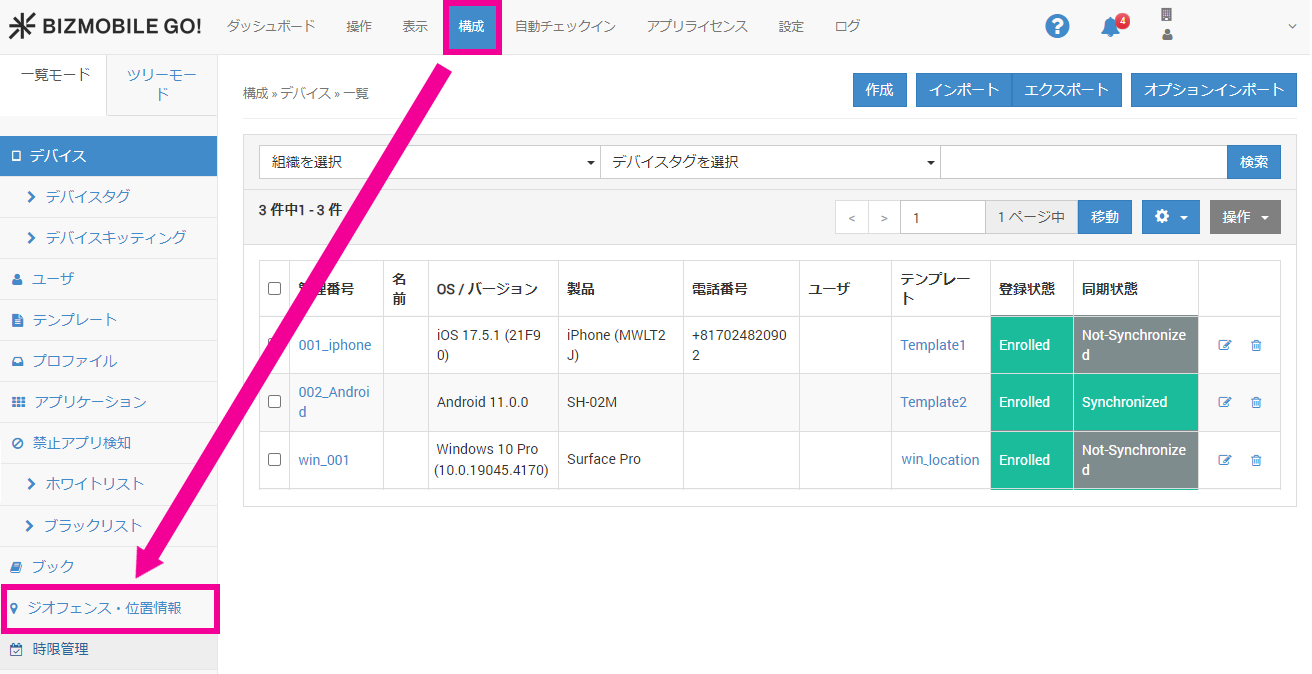
From the menu bar, click CONFIG → Geofence/Location.
-
The Location page opens and the device list is displayed.
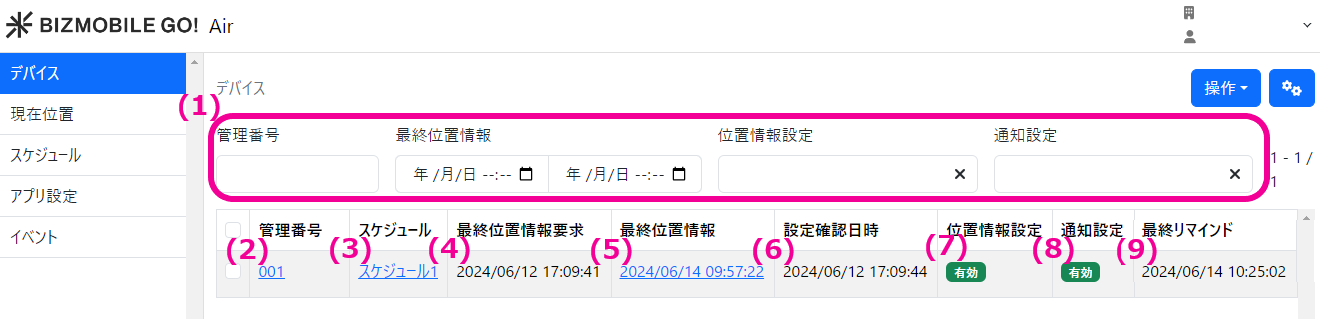
(1) Filter search You can filter devices byIdentifier,Last Location Acquired,Location Setting,Notification Setting, andLast Reminder.
(2) Identifier Jumps to the detail page of the device.
(3) Schedule If scheduled location acquisition is set up, the schedule name is displayed.
You can check the schedule details from the schedule name.
(4) Last Location Request Displays the date and time whenFetch Locationwas last run from the admin console.
(5) Last Location Displays the date and time when location information was last acquired from the device. You can check the location details from the acquisition date and time.
(6) Setting Confirmed At Displays the date and time when theLocationpermission andNotificationpermission status of the device was last confirmed.
(7) Location Setting Displays the status of the location permission acquired from the device.- Enabled: Set to
Always. - Disabled: Set to
NeverorAsk Next Time Or When I Share. - Allowed only while in use: Set to
While Using the App. - Not set: The location permission setting has never been acquired.
- Offline:
Setting Confirmed Athas not been updated for a certain period (6 hours). The status is checked and updated every hour.
The following are the main possible causes.- Location services on the device are turned off, or the BizGo! Air app is not allowed to use location information
- The location permission is set to "Allow While Using App" and the BizGo! Air app is not in the foreground
- The device has been powered off or disconnected from the network
(8) Notification Setting Displays the status of the notification permission acquired from the device.
(9) Last Reminder Displays the date and time whenSend location service reminderwas last sent. This reminder asks the user of a device that is not allowed to use location information to change the location setting. - Enabled: Set to
View the location history of a specific device
- From the menu bar, click CONFIG → Geofence/Location, and then click the date and time displayed in
Last Location.
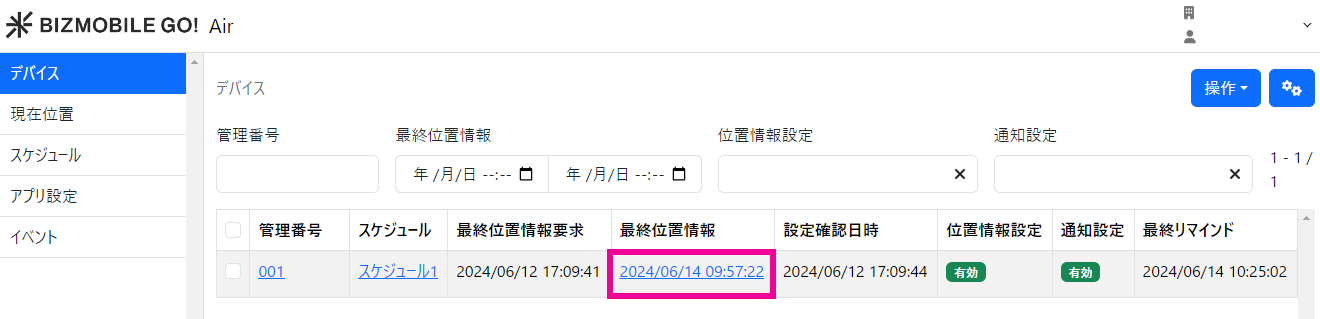
- The location details are displayed.
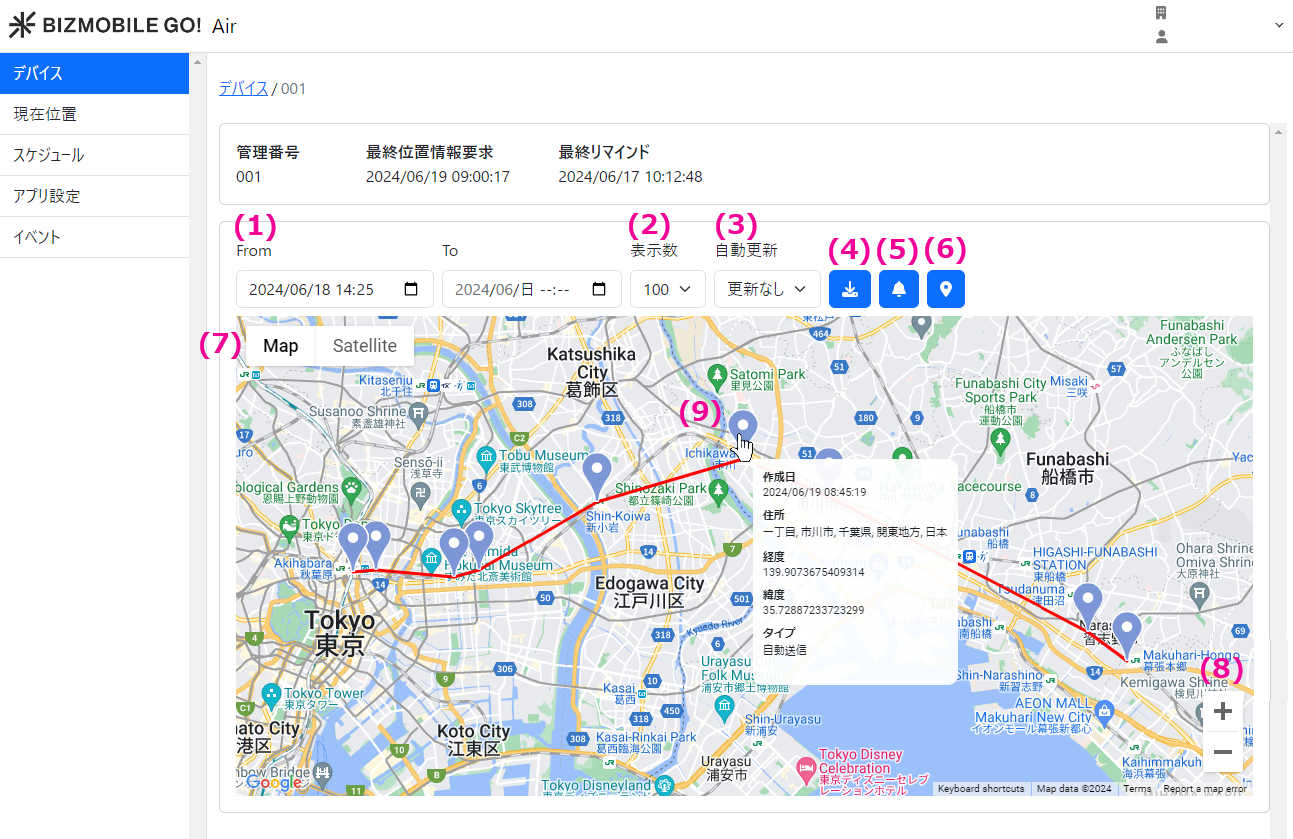
(1) Start date - End date By default, the range is set from one week ago to the present. Location information acquired during this period is displayed. You can change the start and end dates and search again.
(2) Number of items displayed Specifies the number of locations displayed on the map. You can select from 1, 5, 10, 50, 100, 200, and 500.
(3) Auto refresh Specifies how often the map is refreshed. You can select from No refresh, 30 seconds, 1 minute, and 5 minutes.
(4) Download location CSV Downloads the location information between the specified start and end dates in CSV format.
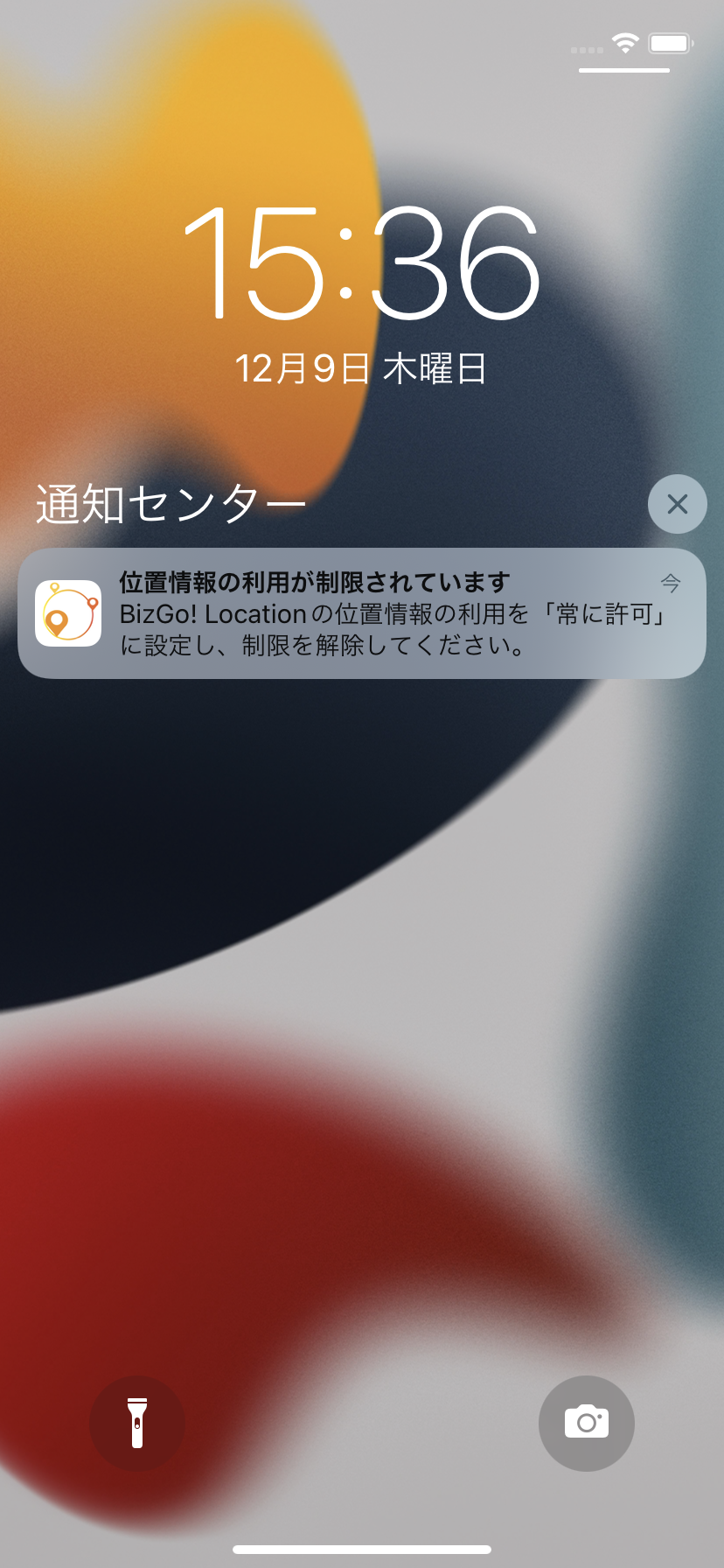
(5) Send location service reminder Sends a notification to a device that is not allowed to use location information, asking the user to change the location permission setting to Always.
(6) Fetch Location Acquires the latest location information from the device.
(7) Map / Satellite Switches between map view and satellite view.
(8) + / - Zooms the map in and out.
(9) Location Displays the location history. When you hover the mouse cursor over a pin, the location details (created date, address, longitude, latitude, type) are displayed.
Pins have the following three colors depending on how the location information was acquired.
 | Acquisition type: User operation Location information sent by the device user through an operation on the device. |
 | Acquisition type: Automatic transmission Location information acquired automatically, for example when the device has moved a certain distance. |
 | Acquisition type: Server request Location information acquired by an administrator operation (command sent) from the admin console, or by a command executed by a schedule. |
- Converting location information to an address can take up to about 15 minutes.
- If the address of the acquired location is unknown, the latitude and longitude are displayed.
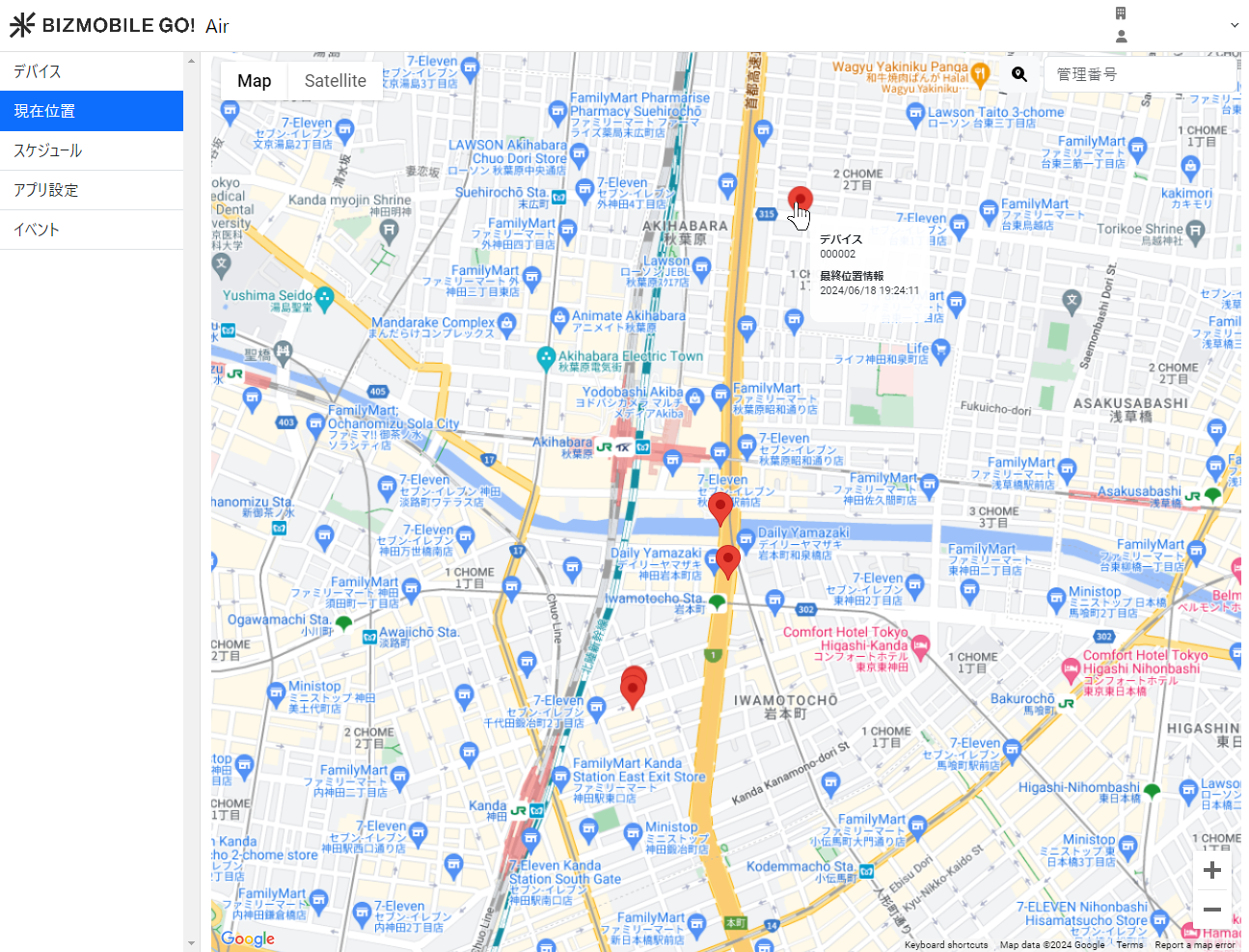
View the last known locations of multiple devices
- From the menu bar, click CONFIG → Geofence/Location, and then click
Current Location.
Pins show where the location of each device was last acquired.