iOS13.1-
OptionGeofence v2
OptionNFC High Security Add-on
The screenshots in this manual show the Japanese version of each screen.

(iOS / iPadOS) Enter / Exit operations with an NFC tag

Scan an NFC tag with the BizGo! Air app to lock the geofence state. This prevents behavior caused by unintended Exit events due to GPS inaccuracy.

Enter with an NFC tag​

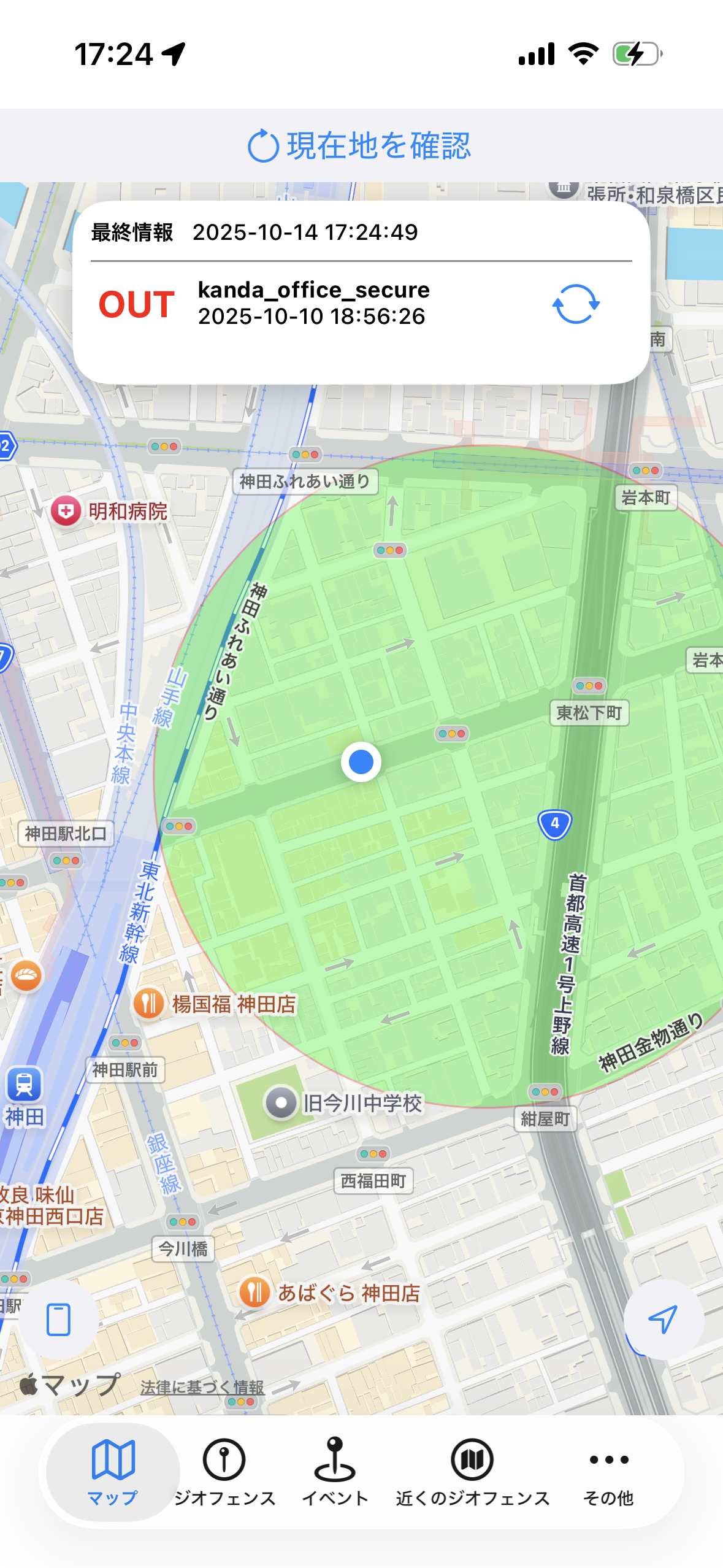
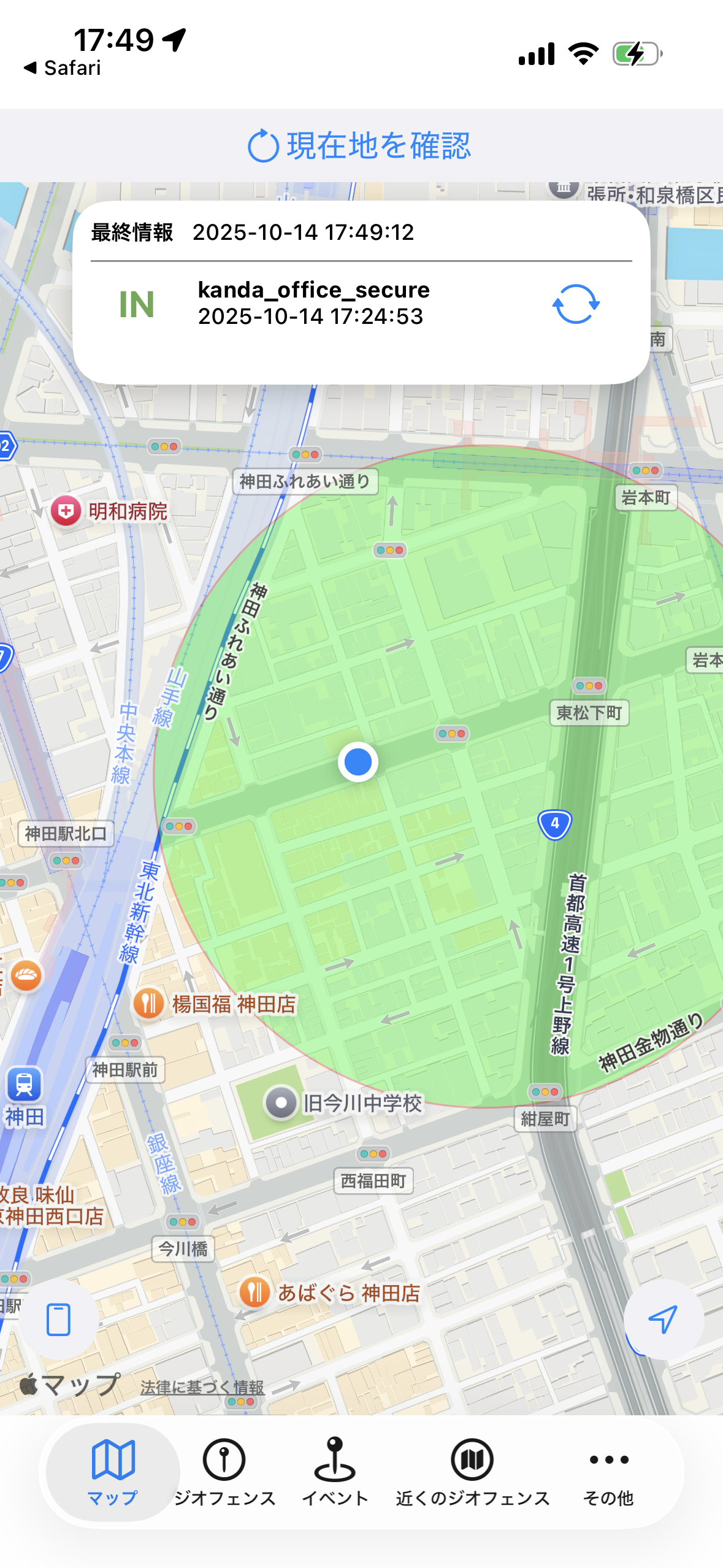
  1. Your current location is inside the secure area geofence, but the management status is "OUT".
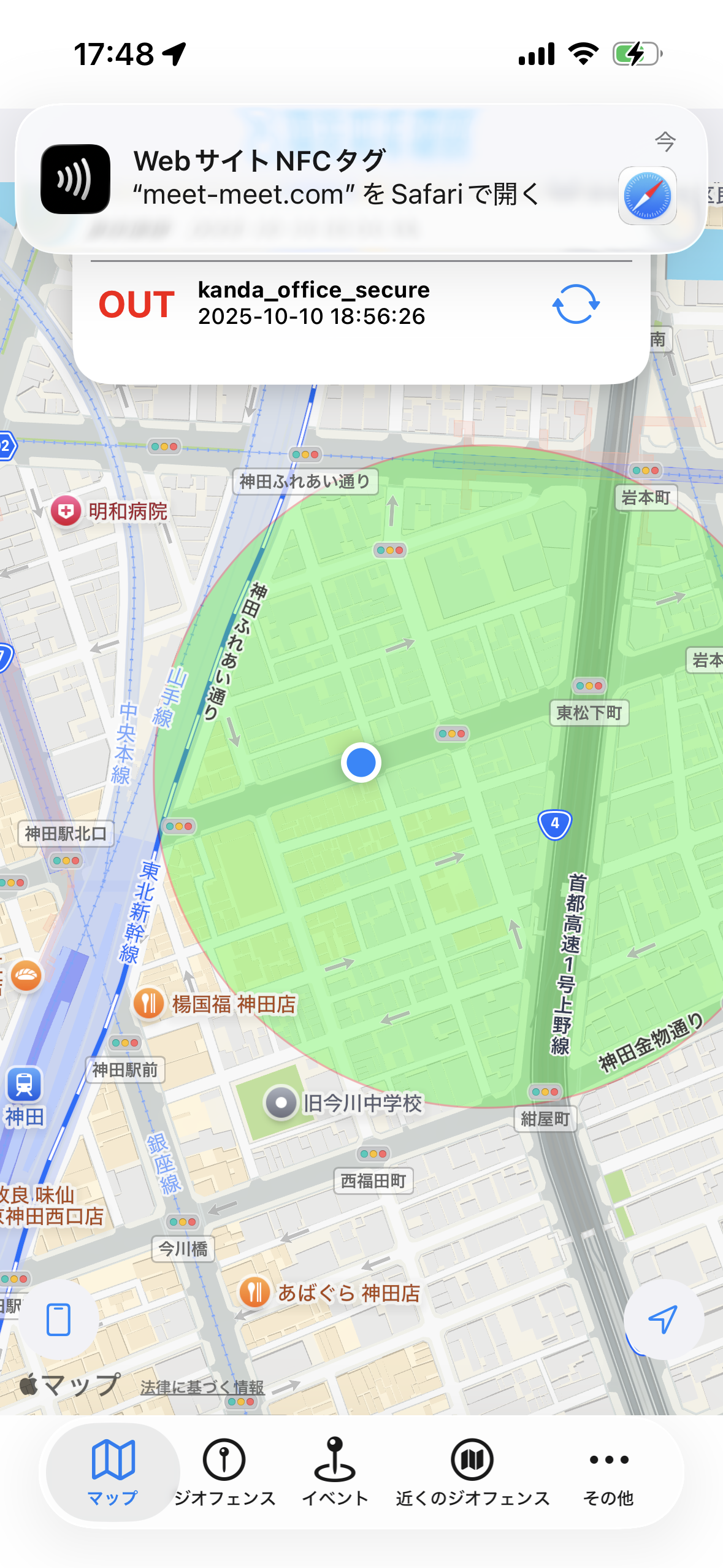
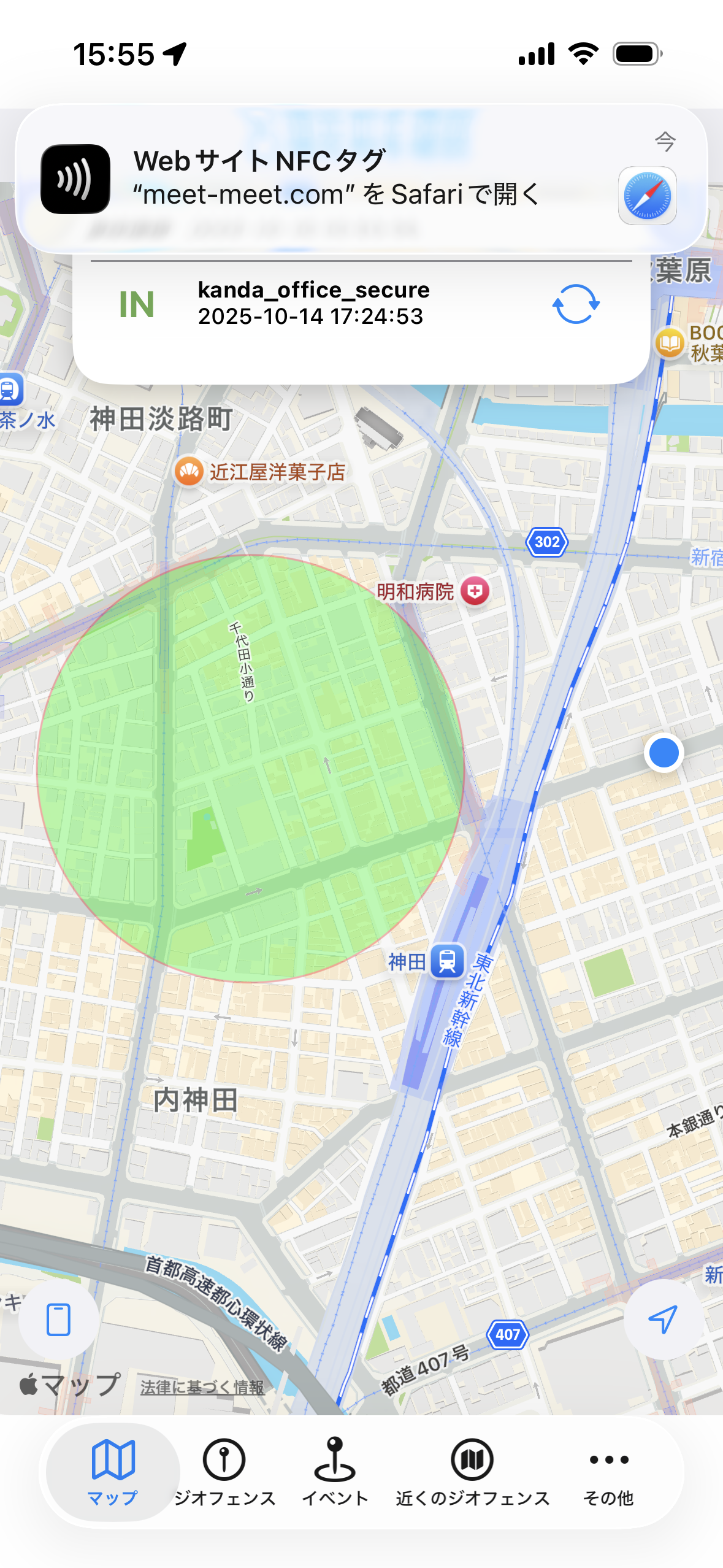
  1. Scan the "entry NFC tag".
    When it is read successfully, an "Open in Safari" pop-up appears.
    Tap the pop-up.
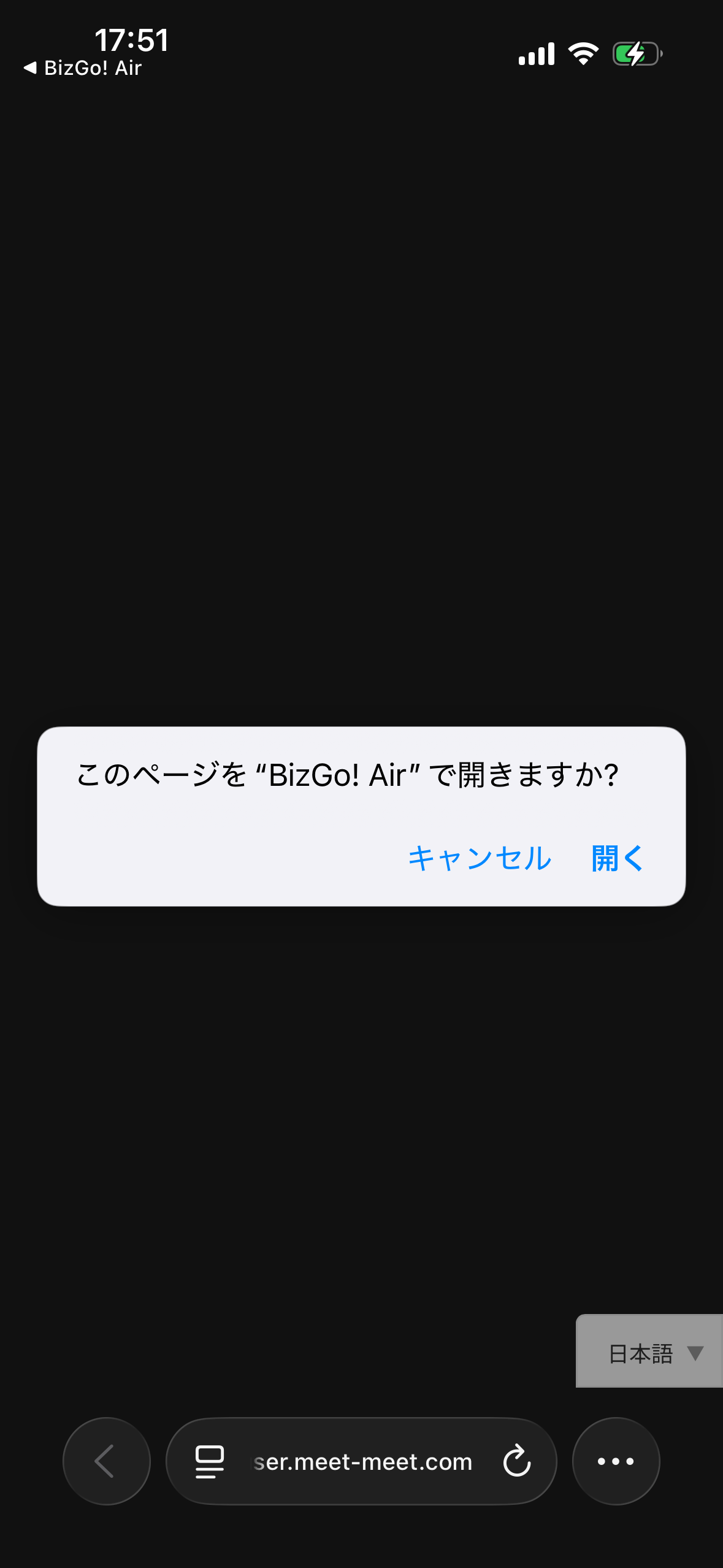
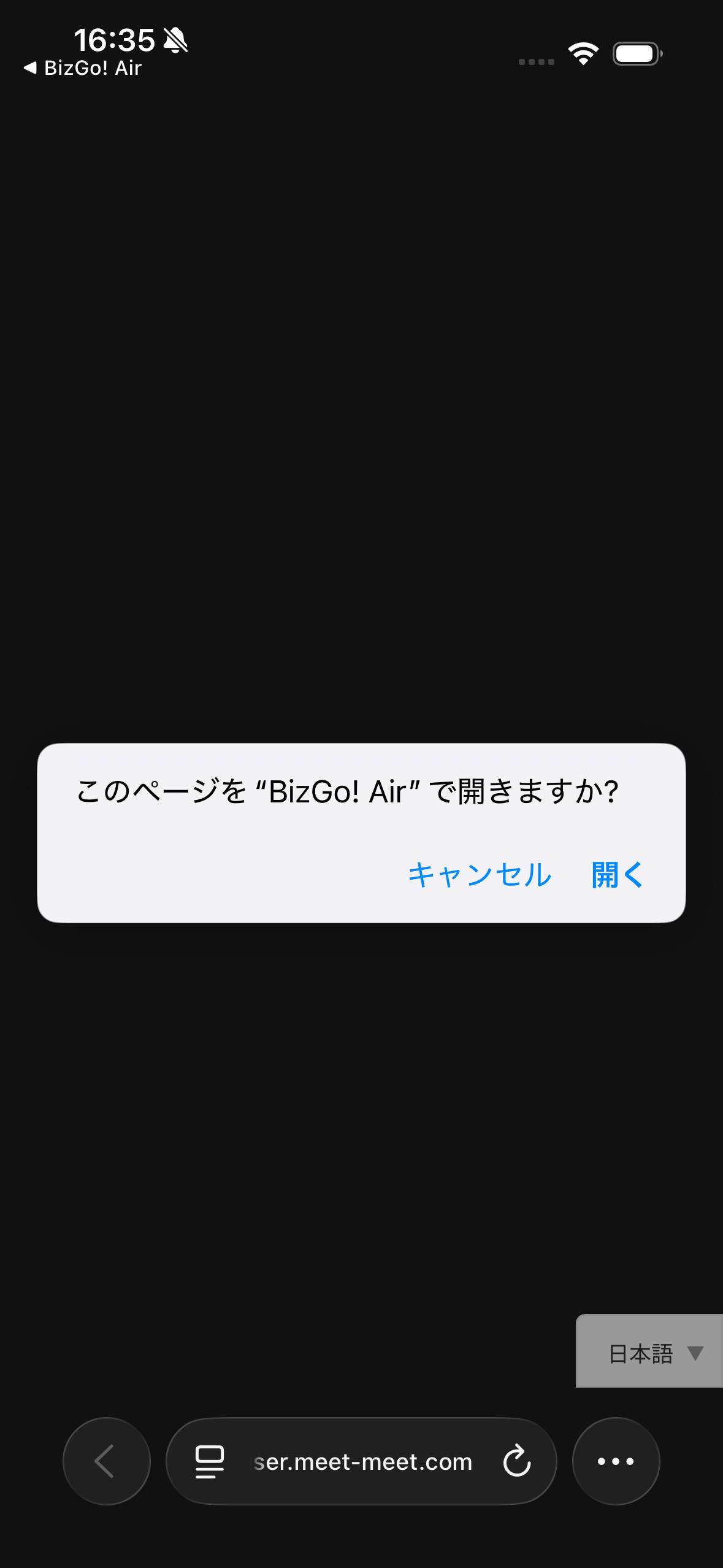
  1. The "Open this page in BizGo!Air?" page appears.
    Tap "Open".
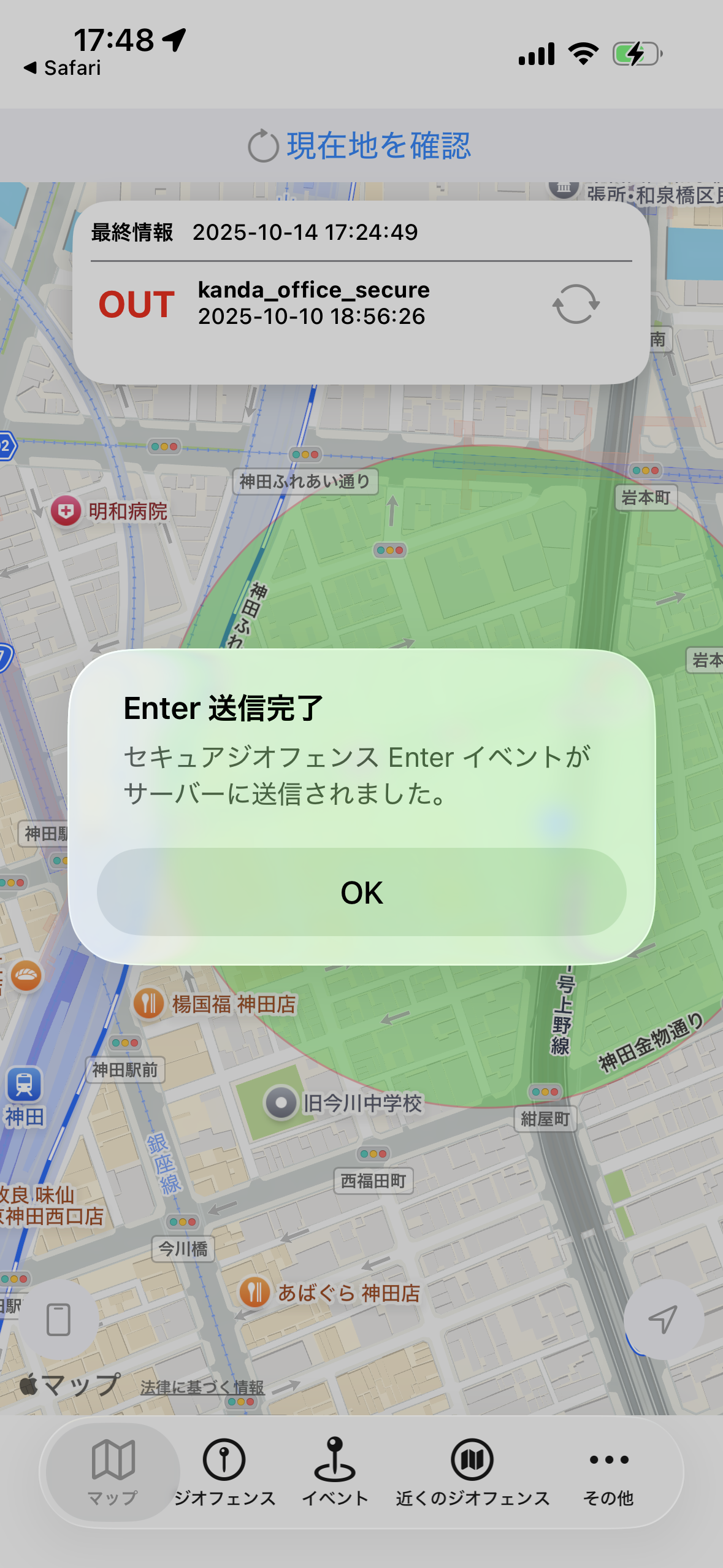
  1. An "Enter sent" pop-up and the BizGo! Air app appear.
    Tap OK to close the pop-up.
  1. The management status changes to "IN", and entry into the secure geofence is complete.

Exit with an NFC tag​

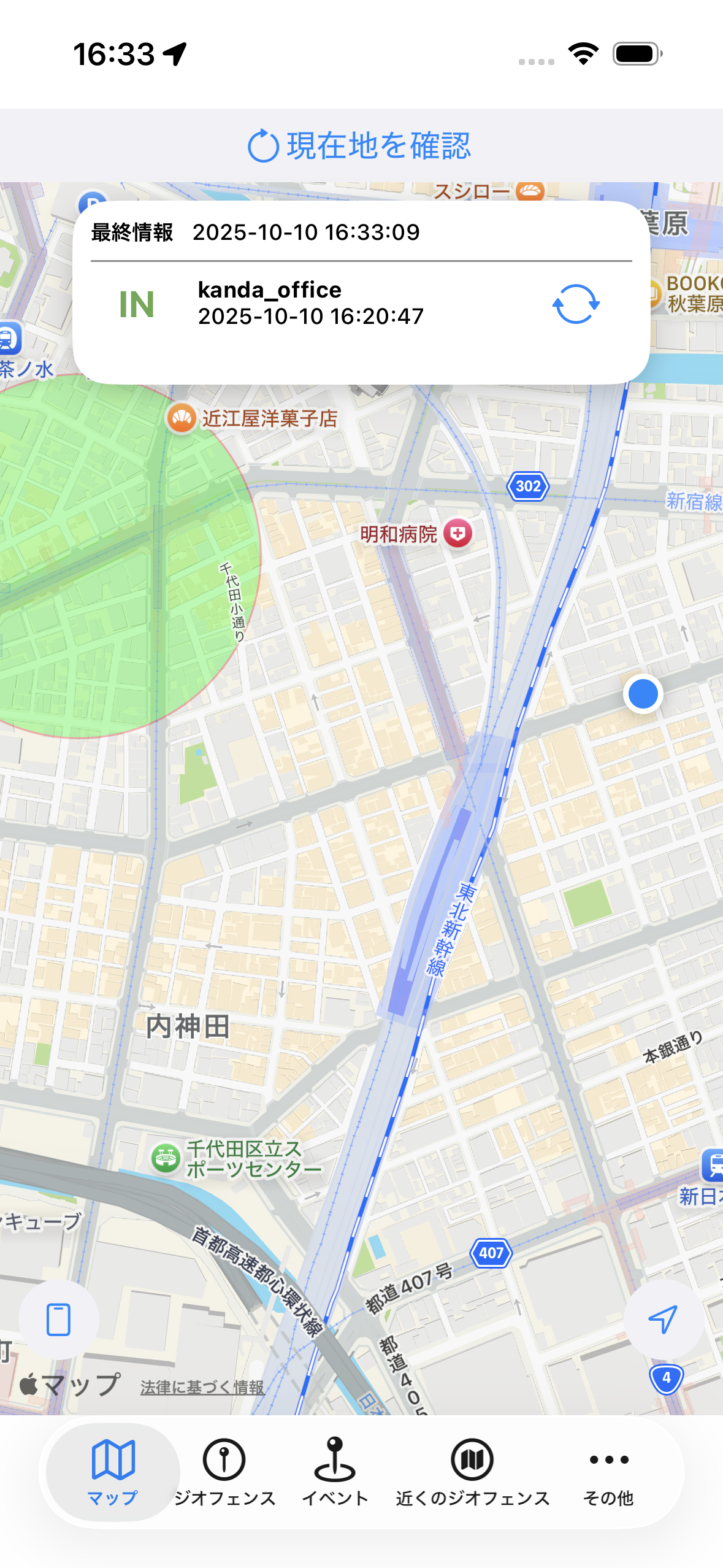
  1. Your current location is outside the secure area geofence, but the management status is "IN".
  1. Scan the "exit NFC tag".
    When it is read successfully, an "Open in Safari" pop-up appears.
    Tap the pop-up.
  1. The "Open this page in BizGo!Air?" page appears.
    Tap "Open".
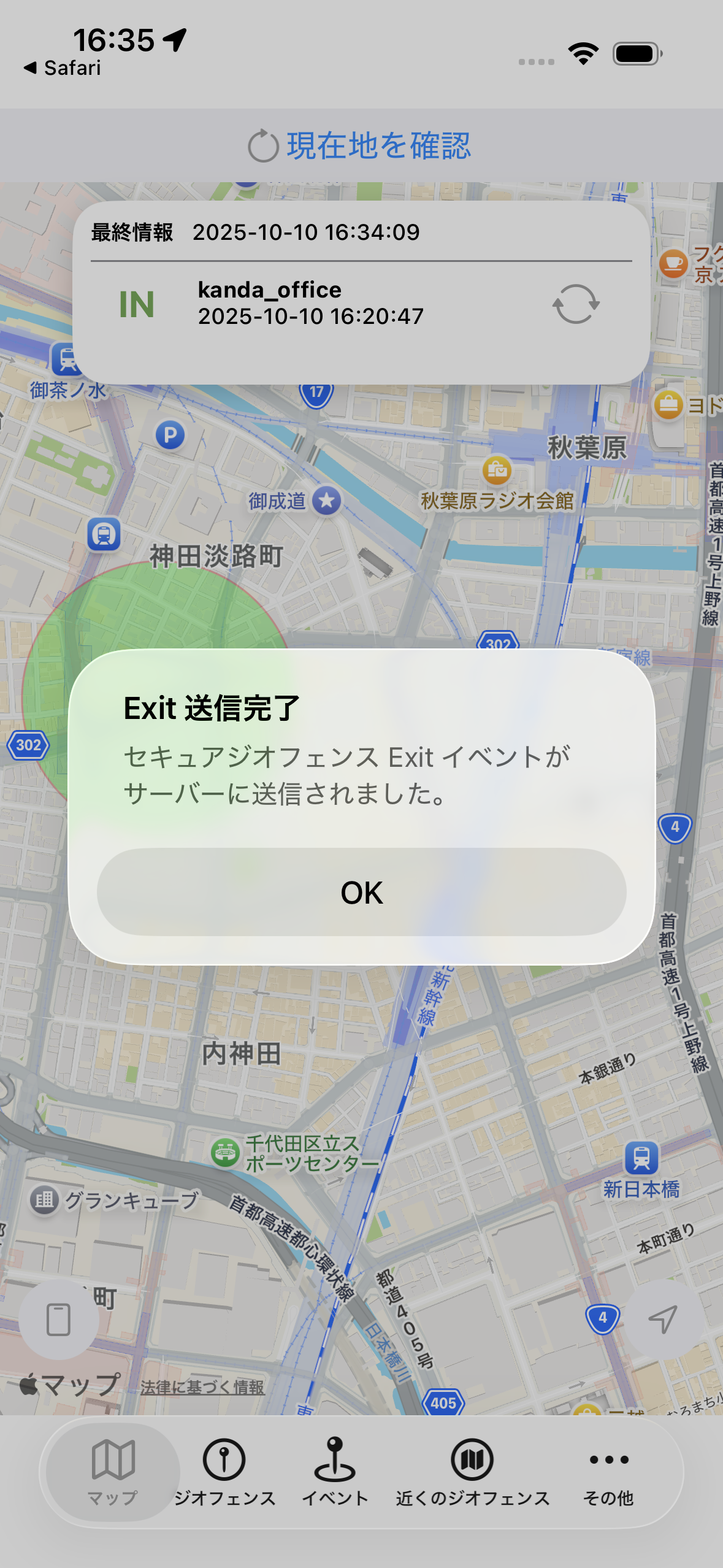
  1. An "Exit sent" pop-up and the BizGo! Air app appear.
    Tap OK to close the pop-up.
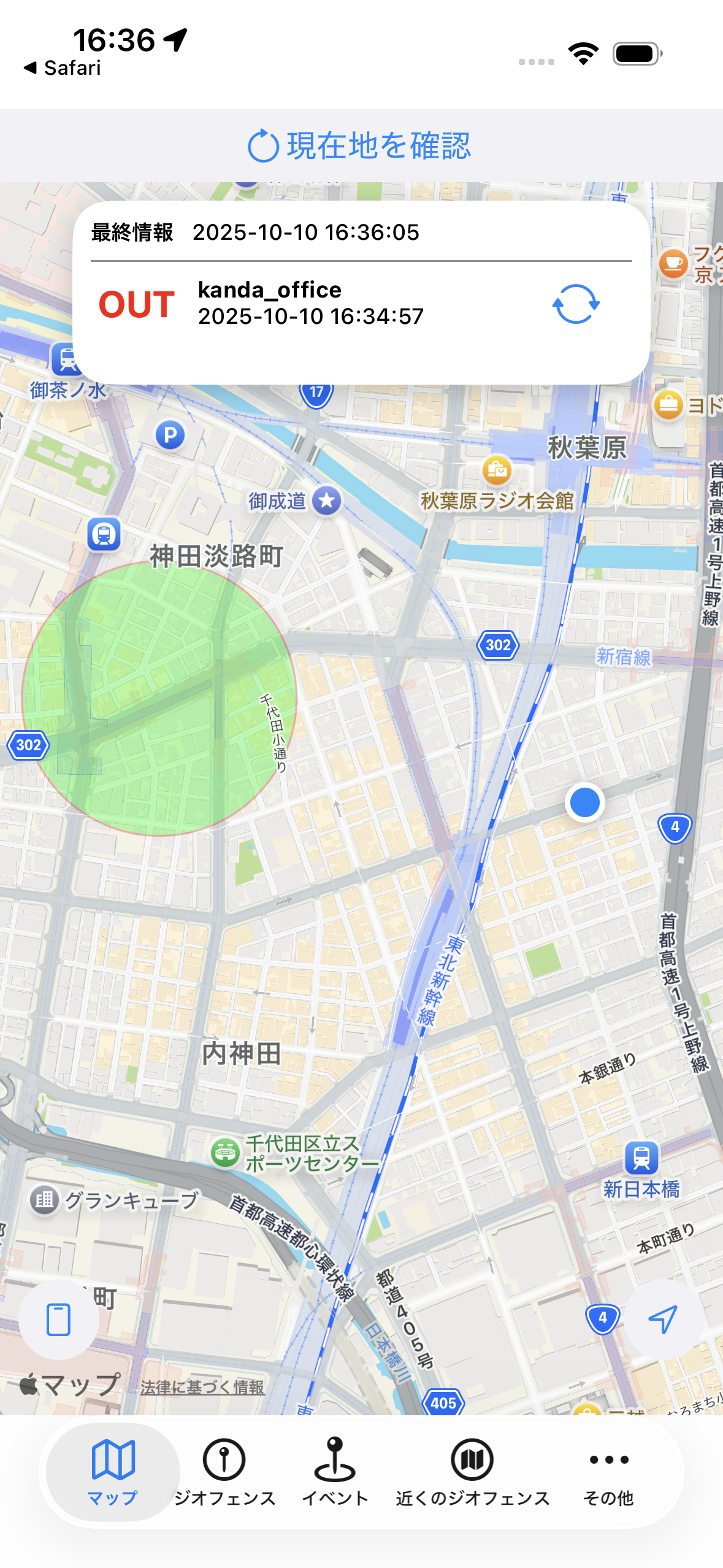
  1. The management status changes to "OUT", and exit from the secure area geofence is complete.