Install the BizGo! CameraLock App
The initial setup of the BizGo! Air app must be completed beforehand. For details, see (Android) How to Use the BizGo! Air App.
To use the BYOD Android Camera Restriction Add-on, you must install the BizGo! CameraLock app from the Google Play Store in the personal profile.
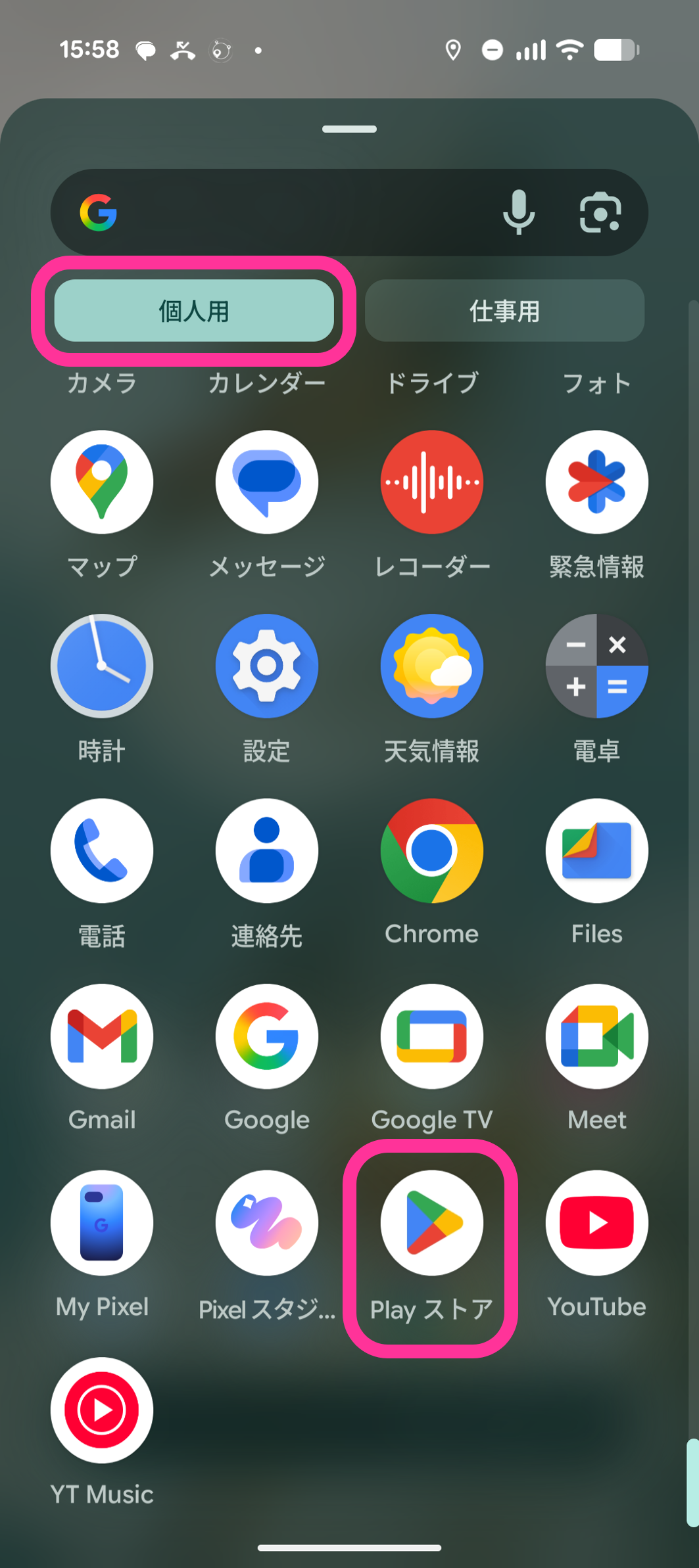
- In the personal profile, tap the "Play Store" app.

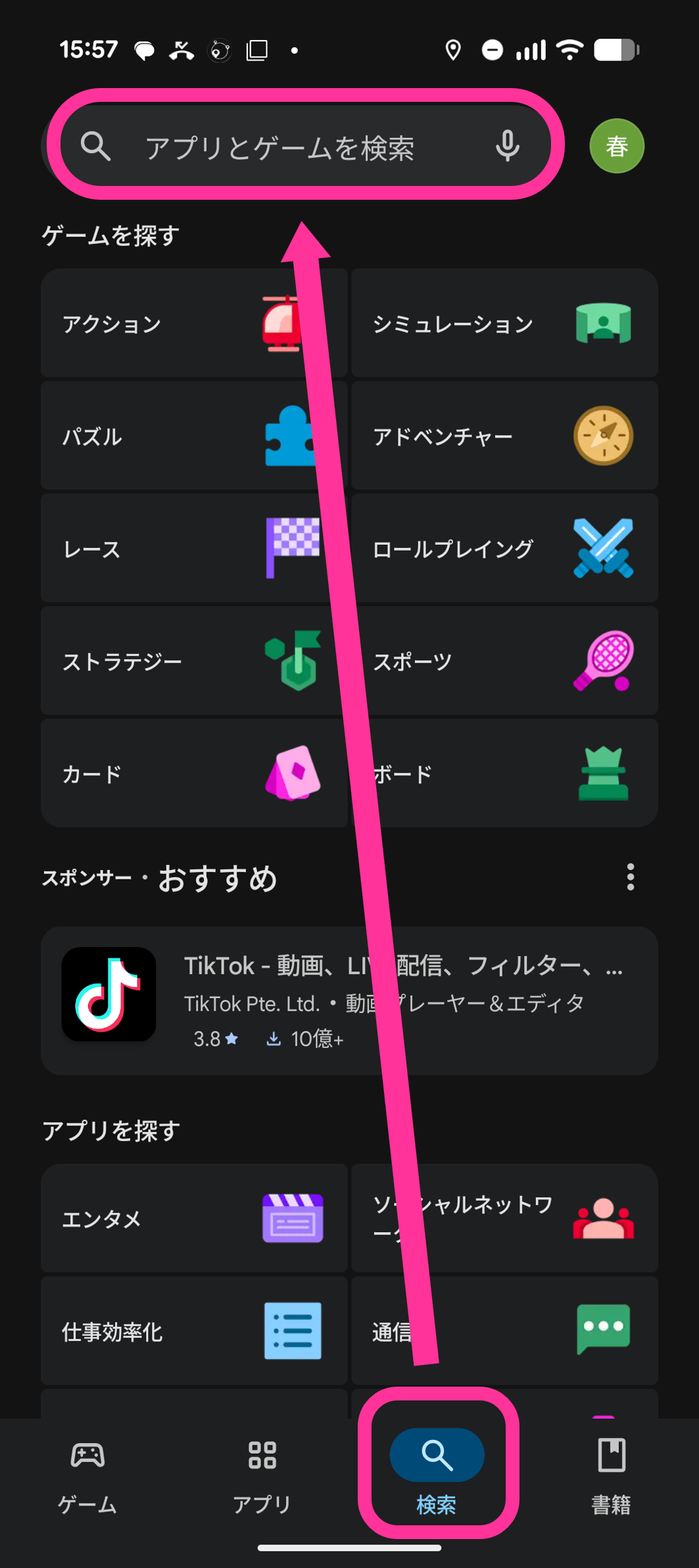
- Tap "Search" and search for "BizGo! CameraLock".
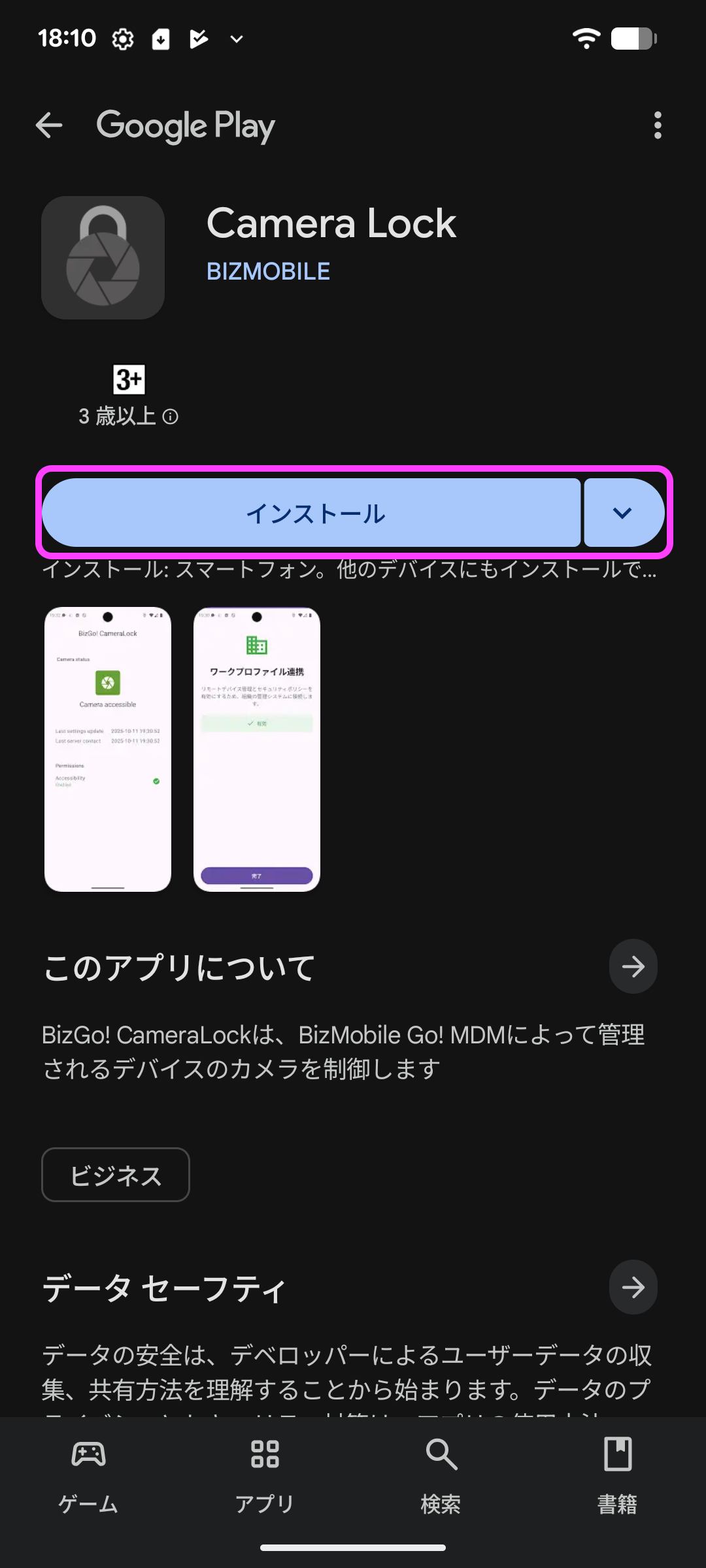
- Tap "Install" for the "BizGo! CameraLock" app that appears.
- When the installation is complete, tap the "BizGo! CameraLock" app.
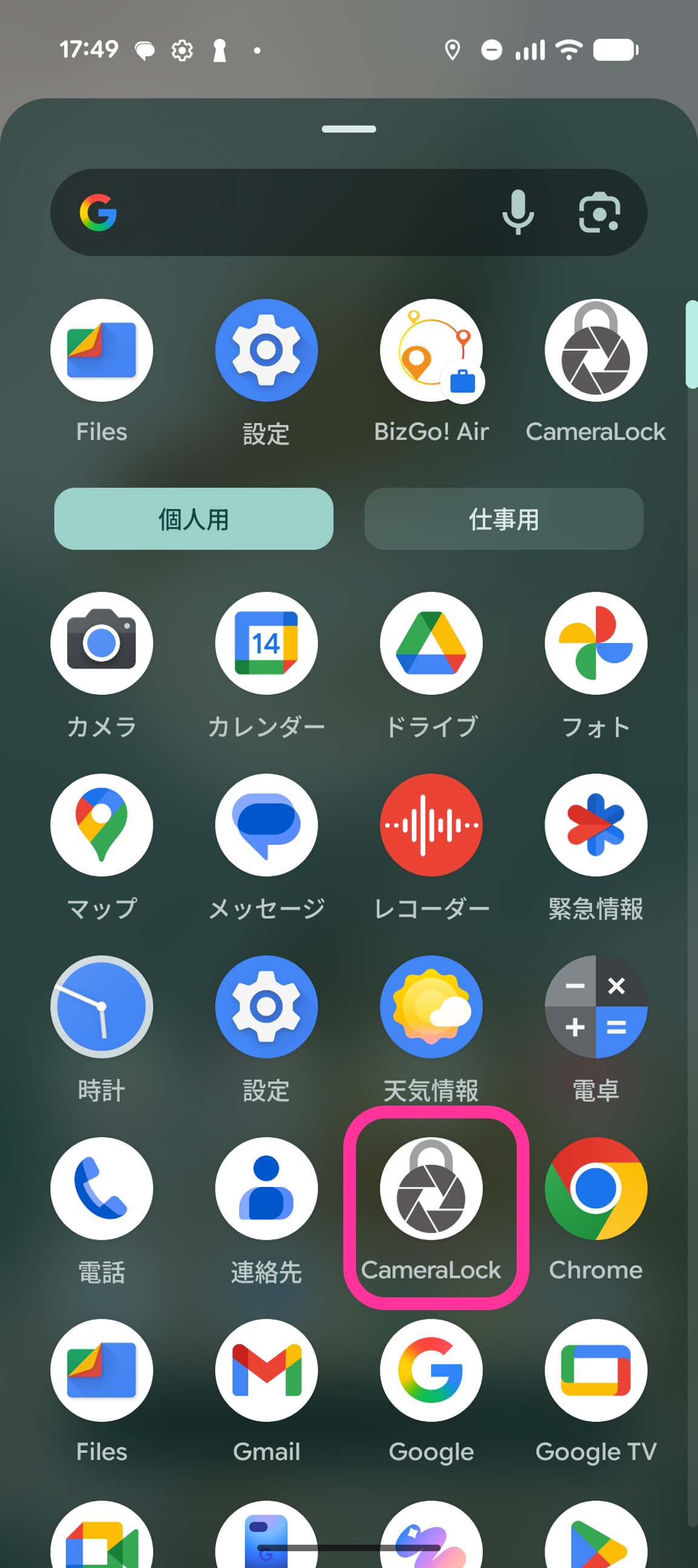
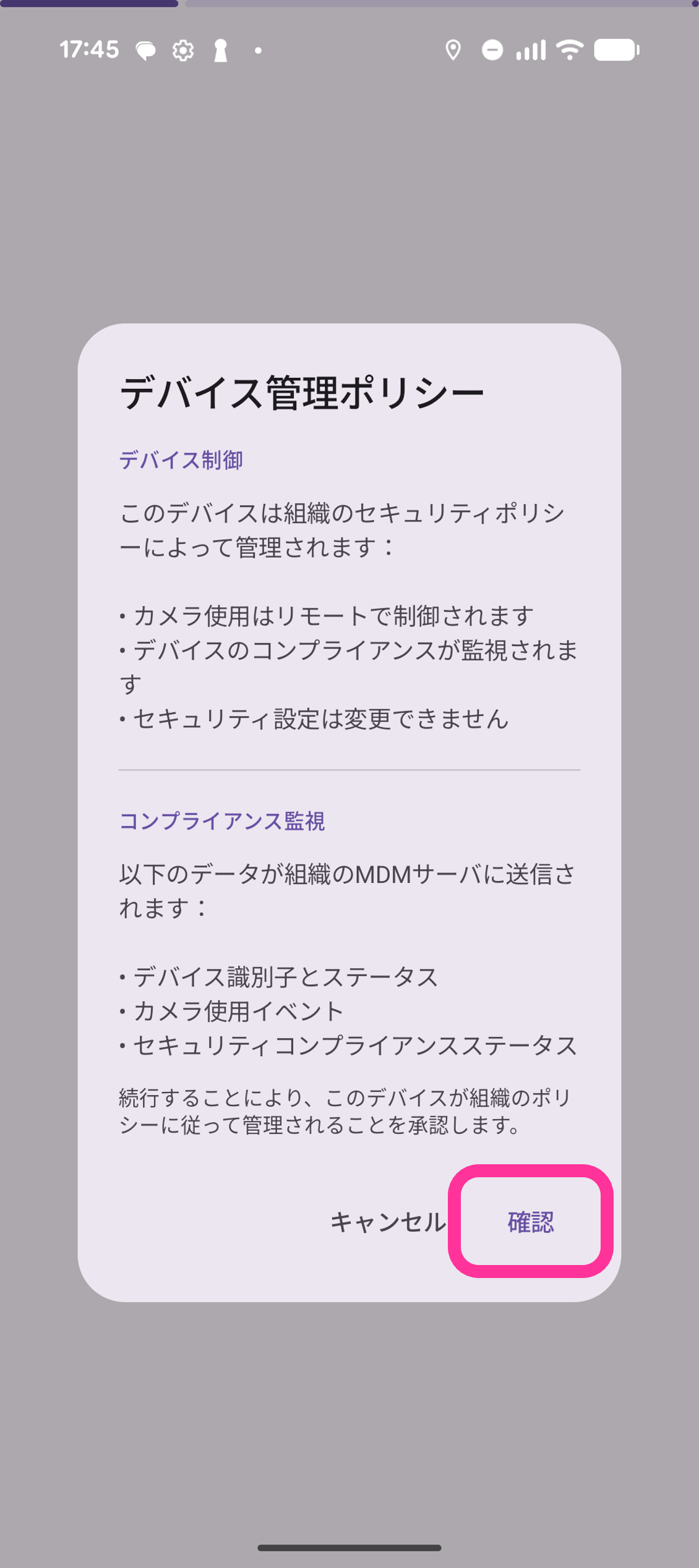
- The "Device management policy" screen appears. Tap "Confirm".
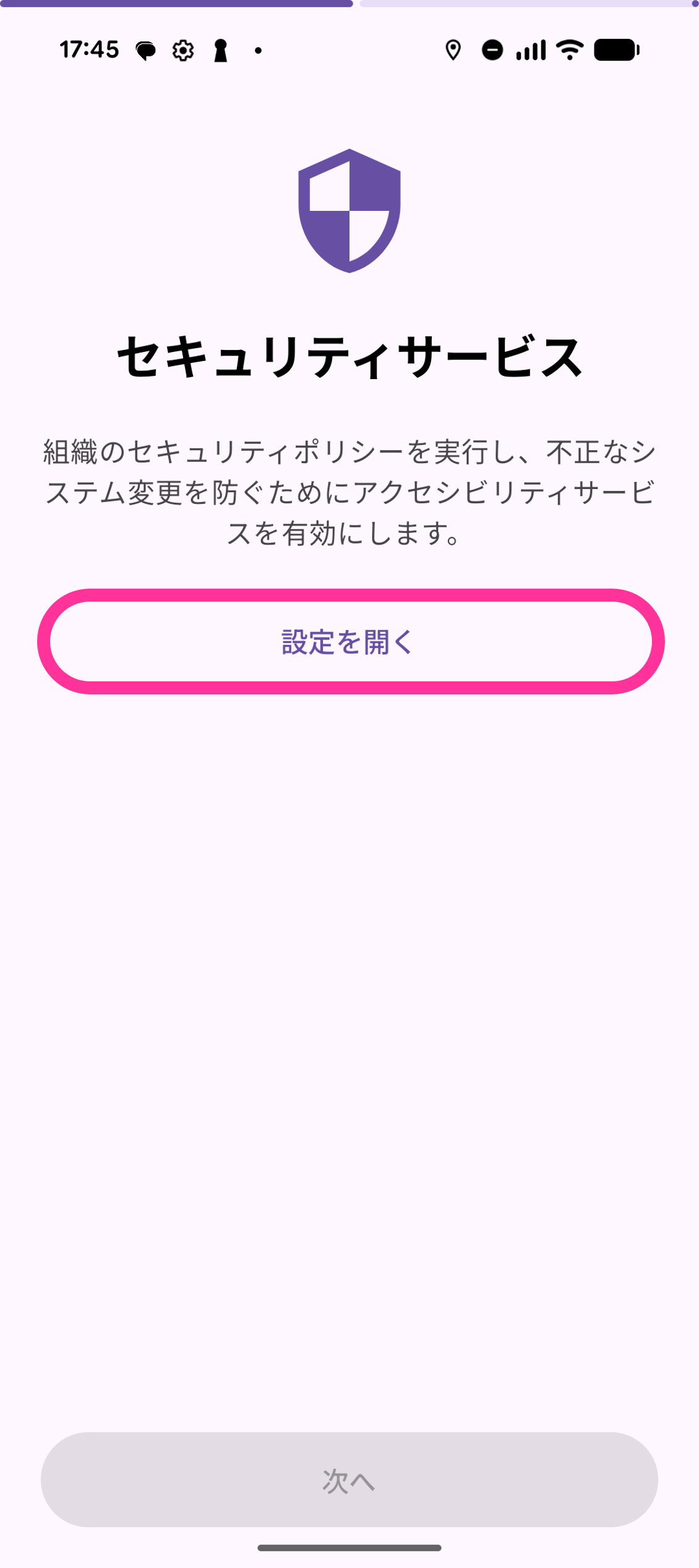
- On the "Security service" screen, tap "Open settings".
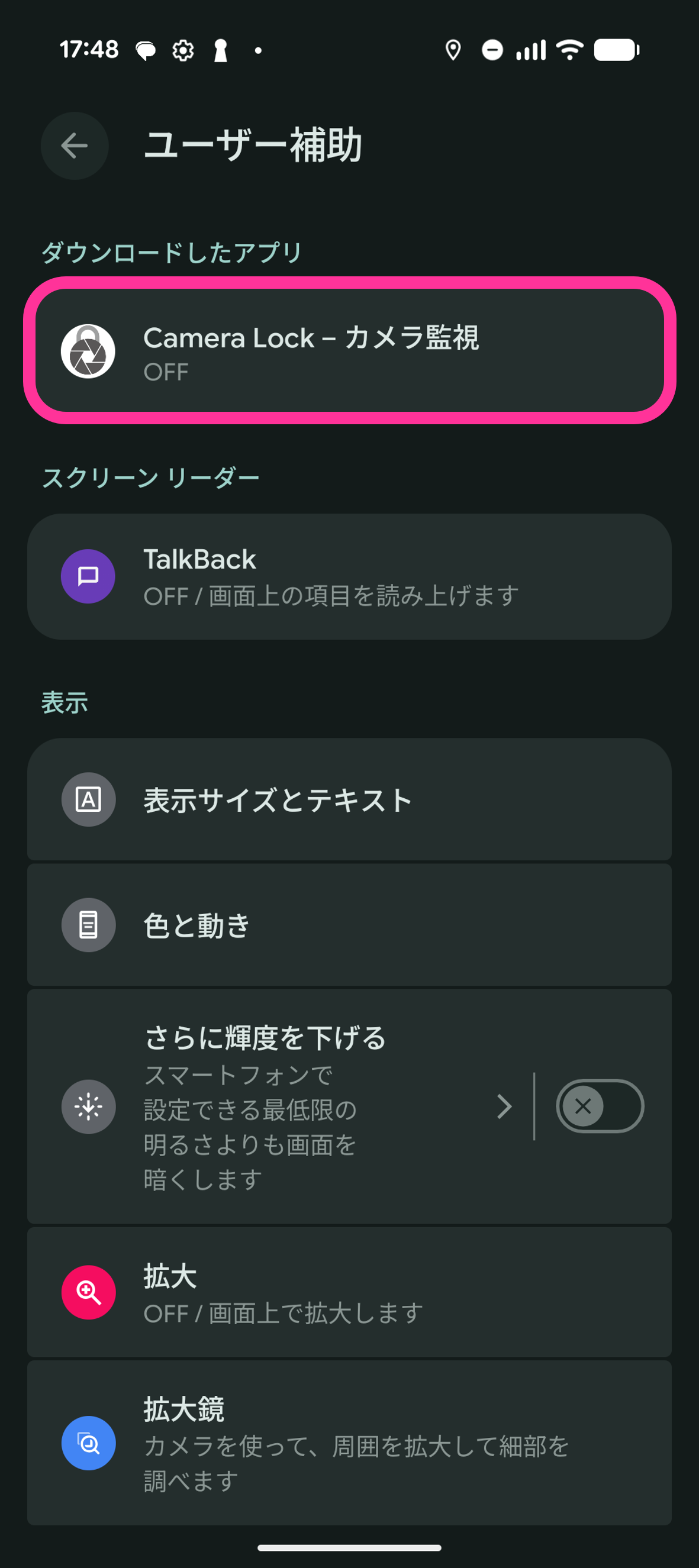
- Tap "Camera Lock - Camera monitoring".
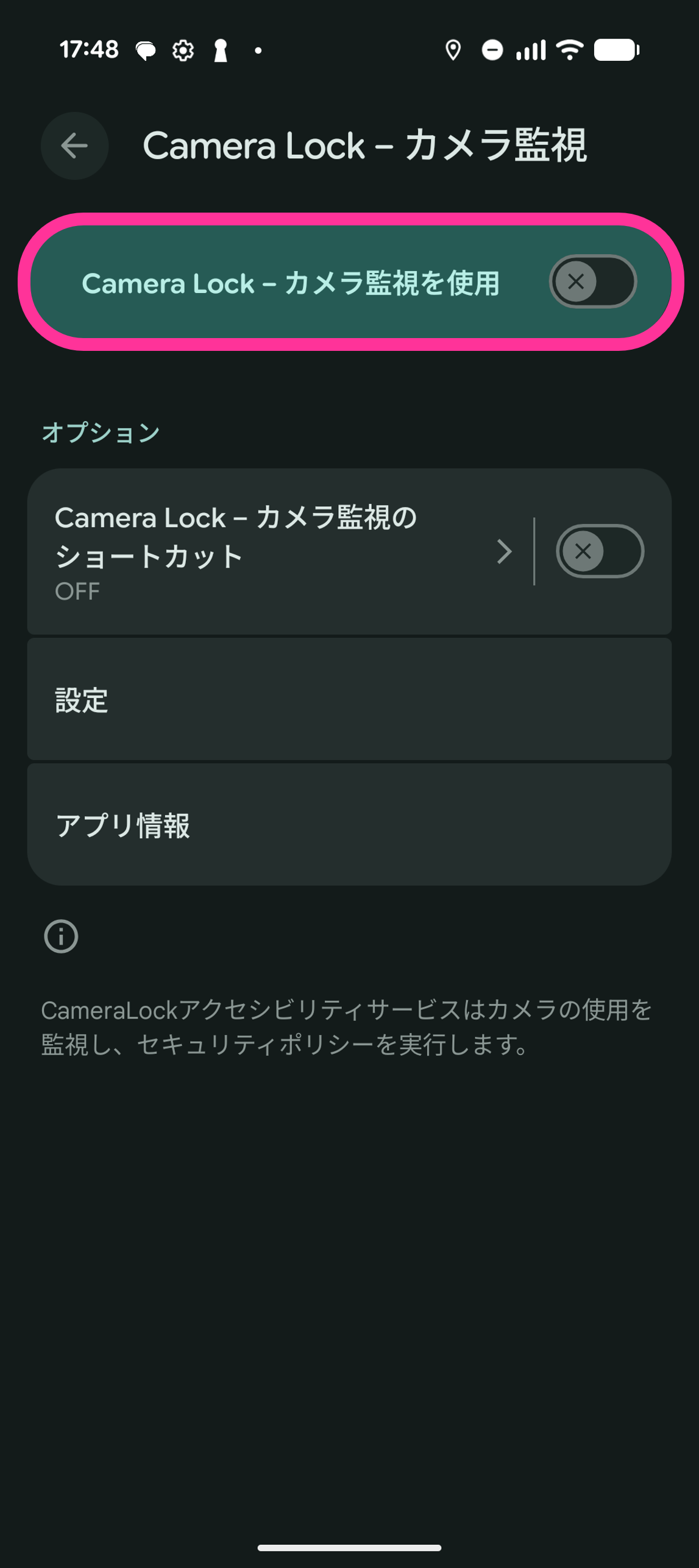
- Turn "Use Camera Lock - Camera monitoring" "ON".
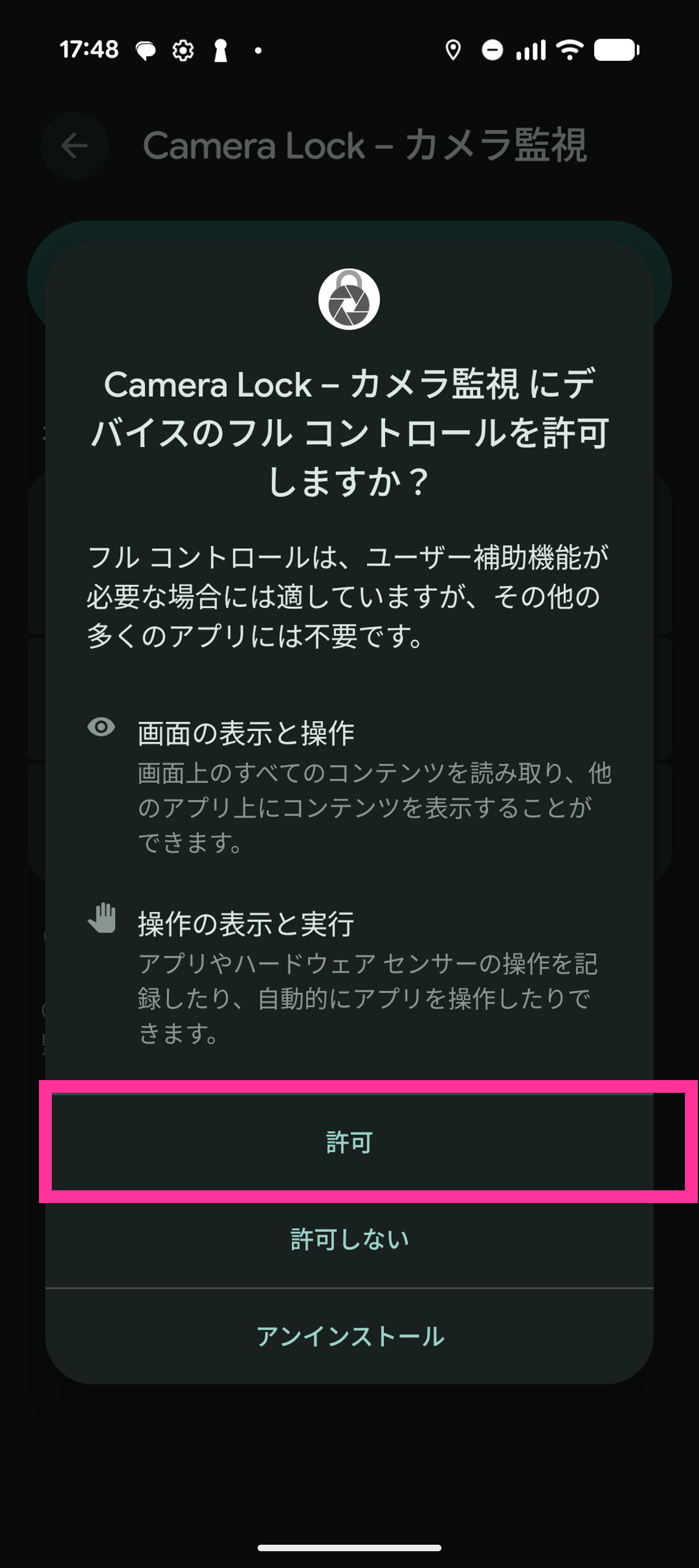
- A pop-up asking you to allow full control appears. Tap "Allow".
- Tap the "BizGo! CameraLock" app.
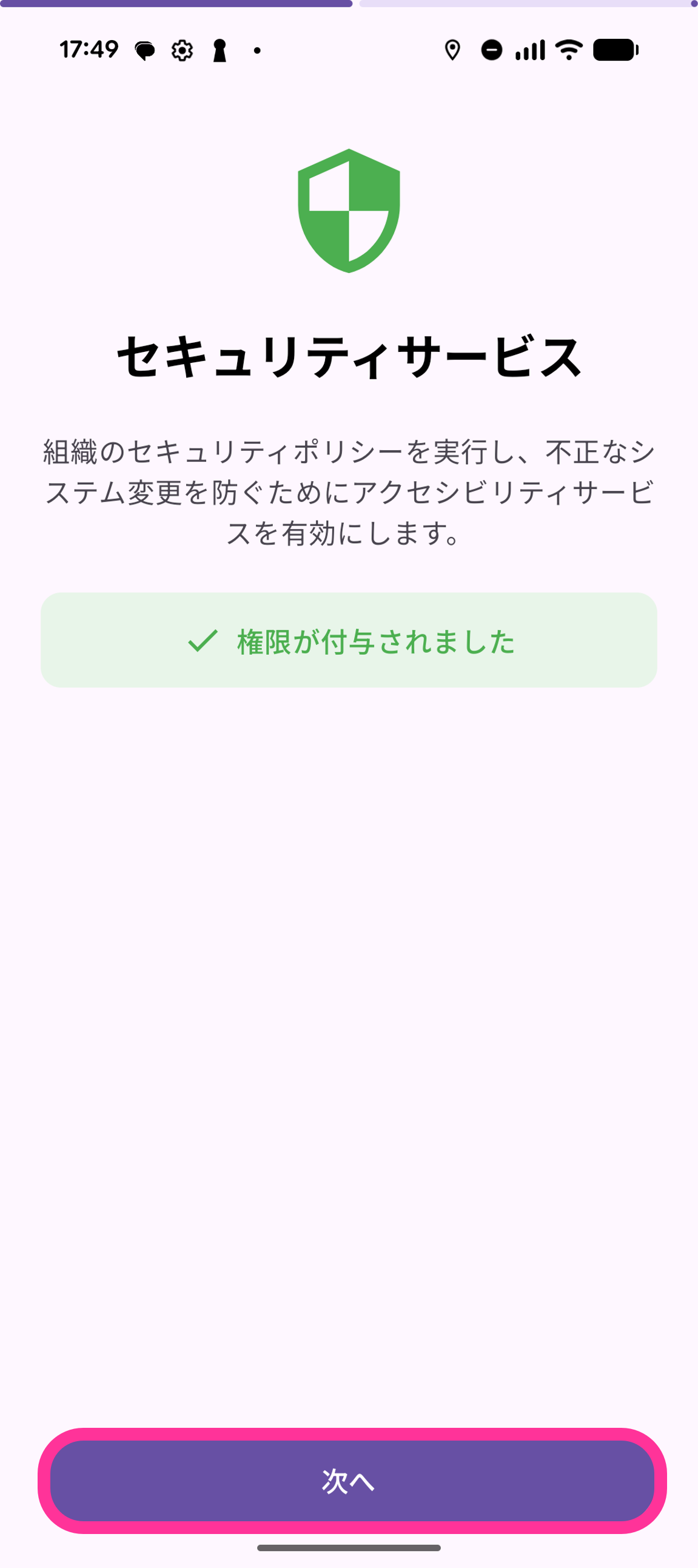
- Tap "Next".
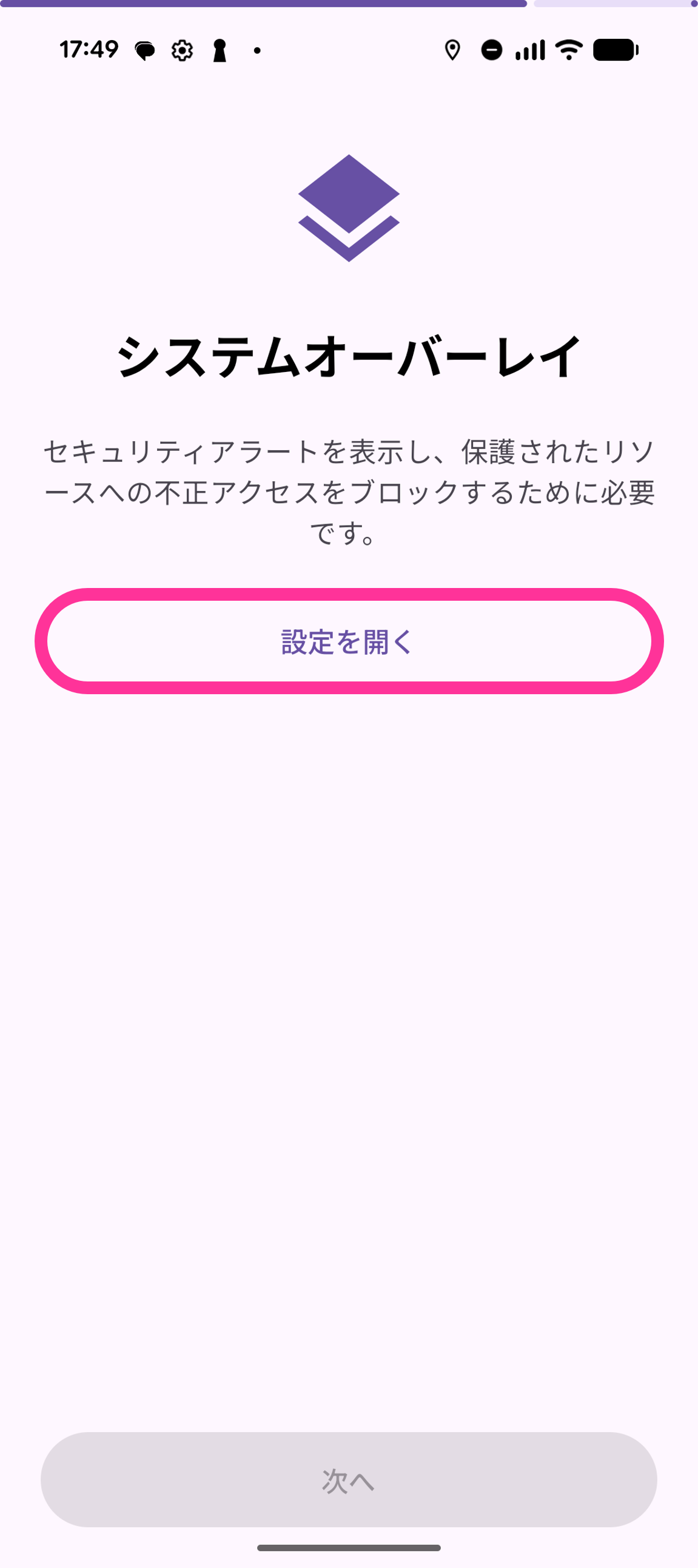
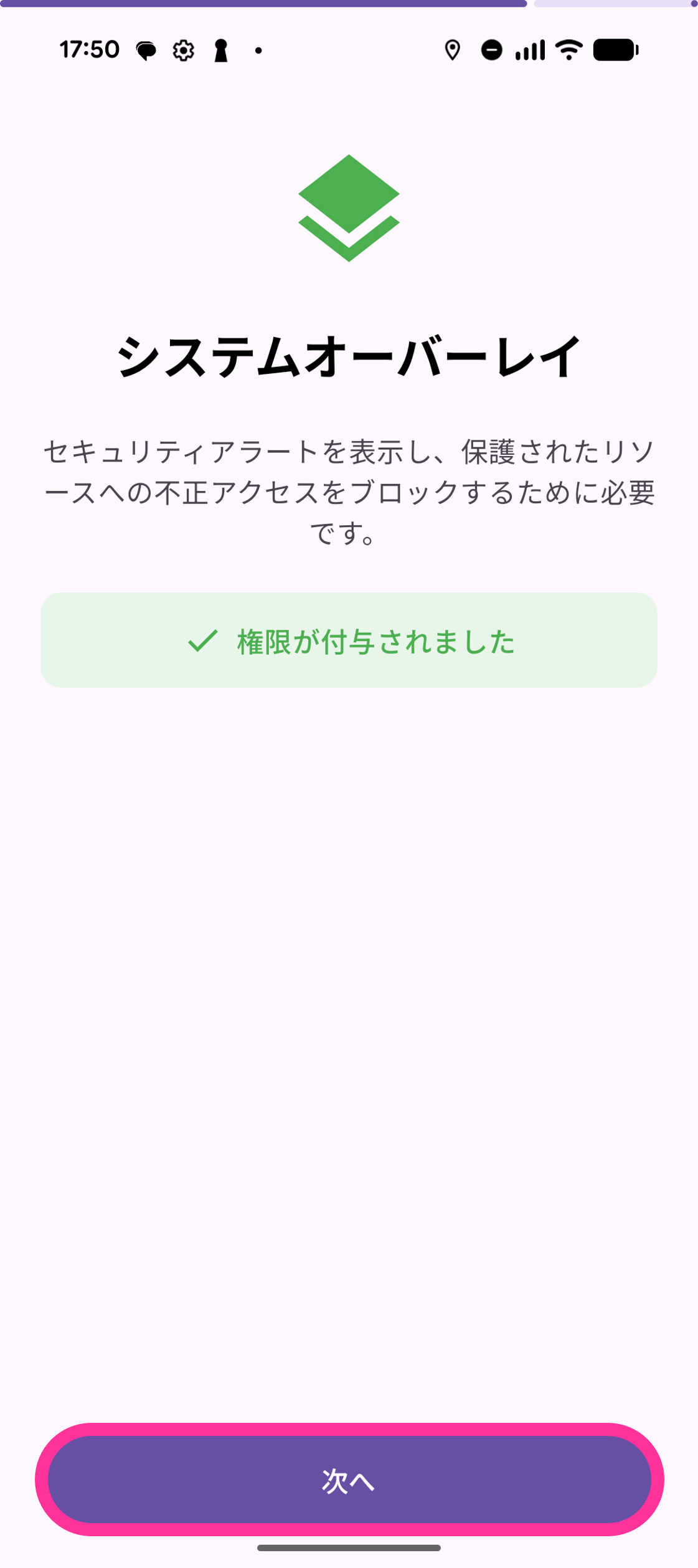
- On the "System overlay" screen, tap "Open settings".
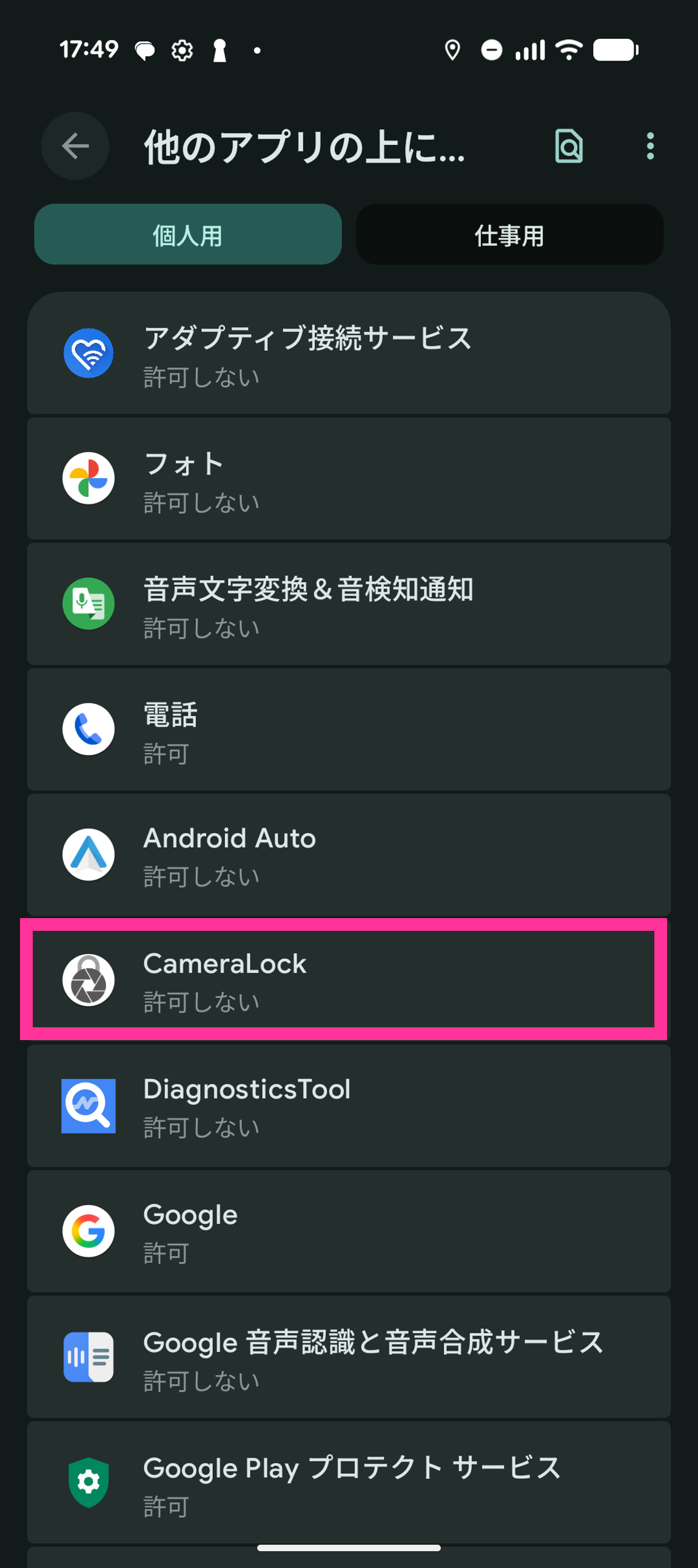
- Tap "CameraLock".
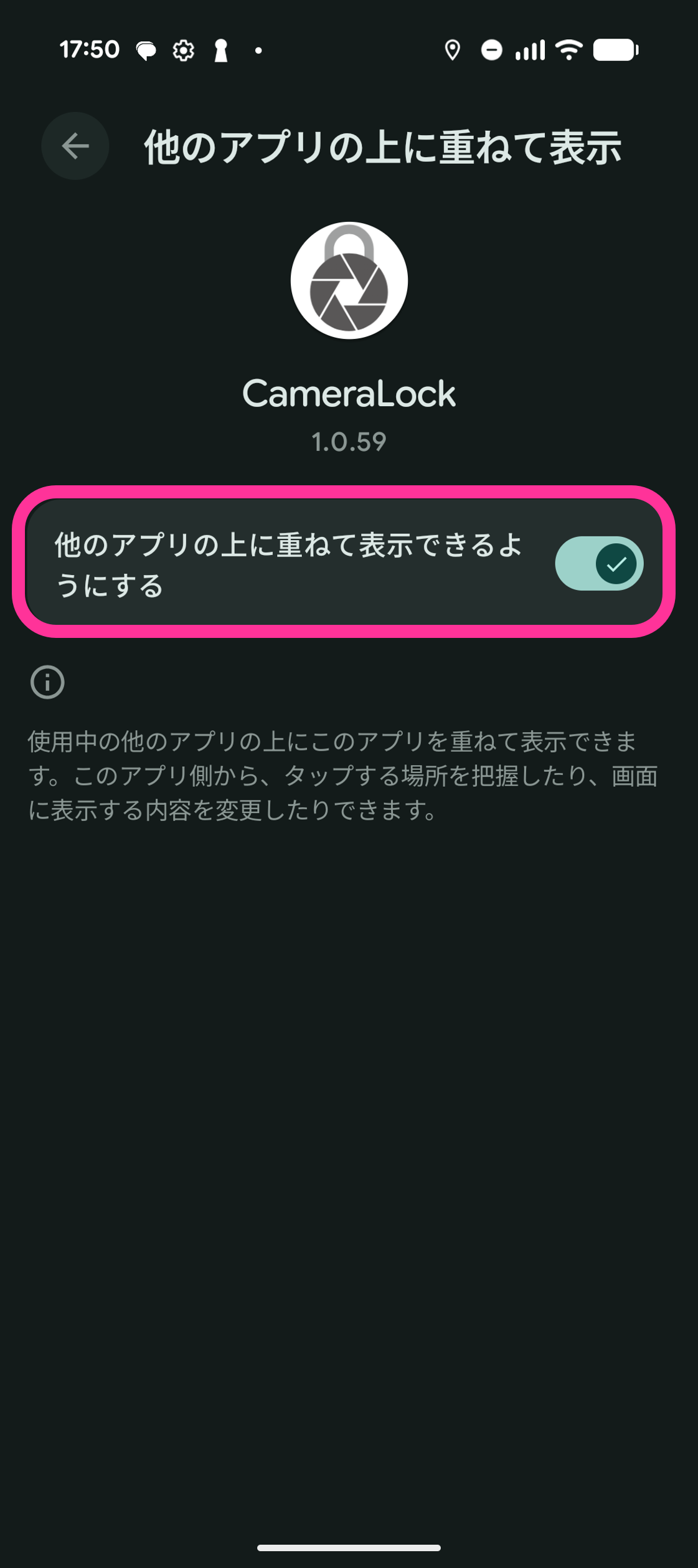
- Turn "Allow display over other apps" "ON".
- Tap the "BizGo! CameraLock" app.
- Tap "Next".
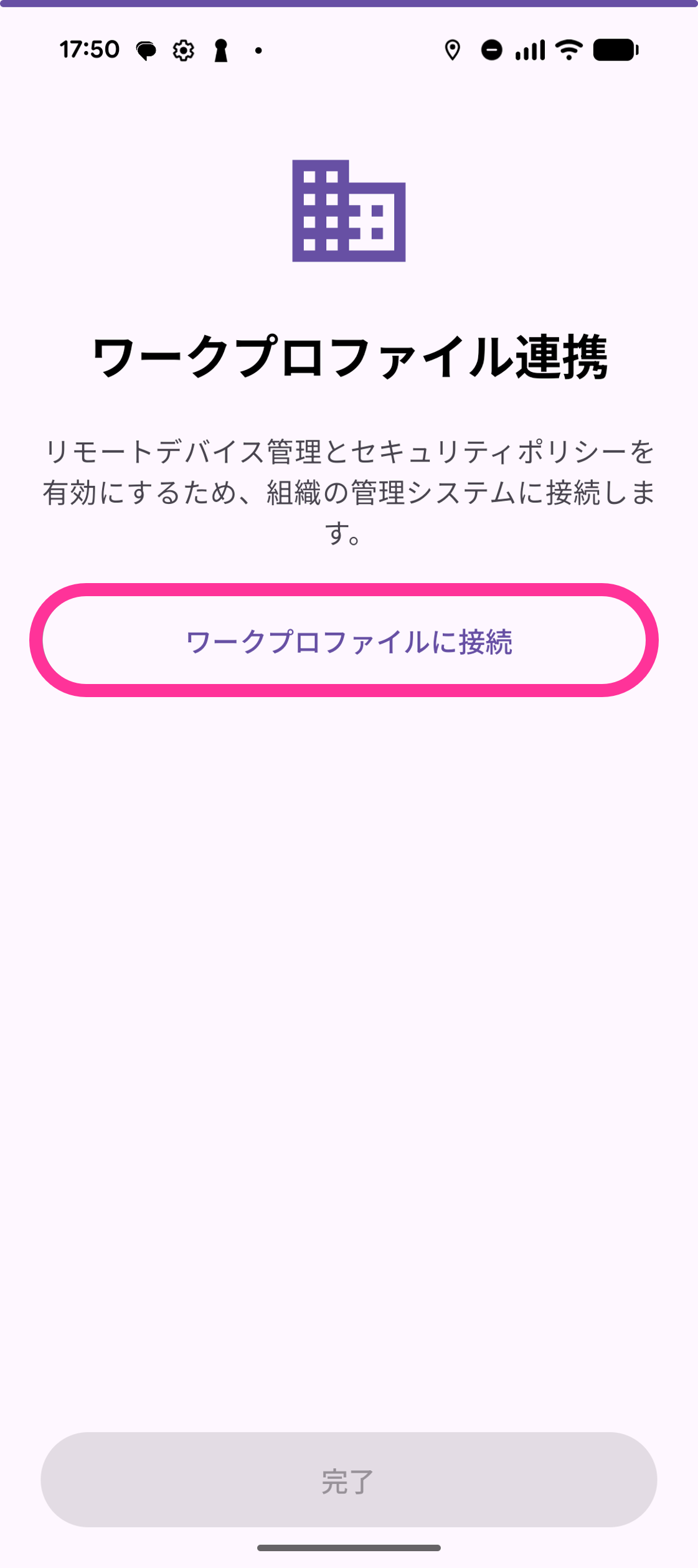
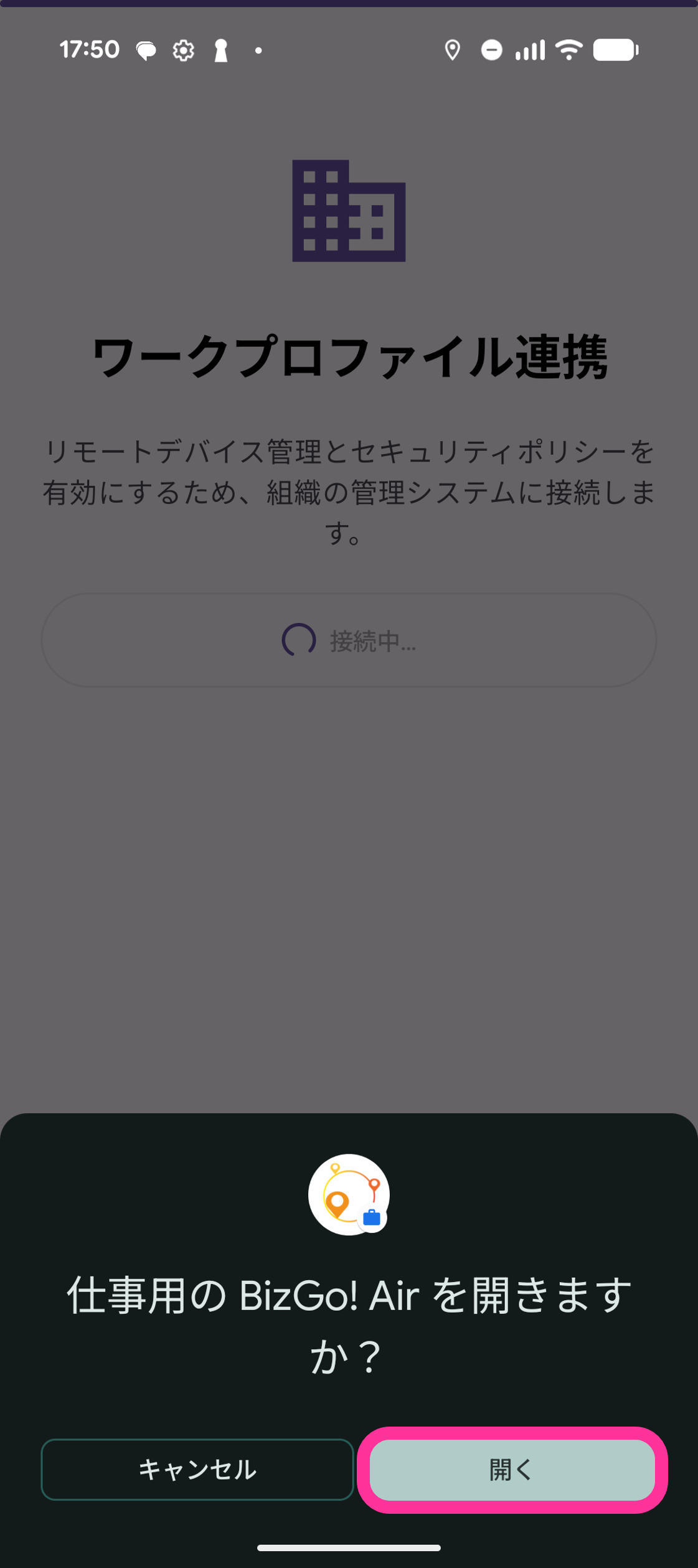
- On the "Work profile integration" screen, tap "Connect to work profile".
- Tap "Open".
- Tap "Done".
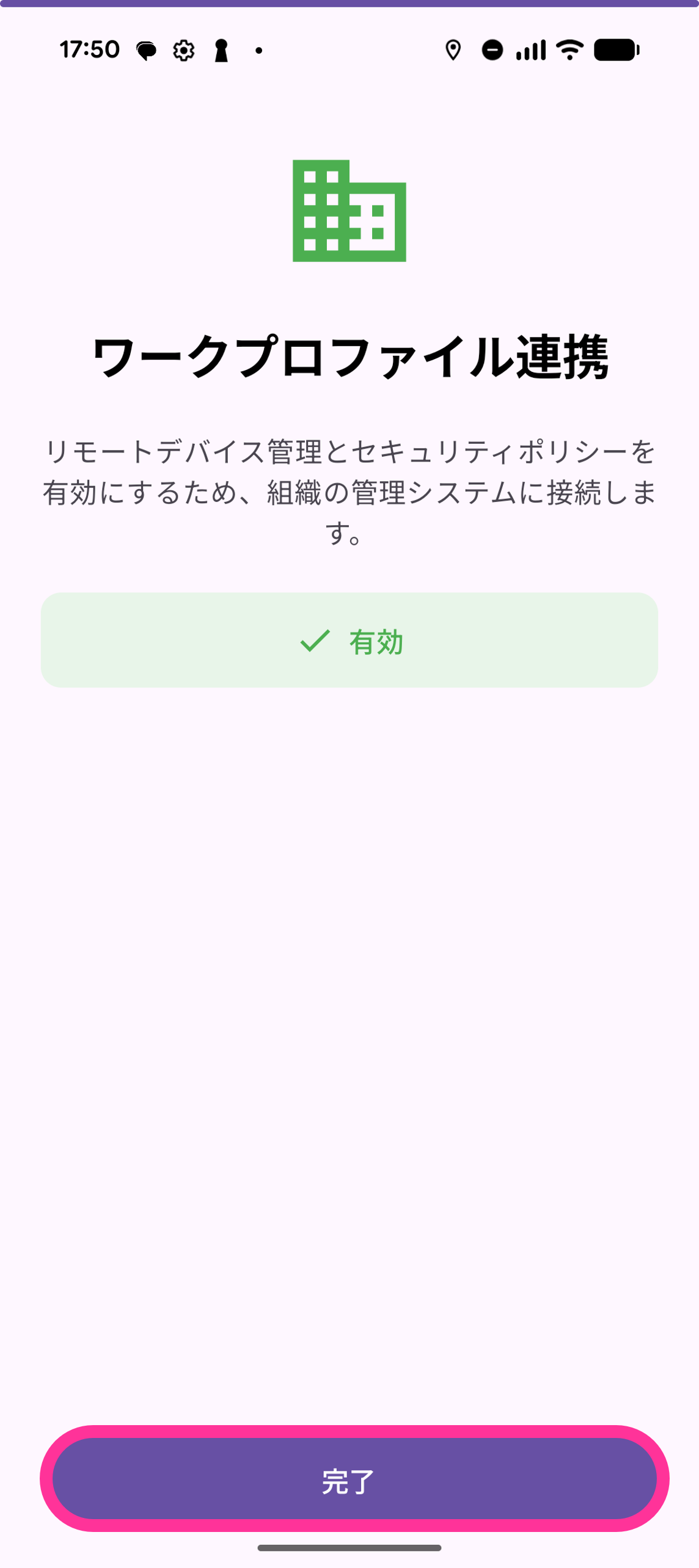
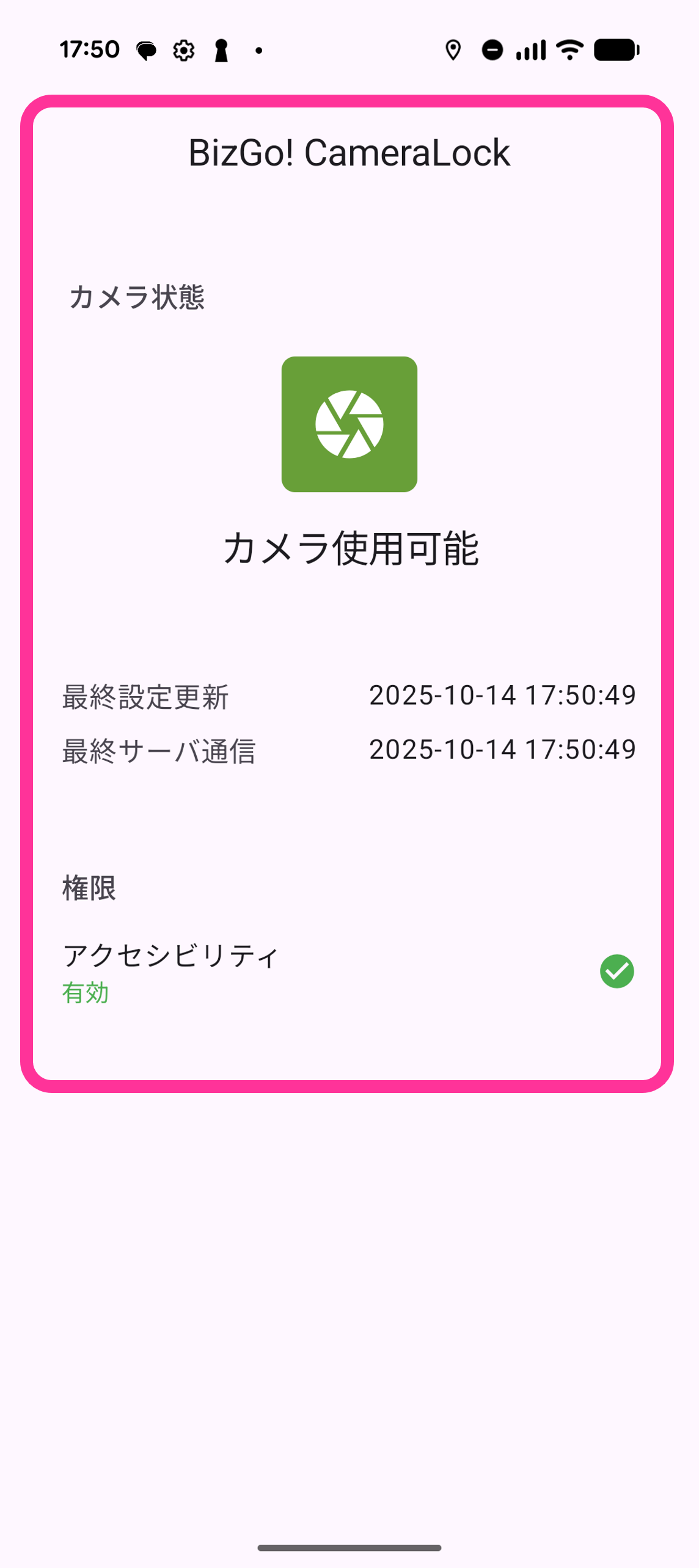
- When the BizGo! CameraLock screen appears, the setup is complete.